<?xml version="1.0" encoding="utf-8"?><feed xmlns="http://www.w3.org/2005/Atom" ><generator uri="https://jekyllrb.com/" version="4.3.3">Jekyll</generator><link href="/feed.xml" rel="self" type="application/atom+xml" /><link href="/" rel="alternate" type="text/html" /><updated>2026-02-18T09:45:39-03:00</updated><id>/feed.xml</id><title type="html">CGomesu</title><subtitle>A blog and portfolio website built with Jekyll and hosted on Github Pages</subtitle><author><name>Carlos Gomes</name></author><entry><title type="html">Forge and XMage: The best free and open source rules engines for ‘Magic: the Gathering’</title><link href="/blog/forge-xmage-mtg/" rel="alternate" type="text/html" title="Forge and XMage: The best free and open source rules engines for ‘Magic: the Gathering’" /><published>2022-07-22T14:50:00-03:00</published><updated>2022-07-22T14:50:00-03:00</updated><id>/blog/forge-xmage-mtg</id><content type="html" xml:base="/blog/forge-xmage-mtg/"><![CDATA[<h1 id="changelog">Changelog</h1>
<p class="notice--success"><strong>Jan 18th, 2025</strong>: Updated forge installer broken URLs.</p>

<p class="notice--info"><strong>Dec 31st, 2023</strong>: Small update to fix typo in Forge’s installation section. Everything else seems to be up-to-date.</p>
<p class="notice--info"><strong>Feb 1st, 2023</strong>: I updated the <a href="#installation-1">XMage installation instructions</a> to match the <em>beta</em> client instructions. This was necessary because the domain <code class="language-plaintext highlighter-rouge">xmage.de</code> has been offline for quite some time now, and the best alternative is to use the <code class="language-plaintext highlighter-rouge">xmage.today</code> domain, which hosts the beta client and a few public servers.</p>
<p class="notice--info"><strong>Sep 21st, 2022</strong>: <a href="https://ko-fi.com/forgedonations">Forge is now accepting donations</a> via Ko-fi, so I updated the <a href="#contributing">Contributing</a> section accordingly.</p>
<p class="notice--info"><strong>July 25th, 2022</strong>: I made a few updates to the article in light of new information I learned and to fix a few typos here and there. More specifically, there is a new section called <a href="#adventure-mode">Adventure mode</a> that describes how to run Forge in <strong>adventure mode</strong>, which is a single-player RPG mode that resembles Shandalar. Thanks to user <code class="language-plaintext highlighter-rouge">tehdiplomat</code> for making me aware of it.  I also added a note about intellectual property to the introduction, following conversations I had with other users in a Reddit thread and private messages. Lastly, one of the core devs of the Forge MtG RE reached out to elaborate on the early development history of the RE, which I included in the introduction of the <a href="#forge">Forge</a> section.</p>

<p class="notice--info"><strong>July 22nd, 2022</strong>: Publication of the original article</p>

<h1 id="introduction">Introduction</h1>
<p>I have been playing <a href="https://magic.wizards.com">Magic: the Gathering</a> (MtG) for as long as the game exists. If you have never heard about it before, MtG is a trading card game (TCG) created by <a href="https://en.wikipedia.org/wiki/Richard_Garfield">Richard Garfield</a> and released in 1993 by <a href="https://en.wikipedia.org/wiki/Wizards_of_the_Coast">Wizards of the Coast</a> (WotC). It is arguably the most successful TCG ever made and even though it was originally popularized as a paper format TCG, it has long been ported to digital formats. The main MtG client developed by WotC is called <a href="https://magic.wizards.com/en/mtgo">MTG Online</a> (MTGO) and it requires users to buy digital versions of paper Magic cards to trade and play with other users on private servers. The development of such client has gone through many changes over the years but most of the details are unknown to the public because MTGO is not open source and a large portion of its functionality happens in the cloud. On top of that, MTGO only runs on Windows, leaving many of us nix users (e.g., GNU/Linux, macOS) without official support.</p>

<p><a href="/assets/posts/2022-07-18-forge-xmage-mtg/card-fow.jpg"><img src="/assets/posts/2022-07-18-forge-xmage-mtg/card-fow.jpg" alt="Card - FoW" class="PostImage" /></a></p>

<p>Fortunately, there are <strong>free and open source software</strong> (FOSS) alternatives to MTGO that <strong>do not</strong> require users to buy digital objects (cards) to play MtG. In this article, I talked about two of the main MtG rules engines (RE) currently available for offline and online play: <strong>Forge</strong> and <strong>XMage</strong>. More specifically, the article covers the main features of the Forge and XMage REs, how to install and use each one of them, and how you can contribute to maintain their development because these two projects are essentially community-driven. This is possible because just like no company can claim ownership over the game of <a href="https://en.wikipedia.org/wiki/Poker">poker</a>, WotC cannot claim ownership over the rules that constitute a game of MtG*.</p>

<p class="notice--warning">*To be fair, since the original publication of this article, I was made aware that the aspects concerning intellectual property related to MtG are more controversial and complex than in the comparison with poker. For anyone interested, <a href="https://old.reddit.com/r/magicTCG/comments/w628xt/forge_and_xmage_the_best_free_and_open_source/ihfnuns/?context=10000">there is a Reddit thread</a> in which I shared my opinion on this matter and other users explained a few of the legal challenges. In addition, other people reached via private messages to let me know that in 2000, WotC created the <a href="https://en.wikipedia.org/wiki/Open_Game_License">Open Game License</a> to allow easier dissemination of the game and to allow third-party parties to profit from the reproduction of certain aspects of the game. Clearly, the issue of intellectual property has multiple layers when it comes to MtG and it would be beyond the scope of this article (and honestly, my expertise) to cover it here.</p>

<p>If you are interested in using and learning more about Forge and XMage, then keep on reading. As it is customary with my articles, I try to keep them up-to-date to reflect my current knowledge about the content, so if this is not your first time here, make sure to check the <a href="#changelog">Changelog</a> for updates. Also, if you spot an error or disagree with something that I wrote or want to improve this article, feel free <a href="/contact">to get in touch with me</a>.</p>

<p><a href="#" class="btn btn--light-outline btn--small">top</a></p>

<h1 id="overview">Overview</h1>
<p>This article is divided into four main sections. The first is an optional and brief introduction to the game of MtG, called <a href="#the-basics-of-mtg">the basics of MtG</a>. This section is recommended only for those who are not familiar with the basic rules of MtG and want to get a taste of what the game is all about.</p>

<p>The next two main sections are part of the <a href="#mtg-rules-engines">MtG rules engines</a>, in which I described the <a href="#forge">Forge</a> and the <a href="#xmage">XMage</a> MtG REs in detail. More specifically, each of those two sections cover the development, features, and installation process of each RE. If you are only interested in learning how to install and use them, then simply jump straight to their respective section.</p>

<p>The last main section, called <a href="#contributing">Contributing</a>, covers aspects about how you can help each project. I found this necessary because both Forge and XMage are quintessential community-driven projects and on top of that, they are very good examples of FOSS applied to gaming.  Reporting issues, writing card scripts, and setting up a (versioned) project directory are examples of the content covered in the last section.</p>

<p><a href="#" class="btn btn--light-outline btn--small">top</a></p>

<h1 id="the-basics-of-mtg">The basics of MtG</h1>
<p class="notice--success">This section is optional for anyone who is already familiar with MtG. Feel free to <a href="#mtg-rules-engines">skip to the next section</a> if this is the case.</p>

<p>If you have never played MtG before and you are curious about it, then take a look at the following video to learn the basics before moving onto the next sections.</p>

<!-- Courtesy of embedresponsively.com //-->
<div class="responsive-video-container">

  <iframe src="https://www.youtube-nocookie.com/embed/RZyXU1L3JXk" frameborder="0" allowfullscreen=""></iframe>

</div>

<h1 id="mtg-rules-engines">MtG rules engines</h1>
<p>The starting point of any game is a set of rules that tell us how the game is played. In most card games (e.g., <a href="https://en.wikipedia.org/wiki/Monte_Bank">monte bank</a>), this amounts to just a few basic rules that we can count on our fingers. In MtG, however, there are <strong>over 250 pages of rules</strong>, which are described in detail in the <a href="https://magic.wizards.com/en/rules">MtG Comprehensive Rules book</a>. As a player, you are not supposed to go over all such rules in order to play the game. In fact, most of us just learn the basics first (e.g., the concepts of mana, casting, phases, card zones, and win conditions), leaving the specifics to be learned as we play the game. Nonetheless, the sheer amount of specific rules in MtG does indicate that MtG is a complex game, and therefore, its digital implementation is non-trivial. This alone speaks volumes about the individuals who have taken for themselves the task of implementing the game, especially those who have done so without the support of a business, and the development of both Forge and XMage falls very much into such category.</p>

<p>Forge and XMage have in common the fact that they are both written in <a href="https://en.wikipedia.org/wiki/Java_(programming_language)"><strong>Java</strong></a>–a mature and object oriented language–which makes them easily portable. In fact, contrary to MTGO, they run on pretty much any operating system. In addition, neither Forge nor XMage tries to simply emulate MTGO features; they actually introduce many <strong>new features</strong>. A major and common one is that both Forge and XMage allow users <strong>to play against the computer (AI)</strong>. In addition, because both applications are free to use, it is not necessary to make any financial investment to play MtG, whereas buying MTGO cards can sometimes feel more like buying stocks than playing a card game.</p>

<p class="notice--warning">After that last point, I feel I should note that MTGO outshines any other MtG RE <strong>by a huge margin</strong> when it comes to <strong>online play</strong>. The community around it and the events are definitely unique and in my opinion, the strongest features of MTGO and I dare say, worth your money if you are into MtG.</p>

<p>However, even though Forge and XMage are both MtG REs, they are not mutually exclusive implementations of the game. Forge, on the one hand, has very unique play modes for single player, such as <strong>Quests</strong>, which are reminiscent of the old <a href="https://www.pcgamer.com/the-first-digital-deckbuilder-was-a-magic-the-gathering-game-from-1997-and-it-ruled/">Shandalar</a> MtG role playing game (RPG) by MicroPose. XMage, on the other hand, has a very reliable implementation of <strong>online play</strong>, which is quite unreliable in Forge. In other words, each RE has its strengths and weaknesses, which I summarized in the following table:</p>

<table>
  <thead>
    <tr>
      <th style="text-align: center">Engine</th>
      <th style="text-align: center">Strengths</th>
      <th style="text-align: center">Weaknesses</th>
    </tr>
  </thead>
  <tbody>
    <tr>
      <td style="text-align: center">Forge</td>
      <td style="text-align: center">Various single player modes for <strong>offline play</strong> against the computer. Beautiful and customizable graphical interface. Runs on mobile (Android) as well as desktop. Supports card scripting. Supports almost every single card in MtG.</td>
      <td style="text-align: center">The AI will occasionally make very dumb plays–it’s said that the AI works best with aggro strategies, as opposed to combos. Even though networking features exist for online play, it is quite unreliable.</td>
    </tr>
    <tr>
      <td style="text-align: center">XMage</td>
      <td style="text-align: center">Large community and one of the most mature (unofficial) MtG REs available. Solid implementation of multiplayer, human vs. human, and <strong>online play</strong>.</td>
      <td style="text-align: center">Installation and usage can be challenging for non-tech users. It does not support as many cards as Forge but you’ll only notice it if you play with unusual cards that were never reprinted since Eventide.</td>
    </tr>
  </tbody>
</table>

<p class="notice--info">For more comparisons, refer to the <a href="https://www.slightlymagic.net/wiki/List_of_MTG_Engines">Slightly Magic wiki list of MtG REs</a>.</p>

<p>In brief, my opinion is that if you are looking for a single player experience, then try Forge. Now, if you want to play with friends online, then try XMage. Are you unsure? Try both! I think they are both great examples of FOSS applied to gaming and they complement each other in many aspects.  In any case, check the following sections for specifics about each of those MtG REs.</p>

<h2 id="forge">Forge</h2>
<p>Forge started development in 2007 by a single individual (<a href="https://mtgrares.blogspot.com/">mtgrares</a>) and was initially pushed to Google code (<code class="language-plaintext highlighter-rouge">svn</code> versioned) around 2008.  In 2011, <code class="language-plaintext highlighter-rouge">jendave</code> split the project into the first pass of the contemporary modules and soon afterwards, the project’s development briefly moved to Bitbucket (<code class="language-plaintext highlighter-rouge">git</code>)–which is where some of the earliest <code class="language-plaintext highlighter-rouge">git</code> commits come from in the project’s commit history–but the move did not prove successful and the project moved back to <code class="language-plaintext highlighter-rouge">svn</code> but now on <a href="https://www.slightlymagic.net/forum/">Slightly Magic</a>, where it remained for several years.  Finally, in 2018, the project moved once again to <code class="language-plaintext highlighter-rouge">git</code> on a hosted Gitlab service and currently, the official repository is hosted on Github (<a href="https://github.com/Card-Forge/forge">Card-Forge/forge</a>).  The project has grown a lot over the years and is currently maintained by a large number of <a href="https://github.com/Card-Forge/forge/graphs/contributors">contributors and a group of core developers</a>. Of note, Forge has both a <strong>desktop release</strong>, which is the main focus of this guide, and a mobile (Android) release, which is only briefly mentioned in the <a href="#android-apk">Android APK</a> section.</p>

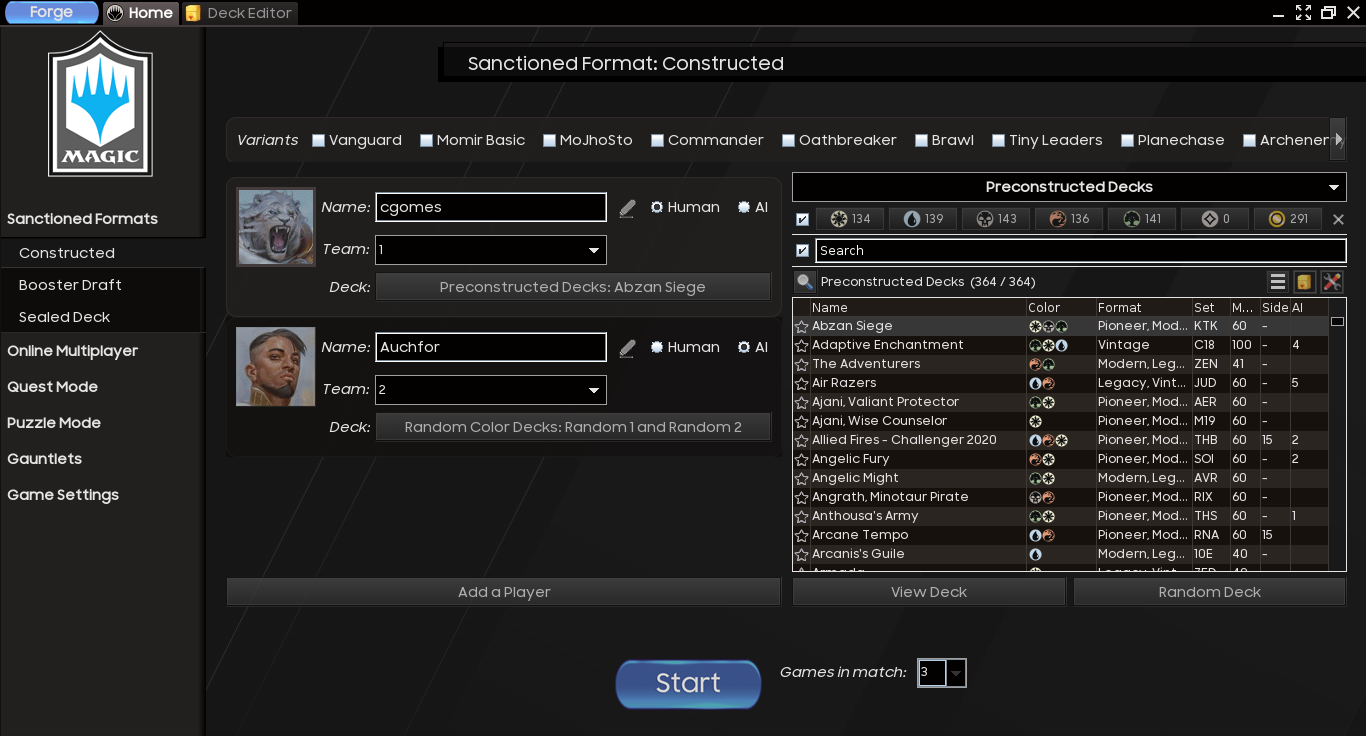
<p><a href="/assets/posts/2022-07-18-forge-xmage-mtg/forge-gui-01.png"><img src="/assets/posts/2022-07-18-forge-xmage-mtg/forge-gui-01.png" alt="Forge - GUI" class="PostImage PostImage--large" /></a></p>

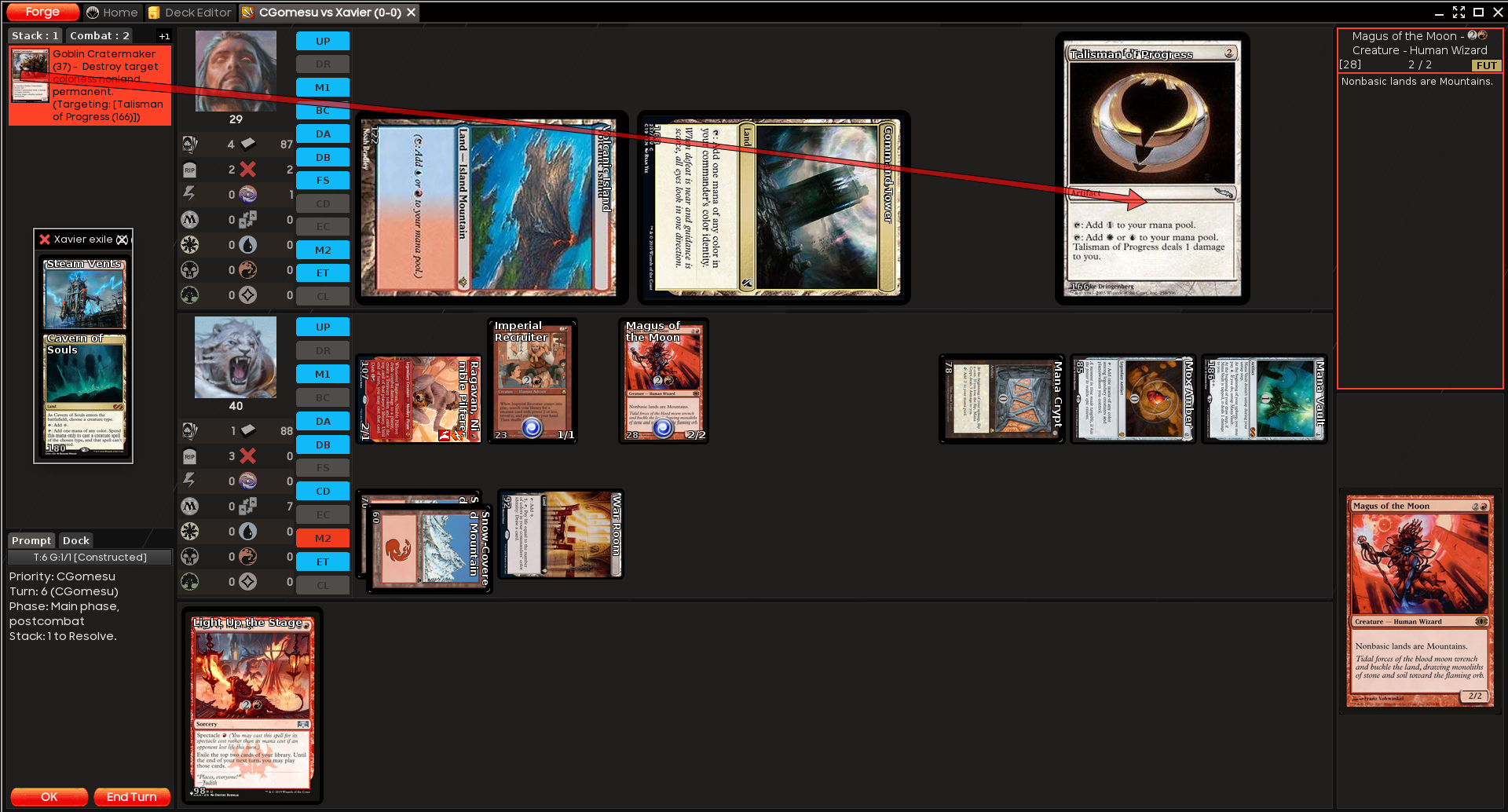
<p><a href="/assets/posts/2022-07-18-forge-xmage-mtg/forge-gui-gameplay-01.png"><img src="/assets/posts/2022-07-18-forge-xmage-mtg/forge-gui-gameplay-01.png" alt="Forge - GUI - Gameplay" class="PostImage PostImage--large" /></a></p>

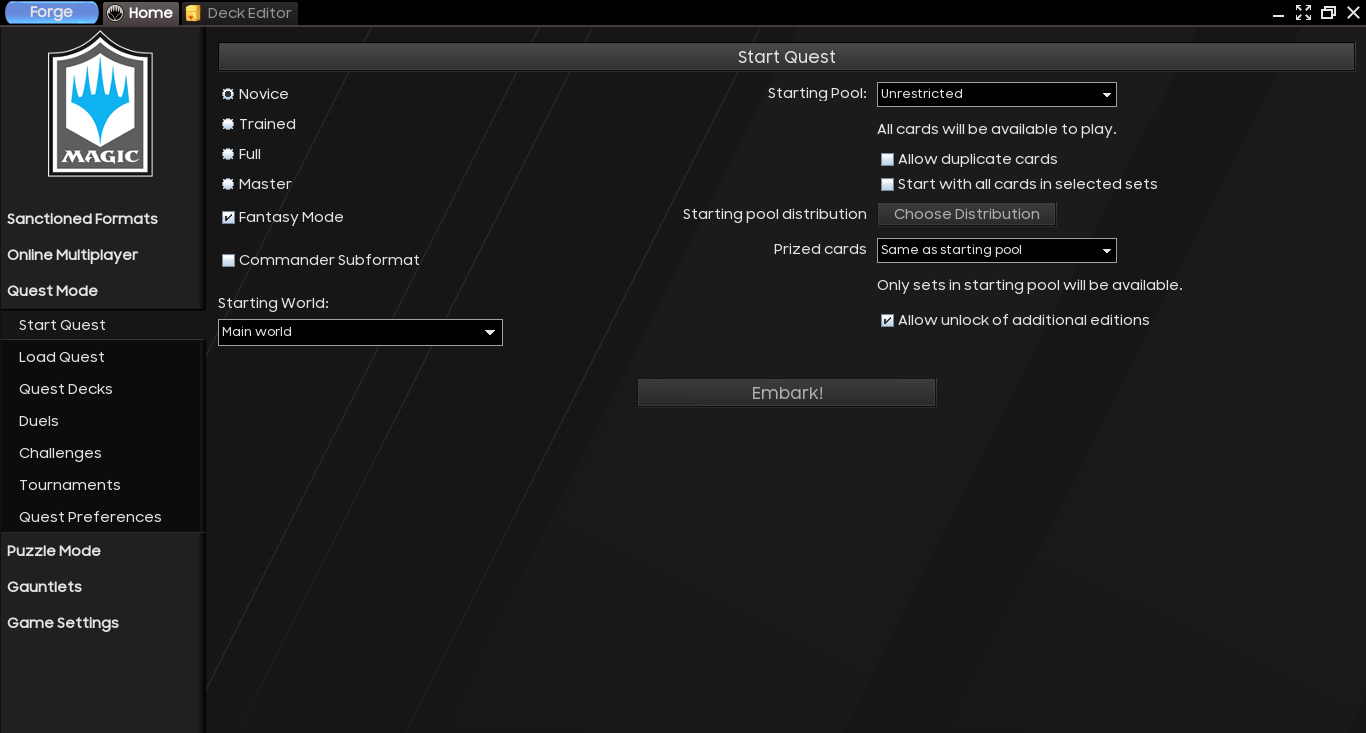
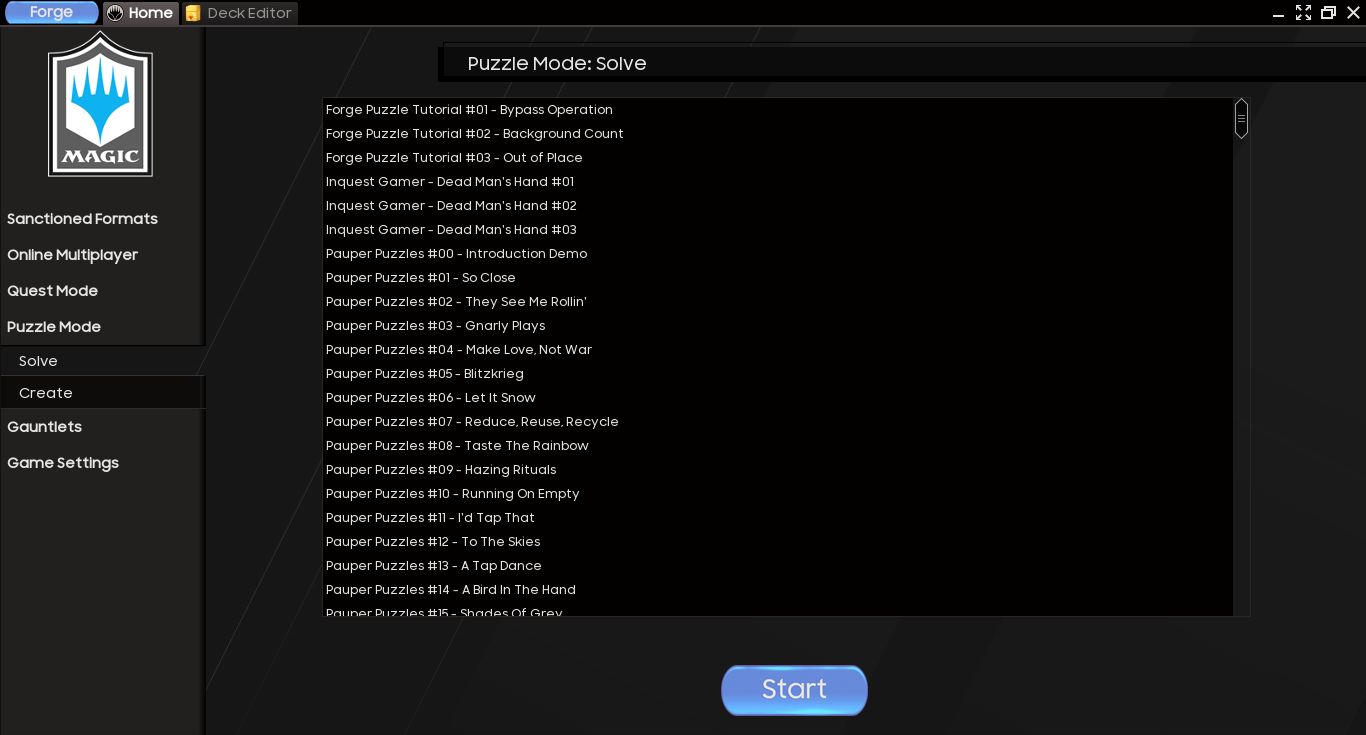
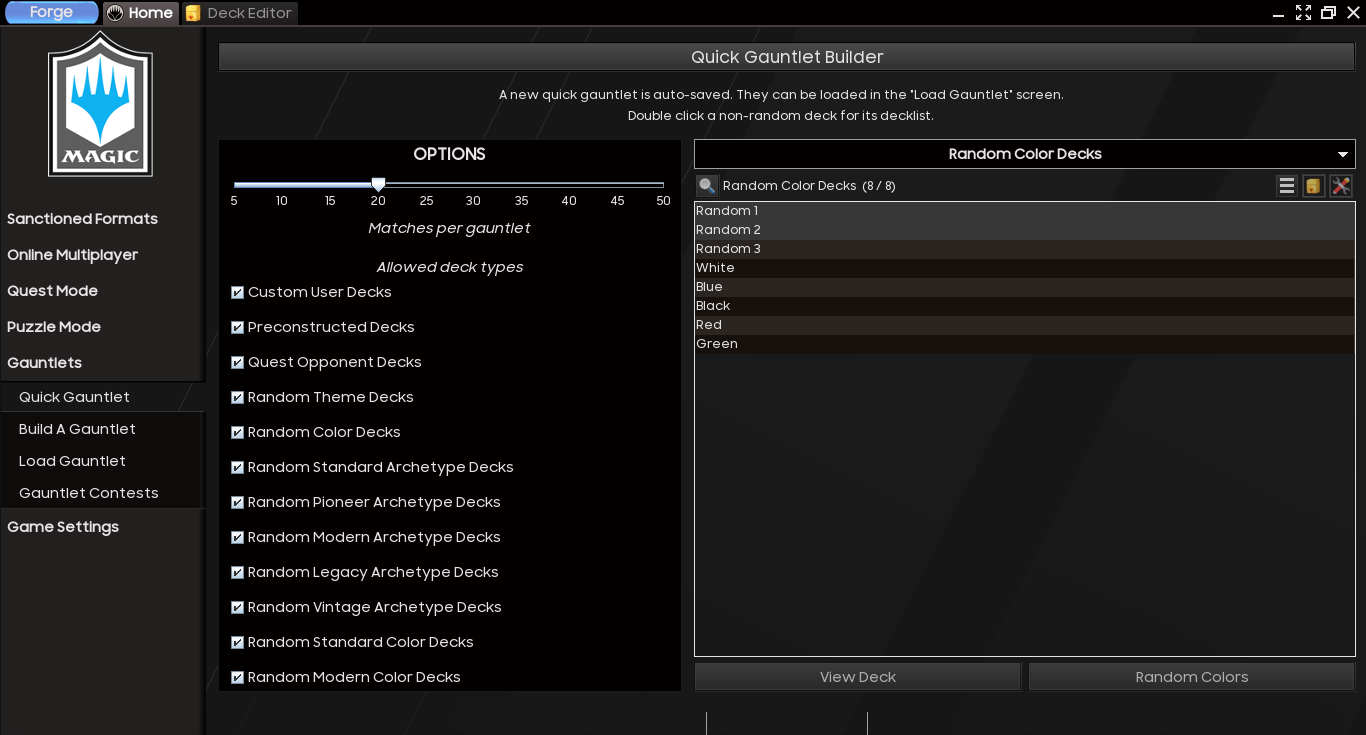
<p>As mentioned before, Forge features a very unique (<em>and hella fun!</em>) set of single player modes, namely <strong>Quest mode</strong>, <strong>Puzzle mode</strong>, and <strong>Gauntlets</strong>. The Quest mode plays like an RPG game in which you can improve your deck over battles against the computer. The Puzzle mode is pretty much self-explanatory: it gives you MtG puzzles to solve, such as how to win given a board state. Finally, the Gauntlets consist of a group of customizable players that play each other in a tournament-like fashion.</p>

<p><a href="/assets/posts/2022-07-18-forge-xmage-mtg/forge-gui-quest.png"><img src="/assets/posts/2022-07-18-forge-xmage-mtg/forge-gui-quest.png" alt="Forge - GUI - Quest" class="PostImage" /></a></p>

<p><a href="/assets/posts/2022-07-18-forge-xmage-mtg/forge-gui-puzzle.png"><img src="/assets/posts/2022-07-18-forge-xmage-mtg/forge-gui-puzzle.png" alt="Forge - GUI - Puzzle" class="PostImage" /></a></p>

<p><a href="/assets/posts/2022-07-18-forge-xmage-mtg/forge-gui-gauntlet.png"><img src="/assets/posts/2022-07-18-forge-xmage-mtg/forge-gui-gauntlet.png" alt="Forge - GUI - Gauntlet" class="PostImage" /></a></p>

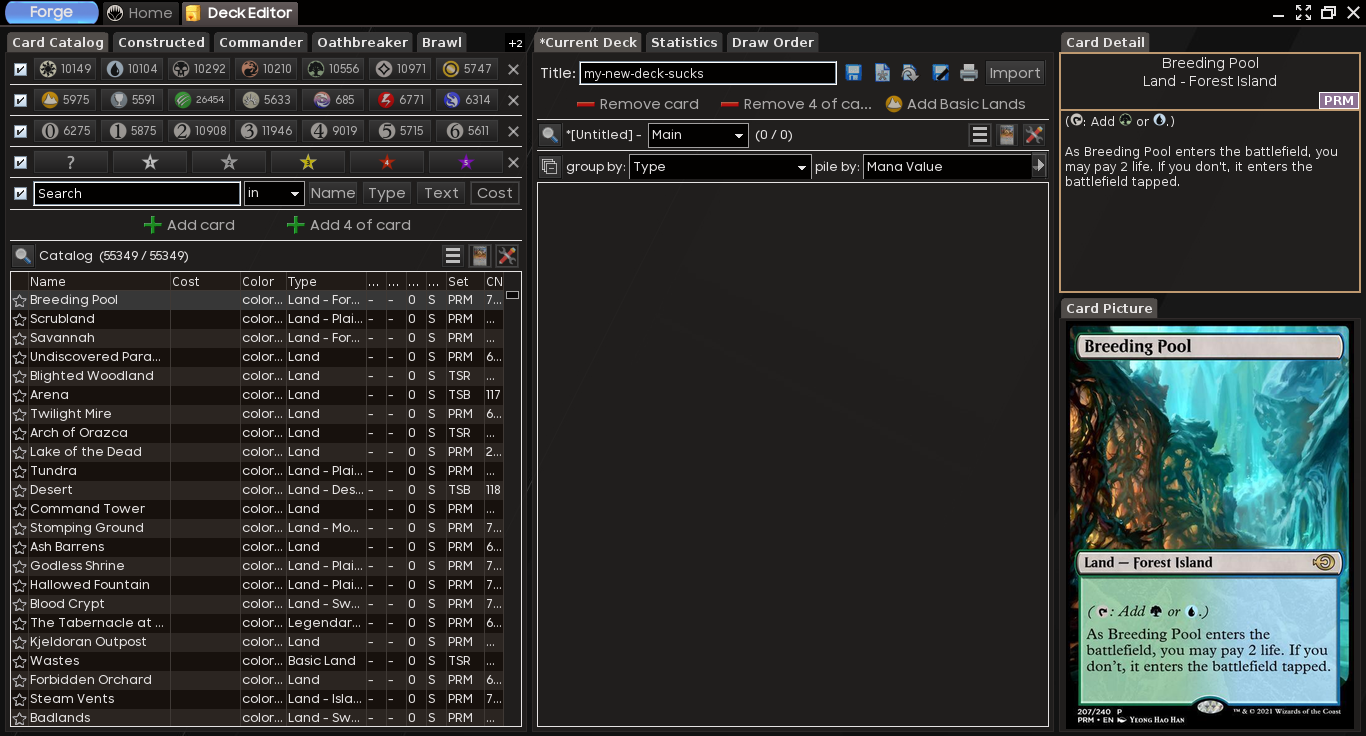
<p>As it would be expected from an MtG RE, Forge also features a full blown <strong>deck editor</strong>. The editor lets users customize existing decks, build new ones, import from other applications, websites or <code class="language-plaintext highlighter-rouge">txt</code>, and also export decks created with Forge to other applications.</p>

<p><a href="/assets/posts/2022-07-18-forge-xmage-mtg/forge-gui-editor.png"><img src="/assets/posts/2022-07-18-forge-xmage-mtg/forge-gui-editor.png" alt="Forge - GUI - Editor" class="PostImage" /></a></p>

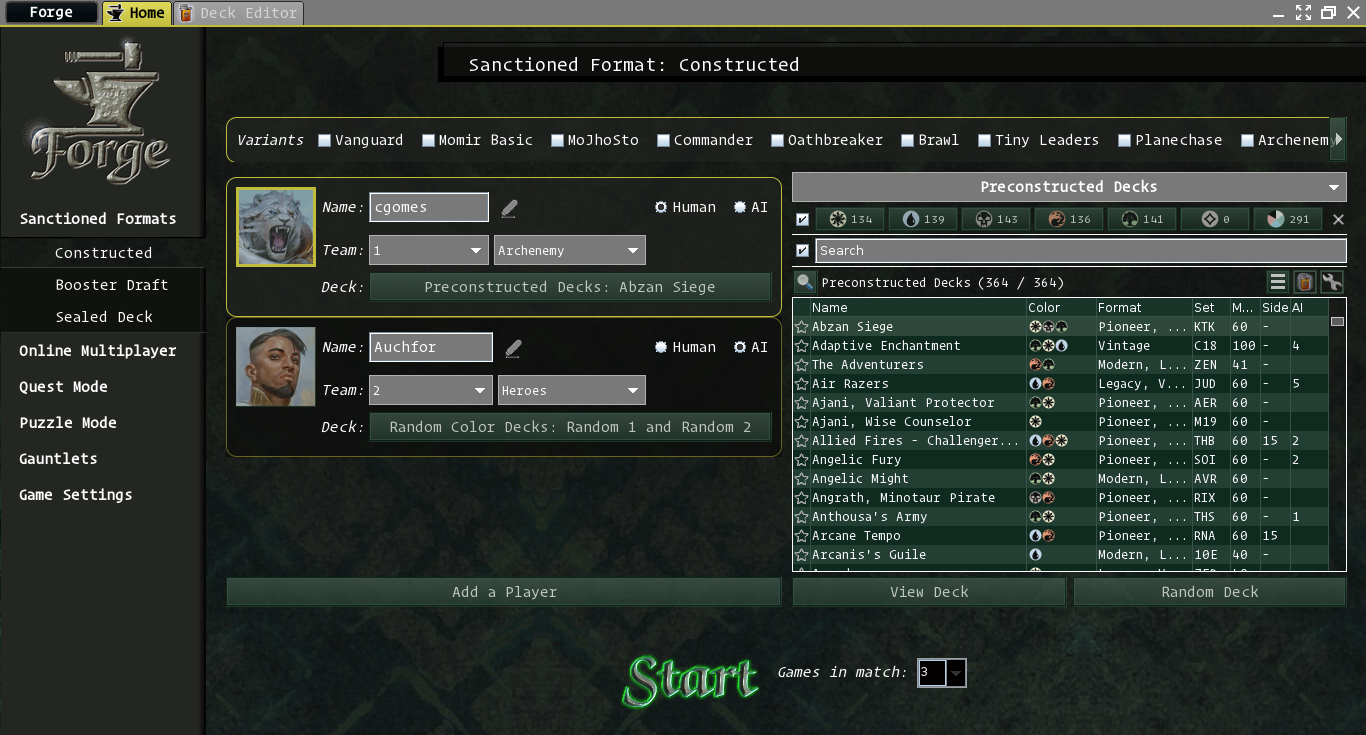
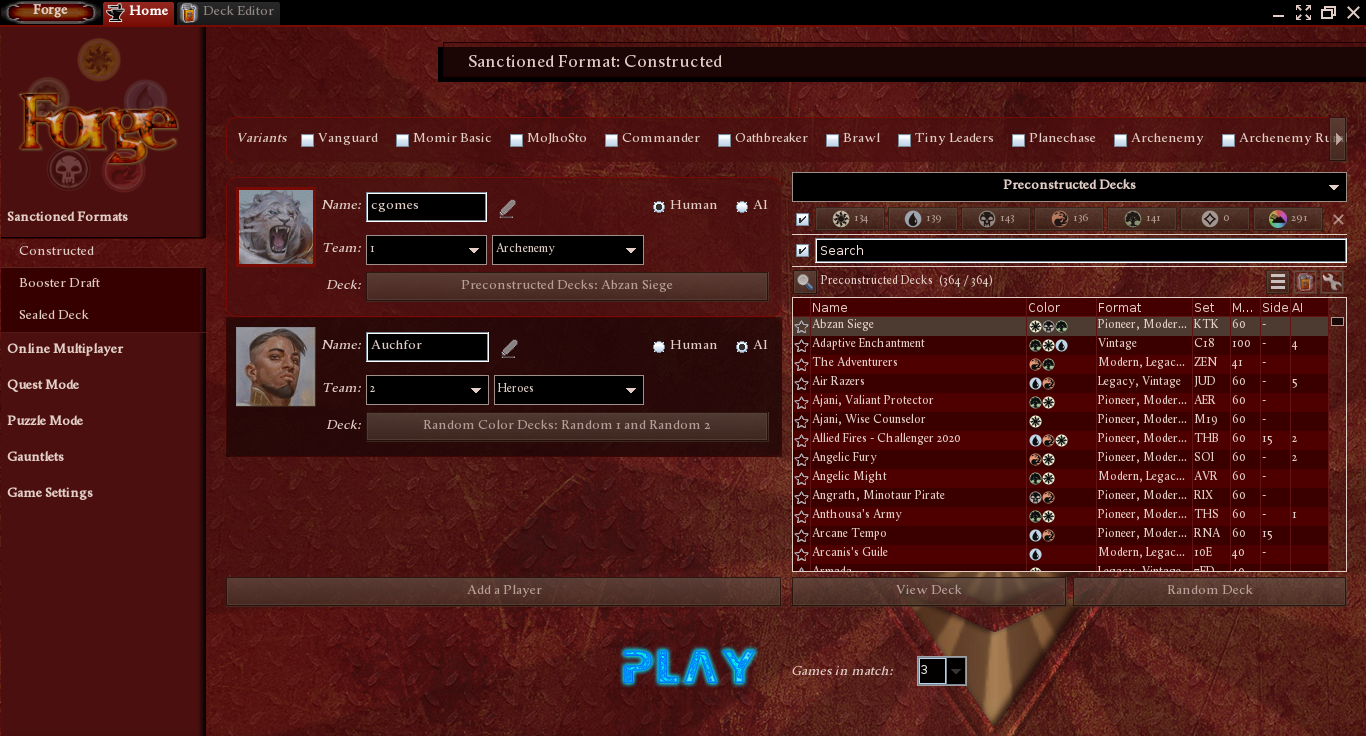
<p>Interface-wise, Forge is actually my favorite MtG RE. Almost everything can be edited to the user’s liking and they even have a <strong>theme</strong> selector feature. (<code class="language-plaintext highlighter-rouge">Magic</code> is my favorite one.)</p>

<p><a href="/assets/posts/2022-07-18-forge-xmage-mtg/forge-gui-02.png"><img src="/assets/posts/2022-07-18-forge-xmage-mtg/forge-gui-02.png" alt="Forge - GUI - Alt 02" class="PostImage" /></a></p>

<p><a href="/assets/posts/2022-07-18-forge-xmage-mtg/forge-gui-03.png"><img src="/assets/posts/2022-07-18-forge-xmage-mtg/forge-gui-03.png" alt="Forge - GUI - Alt 03" class="PostImage" /></a></p>

<p>Lastly, Forge includes a single player RPG mode called <strong>Adventure</strong>.  This mode is much closer to Shandalar than the Quests mode, as it allows players to roam through worlds and fight enemies along the way.  This mode was only included recently–the <a href="https://www.slightlymagic.net/forum/viewtopic.php?f=26&amp;t=30489">original developer post</a> dates back to July 2021–and at the time of writing, it is still in alpha but if you are looking for a modern port of Shandalar, definitely check the <a href="#adventure-mode">Adventure mode</a> section below for more details.</p>

<p><a href="/assets/posts/2022-07-18-forge-xmage-mtg/forge-gui-adventure-01.png"><img src="/assets/posts/2022-07-18-forge-xmage-mtg/forge-gui-adventure-01.png" alt="Forge - GUI - Adventure - 01" class="PostImage" /></a></p>

<p><a href="/assets/posts/2022-07-18-forge-xmage-mtg/forge-gui-adventure-02.png"><img src="/assets/posts/2022-07-18-forge-xmage-mtg/forge-gui-adventure-02.png" alt="Forge - GUI - Adventure - 02" class="PostImage" /></a></p>

<p><a href="/assets/posts/2022-07-18-forge-xmage-mtg/forge-gui-adventure-03.png"><img src="/assets/posts/2022-07-18-forge-xmage-mtg/forge-gui-adventure-03.png" alt="Forge - GUI - Adventure - 03" class="PostImage" /></a></p>

<p><a href="/assets/posts/2022-07-18-forge-xmage-mtg/forge-gui-adventure-04.png"><img src="/assets/posts/2022-07-18-forge-xmage-mtg/forge-gui-adventure-04.png" alt="Forge - GUI - Adventure - 04" class="PostImage" /></a></p>

<h3 id="gameplay-demo">Gameplay demo</h3>

<!-- Courtesy of embedresponsively.com //-->
<div class="responsive-video-container">

  <iframe src="https://www.youtube-nocookie.com/embed/VgBKh913oW8" frameborder="0" allowfullscreen=""></iframe>

</div>

<h3 id="getting-started">Getting started</h3>
<p>Forge requires a <strong>Java Runtime Environment</strong> (JRE) to run the desktop application and a screen resolution of at least <strong>1024x768</strong> (the bigger, the better). In my experience, the application can be a bit memory hungry at times but anything with at least <strong>4GB of RAM</strong> should be just fine.</p>

<p>For reference, the following table shows the versions of the software I used at the time of writing:</p>

<table>
  <thead>
    <tr>
      <th style="text-align: center">application</th>
      <th style="text-align: center">version</th>
    </tr>
  </thead>
  <tbody>
    <tr>
      <td style="text-align: center"><code class="language-plaintext highlighter-rouge">java</code></td>
      <td style="text-align: center"><code class="language-plaintext highlighter-rouge">openjdk 11.0.15 2022-04-19</code></td>
    </tr>
    <tr>
      <td style="text-align: center"><code class="language-plaintext highlighter-rouge">forge</code></td>
      <td style="text-align: center"><code class="language-plaintext highlighter-rouge">1.6.53</code></td>
    </tr>
  </tbody>
</table>

<p>For information about how to install JRE and Forge, take a look at the next section.</p>

<h3 id="installation">Installation</h3>
<ul>
  <li>
    <p><strong>Requirements</strong></p>

    <p>As before, Forge requires JRE to run, so <a href="https://www.java.com/download/">download and install Java on your machine</a>. If you are running GNU/Linux, you can check whether Java is already installed (and in your user’s <code class="language-plaintext highlighter-rouge">$PATH</code>) via terminal, as follows:</p>

    <div class="language-plaintext highlighter-rouge"><div class="highlight"><pre class="highlight"><code>which java
</code></pre></div>    </div>

    <p>which should output the full path to your Java application. If it doesn’t find anything, then you gonna have to install it.  In <code class="language-plaintext highlighter-rouge">apt</code>-based distributions, such as Debian and Ubuntu, you can install the OpenJDK JRE as follows:</p>

    <div class="language-plaintext highlighter-rouge"><div class="highlight"><pre class="highlight"><code>sudo apt update
sudo apt install default-jre
</code></pre></div>    </div>

    <p class="notice--info">The Java Development Kit (JDK) itself is not necessary to run Java applications. You only need the JDK if you want to, say, compile java files into bytecodes that can be executed by the Java Virtual Machine (JVM), which is something you would do if contributing to the development and testing of a Java project. However, if you want to install the JDK as well as JRE, you can do so via <code class="language-plaintext highlighter-rouge">sudo apt install default-jre default-jdk</code>.</p>

    <p class="notice--warning">If your distro does not use <code class="language-plaintext highlighter-rouge">apt</code> as package manager, just change the previous command to match whatever package manager you use. <strong>Alternatively</strong>, use the download link mentioned before to download Oracle JRE and follow the instructions mentioned there instead. (OpenJDK is also maintained by Oracle and in this sense, Oracle JRE and OpenJDK JRE are both official JREs.)</p>

    <p>then check its version to make sure <code class="language-plaintext highlighter-rouge">java</code> is now reachable and is associated to the <code class="language-plaintext highlighter-rouge">apt</code> OpenJDK version we installed before:</p>

    <div class="language-plaintext highlighter-rouge"><div class="highlight"><pre class="highlight"><code>java --version
</code></pre></div>    </div>
    <div class="language-plaintext highlighter-rouge"><div class="highlight"><pre class="highlight"><code>openjdk 11.0.15 2022-04-19
OpenJDK Runtime Environment (build 11.0.15+10-post-Debian-1deb11u1)
OpenJDK 64-Bit Server VM (build 11.0.15+10-post-Debian-1deb11u1, mixed mode, sharing)
</code></pre></div>    </div>

    <p class="notice--warning">The <code class="language-plaintext highlighter-rouge">default-jre</code> package is often way behind the latest release but should be enough to run most Java applications. However, if you want to install the latest OpenJDK JRE package via <code class="language-plaintext highlighter-rouge">apt</code>, you will have to find what is available for your distribution and its repositories first.  For example, <code class="language-plaintext highlighter-rouge">sudo apt show openjdk-*-jre</code> should list all OpenJDK JREs available for you. At the time of writing, <code class="language-plaintext highlighter-rouge">openjdk-17-jre</code> is the latest OpenJDK JRE version available in Debian 11.</p>
  </li>
  <li>
    <p><strong>Download and install Forge</strong></p>

    <p>Forge for desktop has <strong>stable</strong> and <strong>snapshot</strong> releases.  As the name suggests, snapshot are edge releases that contain the latest changes from source that have not been thoroughly tested, while stable releases contain changes that have been tested before. Most users should favor the <strong>stable release</strong> over snapshot. The stable desktop releases can be found at the following website:</p>

    <ul>
      <li><a href="https://releases.cardforge.org/forge/forge-gui-desktop/">https://releases.cardforge.org/forge/forge-gui-desktop/</a></li>
    </ul>

    <p>then look for the latest release version (e.g., <code class="language-plaintext highlighter-rouge">1.6.53</code>), which you can check by looking at the dates or comparing against the <a href="https://github.com/Card-Forge/forge/tags">tags in the official repository</a>, and download then the associated <code class="language-plaintext highlighter-rouge">.tar.bz2</code> (and optionally, its <code class="language-plaintext highlighter-rouge">.md5</code> hash to make sure the downloaded file matches the remote). Alternatively, you might want to try the following to download the latest Forge tarball and hash via terminal:</p>

    <ul>
      <li>make sure <code class="language-plaintext highlighter-rouge">curl</code> and <code class="language-plaintext highlighter-rouge">jq</code> are installed:
        <div class="language-plaintext highlighter-rouge"><div class="highlight"><pre class="highlight"><code>sudo apt install curl jq
</code></pre></div>        </div>
      </li>
      <li>move into this user’s Downloads dir:
        <div class="language-plaintext highlighter-rouge"><div class="highlight"><pre class="highlight"><code>cd ~/Downloads/
</code></pre></div>        </div>
      </li>
      <li>create a variable that stores de latest Forge version, according to the github repo:
        <div class="language-plaintext highlighter-rouge"><div class="highlight"><pre class="highlight"><code>FORGE_LATEST=$(curl https://api.github.com/repos/Card-Forge/forge/tags | jq -r '.[0].name' | grep -oE "[[:digit:]]{1}\.+[[:digit:]]+\.+[[:digit:]]+")
</code></pre></div>        </div>
      </li>
      <li>download the latest Forge files from cardforge.org:
        <div class="language-plaintext highlighter-rouge"><div class="highlight"><pre class="highlight"><code>curl -O "https://releases.cardforge.org/forge/forge-installer/$FORGE_LATEST/forge-installer-$FORGE_LATEST.tar.bz2"
curl -O "https://releases.cardforge.org/forge/forge-installer/$FORGE_LATEST/forge-installer-$FORGE_LATEST.tar.bz2.md5"
</code></pre></div>        </div>
      </li>
      <li>after downloading the files, check hashes:
        <div class="language-plaintext highlighter-rouge"><div class="highlight"><pre class="highlight"><code>echo "$(cat forge-installer-$FORGE_LATEST.tar.bz2.md5) forge-installer-$FORGE_LATEST.tar.bz2" | md5sum -c
</code></pre></div>        </div>
      </li>
    </ul>

    <p>Once you have downloaded the tarball, extract it to a directory of your liking. Personally, I like to store such applications on a directory called <code class="language-plaintext highlighter-rouge">Applications</code> under my user’s <code class="language-plaintext highlighter-rouge">$HOME</code> (e.g., <code class="language-plaintext highlighter-rouge">/home/cgomesu/Applications/</code>):</p>

    <ul>
      <li>create an Applications dir for the current user if it doesn’t exist:
        <div class="language-plaintext highlighter-rouge"><div class="highlight"><pre class="highlight"><code>if [ ! -d "$HOME/Applications/" ]; then mkdir "$HOME/Applications"; fi
cd "$HOME/Applications/"
</code></pre></div>        </div>
      </li>
      <li>extract the tarball into a subdir called forge-gui:
        <div class="language-plaintext highlighter-rouge"><div class="highlight"><pre class="highlight"><code>mkdir forge-gui
tar -xvf "$HOME/Downloads/forge-installer-$FORGE_LATEST.tar.bz2" -C ./forge-gui/
</code></pre></div>        </div>

        <p class="notice--warning">If you have not declared and initialized a <code class="language-plaintext highlighter-rouge">FORGE_LATEST</code> variable before, then just edit the name of the tarball to match yours before running the command above.</p>
      </li>
    </ul>

    <p>Now move into the newly created <code class="language-plaintext highlighter-rouge">forge-gui</code> dir</p>
    <div class="language-plaintext highlighter-rouge"><div class="highlight"><pre class="highlight"><code>cd forge-gui/
</code></pre></div>    </div>
    <p>and at its root, you should find executables to start the application. For <strong>GNU/Linux</strong> and macOS users, there is a <strong>shell script</strong> called <code class="language-plaintext highlighter-rouge">forge.sh</code> that can be used to run Forge via the script’s shebang:</p>
    <div class="language-plaintext highlighter-rouge"><div class="highlight"><pre class="highlight"><code>./forge.sh
</code></pre></div>    </div>
    <p>or by calling <code class="language-plaintext highlighter-rouge">bash</code> directly:</p>
    <div class="language-plaintext highlighter-rouge"><div class="highlight"><pre class="highlight"><code>bash forge.sh
</code></pre></div>    </div>
    <p>This will start loading the Forge’s graphical interface. If you run into issues, review your steps and then check the official <a href="https://github.com/Card-Forge/forge/wiki">Forge Wiki</a> for alternative instructions.</p>
  </li>
  <li>
    <p><strong>Initial configuration</strong></p>

    <p>Now that Forge is up and running, go to <strong>Game Settings</strong>. I usually take this opportunity to configure my <strong>Preferences</strong> to automatically download missing art (Game Settings &gt; Preferences &gt; Graphic Options &gt; Check ‘Automatically Download Missing Card Art’), which prompts Forge to download card art on demand. Afterwards, head to <strong>Content Downloaders</strong> and at the very least, go ahead and download the following items:</p>

    <ul>
      <li>Quest images</li>
      <li>Achievement images</li>
      <li>Card prices</li>
      <li>Skins</li>
    </ul>

    <p>The other options will take a long time to complete, so I usually prefer to let the on-demand option we checked before to handle missing art.</p>

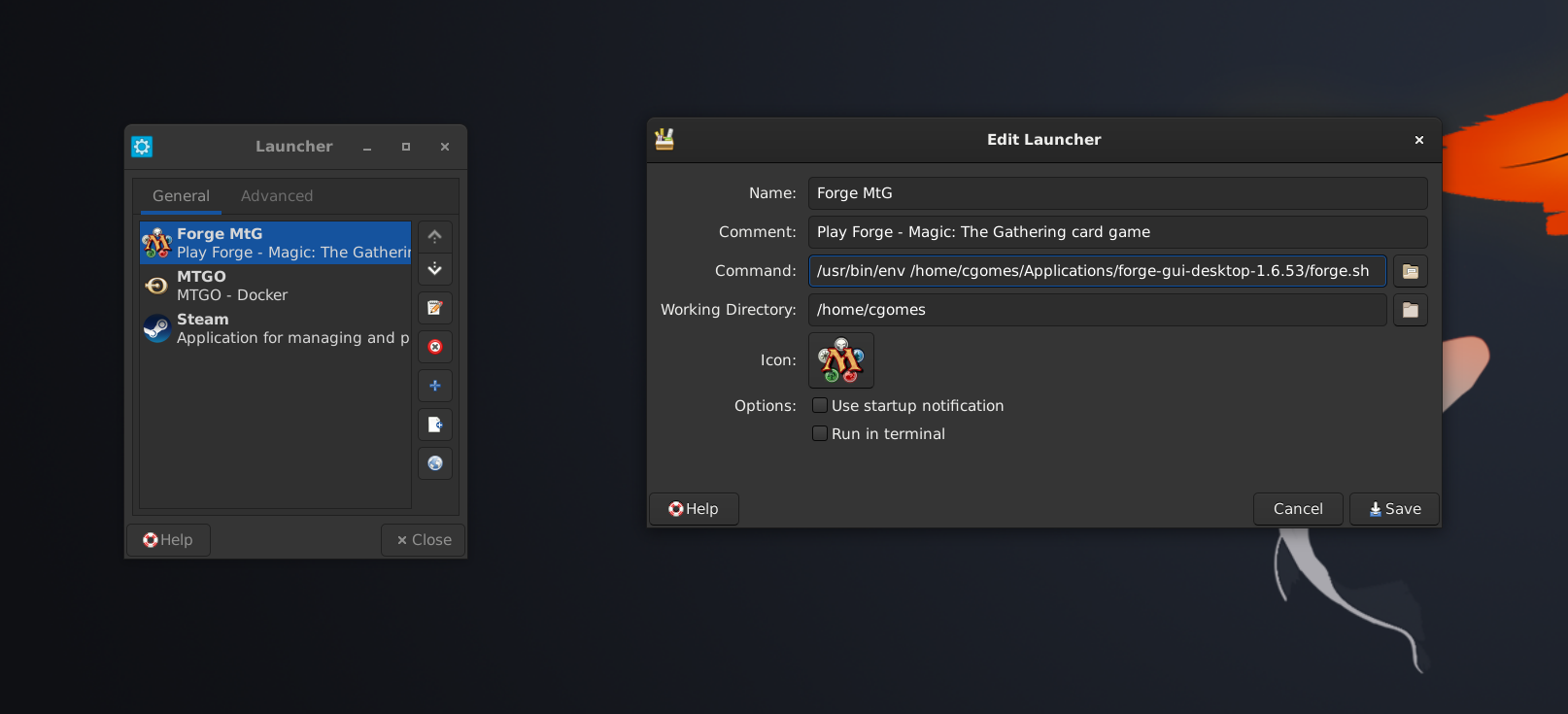
    <p>Now, if you don’t feel like opening a terminal every time you want to run Forge, I strongly suggest you to create a custom <strong>launcher</strong> for it. In GNU/Linux, the specifics of how to create a launcher depends a lot on the distribution and more specifically, the desktop environment you are using (e.g., XFCE, GNOME, KDE). Here’s how my current launcher configuration looks like:</p>

    <p><a href="/assets/posts/2022-07-18-forge-xmage-mtg/forge-xfce-launcher.png"><img src="/assets/posts/2022-07-18-forge-xmage-mtg/forge-xfce-launcher.png" alt="Forge - XFCE launcher" class="PostImage PostImage--large" /></a></p>

    <p class="notice--info">My desktop environment of choice for Debian is <a href="https://www.xfce.org/">XFCE</a> and the maintainers have already documented <a href="https://docs.xfce.org/xfce/xfce4-panel/launcher">how to create custom launchers</a>, so I won’t cover such details here.</p>

    <p>If you change location of your current Forge desktop application, you can simply edit the desktop launcher to point to the new directory under which the <code class="language-plaintext highlighter-rouge">forge.sh</code> helper script is located.</p>
  </li>
</ul>

<h3 id="adventure-mode">Adventure mode</h3>
<p>If you followed the <a href="#installation">installation guide</a>, your Forge desktop release directory should contain a Shell script to launch the <strong>Adventure mode</strong>, namely <code class="language-plaintext highlighter-rouge">forge-adventure.sh</code>. By default, the script is not executable, so open a terminal, move into the Forge dir and make the script executable, as follows:</p>

<div class="language-plaintext highlighter-rouge"><div class="highlight"><pre class="highlight"><code>chmod +x forge-adventure.sh
</code></pre></div></div>

<p>Now you should be able to run it using the shebang:</p>

<div class="language-plaintext highlighter-rouge"><div class="highlight"><pre class="highlight"><code>./forge-adventure.sh
</code></pre></div></div>

<p>or by calling <code class="language-plaintext highlighter-rouge">bash</code> directly:</p>

<div class="language-plaintext highlighter-rouge"><div class="highlight"><pre class="highlight"><code>bash ./forge-adventure.sh
</code></pre></div></div>

<p>Once you have access to the GUI, select <em>Adventure mode</em> and enjoy it!</p>

<!-- Courtesy of embedresponsively.com //-->
<div class="responsive-video-container">

  <iframe src="https://www.youtube-nocookie.com/embed/QFEhqV3SZb8" frameborder="0" allowfullscreen=""></iframe>

</div>

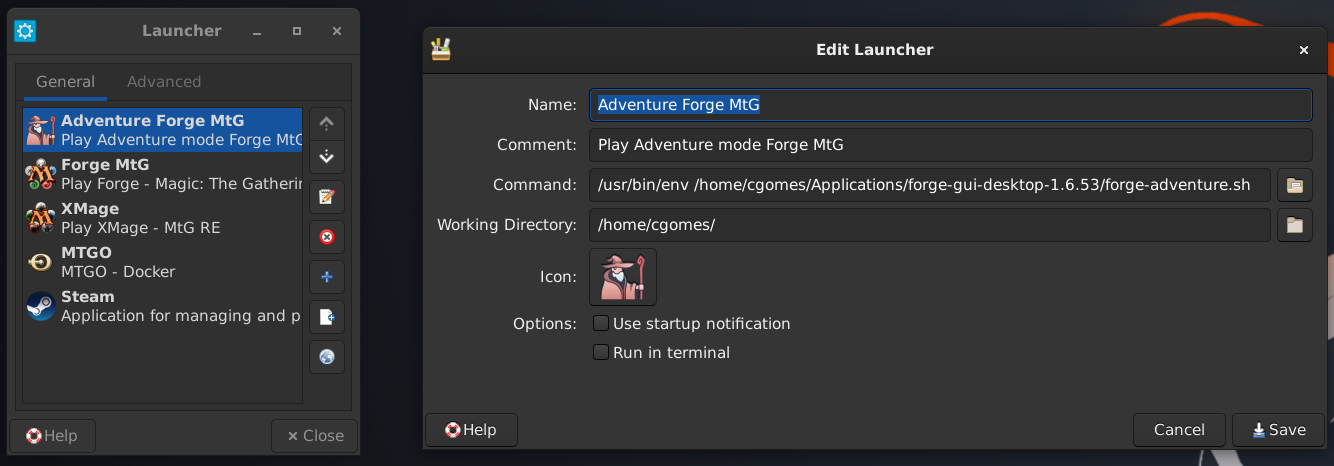
<p>Again, instead of using a terminal every time you want to to launch Forge in Adventure mode, create a <strong>custom launcher</strong> for it.  Here is how mine looks like in Debian 11 XFCE:</p>

<p><a href="/assets/posts/2022-07-18-forge-xmage-mtg/forge-xfce-launcher-adventure.png"><img src="/assets/posts/2022-07-18-forge-xmage-mtg/forge-xfce-launcher-adventure.png" alt="Forge - XFCE Launcher - Adventure" class="PostImage PostImage--large" /></a></p>

<h3 id="android-apk">Android APK</h3>
<p>Forge is very unique in which it also <strong>runs on Android</strong>, so you can install it on your mobile or tablet running <strong>Android 9</strong> or newer. The Android interface has its own peculiarities–because the application is designed for mobile–but if you are familiar with the desktop version, you will get the hang of the mobile version very quickly.</p>

<p class="notice--info">There are older versions of the Forge MtG RE for Android that run on versions of Android older than Android 9 (Pie). This is an alternative if you are not running a modern Android OS but of course, such versions of the RE do not have cards from the latest sets, functionalities that were implemented recently, and so on. If that is okay, then when selecting the Forge version in the instructions below, just try older ones until you find one that works with your device and Android version.</p>

<!-- Courtesy of embedresponsively.com //-->
<div class="responsive-video-container">

  <iframe src="https://www.youtube-nocookie.com/embed/NyjU1KN1Rv4" frameborder="0" allowfullscreen=""></iframe>

</div>

<p>As far as I’m aware, the Forge <code class="language-plaintext highlighter-rouge">apk</code> (Android package) is not distributed via any well known app store (e.g., Google’s Play Store, F-Droid), so you will need to download and install it from the official website.  In addition, the app requires <em>storage permission</em> in order to function, so once we have installed it, we need to manually add such permission for it to work. If that sounds good and you want to give it a try, then follow these steps:</p>

<ol>
  <li>Grab your Android device.</li>
  <li>We need to allow our Internet Browser (and possibly, File Manager) to install apps from <strong>unknown sources</strong>. By default, such option is disabled. To enable it, go to <strong>Settings</strong> and search for ‘unknown source’, then follow the options to allow your Internet browser of choice (e.g., DuckDuckGo, Chrome) to install apps from unknown sources.</li>
  <li>Navigate to the cardforge.org website (see below) to <strong>download the latest Forge apk</strong>. First, you need to find the latest Forge version available (e.g., <code class="language-plaintext highlighter-rouge">1.6.53</code>). Then, find the corresponding directory that ends with three additional numbers (<code class="language-plaintext highlighter-rouge">1.6.53.001</code>) and enter in whichever one is the highest for the last Forge version (<code class="language-plaintext highlighter-rouge">004</code>). Inside such subdirectory, there should be an <code class="language-plaintext highlighter-rouge">apk</code> file that you can download and then install.
    <ul>
      <li><a href="https://releases.cardforge.org/forge/forge-gui-android/">https://releases.cardforge.org/forge/forge-gui-android/</a></li>
    </ul>
  </li>
  <li>After downloading, open the <code class="language-plaintext highlighter-rouge">apk</code> and follow instructions to <strong>install Forge</strong>. When done, close the install window.</li>
  <li>Search for the Forge app icon in your home screen or app list. Then go into its <strong>App info</strong> &gt; Permissions and allow it access to <em>Files and media</em> (or <em>Storage</em>, depending on which Android version you are running).</li>
  <li>Now, open the Forge app and follow instructions to download the assets (main images, sounds, etc.) and when done, it should ask you to restart the application.</li>
  <li>(<em>Optional</em>.) Once the application is up an running, go to its <em>Settings</em> and check the option to download missing art on demand, just like we’ve done with the desktop release, and the go to the <em>Settings &gt; Files</em> tab and download the Quests, Achievements, etc., missing images as well.</li>
  <li>That is it!  Enjoy Forge on your mobile.</li>
</ol>

<h3 id="card-scripting">Card scripting</h3>
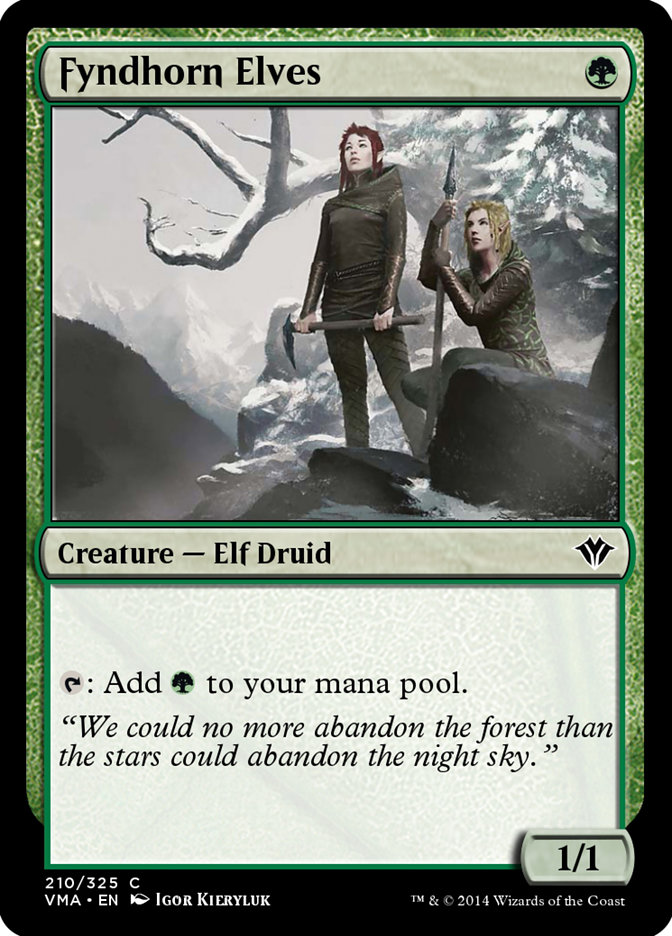
<p>In the <code class="language-plaintext highlighter-rouge">res/cardsfolder/</code> directory of your Forge for desktop application, you will find a compressed directory containing a <code class="language-plaintext highlighter-rouge">txt</code> file for each MtG card supported by the Forge RE. Those files are <strong>card scripts</strong> that tell Forge how each card works via parameters for the various properties, effects, and abilities that each card might have. Take, for example, the card <strong>Fyndhorn Elves</strong>:</p>

<p><a href="/assets/posts/2022-07-18-forge-xmage-mtg/card-elves.jpg"><img src="/assets/posts/2022-07-18-forge-xmage-mtg/card-elves.jpg" alt="Card - Fyndhorn Elves" class="PostImage" /></a></p>

<p>and its script (<code class="language-plaintext highlighter-rouge">res/cardsfolder/f/fyndhorn_elves</code>):</p>

<div class="language-plaintext highlighter-rouge"><div class="highlight"><pre class="highlight"><code>Name:Fyndhorn Elves
ManaCost:G
Types:Creature Elf Druid
PT:1/1
A:AB$ Mana | Cost$ T | Produced$ G | SpellDescription$ Add {G}.
Oracle:{T}: Add {G}.
</code></pre></div></div>

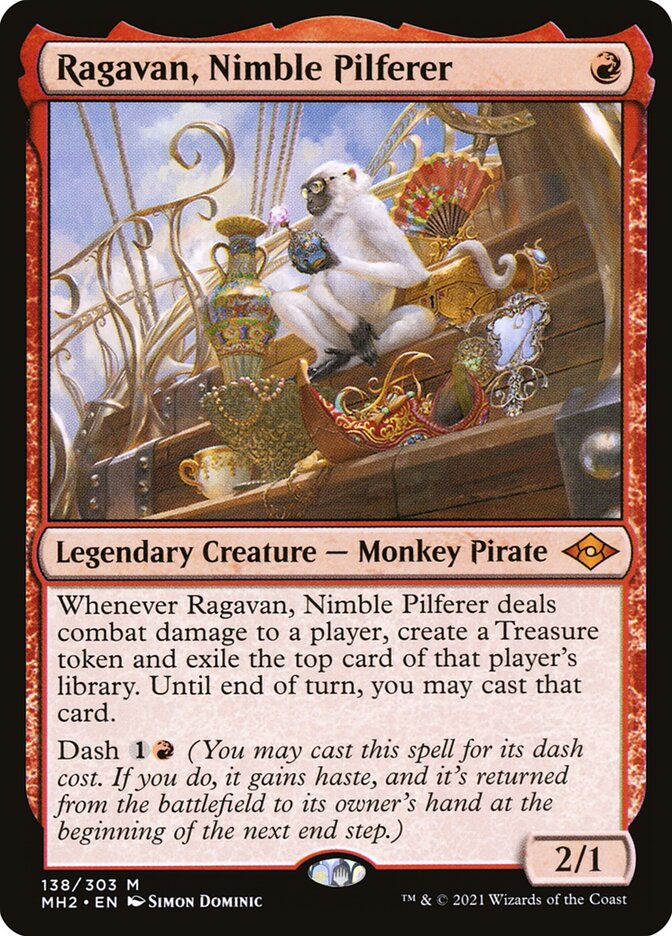
<p>As you can see, the card script is not written in Java or any other high level language and for the most part, its structure and parameters are quite intuitive, which means that anyone can help writing card scripts for upcoming sets, even if you are not a developer yourself. Of course, some cards can be more complex than others. Take a look, for example, at <strong>Ragavan, Nimble Pilferer</strong>:</p>

<p><a href="/assets/posts/2022-07-18-forge-xmage-mtg/card-ragavan.jpg"><img src="/assets/posts/2022-07-18-forge-xmage-mtg/card-ragavan.jpg" alt="Card - Ragavan" class="PostImage" /></a></p>

<div class="language-plaintext highlighter-rouge"><div class="highlight"><pre class="highlight"><code>Name:Ragavan, Nimble Pilferer
ManaCost:R
Types:Legendary Creature Monkey Pirate
PT:2/1
T:Mode$ DamageDone | ValidSource$ Card.Self | ValidTarget$ Player | CombatDamage$ True | Execute$ TrigTreasure | TriggerDescription$ Whenever CARDNAME deals combat damage to a player, create a Treasure token and exile the top card of that player's library. Until end of turn, you may cast that card.
SVar:TrigTreasure:DB$ Token | TokenAmount$ 1 | TokenScript$ c_a_treasure_sac | TokenOwner$ You | SubAbility$ TrigExile
SVar:TrigExile:DB$ Dig | Defined$ TriggeredTarget | DigNum$ 1 | ChangeNum$ All | DestinationZone$ Exile | RememberChanged$ True | SubAbility$ DBEffect
SVar:DBEffect:DB$ Effect | StaticAbilities$ STPlay | ForgetOnMoved$ Exile | RememberObjects$ Remembered | SubAbility$ DBCleanup
SVar:STPlay:Mode$ Continuous | MayPlay$ True | EffectZone$ Command | Affected$ Card.IsRemembered+nonLand | AffectedZone$ Exile | Description$ Until end of turn, you may cast that card and you may spend mana as though it were mana of any color to cast that spell.
SVar:DBCleanup:DB$ Cleanup | ClearRemembered$ True
K:Dash:1 R
Oracle:Whenever Ragavan, Nimble Pilferer deals combat damage to a player, create a Treasure token and exile the top card of that player's library. Until end of turn, you may cast that card.\nDash {1}{R} (You may cast this spell for its dash cost. If you do, it gains haste, and it's returned from the battlefield to its owner's hand at the beginning of the next end step.)
</code></pre></div></div>

<p>However, you can write scripts for whatever you feel comfortable with, for just a single card from an upcoming set or a bunch of them. The specifics of the so-called <strong>card API</strong> can be found at the <a href="https://github.com/Card-Forge/forge/wiki/Card-scripting-API">Forge Wiki - Card Scripting API</a>. To learn about which cards have not been scripted yet, check the <a href="https://github.com/Card-Forge/forge/projects">Projects</a> tab, which should list a few (upcoming) sets and the status of each card.</p>

<p>Writing card scripts for the Forge RE project is a great way to contribute and if you want to get involved, check the <a href="#contributing">Contributing</a> section of this article to learn more about versioning (<code class="language-plaintext highlighter-rouge">git</code>) and setting up your project dir.  However, before submitting a pull-request (PR) for a new card script, make sure to check the project’s current workflow for such contributions. As a general rule of thumb, go over the project’s wiki (or <code class="language-plaintext highlighter-rouge">CONTRIBUTING.md</code> guide) and if you cannot find any info about it, then <strong>ask one the maintainers</strong> to explain how you can help with such a task.</p>

<p class="notice--info">At the time of writing, for example, there seems to be an open issue for each upcoming card that has not been scripted yet (e.g., <a href="https://github.com/Card-Forge/forge/issues/974">issue#974</a> for the card <a href="https://gatherer.wizards.com/Pages/Card/Details.aspx?name=Windshaper%20Planetar">Windshaper Planetar</a> from the <em>Commander’s Legends: Battle for Baldur’s Gate</em> set) and a successful PR is one that fixes this issue via a commit to the repo’s <code class="language-plaintext highlighter-rouge">master</code> branch that adds the new card script(s) (e.g., <a href="https://github.com/Card-Forge/forge/pull/994">PR#994</a>).</p>

<h2 id="xmage">XMage</h2>
<p>XMage, also referred to as <strong>Magic is Another Game Engine</strong> (MAGE), is a MtG RE that started being developed in the early 2010s and now encompasses both a client and a server for offline or online MtG games. According to the project’s commit history, the first few commits date back to 2010 by users <code class="language-plaintext highlighter-rouge">BetaSteward</code>, <code class="language-plaintext highlighter-rouge">Loki</code>, and <code class="language-plaintext highlighter-rouge">magenoxx</code>. The project has been particularly active since 2018 and is now maintained by a large number of <a href="https://github.com/magefree/mage/graphs/contributors">developers and contributors</a>. The official repository is currently hosted on Github (<a href="https://github.com/magefree/mage">magefree/mage</a>).</p>

<p><a href="/assets/posts/2022-07-18-forge-xmage-mtg/xmage-launcher-00.png"><img src="/assets/posts/2022-07-18-forge-xmage-mtg/xmage-launcher-00.png" alt="XMage - GUI - Launcher - 00" class="PostImage PostImage--large" /></a></p>

<p><a href="/assets/posts/2022-07-18-forge-xmage-mtg/xmage-client-01.png"><img src="/assets/posts/2022-07-18-forge-xmage-mtg/xmage-client-01.png" alt="XMage - GUI - Client - 01" class="PostImage PostImage--large" /></a></p>

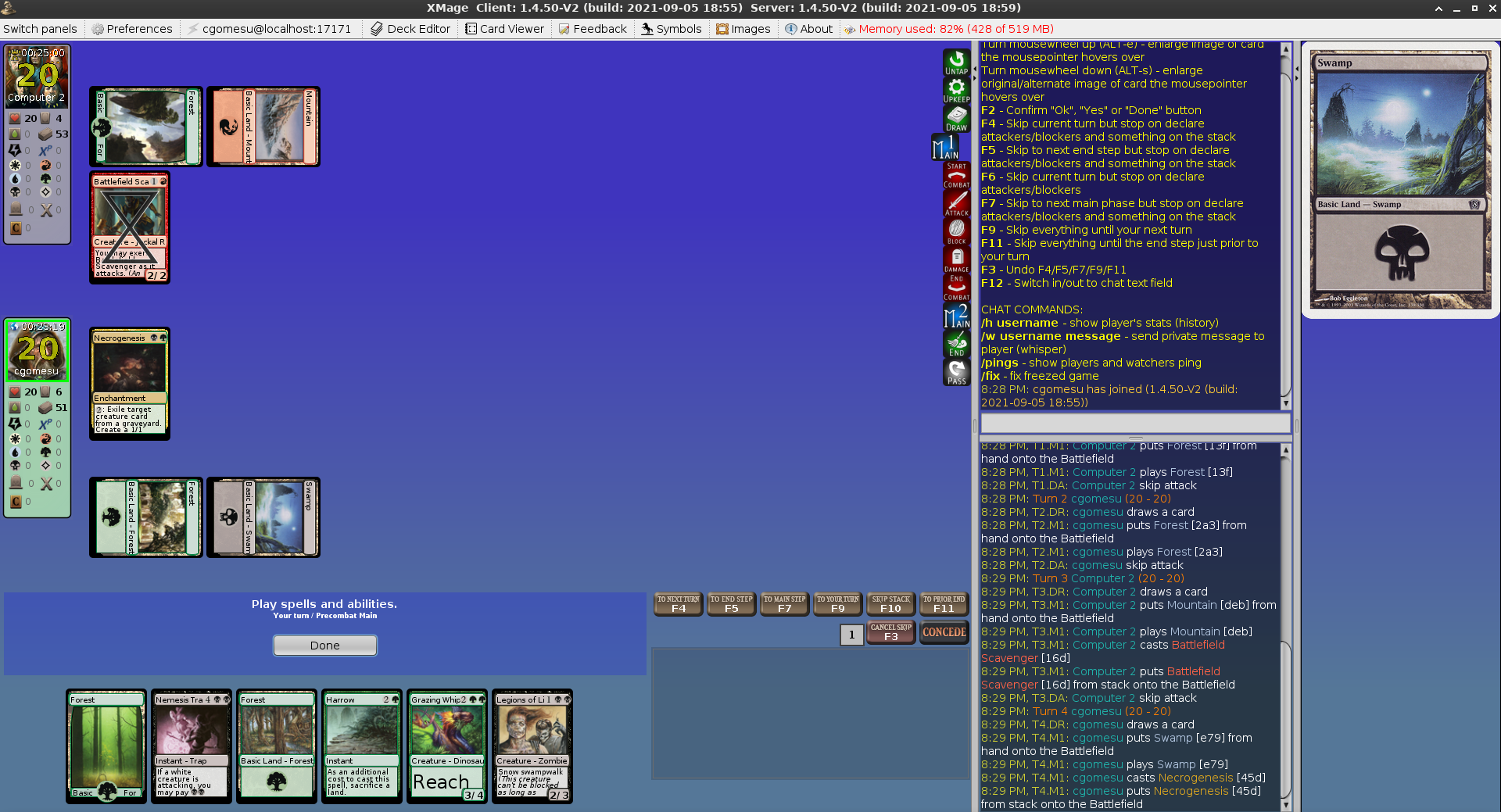
<p><a href="/assets/posts/2022-07-18-forge-xmage-mtg/xmage-gui-gameplay-01.png"><img src="/assets/posts/2022-07-18-forge-xmage-mtg/xmage-gui-gameplay-01.png" alt="XMage - GUI - Gameplay - 01" class="PostImage PostImage--large" /></a></p>

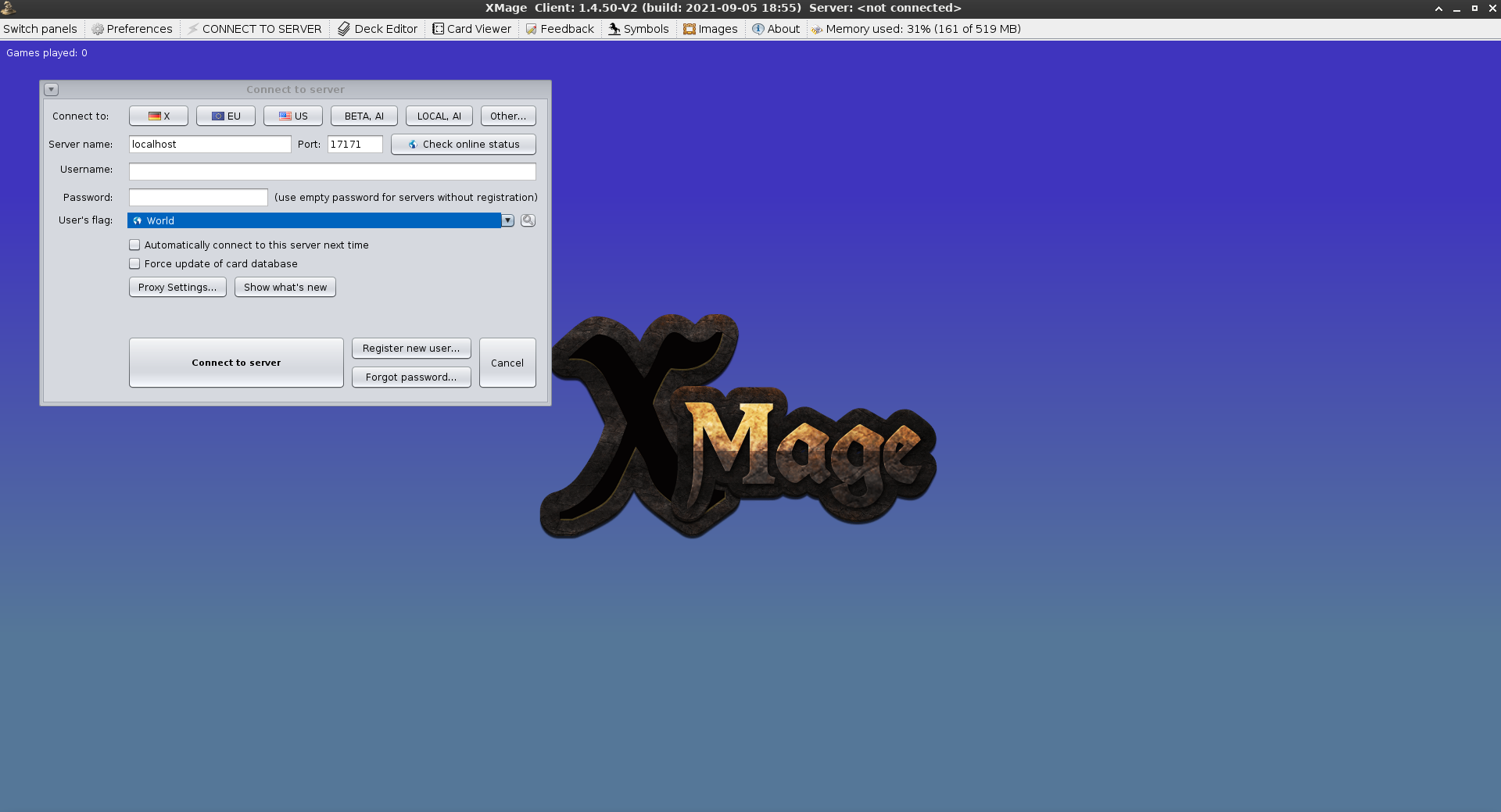
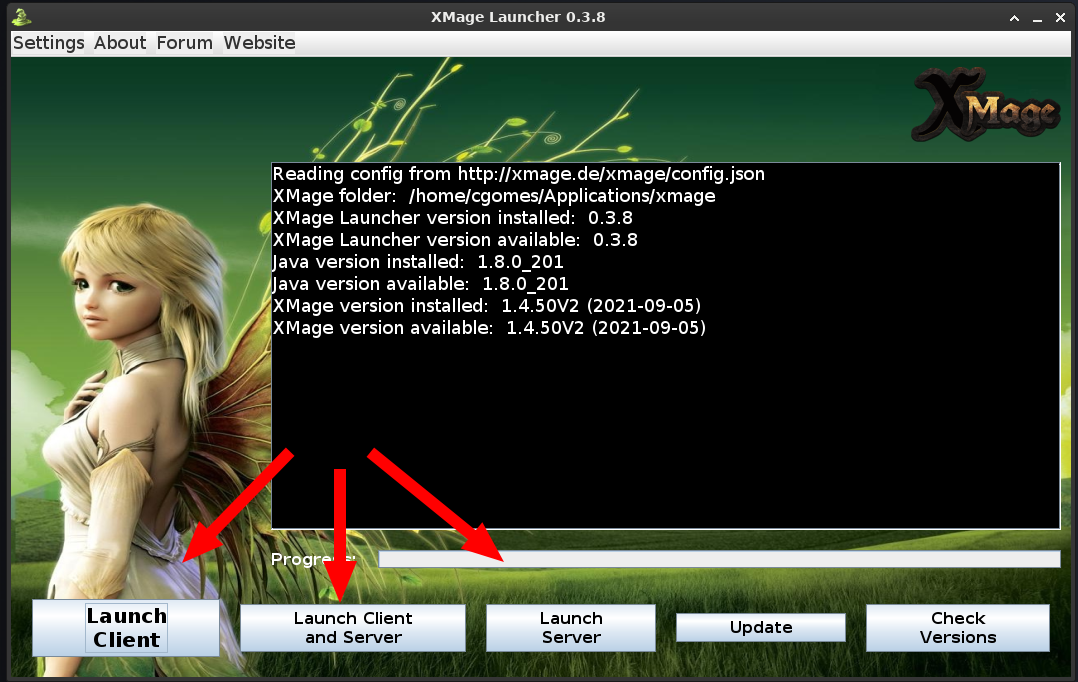
<p>A major difference between XMage and Forge is that when launching XMage, you have the option to run it as a <strong>client</strong> or <strong>server</strong> or both. In brief, if you are hosting a game, then you need a server, even if you are playing locally against the computer (AI). However, if you are joining a local or remote game, then you need a client. For a single player game against the computer, for example, you need to launch both a server and a client, then within the client, connect to your local server (hosted on the same machine, <code class="language-plaintext highlighter-rouge">localhost</code>/<code class="language-plaintext highlighter-rouge">127.0.0.1</code>, and XMage’s default port, <code class="language-plaintext highlighter-rouge">17171</code>). Now, to join a game your friend is hosting, all you need is to launch a client but then you also need a network address to join your friend’s server over the WAN. (There are public servers, too, hosted by XMage maintainers. More on this in <a href="#client-and-server-usage">Client and Server usage</a>.) These bits of technical stuff can sound intimidating to users who are not very familiar with networking concepts but XMage developers were kind enough to make these tasks a matter of clicking on a few buttons and once you get the hang of it, it becomes very trivial to start new MtG games with XMage.</p>

<p><a href="/assets/posts/2022-07-18-forge-xmage-mtg/xmage-launcher-03.png"><img src="/assets/posts/2022-07-18-forge-xmage-mtg/xmage-launcher-03.png" alt="XMage - Launcher - 03" class="PostImage" /></a></p>

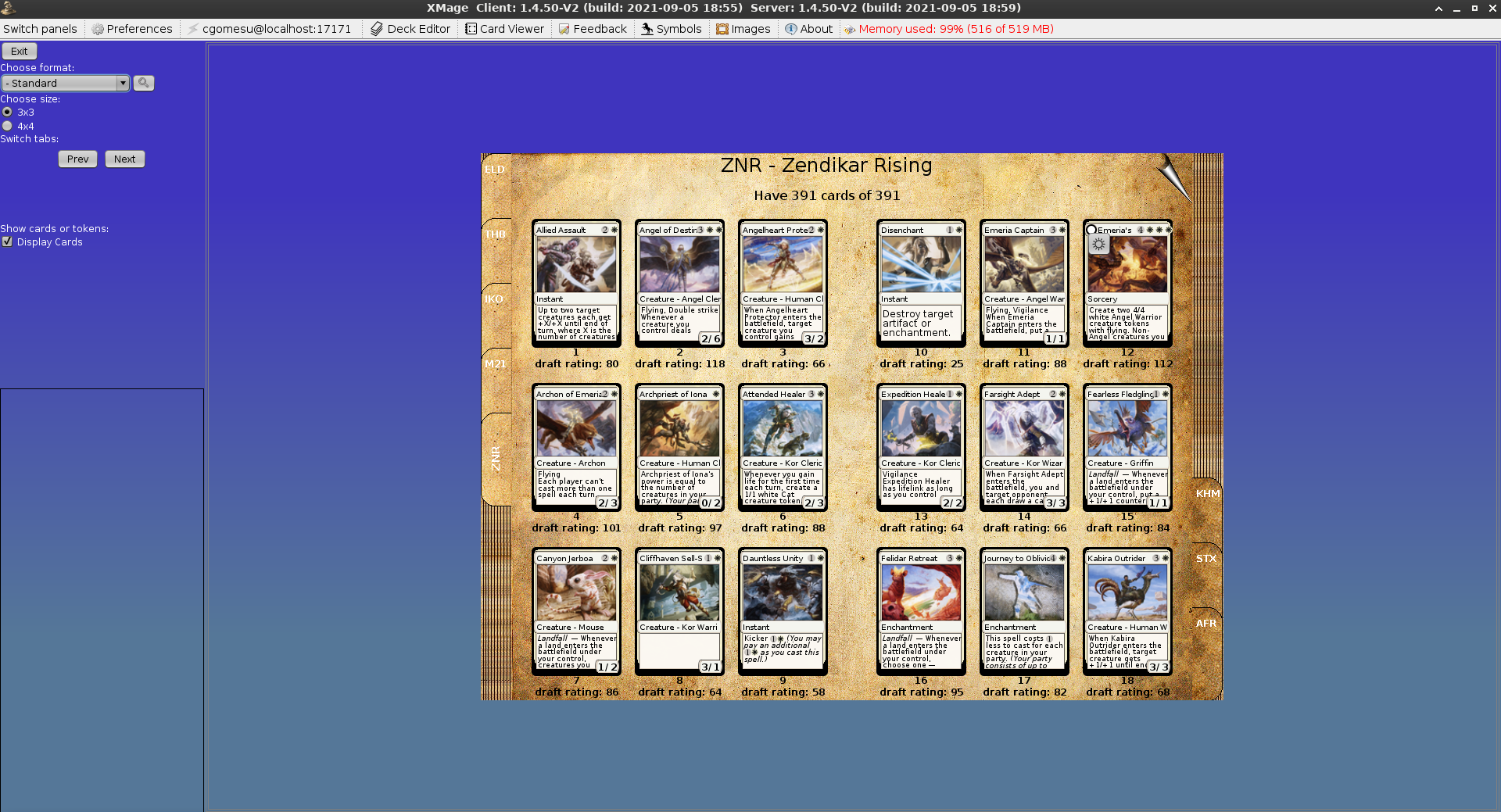
<p>In addition, XMage’s client has another unique feature, called <strong>card viewer</strong>, that allows users to browse MtG collections. When I used to play paper MtG, I carried multiple binders with me that contained my most valuable cards and XMage’s card viewer is very reminiscent of such binders. It is also an interesting mode to browse cards from a new set to get yourself familiarized with them and see what could be tested and added to an existing deck.</p>

<p><a href="/assets/posts/2022-07-18-forge-xmage-mtg/xmage-gui-viewer.png"><img src="/assets/posts/2022-07-18-forge-xmage-mtg/xmage-gui-viewer.png" alt="XMage - Card Viewer" class="PostImage" /></a></p>

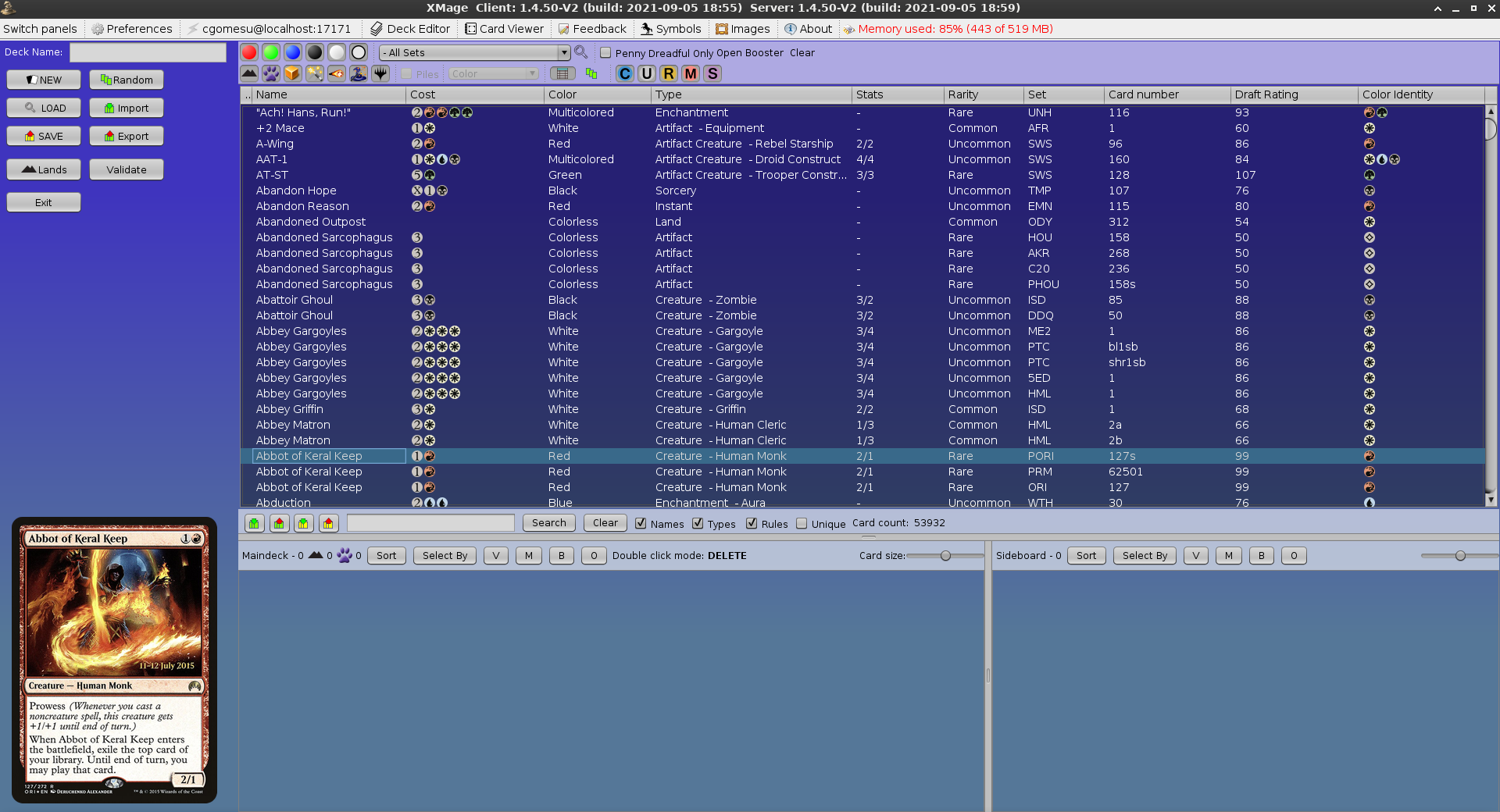
<p>As expected, XMage features a comprehensive implementation of a <strong>deck editor</strong>. This can be found when launching a client, under the tab properly dubbed <em>Deck Editor</em>. Within the editor, users can lookup cards, use filters, preview art, build new decks for various formats, customize existing ones, import/export deck lists, and so on.</p>

<p><a href="/assets/posts/2022-07-18-forge-xmage-mtg/xmage-gui-editor.png"><img src="/assets/posts/2022-07-18-forge-xmage-mtg/xmage-gui-editor.png" alt="XMage - Editor" class="PostImage" /></a></p>

<p>Regarding XMage’s client interface, it is also possible to select <strong>themes</strong> for it.  However, the number of options is more limited than in Forge and the visual changes are rather minor in most cases. (I personally like the <code class="language-plaintext highlighter-rouge">Default</code> one and <code class="language-plaintext highlighter-rouge">Grey</code>.)  Visually, a game of MtG on the XMage client reminds me a lot of the old Magic Online with Digital Objects (MODO)–a WotC MtG RE that preceded MTGO–so it can feel a bit nostalgic to play MtG on XMage if you have also experienced the MODO days.</p>

<h3 id="gameplay-demo-1">Gameplay demo</h3>

<!-- Courtesy of embedresponsively.com //-->
<div class="responsive-video-container">

  <iframe src="https://www.youtube-nocookie.com/embed/iOMPxAm6vnw" frameborder="0" allowfullscreen=""></iframe>

</div>

<h3 id="getting-started-1">Getting started</h3>
<p>The requirements to run XMage are almost identical to Forge.  That is, it needs a JRE to run and the user experience is much better with a larger screen than what you would get using a tiny laptop / tablet. However, contrary to Forge, you should plan on saving a long time for the XMage initial setup because it takes multiple hours for it to finish downloading all the missing images.</p>

<p class="notice--info">You might want to install XMage at night and leave your computer running overnight while XMage downloads the missing art, for example. You most definitely do not need to monitor XMage while it performs such task.</p>

<p>The following table provides a summary of the software I used to run XMage at the time of writing:</p>

<table>
  <thead>
    <tr>
      <th style="text-align: center">application</th>
      <th style="text-align: center">version</th>
    </tr>
  </thead>
  <tbody>
    <tr>
      <td style="text-align: center"><code class="language-plaintext highlighter-rouge">java</code> (host)</td>
      <td style="text-align: center"><code class="language-plaintext highlighter-rouge">openjdk 11.0.15 2022-04-19</code></td>
    </tr>
    <tr>
      <td style="text-align: center"><code class="language-plaintext highlighter-rouge">java</code> (XMage)</td>
      <td style="text-align: center"><code class="language-plaintext highlighter-rouge">1.8.0_201</code></td>
    </tr>
    <tr>
      <td style="text-align: center"><code class="language-plaintext highlighter-rouge">xmage launcher</code></td>
      <td style="text-align: center"><code class="language-plaintext highlighter-rouge">0.3.8</code></td>
    </tr>
    <tr>
      <td style="text-align: center"><code class="language-plaintext highlighter-rouge">xmage client</code></td>
      <td style="text-align: center"><code class="language-plaintext highlighter-rouge">1.4.50-v2 build: 2021-09-05</code></td>
    </tr>
    <tr>
      <td style="text-align: center"><code class="language-plaintext highlighter-rouge">xmage server</code></td>
      <td style="text-align: center"><code class="language-plaintext highlighter-rouge">1.4.50-v2 build: 2021-09-05</code></td>
    </tr>
  </tbody>
</table>

<h3 id="installation-1">Installation</h3>
<ul>
  <li>
    <p><strong>Requirements</strong></p>

    <p>As mentioned before, XMage requires a JRE to run. For instructions on how to install JRE on your host machine, please refer to the <a href="#installation">Forge installation requirements</a> because they are identical.</p>
  </li>
  <li>
    <p><strong>Download and install XMage</strong></p>

    <p>The XMage RE can be divided into three distinct applications, namely <strong>launcher</strong>, <strong>client</strong>, and <strong>server</strong>. The launcher is used to manage both the client and the server–that is, it checks the requisites, what client and server versions are installed, if they are up-to-date, and whether you want to start a client or a server or both. Therefore, the installation starts with the <strong>XMage launcher</strong>, which you can manually download from the beta website:</p>

    <ul>
      <li><a href="http://xmage.today">http://xmage.today</a></li>
    </ul>

    <p>or via terminal, using curl to download the launcher to your user’s <code class="language-plaintext highlighter-rouge">Downloads</code> dir:</p>

    <div class="language-plaintext highlighter-rouge"><div class="highlight"><pre class="highlight"><code>cd ~/Downloads/
XMAGE_DOMAIN="http://xmage.today/"
XMAGE_SUBDIRS="files/"
XMAGE_FILE=$(curl -s $XMAGE_DOMAIN | grep -m 1 -oE "mage-full.*\.zip")
XMAGE_URL="$XMAGE_DOMAIN$XMAGE_SUBDIRS$XMAGE_FILE"
curl -L -o "$XMAGE_FILE" "$XMAGE_URL"
</code></pre></div>    </div>

    <p class="notice--info">Of note, the official website is (or used to be) <a href="http://xmage.de">http://xmage.de</a> but it has been down for quite some time now and the <code class="language-plaintext highlighter-rouge">xmage.today</code> domain, which hosts the <em>beta</em> client, is currently the suggested alternative.</p>

    <p>Before executing the launcher, you should <strong>define where the XMage application will be stored</strong> because the launcher will create subdirs for the client and server inside the same directory it currently resides.  As I mentioned before, I like to put all such applications inside a directory called <code class="language-plaintext highlighter-rouge">Applications</code> in my user’s <code class="language-plaintext highlighter-rouge">$HOME</code>:</p>

    <div class="language-plaintext highlighter-rouge"><div class="highlight"><pre class="highlight"><code>if [ ! -d "$HOME/Applications/" ]; then mkdir "$HOME/Applications"; fi
cd "$HOME/Applications/"
</code></pre></div>    </div>

    <p>Now we can create a separate dir for XMage and move the launcher there:</p>

    <div class="language-plaintext highlighter-rouge"><div class="highlight"><pre class="highlight"><code>XMAGE_DEST="XMage Beta"
mkdir "$XMAGE_DEST"
mv "$HOME/Downloads/$XMAGE_FILE" "./$XMAGE_DEST/"
cd "$XMAGE_DEST"
</code></pre></div>    </div>

    <p>Unzip the downloaded file into the current directory:</p>

    <div class="language-plaintext highlighter-rouge"><div class="highlight"><pre class="highlight"><code>unzip "$XMAGE_FILE"
</code></pre></div>    </div>

    <p>The XMage launcher is a <a href="https://docs.oracle.com/javase/8/docs/technotes/guides/jar/index.html">Java archive</a> (<code class="language-plaintext highlighter-rouge">jar</code>) file, so to execute it, run the following:</p>

    <div class="language-plaintext highlighter-rouge"><div class="highlight"><pre class="highlight"><code>java -jar ./XMageLauncher-*.jar
</code></pre></div>    </div>

    <p>You should now be able to see the launcher’s GUI and it will start checking for missing requisites.  Simply follow the instructions until the option to Launch Client becomes available. When you get to this point, you should be done installing the client and the server.</p>
  </li>
  <li>
    <p><strong>Initial configuration</strong></p>

    <p>Once the launcher is done installing the missing components, select <strong>Launch Client</strong> to download the missing content (symbols and images). You will be greeted by a <em>Connect to server</em> window but for now, we won’t connect to any XMage server, so hit <em>Cancel</em> in order to access the tabs at the top of the client’s window.</p>

    <p>First, select <strong>Symbols</strong> and follow instructions to download such image files. When done, select <strong>Images</strong>, then <em>Standard download</em> and optionally, you might configure options different than default but I suggest to use defaults, and then hit <em>Start downloading</em>.</p>

    <p class="notice--warning"><strong>This will take multiple hours to finish</strong>.  Just keep it running in the background and come back later to check on it.</p>

    <p>When you are done downloading the missing content, you can optionally go to <strong>Preferences</strong> and customize the XMage client to your liking.  However, if this is your first time, then try the defaults first and change preferences as you become more familiar with the interface.</p>

    <p>Afterwards, close both the XMage client and then the XMage launcher and you are all done with the client configuration.</p>

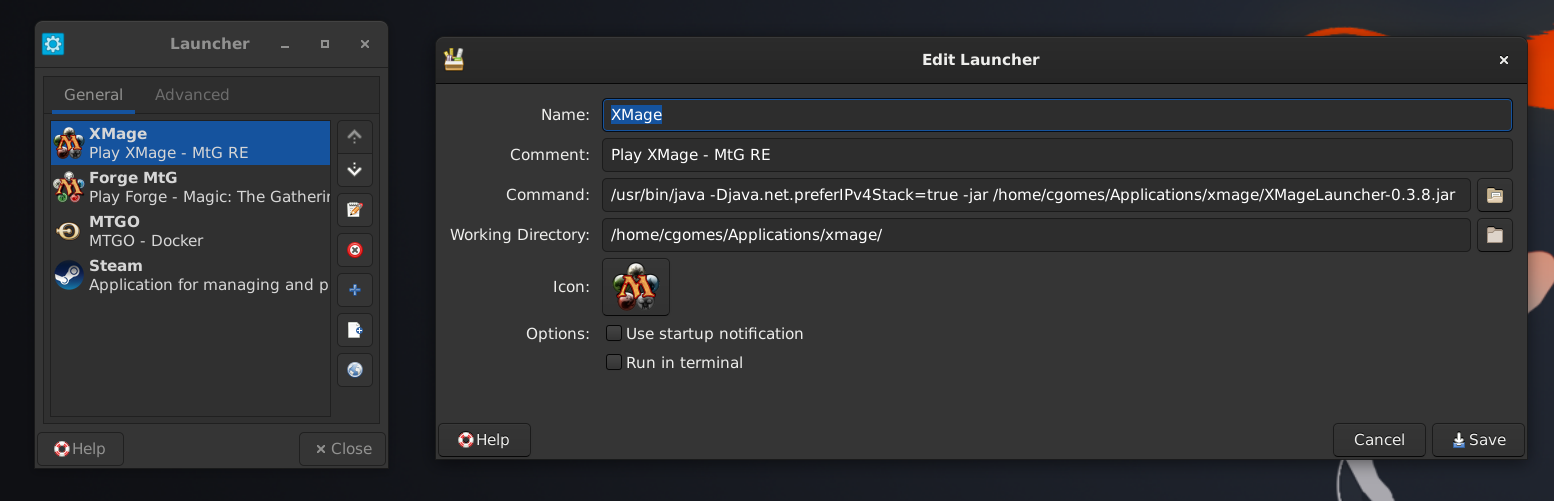
    <p>Now, it is possible to run either the client or the server or both without using the launcher but I strongly suggest to <strong>always use the XMage launcher</strong> because it is the launcher that ensures you are running the latest XMage components. However, instead of opening a terminal to run the launcher every time you want to use XMage, you can create a <strong>custom launcher</strong> for it, just like we have done with Forge. (Once again, in GNU/Linux, the specifics of creating a custom launcher depends a lot on the desktop environment and most of them have documented such procedure, so I won’t cover this here.)  Here is how my XMage custom launcher configuration looks like in Debian 11 XFCE:</p>

    <p><a href="/assets/posts/2022-07-18-forge-xmage-mtg/xmage-xfce-launcher.png"><img src="/assets/posts/2022-07-18-forge-xmage-mtg/xmage-xfce-launcher.png" alt="XMage - XFCE Launcher" class="PostImage PostImage--large" /></a></p>

    <p class="notice--info">The <code class="language-plaintext highlighter-rouge">-Djava.net.preferIPv4Stack=true</code> runtime arg is probably not necessary but since it is mentioned in the <a href="https://github.com/magefree/mage#installation--running">XMage documentation</a>, I also added it here. It just tells Java to favor IPv4 over IPv6, probably because XMage has/had an issue with the latter.  However, I’ve never noticed any problems without setting it.</p>
  </li>
</ul>

<h3 id="client-and-server-usage">Client and Server usage</h3>
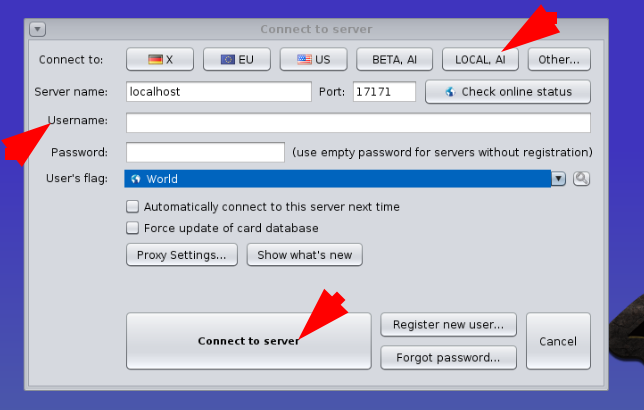
<p>For most users, the steps covered so far are enough to start playing MtG using the XMage RE. For a <strong>single player match against the computer(s)</strong>, you need to launch <strong>both server and client</strong> from within the XMage launcher. This will prompt XMage to start a local server that your XMage client can connect to. To connect to your local server, select <em>LOCAL, AI</em>, then enter your username (e.g., <code class="language-plaintext highlighter-rouge">cgomesu</code>) and then select <code class="language-plaintext highlighter-rouge">Connect to server</code>:</p>

<p><a href="/assets/posts/2022-07-18-forge-xmage-mtg/xmage-local-ai.png"><img src="/assets/posts/2022-07-18-forge-xmage-mtg/xmage-local-ai.png" alt="XMage - Client - Local" class="PostImage" /></a></p>

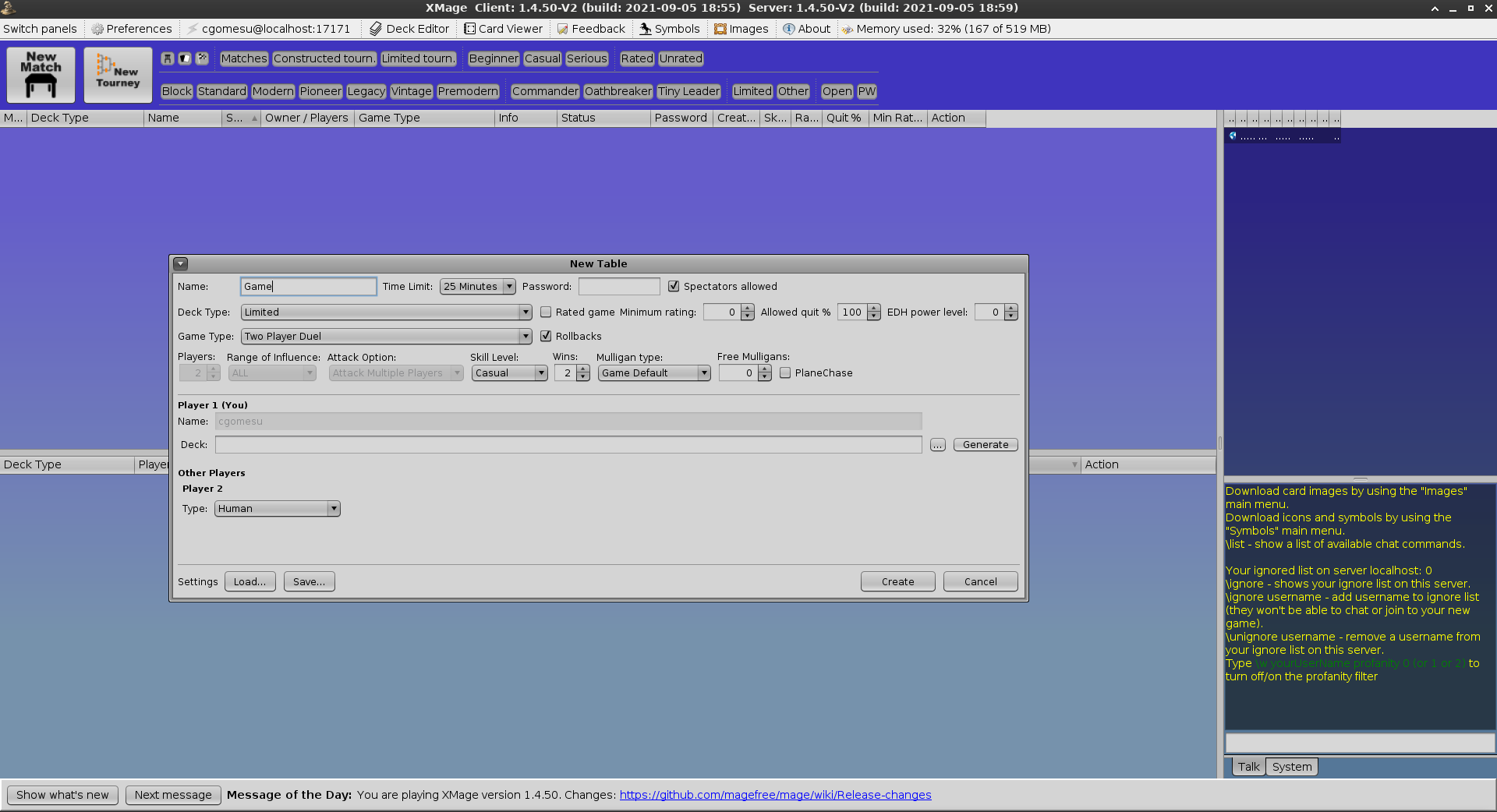
<p>This will let you create a <strong>New Match</strong> and then configure the type of game you want to play, decks to use, and so on:</p>

<p><a href="/assets/posts/2022-07-18-forge-xmage-mtg/xmage-client-02.png"><img src="/assets/posts/2022-07-18-forge-xmage-mtg/xmage-client-02.png" alt="XMage - GUI - Client - 02" class="PostImage" /></a></p>

<p class="notice--info">For <em>Constructed</em> type of games, use the <code class="language-plaintext highlighter-rouge">mad</code> computer type.</p>

<p>However, if you want to play online with friends, then <strong>one of you will have to run an XMage server</strong> that is reachable to the other players via a <strong>public IP and port number</strong> (or for the tech savvy, via a domain name, such as <code class="language-plaintext highlighter-rouge">xmage.cgomesu.com</code>). In such cases, I strongly recommend the person running the server to take a look at additional server configuration instructions that can be found in <a href="https://github.com/magefree/mage/wiki#server-configuration">XMage Wiki - Server configuration</a>.</p>

<p>There are <strong>public servers</strong> as well but I’ve never used them before. Take a look at the following resources for more information:</p>

<ul>
  <li><a href="http://xmage.today">http://xmage.today</a></li>
  <li><a href="http://xmage.today/servers/">http://xmage.today/servers/</a></li>
</ul>

<p>Finally, it is also possible to play against a friend who is on the same local network as you, which works just like a <strong>LAN party</strong>. The specifics are similar to the online play but instead of adding a remote address to the connection window, you specify the local IP address of the host running the XMage server (e.g., <code class="language-plaintext highlighter-rouge">192.168.1.100</code>) and port, if different than default (<code class="language-plaintext highlighter-rouge">17171</code>). Once all the players have joined the server, you can then configure and create a match for your friends to join.</p>

<p><a href="#" class="btn btn--light-outline btn--small">top</a></p>

<h1 id="contributing">Contributing</h1>
<p>Both Forge and XMage are community-driven FOSS projects, which means that anyone can help maintain those projects but if no one does that, the projects will simply die out as developers move onto other things. Fortunately, if you use and enjoy these projects, there are many things you can do to contribute to their continuing development. The most obvious one is via financial incentives, that is, <strong>donations</strong>. Currently, none of these projects has a proper channel that people can use to donate money specifically towards development and maintenance of the project’s public repository. I reached out to the maintainers of each project and the only donation channels that I found (and thought would be appropriate to share here) are the following:</p>

<ul>
  <li><strong>Donations</strong>
    <ul>
      <li>Forge:
        <ul>
          <li><a href="https://ko-fi.com/forgedonations">https://ko-fi.com/forgedonations</a>: Help supporting hosting costs Forge has had over the years.</li>
        </ul>
      </li>
      <li>XMage:
        <ul>
          <li><a href="http://xmage.today/#donate">http://xmage.today/#donate</a>: At the time of writing, donations go to the lead maintainer of the XMage project, <a href="https://github.com/JayDi85">@JayDi85</a>, who is also responsible for a few of the public servers.</li>
        </ul>
      </li>
    </ul>
  </li>
</ul>

<p>However, financial incentive is not the only way to contribute. In next few sections, I mentioned additional ways to contribute that do not involve money but actual work.</p>

<h2 id="reporting-issues">Reporting issues</h2>
<p>One of the easiest ways to contribute is by providing feedback regarding issues with one or more components of each application. This is done via an <strong>issue tracker</strong> which in both cases, is currently done via the project’s Github repository:</p>

<ul>
  <li><a href="https://github.com/Card-Forge/forge/issues">Forge issues</a></li>
  <li><a href="https://github.com/magefree/mage/issues">XMage issues</a></li>
</ul>

<p>Before submitting an issue, <strong>always search</strong> for a related keyword in issues that are still open (<code class="language-plaintext highlighter-rouge">is:issue is:open</code> filter) or closed (<code class="language-plaintext highlighter-rouge">is:issue is:closed</code>).  If you cannot find anything related, then open a new issue and importantly, <em>if the project has a template for submitting an issue</em>, which is enforced when it is opened, then read and follow the template. This saves a lot of time for you and the maintainers.</p>

<h2 id="card-scripting-1">Card scripting</h2>
<p>Of the two MtG REs covered here, Forge is the only one that supports <strong>card scripting</strong>. This is something that anyone can do because it does not require knowledge about Java, IDEs, and object-oriented programming. If this sounds like something you can help with, take a look at the <a href="#card-scripting">Card scripting</a> section covered before.</p>

<h2 id="project-development">Project development</h2>
<p>Java is the language of choice in both projects. So, if you want to contribute to the development of the RE itself, then you will need to be at least familiar with Java and <code class="language-plaintext highlighter-rouge">git</code> versioning. The maintainers of both projects were kind enough to document useful information about development for anyone interested in helping out.  You can find such info in the Wiki of each project:</p>

<ul>
  <li><a href="https://github.com/Card-Forge/forge/wiki/(SM-autoconverted)-how-to-get-started-developing-forge">Forge development instructions</a></li>
  <li><a href="https://github.com/magefree/mage/wiki#developer">XMage development instructions</a></li>
</ul>

<p>If you are not familiar with Java or <code class="language-plaintext highlighter-rouge">git</code> but want to learn, there are free online resources available:</p>

<ul>
  <li><strong>Introduction to Java</strong></li>
</ul>

<!-- Courtesy of embedresponsively.com //-->
<div class="responsive-video-container">

  <iframe src="https://www.youtube-nocookie.com/embed/7WiJGTPuVeU" frameborder="0" allowfullscreen=""></iframe>

</div>

<ul>
  <li><strong>Introduction to Git and Github</strong></li>
</ul>

<!-- Courtesy of embedresponsively.com //-->
<div class="responsive-video-container">

  <iframe src="https://www.youtube-nocookie.com/embed/RGOj5yH7evk" frameborder="0" allowfullscreen=""></iframe>

</div>

<p><a href="#" class="btn btn--light-outline btn--small">top</a></p>

<h1 id="final-remarks">Final remarks</h1>
<p>In this article, I talked about two free and open source MtG REs, namely <strong>Forge</strong> and <strong>XMage</strong>. These projects are community-driven and good examples of FOSS applied to gaming. More specifically, they do not attempt to be copies of the official MtG client for Windows (MTGO) but actually introduce many new features (e.g., portability, single player modes, self-hosting MtG servers) that either enhance or complement each other and the official client. If you are a fan of MtG like me, you should definitely check them out and if you enjoyed them, please consider supporting the projects by spreading the word or contributing to their continuing development.</p>

<p><a href="#" class="btn btn--light-outline btn--small">top</a></p>]]></content><author><name>Carlos Gomes</name></author><category term="blog" /><category term="mtg" /><category term="magic" /><category term="foss" /><category term="open" /><category term="free" /><category term="java" /><category term="game" /><category term="forge" /><category term="xmage" /></entry><entry><title type="html">DIY series: ESP-01 Tasmota environmental sensor</title><link href="/blog/diy-tasmota-bme280/" rel="alternate" type="text/html" title="DIY series: ESP-01 Tasmota environmental sensor" /><published>2021-08-12T13:00:00-03:00</published><updated>2021-08-12T13:00:00-03:00</updated><id>/blog/diy-tasmota-bme280</id><content type="html" xml:base="/blog/diy-tasmota-bme280/"><![CDATA[<h1 id="changelog">Changelog</h1>
<p class="notice--info"><strong>August 12th, 2021</strong>: Publication of the original article</p>

<p><a href="#" class="btn btn--light-outline btn--small">top</a></p>

<h1 id="introduction">Introduction</h1>
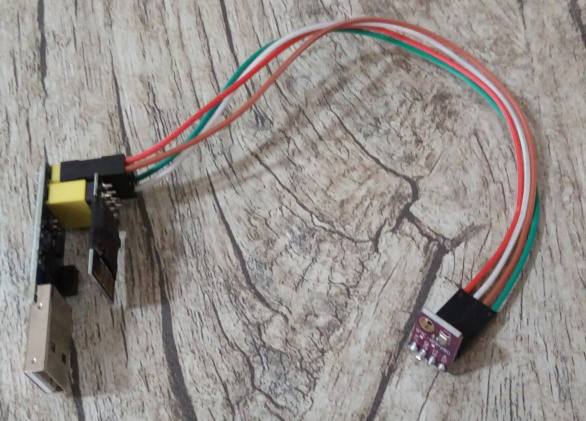
<p>This is the first article of a <strong>Do It Yourself</strong> (DIY) series in which I describe simple electronic projects that make use of an <a href="https://www.espressif.com/en/products/socs/esp8266">ESP8266</a>/<a href="https://www.espressif.com/en/products/socs/esp32">ESP32</a> board running the <a href="https://github.com/arendst/Tasmota">Tasmota</a> firmware to integrate various modules into a home automation system, such as <a href="https://www.home-assistant.io/">Home Assistant</a>.  In this first iteration of the series, I described how to wire and configure a <a href="https://www.bosch-sensortec.com/products/environmental-sensors/humidity-sensors-bme280/"><strong>BME280</strong></a> to the tiny <a href="http://www.ai-thinker.com/pro_view-60.html"><strong>ESP-01</strong></a> (or its successor, the <a href="http://www.ai-thinker.com/pro_view-88.html">ESP-01S</a>) to create a cheap (less than US$6), low-power (less than 1W), and low-profile (less than 5cm long) environmental sensor that provides <strong>temperature</strong>, <strong>humidity</strong>, and <strong>relative pressure</strong> measurements to home automation systems via <a href="https://en.wikipedia.org/wiki/MQTT">MQTT</a>.</p>

<ul>
  <li>Here is a preview of the ambient sensor alone and attached to different devices:</li>
</ul>

<p><a href="/assets/posts/2021-07-18-diy-tasmota-bme280/esp-bme280-sensor-01.jpg"><img src="/assets/posts/2021-07-18-diy-tasmota-bme280/esp-bme280-sensor-01.jpg" alt="ESP-BME280 sensor 01" class="PostImage PostImage--large" /></a></p>

<p><a href="/assets/posts/2021-07-18-diy-tasmota-bme280/esp-bme280-sensor-02.jpg"><img src="/assets/posts/2021-07-18-diy-tasmota-bme280/esp-bme280-sensor-02.jpg" alt="ESP-BME280 sensor 02" class="PostImage" /></a></p>

<p><a href="/assets/posts/2021-07-18-diy-tasmota-bme280/esp-bme280-sensor-03.jpg"><img src="/assets/posts/2021-07-18-diy-tasmota-bme280/esp-bme280-sensor-03.jpg" alt="ESP-BME280 sensor 03" class="PostImage" /></a></p>

<p>This is a great project for anyone who wants to get started on building their own Internet of Things (IoT) devices.  The article started with my motivation for this particular project.  Next, I talked about the hardware and software components, and finally, at the end, I covered the assembly of it all to create a functional unit.</p>

<p class="notice--info">Because this is such a low-profile project, I do not ever bother printing a case for it.  However, if you designed a case to house this particular project, <a href="/contact">get in touch with me</a> and I will feature your case here.  But please <a href="https://www.bosch-sensortec.com/media/boschsensortec/downloads/handling_soldering_mounting_instructions/bst-bme280-hs006.pdf">observe the official mounting instructions for the BME280 sensor</a> before printing your case because the heat generated by the ESP-01 and its USB adapter can affect the sensors.</p>

<p><a href="#" class="btn btn--light-outline btn--small">top</a></p>

<h1 id="motivation">Motivation</h1>
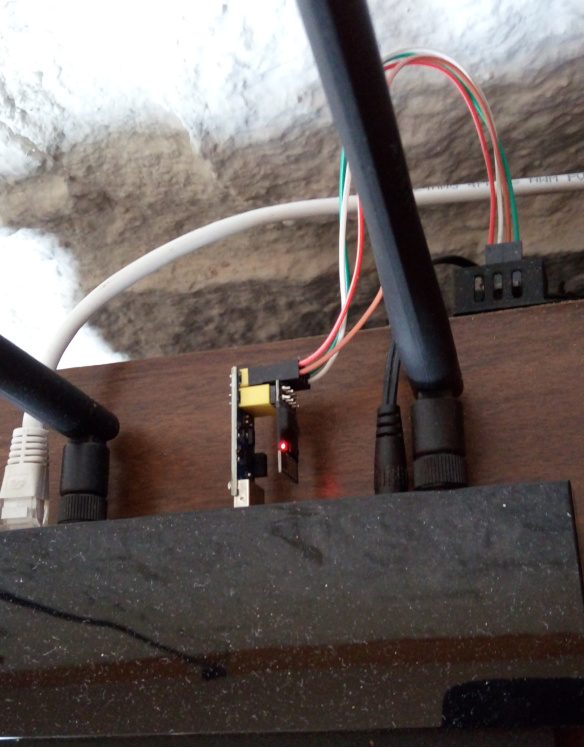
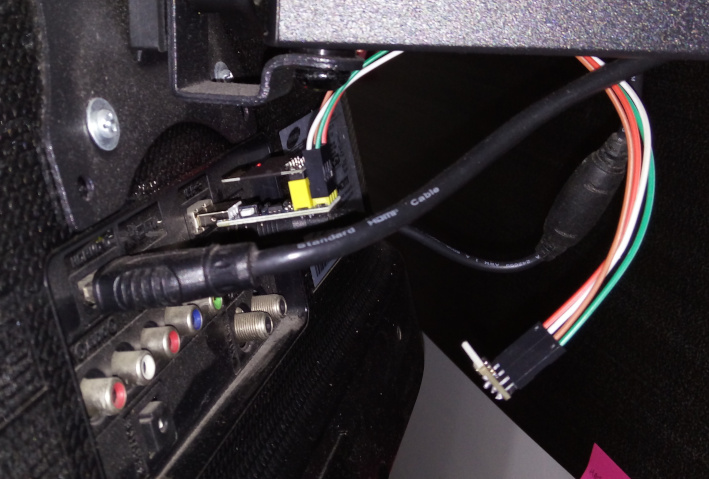
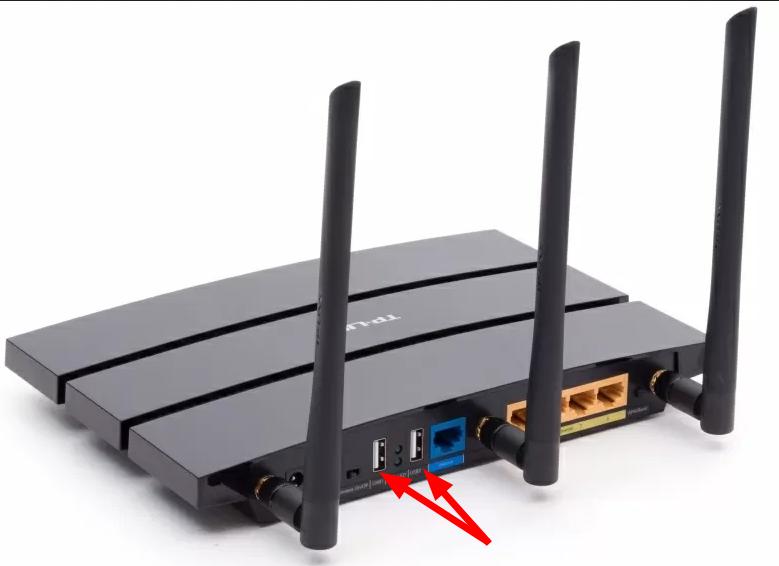
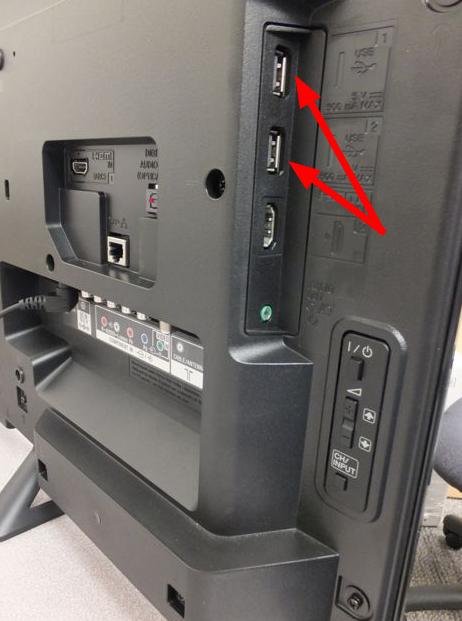
<p>Over the years, I have started noticing that multiple devices spread across the household (e.g., smart TVs, sound systems, wireless routers, PC towers and laptops) had one or more <strong>USB ports</strong> that could be used to power a few DIY electronic projects.</p>

<p><a href="/assets/posts/2021-07-18-diy-tasmota-bme280/device-usb-port-01.jpg"><img src="/assets/posts/2021-07-18-diy-tasmota-bme280/device-usb-port-01.jpg" alt="Device with USB port 01" class="PostImage" /></a></p>

<p><a href="/assets/posts/2021-07-18-diy-tasmota-bme280/device-usb-port-02.jpg"><img src="/assets/posts/2021-07-18-diy-tasmota-bme280/device-usb-port-02.jpg" alt="Device with USB port 02" class="PostImage" /></a></p>

<p>However, the most common type of USB port available (<a href="https://en.wikipedia.org/wiki/USB#USB_2.0">USB 2.0</a>) usually delivers a maximum of <code class="language-plaintext highlighter-rouge">500mA</code> at <code class="language-plaintext highlighter-rouge">5V</code> (<code class="language-plaintext highlighter-rouge">2.5W</code>), which constraints the type of projects that could reasonably use such ports as power supply. In addition, because interfacing via the USB connection might not always be possible, owing to proprietary and closed-source firmware, the DIY project should be able to transmit data wirelessly instead.</p>

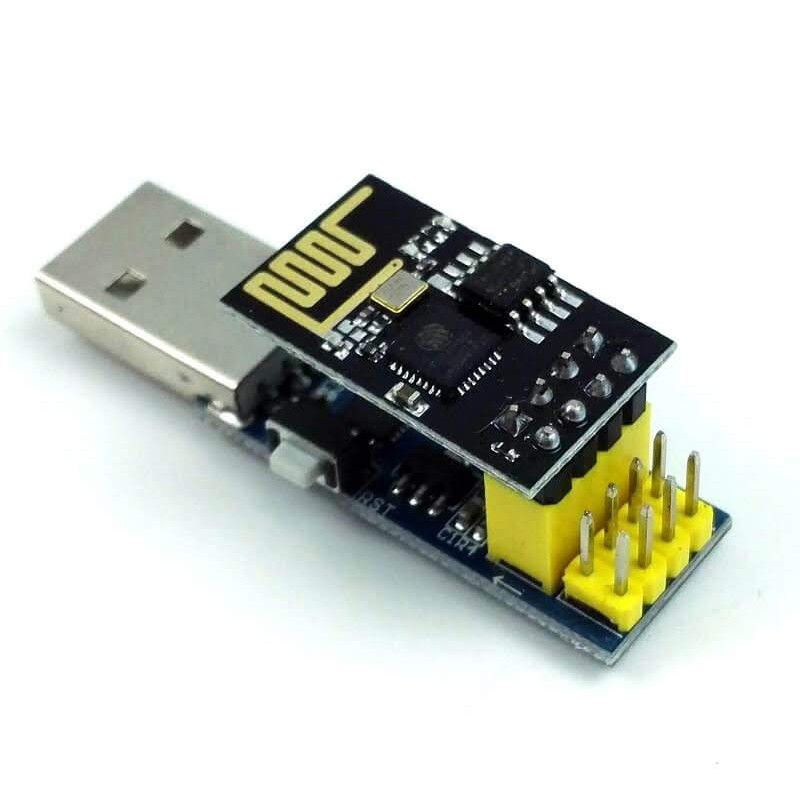
<p>Fortunately, the <strong>ESP-01 WiFi module</strong> meets all such requirements. Specifically, it requires very little energy to operate (roughly <code class="language-plaintext highlighter-rouge">.3W</code> on average, with <code class="language-plaintext highlighter-rouge">1W</code> peaks) and can be connected to USB 2.0 ports via USB adapters that have a built-in voltage regulator.</p>

<p><a href="/assets/posts/2021-07-18-diy-tasmota-bme280/esp-01-with-usb-adapter.jpg"><img src="/assets/posts/2021-07-18-diy-tasmota-bme280/esp-01-with-usb-adapter.jpg" alt="ESP-01 with USB adapter" class="PostImage" /></a></p>

<p>Furthermore, because the unit will draw power from standard USB ports, it can be connected to most <a href="https://duckduckgo.com/?q=usb+power+bank&amp;ia=images">power banks</a> to create a mobile/remote ambient sensor.</p>

<p><a href="#" class="btn btn--light-outline btn--small">top</a></p>

<h1 id="overview-of-the-main-hardware-components">Overview of the main hardware components</h1>
<h2 id="esp-01">ESP-01</h2>
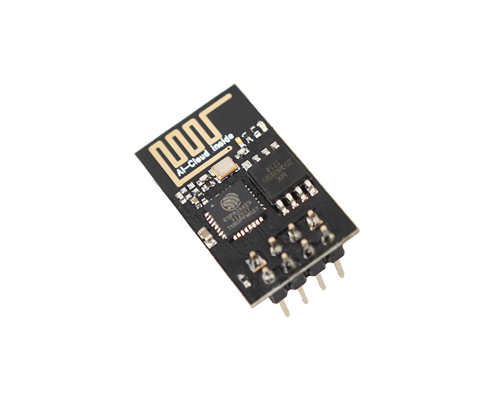
<p>The <strong>ESP-01</strong> is a cheap and very small WiFi module developed by <a href="http://en.ai-thinker.com/">Ai-Thinker</a> that is based on the ESP8266EX microcontroller unit (MCU) by <a href="https://www.espressif.com/">Espressif</a>:</p>

<p><a href="/assets/posts/2021-07-18-diy-tasmota-bme280/esp-01-top.png"><img src="/assets/posts/2021-07-18-diy-tasmota-bme280/esp-01-top.png" alt="ESP-01 top" class="PostImage PostImage--large" /></a></p>

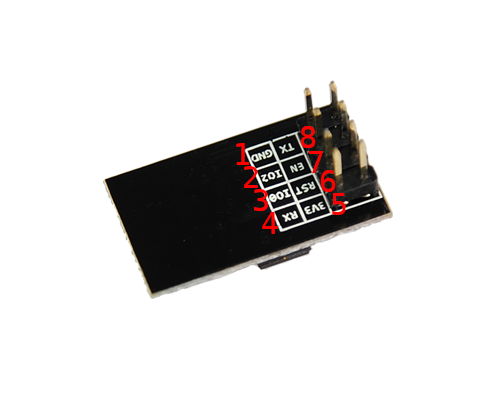
<p><a href="/assets/posts/2021-07-18-diy-tasmota-bme280/esp-01-bottom.png"><img src="/assets/posts/2021-07-18-diy-tasmota-bme280/esp-01-bottom.png" alt="ESP-01 bottom" class="PostImage PostImage--large" /></a></p>

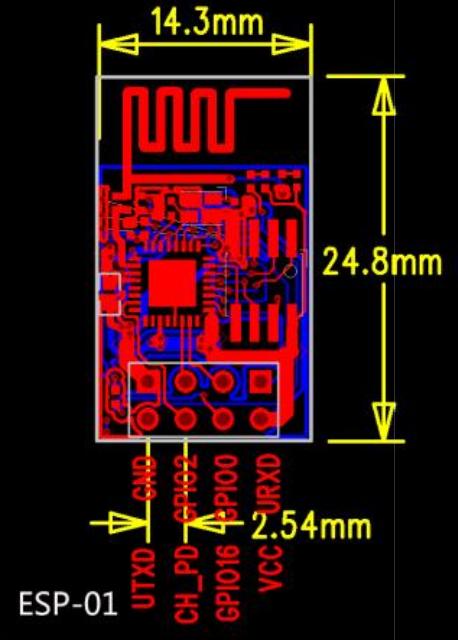
<p><a href="/assets/posts/2021-07-18-diy-tasmota-bme280/esp-01-dimensions-pinout.jpg"><img src="/assets/posts/2021-07-18-diy-tasmota-bme280/esp-01-dimensions-pinout.jpg" alt="ESP-01 dimensions and pinout" class="PostImage" /></a></p>

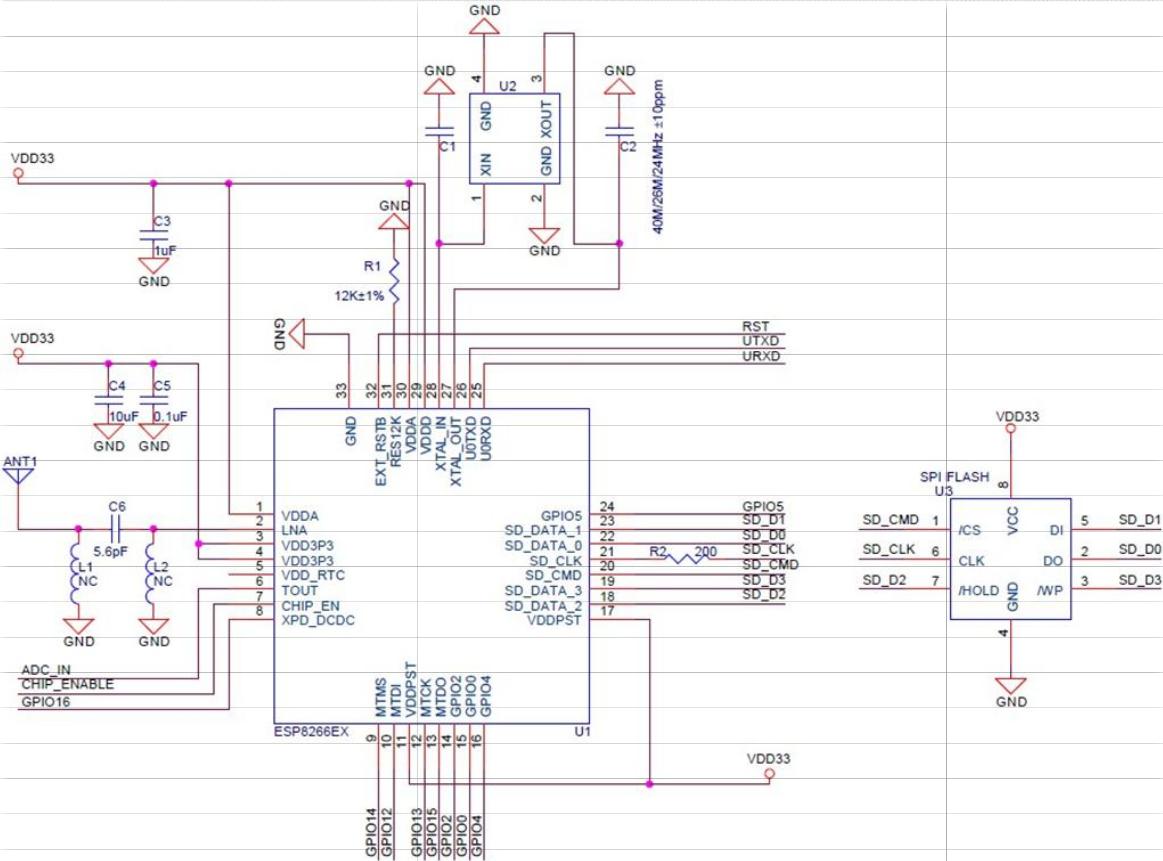
<p><a href="/assets/posts/2021-07-18-diy-tasmota-bme280/esp-01-schematics.jpg"><img src="/assets/posts/2021-07-18-diy-tasmota-bme280/esp-01-schematics.jpg" alt="ESP-01 schematics" class="PostImage" /></a></p>

<p>Of note, it <strong>exposes only four GPIO pins</strong> to interface with other devices–namely, <code class="language-plaintext highlighter-rouge">URXD</code>, <code class="language-plaintext highlighter-rouge">UTXD</code>, <code class="language-plaintext highlighter-rouge">IO2</code> and <code class="language-plaintext highlighter-rouge">IO0</code>–and it is powered via <code class="language-plaintext highlighter-rouge">3v3 DC</code> to the <code class="language-plaintext highlighter-rouge">VCC</code> and <code class="language-plaintext highlighter-rouge">GND</code> pins. Each of the <a href="/assets/posts/2021-07-18-diy-tasmota-bme280/esp-01-bottom.png">eight exposed pins</a> has specific functions, as suggested by their name:</p>

<center>
<table>
   <thead>
      <th style="text-align: center;">Pin #</th>
      <th style="text-align: center;">Names</th>
      <th style="text-align: center;">Functions and notes</th>
   </thead>
   <tr>
      <td>1</td>
      <td>GND</td>
      <td>Ground</td>
   </tr>
   <tr>
      <td>2</td>
      <td>IO2</td>
      <td>GPIO 2, internal pull-up</td>
   </tr>
   <tr>
      <td>3</td>
      <td>IO0</td>
      <td>GPIO 0 (zero), internal pull-up</td>
   </tr>
   <tr>
      <td>4</td>
      <td>URXD / IO3</td>
      <td>UART0 - serial RX data, GPIO 3</td>
   </tr>
   <tr>
      <td>5</td>
      <td>3v3 / VCC</td>
      <td>3.3V power supply</td>
   </tr>
   <tr>
      <td>6</td>
      <td>RST / IO16</td>
      <td>Reset pin, active low</td>
   </tr>
   <tr>
      <td>7</td>
      <td>EN / CH_PD</td>
      <td>Chip enabled pin, active high</td>
   </tr>
   <tr>
      <td>8</td>
      <td>UTXD / IO1</td>
      <td>UART0 - serial TX data, GPIO 1</td>
   </tr>
</table>
</center>

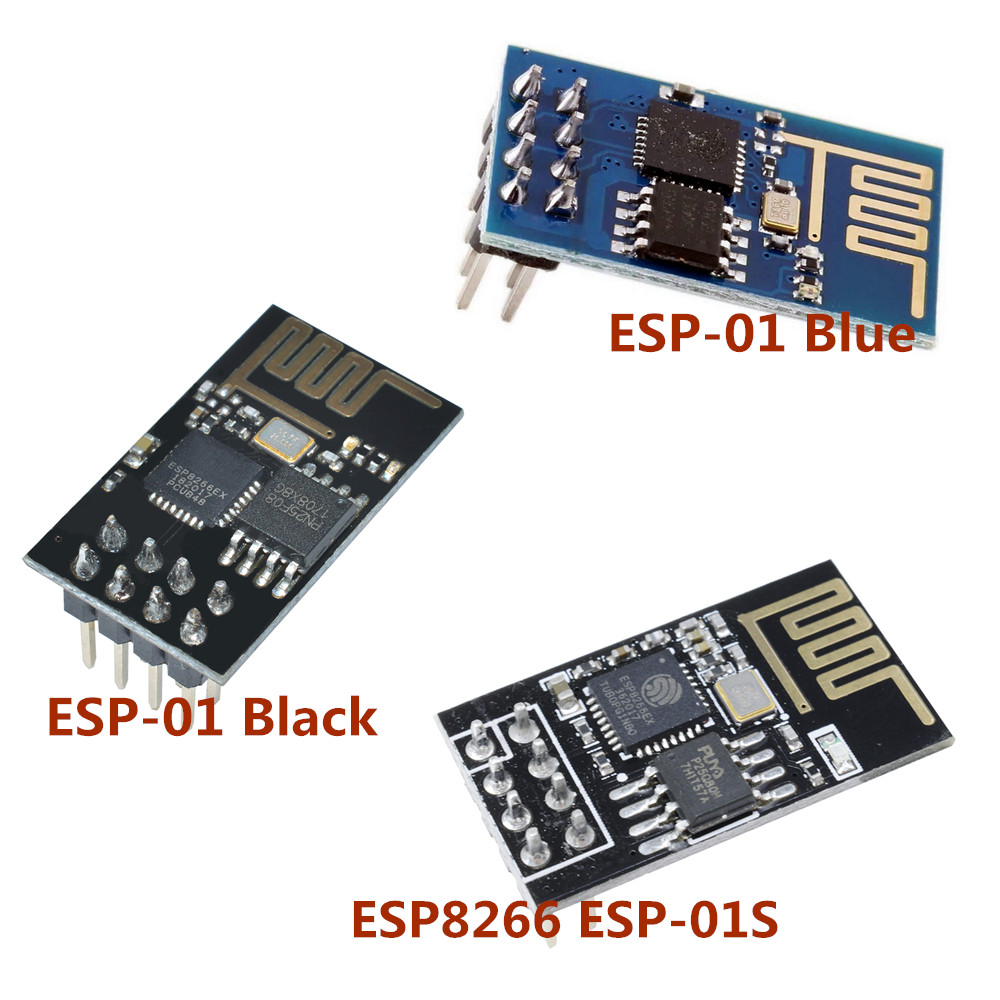
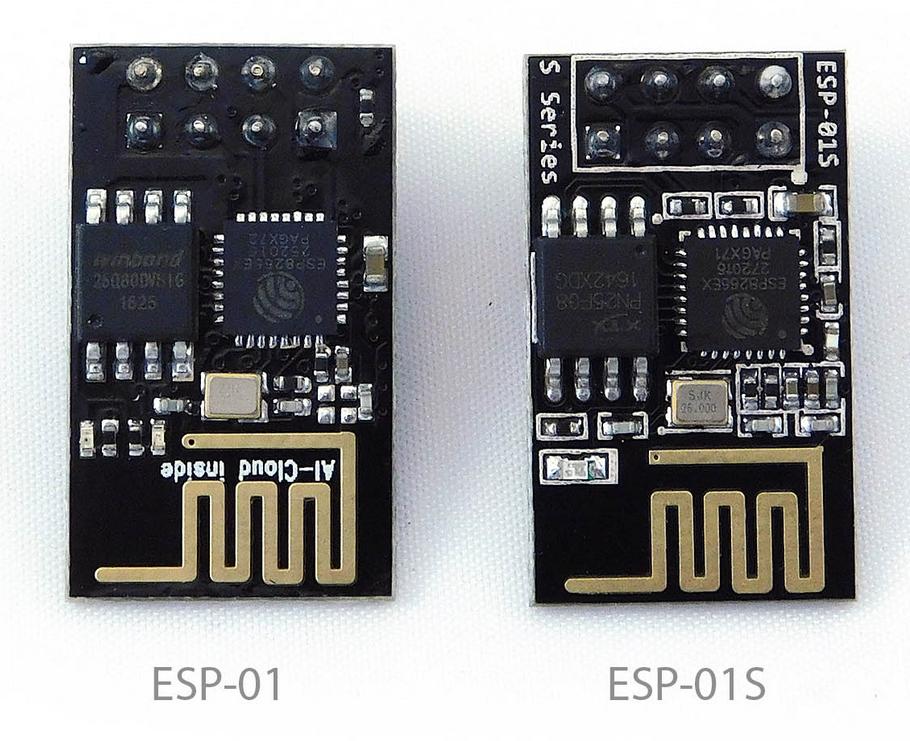
<p>In addition, there is no programmable ROM in the SoC, meaning that any software must be stored on the module’s SPI flash.  Regarding the latter, there are actually three popular versions of the ESP-01 WiFi module that have the same format but differ in flash memory size or other minor specs:</p>

<ol>
  <li><strong>ESP-01 Blue</strong>: The original version with <code class="language-plaintext highlighter-rouge">512KB</code> of flash memory;</li>
  <li><strong>ESP-01 Black</strong>: The original version with <code class="language-plaintext highlighter-rouge">1MB</code> of flash memory;</li>
  <li><strong>ESP-01S</strong>: A revised version with <code class="language-plaintext highlighter-rouge">1MB</code> of flash memory.</li>
</ol>

<p>Fortunately, visual inspection of the module can easily indicate which version it is:</p>

<p><a href="/assets/posts/2021-07-18-diy-tasmota-bme280/esp01-version-comparison-01.jpg"><img src="/assets/posts/2021-07-18-diy-tasmota-bme280/esp01-version-comparison-01.jpg" alt="ESP-01 comparison 01" class="PostImage" /></a></p>

<p><a href="/assets/posts/2021-07-18-diy-tasmota-bme280/esp01-version-comparison-02.jpg"><img src="/assets/posts/2021-07-18-diy-tasmota-bme280/esp01-version-comparison-02.jpg" alt="ESP-01 comparison 02" class="PostImage" /></a></p>

<p>The external SPI flash can be changed for anything up to <code class="language-plaintext highlighter-rouge">16MB</code>.  However, this requires de/soldering very small components and such procedure won’t be covered in this guide (but see <a href="https://www.youtube.com/watch?v=xyc1gCjguRU">Andreas Spiess’ video #34</a> for reference).  My recommendation is to simply look for the versions that have at least <code class="language-plaintext highlighter-rouge">1MB</code> of flash memory, which is just enough for the project described in this article.</p>

<p>For more information, refer to the official documentation:</p>
<ul>
  <li><a href="https://docs.ai-thinker.com/_media/esp8266/docs/esp-01_product_specification_en.pdf">ESP-01</a></li>
  <li><a href="https://docs.ai-thinker.com/_media/esp8266/docs/esp-01s_product_specification_en.pdf">ESP-01S</a></li>
</ul>

<p class="notice--info">In fact, Ai-Thinker has developed <a href="https://docs.ai-thinker.com/en/%E8%A7%84%E6%A0%BC%E4%B9%A6">many other versions of the ESP-01 module</a>, such as the <a href="https://docs.ai-thinker.com/_media/esp8266/docs/esp-01e_product_specification_en.pdf">ESP-01E</a> and <a href="https://docs.ai-thinker.com/_media/esp8266/docs/esp-01f_product_specification_en.pdf">ESP-01F</a>. However, such modules differ in major aspects in comparison to the modules covered here, like format and connectivity, and for such a reason, they won’t be covered in this article.  If interested, check their official e-commerce website at Alibaba.com (<a href="https://ai-thinker.en.alibaba.com/">https://ai-thinker.en.alibaba.com/</a>) to learn how to acquire those less popular modules.</p>

<h2 id="bme280">BME280</h2>
<p>The <strong>BME280</strong> is a low-profile (<code class="language-plaintext highlighter-rouge">2.5 x 2.5 x 0.93 mm³</code>) and low-power (<code class="language-plaintext highlighter-rouge">3.6 mA</code> at roughly <code class="language-plaintext highlighter-rouge">3.3V</code>) environmental sensor developed by <a href="https://www.bosch-sensortec.com">Bosch Sensortec</a>. Specifically, this unit comes with high accuracy sensors for <strong>temperature</strong>, <strong>humidity</strong>, and <strong>pressure</strong>, all protected by a metal-lid.  Of note, it uses <a href="https://en.wikipedia.org/wiki/I%C2%B2C">I²C</a> and <a href="https://en.wikipedia.org/wiki/Serial_Peripheral_Interface">SPI</a> interfaces for data communication and is powered by <code class="language-plaintext highlighter-rouge">3v3 DC</code> (specifically, from <code class="language-plaintext highlighter-rouge">1.71V</code> to <code class="language-plaintext highlighter-rouge">3.6V</code>).</p>

<p><a href="/assets/posts/2021-07-18-diy-tasmota-bme280/bme280-01.png"><img src="/assets/posts/2021-07-18-diy-tasmota-bme280/bme280-01.png" alt="BME280 01 photo" class="PostImage PostImage--large" /></a></p>

<p><a href="/assets/posts/2021-07-18-diy-tasmota-bme280/bme280-02.png"><img src="/assets/posts/2021-07-18-diy-tasmota-bme280/bme280-02.png" alt="BME280 02 dimensions" class="PostImage" /></a></p>

<p>Bosch Sensortec has made an amazing job at <a href="https://www.bosch-sensortec.com/products/environmental-sensors/humidity-sensors-bme280/#documents">documenting all aspects about this sensor</a>. For quick reference, here are the main docs:</p>

<ul>
  <li><a href="https://www.bosch-sensortec.com/media/boschsensortec/downloads/datasheets/bst-bme280-ds002.pdf">Datasheet</a></li>
  <li><a href="https://www.bosch-sensortec.com/media/boschsensortec/downloads/handling_soldering_mounting_instructions/bst-bme280-hs006.pdf">Handling, soldering and mounting instructions</a></li>
</ul>

<p><a href="#" class="btn btn--light-outline btn--small">top</a></p>

<h1 id="hardware">Hardware</h1>
<p>To make a single ESP-01 Tasmota environmental sensor, you will need the following items:</p>

<ul>
  <li>
    <p>01x <a href="https://www.amazon.com/s?k=esp-01+wifi+module">ESP-01 Black/ESP-01S</a>: These modules are very cheap and useful for simple projects, so I recommend buying multiples at once.</p>

    <p><a href="/assets/posts/2021-07-18-diy-tasmota-bme280/esp-01-top.png"><img src="/assets/posts/2021-07-18-diy-tasmota-bme280/esp-01-top.png" alt="ESP-01 top" class="PostImage" /></a></p>
  </li>
  <li>
    <p>01x <a href="https://www.amazon.com/s?k=USB+to+ESP-01">USB to ESP-01 adapter</a>: Look for the ones that have <strong>exposed pins</strong> (see figure below) and preferably, that make use of the Silicon Labs <a href="https://www.silabs.com/documents/public/data-sheets/cp2104.pdf">CP2104</a> (or <a href="https://www.silabs.com/documents/public/data-sheets/CP2102-9.pdf">CP2102</a>) chip. More often than not, however, the adapters will make use of a cheaper and less well-documented chip–namely, a <a href="https://www.mpja.com/download/35227cpdata.pdf">CH340</a> variation–which might actually work just as well but I have never used them for this same project.</p>

    <p><a href="/assets/posts/2021-07-18-diy-tasmota-bme280/usb-to-esp01-cp2104-adapter-01.jpg"><img src="/assets/posts/2021-07-18-diy-tasmota-bme280/usb-to-esp01-cp2104-adapter-01.jpg" alt="USB to ESP-01 CP2104 adapter 01" class="PostImage" /></a></p>

    <p><a href="/assets/posts/2021-07-18-diy-tasmota-bme280/usb-to-esp01-cp2104-adapter-02.jpg"><img src="/assets/posts/2021-07-18-diy-tasmota-bme280/usb-to-esp01-cp2104-adapter-02.jpg" alt="USB to ESP-01 CP2104 adapter 02" class="PostImage" /></a></p>

    <p>Notice how the exposed male pins are mapped onto the female pins in your own adapter. This is fundamental to figuring out how to put the module into <em>flash mode</em> and later on, how to connect the ESP-01 module to the BME280 module.  The advantage of having exposed pins is that no soldering job is required to interface with the ESP-01 module. There are many other options for interfacing and powering an ESP-01 module via USB connections and some provide even cheaper solutions than the one shown here but be prepared to spend time soldering multiple components then.</p>
  </li>
  <li>
    <p>01x <a href="https://www.amazon.com/s?k=GY-BME280">GY-BME280 module</a>: You can always <a href="https://www.alibaba.com/trade/search?SearchText=bme280">buy just the BME280 sensor itself</a> and wire it on your own but it’s <em>much</em> easier to buy a module that contains it instead. The one I used is the one shown in the figures below. More likely than not, you will need to solder the headers to the board (see below). As before, these modules are very cheap, so I recommend to buy multiples.</p>

    <p><a href="/assets/posts/2021-07-18-diy-tasmota-bme280/bme280-module-01.jpg"><img src="/assets/posts/2021-07-18-diy-tasmota-bme280/bme280-module-01.jpg" alt="BME280 module 01" class="PostImage" /></a></p>

    <p><a href="/assets/posts/2021-07-18-diy-tasmota-bme280/bme280-module-02.jpg"><img src="/assets/posts/2021-07-18-diy-tasmota-bme280/bme280-module-02.jpg" alt="BME280 module 02" class="PostImage" /></a></p>
  </li>
  <li>
    <p>05x <a href="https://www.amazon.com/s?k=female+dupont+wire">Female-Female DuPont/jumper wires</a>: You cannot go wrong by buying lots of these wires in all three connector combinations.  For this project, however, you will only need five f-f jumpers (or four, if you reuse one).</p>

    <p><a href="/assets/posts/2021-07-18-diy-tasmota-bme280/female-dupont.jpg"><img src="/assets/posts/2021-07-18-diy-tasmota-bme280/female-dupont.jpg" alt="f-f dupont wires" class="PostImage" /></a></p>
  </li>
  <li>
    <p><em>Optional.</em> <a href="https://www.amazon.com/s?k=female+dupont+connector+kit&amp;ref=nb_sb_noss">Female DuPont connector kit</a>: This is optional but does help securing your connections and make your project look better by housing exposed male pins. I recommend buying a kit with various sizes but for this project, we will only need the following connectors:</p>

    <ul>
      <li>
        <p>01x <code class="language-plaintext highlighter-rouge">2x4</code> female connector for the ESP-01 USB adapter</p>

        <p><a href="/assets/posts/2021-07-18-diy-tasmota-bme280/dupont-connector-2x4.jpg"><img src="/assets/posts/2021-07-18-diy-tasmota-bme280/dupont-connector-2x4.jpg" alt="dupont connector 2x4" class="PostImage" /></a></p>
      </li>
      <li>
        <p>01x <code class="language-plaintext highlighter-rouge">1x4</code> female connector for the BME280 module</p>

        <p><a href="/assets/posts/2021-07-18-diy-tasmota-bme280/dupont-connector-1x4.jpg"><img src="/assets/posts/2021-07-18-diy-tasmota-bme280/dupont-connector-1x4.jpg" alt="dupont connector 1x4" class="PostImage" /></a></p>

        <p>You <strong>do not</strong> need crimping tools for this. Check the following video for this and other tricks when working with DuPont wires:</p>
      </li>
    </ul>
  </li>
</ul>

<!-- Courtesy of embedresponsively.com //-->
<div class="responsive-video-container">

  <iframe src="https://www.youtube-nocookie.com/embed/eI3fxTH6f6I" frameborder="0" allowfullscreen=""></iframe>

</div>

<ul>
  <li>
    <p><a href="https://www.amazon.com/s?k=soldering+kit">Basic soldering kit</a>: This is only required for soldering the headers to the BME280 module. You <strong>do not</strong> need anything fancy for this at all. If you have a multimeter, always test your connections afterwards.</p>

    <p><a href="/assets/posts/2021-07-18-diy-tasmota-bme280/soldering-kit.jpg"><img src="/assets/posts/2021-07-18-diy-tasmota-bme280/soldering-kit.jpg" alt="soldering kit" class="PostImage" /></a></p>
  </li>
</ul>

<h2 id="estimated-cost">Estimated cost</h2>
<p>Estimated cost of the basic hardware components:</p>

<center>
<table>
   <thead>
      <th style="text-align: center;">Hardware</th>
      <th style="text-align: center;">Quantity</th>
      <th style="text-align: center;">USD$*</th>
   </thead>
   <tr>
      <td>ESP-01 WiFi module</td>
      <td>01</td>
      <td>1.5</td>
   </tr>
   <tr>
      <td>USB to ESP-01 adapter (CP2104)</td>
      <td>01</td>
      <td>2.5</td>
   </tr>
   <tr>
      <td>GY-BME280 module</td>
      <td>01</td>
      <td>1.5</td>
   </tr>
   <tr>
      <td>F-F DuPont 20CM long</td>
      <td>05</td>
      <td>0.05</td>
   </tr>
   <tr>
      <td><b>TOTAL</b></td>
      <td><b>-</b></td>
      <td><b>5.55</b></td>
   </tr>
</table>
</center>

<p class="notice--info">* Based on <a href="https://www.aliexpress.com">AliExpress.com</a> offers from Chinese stores <strong>without</strong> including shipping + tax</p>

<p><a href="#" class="btn btn--light-outline btn--small">top</a></p>

<h1 id="software">Software</h1>
<p>In this tutorial, we will make use of the following applications:</p>

<ul>
  <li><a href="https://github.com/arendst/Tasmota">Tasmota</a> (<code class="language-plaintext highlighter-rouge">tasmota-sensors.bin</code>)
    <blockquote>
      <p>Alternative firmware for ESP8266 and ESP32 based devices with easy configuration using webUI, OTA updates, automation using timers or rules, expandability and entirely local control over MQTT, HTTP, Serial or KNX.</p>
    </blockquote>
  </li>
</ul>

<p>If you have never heard of Tasmota before, check Robbert’s (<a href="https://www.youtube.com/channel/UC2gyzKcHbYfqoXA5xbyGXtQ">The Hook Up</a>) introduction video:</p>

<!-- Courtesy of embedresponsively.com //-->
<div class="responsive-video-container">

  <iframe src="https://www.youtube-nocookie.com/embed/08_GBROKQH0" frameborder="0" allowfullscreen=""></iframe>

</div>

<ul>
  <li><a href="https://github.com/espressif/esptool">Esptool</a> (<code class="language-plaintext highlighter-rouge">esptool.py</code>)
    <blockquote>
      <p>A Python-based, open source, platform independent, utility to communicate with the ROM bootloader in Espressif ESP8266 &amp; ESP32 series chips.</p>
    </blockquote>
  </li>
  <li><em>Optional.</em> <a href="https://www.docker.com/">Docker</a>
    <blockquote>
      <p>Docker is a set of platform as a service products that use OS-level virtualization to deliver software in packages called containers.</p>
    </blockquote>
  </li>
  <li><em>Optional.</em> <a href="https://mosquitto.org/">Eclipse Mosquitto MQTT broker</a>
    <blockquote>
      <p>Eclipse Mosquitto is an open source message broker that implements the MQTT protocol versions 5.0, 3.1.1 and 3.1. Mosquitto is lightweight and is suitable for use on all devices from low power single board computers to full servers.</p>
    </blockquote>
  </li>
</ul>

<p><a href="#" class="btn btn--light-outline btn--small">top</a></p>

<h1 id="assembly">Assembly</h1>
<p>As in the previous tutorials, this article assumes you are running a <strong>Linux</strong> distribution (e.g., Debian, Ubuntu, Arch, etc.) and your current user (<code class="language-plaintext highlighter-rouge">${USER}</code>) is in the <a href="https://en.wikipedia.org/wiki/Sudo"><code class="language-plaintext highlighter-rouge">sudo</code> group</a>. Part of the instructions may or may not be compatible with Android, macOS, Windows, or any other Operating System (OS). If you run into issues, please refer to the official documentation of the software mentioned in the <a href="#software">Software</a> section.</p>

<p>The <a href="#mqtt">Docker and MQTT broker implementation</a> are both optional because Tasmota offers multiple ways to interact with the device without every using the MQTT messaging protocol. In addition, most MQTT brokers offer alternative installation methods to the containerized method described here.  That said, I strongly recommend making use of MQTT if you use home automation systems (e.g., <a href="https://www.home-assistant.io/">Home Assistant</a>, <a href="https://www.openhab.org/">OpenHAB</a>) or have multiple Tasmota devices.</p>

<h2 id="installing-the-required-packages-and-fixing-user-permission">Installing the required packages and fixing user permission</h2>
<p>Before we can flash the Tasmota firmware onto the ESP-01, we will need to install a few packages and configure the permissions of the current Linux user to allow using the USB adapter.</p>

<ol>
  <li>
    <p>Open a terminal and install the required packages:</p>

    <div class="language-plaintext highlighter-rouge"><div class="highlight"><pre class="highlight"><code>sudo apt update &amp;&amp; sudo apt install wget python3 python3-pip
</code></pre></div>    </div>
  </li>
  <li>
    <p>Install <code class="language-plaintext highlighter-rouge">esptool.py</code> via <code class="language-plaintext highlighter-rouge">pip3</code>:</p>

    <div class="language-plaintext highlighter-rouge"><div class="highlight"><pre class="highlight"><code>pip3 install esptool
</code></pre></div>    </div>
  </li>
  <li>
    <p>Find out if <code class="language-plaintext highlighter-rouge">esptool.py</code> can be found in your user’s <code class="language-plaintext highlighter-rouge">$PATH</code>, as follows:</p>

    <div class="language-plaintext highlighter-rouge"><div class="highlight"><pre class="highlight"><code>whereis esptool.py
</code></pre></div>    </div>

    <p class="notice">Alternatively, when required to run <code class="language-plaintext highlighter-rouge">esptool.py</code>, instead of <code class="language-plaintext highlighter-rouge">esptool.py OPTIONS</code>, run as <code class="language-plaintext highlighter-rouge">python3 -m esptool OPTIONS</code>. If you choose to do this, skip the next step.</p>
  </li>
  <li>
    <p>If <code class="language-plaintext highlighter-rouge">esptool.py</code> was not found, it means your user’s <code class="language-plaintext highlighter-rouge">.local/bin</code> is not in your <code class="language-plaintext highlighter-rouge">$PATH</code>.  Add it as follows:</p>

    <div class="language-plaintext highlighter-rouge"><div class="highlight"><pre class="highlight"><code>echo "export PATH="$HOME/.local/bin:$PATH"" | tee -a "$HOME/.bashrc" &gt; /dev/null
</code></pre></div>    </div>
  </li>
  <li>
    <p>Connect your ESP-01 to the USB adapter:</p>

    <p><a href="/assets/posts/2021-07-18-diy-tasmota-bme280/esp-01-USB-adapter.jpg"><img src="/assets/posts/2021-07-18-diy-tasmota-bme280/esp-01-USB-adapter.jpg" alt="ESP-01 to USB adapter" class="PostImage PostImage--large" /></a></p>

    <p><a href="/assets/posts/2021-07-18-diy-tasmota-bme280/esp-01-default-mode.jpg"><img src="/assets/posts/2021-07-18-diy-tasmota-bme280/esp-01-default-mode.jpg" alt="ESP-01 in default mode" class="PostImage PostImage--large" /></a></p>

    <p class="notice">Please ignore the tape over the ESP-01 module. Its use is not necessary.</p>
  </li>
  <li>
    <p>Connect the adapter to a USB port on your computer and check the new device in <code class="language-plaintext highlighter-rouge">/dev/</code>:</p>

    <div class="language-plaintext highlighter-rouge"><div class="highlight"><pre class="highlight"><code>ls -l /dev/ttyUSB*
</code></pre></div>    </div>
  </li>
  <li>
    <p>Add your <code class="language-plaintext highlighter-rouge">$USER</code> to the same group as <code class="language-plaintext highlighter-rouge">/dev/ttyUSB*</code> (it’s usually <code class="language-plaintext highlighter-rouge">dialout</code> but if different, change in the command below) and <code class="language-plaintext highlighter-rouge">tty</code>:</p>

    <div class="language-plaintext highlighter-rouge"><div class="highlight"><pre class="highlight"><code>sudo usermod -aG dialout,tty ${USER}
</code></pre></div>    </div>
  </li>
  <li>
    <p>Log off and back on.  (If you continue to run into permission issues, try rebooting instead.  You can check your user’s permissions with <code class="language-plaintext highlighter-rouge">id ${USER}</code>.)</p>
  </li>
</ol>

<h2 id="flashing-the-tasmota-firmware">Flashing the Tasmota firmware</h2>
<p>We are now ready to flash the Tasmota firmware.  For reference, the official information is available at <a href="https://tasmota.github.io/docs/">https://tasmota.github.io/docs/</a>.</p>

<ol>
  <li>
    <p>Go to <code class="language-plaintext highlighter-rouge">/opt</code> and create a <code class="language-plaintext highlighter-rouge">tasmota8266</code> directory:</p>

    <div class="language-plaintext highlighter-rouge"><div class="highlight"><pre class="highlight"><code>cd /opt
sudo mkdir tasmota8266
</code></pre></div>    </div>
  </li>
  <li>
    <p>Change ownership of the new directory to the current user instead of <code class="language-plaintext highlighter-rouge">root</code>:</p>

    <div class="language-plaintext highlighter-rouge"><div class="highlight"><pre class="highlight"><code>sudo chown ${USER}:${USER} tasmota8266/
</code></pre></div>    </div>
  </li>
  <li>
    <p>Download the latest <code class="language-plaintext highlighter-rouge">tasmota-sensors.bin</code> binary via <code class="language-plaintext highlighter-rouge">wget</code> to the newly created directory:</p>

    <div class="language-plaintext highlighter-rouge"><div class="highlight"><pre class="highlight"><code>wget -P tasmota8266/ https://ota.tasmota.com/tasmota/release/tasmota-sensors.bin
</code></pre></div>    </div>

    <p class="notice">Alternatively, you can manually download the latest and previous binaries from the <a href="https://github.com/arendst/Tasmota/releases">Tasmota Github repo</a>. The URL above points to the latest version of the <code class="language-plaintext highlighter-rouge">tasmota-sensors</code> binary.</p>
  </li>
  <li>
    <p>Disconnect your ESP-01 adapter from your computer. Take note of the USB adapter pinout to put your ESP-01 into <strong>flash mode</strong> by grounding the pin <code class="language-plaintext highlighter-rouge">IO0</code> using a female-to-female DuPont wire, as follows:</p>

    <p><a href="/assets/posts/2021-07-18-diy-tasmota-bme280/esp-01-USB-adapter-pinout.jpg"><img src="/assets/posts/2021-07-18-diy-tasmota-bme280/esp-01-USB-adapter-pinout.jpg" alt="ESP-01 USB adapter pinout" class="PostImage PostImage--large" /></a></p>

    <p>Notice that the pinout is flipped vertically when looking the pins from the bottom vs. the top.  For us, it is the top-view pinout that matters because that is where we will connect the DuPont wires.  The pinout for your own adapter <strong>might not</strong> be the same, so make sure to double check before moving on. Once you have a good grasp of the pinout, go ahead put the ESP-01 into flash mode.</p>

    <p><a href="/assets/posts/2021-07-18-diy-tasmota-bme280/esp-01-flash-mode.jpg"><img src="/assets/posts/2021-07-18-diy-tasmota-bme280/esp-01-flash-mode.jpg" alt="ESP-01 in flash mode" class="PostImage PostImage--large" /></a></p>
  </li>
  <li>
    <p>Reconnect your ESP-01 adapter to your computer.  Now find the USB port your device is using in <code class="language-plaintext highlighter-rouge">/dev/</code> and set it to the variable <code class="language-plaintext highlighter-rouge">ESP_PORT</code>, as follows:</p>

    <p class="notice--warning"><strong>Attention.</strong> While convenient, the following command assumes there is a single USB to serial adapter connected to your computer.  If this is not the case, manually set <code class="language-plaintext highlighter-rouge">ESP_PORT</code> to whichever port your ESP-01 USB adapter is currently using. You can find the port via <code class="language-plaintext highlighter-rouge">ls /dev/ttyUSB*</code> and testing one by one until you find the one used by the ESP-01 adapter. Alternatively, simply disconnect all other USB to serial adapters for this procedure and continue.</p>

    <div class="language-plaintext highlighter-rouge"><div class="highlight"><pre class="highlight"><code>ESP_PORT=$(ls /dev/ttyUSB*)
</code></pre></div>    </div>

    <p class="notice">Please notice that this only works if you continue to use the <strong>same shell</strong> in which <code class="language-plaintext highlighter-rouge">ESP_PORT</code> was defined.  If you log off or even close the current terminal, you will have to redefine <code class="language-plaintext highlighter-rouge">ESP_PORT</code> to keep using it.</p>

    <p>You can check that <code class="language-plaintext highlighter-rouge">ESP_PORT</code> was correctly defined by <code class="language-plaintext highlighter-rouge">echo</code>ing it, as follows:</p>

    <div class="language-plaintext highlighter-rouge"><div class="highlight"><pre class="highlight"><code>echo $ESP_PORT
</code></pre></div>    </div>

    <p>which should output something like</p>

    <div class="language-plaintext highlighter-rouge"><div class="highlight"><pre class="highlight"><code>/dev/ttyUSB0
</code></pre></div>    </div>
  </li>
  <li>
    <p>Before flashing the Tasmota firmware, check the SPI flash to make sure it has at least <code class="language-plaintext highlighter-rouge">1MB</code>:</p>

    <div class="language-plaintext highlighter-rouge"><div class="highlight"><pre class="highlight"><code>esptool.py --port $ESP_PORT flash_id
</code></pre></div>    </div>

    <p>which should show that the <code class="language-plaintext highlighter-rouge">Detected flash size</code> is at least <code class="language-plaintext highlighter-rouge">1MB</code>, as in the following example:</p>

    <div class="language-plaintext highlighter-rouge"><div class="highlight"><pre class="highlight"><code>esptool.py v3.0
Serial port /dev/ttyUSB0
Connecting....
Detecting chip type... ESP8266
Chip is ESP8266EX
Features: WiFi
Crystal is 26MHz
MAC: 2c:f4:32:2d:eb:19
Uploading stub...
Running stub...
Stub running...
Manufacturer: 5e
Device: 4014
Detected flash size: 1MB
Hard resetting via RTS pin...
</code></pre></div>    </div>
  </li>
  <li>
    <p>If everything looks good, erase whatever is currently stored on the SPI flash of the ESP-01 module:</p>

    <p class="notice--warning"><strong>Attention.</strong> The following procedure will <strong>wipe all the data</strong> on the SPI flash of your ESP-01 module. If you have used such a module before and want to backup the image, then first run <code class="language-plaintext highlighter-rouge">esptool.py --port $ESP_PORT read_flash 0x00000 0x100000 /opt/tasmota8266/backup_esp01_$(date +%d-%m-%y).bin</code>.  The backup will be in the newly created <code class="language-plaintext highlighter-rouge">tasmota8266</code> directory with the current date for future reference. Please notice that this procedure may take a few minutes to complete.</p>

    <div class="language-plaintext highlighter-rouge"><div class="highlight"><pre class="highlight"><code>esptool.py --port $ESP_PORT erase_flash
</code></pre></div>    </div>

    <p>which should output <code class="language-plaintext highlighter-rouge">Chip erase completed successfully</code>, as in the following example:</p>

    <div class="language-plaintext highlighter-rouge"><div class="highlight"><pre class="highlight"><code>esptool.py v3.0
Serial port /dev/ttyUSB0
Connecting....
Detecting chip type... ESP8266
Chip is ESP8266EX
Features: WiFi
Crystal is 26MHz
MAC: 2c:f4:32:2d:eb:19
Uploading stub...
Running stub...
Stub running...
Erasing flash (this may take a while)...
Chip erase completed successfully in 2.6s
Hard resetting via RTS pin...
</code></pre></div>    </div>
  </li>
  <li>
    <p>Now it is time to flash the Tasmota firmware:</p>

    <div class="language-plaintext highlighter-rouge"><div class="highlight"><pre class="highlight"><code>esptool.py --port $ESP_PORT write_flash -fs 1MB -fm dout 0x0 /opt/tasmota8266/tasmota-sensors.bin
</code></pre></div>    </div>

    <p class="notice--danger"><strong>Wait</strong> until <code class="language-plaintext highlighter-rouge">esptool.py</code> is completely done before moving on. Flashing a firmware can take a few minutes to complete but in this case, it usually does not take more than 30 seconds.  If you experience issues while flashing, try a different baud rate (<code class="language-plaintext highlighter-rouge">-b</code>) than the default <code class="language-plaintext highlighter-rouge">115200</code>, such as <code class="language-plaintext highlighter-rouge">-b 921600</code> or <code class="language-plaintext highlighter-rouge">-b 74880</code>. The <a href="https://tasmota.github.io/docs/FAQ/#flashing">Tasmota FAQ</a> can help with this and other issues.</p>
  </li>
  <li>
    <p>When done, disconnect the adapter from your computer and put it back into <strong>default mode</strong> by removing the jumper grounding <code class="language-plaintext highlighter-rouge">IO0</code>, as follows:</p>

    <p><a href="/assets/posts/2021-07-18-diy-tasmota-bme280/esp-01-default-mode.jpg"><img src="/assets/posts/2021-07-18-diy-tasmota-bme280/esp-01-default-mode.jpg" alt="ESP-01 in default mode" class="PostImage PostImage--large" /></a></p>
  </li>
  <li>
    <p>Reconnect your ESP-01 adapter and scan the nearby WiFi networks.  If correctly flashed, you should be able to see a new <code class="language-plaintext highlighter-rouge">tasmota_*</code> WiFi network created by your ESP-01 WiFi module; if this is not the case, then double check all steps, use a different wire to ground <code class="language-plaintext highlighter-rouge">IO0</code>, and try again.  (If the problem persists, it might be hardware-related.  Try a different adapter or ESP-01 or both.)</p>
  </li>
</ol>

<p>If you reached this part, it means your ESP-01 is already running Tasmota (Hurrah!).  In the next section, we will learn how to configure the Tasmota firmware over-the-air.</p>

<h2 id="basic-tasmota-configuration">Basic Tasmota configuration</h2>
<p>In this section, we will learn how to connect the ESP-01 to a local wireless network, set a default <a href="https://tasmota.github.io/docs/Templates/">Template</a> for the device, fix its time, and configure its MQTT client.</p>

<h3 id="initial-wifi-configuration">Initial WiFi configuration</h3>
<p>After a fresh installation (or <a href="https://tasmota.github.io/docs/Device-Recovery/#fast-power-cycle-device-recovery">power cycling your device seven times in a short period</a>), the Tasmota firmware automatically creates a wireless access point (WAP) that other devices can connect to.  The WAP is called <code class="language-plaintext highlighter-rouge">tasmota_*</code>, in which <code class="language-plaintext highlighter-rouge">*</code> will be a combination of the device’s MAC address and random numbers.  To configure the WiFi in your new Tasmota device, do as follows:</p>

<ol>
  <li>
    <p>Make sure the ESP-01 is powered on in <a href="/assets/posts/2021-07-18-diy-tasmota-bme280/esp-01-default-mode.jpg">default mode</a>.</p>
  </li>
  <li>
    <p>Use a wifi-capable device (e.g., laptop) and connect to the WAP named <code class="language-plaintext highlighter-rouge">tasmota_*</code>.</p>
  </li>
  <li>
    <p>The ESP-01 will give your device an IP address, which you can check via <code class="language-plaintext highlighter-rouge">ip a</code>. Usually, the device’s IP address is in the <code class="language-plaintext highlighter-rouge">192.168.4.0/24</code> pool, which means the Tasmota web UI is at <code class="language-plaintext highlighter-rouge">http://192.168.4.1:80</code>; Otherwise, the web UI will be at the first address in whichever pool your device connected to after joining the WAP created by the Tasmota firmware.</p>
  </li>
  <li>
    <p>Open a web-browser of your choice (e.g., Mozilla Firefox) and navigate to the Tasmota web UI. You should be prompted to change the WiFi settings to allow your ESP-01 to connect to your local WiFi network.  Change the settings, save it, and wait for the ESP-01 to reboot.</p>
  </li>
  <li>
    <p>Navigate to the <strong>DHCP server</strong> of your local network and find the IP address assigned to your ESP-01.  At this point, it’s a good idea to assign a static address to it as well.  (If you set a static address, then reboot the ESP-01 before moving on.)</p>
  </li>
  <li>
    <p>Navigate to the Tasmota web UI on your local network to set the additional configurations described in the next section.</p>
  </li>
</ol>

<h3 id="esp-01-template">ESP-01 Template</h3>
<p>Tasmota templates are device-specific definitions of how their GPIO pins are assigned and therefore, proper configuration of the template is key if you plan on using the device’s GPIO pins. As you will notice, the default template in the <code class="language-plaintext highlighter-rouge">tasmota-sensors.bin</code> binary is for the <a href="https://sonoff.tech/product/diy-smart-switch/basicr2/">Sonoff Basic</a> device, which won’t work for us. The actual template for the ESP-01 can be found at <a href="https://templates.blakadder.com/ESP-01S.html">https://templates.blakadder.com/ESP-01S.html</a>.  To change the current Sonoff template to the proper ESP-01 template, do the following:</p>

<ol>
  <li>
    <p>Copy the <strong>ESP-01 template</strong>:</p>

    <div class="language-json highlighter-rouge"><div class="highlight"><pre class="highlight"><code><span class="p">{</span><span class="nl">"NAME"</span><span class="p">:</span><span class="s2">"ESP01"</span><span class="p">,</span><span class="nl">"GPIO"</span><span class="p">:[</span><span class="mi">255</span><span class="p">,</span><span class="mi">255</span><span class="p">,</span><span class="mi">255</span><span class="p">,</span><span class="mi">255</span><span class="p">,</span><span class="mi">0</span><span class="p">,</span><span class="mi">0</span><span class="p">,</span><span class="mi">0</span><span class="p">,</span><span class="mi">0</span><span class="p">,</span><span class="mi">0</span><span class="p">,</span><span class="mi">0</span><span class="p">,</span><span class="mi">0</span><span class="p">,</span><span class="mi">0</span><span class="p">,</span><span class="mi">0</span><span class="p">],</span><span class="nl">"FLAG"</span><span class="p">:</span><span class="mi">0</span><span class="p">,</span><span class="nl">"BASE"</span><span class="p">:</span><span class="mi">18</span><span class="p">}</span><span class="w">
</span></code></pre></div>    </div>
  </li>
  <li>
    <p>From the Tasmota web UI, go to <strong>Configuration &gt; Configure Other</strong>.</p>
  </li>
  <li>
    <p>Paste the template under <strong>Other parameters &gt; Template</strong>.  Then, check the <strong>Activate</strong> option under the template. Save the settings and wait for the reboot.</p>
  </li>
  <li>
    <p>The device should now be named <strong>ESP01</strong> (or whatever <code class="language-plaintext highlighter-rouge">NAME</code> was in the template). If everything looks good, go to the next section.</p>
  </li>
</ol>

<h3 id="timezone">Timezone</h3>
<p>If you installed a pre-compilled firmware, there is a chance your device is using the incorrect timezone.  To check the current timezone, go to <strong>Console</strong> and type:</p>

<div class="language-plaintext highlighter-rouge"><div class="highlight"><pre class="highlight"><code>timezone
</code></pre></div></div>

<p>If the timezone does not match yours, you can enter the <code class="language-plaintext highlighter-rouge">timezone</code> command with a value equal to your region’s <a href="https://upload.wikimedia.org/wikipedia/commons/8/88/World_Time_Zones_Map.png">standardized time zone</a>.  For America/Sao_Paulo, for example, that would be <code class="language-plaintext highlighter-rouge">-3</code>, which can be set in your Tasmota device as follows:</p>

<div class="language-plaintext highlighter-rouge"><div class="highlight"><pre class="highlight"><code>timezone -3
</code></pre></div></div>

<p>Now if you enter <code class="language-plaintext highlighter-rouge">time</code> in the console, it should correctly display your current local time.</p>

<h3 id="mqtt">MQTT</h3>
<p>It is possible to interact with a Tasmota device in multiple ways (e.g., HTTP requests, web UI console, serial) but <strong>MQTT</strong> offers a reliable and widely supported messaging protocol for managing this and many other devices using a single server/broker. If you are new to MQTT, the <a href="https://www.hivemq.com">HiveMQ</a> wrote a series of articles about the MQTT basics, its main features and other related resources that I invite everyone to read:</p>

<ul>
  <li><a href="https://www.hivemq.com/mqtt-essentials/">https://www.hivemq.com/mqtt-essentials/</a></li>
</ul>

<p>There are many options when it comes to <a href="https://mqtt.org/software/">MQTT software</a>. Here, I will show how to install and configure the <a href="https://mosquitto.org/">Eclipse Mosquitto MQTT broker</a> on a Docker container.  The MQTT broker will be configured to use client authentication (username and password) on the default listener port (<code class="language-plaintext highlighter-rouge">1883</code>) and persist its <code class="language-plaintext highlighter-rouge">config</code>, <code class="language-plaintext highlighter-rouge">data</code>, and <code class="language-plaintext highlighter-rouge">log</code> directories.</p>

<h4 id="mqtt-broker-configuration">MQTT broker configuration</h4>
<p>If you already have a running MQTT broker instance, skip to the next section to <a href="#tasmota-mqtt-client-configuration">configure the Tasmota MQTT client</a>; Otherwise, to <strong>install and configure the Mosquitto MQTT broker in a Docker container</strong>, follow these steps:</p>

<ol>
  <li>Install <a href="https://docs.docker.com/get-docker/">Docker Engine</a> on your OS. Here’s a quick reference to two popular Linux distributions:
    <ul>
      <li><a href="https://docs.docker.com/engine/install/debian/">Install on Debian</a></li>
      <li><a href="https://docs.docker.com/engine/install/ubuntu/">Install on Ubuntu</a></li>
    </ul>

    <p class="notice"><em>Optional</em>. Afterwards, install <a href="https://documentation.portainer.io/v2.0/deploy/ceinstalldocker/">Portainer - Community Edition</a> to manage your Docker containers.</p>
  </li>
  <li>
    <p>Create a local directory in <code class="language-plaintext highlighter-rouge">/opt</code> of your host machine to store permanently the contents of the Mosquitto <code class="language-plaintext highlighter-rouge">config</code>, <code class="language-plaintext highlighter-rouge">data</code>, and <code class="language-plaintext highlighter-rouge">log</code> container directories:</p>

    <div class="language-plaintext highlighter-rouge"><div class="highlight"><pre class="highlight"><code>cd /opt
sudo mkdir mosquitto mosquitto/config mosquitto/data mosquitto/log
</code></pre></div>    </div>
  </li>
  <li>
    <p>Create an empty <code class="language-plaintext highlighter-rouge">pwd.txt</code> passwords file in the newly created <code class="language-plaintext highlighter-rouge">config</code> dir:</p>

    <div class="language-plaintext highlighter-rouge"><div class="highlight"><pre class="highlight"><code>sudo touch /opt/mosquitto/config/pwd.txt
</code></pre></div>    </div>
  </li>
  <li>
    <p>Create and edit a <code class="language-plaintext highlighter-rouge">mosquitto.conf</code> configuration file for the MQTT broker in the same dir:</p>

    <div class="language-plaintext highlighter-rouge"><div class="highlight"><pre class="highlight"><code>sudo -e /opt/mosquitto/config/mosquitto.conf
</code></pre></div>    </div>

    <p>and paste the following, which disables anonymous access, enables user credentials by pointing <code class="language-plaintext highlighter-rouge">password_file</code> to the <code class="language-plaintext highlighter-rouge">pwd.txt</code> file, and sets a custom location for the <code class="language-plaintext highlighter-rouge">mosquito.db</code> and <code class="language-plaintext highlighter-rouge">mosquito.log</code> files:</p>

    <div class="language-plaintext highlighter-rouge"><div class="highlight"><pre class="highlight"><code>per_listener_settings true
allow_anonymous false

listener 1883

persistence true
persistence_location /mosquitto/data
log_dest file /mosquitto/log/mosquitto.log
password_file /mosquitto/config/pwd.txt
</code></pre></div>    </div>
  </li>
  <li>
    <p>Now we are ready to install the MQTT broker container. Pull the official <a href="https://hub.docker.com/_/eclipse-mosquitto/">Eclipse Mosquitto broker Docker container</a>:</p>

    <div class="language-plaintext highlighter-rouge"><div class="highlight"><pre class="highlight"><code>docker pull eclipse-mosquitto
</code></pre></div>    </div>

    <p>Then, run it in detached mode (<code class="language-plaintext highlighter-rouge">-d</code>) with the name <code class="language-plaintext highlighter-rouge">mosquitto</code> and the option to always restart unless stopped (other options are to map ports and volumes between host and container, per the structure of the local directories and files we created):</p>

    <div class="language-plaintext highlighter-rouge"><div class="highlight"><pre class="highlight"><code>docker run -d \
  --name mosquitto \
  --restart=unless-stopped \
  -p 1883:1883 \
  -v /opt/mosquitto/config:/mosquitto/config \
  -v /opt/mosquitto/data:/mosquitto/data \
  -v /opt/mosquitto/log:/mosquitto/log \
  eclipse-mosquitto
</code></pre></div>    </div>

    <p class="notice--warning">If you run into permission issues while running Docker with your current user, make sure to add your user (<code class="language-plaintext highlighter-rouge">${USER}</code>) to the <code class="language-plaintext highlighter-rouge">docker</code> group (<code class="language-plaintext highlighter-rouge">sudo usermod -aG docker ${USER}</code>). Then, log out and back in to try again. Alternatively, append <code class="language-plaintext highlighter-rouge">sudo</code> to the <code class="language-plaintext highlighter-rouge">docker</code> command. You can find this and other post-installation steps in the official <a href="https://docs.docker.com/engine/install/linux-postinstall/">Post-installation steps for Linux</a>.</p>

    <p>Before moving on, make sure the container is running:</p>

    <div class="language-plaintext highlighter-rouge"><div class="highlight"><pre class="highlight"><code>docker ps
</code></pre></div>    </div>

    <p>And the log files are not showing any error messages:</p>

    <div class="language-plaintext highlighter-rouge"><div class="highlight"><pre class="highlight"><code>docker logs mosquitto
</code></pre></div>    </div>
  </li>
  <li>
    <p>If the container is running without any issues, then let’s  start a shell inside the container to edit the <code class="language-plaintext highlighter-rouge">pwd.txt</code> password file using the <code class="language-plaintext highlighter-rouge">mosquitto_passwd</code> utility:</p>

    <div class="language-plaintext highlighter-rouge"><div class="highlight"><pre class="highlight"><code>docker exec -it mosquitto /bin/sh
</code></pre></div>    </div>

    <p>And now we will create (a) a <code class="language-plaintext highlighter-rouge">tasmota</code> user with password <code class="language-plaintext highlighter-rouge">password123</code> and (b) a <code class="language-plaintext highlighter-rouge">hass</code> user with password <code class="language-plaintext highlighter-rouge">123password</code>:</p>

    <div class="language-plaintext highlighter-rouge"><div class="highlight"><pre class="highlight"><code>mosquitto_passwd -b /mosquitto/config/pwd.txt tasmota "password123"
mosquitto_passwd -b /mosquitto/config/pwd.txt hass "123password"
</code></pre></div>    </div>

    <p class="notice--warning">Of course, feel free to use whichever username and password you feel appropriate for your use-case.  Keep in mind that unless you configure your broker and client to use encryption, these credentials are communicated in plain text over the network, which is fine if only running it locally.</p>

    <p>When done, exit the shell inside the <code class="language-plaintext highlighter-rouge">mosquitto</code> container:</p>

    <div class="language-plaintext highlighter-rouge"><div class="highlight"><pre class="highlight"><code>exit   
</code></pre></div>    </div>
  </li>
  <li>
    <p>Restart the <code class="language-plaintext highlighter-rouge">mosquitto</code> container to enable the new user credentials:</p>

    <div class="language-plaintext highlighter-rouge"><div class="highlight"><pre class="highlight"><code>docker restart mosquitto   
</code></pre></div>    </div>

    <p>And we are done with the MQTT broker installation and configuration!</p>
  </li>
</ol>

<p>For information about additional options, such as setting up access control to restrict user access to specific topics, check the official <a href="https://mosquitto.org/documentation/">Mosquitto documentation</a>.</p>

<h4 id="tasmota-mqtt-client-configuration">Tasmota MQTT client configuration</h4>
<p>With an up and running MQTT broker, you can configure the Tasmota MQTT client as follows:</p>

<ol>
  <li>
    <p>From the Tasmota web UI, go to <strong>Configuration &gt; Configure Other</strong>.</p>
  </li>
  <li>
    <p>Make sure the <strong>MQTT enable</strong> box is checked; otherwise, check and save it.</p>
  </li>
  <li>
    <p>Now go to <strong>Configuration &gt; Configure MQTT</strong> and configure your Tasmota device to use your MQTT broker. The specifics of these settings will depend on how your MQTT broker was configured. If you followed the instructions in the previous section, then your Tasmota MQTT client settings should look similar to the following (but change the host <code class="language-plaintext highlighter-rouge">192.168.10.30</code> address to the one running your MQTT broker):</p>

    <p><a href="/assets/posts/2021-07-18-diy-tasmota-bme280/esp-01-mqtt-configuration.jpg"><img src="/assets/posts/2021-07-18-diy-tasmota-bme280/esp-01-mqtt-configuration.jpg" alt="ESP-01 MQTT configuration" class="PostImage" /></a></p>
  </li>
  <li>
    <p>Hit save when done and wait for the device to reboot. If successfully configured, the Console in the web UI should show something like the following:</p>

    <div class="language-plaintext highlighter-rouge"><div class="highlight"><pre class="highlight"><code>... MQT: Attempting connection...
... MQT: Connected
... MQT: tele/tasmota_2DEB19/LWT = Online (retained)
... MQT: tele/tasmota_2DEB19/INFO1 = {"Info1":{"Module":"ESP01","Version":"9.5.0(sensors)","FallbackTopic":"cmnd/DVES_2DEB19_fb/","GroupTopic":"cmnd/tasmotas/"}}
</code></pre></div>    </div>

    <p>And if you followed the instructions in the previous section, you can also check the <code class="language-plaintext highlighter-rouge">/opt/mosquitto/log/mosquitto.log</code> file, which should show something like the following:</p>

    <div class="language-plaintext highlighter-rouge"><div class="highlight"><pre class="highlight"><code>...: New connection from 192.168.10.103:57321 on port 1883.
...: New client connected from 192.168.10.103:57321 as DVES_2DEB19 (p2, c1, k30, u'tasmota').
</code></pre></div>    </div>
  </li>
</ol>

<p>You can find more information about the MQTT configuration at the official <a href="https://tasmota.github.io/docs/MQTT/">Tasmota MQTT documentation</a>.</p>

<h2 id="wiring-the-gy-bme280-sensor-module">Wiring the GY-BME280 sensor module</h2>
<p>The <a href="/assets/posts/2021-07-18-diy-tasmota-bme280/bme280-module-01.jpg">GY-BME280</a> module usually comes with four male pin headers that we will connect do the ESP-01 USB adapter using four female-to-female jumper wires. To make use of such module, follow these steps:</p>

<ol>
  <li>
    <p>Use your soldering kit to solder the headers to the board.  If you have a multimeter, remember to test your connections afterwards.</p>

    <p><a href="/assets/posts/2021-07-18-diy-tasmota-bme280/bme280-module-03.jpg"><img src="/assets/posts/2021-07-18-diy-tasmota-bme280/bme280-module-03.jpg" alt="BME-280 module 03" class="PostImage" /></a></p>
  </li>
  <li>
    <p>Grab four female-to-female DuPont wires and connect them to your GY-BME280 module and ESP-01 USB adapter according to the following wiring schematics:</p>

    <p><a href="/assets/posts/2021-07-18-diy-tasmota-bme280/esp-01-bme280-wiring.jpg"><img src="/assets/posts/2021-07-18-diy-tasmota-bme280/esp-01-bme280-wiring.jpg" alt="ESP-01 BME280 wiring" class="PostImage PostImage--large" /></a></p>

    <p>In this schematics, we will be using pins <code class="language-plaintext highlighter-rouge">TXD</code> and <code class="language-plaintext highlighter-rouge">RXD</code> to interface with the GY-BME280 module. You could, of course, try one or two of the other GPIO pins–namely, <code class="language-plaintext highlighter-rouge">IO0</code> and <code class="language-plaintext highlighter-rouge">IO2</code>.  However, because the state (<code class="language-plaintext highlighter-rouge">low</code>/<code class="language-plaintext highlighter-rouge">float</code>/<code class="language-plaintext highlighter-rouge">high</code>) of the latter pins at boot can put the board into specific modes of operation (e.g., when <code class="language-plaintext highlighter-rouge">IO0</code> is <code class="language-plaintext highlighter-rouge">high</code> at boot, the ESP-01 enters <em>flash mode</em>) and we will only use the USB port for power, I find it safer to use the serial <code class="language-plaintext highlighter-rouge">TXD</code> and <code class="language-plaintext highlighter-rouge">RXD</code> pins to interface with (I2C) devices when using the ESP-01.</p>
  </li>
  <li>
    <p><em>(Optional.)</em> If you bought <code class="language-plaintext highlighter-rouge">1x4</code> and <code class="language-plaintext highlighter-rouge">2x4</code> female connectors, replace the single connectors by the new ones. (If you are uncertain how to do that, check Adreas Spiess’ video on <a href="https://youtu.be/eI3fxTH6f6I?t=195">tricks for working with DuPont wires, at the 3:15 mark</a>.) At the very least, use a tape to secure the connectors that are next to each other. This makes it harder for them to disconnect by accident.</p>
  </li>
  <li>
    <p>Once the GY-BME280 module is wired to the ESP-01 USB adapter, connect your adapter to a USB power supply and wait for it to connect to your network. (Of course, make sure it is within reach of a WAP.)</p>
  </li>
  <li>
    <p>Now we will configure the device’s Template to use the <code class="language-plaintext highlighter-rouge">RXD</code> and <code class="language-plaintext highlighter-rouge">TXD</code> as <code class="language-plaintext highlighter-rouge">SCL</code> (serial clock line) and <code class="language-plaintext highlighter-rouge">SDA</code> (serial data line), respectively. So, navigate to your device’s web UI and go to <strong>Configuration</strong> &gt; <strong>Configure Template</strong>. Then, at <strong>GPIO3</strong> (<code class="language-plaintext highlighter-rouge">RXD</code>), set it to <code class="language-plaintext highlighter-rouge">I2C SCL</code>; and at <strong>GPIO1</strong> (<code class="language-plaintext highlighter-rouge">TXD</code>), set it to <code class="language-plaintext highlighter-rouge">I2C SDA</code>. At the end, your Template should look like the following one:</p>

    <p><a href="/assets/posts/2021-07-18-diy-tasmota-bme280/esp-01-bme280-configuration-01.jpg"><img src="/assets/posts/2021-07-18-diy-tasmota-bme280/esp-01-bme280-configuration-01.jpg" alt="ESP-01 BME280 configuration 01" class="PostImage" /></a></p>

    <p>Hit <strong>Save</strong> and wait for the device to reboot.</p>
  </li>
  <li>
    <p>If properly configured, your device’s main web UI should now show four metrics from the BME280 sensor, namely temperature, humidity, dew point, and pressure, as in the following example:</p>
  </li>
</ol>

<p><a href="/assets/posts/2021-07-18-diy-tasmota-bme280/esp-01-bme280-configuration-02.jpg"><img src="/assets/posts/2021-07-18-diy-tasmota-bme280/esp-01-bme280-configuration-02.jpg" alt="ESP-01 BME280 configuration 02" class="PostImage" /></a></p>

<p>That is it! Enjoy your new IoT environmental sensor. If you need assistance setting up the integration with Home Assistant, take a look at the next section (there’s also a reference for other home automation systems). Otherwise, skip to the <a href="#conclusion">Conclusion</a> for the final remarks about this project.</p>

<p><a href="#" class="btn btn--light-outline btn--small">top</a></p>

<h1 id="home-assistant-integration">Home Assistant integration</h1>
<p>The easiest way to integrate Tasmota devices to Home Assistant is via the official <a href="https://www.home-assistant.io/integrations/tasmota/">Tasmota integration</a>. To make use of such integration, follow these steps:</p>

<ol>
  <li>
    <p>Go to the Home Assistant web UI, then navigate to <strong>Configuration</strong> &gt; <strong>Integrations</strong> &gt; <strong>Add integration</strong>.  This will open a new window with a search box.  Type <code class="language-plaintext highlighter-rouge">mqtt</code> and select the integration.</p>
  </li>
  <li>
    <p>Configure the <a href="https://www.home-assistant.io/integrations/mqtt/">MQTT integration</a> to make use of your MQTT broker. If you followed the <a href="#mqtt-broker-configuration">MQTT broker configuration</a> guide, then use the username <code class="language-plaintext highlighter-rouge">hass</code> with password <code class="language-plaintext highlighter-rouge">123password</code> to authenticate your Home Assistant in the MQTT broker. If configured correctly, you should see the MQTT integration listed in the Integrations tab of your Home Assistant Configuration window.</p>
  </li>
  <li>
    <p>Now, navigate once again to <strong>Configuration</strong> &gt; <strong>Integrations</strong> &gt; <strong>Add integration</strong> and search for <code class="language-plaintext highlighter-rouge">tasmota</code> and select the integration.</p>
  </li>
  <li>
    <p>Leave the discovery prefix to the default topic (<code class="language-plaintext highlighter-rouge">tasmota/discovery</code>) and hit <strong>submit</strong> to enable to Tasmota integration. If configured correctly, you should see your ESP01 listed in the next window and optionally, you can select an Area that it belongs to.</p>

    <p><a href="/assets/posts/2021-07-18-diy-tasmota-bme280/hass-tasmota-integration-01.jpg"><img src="/assets/posts/2021-07-18-diy-tasmota-bme280/hass-tasmota-integration-01.jpg" alt="HASS Tasmota integration 01" class="PostImage PostImage--large" /></a></p>
  </li>
  <li>
    <p>That is it! Home Assistant should now be able to automatically detect and create entities for all your BME280 environmental metrics from the current device as well as any new ones.</p>

    <p><a href="/assets/posts/2021-07-18-diy-tasmota-bme280/hass-tasmota-integration-02.jpg"><img src="/assets/posts/2021-07-18-diy-tasmota-bme280/hass-tasmota-integration-02.jpg" alt="HASS Tasmota integration 02" class="PostImage PostImage--large" /></a></p>

    <p><a href="/assets/posts/2021-07-18-diy-tasmota-bme280/hass-tasmota-integration-03.jpg"><img src="/assets/posts/2021-07-18-diy-tasmota-bme280/hass-tasmota-integration-03.jpg" alt="HASS Tasmota integration 03" class="PostImage" /></a></p>
  </li>
</ol>

<p class="notice--danger">Of note, the use of the <code class="language-plaintext highlighter-rouge">SetOption19</code> (MQTT discovery) in Tasmota devices is currently <a href="https://tasmota.github.io/docs/Home-Assistant/"><strong>deprecated</strong></a>. For this reason, it is disabled by default in the latest firmware (<code class="language-plaintext highlighter-rouge">setoption19 0</code>) and therefore, I won’t mention its use here.</p>

<p>For this and other options to integrate your Tasmota device to Home Assistant or other home automation systems, check the <a href="https://tasmota.github.io/docs/Integrations/">Integrations in the Tasmota documentation</a>.</p>

<p><a href="#" class="btn btn--light-outline btn--small">top</a></p>

<h1 id="conclusion">Conclusion</h1>
<p>In this article, we learned how to integrate the small and cheap <strong>ESP-01 WiFi module</strong> with the reliable <strong>BME280 sensor</strong> to create a USB powered and low-profile <strong>Tasmota environmental sensor</strong>.  Its BME280 sensor can be used to provide accurate measures of temperature, humidity, and pressure in different parts of the household, which can all be monitored via a home automation system of choice, such as Home Assistant.</p>

<p>The project requires very little soldering and can be assembled in a matter of minutes and for these reasons, it’s a very good project for anyone who wants to get started on making their own IoT devices.  As usual, check the <a href="#changelog">Changelog</a> for updates and if you ever get stuck on something or just want to share a few ideas and opinions, feel free to <a href="/contact">get in touch with me</a>.</p>

<p><a href="#" class="btn btn--light-outline btn--small">top</a></p>]]></content><author><name>Carlos Gomes</name></author><category term="blog" /><category term="diy-series" /><category term="tasmota" /><category term="sensor" /><category term="hass" /><category term="iot" /><category term="automation" /><category term="temperature" /><category term="esp-01" /><category term="bme280" /></entry><entry><title type="html">Towards a smarter Home Assistant: Getting started on the analytical tools</title><link href="/blog/smarter-hass/" rel="alternate" type="text/html" title="Towards a smarter Home Assistant: Getting started on the analytical tools" /><published>2021-06-22T15:45:00-03:00</published><updated>2021-06-22T15:45:00-03:00</updated><id>/blog/smarter-hass</id><content type="html" xml:base="/blog/smarter-hass/"><![CDATA[<h1 id="changelog">Changelog</h1>
<p class="notice--info"><strong>August 14th, 2021</strong>, Update #2: <a href="https://github.com/home-assistant/core/pull/52189">My pull request</a> to add <a href="https://en.wikipedia.org/wiki/Quantile">quantiles</a> to the attributes of the Statistics integration was approved and now we have access to an additional (and more informative) distribution metric. The <a href="#statistics-1">Statistics</a> section was updated to reflect such change.</p>

<p class="notice--success"><strong>August 14th, 2021</strong>, Update #1: <a href="https://www.home-assistant.io/blog/2021/08/04/release-20218/">Release 2021.8.0</a> has introduced a new feature for sensors called <a href="https://developers.home-assistant.io/docs/core/entity/sensor/#long-term-statistics"><strong>long-term statistics</strong></a>. A new sub-section called <a href="#long-term-statistics">Long-term statistics</a> was added to the <a href="#hass-database">HASS database</a> section that describes its relation to the <code class="language-plaintext highlighter-rouge">states</code> table and how to implement it.  The same release also introduced the <a href="https://www.home-assistant.io/lovelace/statistics-graph/">Statistics Graph Card</a>, which provide a nice way of visualizing long-term statistics.</p>

<p class="notice--info"><strong>June 22nd, 2021</strong>: Publication of the original article</p>

<p><a href="#" class="btn btn--light-outline btn--small">top</a></p>

<h1 id="introduction">Introduction</h1>
<p><a href="https://www.home-assistant.io/">Home Assistant</a> (HASS) is a free and open-source software (FOSS) that provides a feature-rich environment for managing, controlling, and automating smart home devices, such as light bulbs, blinders, and LED strips.  In addition, it provides a highly customizable system for collecting and organizing a multitude of data (e.g., on/off device states, local temperature, GPS tracking, exchange rates), as provided by <strong>more than a thousand <a href="https://www.home-assistant.io/integrations">integrations</a></strong> with <a href="https://en.wikipedia.org/wiki/Internet_of_things">Internet of things</a> (IoT) devices (e.g., <a href="https://sonoff.tech/">Sonoff</a>, <a href="https://wyze.com/">Wyze</a>, <a href="https://www.z-wave.com/">Z-Wave</a>), local sensors (e.g., micro-controllers or single-board computers connected to sensor modules), and cloud-based services (e.g., weather and financial web APIs).</p>

<p><a href="/assets/posts/2021-06-04-smarter-hass/hass-demo.jpg"><img src="/assets/posts/2021-06-04-smarter-hass/hass-demo.jpg" alt="HASS demo frontend" class="PostImage PostImage--large" /></a></p>

<p>More often than not, people use HASS to view or modify the <strong>current state and value</strong> of integrated devices and sensors via manual triggers (e.g., pressing a button to turn off the AC) or automations (e.g., if the temperature is lower than 14°C, then turn on the heat).  However, the <a href="https://www.home-assistant.io/integrations#utility">HASS utility integrations</a> offer users the possibility to go beyond with the help of built-in mathematical and statistical tools.  More specifically, such <strong>analytical tools</strong> allow users to summarize past states and measurements to answer questions such as:</p>

<ul>
  <li>How many times has the front door been opened over the last 24hrs and for how long?</li>
  <li>How much energy (kWh) has my uninterrupted power supply used over the last month?</li>
  <li>What was the average temperature in the living-room in the last 24hrs?  How does that compare to 48hrs before?</li>
  <li>What is the average level of volatile organic compounds (VOC) measured by the <a href="https://www.bosch-sensortec.com/products/environmental-sensors/gas-sensors/bme680/">BME680 sensor</a> in my bedroom in the last thirty minutes?  How much does it change over the day?</li>
</ul>

<p>Unfortunately, according to the HASS website, the <a href="https://www.home-assistant.io/integrations/statistics/">Statistics</a> and related utilities are currently used by less than 5% of the HASS userbase.  I feel there is much to be explored and gained from the application of <strong>dynamic statistical inferences</strong> in home automation systems.  To mention a few reasons, sensors are susceptible to measurement error and many user-defined events (e.g., Carlos is at home) are multidimensional and frequently determined by more factors than integrated within a home automation system (e.g., my cellphone connected to my home’s private network is not a sufficient condition to tell that I’m at home but it does inform about the likelihood that I am at home).  This creates uncertainty about the current and future states of things but fortunately, this uncertainty can be quantified and taken into account by various statistical tools that have long been developed.</p>

<p>Furthermore, the fact that HASS integrations are written in the <a href="https://www.python.org/">Python programming language</a> makes HASS a prime candidate for exploring the use of statistical inference in home automation systems because many mathematical and statistical packages are already available in Python and are widely used and well-maintained (e.g., <a href="https://pypi.org/project/numpy/"><code class="language-plaintext highlighter-rouge">numpy</code></a> and <a href="https://pypi.org/project/scipy/"><code class="language-plaintext highlighter-rouge">scipy</code></a>). Therefore, porting new and more sophisticated analytical tools to HASS should be fairly straightforward.  (More on this in the <a href="#development">Development</a> section).</p>

<p>At the very least, the current analytical tools can be used to improve the quality of the information in your HASS dashboard.  For example, instead of simply displaying the current temperature, the use of analytical tools allow us to set dynamic color thresholds based on the mean and deviations from it (± one standard deviation, then min-max) over the last 24hrs:</p>

<p><a href="/assets/posts/2021-06-04-smarter-hass/hass-graph-dynamic-temperature-01.gif"><img src="/assets/posts/2021-06-04-smarter-hass/hass-graph-dynamic-temperature-01.gif" alt="HASS graph dynamic temperature 01" class="PostImage PostImage--large" /></a></p>

<p>But there’s much more that can be done and accomplished moving forward.  If you find these ideas interesting and want to get started on their implementation in your own personal HASS, then read on.  As in my previous guides and tutorials, I tried to unpack and digest as much of the content as possible, the goal being to make it accessible to experts as well as novices.  Check the <a href="#changelog">Changelog</a> for updates and if you ever get stuck on something or just want to share a few ideas and opinions, feel free to <a href="/contact">get in touch with me</a>.</p>

<p><a href="#" class="btn btn--light-outline btn--small">top</a></p>

<h1 id="objectives">Objectives</h1>
<ul>
  <li>Get familiar with the following:
    <ul>
      <li>The HASS SQLite database (DB);</li>
      <li>YAML syntax;</li>
      <li>Templating.</li>
    </ul>
  </li>
  <li>Learn the specifics about how data are sampled and stored in the HASS DB and how they affect analysis, owing to inconsistent data points and misrepresentation of data over time;</li>
  <li>Familiarize yourself with the use of three utility integrations:
    <ul>
      <li>History Stats;</li>
      <li>Statistics;</li>
      <li>Trend.</li>
    </ul>
  </li>
  <li>Make use of analytical data to improve your current HASS dashboard using the following cards:
    <ul>
      <li>Mini graph card;</li>
      <li>Lovelace card templater.</li>
    </ul>
  </li>
</ul>

<p><a href="#" class="btn btn--light-outline btn--small">top</a></p>

<h1 id="outline">Outline</h1>
<p>From this point forward, the article was divided into two main parts:</p>

<ol>
  <li>
    <p>(<em>Optional.</em>) <a href="#prerequisites"><strong>Prerequisites</strong></a>: A brief overview of the HASS core installation, configuration files, and database. At the end of this section, there is a few statistics resources for users who want to refresh their stats knowledge.  Advanced users might want to skip this section altogether.  However, at the very least, I suggest to glance over each topic to make sure we are all on the same page.</p>
  </li>
  <li>
    <p><a href="#implementation"><strong>Implementation</strong></a>: This is the main part of the article. I started describing in detail the issues pertaining to how data are sampled and stored in the HASS DB. Afterwards, I reviewed three of the current Utility integrations that I find most useful and finally, at the end, I mentioned two JavaScript modules that are useful in visualizing analytical metrics within the HASS dashboard.  (If you came here just to learn how to build a dynamic threshold graph card, feel free to head straight to the section called <a href="#visualizing-analytical-data">Visualizing analytical data</a>.)</p>
  </li>
</ol>

<p><a href="#" class="btn btn--light-outline btn--small">top</a></p>

<h1 id="prerequisites">Prerequisites</h1>
<p>The implementation of analytical tools in HASS has the following basic requirements:</p>

<ol>
  <li>A <a href="#hass-core">HASS <strong>core</strong></a> instance;</li>
  <li>Understanding of <a href="#hass-configuration-files">the <strong>configuration</strong> files and the <strong>YAML</strong> syntax</a>;</li>
  <li>Understanding the <a href="#hass-database">HASS <strong>database</strong></a>;</li>
  <li>And of course, <a href="#statistics">basic <strong>statistics</strong></a> knowledge.</li>
</ol>

<p>Those four topics are described separately next.</p>

<h2 id="hass-core">HASS core</h2>
<p>Structurally, HASS can be divided into three main layers: (a) core; (b) supervisor; and (c) operating system (OS).  The folks at the HASS wiki were kind enough to put together a plethora of <a href="https://www.home-assistant.io/installation/">installation methods</a> for all sorts of OSes and environments (bare-metal vs. virtual).  For this guide, however, only the most basic layer of the HASS system is needed, namely the <strong>HASS core</strong>, which is available in <em>any</em> installation method.</p>

<p>Instead of using an existing HASS instance, I <strong>strongly</strong> recommend to <strong>create a containerized (Docker) HASS instance</strong> for testing purposes.  This will be much safer than playing with an existing HASS instance and its database.</p>

<p>To create a HASS Docker container, follow the instructions in the <strong>official documentation</strong>:</p>

<ol>
  <li><a href="https://docs.docker.com/engine/install/">Install <strong>Docker Engine - Community Edition</strong></a>;</li>
  <li>(<em>Optional</em>.) <a href="https://documentation.portainer.io/v2.0/deploy/ceinstalldocker/">Install <strong>Portainer - Community Edition</strong></a> to manage your Docker containers;</li>
  <li><a href="https://www.home-assistant.io/installation/linux#install-home-assistant-container">Install <strong>HASS Docker container</strong></a>.</li>
</ol>

<p>Of note, after deploying the HASS container, use a host’s text editor (e.g., <code class="language-plaintext highlighter-rouge">nano</code>, <code class="language-plaintext highlighter-rouge">vi</code>, <code class="language-plaintext highlighter-rouge">vim</code>, <code class="language-plaintext highlighter-rouge">pluma</code>) to edit the <code class="language-plaintext highlighter-rouge">configuration.yaml</code> file and related configuration files.  Whenever you create a new <code class="language-plaintext highlighter-rouge">.yaml</code> file, make sure that the HASS user will have permission to read it at the very least, or you will run into issues.  Finally, in the HASS webUI, your HASS user must be able to access the <a href="https://www.home-assistant.io/docs/tools/dev-tools/"><strong>Developer Tools</strong> &gt; Services</a> tab to check the state of each entity and their attributes.  The default admin user should have access to such a resource.</p>

<h2 id="hass-configuration-files">HASS configuration files</h2>
<p>The configuration files in HASS use a human-readable data serialization language called <a href="https://yaml.org/"><strong>YAML</strong></a> (YAML Ain’t Markup Language).  In this guide, we will use YAML to edit and create configuration files for HASS that will customize database settings and new entities to collect data and help with their visualization.</p>

<p>If you are new to YAML, take a few minutes right now to familiarize yourself with it.  The HASS wiki has a straight to the point explanation that I invite everyone to read:</p>

<ul>
  <li><a href="https://www.home-assistant.io/docs/configuration/yaml/">https://www.home-assistant.io/docs/configuration/yaml/</a></li>
</ul>

<p>To highlight a few important points about the configuration files and the YAML syntax:</p>

<ul>
  <li>Indentation and spacing in general are <strong>very</strong> important in YAML. Use only the spacebar and maintain consistency across all configuration files. If at all possible, use an editor that shows whitespaces when editing any YAML files;</li>
  <li>UPPER and lower cases matter;</li>
  <li>Use <code class="language-plaintext highlighter-rouge">#</code> to add comments;</li>
  <li>Use <code class="language-plaintext highlighter-rouge">""</code> (double quotation marks) for escaping special characters in sequences (e.g., <code class="language-plaintext highlighter-rouge">"Hey! What's up?"</code>) and <code class="language-plaintext highlighter-rouge">''</code> (single quotation marks) when escaping is not necessary (e.g., <code class="language-plaintext highlighter-rouge">'Nothing much.'</code>);</li>
  <li>Use the <code class="language-plaintext highlighter-rouge">!include</code> for splitting up your <code class="language-plaintext highlighter-rouge">configuration.yaml</code>. For instance, instead of adding all your <code class="language-plaintext highlighter-rouge">sensor:</code> and <code class="language-plaintext highlighter-rouge">binary_sensor:</code> to the <code class="language-plaintext highlighter-rouge">configuration.yaml</code> file itself, create <code class="language-plaintext highlighter-rouge">sensors.yaml</code> and <code class="language-plaintext highlighter-rouge">binary_sensors.yaml</code> files in the <code class="language-plaintext highlighter-rouge">config/</code> directory and then use <code class="language-plaintext highlighter-rouge">!include</code> to add them automatically to your <code class="language-plaintext highlighter-rouge">configuration.yaml</code>:
    <div class="language-yaml highlighter-rouge"><div class="highlight"><pre class="highlight"><code><span class="c1"># Sensors</span>
<span class="na">sensor</span><span class="pi">:</span> <span class="kt">!include</span> <span class="s">sensors.yaml</span>
<span class="na">binary_sensor</span><span class="pi">:</span> <span class="kt">!include</span> <span class="s">binary_sensors.yaml</span>
</code></pre></div>    </div>
  </li>
  <li>Use <code class="language-plaintext highlighter-rouge">!secret</code> and a <code class="language-plaintext highlighter-rouge">secrets.yaml</code> for managing passwords.  (See more in the HASS wiki called <a href="https://www.home-assistant.io/docs/configuration/secrets/">Storing secrets</a>.)  This is particularly useful if you plan on sharing your configurations.</li>
</ul>

<p>Finally, after making any changes to any YAML file (and saving them), it is necessary to <a href="https://www.home-assistant.io/docs/configuration/#reloading-changes"><strong>reload</strong> the <code class="language-plaintext highlighter-rouge">configuration.yaml</code> file</a>.  If your installation method does not allow for selective reloading, then go ahead and reload the entire HASS.  However, <em>before reloading any configuration file</em>, use the <code class="language-plaintext highlighter-rouge">hass --script check_config</code> script to make sure your <code class="language-plaintext highlighter-rouge">configuration.yaml</code> file is okay, as follows:</p>

<ul>
  <li>
    <p>From within the HASS webUI, navigate to <strong>Configuration</strong> &gt; <strong>Server Controls</strong> &gt; Configuration validation.</p>

    <p><a href="/assets/posts/2021-06-04-smarter-hass/hass-config-validation.jpg"><img src="/assets/posts/2021-06-04-smarter-hass/hass-config-validation.jpg" alt="HASS config validation" class="PostImage PostImage--large" /></a></p>

    <p><a href="/assets/posts/2021-06-04-smarter-hass/hass-config-reload.jpg"><img src="/assets/posts/2021-06-04-smarter-hass/hass-config-reload.jpg" alt="HASS config reload" class="PostImage PostImage--large" /></a></p>

    <p class="notice">Alternatively, if running the HASS Docker container, use <code class="language-plaintext highlighter-rouge">docker exec homeassistant python -m homeassistant --script check_config --config /config</code> to run the <code class="language-plaintext highlighter-rouge">check_config</code> script from your host machine.  (This assumes that your HASS container is called <code class="language-plaintext highlighter-rouge">homeassistant</code>. If this is not the case, change it accordingly.)</p>
  </li>
</ul>

<p>Always keep an eye on the <code class="language-plaintext highlighter-rouge">home-assistant.log</code> file for errors.  This will greatly help you troubleshooting most issues on your own (e.g., incorrect references or operations in templates).</p>

<h2 id="hass-database">HASS database</h2>
<p>HASS uses a relational database (DB) management system (RDBMS) based on the <strong>SQL engine</strong> and by default, it creates a <a href="https://www.sqlite.org/index.html"><strong>SQLite DB</strong></a> in <code class="language-plaintext highlighter-rouge">config/home-assistant_v2.db</code> to track events and parameters over time.  If you want to learn more about and dive into the HASS DB, including how to create your own SQL backend, take a look at the two following resources:</p>

<ul>
  <li><a href="https://www.home-assistant.io/docs/backend/database/">https://www.home-assistant.io/docs/backend/database/</a></li>
  <li><a href="https://www.home-assistant.io/integrations/recorder/">https://www.home-assistant.io/integrations/recorder/</a></li>
</ul>

<p>Fortunately, most users won’t need to learn RDBMSes and SQL to take advantage of analytical tools in HASS because the default SQLite DB is usually enough.  However, there are a few aspects about the <strong>default settings</strong> that can affect the way the data are analyzed.  Those aspects are described in more detail next.</p>

<h3 id="default-database">Default database</h3>
<p>In the <code class="language-plaintext highlighter-rouge">configuration.yaml</code> file, the <strong>default SQLite DB</strong> is created along with many of the other default settings by the following configuration variable:</p>

<div class="language-yaml highlighter-rouge"><div class="highlight"><pre class="highlight"><code><span class="na">default_config</span><span class="pi">:</span>
</code></pre></div></div>

<p>To change the default DB settings, it is necessary to add a <code class="language-plaintext highlighter-rouge">recorder:</code> configuration variable to the <code class="language-plaintext highlighter-rouge">configuration.yaml</code> file, as follows:</p>

<div class="language-yaml highlighter-rouge"><div class="highlight"><pre class="highlight"><code><span class="na">default_config</span><span class="pi">:</span>
<span class="c1"># Customized DB settings</span>
<span class="na">recorder</span><span class="pi">:</span>
</code></pre></div></div>

<p>The documentation of the specific <code class="language-plaintext highlighter-rouge">recorder:</code> variables can be found at the HASS wiki:</p>

<ul>
  <li><a href="https://www.home-assistant.io/integrations/recorder/">https://www.home-assistant.io/integrations/recorder/</a></li>
</ul>

<p>In brief, by default, the HASS DB <strong>keeps historical data up to 10 days</strong> (<code class="language-plaintext highlighter-rouge">purge_keep_days: 10</code>), running an automatic purge of the database every night to prevent the DB from increasing in size indefinitely (<code class="language-plaintext highlighter-rouge">auto_purge: true</code>).  Therefore, <em>if you want to keep data from one or more entities for longer than 10 days</em>, then you must edit the DB default settings.  Personally, I prefer to keep data for <em>two weeks</em> instead (14 days), so I usually change my <code class="language-plaintext highlighter-rouge">recorder:</code> configuration to the following in the <code class="language-plaintext highlighter-rouge">configuration.yaml</code> file:</p>

<div class="language-yaml highlighter-rouge"><div class="highlight"><pre class="highlight"><code><span class="na">default_config</span><span class="pi">:</span>
<span class="c1"># Customized DB settings</span>
<span class="na">recorder</span><span class="pi">:</span>
  <span class="na">purge_keep_days</span><span class="pi">:</span> <span class="m">14</span>
</code></pre></div></div>

<p>The <code class="language-plaintext highlighter-rouge">include</code> and <code class="language-plaintext highlighter-rouge">exclude</code> filter parameters are particularly useful whenever working with non-default settings, as they help you specify which entities should be tracked.  <a href="https://www.home-assistant.io/integrations/recorder/#common-filtering-examples">Check the HASS wiki Configure Filter for examples</a>.</p>

<p>In addition, as mentioned before, the default DB is stored in your <code class="language-plaintext highlighter-rouge">config/</code> directory and also by default, <strong>changes are committed to the DB every 1 sec</strong> (<code class="language-plaintext highlighter-rouge">commit_interval: 1</code>). This matters because if you are collecting data over a time window lower than 1 sec, then you might want to change the commit interval to <code class="language-plaintext highlighter-rouge">0</code> (zero, or as soon as possible) instead. At this point, it is also important to consider where the DB is being physically stored (SD card, eMMC, HDD, or SSD), owing to <strong>disk I/O</strong> and <strong>wear and tear</strong> considerations.  (More advanced aspects come into play if HASS is not the only application committing to the DB but I trust that if this is your case, then you probably know how to customize the HASS DB accordingly.)</p>

<p>For advanced users who want to browse and manually add/edit entries from the default (SQLite) <code class="language-plaintext highlighter-rouge">home-assistant_v2.db</code>, it is possible to use the <a href="https://sqlitebrowser.org/">SQLite Database Browser</a>.  Just keep in mind that the default HASS DB might have permissions (ownership and group membership) that are incompatible with your current host user and therefore, you might be unable even to read the DB without first editing the permissions–in Linux, appending <code class="language-plaintext highlighter-rouge">sudo</code> to <code class="language-plaintext highlighter-rouge">sqlitebrowser</code> should give you access no matter what though.</p>

<h3 id="resetting-entity-data-in-the-db">Resetting entity data in the DB</h3>
<p>In addition to the SQL browser method of editing the HASS DB, HASS allow users to run a <a href="https://www.home-assistant.io/docs/scripts/service-calls/">service call</a> from within the webUI to manually run a <strong>purge task</strong>. This is particularly useful to run once you are done making changes to a newly created template entity and want to clean any previous (and possibly erroneous) records from the DB.  To remove all the data from a list of entities, do the following:</p>

<ol>
  <li>Navigate to <strong>Developer Tools</strong> &gt; Services;</li>
  <li>Select <strong>Go to YAML mode</strong> and paste the following:
    <div class="language-yaml highlighter-rouge"><div class="highlight"><pre class="highlight"><code><span class="na">service</span><span class="pi">:</span> <span class="s">recorder.purge_entities</span>
<span class="na">target</span><span class="pi">:</span>
  <span class="na">entity_id</span><span class="pi">:</span>
    <span class="pi">-</span> <span class="s">sensor.my_template_entity_01</span>
    <span class="pi">-</span> <span class="s">sensor.my_template_entity_02</span>
</code></pre></div>    </div>
    <p>in which <code class="language-plaintext highlighter-rouge">sensor.my_template_entity*</code> are the target template entities you want to purge;</p>
  </li>
  <li>Press <strong>Call Service</strong> to purge their data from the DB. The new data will be collected as soon as an update is triggered (see the <a href="#sampling">Sampling</a> section).</li>
</ol>

<p>Of course, there are other <code class="language-plaintext highlighter-rouge">recorder</code> services available in the Developer Tools &gt; Services tab. Feel free to explore them.</p>

<h3 id="long-term-statistics">Long-term statistics</h3>
<p><a href="https://www.home-assistant.io/blog/2021/08/04/release-20218/">Release 2021.8.0</a> has introduced a new feature for sensors called <a href="https://developers.home-assistant.io/docs/core/entity/sensor/#long-term-statistics"><strong>long-term statistics</strong></a>. In brief, sensor data (e.g., the state value and the sensor attributes) are stored on the <code class="language-plaintext highlighter-rouge">states</code> table of the HASS DB.  Now, however, sensors that <strong>opt-in</strong> for long-term statistics have three summary statistics (<code class="language-plaintext highlighter-rouge">mean</code>, <code class="language-plaintext highlighter-rouge">min</code>, and <code class="language-plaintext highlighter-rouge">max</code>) stored on a new table of the HASS DB, called <code class="language-plaintext highlighter-rouge">statistics</code>. The <code class="language-plaintext highlighter-rouge">statistics</code> data are unaffected by the <code class="language-plaintext highlighter-rouge">recorder</code> configuration in the <code class="language-plaintext highlighter-rouge">configuration.yaml</code> file and therefore, it allows users to keep summary statistics for longer than the <code class="language-plaintext highlighter-rouge">recorder</code> configuration allows to keep data in the <code class="language-plaintext highlighter-rouge">states</code> table.</p>

<p>The summary statistics are stored on an <strong>hourly</strong> basis. That is, if a sensor has stored five data points between 2PM and 3PM, then for each summary statistic, there will be a single data point for the 2-3PM time window that summarize the five data points in the <code class="language-plaintext highlighter-rouge">states</code> table.  Therefore, making use of such a feature only makes sense if your sensor stores more than a single data point per hour.</p>

<p>Currently, there are two types of long-term statistics that are stored on the <code class="language-plaintext highlighter-rouge">statistics</code> table of the HASS DB, all of which <strong>must include</strong> the <code class="language-plaintext highlighter-rouge">state_class: measurement</code> property and thus must refer to <strong>present time</strong> measurement (e.g., current temperature, current humidity):</p>

<ol>
  <li>
    <p><strong>Metered</strong> entities: Apply to any sensor that has cumulative values <em>until a reset point</em>, such as energy consumption meters. All such sensors <strong>must include</strong> the <a href="https://developers.home-assistant.io/docs/core/entity/sensor/#properties"><code class="language-plaintext highlighter-rouge">last_reset</code></a> property, which specifies a <code class="language-plaintext highlighter-rouge">datetime</code> in which the values reset.</p>
  </li>
  <li>
    <p><strong>Value</strong> entities: Apply to any non-cumulative sensor that belongs to a supported <a href="https://developers.home-assistant.io/docs/core/entity/sensor/#available-device-classes">device class</a>.  Naturally, all such sensors <strong>must include</strong> the <a href="https://developers.home-assistant.io/docs/core/entity/sensor/#properties"><code class="language-plaintext highlighter-rouge">device_class</code></a> property.</p>
  </li>
</ol>

<p>Many integrations are currently configured to store summary statistics on the <code class="language-plaintext highlighter-rouge">statistics</code> table of the HASS DB, so you might not need to manually configure anything at all.  However, support for long-term statistics is still quite limited. As far as I can tell, the only other feature that makes use of the data in the <code class="language-plaintext highlighter-rouge">statistics</code> table is the new <a href="https://www.home-assistant.io/lovelace/statistics-graph/">Statistics Card Graph</a>, which is mentioned later on in the <a href="#visualizing-analytical-data">Visualizing analytical data</a> section.</p>

<h2 id="statistics">Statistics</h2>
<p>You don’t need to be a mathematician who specialized in statistics to make use of it.  In this guide, we will only make reference to very introductory statistical knowledge, such as measures of central tendency (e.g., mean, median), variability (e.g., variance, standard deviation) and simple (univariate) linear regression (e.g., gradient/slope).</p>

<p><a href="/assets/posts/2021-06-04-smarter-hass/humor-stats.png"><img src="/assets/posts/2021-06-04-smarter-hass/humor-stats.png" alt="Humor about stats" class="PostImage PostImage--large" /></a></p>

<p>The goal in this guide is to present a starting point for more advanced usage of analytical tools in home automation systems.  The possibilities are endless for knowledgeable users (e.g., application of Bayesian methods, dynamic mixed-effects modeling) and how far you will go along these paths is up to you.</p>

<p>If you want to refresh your stats knowledge or dig deeper into it, save some time and take a look at the following resources:</p>

<ul>
  <li>Reading material:
    <ul>
      <li><a href="https://www.amazon.com/Statistics-11th-Robert-S-Witte/dp/1119386055">Robert Witte &amp; John Witte’s textbook called <strong>Statistics</strong></a></li>
      <li><a href="https://www.amazon.com/All-Statistics-Statistical-Inference-Springer-ebook-dp-B00HWUVSJS/dp/B00HWUVSJS/">Larry Wasserman’s textbook called <strong>All of Statistics</strong></a></li>
    </ul>
  </li>
  <li>Basic stats refresher:</li>
</ul>

<!-- Courtesy of embedresponsively.com //-->
<div class="responsive-video-container">

  <iframe src="https://www.youtube-nocookie.com/embed/xxpc-HPKN28" frameborder="0" allowfullscreen=""></iframe>

</div>

<p><a href="#" class="btn btn--light-outline btn--small">top</a></p>

<h1 id="implementation">Implementation</h1>
<p>The main functionalities in HASS are extended by the configuration of new <strong>integrations</strong>.  According to the <a href="https://www.home-assistant.io/docs/glossary/">HASS Glossary</a>,</p>

<blockquote>
  <p><a href="https://www.home-assistant.io/integrations/">Integrations</a> provide the core logic for the functionality in Home Assistant.</p>
</blockquote>

<p>Therefore, the analytical tools covered in this guide are implemented by one or more of the <strong>1800</strong> integrations that are currently supported by a community of home automation enthusiasts.  More specifically, most of the analytical tools are grouped under <a href="https://www.home-assistant.io/integrations/#utility">Utility</a> integrations and in this guide, I will only cover the following three:</p>

<ol>
  <li><a href="#history-stats">History Stats</a></li>
  <li><a href="#statistics-1">Statistics</a></li>
  <li><a href="#trend">Trend</a></li>
</ol>

<p>The current set of analytical integrations is fairly limited in what it can do.  For the most part, the tools can be used to create summary statistics of the past states and measurements of integrated devices and sensors.  Inference-wise, a lot can be done via <a href="https://www.home-assistant.io/docs/configuration/templating/">templates</a> but moving forward, there is a need for more advanced analytical integrations.  For this reason, at the end of this guide, I added a section about <a href="#development">Development</a> for anyone interested in helping out.  First, however, we need to talk about <a href="#data">Data</a> and <a href="#sampling">Sampling</a>.</p>

<h2 id="data">Data</h2>
<p>Before delving into any analytical integration, there are at least three things that we need to do. First, we need to think about the nature of the data.  For example, consider the default <a href="https://www.home-assistant.io/integrations/sun/">Sun</a> (<code class="language-plaintext highlighter-rouge">sun.sun</code>) entity in HASS:</p>

<p><a href="/assets/posts/2021-06-04-smarter-hass/hass-entity-sun.jpg"><img src="/assets/posts/2021-06-04-smarter-hass/hass-entity-sun.jpg" alt="Sun entity" class="PostImage" /></a></p>

<p>While the <code class="language-plaintext highlighter-rouge">sun.sun</code> <em>state</em> is a <strong>discrete</strong> variable (it’s either <code class="language-plaintext highlighter-rouge">above_horizon</code> or <code class="language-plaintext highlighter-rouge">below_horizon</code>), its <code class="language-plaintext highlighter-rouge">elevation</code> <em>attribute</em> is actually <strong>continuous</strong> (e.g., <code class="language-plaintext highlighter-rouge">35.84</code>° between the sun and the horizon) and therefore, it doesn’t make sense to use the same tools to analyze both of them.  Nonetheless, discrete variables can be transformed into continuous ones (e.g., the sun was <code class="language-plaintext highlighter-rouge">above_horizon</code> for <code class="language-plaintext highlighter-rouge">34.1</code>% of the day), and similarly, continuous variables can be discretised (e.g., the elevation is either <code class="language-plaintext highlighter-rouge">negative</code> or <code class="language-plaintext highlighter-rouge">positive</code> or <code class="language-plaintext highlighter-rouge">zero</code>) in order to better answer our questions of interest.</p>

<p>Second, we need to check whether HASS is keeping track of the data we need. There are multiple ways of doing that but by far, the easiest method is to navigate to <strong>Developer Tools</strong> &gt; States and then make sure that the entities whose states and attributes we would like to keep track of are being listed there.  (Alternatively, you can open the HASS DB with a SQL browser and look for the entity in the <code class="language-plaintext highlighter-rouge">states</code> Table.)</p>

<p><a href="/assets/posts/2021-06-04-smarter-hass/hass-developer-tools-states.jpg"><img src="/assets/posts/2021-06-04-smarter-hass/hass-developer-tools-states.jpg" alt="HASS developer tools states" class="PostImage PostImage--large" /></a></p>

<p>Third, we need to check how the data are being represented in the DB.  As in the previous example, some variables might be an attribute of an existing entity in the HASS DB.  If the <code class="language-plaintext highlighter-rouge">recorder:</code> settings for such entity are fine for the type of analysis you want to automate (e.g., purge every 10 days), then you are all set.  However, notice that <em>attributes</em> cannot be displayed the same way as the <em>states</em> of an entity in the HASS webUI.  In addition, you might want to <strong>pre-process</strong> the attributes (e.g., <code class="language-plaintext highlighter-rouge">float</code> and then <code class="language-plaintext highlighter-rouge">round(2)</code>) or perform transformations before running the analysis.</p>

<p>For all such reasons, I always create <strong>new entities</strong> for the variables that will be analyzed. This is accomplished with the <a href="https://www.home-assistant.io/integrations/template/"><code class="language-plaintext highlighter-rouge">template</code> integration</a>.  Per the HASS wiki:</p>

<blockquote>
  <p>The template integration allows creating entities which derive their values from other data. This is done by specifying templates for properties of an entity, like the name or the state.</p>
</blockquote>

<p><a href="https://www.home-assistant.io/docs/configuration/templating/#building-templates">Building templates</a> is fairly easy once you get the hang of the syntax.  In short, templates follow the <a href="https://palletsprojects.com/p/jinja"><strong>Jinja2</strong> templating engine</a> and are mainly used to perform mathematical operations (<code class="language-plaintext highlighter-rouge">+</code>, <code class="language-plaintext highlighter-rouge">-</code>, <code class="language-plaintext highlighter-rouge">*</code>, <code class="language-plaintext highlighter-rouge">/</code>) and logic tests (if __ , then __ ) but can also do loops (for <code class="language-plaintext highlighter-rouge">i</code> in <code class="language-plaintext highlighter-rouge">states.sensor</code>, __ ), for example.  As a result, templates give users a scripting tool to go beyond the HASS built-in functionalities.  To test and preview a customized template, use the <strong>Developer Tools</strong> &gt; Template tab:</p>

<p><a href="/assets/posts/2021-06-04-smarter-hass/hass-developer-tools-template.jpg"><img src="/assets/posts/2021-06-04-smarter-hass/hass-developer-tools-template.jpg" alt="HASS developer tools template" class="PostImage PostImage--large" /></a></p>

<p>As an example, let’s create an entity to store and round to zero the <code class="language-plaintext highlighter-rouge">sun.sun</code> <code class="language-plaintext highlighter-rouge">elevation</code> attribute.  First, in the <code class="language-plaintext highlighter-rouge">configuration.yaml</code>, <strong>append</strong> (add to the bottom) a reference to the <code class="language-plaintext highlighter-rouge">templates.yaml</code> configuration file:</p>

<div class="language-yaml highlighter-rouge"><div class="highlight"><pre class="highlight"><code><span class="c1"># Templates</span>
<span class="na">template</span><span class="pi">:</span> <span class="kt">!include</span> <span class="s">templates.yaml</span>
</code></pre></div></div>

<p>Then, use a text editor to create an empty <code class="language-plaintext highlighter-rouge">templates.yaml</code> file and create a sensor template for the sun elevation, as follows:</p>

<div class="language-yaml highlighter-rouge"><div class="highlight"><pre class="highlight"><code><span class="c1"># Sensor templates</span>
<span class="pi">-</span> <span class="na">sensor</span><span class="pi">:</span>
    <span class="pi">-</span> <span class="na">name</span><span class="pi">:</span> <span class="s2">"</span><span class="s">template</span><span class="nv"> </span><span class="s">sun</span><span class="nv"> </span><span class="s">elevation"</span>
      <span class="na">unit_of_measurement</span><span class="pi">:</span> <span class="s2">"</span><span class="s">°"</span>
      <span class="na">state</span><span class="pi">:</span> <span class="pi">&gt;</span>
        <span class="s">{{ state_attr('sun.sun', 'elevation') | float | round(0) }}</span>
</code></pre></div></div>

<p>Notice that in <code class="language-plaintext highlighter-rouge">state:</code>, we use <code class="language-plaintext highlighter-rouge">state_attr()</code> to retrieve the <code class="language-plaintext highlighter-rouge">elevation</code> attribute of the <code class="language-plaintext highlighter-rouge">sun.sun</code> entity. Then, we use <code class="language-plaintext highlighter-rouge">float</code> to force the output to a <a href="https://en.wikipedia.org/wiki/Floating-point_arithmetic">floating point number</a>, which ensures that the output is interpreted as a number, and run <code class="language-plaintext highlighter-rouge">round(0)</code> on the numeric output to round the decimals to zero cases.  The result should be an <a href="https://en.wikipedia.org/wiki/Integer">integer</a> of the Sun elevation.  (Alternatively, we could simply use <code class="language-plaintext highlighter-rouge">int</code> to convert the output to an integer, of course.)</p>

<p class="notice">I find the use of the folded style (<code class="language-plaintext highlighter-rouge">&gt;</code>) very helpful in keeping the templates organized. Refer to the <a href="https://yaml.org/spec/1.2/spec.html">YAML - Scalars</a> documentation for more information.</p>

<p>Check your <code class="language-plaintext highlighter-rouge">configuration.yaml</code> file for errors (Configuration &gt; Server Controls &gt; Configuration validation), and finally, <strong>restart your HASS</strong>.  Afterwards, navigate to Developers Tools &gt; States and if everything is correct, you should see a new <code class="language-plaintext highlighter-rouge">sensor.template_sun_elevation</code> entity:</p>

<p><a href="/assets/posts/2021-06-04-smarter-hass/hass-entity-template-sun-elevation.jpg"><img src="/assets/posts/2021-06-04-smarter-hass/hass-entity-template-sun-elevation.jpg" alt="HASS template sun elevation" class="PostImage PostImage--large" /></a></p>

<p>By default, the values of this newly created entity will update as soon as the Sun <code class="language-plaintext highlighter-rouge">elevation</code> attribute changes. However, it is also possible to configure different <strong>triggers</strong> for <strong>template entities</strong>.  This is particularly relevant for the next topic, namely data sampling.</p>

<h2 id="sampling">Sampling</h2>
<p>Devices, sensors, and services measure and transmit data with a certain frequency, which I refer by the term <strong>measurement resolution</strong>.  Such a resolution might be determined by a time-based rule (e.g., every 1 sec) or an event (HTTP request) or a combination of both.  Regardless of the nature of the trigger, the <em>higher</em> the measurement resolution, the more frequent the observations are.  For example, an <a href="https://www.espressif.com/en/products/devkits">ESP32 Development board</a> connected to a <a href="https://www.bosch-sensortec.com/products/environmental-sensors/humidity-sensors-bme280/">BME280 environmental sensor</a> might send a temperature measurement every 5 minutes to a MQTT broker.  Therefore, for all intended purposes, the measurement resolution of such a temperature sensor is at best 5 minutes.  Now, if a second ESP32 measures and send data <em>every 1 minute</em> instead, then the measurement resolution of the latter ESP32 is higher than the former (i.e., we can expect it to send temperature data more frequently).</p>

<p>As mentioned before, in HASS, <strong>template entities</strong> follow state-based updates by default–that is, they update as soon as the data of any of the referenced entities change.  Let’s say that over a 20-min window, none of the referenced data changed.  This means that the template entity also didn’t change and more importantly, in the DB, there will be a <em>single data point</em> over the 20-min window.  However, let’s say that over the same 20-min window, one of the referenced data changed twice. This means that the template entity now changed twice and more importantly, in the DB, there will be <em>three data points</em> over the 20-min window.  This a very efficient way of storing data but you can probably see how this might affect the usage of analytical tools, owing to an inconsistent number of data points over equal time-frames as well as the under-representation of data over time.</p>

<p>Fortunately, just like we specify triggers for automations, HASS offers the possibility to specify <a href="https://www.home-assistant.io/integrations/template/#trigger-based-template-sensors">triggers for template entities</a>.  There’s a large variety of triggers that can be used here (e.g, <code class="language-plaintext highlighter-rouge">webhook</code>, <code class="language-plaintext highlighter-rouge">mqtt</code>) but for <strong>longitudinal analysis</strong>, the most useful one is the <a href="https://www.home-assistant.io/docs/automation/trigger#time-pattern-trigger"><strong>time pattern</strong> trigger</a>, which is aptly called <code class="language-plaintext highlighter-rouge">time_pattern</code>.  Time pattern triggers can be specified for hours (<code class="language-plaintext highlighter-rouge">hours:</code>), minutes (<code class="language-plaintext highlighter-rouge">minutes:</code>), and seconds (<code class="language-plaintext highlighter-rouge">seconds:</code>), and for each one, it’s possible to prefix the value with a <code class="language-plaintext highlighter-rouge">/</code> to match whenever the current value is divisible by the specified value (e.g., <code class="language-plaintext highlighter-rouge">hours: "/2"</code> will match every 2 hours) or use <code class="language-plaintext highlighter-rouge">*</code> to match any value (e.g., <code class="language-plaintext highlighter-rouge">minutes: "*"</code> to match every minute).</p>

<p>To create a time pattern trigger for one or more template entity sensor, simply add a list of time-based <code class="language-plaintext highlighter-rouge">sensor:</code> and <code class="language-plaintext highlighter-rouge">binary_sensor:</code> under a <code class="language-plaintext highlighter-rouge">trigger:</code> configuration in the <code class="language-plaintext highlighter-rouge">templates.yaml</code> configuration file, as follows:</p>

<div class="language-yaml highlighter-rouge"><div class="highlight"><pre class="highlight"><code><span class="c1"># Time pattern trigger</span>
<span class="pi">-</span> <span class="na">trigger</span><span class="pi">:</span>
    <span class="pi">-</span> <span class="na">platform</span><span class="pi">:</span> <span class="s">time_pattern</span>
      <span class="c1"># Update every 5 minutes</span>
      <span class="na">minutes</span><span class="pi">:</span> <span class="s2">"</span><span class="s">/5"</span>
  <span class="c1"># Sensor templates</span>
  <span class="na">sensor</span><span class="pi">:</span>
    <span class="pi">-</span> <span class="na">name</span><span class="pi">:</span> <span class="s2">"</span><span class="s">template</span><span class="nv"> </span><span class="s">sun</span><span class="nv"> </span><span class="s">elevation</span><span class="nv"> </span><span class="s">-</span><span class="nv"> </span><span class="s">time-based"</span>
      <span class="na">unit_of_measurement</span><span class="pi">:</span> <span class="s2">"</span><span class="s">°"</span>
      <span class="na">state</span><span class="pi">:</span> <span class="pi">&gt;</span>
        <span class="s">{{ state_attr('sun.sun', 'elevation') | float | round(0) }}</span>
      <span class="na">attributes</span><span class="pi">:</span>
        <span class="na">timestamp</span><span class="pi">:</span> <span class="pi">&gt;</span>
          <span class="s">{{ as_timestamp(now()) }}</span>
</code></pre></div></div>

<p>Of note, the <code class="language-plaintext highlighter-rouge">timestamp:</code> under <code class="language-plaintext highlighter-rouge">attributes:</code> forces HASS to create a new entry on the DB (update) whenever the template is triggered.  This keeps the number of data points constant over time and each one of them will have a timestamp as attribute.  (In the DB, you will also see that if the state remained unchanged, it maintains the correct <code class="language-plaintext highlighter-rouge">last_changed</code> date and updates the <code class="language-plaintext highlighter-rouge">last_updated</code> variable.)</p>

<p>Also, notice that it does not make sense to use a <code class="language-plaintext highlighter-rouge">time_pattern</code> trigger rule that has higher resolution than the device’s <em>measurement</em> resolution because then, there’s no chance for a new value to occur and the DB would just repeat the last transmitted measurement.  Ideally, the time pattern should <strong>match the measurement resolution</strong> but to save space, you might want to set a lower time pattern resolution (as in 1:2, or 1:4, and so on).</p>

<p class="notice notice--warning">Beware that depending on how triggers are configured and how many template entities are created, the HASS DB might end up using <strong>a lot of space</strong> and computations are bound to use <strong>ever more CPU (and possibly RAM) resources</strong>, owing to the number of entries in the DB.  Be sure to monitor such resources after configuring your HASS instance; Otherwise, your HASS instance might experience serious problems.</p>

<p>Finally, there is the topic of statistical sampling (representativeness) when it comes to making generalizations from a couple of samples (e.g., environmental sensors in my bedroom and kitchen) to a population (temperature and humidity in my entire house).  In this guide, however, we will not delve too far into statistical inferences, owing to limitations of the current set of analytical tools.  Nonetheless, extended <strong>service outages</strong>, for example, might comprise summary statistics.  For proper representation, it is fundamental that your HASS has been running and collecting data for as long as the monitored time period of any statistic.  To put it in simple, a sensor that monitors weekly activity, for example, won’t make sense until your HASS instance has been running and collecting data over at least one week.</p>

<h2 id="utilities">Utilities</h2>
<p>The <a href="https://www.home-assistant.io/integrations/#utility"><strong>Utility integrations</strong></a> offer users tools to parse and analyze data from recorded entities.  There are more than 30 different such integrations and they sometimes have overlapping functionalities.  For example, the gradient (ratio of change) over the last two data points can be computed by both the <a href="https://www.home-assistant.io/integrations/trend/">Trend</a> integration and the <a href="https://www.home-assistant.io/integrations/derivative/">Derivative</a>.  In what follows, I covered only three of the utility integrations that I find most comprehensive and useful, namely:</p>

<ol>
  <li><a href="#history-stats">History Stats</a></li>
  <li><a href="#statistics-1">Statistics</a></li>
  <li><a href="#trend">Trend</a></li>
</ol>

<p>Trend is covered last because out of the set, it’s the only one that actually makes use of inferential tools via the Python package <code class="language-plaintext highlighter-rouge">numpy</code>. The others provide counting, other mathematical resources, and ways of summarize historical data.  For each utility, I provided a brief description, usage examples to follow along, and reference to the documentation and source code.</p>

<h3 id="history-stats">History Stats</h3>
<p>The <a href="https://www.home-assistant.io/integrations/history_stats/">History Stats</a> integration provides useful statistics for discrete variables over a user-specified time-range.  More specifically, this integration can do one of three things depending on the chosen type of sensor:</p>

<ul>
  <li><code class="language-plaintext highlighter-rouge">type: time</code>: calculate the <em>amount of hours</em> that an entity has spent on a given state;</li>
  <li><code class="language-plaintext highlighter-rouge">type: ratio</code>: calculate the <em>percentage of time</em> that an entity has spent on a given state;</li>
  <li><code class="language-plaintext highlighter-rouge">type: count</code>: count how many times an entity has changed to a given state.</li>
</ul>

<p>The use of this integration requires specification of <strong>at least two</strong> of the following time period variables:</p>

<ul>
  <li><code class="language-plaintext highlighter-rouge">start:</code>: It indicates when the time period starts.  Use <a href="https://www.home-assistant.io/docs/configuration/templating/#time">time templating</a> to specify the time;</li>
  <li><code class="language-plaintext highlighter-rouge">end:</code>: It indicates when the time period ends.  Use <a href="https://www.home-assistant.io/docs/configuration/templating/#time">time templating</a> to specify the time;</li>
  <li><code class="language-plaintext highlighter-rouge">duration:</code>: It indicates how long the time period lasts.  If <code class="language-plaintext highlighter-rouge">start:</code> is specified, then how long forwards;  if <code class="language-plaintext highlighter-rouge">end:</code> is specified, then how long backwards.  The syntax can be either the traditional <code class="language-plaintext highlighter-rouge">HH:MM:SS</code> format or as follows:
    <div class="language-yaml highlighter-rouge"><div class="highlight"><pre class="highlight"><code><span class="na">duration</span><span class="pi">:</span>
  <span class="na">days</span><span class="pi">:</span> <span class="m">2</span>
  <span class="na">hours</span><span class="pi">:</span> <span class="m">4</span>
  <span class="na">minutes</span><span class="pi">:</span> <span class="m">15</span>
  <span class="na">seconds</span><span class="pi">:</span> <span class="m">30</span>
</code></pre></div>    </div>
  </li>
</ul>

<h4 id="usage-examples">Usage examples</h4>
<p><code class="language-plaintext highlighter-rouge">history_stats</code> are defined as a platform (<code class="language-plaintext highlighter-rouge">- platform: history_stats</code>) under <code class="language-plaintext highlighter-rouge">sensor:</code> in your <code class="language-plaintext highlighter-rouge">configuration.yaml</code> file.  To keep things organized, go to the <code class="language-plaintext highlighter-rouge">configuration.yaml</code> and append a reference to <code class="language-plaintext highlighter-rouge">sensors.yaml</code>, as follows:</p>

<div class="language-yaml highlighter-rouge"><div class="highlight"><pre class="highlight"><code><span class="c1"># Sensors</span>
<span class="na">sensor</span><span class="pi">:</span> <span class="kt">!include</span> <span class="s">sensors.yaml</span>
</code></pre></div></div>

<p>Then using a text editor, create a <code class="language-plaintext highlighter-rouge">sensors.yaml</code> file where we will configure the following three <code class="language-plaintext highlighter-rouge">history_stats</code> sensors to consume the data from the default <a href="https://www.home-assistant.io/integrations/weather/"><code class="language-plaintext highlighter-rouge">weather.home</code></a> entity:</p>

<ol>
  <li><code class="language-plaintext highlighter-rouge">sunny yesterday hours</code>: Number of hours that the <code class="language-plaintext highlighter-rouge">weather.home</code> entity remained in the <code class="language-plaintext highlighter-rouge">sunny</code> state <em>yesterday</em>;</li>
  <li><code class="language-plaintext highlighter-rouge">cloudy today ratio</code>: Percentage of time that the <code class="language-plaintext highlighter-rouge">weather.home</code> entity remained in the <code class="language-plaintext highlighter-rouge">cloudy</code> state <em>today</em>;</li>
  <li><code class="language-plaintext highlighter-rouge">rainy week count</code>: Number of times that the <code class="language-plaintext highlighter-rouge">weather.home</code> entity changed to the <code class="language-plaintext highlighter-rouge">rainy</code> state over the <em>last seven days</em>.</li>
</ol>

<p class="notice">The <a href="https://www.home-assistant.io/integrations/met/">Meteorologisk institutt (Met.no)</a> is the current default meteorological information service used by HASS. This integration’s measurement resolution is 1 hour (via cloud polling) and it follows state-based updates (a new entry in the DB is only created if any of the values has changed).</p>

<p>To create those three <code class="language-plaintext highlighter-rouge">history_stats</code> sensor entities, append the following to <code class="language-plaintext highlighter-rouge">sensors.yaml</code>:</p>

<div class="language-yaml highlighter-rouge"><div class="highlight"><pre class="highlight"><code><span class="c1"># History Stats</span>
<span class="pi">-</span> <span class="na">platform</span><span class="pi">:</span> <span class="s">history_stats</span>
  <span class="na">name</span><span class="pi">:</span> <span class="s2">"</span><span class="s">sunny</span><span class="nv"> </span><span class="s">yesterday</span><span class="nv"> </span><span class="s">hours"</span>
  <span class="na">entity_id</span><span class="pi">:</span> <span class="s">weather.home</span>
  <span class="na">state</span><span class="pi">:</span> <span class="s2">"</span><span class="s">sunny"</span>
  <span class="na">type</span><span class="pi">:</span> <span class="s">time</span>
  <span class="c1"># end today at 00:00:00</span>
  <span class="na">end</span><span class="pi">:</span> <span class="pi">&gt;</span>
    <span class="s">{{ now().replace(hour=0, minute=0, second=0) }}</span>
  <span class="c1"># start 24h before the end time</span>
  <span class="na">duration</span><span class="pi">:</span>
    <span class="na">hours</span><span class="pi">:</span> <span class="m">24</span>
<span class="pi">-</span> <span class="na">platform</span><span class="pi">:</span> <span class="s">history_stats</span>
  <span class="na">name</span><span class="pi">:</span> <span class="s2">"</span><span class="s">cloudy</span><span class="nv"> </span><span class="s">today</span><span class="nv"> </span><span class="s">ratio"</span>
  <span class="na">entity_id</span><span class="pi">:</span> <span class="s">weather.home</span>
  <span class="na">state</span><span class="pi">:</span> <span class="s2">"</span><span class="s">cloudy"</span>
  <span class="na">type</span><span class="pi">:</span> <span class="s">ratio</span>
  <span class="c1"># start today at 00:00:00</span>
  <span class="na">start</span><span class="pi">:</span> <span class="pi">&gt;</span>
    <span class="s">{{ now().replace(hour=0, minute=0, second=0) }}</span>
  <span class="c1"># end right now</span>
  <span class="na">end</span><span class="pi">:</span> <span class="pi">&gt;</span>
    <span class="s">{{ now() }}</span>
<span class="pi">-</span> <span class="na">platform</span><span class="pi">:</span> <span class="s">history_stats</span>
  <span class="na">name</span><span class="pi">:</span> <span class="s2">"</span><span class="s">rainy</span><span class="nv"> </span><span class="s">week</span><span class="nv"> </span><span class="s">count"</span>
  <span class="na">entity_id</span><span class="pi">:</span> <span class="s">weather.home</span>
  <span class="na">state</span><span class="pi">:</span> <span class="s2">"</span><span class="s">rainy"</span>
  <span class="na">type</span><span class="pi">:</span> <span class="s">count</span>
  <span class="c1"># end right now</span>
  <span class="na">end</span><span class="pi">:</span> <span class="pi">&gt;</span>
    <span class="s">{{ now() }}</span>
  <span class="c1"># start 7 days before the end time</span>
  <span class="na">duration</span><span class="pi">:</span>
    <span class="na">days</span><span class="pi">:</span> <span class="m">7</span>
</code></pre></div></div>

<p>Now <strong>check your configuration file</strong> and if everything looks good, <strong>restart HASS</strong>.  Afterwards, check your <strong>log</strong> file for related errors and if it all looks good, then head to <strong>Developer Tools</strong> &gt; States and you should now see the three new entities we just created:</p>

<p><a href="/assets/posts/2021-06-04-smarter-hass/hass-utility-historystats.jpg"><img src="/assets/posts/2021-06-04-smarter-hass/hass-utility-historystats.jpg" alt="HASS utility history stats" class="PostImage PostImage--large" /></a></p>

<p>In the example above, it’s been cloudy for 2.6% of the time today, we had roughly 10 hours of sunny weather yesterday, and the weather changed to rainy 5 times over the week.</p>

<p class="notice--warning">Because I have not been running HASS and collecting <code class="language-plaintext highlighter-rouge">weather.home</code> data over this week in a reliable way, <strong>the reported metrics can be quite misleading</strong>, as noted in the <a href="#sampling">Sampling</a> section.  For a proper representation of the statistics over the configured time-range, make sure to keep your HASS instance running (and in this case, check that the cloud polling has been working without extended service outages) for at least as long as the configured time-range.</p>

<h4 id="additional-references">Additional references</h4>
<ul>
  <li>History Stats <strong>documentation</strong>: <a href="https://www.home-assistant.io/integrations/history_stats/">https://www.home-assistant.io/integrations/history_stats/</a></li>
  <li>History Stats <strong>source</strong>: <a href="https://github.com/home-assistant/core/tree/dev/homeassistant/components/history_stats">https://github.com/home-assistant/core/tree/dev/homeassistant/components/history_stats</a></li>
</ul>

<p><a href="#utilities" class="btn btn--info btn--small">Utilities</a></p>

<h3 id="statistics-1">Statistics</h3>
<p>The <a href="https://www.home-assistant.io/integrations/statistics/">Statistics</a> integration is by far the most useful integration for describing the past values from other entities.  In brief, it consumes the data from another entity and returns the traditional descriptive measures of central tendency (<code class="language-plaintext highlighter-rouge">mean</code> and <code class="language-plaintext highlighter-rouge">median</code>) and variability (<code class="language-plaintext highlighter-rouge">quantiles</code>, <code class="language-plaintext highlighter-rouge">variance</code>, <code class="language-plaintext highlighter-rouge">standard_deviation</code>, <code class="language-plaintext highlighter-rouge">min_value</code>, <code class="language-plaintext highlighter-rouge">max_value</code>), as well as a few other descriptive measures.</p>

<p>Similarly to the <a href="#history-stats">History Stats</a> integration, the Statistics integration has <strong>two time period variables</strong>:</p>

<ul>
  <li><code class="language-plaintext highlighter-rouge">sampling_size</code>: The maximum number of data points to be used within the <code class="language-plaintext highlighter-rouge">max_age</code> interval in <strong>descending order</strong> (oldest to newest). By default, it is <code class="language-plaintext highlighter-rouge">20</code>;</li>
  <li><code class="language-plaintext highlighter-rouge">max_age</code>: The maximum age of the oldest data point. This variable is equivalent to <code class="language-plaintext highlighter-rouge">duration:</code> in the <a href="#history-stats">History Stats</a> when <code class="language-plaintext highlighter-rouge">end: {{ now() }}</code> and similarly, its time syntax can be defined in the traditional <code class="language-plaintext highlighter-rouge">HH:MM:SS</code> format or the following:
    <div class="language-yaml highlighter-rouge"><div class="highlight"><pre class="highlight"><code><span class="na">max_age</span><span class="pi">:</span>
  <span class="na">days</span><span class="pi">:</span> <span class="m">3</span>
  <span class="na">hours</span><span class="pi">:</span> <span class="m">6</span>
  <span class="na">minutes</span><span class="pi">:</span> <span class="m">10</span>
  <span class="na">seconds</span><span class="pi">:</span> <span class="m">45</span>
</code></pre></div>    </div>
    <p>That is, <code class="language-plaintext highlighter-rouge">max_age</code> specifies an interval relative to <code class="language-plaintext highlighter-rouge">now()</code> in which the Statistics integration will collect a maximum number of data points equal to the <code class="language-plaintext highlighter-rouge">sampling_size</code> (e.g., <code class="language-plaintext highlighter-rouge">20</code>) in <strong>descending</strong> order. If <code class="language-plaintext highlighter-rouge">max_age</code> is not specified, then it spans until the last value in the HASS DB for the given <code class="language-plaintext highlighter-rouge">entity_id</code>.</p>
  </li>
</ul>

<p>To illustrate how the specification of time works in this integration, let’s suppose we create a template sensor that triggers every <strong>5 min</strong> and <strong>forces an update</strong> (DB entry), such as the <code class="language-plaintext highlighter-rouge">sensor.template_sun_elevation_time_based</code> from the <a href="#sampling">Sampling</a> section, and we leave it running for exactly 7 days from now.  Therefore, the HASS DB collects 12 data points <em>per hour</em> for this template sensor, 288 data points <em>per day</em>, and 2016 data points <em>per week</em>.  Now, because the <code class="language-plaintext highlighter-rouge">sampling_size</code> works in <strong>descending order</strong>, by default, it will compute statistics for the <code class="language-plaintext highlighter-rouge">20</code> oldest data points, which will range from exactly <code class="language-plaintext highlighter-rouge">7 days old</code> to <code class="language-plaintext highlighter-rouge">6 days, 22 hours, and 20 minutes old</code> (or simply from <code class="language-plaintext highlighter-rouge">oldest</code> until <code class="language-plaintext highlighter-rouge">100 minutes</code> afterwards).  However, if we also specified the <code class="language-plaintext highlighter-rouge">max_age</code> to 3 days ago, as follows:</p>
<div class="language-yaml highlighter-rouge"><div class="highlight"><pre class="highlight"><code><span class="na">max_age</span><span class="pi">:</span>
  <span class="na">days</span><span class="pi">:</span> <span class="m">3</span>
</code></pre></div></div>
<p>then the time-range would instead span from exactly <code class="language-plaintext highlighter-rouge">3 days old</code> to <code class="language-plaintext highlighter-rouge">2 days, 22 hours, 20 minutes old</code>.  Finally, because there will be 288 data points per day, if we set <code class="language-plaintext highlighter-rouge">sampling_size: 288</code> in the last example, then the time-range would instead span from exactly <code class="language-plaintext highlighter-rouge">3 days old</code> to <code class="language-plaintext highlighter-rouge">2 days old</code>.</p>

<p>While proper configuration of the <code class="language-plaintext highlighter-rouge">sampling_size</code> and <code class="language-plaintext highlighter-rouge">max_age</code> allow for the specification of a variety of different time-ranges, it does require clear understanding of the entity’s <strong>measurement resolution</strong> and how it is updated in the DB because otherwise, the computed statistics are bound to misrepresent the desired time-ranges.  I feel the <a href="#history-stats">History Stats</a> integration is more flexible and precise in its definition of the time-range by using the more intuitive <code class="language-plaintext highlighter-rouge">start:</code>, <code class="language-plaintext highlighter-rouge">end:</code>, and <code class="language-plaintext highlighter-rouge">duration:</code> time variables.  For example, the <a href="https://www.home-assistant.io/docs/configuration/templating/#time">time templating</a> used in the History Stats integration allows for the specification of any hour of any day (e.g., start yesterday at <code class="language-plaintext highlighter-rouge">00:00:00</code> and end today at <code class="language-plaintext highlighter-rouge">00:00:00</code>), whereas such level of precision is not possible with the Statistics integration alone.</p>

<h4 id="usage-examples-1">Usage examples</h4>
<p>As before, <code class="language-plaintext highlighter-rouge">statistics</code> are defined as a platform (<code class="language-plaintext highlighter-rouge">- platform: statistics</code>) under <code class="language-plaintext highlighter-rouge">sensor:</code> in your <code class="language-plaintext highlighter-rouge">configuration.yaml</code> file.  In this example, we will configure two <code class="language-plaintext highlighter-rouge">statistics</code> sensors to consume the data from the <code class="language-plaintext highlighter-rouge">sensor.template_sun_elevation_time_based</code> entity:</p>

<ol>
  <li>
    <p><code class="language-plaintext highlighter-rouge">sun elevation one hour ago</code>: Descriptive measures for the <code class="language-plaintext highlighter-rouge">sensor.template_sun_elevation_time_based</code> over the last one <em>hour</em>;</p>
  </li>
  <li>
    <p><code class="language-plaintext highlighter-rouge">sun elevation one day ago</code>: Descriptive measures for the <code class="language-plaintext highlighter-rouge">sensor.template_sun_elevation_time_based</code> over the last one <em>day</em>.</p>
  </li>
</ol>

<p>To create those two <code class="language-plaintext highlighter-rouge">statistics</code> sensor entities, append the following to the <code class="language-plaintext highlighter-rouge">sensors.yaml</code>:</p>

<div class="language-yaml highlighter-rouge"><div class="highlight"><pre class="highlight"><code><span class="c1"># Statistics</span>
<span class="pi">-</span> <span class="na">platform</span><span class="pi">:</span> <span class="s">statistics</span>
  <span class="na">name</span><span class="pi">:</span> <span class="s2">"</span><span class="s">sun</span><span class="nv"> </span><span class="s">elevation</span><span class="nv"> </span><span class="s">one</span><span class="nv"> </span><span class="s">hour</span><span class="nv"> </span><span class="s">ago"</span>
  <span class="na">entity_id</span><span class="pi">:</span> <span class="s">sensor.template_sun_elevation_time_based</span>
  <span class="c1"># measurement resolution is 5/min</span>
  <span class="na">sampling_size</span><span class="pi">:</span> <span class="m">12</span>
  <span class="na">max_age</span><span class="pi">:</span>
    <span class="na">hours</span><span class="pi">:</span> <span class="m">1</span>
<span class="pi">-</span> <span class="na">platform</span><span class="pi">:</span> <span class="s">statistics</span>
  <span class="na">name</span><span class="pi">:</span> <span class="s2">"</span><span class="s">sun</span><span class="nv"> </span><span class="s">elevation</span><span class="nv"> </span><span class="s">one</span><span class="nv"> </span><span class="s">day</span><span class="nv"> </span><span class="s">ago"</span>
  <span class="na">entity_id</span><span class="pi">:</span> <span class="s">sensor.template_sun_elevation_time_based</span>
  <span class="c1"># measurement resolution is 5/min</span>
  <span class="na">sampling_size</span><span class="pi">:</span> <span class="m">288</span>
  <span class="na">max_age</span><span class="pi">:</span>
    <span class="na">days</span><span class="pi">:</span> <span class="m">1</span>
</code></pre></div></div>

<p>Now <strong>check your configuration file</strong> and if everything looks good, <strong>restart HASS</strong>. Afterwards, check your log file for related errors and if it all looks good, then head to <strong>Developer Tools</strong> &gt; States and you should now see the two new entities we just created:</p>

<p><a href="/assets/posts/2021-06-04-smarter-hass/hass-utility-statistics-01.jpg"><img src="/assets/posts/2021-06-04-smarter-hass/hass-utility-statistics-01.jpg" alt="HASS utility statistics 01" class="PostImage PostImage--large" /></a></p>

<p>Notice that in <code class="language-plaintext highlighter-rouge">sensor.sun_elevation_one_day_ago</code>, the number of actual data points (<code class="language-plaintext highlighter-rouge">count: 101</code>) is lower than expected for this time-range (<code class="language-plaintext highlighter-rouge">sampling_size: 288</code>).  This happened because my HASS instance has not been collecting the <code class="language-plaintext highlighter-rouge">elevation</code> attribute  data from the <code class="language-plaintext highlighter-rouge">sun.sun</code> entity in a reliable fashion over the last day.  However, in <code class="language-plaintext highlighter-rouge">sensor.sun_elevation_one_hour_ago</code>, the number of actual data points (<code class="language-plaintext highlighter-rouge">count: 12</code>) is indeed equal to the expected (<code class="language-plaintext highlighter-rouge">sampling_size: 12</code>).  (Also, inspection of the <code class="language-plaintext highlighter-rouge">min_age</code> and <code class="language-plaintext highlighter-rouge">max_age</code> is very useful in making sure that the time-rage is the expected one.)</p>

<p>In addition, any <code class="language-plaintext highlighter-rouge">statistics</code> sensor entity shows the <code class="language-plaintext highlighter-rouge">mean</code> as both <strong>state</strong> and <strong>attribute</strong>.  Other descriptive statistics for each <code class="language-plaintext highlighter-rouge">statistics</code> sensor entity are shown only as <strong>attribute</strong>.  In the example, the Sun has increased in elevation from 34° to 36° over the last hour (<code class="language-plaintext highlighter-rouge">min_value: 34</code>, <code class="language-plaintext highlighter-rouge">max_value: 36</code>, <code class="language-plaintext highlighter-rouge">change: 2</code>), with an average of 35.2° above the horizon (<code class="language-plaintext highlighter-rouge">mean: 35.17</code>).</p>

<p>Now, weather data are much less predictable and subject to multiple sources of variability over time than the <code class="language-plaintext highlighter-rouge">sun.sun</code> metrics.  As mentioned before, however, many of the default weather metrics (e.g., <code class="language-plaintext highlighter-rouge">temperature</code>, <code class="language-plaintext highlighter-rouge">humidity</code>, <code class="language-plaintext highlighter-rouge">pressure</code>) are provided as attributes of a state-based, cloud polling entity–namely, the <code class="language-plaintext highlighter-rouge">weather.home</code> entity that by default uses data from the <a href="https://www.home-assistant.io/integrations/met/">Met.no</a> integration.  This poses multiple challenges to the analysis of the <code class="language-plaintext highlighter-rouge">weather.home</code> data over time but just as before, we can fix it by creating <a href="https://www.home-assistant.io/integrations/template/">time-pattern, template sensors</a> for each relevant attribute.  To do so, append the following to the <code class="language-plaintext highlighter-rouge">templates.yaml</code> configuration file:</p>

<div class="language-yaml highlighter-rouge"><div class="highlight"><pre class="highlight"><code><span class="pi">-</span> <span class="na">trigger</span><span class="pi">:</span>
    <span class="pi">-</span> <span class="na">platform</span><span class="pi">:</span> <span class="s">time_pattern</span>
      <span class="c1"># Update every 1 hour</span>
      <span class="na">hours</span><span class="pi">:</span> <span class="s2">"</span><span class="s">/1"</span>
  <span class="c1"># Hourly sensor templates</span>
  <span class="na">sensor</span><span class="pi">:</span>
    <span class="pi">-</span> <span class="na">name</span><span class="pi">:</span> <span class="s2">"</span><span class="s">template</span><span class="nv"> </span><span class="s">weather</span><span class="nv"> </span><span class="s">temperature</span><span class="nv"> </span><span class="s">-</span><span class="nv"> </span><span class="s">time-based"</span>
      <span class="na">unit_of_measurement</span><span class="pi">:</span> <span class="s2">"</span><span class="s">C"</span>
      <span class="na">state</span><span class="pi">:</span> <span class="pi">&gt;</span>
        <span class="s">{{ state_attr('weather.home', 'temperature') | float | round(1) }}</span>
      <span class="na">attributes</span><span class="pi">:</span>
        <span class="na">timestamp</span><span class="pi">:</span> <span class="pi">&gt;</span>
          <span class="s">{{ as_timestamp(now()) }}</span>
    <span class="pi">-</span> <span class="na">name</span><span class="pi">:</span> <span class="s2">"</span><span class="s">template</span><span class="nv"> </span><span class="s">weather</span><span class="nv"> </span><span class="s">humidity</span><span class="nv"> </span><span class="s">-</span><span class="nv"> </span><span class="s">time-based"</span>
      <span class="na">unit_of_measurement</span><span class="pi">:</span> <span class="s2">"</span><span class="s">%"</span>
      <span class="na">state</span><span class="pi">:</span> <span class="pi">&gt;</span>
        <span class="s">{{ state_attr('weather.home', 'humidity') | int }}</span>
      <span class="na">attributes</span><span class="pi">:</span>
        <span class="na">timestamp</span><span class="pi">:</span> <span class="pi">&gt;</span>
          <span class="s">{{ as_timestamp(now()) }}</span>
    <span class="pi">-</span> <span class="na">name</span><span class="pi">:</span> <span class="s2">"</span><span class="s">template</span><span class="nv"> </span><span class="s">weather</span><span class="nv"> </span><span class="s">pressure</span><span class="nv"> </span><span class="s">-</span><span class="nv"> </span><span class="s">time-based"</span>
      <span class="na">unit_of_measurement</span><span class="pi">:</span> <span class="s2">"</span><span class="s">hPa"</span>
      <span class="na">state</span><span class="pi">:</span> <span class="pi">&gt;</span>
        <span class="s">{{ state_attr('weather.home', 'pressure') | float | round(1) }}</span>
      <span class="na">attributes</span><span class="pi">:</span>
        <span class="na">timestamp</span><span class="pi">:</span> <span class="pi">&gt;</span>
          <span class="s">{{ as_timestamp(now()) }}</span>
</code></pre></div></div>

<p class="notice">The <code class="language-plaintext highlighter-rouge">time_pattern</code> trigger is every 1 hour because the measurement resolution for the Met.no integration is 1 hour.  Obviously, if this is different for your weather integration, then set it to a different trigger value to match the measurement resolution.</p>

<p><strong>Check your config</strong> and <strong>restart your HASS</strong>.  Now <strong>wait</strong> for it to collect enough data points to allow meaningful analysis (at least 2 hours).</p>

<p>Afterwards, we will create the following three <code class="language-plaintext highlighter-rouge">statistics</code> sensors for the new entities which will provide descriptive metrics for each of them over a time period of <em>one day</em>:</p>

<ol>
  <li>
    <p><code class="language-plaintext highlighter-rouge">weather temperature one day ago</code>: Descriptive measures for the <code class="language-plaintext highlighter-rouge">sensor.template_weather_temperature_time_based</code> over the last one <em>day</em>;</p>
  </li>
  <li>
    <p><code class="language-plaintext highlighter-rouge">weather humidity one day ago</code>: Descriptive measures for the <code class="language-plaintext highlighter-rouge">sensor.template_weather_humidity_time_based</code> over the last one <em>day</em>;</p>
  </li>
  <li>
    <p><code class="language-plaintext highlighter-rouge">weather pressure one day ago</code>: Descriptive measures for the <code class="language-plaintext highlighter-rouge">sensor.template_weather_pressure_time_based</code> over the last one <em>day</em>;</p>
  </li>
</ol>

<p>To create those three <code class="language-plaintext highlighter-rouge">statistics</code> sensor entities, append the following to the <code class="language-plaintext highlighter-rouge">sensors.yaml</code>:</p>

<div class="language-yaml highlighter-rouge"><div class="highlight"><pre class="highlight"><code><span class="pi">-</span> <span class="na">platform</span><span class="pi">:</span> <span class="s">statistics</span>
  <span class="na">name</span><span class="pi">:</span> <span class="s2">"</span><span class="s">weather</span><span class="nv"> </span><span class="s">temperature</span><span class="nv"> </span><span class="s">one</span><span class="nv"> </span><span class="s">day</span><span class="nv"> </span><span class="s">ago"</span>
  <span class="na">entity_id</span><span class="pi">:</span> <span class="s">sensor.template_weather_temperature_time_based</span>
  <span class="c1"># measurement resolution is 1/hour</span>
  <span class="na">sampling_size</span><span class="pi">:</span> <span class="m">24</span>
  <span class="na">max_age</span><span class="pi">:</span>
    <span class="na">days</span><span class="pi">:</span> <span class="m">1</span>
<span class="pi">-</span> <span class="na">platform</span><span class="pi">:</span> <span class="s">statistics</span>
  <span class="na">name</span><span class="pi">:</span> <span class="s2">"</span><span class="s">weather</span><span class="nv"> </span><span class="s">humidity</span><span class="nv"> </span><span class="s">one</span><span class="nv"> </span><span class="s">day</span><span class="nv"> </span><span class="s">ago"</span>
  <span class="na">entity_id</span><span class="pi">:</span> <span class="s">sensor.template_weather_humidity_time_based</span>
  <span class="c1"># measurement resolution is 1/hour</span>
  <span class="na">sampling_size</span><span class="pi">:</span> <span class="m">24</span>
  <span class="na">max_age</span><span class="pi">:</span>
    <span class="na">days</span><span class="pi">:</span> <span class="m">1</span>
<span class="pi">-</span> <span class="na">platform</span><span class="pi">:</span> <span class="s">statistics</span>
  <span class="na">name</span><span class="pi">:</span> <span class="s2">"</span><span class="s">weather</span><span class="nv"> </span><span class="s">pressure</span><span class="nv"> </span><span class="s">one</span><span class="nv"> </span><span class="s">day</span><span class="nv"> </span><span class="s">ago"</span>
  <span class="na">entity_id</span><span class="pi">:</span> <span class="s">sensor.template_weather_pressure_time_based</span>
  <span class="c1"># measurement resolution is 1/hour</span>
  <span class="na">sampling_size</span><span class="pi">:</span> <span class="m">24</span>
  <span class="na">max_age</span><span class="pi">:</span>
    <span class="na">days</span><span class="pi">:</span> <span class="m">1</span>
</code></pre></div></div>

<p>Once again, check your configuration file and then restart your HASS. Check your log file and <strong>wait</strong> at least one hour.  Remember that such sensors will only update when the monitored entities also update, which in our case is every 1 hour.  Afterwards, head to <strong>Developer Tools</strong> &gt; States and you should now see the three new entities we just created:</p>

<p><a href="/assets/posts/2021-06-04-smarter-hass/hass-utility-statistics-02.jpg"><img src="/assets/posts/2021-06-04-smarter-hass/hass-utility-statistics-02.jpg" alt="HASS utility statistics 02" class="PostImage PostImage--large" /></a></p>

<p>This examples shows that over the last 24h, the temperature ranged from 9.7°C to 13.8°C, with a mean of 11.3°C and standard deviation of ±1.2°C.</p>

<h4 id="additional-references-1">Additional references</h4>
<ul>
  <li>Statistics <strong>documentation</strong>: <a href="https://www.home-assistant.io/integrations/statistics/">https://www.home-assistant.io/integrations/statistics/</a></li>
  <li>Statistics <strong>source</strong>: <a href="https://github.com/home-assistant/core/blob/dev/homeassistant/components/statistics/">https://github.com/home-assistant/core/blob/dev/homeassistant/components/statistics/</a></li>
  <li>Statistics noteworthy <strong>dependencies</strong>:
    <ul>
      <li>Python <code class="language-plaintext highlighter-rouge">statistics</code> core pkg: <a href="https://docs.python.org/3/library/statistics.html">https://docs.python.org/3/library/statistics.html</a></li>
    </ul>
  </li>
</ul>

<p><a href="#utilities" class="btn btn--info btn--small">Utilities</a></p>

<h3 id="trend">Trend</h3>
<p>The <a href="https://www.home-assistant.io/integrations/trend/">Trend</a> integration is the only one that depends on an external Python package, namely the <a href="https://numpy.org"><code class="language-plaintext highlighter-rouge">numpy</code></a> package, and it does exactly what you’d expect from its name: it provides a trend coefficient for the data set spanning a user-specified time period.  More specifically, this integration fits a <strong>linear</strong> function to the data points of an entity–via NumPy’s <code class="language-plaintext highlighter-rouge">np.polyfit()</code> method–and outputs the <strong>slope</strong> of the function, which is called by <em>gradient</em>.  As such, it is a very useful integration for any scenario in which we need to know whether the data are <em>increasing</em> or <em>decreasing</em> over time.</p>

<p>The specification of time in this integration is very similar to the <a href="#statistics-01">Statistics</a> integration, except that (a) <code class="language-plaintext highlighter-rouge">sampling_size</code> is now called <code class="language-plaintext highlighter-rouge">max_samples</code>, (b) <code class="language-plaintext highlighter-rouge">max_age</code> is now called <code class="language-plaintext highlighter-rouge">sample_duration</code>, and (c) the latter is specified in <em>seconds</em> instead of using a duration syntax.  Specifically, the time period is specified by the following two time variables:</p>

<ul>
  <li><code class="language-plaintext highlighter-rouge">max_samples</code>: The maximum number of data points. By default, it uses the last two data points (<code class="language-plaintext highlighter-rouge">max_samples: 2</code>);</li>
  <li><code class="language-plaintext highlighter-rouge">sample_duration</code>: The duration (in seconds) of the oldest data point.  By default, it is unconstrained (<code class="language-plaintext highlighter-rouge">sample_duration: 0</code>).</li>
</ul>

<h4 id="usage-examples-2">Usage examples</h4>
<p>Contrary to the previous two utilities, a <code class="language-plaintext highlighter-rouge">trend</code> sensor is defined as a platform (<code class="language-plaintext highlighter-rouge">- platform: trend</code>) under <strong><code class="language-plaintext highlighter-rouge">binary_sensor:</code></strong> in your <code class="language-plaintext highlighter-rouge">configuration.yaml</code> file.  For this reason, first, let’s include a reference to a <code class="language-plaintext highlighter-rouge">binary_sensors.yaml</code> in the <code class="language-plaintext highlighter-rouge">configuration.yaml</code> file, as follows:</p>

<div class="language-yaml highlighter-rouge"><div class="highlight"><pre class="highlight"><code><span class="c1"># Binary sensors</span>
<span class="na">binary_sensor</span><span class="pi">:</span> <span class="kt">!include</span> <span class="s">binary_sensors.yaml</span>
</code></pre></div></div>

<p>Then using a text editor, create a <code class="language-plaintext highlighter-rouge">binary_sensors.yaml</code> file where we will configure the following four <code class="language-plaintext highlighter-rouge">trend</code> binary sensors to consume the data from the temperature, humidity, and pressure time-based template sensors, as well as the Sun elevation:</p>

<ol>
  <li><code class="language-plaintext highlighter-rouge">trend weather temperature six hours</code>: Gradient of the <code class="language-plaintext highlighter-rouge">sensor.template_weather_temperature_time_based</code> template sensor over the <em>last six hours</em>;</li>
  <li><code class="language-plaintext highlighter-rouge">trend weather humidity six hours</code>: Gradient of the <code class="language-plaintext highlighter-rouge">sensor.template_weather_humidity_time_based</code> template sensor over the <em>last six hours</em>;</li>
  <li><code class="language-plaintext highlighter-rouge">trend weather pressure twelve hours</code>: Gradient of the <code class="language-plaintext highlighter-rouge">sensor.template_weather_pressure_time_based</code> template sensor over the <em>last twelve hours</em>;</li>
  <li><code class="language-plaintext highlighter-rouge">trend sun elevation twenty minutes</code>: Gradient of the <code class="language-plaintext highlighter-rouge">sensor.template_sun_elevation_time_based</code> template sensor over the <em>last twenty minutes</em>;</li>
</ol>

<p>To create those <code class="language-plaintext highlighter-rouge">trend</code> entities, append the following to the <code class="language-plaintext highlighter-rouge">binary_sensors.yaml</code> file:</p>

<div class="language-yaml highlighter-rouge"><div class="highlight"><pre class="highlight"><code><span class="c1"># Trend</span>
<span class="pi">-</span> <span class="na">platform</span><span class="pi">:</span> <span class="s">trend</span>
  <span class="na">sensors</span><span class="pi">:</span>
    <span class="na">trend_weather_temperature_six_hours</span><span class="pi">:</span>
      <span class="na">entity_id</span><span class="pi">:</span> <span class="s">sensor.template_weather_temperature_time_based</span>
      <span class="c1"># resolution is 1/h</span>
      <span class="na">max_samples</span><span class="pi">:</span> <span class="m">6</span>
      <span class="c1"># 6 hours in seconds</span>
      <span class="na">sample_duration</span><span class="pi">:</span> <span class="m">21600</span>
    <span class="na">trend_weather_humidity_six_hours</span><span class="pi">:</span>
      <span class="na">entity_id</span><span class="pi">:</span> <span class="s">sensor.template_weather_humidity_time_based</span>
      <span class="c1"># resolution is 1/h</span>
      <span class="na">max_samples</span><span class="pi">:</span> <span class="m">6</span>
      <span class="c1"># 6 hours in seconds</span>
      <span class="na">sample_duration</span><span class="pi">:</span> <span class="m">21600</span>
    <span class="na">trend_weather_pressure_twelve_hours</span><span class="pi">:</span>
      <span class="na">entity_id</span><span class="pi">:</span> <span class="s">sensor.template_weather_pressure_time_based</span>
      <span class="c1"># resolution is 1/h</span>
      <span class="na">max_samples</span><span class="pi">:</span> <span class="m">12</span>
      <span class="c1"># 12 hours in seconds</span>
      <span class="na">sample_duration</span><span class="pi">:</span> <span class="m">43200</span>
    <span class="na">trend_sun_elevation_twenty_minutes</span><span class="pi">:</span>
      <span class="na">entity_id</span><span class="pi">:</span> <span class="s">sensor.template_sun_elevation_time_based</span>
      <span class="c1"># resolution is 1 every 5 minutes</span>
      <span class="na">max_samples</span><span class="pi">:</span> <span class="m">4</span>
      <span class="c1"># 20 minutes in seconds</span>
      <span class="na">sample_duration</span><span class="pi">:</span> <span class="m">1200</span>
</code></pre></div></div>

<p><strong>Check your configuration file</strong> and if everything looks good, <strong>restart HASS</strong>. Afterwards, check your log file for related errors and if it all looks good, then head to <strong>Developer Tools</strong> &gt; States and you should now see the new trend entities we just created:</p>

<p><a href="/assets/posts/2021-06-04-smarter-hass/hass-utility-trend-01.jpg"><img src="/assets/posts/2021-06-04-smarter-hass/hass-utility-trend-01.jpg" alt="HASS utility trend 01" class="PostImage PostImage--large" /></a></p>

<p><a href="/assets/posts/2021-06-04-smarter-hass/hass-utility-trend-02.jpg"><img src="/assets/posts/2021-06-04-smarter-hass/hass-utility-trend-02.jpg" alt="HASS utility trend 02" class="PostImage" /></a></p>

<p>Two noteworthy observations need to be made at this point.  First, notice that this integration does not analyze the data from previously stored entity data but actually stores its own data.  Therefore, it’s necessary to keep it running to collect data from all monitored entities before drawing any meaningful conclusions from it.  Second, the slope of the linear function that was fit over the data points (<code class="language-plaintext highlighter-rouge">gradient</code>) is reported as an <strong>attribute</strong> and because it uses <em>seconds</em> as time unit, the coefficient refers to the ratio of change <em>per second</em>.  Therefore, to make it easier working with <code class="language-plaintext highlighter-rouge">gradient</code>, I usually create a slave entity to output the gradient as its state instead. This is accomplished with <strong>template sensors</strong>.  More specifically, let’s append the following <em>Trend helper entities</em> under our default (state-based) <strong>Sensor Templates</strong> in the <code class="language-plaintext highlighter-rouge">templates.yaml</code> file:</p>

<div class="language-yaml highlighter-rouge"><div class="highlight"><pre class="highlight"><code>    <span class="c1"># Trend helper entities</span>
    <span class="pi">-</span> <span class="na">name</span><span class="pi">:</span> <span class="s2">"</span><span class="s">template</span><span class="nv"> </span><span class="s">trend</span><span class="nv"> </span><span class="s">sun</span><span class="nv"> </span><span class="s">elevation</span><span class="nv"> </span><span class="s">twenty</span><span class="nv"> </span><span class="s">minutes"</span>
      <span class="na">unit_of_measurement</span><span class="pi">:</span> <span class="s2">"</span><span class="s">°/h"</span>
      <span class="c1"># if statement makes sure the gradient is valid</span>
      <span class="c1"># change the scale from sec to hour</span>
      <span class="na">state</span><span class="pi">:</span> <span class="pi">&gt;</span>
        <span class="s">{% if state_attr('binary_sensor.trend_sun_elevation_twenty_minutes', 'gradient') is number %}</span>
           <span class="s">{{ (state_attr('binary_sensor.trend_sun_elevation_twenty_minutes', 'gradient') * 3600) | round(1) }}</span>
        <span class="s">{% endif %}</span>
    <span class="pi">-</span> <span class="na">name</span><span class="pi">:</span> <span class="s2">"</span><span class="s">template</span><span class="nv"> </span><span class="s">trend</span><span class="nv"> </span><span class="s">weather</span><span class="nv"> </span><span class="s">temperature</span><span class="nv"> </span><span class="s">six</span><span class="nv"> </span><span class="s">hours"</span>
      <span class="na">unit_of_measurement</span><span class="pi">:</span> <span class="s2">"</span><span class="s">C/h"</span>
      <span class="na">state</span><span class="pi">:</span> <span class="pi">&gt;</span>
        <span class="s">{% if state_attr('binary_sensor.trend_weather_temperature_six_hours', 'gradient') is number %}</span>
           <span class="s">{{ (state_attr('binary_sensor.trend_weather_temperature_six_hours', 'gradient') * 3600) | round(2) }}</span>
        <span class="s">{% endif %}</span>
    <span class="pi">-</span> <span class="na">name</span><span class="pi">:</span> <span class="s2">"</span><span class="s">template</span><span class="nv"> </span><span class="s">trend</span><span class="nv"> </span><span class="s">weather</span><span class="nv"> </span><span class="s">humidity</span><span class="nv"> </span><span class="s">six</span><span class="nv"> </span><span class="s">hours"</span>
      <span class="na">unit_of_measurement</span><span class="pi">:</span> <span class="s2">"</span><span class="s">%/h"</span>
      <span class="na">state</span><span class="pi">:</span> <span class="pi">&gt;</span>
        <span class="s">{% if state_attr('binary_sensor.trend_weather_humidity_six_hours', 'gradient') is number %}</span>
           <span class="s">{{ (state_attr('binary_sensor.trend_weather_humidity_six_hours', 'gradient') * 3600) | round(2) }}</span>
        <span class="s">{% endif %}</span>
    <span class="pi">-</span> <span class="na">name</span><span class="pi">:</span> <span class="s2">"</span><span class="s">template</span><span class="nv"> </span><span class="s">trend</span><span class="nv"> </span><span class="s">weather</span><span class="nv"> </span><span class="s">pressure</span><span class="nv"> </span><span class="s">twelve</span><span class="nv"> </span><span class="s">hours"</span>
      <span class="na">unit_of_measurement</span><span class="pi">:</span> <span class="s2">"</span><span class="s">hPa/h"</span>
      <span class="na">state</span><span class="pi">:</span> <span class="pi">&gt;</span>
        <span class="s">{% if state_attr('binary_sensor.trend_weather_pressure_twelve_hours', 'gradient') is number %}</span>
           <span class="s">{{ (state_attr('binary_sensor.trend_weather_pressure_twelve_hours', 'gradient') * 3600) | round(0) }}</span>
        <span class="s">{% endif %}</span>
</code></pre></div></div>

<p>The <code class="language-plaintext highlighter-rouge">if</code> statement is used to validate (<code class="language-plaintext highlighter-rouge">is number</code>) the appropriate variables in the unit conversion and rounding operations.  Otherwise, the template sensor might attempt to perform a mathematical operation on something other than a number, such as when the <code class="language-plaintext highlighter-rouge">gradient</code> attribute is not yet defined, which would result in an error.</p>

<p>Now <strong>reload your configuration</strong> and afterwards, HASS will create new <code class="language-plaintext highlighter-rouge">sensor.template_trend_*</code> entities that should contain the converted gradient as their state.</p>

<p><a href="/assets/posts/2021-06-04-smarter-hass/hass-utility-trend-03.jpg"><img src="/assets/posts/2021-06-04-smarter-hass/hass-utility-trend-03.jpg" alt="HASS utility trend 03" class="PostImage" /></a></p>

<h4 id="additional-references-2">Additional references</h4>
<ul>
  <li>Trend <strong>documentation</strong>: <a href="https://www.home-assistant.io/integrations/trend/">https://www.home-assistant.io/integrations/trend/</a></li>
  <li>Trend <strong>source code</strong>: <a href="https://github.com/home-assistant/core/blob/dev/homeassistant/components/trend/">https://github.com/home-assistant/core/blob/dev/homeassistant/components/trend/</a></li>
  <li>Trend noteworthy <strong>dependencies</strong>:
    <ul>
      <li>Python <code class="language-plaintext highlighter-rouge">numpy</code> pkg: <a href="https://numpy.org/doc/stable/reference/generated/numpy.polyfit.html">https://numpy.org/doc/stable/reference/generated/numpy.polyfit.html</a></li>
    </ul>
  </li>
</ul>

<p><a href="#utilities" class="btn btn--info btn--small">Utilities</a></p>

<h2 id="visualizing-analytical-data">Visualizing analytical data</h2>
<p>There are many different ways of using and visualizing the analytical data reported with the utilities described in this guide.  Using the default configuration, for example, one might be inclined to display the mean or gradient using a <a href="https://www.home-assistant.io/lovelace/history-graph/">History Graph Card</a>.</p>

<p class="notice--info">Of note, if one or more of your sensors make use of the <a href="#long-term-statistics">long-term statistics</a> feature, then the new <a href="https://www.home-assistant.io/lovelace/statistics-graph/">Statistics Graph Card</a> is the only way of visualizing their long-term summary data. The remaining part of this section describes visualization resources for sensor data stored on the <code class="language-plaintext highlighter-rouge">states</code> table of the HASS DB, instead of the <code class="language-plaintext highlighter-rouge">statistics</code> table.</p>

<p>In this section, however, we will learn about two dashboard resources that I think are better alternatives to the History Graph Card, namely the <a href="https://github.com/kalkih/mini-graph-card">Mini Graph Card</a> and the <a href="https://github.com/gadgetchnnel/lovelace-card-templater">Lovelace Card Templater</a>. More specifically, we will use the Mini Graph Card within the Lovelace Card Templater to build the following Dashboard card previewed in the <a href="#introduction">Introduction</a>:</p>

<p><a href="/assets/posts/2021-06-04-smarter-hass/hass-graph-dynamic-temperature-01.gif"><img src="/assets/posts/2021-06-04-smarter-hass/hass-graph-dynamic-temperature-01.gif" alt="HASS graph dynamic temperature 01" class="PostImage" /></a></p>

<p>And here’s how it has changed a few hours later:</p>

<p><a href="/assets/posts/2021-06-04-smarter-hass/hass-graph-dynamic-temperature-02.gif"><img src="/assets/posts/2021-06-04-smarter-hass/hass-graph-dynamic-temperature-02.gif" alt="HASS graph dynamic temperature 02" class="PostImage" /></a></p>

<p>This card displays <strong>six temperature</strong> (Met.no) <strong>metrics</strong> over a 24h time-range:</p>

<ul>
  <li>
    <p>The main (colored) line shows the <strong>current temperature</strong>, in which the colors are selected by the following ever changing (dynamic) thresholds:</p>

    <table>
      <thead>
        <tr>
          <th style="text-align: center">very high</th>
          <th style="text-align: center">high</th>
          <th style="text-align: center">low</th>
          <th style="text-align: center">very low</th>
        </tr>
      </thead>
      <tbody>
        <tr>
          <td style="text-align: center"><em>max</em> to (<em>mean</em> <strong>+</strong> <em>stdev</em>)</td>
          <td style="text-align: center">(<em>mean</em> <strong>+</strong> <em>stdev</em>) to <em>mean</em></td>
          <td style="text-align: center"><em>mean</em> to (<em>mean</em> <strong>-</strong> <em>stdev</em>)</td>
          <td style="text-align: center">(<em>mean</em> <strong>-</strong> <em>stdev</em>) to <em>min</em></td>
        </tr>
      </tbody>
    </table>

    <p>And the corresponding colors were selected from the following <a href="https://coolors.co">palette</a> (hex color code shown above the color label):</p>

    <p><a href="/assets/posts/2021-06-04-smarter-hass/color-palette.jpg"><img src="/assets/posts/2021-06-04-smarter-hass/color-palette.jpg" alt="Color palette" class="PostImage PostImage--large" /></a></p>
  </li>
  <li>The highest valued shaded area in the background corresponds to the <strong>max temperature</strong> over the last 24hrs;</li>
  <li>The second highest shaded area corresponds to <strong>plus one standard deviation</strong> from the mean temperature over the last 24hrs;</li>
  <li>The middle shaded area corresponds to the <strong>mean temperature</strong> over the last 24hrs;</li>
  <li>The second lowest value shaded area corresponds to <strong>minus one standard deviation</strong> from the mean temperature over the last 24hrs;</li>
  <li>And finally, the lowest shaded area corresponds to the <strong>min temperature</strong> over the last 24hrs.</li>
</ul>

<p>The graph therefore provides a visually appealing way of assessing the current temperature relative to its 24hrs distribution, which is much more convenient than inspecting a table of values over time. Next, I will describe how to create the graph step-by-step.</p>

<h3 id="how-to-temperature-with-dynamic-color-thresholds">How-to: Temperature with dynamic color thresholds</h3>
<p>First, make sure you have an entity for each of the six metrics described before.  All such metrics can be obtained from the <strong><a href="#statistics-01">Statistics</a> integration</strong>, which will consume the data from a temperature sensor (e.g., <code class="language-plaintext highlighter-rouge">weather.home</code> via Met.no) and by using custom <strong>template sensors</strong>.  More specifically, make sure your <code class="language-plaintext highlighter-rouge">configuration.yaml</code> file has an <code class="language-plaintext highlighter-rouge">!include</code> for both <code class="language-plaintext highlighter-rouge">sensors.yaml</code> and <code class="language-plaintext highlighter-rouge">templates.yaml</code>, as follows:</p>

<div class="language-yaml highlighter-rouge"><div class="highlight"><pre class="highlight"><code><span class="c1"># Sensors</span>
<span class="na">sensor</span><span class="pi">:</span> <span class="kt">!include</span> <span class="s">sensors.yaml</span>
<span class="c1"># Templates</span>
<span class="na">template</span><span class="pi">:</span> <span class="kt">!include</span> <span class="s">templates.yaml</span>
</code></pre></div></div>

<p>Then using a text editor, add the following to <code class="language-plaintext highlighter-rouge">templates.yaml</code> to create a <code class="language-plaintext highlighter-rouge">time_pattern</code> triggered entity that extracts and stores the <code class="language-plaintext highlighter-rouge">temperature</code> attribute from <code class="language-plaintext highlighter-rouge">weather.home</code>:</p>

<div class="language-yaml highlighter-rouge"><div class="highlight"><pre class="highlight"><code><span class="c1"># Time pattern trigger</span>
<span class="pi">-</span> <span class="na">trigger</span><span class="pi">:</span>
    <span class="pi">-</span> <span class="na">platform</span><span class="pi">:</span> <span class="s">time_pattern</span>
      <span class="c1"># Update every 1 hour</span>
      <span class="na">hours</span><span class="pi">:</span> <span class="s2">"</span><span class="s">/1"</span>
  <span class="c1"># Hourly sensor templates</span>
  <span class="na">sensor</span><span class="pi">:</span>
    <span class="pi">-</span> <span class="na">name</span><span class="pi">:</span> <span class="s2">"</span><span class="s">template</span><span class="nv"> </span><span class="s">weather</span><span class="nv"> </span><span class="s">temperature"</span>
      <span class="na">unit_of_measurement</span><span class="pi">:</span> <span class="s2">"</span><span class="s">C"</span>
      <span class="na">state</span><span class="pi">:</span> <span class="pi">&gt;</span>
        <span class="s">{% if state_attr('weather.home', 'temperature') is number %}</span>
          <span class="s">{{ state_attr('weather.home', 'temperature') }}</span>
        <span class="s">{% endif %}</span>
      <span class="na">attributes</span><span class="pi">:</span>
        <span class="c1"># Force an update with a timestamp change to ensure proper representation of state values over time</span>
        <span class="na">timestamp</span><span class="pi">:</span> <span class="pi">&gt;</span>
          <span class="s">{{ as_timestamp(now()) }}</span>
</code></pre></div></div>

<p>In your <code class="language-plaintext highlighter-rouge">sensors.yaml</code> file, append the following to create a Statistics sensor for the temperature over the last 24hrs:</p>

<div class="language-yaml highlighter-rouge"><div class="highlight"><pre class="highlight"><code><span class="c1"># Statistics</span>
<span class="pi">-</span> <span class="na">platform</span><span class="pi">:</span> <span class="s">statistics</span>
  <span class="na">name</span><span class="pi">:</span> <span class="s2">"</span><span class="s">weather</span><span class="nv"> </span><span class="s">temperature</span><span class="nv"> </span><span class="s">one</span><span class="nv"> </span><span class="s">day"</span>
  <span class="na">entity_id</span><span class="pi">:</span> <span class="s">sensor.template_weather_temperature</span>
  <span class="c1"># measurement resolution is 1/hour</span>
  <span class="na">sampling_size</span><span class="pi">:</span> <span class="m">24</span>
  <span class="na">max_age</span><span class="pi">:</span>
    <span class="na">days</span><span class="pi">:</span> <span class="m">1</span>
</code></pre></div></div>

<p>Now go back to <code class="language-plaintext highlighter-rouge">templates.yaml</code> and add a few helper entities to extract the attributes from the <code class="language-plaintext highlighter-rouge">sensor.weather_temperature_one_day</code> Statistics sensor, as follows:</p>

<div class="language-yaml highlighter-rouge"><div class="highlight"><pre class="highlight"><code><span class="c1"># Sensor Templates</span>
<span class="pi">-</span> <span class="na">sensor</span><span class="pi">:</span>
    <span class="c1"># Statistics helper entities</span>
    <span class="pi">-</span> <span class="na">name</span><span class="pi">:</span> <span class="s2">"</span><span class="s">template</span><span class="nv"> </span><span class="s">weather</span><span class="nv"> </span><span class="s">temperature</span><span class="nv"> </span><span class="s">one</span><span class="nv"> </span><span class="s">day</span><span class="nv"> </span><span class="s">mean</span><span class="nv"> </span><span class="s">plus</span><span class="nv"> </span><span class="s">stdev"</span>
      <span class="na">unit_of_measurement</span><span class="pi">:</span> <span class="s2">"</span><span class="s">C"</span>
      <span class="na">state</span><span class="pi">:</span> <span class="pi">&gt;</span>
        <span class="s">{% if state_attr('sensor.weather_temperature_one_day', 'mean') is number and state_attr('sensor.weather_temperature_one_day', 'standard_deviation') is number %}</span>
           <span class="s">{{ (state_attr('sensor.weather_temperature_one_day', 'mean') + state_attr('sensor.weather_temperature_one_day', 'standard_deviation')) | round(1) }}</span>
        <span class="s">{% endif %}</span>
    <span class="pi">-</span> <span class="na">name</span><span class="pi">:</span> <span class="s2">"</span><span class="s">template</span><span class="nv"> </span><span class="s">weather</span><span class="nv"> </span><span class="s">temperature</span><span class="nv"> </span><span class="s">one</span><span class="nv"> </span><span class="s">day</span><span class="nv"> </span><span class="s">mean</span><span class="nv"> </span><span class="s">minus</span><span class="nv"> </span><span class="s">stdev"</span>
      <span class="na">unit_of_measurement</span><span class="pi">:</span> <span class="s2">"</span><span class="s">C"</span>
      <span class="na">state</span><span class="pi">:</span> <span class="pi">&gt;</span>
        <span class="s">{% if state_attr('sensor.weather_temperature_one_day', 'mean') is number and state_attr('sensor.weather_temperature_one_day', 'standard_deviation') is number %}</span>
           <span class="s">{{ (state_attr('sensor.weather_temperature_one_day', 'mean') - state_attr('sensor.weather_temperature_one_day', 'standard_deviation')) | round(1) }}</span>
        <span class="s">{% endif %}</span>
    <span class="pi">-</span> <span class="na">name</span><span class="pi">:</span> <span class="s2">"</span><span class="s">template</span><span class="nv"> </span><span class="s">weather</span><span class="nv"> </span><span class="s">temperature</span><span class="nv"> </span><span class="s">one</span><span class="nv"> </span><span class="s">day</span><span class="nv"> </span><span class="s">max"</span>
      <span class="na">unit_of_measurement</span><span class="pi">:</span> <span class="s2">"</span><span class="s">C"</span>
      <span class="na">state</span><span class="pi">:</span> <span class="pi">&gt;</span>
        <span class="s">{% if state_attr('sensor.weather_temperature_one_day', 'max_value') is number %}</span>
           <span class="s">{{ state_attr('sensor.weather_temperature_one_day', 'max_value') | round(1) }}</span>
        <span class="s">{% endif %}</span>
    <span class="pi">-</span> <span class="na">name</span><span class="pi">:</span> <span class="s2">"</span><span class="s">template</span><span class="nv"> </span><span class="s">weather</span><span class="nv"> </span><span class="s">temperature</span><span class="nv"> </span><span class="s">one</span><span class="nv"> </span><span class="s">day</span><span class="nv"> </span><span class="s">min"</span>
      <span class="na">unit_of_measurement</span><span class="pi">:</span> <span class="s2">"</span><span class="s">C"</span>
      <span class="na">state</span><span class="pi">:</span> <span class="pi">&gt;</span>
        <span class="s">{% if state_attr('sensor.weather_temperature_one_day', 'min_value') is number %}</span>
           <span class="s">{{ state_attr('sensor.weather_temperature_one_day', 'min_value') | round(1) }}</span>
        <span class="s">{% endif %}</span>
</code></pre></div></div>

<p class="notice">As before, the <code class="language-plaintext highlighter-rouge">if</code> statements ensure the variables are valid (<code class="language-plaintext highlighter-rouge">is number</code>) before performing mathematical operations with them.</p>

<p>Finally, <strong>check your configuration</strong> and <strong>restart your HASS</strong>.  Now <strong>wait at least one day</strong> because your new entities need to collect data before showing anything meaningful.  But in the meantime, go ahead and install the two JavaScripts to your dashboard:</p>

<ul>
  <li><a href="https://github.com/kalkih/mini-graph-card#install">Install Mini Card Graph</a></li>
  <li><a href="https://github.com/gadgetchnnel/lovelace-card-templater#installation">Install Lovelace Card Templater</a></li>
</ul>

<p>Personally, I prefer to install such resources manually, instead of using the Community Store.  To do so:</p>

<ol>
  <li><strong>Download</strong> their respective <code class="language-plaintext highlighter-rouge">.js</code> scripts to your HASS <code class="language-plaintext highlighter-rouge">config/www/</code> directory;</li>
  <li>Navigate to Configuration &gt; Lovelace Dashboards &gt; <strong>Resources</strong> and select <strong>add resource</strong>;</li>
  <li>In the <strong>Add new resource</strong> window, set the URL to <code class="language-plaintext highlighter-rouge">/local/MODULE_NAME.js</code>, in which <code class="language-plaintext highlighter-rouge">MODULE_NAME</code> will be the name of the JavaScript module (e.g., for the Mini Graph Card, that would be <code class="language-plaintext highlighter-rouge">/local/mini-graph-card-bundle.js</code>). HASS should automatically detect that the Resource Type is a <code class="language-plaintext highlighter-rouge">JavaScript Module</code> but if doesn’t, then select it;</li>
  <li>Press <strong>update</strong> and repeat the operation to add as many resources as necessary;</li>
  <li><strong>Restart your HASS</strong>.</li>
</ol>

<p>If an entire day has already passed, then you should be able to configure a proper graph card using the JavaScript modules you added to the HASS dashboard, as follows:</p>

<ol>
  <li>Navigate to Overview &gt; Edit Dashboard and select <strong>add card</strong>;</li>
  <li>Choose a <strong>Manual card</strong> and in the card configuration, paste the following:</li>
</ol>

<div class="language-yaml highlighter-rouge"><div class="highlight"><pre class="highlight"><code><span class="na">type</span><span class="pi">:</span> <span class="s">custom:card-templater</span>
<span class="na">card</span><span class="pi">:</span>
  <span class="na">type</span><span class="pi">:</span> <span class="s">custom:mini-graph-card</span>
  <span class="na">name</span><span class="pi">:</span> <span class="s">Temperature - Met.no</span>
  <span class="na">hours_to_show</span><span class="pi">:</span> <span class="m">24</span>
  <span class="na">animate</span><span class="pi">:</span> <span class="kc">true</span>
  <span class="na">align_state</span><span class="pi">:</span> <span class="s">right</span>
  <span class="na">align_icon</span><span class="pi">:</span> <span class="s">left</span>
  <span class="na">align_header</span><span class="pi">:</span> <span class="s">left</span>
  <span class="na">font_size_header</span><span class="pi">:</span> <span class="m">12</span>
  <span class="na">font_size</span><span class="pi">:</span> <span class="m">80</span>
  <span class="na">decimals</span><span class="pi">:</span> <span class="m">1</span>
  <span class="na">line_width</span><span class="pi">:</span> <span class="m">4</span>
  <span class="na">entities</span><span class="pi">:</span>
    <span class="pi">-</span> <span class="na">entity</span><span class="pi">:</span> <span class="s">sensor.template_weather_temperature</span>
      <span class="na">show_fill</span><span class="pi">:</span> <span class="kc">false</span>
      <span class="na">state_adaptive_color</span><span class="pi">:</span> <span class="kc">true</span>
      <span class="na">unit</span><span class="pi">:</span> <span class="s">°C</span>
    <span class="pi">-</span> <span class="na">entity</span><span class="pi">:</span> <span class="s">sensor.template_weather_temperature_one_day_max</span>
      <span class="na">show_line</span><span class="pi">:</span> <span class="kc">false</span>
      <span class="na">show_points</span><span class="pi">:</span> <span class="kc">false</span>
      <span class="na">color</span><span class="pi">:</span> <span class="s">white</span>
    <span class="pi">-</span> <span class="na">entity</span><span class="pi">:</span> <span class="s">sensor.template_weather_temperature_one_day_mean_plus_stdev</span>
      <span class="na">show_line</span><span class="pi">:</span> <span class="kc">false</span>
      <span class="na">show_points</span><span class="pi">:</span> <span class="kc">false</span>
      <span class="na">color</span><span class="pi">:</span> <span class="s">white</span>
    <span class="pi">-</span> <span class="na">entity</span><span class="pi">:</span> <span class="s">sensor.weather_temperature_one_day</span>
      <span class="na">show_line</span><span class="pi">:</span> <span class="kc">false</span>
      <span class="na">show_points</span><span class="pi">:</span> <span class="kc">false</span>
      <span class="na">color</span><span class="pi">:</span> <span class="s">white</span>
    <span class="pi">-</span> <span class="na">entity</span><span class="pi">:</span> <span class="s">sensor.template_weather_temperature_one_day_mean_minus_stdev</span>
      <span class="na">show_line</span><span class="pi">:</span> <span class="kc">false</span>
      <span class="na">show_points</span><span class="pi">:</span> <span class="kc">false</span>
      <span class="na">color</span><span class="pi">:</span> <span class="s">white</span>
    <span class="pi">-</span> <span class="na">entity</span><span class="pi">:</span> <span class="s">sensor.template_weather_temperature_one_day_min</span>
      <span class="na">show_line</span><span class="pi">:</span> <span class="kc">false</span>
      <span class="na">show_points</span><span class="pi">:</span> <span class="kc">false</span>
      <span class="na">color</span><span class="pi">:</span> <span class="s">white</span>
  <span class="na">color_thresholds</span><span class="pi">:</span>
    <span class="pi">-</span> <span class="na">value_template</span><span class="pi">:</span> <span class="s1">'</span><span class="s">{{</span><span class="nv"> </span><span class="s">states("sensor.template_weather_temperature_one_day_min")</span><span class="nv"> </span><span class="s">}}'</span>
      <span class="na">color</span><span class="pi">:</span> <span class="s1">'</span><span class="s">#0799BA'</span>
    <span class="pi">-</span> <span class="na">value_template</span><span class="pi">:</span> <span class="s1">'</span><span class="s">{{</span><span class="nv"> </span><span class="s">states("sensor.template_weather_temperature_one_day_mean_minus_stdev")</span><span class="nv"> </span><span class="s">}}'</span>
      <span class="na">color</span><span class="pi">:</span> <span class="s1">'</span><span class="s">#30BFBF'</span>
    <span class="pi">-</span> <span class="na">value_template</span><span class="pi">:</span> <span class="s1">'</span><span class="s">{{</span><span class="nv"> </span><span class="s">states("sensor.weather_temperature_one_day")</span><span class="nv"> </span><span class="s">}}'</span>
      <span class="na">color</span><span class="pi">:</span> <span class="s1">'</span><span class="s">#ECD711'</span>
    <span class="pi">-</span> <span class="na">value_template</span><span class="pi">:</span> <span class="s1">'</span><span class="s">{{</span><span class="nv"> </span><span class="s">states("sensor.template_weather_temperature_one_day_mean_plus_stdev")</span><span class="nv"> </span><span class="s">}}'</span>
      <span class="na">color</span><span class="pi">:</span> <span class="s1">'</span><span class="s">#F17D28'</span>
  <span class="na">show</span><span class="pi">:</span>
    <span class="na">labels</span><span class="pi">:</span> <span class="kc">true</span>
    <span class="na">legend</span><span class="pi">:</span> <span class="kc">false</span>
    <span class="na">name_adaptive_color</span><span class="pi">:</span> <span class="kc">true</span>
    <span class="na">icon_adaptive_color</span><span class="pi">:</span> <span class="kc">true</span>
<span class="na">entities</span><span class="pi">:</span>
  <span class="pi">-</span> <span class="s">sensor.weather_temperature_one_day</span>
  <span class="pi">-</span> <span class="s">sensor.template_weather_temperature_one_day_mean_plus_stdev</span>
  <span class="pi">-</span> <span class="s">sensor.template_weather_temperature_one_day_mean_minus_stdev</span>
  <span class="pi">-</span> <span class="s">sensor.template_weather_temperature_one_day_max</span>
  <span class="pi">-</span> <span class="s">sensor.template_weather_temperature_one_day_min</span>
</code></pre></div></div>

<p>That is it!  You should now be able to see a graph similar to the following one:</p>

<p><a href="/assets/posts/2021-06-04-smarter-hass/hass-graph-dynamic-temperature-03.jpg"><img src="/assets/posts/2021-06-04-smarter-hass/hass-graph-dynamic-temperature-03.jpg" alt="HASS graph dynamic temperature 03" class="PostImage PostImage--large" /></a></p>

<p>If the values are not showing up correctly, check Developer Tools &gt; States to make sure the entities are there and the states are displaying the correct values.  If you want to reset the entity data, go to Developer Tools &gt; Services, select <code class="language-plaintext highlighter-rouge">recorder.purge_entities</code>, select the entities you want to reset in Targets (e.g., <code class="language-plaintext highlighter-rouge">sensor.weather_temperature_one_day</code>), and press <strong>call service</strong> to purge their data.</p>

<p>Of course, many other options are available using the <strong>Mini Graph Card</strong> and the <strong>Lovelace Card Templater</strong> in combination with the other card options (e.g., <a href="https://www.home-assistant.io/lovelace/entities/">Entities Card</a>, <a href="https://www.home-assistant.io/lovelace/gauge/">Gauge Card</a>).  Feel free to explore them (and let me know about it, too).</p>

<p><a href="#" class="btn btn--light-outline btn--small">top</a></p>

<h1 id="development">Development</h1>
<p>In this guide, we’ve seen how the current set of analytical tools can greatly improve the way we <strong>describe</strong> past and current states.  (<em>The following was changed on August 14th, 2021, in connection with the addition of quantiles to the Statistics integration.</em>)  However, the lack of a flexible and standardized specification of the <em>time variables</em> make the current analytical tools very narrow in scope.  Compare, for example, how the <a href="#history-stats">History Stats</a> and the <a href="#statistics-1">Statistics</a> integration deal with the specification of a time period.</p>

<p>In addition, statistics is not just about summarizing the past; it is also a tool for making <strong>data-driven inferences</strong> about the future.  This is a topic that I find largely unexplored in home automation systems and would allow for the creation of what I call <strong>inferential automations</strong>.  Inferential automations determine actions based on abnormal states and measurements, for example, or reliable tendencies over a user-specified period of time:</p>

<ul>
  <li>if the water level is <em>significantly lower than yesterday</em>, then __ .</li>
  <li>if the number of detected cars on my camera is <em>significantly higher than thirty minutes ago</em>, then __ .</li>
  <li>if the temperature started <em>decreasing significantly over the last five minutes</em>, then __ .</li>
  <li>if the VOC started <em>increasing significantly over the last fifteen minutes</em>, then __ .</li>
</ul>

<p><a href="/assets/posts/2021-06-04-smarter-hass/voc-plot-linear-fit.jpg"><img src="/assets/posts/2021-06-04-smarter-hass/voc-plot-linear-fit.jpg" alt="VOC plot linear fit" class="PostImage PostImage--large" /></a></p>

<p>Sadly, none of the integrations currently enables the use of inferential automations.  The closest we have to such a thing is via the use of the <a href="#trend">Trend</a> integration but even then, we lack the output of fit metrics for proper inference, such as the residuals of the least-square fit.</p>

<p>Of course, there’s a lot that can be done via templating but moving forward, there’s a need for advanced analytical integrations if we want to create inferential automations.  As I pointed out before, HASS integrations are written in the Python programming language, which means we can take advantage of the various analytical packages that are already available in Python, such as:</p>

<ul>
  <li><a href="https://pandas.pydata.org/">Pandas</a></li>
  <li><a href="https://numpy.org/">NumPy</a></li>
  <li><a href="https://www.scipy.org/">SciPy</a></li>
</ul>

<p>For anyone who might want to help out, the folks at the HASS wiki were very kind to write a super detailed guide about developing new integrations:</p>

<ul>
  <li><a href="https://developers.home-assistant.io/docs/development_index/">Development Workflow</a></li>
</ul>

<p><a href="/contact">Reach out</a> if you are thinking about development.</p>

<p><a href="#" class="btn btn--light-outline btn--small">top</a></p>

<h1 id="conclusion">Conclusion</h1>
<p>This marks the end of this guide.  My intention was to highlight a few of the currently available <a href="https://www.home-assistant.io/integrations/#utility">Utility integrations</a> because they are rarely used but are fairly easy to implement and incredibly useful.  There are a few gotchas to how data are sampled and stored in HASS, as well as how a few of the reviewed integrations work, which I hope were made verbatim in this guide and will help you decide what is best for your own use-case.</p>

<p>Moving forward, there is a clear trajectory for implementing what I called <strong>inferential automations</strong>.  This begins with improving existing <a href="https://www.home-assistant.io/integrations/#utility">Utility integrations</a> and ends with porting advanced analytical Python packages to the HASS environment.  The culmination of this path is the largely unexplored concept of automating the future using data-driven inferences in home automation systems.</p>

<p><a href="#" class="btn btn--light-outline btn--small">top</a></p>]]></content><author><name>Carlos Gomes</name></author><category term="blog" /><category term="hass" /><category term="iot" /><category term="automation" /><category term="math" /><category term="stats" /><category term="inference" /></entry><entry><title type="html">How to make a chimarrão Gaúcho</title><link href="/blog/chimarrao-gaucho/" rel="alternate" type="text/html" title="How to make a chimarrão Gaúcho" /><published>2021-03-09T12:30:00-03:00</published><updated>2021-03-09T12:30:00-03:00</updated><id>/blog/chimarrao-gaucho</id><content type="html" xml:base="/blog/chimarrao-gaucho/"><![CDATA[<h1 id="changelog">Changelog</h1>
<p class="notice--info"><strong>September 3rd, 2021</strong>: Added information about buying linen/reusable teabags as a filter solution to the <a href="#items">Items</a> section.  Also included a note about cleaning the <em>bomba</em> every so often.</p>

<p class="notice--info"><strong>Mar 9th, 2021</strong>: Publication of the original article</p>

<p><a href="#" class="btn btn--light-outline btn--small">top</a></p>

<h1 id="introduction">Introduction</h1>
<p>In this guide, I will provide all the essential information on how to make the same <strong><em>chimarrão Gaúcho</em></strong>–pronounced <a href="https://en.wikipedia.org/wiki/Help:IPA/Portuguese">ʃimɐˈʁɐ̃w̃ ɡaˈuʃu</a> in Portuguese or roughly, <em>shemaHaoom gaOOshoo</em>–that I drink almost on a daily basis.  I feel my previous posts have focused too much on tech-related content, so this should provide a nice change of pace.  If you enjoy hot tea and would like to learn and try a different one, then read on.  The required ingredients and utensils can be found worldwide (or easily imported) and the preparation takes less than 5 min.</p>

<p><a href="/assets/posts/2021-02-25-chimarrao-gaucho/chimarrao.jpg"><img src="/assets/posts/2021-02-25-chimarrao-gaucho/chimarrao.jpg" alt="Chimarrão" class="PostImage" /></a></p>

<p>I am not a historian and do not claim to have a deep understanding of the <em>Gaúcho</em> culture and history.  To be very honest, I do not share the opinion that such knowledge is required to appreciate a <em>chimarrão</em> at all.  In fact, some of the drinking customs/etiquette are arguably unhygienic (e.g., sharing the same drink with multiple individuals) or petty (e.g., the way one holds the container or positions the straw inside the container) and you definitely do not need to abide to any such customs if all that you want is to enjoy the drink.  Therefore, I won’t delve too much into history, culture, and etiquette but will provide external sources in the appropriate sections.</p>

<p>However, if you want to have a taste of the culture and get in the mood for a <em>mate</em>, here is a song by the Brazilian <em>payador</em> <a href="https://en.wikipedia.org/wiki/Jaime_Caetano_Braun">Jayme Guilherme Caetano Braun</a>, called <strong><em>Mateando</em></strong>:</p>

<!-- Courtesy of embedresponsively.com //-->
<div class="responsive-video-container">

  <iframe src="https://www.youtube-nocookie.com/embed/ewfIVyRJDFk" frameborder="0" allowfullscreen=""></iframe>

</div>

<p>(If you liked it, you might want to listen to the album <a href="https://www.youtube.com/watch?v=52X4H6KZ5Qc"><em>Payador</em></a> while you read the remaining part of this guide.) As usual, feel free to <a href="/contact">get in touch with me</a> if you have suggestions on how to improve this guide.</p>

<p><a href="#" class="btn btn--light-outline btn--small">top</a></p>

<h1 id="overview">Overview</h1>
<p>This guide was organized as follows.  First, I presented the definition of <em>chimarrão</em> and more specifially, the <em>Gaúcho</em> style of preparing a <em>chimarrão</em>.  Next, I covered the ingredients and utensils that are necessary to prepare the traditional <em>chimarrão Gaúcho</em>, as well as alternatives more commonly found worldwide.  Then, at the end, there is a step-by-step procedure describing how I make my chimarrão that anyone can follow along.  If you are already familiar with <em>chimarrão</em> and just want to check the method I use to prepare mine, then skip to the last part of this guide.</p>

<p><a href="#" class="btn btn--light-outline btn--small">top</a></p>

<h1 id="definition">Definition</h1>
<p>According to the <a href="https://en.wikipedia.org/wiki/Mate_(drink)">Wikipedia entry for <em>Mate</em></a>,</p>

<blockquote>
  <p>Mate or maté, also known as chimarrão or cimarrón, is a traditional South American caffeine-rich infused drink. It is made by soaking dried leaves of the holly species <a href="https://en.wikipedia.org/wiki/Yerba_mate">Ilex paraguariensis</a> in hot water and is served with a metal straw in a container typically made from a <a href="https://en.wikipedia.org/wiki/Calabash_gourd">calabash gourd</a>.</p>
</blockquote>

<p>In this guide, the Brazilian Portuguese term <em>chimarrão Gaúcho</em> refers to the infused drink commonly prepared in the Southern states of Brazil, typically in the state of <em><a href="https://en.wikipedia.org/wiki/Rio_Grande_do_Sul">Rio Grande do Sul</a></em>.  Its main ingredient is the <strong>yerba mate</strong>, which is the <em>dried, toasted, and shredded</em> leaf of the <em>Ilex paraguariensis</em>.  As opposed to the yerba mate often used in <a href="https://en.wikipedia.org/wiki/Argentina">Argentina</a>, <a href="https://en.wikipedia.org/wiki/Uruguay">Uruguay</a>, and other regions in South America, the yerba mate used to make a <em>chimarrão Gaúcho</em> is packed just a few days after processing to prevent oxidation, which gives it a characteristic <strong>bright green color</strong> from the higher concentration of <a href="https://en.wikipedia.org/wiki/Chlorophyll">chlorophyll</a>.</p>

<p><a href="/assets/posts/2021-02-25-chimarrao-gaucho/yerba-mate-types.jpg"><img src="/assets/posts/2021-02-25-chimarrao-gaucho/yerba-mate-types.jpg" alt="Chimarrão" class="PostImage PostImage--large" /></a></p>

<p>Flavor-wise, the yerba mate used to make the <em>chimarrão Gaúcho</em> is <strong>less bitter</strong> and <strong>less toasted</strong> than its aged counterparts.  This makes it well-suited for people who have never tried yerba mate before, for example, or for anyone who finds the other yerba mates too strong.  This is the main ingredient of the <em>chimarrão</em> and as such, it cannot be replaced; otherwise, you would be making a different infused drink.</p>

<p>The yerba mate is a well-known source of <strong>caffeine</strong> and vitamins B and C, and has slightly higher concentration of antioxidants than <a href="https://en.wikipedia.org/wiki/Green_tea">green tea</a>.  As far as I am aware, it is not prohibited by any food and drugs agency and therefore, it can be found and commercialized worldwide.  That said, if you drink it outdoors in a country where it is not popular, you are bound to draw a little bit of attention but in my case, it’s been more of a conversation piece than a trouble maker.  Psychologically, the effects are very much similar to drinking coffee or black tea, and as such, the <em>chimarrão Gaúcho</em> is best when consumed early in the morning and during cold days.</p>

<p class="notice notice--warning">This drink <strong>will not</strong> get you high.  At most, some people report upset stomach and acid reflux.  Of course, stop consuming <em>chimarrão</em> if you experience such symptoms and it might be a good idea to see a physician because those symptoms might be related to an undiagnosed and treatable medical condition.  The risks associated with the consumption this drink are the same as any common tea.</p>

<p>Another noteworthy difference between the <em>chimarrão Gaúcho</em> and other yerba mate drinks is the container used, called <strong><em>cuia</em></strong> in Portuguese.  More specifically, the <em>cuia</em> used in a <em>chimarrão Gaúcho</em> is made of a <a href="https://en.wikipedia.org/wiki/Calabash">calabash</a> (<em>Lagenaria siceraria</em>) gourd that has thicker walls than the more traditional mate gourds and a larger neck as well.</p>

<p><a href="/assets/posts/2021-02-25-chimarrao-gaucho/calabash-gourd.jpg"><img src="/assets/posts/2021-02-25-chimarrao-gaucho/calabash-gourd.jpg" alt="Calabash gourd" class="PostImage" /></a></p>

<p><a href="/assets/posts/2021-02-25-chimarrao-gaucho/calabash-gourd-dry.jpg"><img src="/assets/posts/2021-02-25-chimarrao-gaucho/calabash-gourd-dry.jpg" alt="Dry calabash gourd" class="PostImage" /></a></p>

<p><a href="/assets/posts/2021-02-25-chimarrao-gaucho/chimarrao-cuia.jpg"><img src="/assets/posts/2021-02-25-chimarrao-gaucho/chimarrao-cuia.jpg" alt="Cuia de chimarrão" class="PostImage PostImage--large" /></a></p>

<p>Finally, there is the metal/wooden straw used to drink, called <strong><em>bomba</em></strong> in Portuguese.  The <em>bomba</em> is not a utensil exclusively used in the <em>chimarrão Gaúcho</em> and therefore, it is more easily found worldwide than the <em>cuia</em> and the yerba mate for <em>chimarrão Gaúcho</em>, for example.  It comes in various sizes, shapes, and with none or multiple decorations.</p>

<p><a href="/assets/posts/2021-02-25-chimarrao-gaucho/chimarrao-bomba.jpg"><img src="/assets/posts/2021-02-25-chimarrao-gaucho/chimarrao-bomba.jpg" alt="Cuia de chimarrão" class="PostImage" /></a></p>

<p><a href="#" class="btn btn--light-outline btn--small">top</a></p>

<h1 id="history-myths-and-folklore">History, Myths, and Folklore</h1>
<p>There are many stories about the <strong>origins of the mate</strong> that predate the <em>Gaúcho</em> culture and the Portuguese and Spanish colonization.  The <a href="https://en.wikipedia.org/wiki/Tupi_people"><em>Tupi</em></a> and <a href="https://en.wikipedia.org/wiki/Guaran%C3%AD_people"><em>Guarani</em></a> tribes (indigenous peoples of South America), for example, tell several tales about how the moon, the sun, and tribe warriors where involved in gifting the <em>mate</em> to humanity.  If you want to learn more about the history and myths, take a look at the following:</p>

<ul>
  <li>
    <p>Native Leaf’s article on the <a href="https://www.nativeleaf.co.uk/the-history-of-yerba-mate/"><strong>History of Yerba Mate</strong></a>: A short article about the early and modern history of the yerba mate, including its use in the Middle East, which I was not aware of.</p>
  </li>
  <li>
    <p>earthstOriez’s article about <a href="https://www.earthstoriez.com/legend-mate/"><strong>the origins of mate</strong></a>: Contains multiple tales from indigenous peoples about the origins of the yerba mate.</p>
  </li>
  <li>
    <p>ClicRBS’ article on <a href="/assets/pdf/clicrbs-lenda-da-erva-mate.pdf"><strong>the legend of the yerba mate</strong></a>: This article focuses on the <em>Guarani</em> tales about the origins of the mate and how it became part of the <em>Gaúcho</em> culture.  Unfortunately, it is in Portuguese.</p>
  </li>
</ul>

<p><a href="#" class="btn btn--light-outline btn--small">top</a></p>

<h1 id="ingredients-and-utensils">Ingredients and Utensils</h1>

<h2 id="where-to-buy">Where to buy</h2>
<p>If you happen to be in Southern Brazil, then you will likely find everything you need in any large retail grocery store chain (e.g., Zaffari, Carrefour, Walmart, Bourbon) or specialized stores in any major cities.  However, I figure that most of you are nowhere near this part of the world.  Fortunately, big online <strong>marketplaces</strong> are available worldwide and come handy in these cases but you will need to be willing to pay a little more for the convenience of buying imported goods online.  So, let me tell you about a few alternatives I have used in the past:</p>

<ul>
  <li>
    <p><a href="https://www.amazon.com/">Amazon</a>: The largest marketplace out there.  In the US, you can find everything you will need to make a <em>chimarrão</em> right here.</p>
  </li>
  <li>
    <p><a href="https://mercadolibre.com/">Mercado Libre</a>: One of the largest marketplace in South and Cental America.  Chances are you can find everything here as well.</p>
  </li>
  <li>
    <p><a href="https://www.walmart.com">Walmart</a>: A possible alternative to Amazon for people in Europe.  You can find everything at Walmart as well.</p>
  </li>
  <li>
    <p><a href="https://aliexpress.com">AliExpress</a>: An alternative to Amazon for people in Asia and Oceania.  However, you will only find utensils at AliExpress.  Check your local marketplaces for yerba mate.</p>
  </li>
</ul>

<p>Of course, there are many other options out there.  Dig around <strong>the marketplaces available in your country</strong> before trying the global-scale ones because the former probably has better prices than the latter.</p>

<p>Lastly, if your city has a large public market or stores that specialized in selling organic products, teas, herbs, etc., <strong>do not be afraid to ask them</strong> about yerba mate and related utensils.  Even if they do not have any of them, most will go above and beyond to find out where to buy in your city.</p>

<p>In the next section, I will talk about all the traditional items and a few alternatives for those not willing to buy the real deal just yet.</p>

<h2 id="items">Items</h2>
<p>To make a <em>chimarrão Gaúcho</em>, you will need the following ingredients and utensils:</p>

<ul>
  <li>
    <p><strong>Yerba mate for <em>chimarrão Gaúcho</em></strong>: As mentioned before, this is the <strong>main ingredient</strong> and it is not replaceable.  The quality of your <em>chimarrão</em> is highly dependent on the quality of the <em>mate</em> used to prepare it.  Some people like to mix it with herbs and teas to create a more complex flavor (see below) but that is definitely optional.  (I drink mine plain but it is fairly common to add chamomile and lemon grass, for example.)</p>

    <p>When buying online, make sure there is a photo of the product showing that the yerba mate has a <strong>bright green</strong> color and that the yerba <strong>does not contain sugar</strong> (<em>sem açúcar</em> in Portuguese).</p>

    <p><a href="/assets/posts/2021-02-25-chimarrao-gaucho/chimarrao-yerba-mate.jpg"><img src="/assets/posts/2021-02-25-chimarrao-gaucho/chimarrao-yerba-mate.jpg" alt="Yerba Mate for Chimarrao" class="PostImage" /></a></p>

    <p>Use the following keywords to help selecting the right type of yerba mate: “<strong>yerba mate for chimarrao</strong>”, “<strong>brazilian yerba mate</strong>”, or language-specific variations of those.</p>

    <p>These items have a <strong>long shelf life</strong>, so if you start enjoying the drink, buy lots of yerba mate (between 3kg and 6kg, or roughly 105-215 ounces) and store them at home.  <strong>Vacuum sealed</strong> packages (<em>embalada a vácuo</em> in Portuguese) are the best ones for long-term storage.</p>

    <p>The following are three of my favorite brands that I have seen being sold abroad:</p>

    <ul>
      <li>
        <p><a href="https://www.ximango.com.br/"><strong>Ximango</strong></a></p>

        <p><a href="/assets/posts/2021-02-25-chimarrao-gaucho/yerba-ximango.jpg"><img src="/assets/posts/2021-02-25-chimarrao-gaucho/yerba-ximango.jpg" alt="Yerba Ximango" class="PostImage" /></a></p>
      </li>
      <li>
        <p><a href="http://www.madrugada.com.br/"><strong>Madrugada</strong></a></p>

        <p><a href="/assets/posts/2021-02-25-chimarrao-gaucho/yerba-madrugada.jpg"><img src="/assets/posts/2021-02-25-chimarrao-gaucho/yerba-madrugada.jpg" alt="Yerba Madrugada" class="PostImage" /></a></p>
      </li>
      <li>
        <p><a href="https://www.baraoervamate.com.br/en/"><strong>Barão de Cotegipe</strong></a></p>

        <p><a href="/assets/posts/2021-02-25-chimarrao-gaucho/yerba-barao.jpg"><img src="/assets/posts/2021-02-25-chimarrao-gaucho/yerba-barao.jpg" alt="Yerba Barao" class="PostImage" /></a></p>
      </li>
    </ul>

    <p>I suggest you to buy a brand name because in Brazil, those companies must comply with health regulations in order to distribute their product.  There are other details about the selection of yerba mates for <em>chimarrão</em> but they are non-essential for most people.  They include leaf-to-stem ratios, maturation, and various processing techniques, for example.  (If planning on consuming for long periods, it might be worth looking into the processing methods and making sure it <strong>does not</strong> involve smoke from burning wood, as the latter can produce carcinogenic compounds.)</p>

    <p class="notice notice--warning">It goes without saying that yerba mate sold in <em>tea bags</em> are <strong>no good</strong> here.  The taste of <em>chimarrão</em> is actually <strong>very</strong> different from the tea.  In fact, I drink <em>chimarrão</em> every day but I do not like the yerba mate tea at all.</p>
  </li>
  <li>
    <p>01x <strong><em>Cuia</em></strong>: The traditional <em>cuia</em> made of a galash gourd (<em>porongo</em> in Portuguese) can be bought online or via specialized stores.  A single one can be used and re-used multiple times, even for years if well maintained.</p>

    <p><a href="/assets/posts/2021-02-25-chimarrao-gaucho/cuia-traditional.jpg"><img src="/assets/posts/2021-02-25-chimarrao-gaucho/cuia-traditional.jpg" alt="Traditional Cuia" class="PostImage" /></a></p>

    <p>After acquiring a <strong>brand-new</strong> <em>cuia</em>, it is <strong>required to curate</strong> it before use. The <a href="https://yerbamatero.com/">Yerb Matero</a> has a fairly good guide on <a href="https://yerbamatero.com/blogs/guides/taking-care-of-your-yerba-mate-kit">curating, cleaning, and mainting the <em>cuia</em></a>; or check this <a href="https://www.youtube.com/watch?v=8l7li3PVYL4">Youtube video that illustrates the entire process</a>.  In brief, go over the following steps to curate a brand-new <em>cuia</em> made of a galash gourd:</p>

    <ol>
      <li>Wash the inside of the <em>cuia</em> with <strong>boiling</strong> water (be careful!). Remove all the water before moving on;</li>
      <li>Fill 1/3 of the <em>cuia</em> with yerba mate, fill the remaining with <strong>warm</strong> water, and using a spoon, gently mix it. Then, <strong>let it sit for 24h</strong> with the mate inside.  If you notice that the water level has dropped (the galash gourd should absorb a little bit), add more warm water to try to keep the <em>cuia</em> always full;</li>
      <li>After 24h, remove the contents of the <em>cuia</em> with the help of a spoon and <strong>repeat steps #1 and #2</strong> at least once;</li>
      <li>Rinse it well (<strong>only use running water</strong>; <strong>never</strong> use cleaning products) and <strong>let it dry</strong>.  If your <em>cuia</em> does not have leather, let it dry in the sun;</li>
      <li>(Optional.) For better results, repeat steps #1 and #2 and after rinsing, add a little bit of yerba mate to <strong>coat the internal surface of the <em>cuia</em></strong> and let it dry this way for 12h.</li>
      <li>When you are done, you should notice that inside the <em>cuia</em>, there is now a slightly green color from the yerba mate and a few greener spots.  If you find <strong>any mold</strong>, don’t worry.  Just curate it again and you are ready to go.  The more you use the <em>cuia</em>, the more evenly curated it becomes.  After a few weeks of use, it should be much darker in the inside.</li>
    </ol>

    <p>Contrary to the yerba mate for <em>chimarrão</em>, the traditional <em>cuia</em> is actually replaceable.  In fact, you can use pretty much any container that you would normally use with hot beverages.  The preparation method described in this guide should work even with flat, non-porous surfaces, like a standard coffee mug.  A coffee mug won’t look as good as the <em>cuia</em> but it should work.  I have even managed to make a <em>chimarrão</em> using a 5cm-long coffee mug:</p>

    <p><a href="/assets/posts/2021-02-25-chimarrao-gaucho/cuia-experimental.jpg"><img src="/assets/posts/2021-02-25-chimarrao-gaucho/cuia-experimental.jpg" alt="Experimental Cuia" class="PostImage" /></a></p>

    <p>More common variations include <em>cuias</em> made of wood (e.g., <a href="https://en.wikipedia.org/wiki/Ocotea_porosa"><em>Imbuia</em></a>), ceramic, or glass.  Of course, you don’t need to curate any such types of <em>cuia</em> (but make sure to rinse very well before using it for the first time).  They are more expensive, though.</p>

    <p><a href="/assets/posts/2021-02-25-chimarrao-gaucho/cuia-imbuia.jpg"><img src="/assets/posts/2021-02-25-chimarrao-gaucho/cuia-imbuia.jpg" alt="Cuia made of Wood" class="PostImage" /></a></p>
  </li>
  <li>
    <p>01x <strong><em>Bomba</em></strong>: The traditional <em>bomba</em> is a metal (stainless steel) straw that has a filter at its bottom.  It is re-usable and if well-maintained, can last several years.</p>

    <p><a href="/assets/posts/2021-02-25-chimarrao-gaucho/bomba-tradicional.jpg"><img src="/assets/posts/2021-02-25-chimarrao-gaucho/bomba-tradicional.jpg" alt="Bomba Tradicional" class="PostImage" /></a></p>

    <p>As mentioned before, a traditional <em>bomba</em> comes in many shapes and sizes.  The size of it depends on the size of the <em>cuia</em>.  More specifically, the <em>bomba</em> should be roughly <strong>twice the size</strong> of the <em>cuia</em>–or at the very least, taller than the <em>cuia</em>.  The decorations are a personal choice.  You <strong>do not</strong> need a <em>bomba</em> with a spoon-like filter head to drink a <em>chimarrão Gaúcho</em>.  Any <em>bomba</em> that fits your <em>cuia</em> will do just fine.  Personally, I am a fan of the ones that have a <strong>removable filter head</strong> because they are easier to maintain than the non-removable ones.</p>

    <p><a href="/assets/posts/2021-02-25-chimarrao-gaucho/bomba-removable-filter.jpg"><img src="/assets/posts/2021-02-25-chimarrao-gaucho/bomba-removable-filter.jpg" alt="Bomba Removable Filter" class="PostImage" /></a></p>

    <p>The traditional <em>bomba</em> is replaceable though. If you cannot find one in your country, you might want to try looking for <strong>wooden straws</strong>, usually made of bamboo.  I have never used them before but if they do not have a filter, you <strong>have to add an external filter</strong> to it (see below).  The latter type of straw is not always reusable though (depends on the type of wood), so I strongly recommend to stick to metal straws for long-term use.</p>

    <p><a href="/assets/posts/2021-02-25-chimarrao-gaucho/bomba-wooden.jpg"><img src="/assets/posts/2021-02-25-chimarrao-gaucho/bomba-wooden.jpg" alt="Wooden Bomba" class="PostImage" /></a></p>

    <p class="notice--warning">Regardless of the <em>bomba</em> used, make sure to clean inside of it every once in a while.  It can get pretty dirty in there and if your <em>bomba</em> does not allow you to properly clean it, then that is a good reason to use a different one.</p>
  </li>
  <li>
    <p>01x <a href="https://www.amazon.com/s?k=portable+insulated+beverage+dispenser"><strong>Portable and insulated beverage dispenser</strong></a>: Anything that can hold at least 1l (52oz) of hot water will do.  Make sure there is enough space to serve your <em>cuia</em>–prefer the ones with a dispenser at the top, instead of bottom, for example.</p>

    <p><a href="/assets/posts/2021-02-25-chimarrao-gaucho/hot-water-dispenser.jpg"><img src="/assets/posts/2021-02-25-chimarrao-gaucho/hot-water-dispenser.jpg" alt="Insulated Beverage Dispenser" class="PostImage" /></a></p>
  </li>
  <li>
    <p>1l-3l of <strong>hot water</strong>: As in most traditional infused drinks, we will need hot water.  <strong>Do not</strong> use boiling water–it will ruin the yerba mate and it is unhealthy for you.  The water needs to be hot, as in a black tea or hot coffee.</p>
  </li>
  <li>
    <p>01x <strong>Dinner spoon</strong>.</p>

    <p><a href="/assets/posts/2021-02-25-chimarrao-gaucho/spoon.jpg"><img src="/assets/posts/2021-02-25-chimarrao-gaucho/spoon.jpg" alt="Spoon" class="PostImage" /></a></p>
  </li>
  <li>
    <p>(Optional.) External filters for the <em>bomba</em>: If you dislike when an occasional mate leaf passes the <em>bomba</em> filter, or your <em>chimarrão</em> clogs too often, you might want to try an external filter for your <em>bomba</em>.  In the US, UK, and other English-speaking territories, they are usually referred to as <strong>linen/reusable teabags</strong> and they can be found in <a href="https://www.walmart.com/search/?query=reusable%20Tea%20Bags&amp;cat_id=976759">most market places out there</a>.  If you cannot find them, buy a tea brand that makes use of them, then remove the tea from one of them and use the bag.</p>

    <p><a href="/assets/posts/2021-02-25-chimarrao-gaucho/bomba-filter.jpg"><img src="/assets/posts/2021-02-25-chimarrao-gaucho/bomba-filter.jpg" alt="External Filter" class="PostImage" /></a></p>

    <p>These filters are reusable (usually between 2-3 weeks) and are tied around the filter head of your <em>bomba</em>.  This is <strong>required if using straws without a built-in filter</strong>, such as common wooden straws.</p>
  </li>
  <li>
    <p>(Optional.) Herbs/teas: If you ever get bored with the taste of plain <em>chimarrão</em>, you might want to make its flavor a little bit more complex by adding tea to the water or mixing herbs with your yerba mate.  Here are a few herbs/teas that are often mixed with <em>chimarrão</em>:</p>

    <ul>
      <li>
        <p>Organge (or any other citrus) peel</p>

        <p><a href="/assets/posts/2021-02-25-chimarrao-gaucho/orange-peel.jpg"><img src="/assets/posts/2021-02-25-chimarrao-gaucho/orange-peel.jpg" alt="Orange peel" class="PostImage" /></a></p>
      </li>
      <li>
        <p><a href="https://en.wikipedia.org/wiki/Chamomile">Chamomile (<em>Matriacaria chamomilia</em>, <em>Chamaemelum nobile</em>)</a></p>

        <p><a href="/assets/posts/2021-02-25-chimarrao-gaucho/chamomile.jpg"><img src="/assets/posts/2021-02-25-chimarrao-gaucho/chamomile.jpg" alt="Chamomile" class="PostImage" /></a></p>
      </li>
      <li>
        <p><a href="https://en.wikipedia.org/wiki/Cymbopogon_citratus">Lemon grass (<em>Cymbopogon citratus</em>)</a></p>

        <p><a href="/assets/posts/2021-02-25-chimarrao-gaucho/lemon-grass.jpg"><img src="/assets/posts/2021-02-25-chimarrao-gaucho/lemon-grass.jpg" alt="Lemon grass" class="PostImage" /></a></p>
      </li>
      <li>
        <p><a href="https://en.wikipedia.org/wiki/Anise">Anise (<em>Pimpinella anisum</em>)</a></p>

        <p><a href="/assets/posts/2021-02-25-chimarrao-gaucho/anise.jpg"><img src="/assets/posts/2021-02-25-chimarrao-gaucho/anise.jpg" alt="Anise bush" class="PostImage" /></a></p>
      </li>
      <li>
        <p><a href="https://en.wikipedia.org/wiki/Illicium_verum">Star anise (<em>Illicium verum</em>)</a></p>

        <p><a href="/assets/posts/2021-02-25-chimarrao-gaucho/star-anise.jpg"><img src="/assets/posts/2021-02-25-chimarrao-gaucho/star-anise.jpg" alt="Dried star anise" class="PostImage" /></a></p>
      </li>
    </ul>

    <p class="notice notice--danger">Many herbs can cause <strong>allergic reactions</strong> or have <strong>adverse interactions</strong> with other herbal products and prescription drugs.  Before trying anything unusual, make sure to check it is safe for you to use.</p>
  </li>
</ul>

<p><a href="#" class="btn btn--light-outline btn--small">top</a></p>

<h1 id="making-the-chimarrão-gaúcho">Making the <em>chimarrão Gaúcho</em></h1>
<p>Once you have acquired all the ingredients and utensils, it is time to make your first <em>chimarrão Gaúcho</em>.  There are many different ways of making a <em>chimarrão</em>.  The following is the fastest, the most fool-proof and efficient way of making a <em>chimarrão</em> that I am aware of and the technique that I have been using over the last ten years.</p>

<p><a href="/assets/posts/2021-02-25-chimarrao-gaucho/howto-000.jpg"><img src="/assets/posts/2021-02-25-chimarrao-gaucho/howto-000.jpg" alt="How-to 000" class="PostImage PostImage--large" /></a></p>

<ol>
  <li>
    <p>This is a hot beverage, so start by <strong>warming up between 1l (35oz) and 3l (105z) of water</strong>, depending on how much liquid you can store on your insulated beverage dispenser.  If you want to boil the water first, then let it cool down until it is hot but not burning hot when it finally reaches your body.  <strong>Store at a temperature between 55°C (131°F) and 70°C (158°F)</strong>.</p>

    <p class="notice notice--warning">You might want to compensate for room temperature as well.  If it is a really cold day, you might want to store the water at a higher temperature than you would in a hot, sunny day, because your <em>chimarrão</em> will lose heat much faster when exposed to low temperatures.  Similarly, different types of <em>cuia</em> will be more or less prone to lose heat over time, and wind also plays a role in decreasing the temperature when consuming <em>chimarrão</em> outdoors.  As you can see, there are multiple factors to take into account if you want to keep your <em>chimarrão</em> warm. However, <strong>never</strong> drink or pour boiling water in your <em>chimarrão</em>.</p>
  </li>
  <li>
    <p>Fill your insulated beverage dispenser with the hot water.</p>
  </li>
  <li>
    <p>Grab your <strong>curated</strong> <em>cuia</em>, yerba mate for <em>chimarrão</em>, and a kitchen spoon.  If you have not cureated your <em>cuia</em> yet, review the procedure described in the <a href="#items">items</a> section; Otherwise, go the next step.</p>

    <p><a href="/assets/posts/2021-02-25-chimarrao-gaucho/howto-001.jpg"><img src="/assets/posts/2021-02-25-chimarrao-gaucho/howto-001.jpg" alt="How-to 001" class="PostImage" /></a></p>
  </li>
  <li>
    <p>Using a spoon, fill 1/10 of the <em>cuia</em> with yerba mate.  This will create a thin layer of yerba mate at the bottom of your <em>chimarrão</em> that will help giving it its characteristic taste.</p>

    <p><a href="/assets/posts/2021-02-25-chimarrao-gaucho/howto-002.jpg"><img src="/assets/posts/2021-02-25-chimarrao-gaucho/howto-002.jpg" alt="How-to 002" class="PostImage" /></a></p>
  </li>
  <li>
    <p>Fill between 5/10 and 6/10 of the cuia with warm water.</p>

    <p><a href="/assets/posts/2021-02-25-chimarrao-gaucho/howto-003.jpg"><img src="/assets/posts/2021-02-25-chimarrao-gaucho/howto-003.jpg" alt="How-to 003" class="PostImage" /></a></p>

    <p><a href="/assets/posts/2021-02-25-chimarrao-gaucho/howto-004.jpg"><img src="/assets/posts/2021-02-25-chimarrao-gaucho/howto-004.jpg" alt="How-to 004" class="PostImage" /></a></p>
  </li>
  <li>
    <p>Grab your <em>bomba</em>.  (If you want to add an external filter to it, this is the time.) Then, using your <strong>thumb</strong>, cover its mouthpiece <strong>to prevent the air from escaping the bomba</strong> and thus, prevent the water from getting inside the bomba while you insert and position it into the <em>cuia</em>.</p>

    <p><a href="/assets/posts/2021-02-25-chimarrao-gaucho/howto-hold-bomba-01.jpg"><img src="/assets/posts/2021-02-25-chimarrao-gaucho/howto-hold-bomba-01.jpg" alt="How to hold the bomba 001" class="PostImage" /></a></p>

    <p><a href="/assets/posts/2021-02-25-chimarrao-gaucho/howto-hold-bomba-02.jpg"><img src="/assets/posts/2021-02-25-chimarrao-gaucho/howto-hold-bomba-02.jpg" alt="How to hold the bomba 002" class="PostImage" /></a></p>

    <p><a href="/assets/posts/2021-02-25-chimarrao-gaucho/howto-hold-bomba-03.jpg"><img src="/assets/posts/2021-02-25-chimarrao-gaucho/howto-hold-bomba-03.jpg" alt="How to hold the bomba 003" class="PostImage" /></a></p>
  </li>
  <li>
    <p>Now, <strong>while still holding the mouthpiece with your thumb</strong>, insert the <em>bomba</em> into the <em>cuia</em> until its filter head reaches the opposite side of the bottom of the <em>cuia</em>.  Then, lay the <em>bomba</em> diagonally on the inner wall of the <em>cuia</em>.</p>

    <p><a href="/assets/posts/2021-02-25-chimarrao-gaucho/howto-005.jpg"><img src="/assets/posts/2021-02-25-chimarrao-gaucho/howto-005.jpg" alt="How-to 005" class="PostImage" /></a></p>
  </li>
  <li>
    <p>Using a spoon, start adding yerba mate on top of the water until the inside of the <em>cuia</em> is completely covered with yerba mate.</p>

    <p><a href="/assets/posts/2021-02-25-chimarrao-gaucho/howto-006.jpg"><img src="/assets/posts/2021-02-25-chimarrao-gaucho/howto-006.jpg" alt="How-to 006" class="PostImage" /></a></p>
  </li>
  <li>
    <p>Using the bottom side of the spoon, gently distribute the yerba mate over the entire top of the <em>cuia</em>.  Do so until there is a flat surface of yerba mate.</p>

    <p><a href="/assets/posts/2021-02-25-chimarrao-gaucho/howto-007.jpg"><img src="/assets/posts/2021-02-25-chimarrao-gaucho/howto-007.jpg" alt="How-to 007" class="PostImage" /></a></p>
  </li>
  <li>
    <p>At this point, you can do all sorts of things to create an entrance to refill your <em>chimarrão</em> with water.</p>

    <p><a href="/assets/posts/2021-02-25-chimarrao-gaucho/chimarrao-decorated.jpg"><img src="/assets/posts/2021-02-25-chimarrao-gaucho/chimarrao-decorated.jpg" alt="Decorated Chimarrao" class="PostImage" /></a></p>

    <p>If you are not feeling adventurous, then do the following:  In the side opposite to where your <em>bomba</em> is, use the spoon to push the yerba mate <em>towards</em> the side where the <em>bomba</em> is.  The goal is to dig the surface until you find the water laying underneath.</p>

    <p><a href="/assets/posts/2021-02-25-chimarrao-gaucho/howto-008.jpg"><img src="/assets/posts/2021-02-25-chimarrao-gaucho/howto-008.jpg" alt="How-to 008" class="PostImage" /></a></p>

    <p><a href="/assets/posts/2021-02-25-chimarrao-gaucho/howto-009.jpg"><img src="/assets/posts/2021-02-25-chimarrao-gaucho/howto-009.jpg" alt="How-to 009" class="PostImage" /></a></p>
  </li>
  <li>
    <p>Once you have found the water, fill the entrance with more warm water.  The yerba mate directly in contact with the water will start absorbing it.</p>

    <p><a href="/assets/posts/2021-02-25-chimarrao-gaucho/howto-010.jpg"><img src="/assets/posts/2021-02-25-chimarrao-gaucho/howto-010.jpg" alt="How-to 006" class="PostImage" /></a></p>
  </li>
  <li>
    <p>Using the spoon, mold the entrance and gently increase the bottom part of the layer by pushing it a little further towards the direction where your <em>bomba</em> is.  This will create a cleaner entrance to refill your <em>chimarrão</em>.</p>

    <p><a href="/assets/posts/2021-02-25-chimarrao-gaucho/howto-011.jpg"><img src="/assets/posts/2021-02-25-chimarrao-gaucho/howto-011.jpg" alt="How-to 011" class="PostImage" /></a></p>

    <p><a href="/assets/posts/2021-02-25-chimarrao-gaucho/howto-012.jpg"><img src="/assets/posts/2021-02-25-chimarrao-gaucho/howto-012.jpg" alt="How-to 012" class="PostImage" /></a></p>
  </li>
  <li>
    <p>That is it!  Now, enjoy your drink.  The first batch is much stronger than the next ones.  Some people find it too strong and discard the first one (suck and spit until it is empty; then, refill and drink the next one).</p>

    <p><a href="/assets/posts/2021-02-25-chimarrao-gaucho/howto-013.jpg"><img src="/assets/posts/2021-02-25-chimarrao-gaucho/howto-013.jpg" alt="How-to 013" class="PostImage" /></a></p>
  </li>
</ol>

<p>Once the <em>chimarrão</em> is empty, you will start sucking air from the <em>bomba</em>, which should make a sound because the filter head is not completely submerged into water anymore.  Whenever you hear it, you should refill the <em>chimarrão</em> to prevent it from getting cold–this is particularly important during the winter or when drinking outdoors–and help preserving its taste a little longer.</p>

<p><strong>Do not</strong> move your <em>bomba</em> around. In fact, never hold/touch the <em>bomba</em> once you are done making the <em>chimarrão</em>.  This will very likely clog your <em>chimarrão</em> even further and completely ruin it.</p>

<p><strong>Do not</strong> blow air through your <em>bomba</em>.  If it gets clogged, try using an <strong>external filter</strong>, or a different type of yerba mate, or a <em>bomba</em> with a different filter head, or any combination of those.</p>

<p><a href="#" class="btn btn--light-outline btn--small">top</a></p>

<h1 id="conclusion">Conclusion</h1>
<p>This concludes my guide on how to make a <em>chimarrão Gaúcho</em>.  If you find it interesting, give it a try yourself!  The ingredients and utensils are fairly easy to find nowadays and the <em>chimarrão</em> is a fantastic way of keeping yourself hydrated, especially for those of us who spend a lot of time in front of a computer screen.  It is also a conversation piece for socializing and in my opinion, one of the best drinks for cold days.</p>

<p><a href="#" class="btn btn--light-outline btn--small">top</a></p>]]></content><author><name>Carlos Gomes</name></author><category term="blog" /><category term="culture" /><category term="food" /><category term="beverage" /><category term="brazil" /></entry><entry><title type="html">Flashing Tasmota firmware onto Sonoff devices over-the-air: “How-to” using just a terminal and web-browser</title><link href="/blog/ota-tasmota-sonoff/" rel="alternate" type="text/html" title="Flashing Tasmota firmware onto Sonoff devices over-the-air: “How-to” using just a terminal and web-browser" /><published>2021-02-01T10:20:00-03:00</published><updated>2021-02-01T10:20:00-03:00</updated><id>/blog/ota-tasmota-sonoff</id><content type="html" xml:base="/blog/ota-tasmota-sonoff/"><![CDATA[<h1 id="changelog">Changelog</h1>
<p class="notice--success"><strong>September 25th, 2021, Update #2</strong>: Changed the instructions in the <a href="#webserver-configuration">Webserver Configuration</a> section from BusyBox HTTPD to the more reliable Apache2 alternative.  This is motivated by unreliable results when using BusyBox.</p>

<p class="notice--success"><strong>September 25th, 2021, Update #1</strong>: Updated the <code class="language-plaintext highlighter-rouge">curl</code> commands to escape double quotation marks (<code class="language-plaintext highlighter-rouge">"</code>) in the <code class="language-plaintext highlighter-rouge">-d</code> (HTTP POST data) argument.  I also made other minor changes to improve command execution (e.g., setting up environmental variables for <code class="language-plaintext highlighter-rouge">IP_SONOFF</code> and <code class="language-plaintext highlighter-rouge">IP_HOST</code>), fix typos, and improve readability.</p>

<p class="notice--info"><strong>February 1st, 2021</strong>: Publication of the original article</p>

<p><a href="#" class="btn btn--light-outline btn--small">top</a></p>

<h1 id="introduction">Introduction</h1>
<p><strong><a href="https://sonoff.tech/">Sonoff</a></strong> devices are very popular home-automation devices developed by a Chinese company called <a href="https://www.itead.cc">ITEAD</a>. By default, they are controlled by a closed-source application developed by ITEAD–called <a href="https://www.itead.cc/wiki/EWeLink_Introduction">EWeLink</a>–that can be installed onto iOS and Android cellphones, for example, making use of cloud services.  However, this makes it hard to integrate with existing home-automation servers, such as <a href="https://www.home-assistant.io/">Home Assistant</a> and <a href="https://www.openhab.org/">OpenHAB</a>, or to simply control the devices locally–that is, without access to the Internet.</p>

<p>Fortunately, there are alternatives that require flashing a different firmware onto Sonoff devices. The <strong><a href="https://github.com/arendst/tasmota/">Tasmota</a> firmware</strong>, for example, is a well-known alternative that provides easy integration with existing home-automation servers and let users control devices via multiple methods, such as webUI, HTTP requests, and MQTT, all of which can be accessed either locally or remotely or both.  On top of that, it is <strong>free and open-source</strong>.  Traditionally, flashing a Tasmota firmware onto a Sonoff device involves finding a <strong>serial connection</strong>, soldering a few cables/pins, and connecting the device to a <strong>serial-to-USB</strong> adapter.  However, more often than not, this takes time, knowledge about electronics, and soldering very small components.</p>

<p>ITEAD is aware that many users do not user their app or even their firmware for Sonoff devices.  Instead of forcing the use of their own software, recently, they have taken the much smarter path of <em>making it easier</em> for users to control Sonoff devices independently of their software via the release of a <strong><a href="https://github.com/itead/Sonoff_Devices_DIY_Tools">DIY mode</a></strong> in the latest firmware versions.  In DIY mode, it is possible to use the device’s <strong>RESTful API</strong> to monitor and control a variety of attributes, such as toggle a relay ON/OFF, checking the wireless signal quality, and more importantly for any Tasmota enthusiast, <strong>flashing custom firmware over-the-air (OTA)</strong>.</p>

<p>In this tutorial, I will describe how to flash the <code class="language-plaintext highlighter-rouge">tasmota-lite.bin</code> binary onto <strong>Sonoff Mini</strong> relays and any other <strong>Sonoff device that can operate in DIY mode</strong>.  This will be done OTA (wirelessly) using only <code class="language-plaintext highlighter-rouge">curl</code> to send <code class="language-plaintext highlighter-rouge">POST</code> requests and then either the BusyBox HTTP Daemon (<code class="language-plaintext highlighter-rouge">busybox httpd</code>) or a common webserver application (e.g., Apache, Nginx) to create a simple webserver to serve the Tasmota binary to the local network. There is no need to install and run any other application, executable, or whatever.  Software-wise, we just need a terminal and web-browser.</p>

<p class="notice--warning"><strong>DISCLAIMER</strong>.The procedure described in this tutorial is <strong>one-way</strong>.  That is, once flashed the Tasmota firmware, it is <strong>not possible to go back</strong> to the original ITEAD firmware.</p>

<p class="notice--danger"><strong>ATTENTION</strong>. From this part and on, the tutorial describes procedures that involve working with <strong>mains power</strong>.  If you have not taken the necessary time to learn how to work with it safely, <strong>stop right now</strong> and ask for someone knowledgeable to assist and teach you.  <strong>Do not take this warning lightly</strong>.  Mains power can kill you or set your house on fire or both (or worse).  <strong>Be safe</strong>.</p>

<p><a href="#" class="btn btn--light-outline btn--small">top</a></p>

<h1 id="requirements">Requirements</h1>
<p>Only follow this tutorial if your Sonoff device satisfies all of the following criteria:</p>

<ul>
  <li><strong>Device</strong>
    <ul>
      <li><a href="https://www.itead.cc/sonoff-basicr3-wifi-diy-smart-switch.html">Sonoff Basic R3</a></li>
      <li><a href="https://www.itead.cc/sonoff-rfr3.html">Sonoff RF R3</a></li>
      <li><a href="https://www.itead.cc/sonoff-mini.html">Sonoff Mini</a></li>
    </ul>
  </li>
  <li><strong>ITEAD firmware</strong>
    <ul>
      <li>
        <p>Version <code class="language-plaintext highlighter-rouge">3.5</code> or higher</p>

        <p class="notice--info">If running version <code class="language-plaintext highlighter-rouge">3.3</code> or <code class="language-plaintext highlighter-rouge">3.4</code>, you can try the <a href="https://github.com/itead/Sonoff_Devices_DIY_Tools/blob/master/SONOFF%20DIY%20MODE%20Protocol%20Doc%20v1.4.md#diy-mode-description">protocol v<code class="language-plaintext highlighter-rouge">1.4</code> documentation</a> instead. The procedure does not require soldering but you need to open the device to connect the OTA jumper manually.  The interaction with the RESTful API is the same as described here, so come back to follow the procedure for flashing Tasmota OTA with <code class="language-plaintext highlighter-rouge">curl</code>.</p>

        <p class="notice--info">Alternatively, if running an outdated version, install the EWeLink app, create a bogus acount, update the firmware to latest, uninstall the app, come back and follow this guide.</p>
      </li>
    </ul>
  </li>
</ul>

<p>That said, it’s possible that this tutorial is partially or completely applicable to other Sonoff devices that can operate in <strong>DIY mode</strong>.  The ones listed here are the ones that <a href="https://github.com/itead/Sonoff_Devices_DIY_Tools">ITEAD listed as supported</a>.</p>

<h2 id="additional-hardware-requirements">Additional hardware requirements</h2>
<p>You <strong>won’t need</strong> to do any soldering and won’t even need to open the device.  However, we will need to <strong>power the device using mains (110-220v AC) power</strong>.  For the <strong>Sonoff Mini</strong>, for example, you need to wire it as follows:</p>

<p><a href="/assets/posts/2021-01-30-ota-tasmota-sonoff/sonoff-mini-wiring.jpg"><img src="/assets/posts/2021-01-30-ota-tasmota-sonoff/sonoff-mini-wiring.jpg" alt="Sonoff Mini Wiring" class="PostImage" /></a></p>

<p>Please note that color conventions, outlet format, etc., are not always the same accross countries.  Check (and double check) the ones in your country and property <strong>before wiring the Sonoff device to mains</strong>.</p>

<p>For other Sonoff devices, check their manual.  At this point, you just need to provide power to the device itself–there is no need to connect it to whatever the relay is going to control, for example, or any switches.</p>

<p>Therefore, the only additional hardware requirements are the following:</p>

<ul>
  <li><strong>Stripped mains power cable</strong> with live (<strong>L</strong>) and neutral (<strong>N</strong>) wires;</li>
  <li>A wifi capable <strong>laptop or PC</strong>.</li>
</ul>

<h2 id="additional-software-requirements">Additional software requirements</h2>
<p>I wrote this tutorial for <strong>GNU/Linux</strong> users.  That is, unless otherwise specified, the instructions assume that you are running a Linux distribution on your PC/laptop that will be used to interact with (and serve files to) the Sonoff device.  If running iOS, you might be able to adapt the procedure more easily than if you were running Windows or other OS.</p>

<p>Therefore, the only additional software requirement is the following:</p>

<ul>
  <li><strong>GNU/Linux distro</strong> installed on the host machine, preferrably <strong>apt</strong>-based distros, such as Debian or Ubuntu.</li>
</ul>

<p><a href="#" class="btn btn--light-outline btn--small">top</a></p>

<h1 id="installation">Installation</h1>
<p>This section describes how to flash the Tasmota firmware onto a Sonoff device OTA.  In brief, the procedure consists of (a) putting the Sonoff device in DIY mode, (b) configuring it to access your existing wireless network, (c) using a set of GNU/Linux utilities to interact with the device’s RESTful API, (d) creating a simple webserver to serve the Tasmota firmware locally, and finally, (e) flashing the Tasmota firmware OTA.  Each of those steps is explained in more detail next.</p>

<h2 id="preparing-the-sonoff-device">Preparing the Sonoff device</h2>
<ol>
  <li>
    <p><strong>Turn ON</strong> your Sonoff device by connecting it to the mains power;</p>
  </li>
  <li>
    <p>Enable the <strong>DIY mode</strong> by pressing its button for at <strong>least 5 seconds</strong>;</p>
  </li>
  <li>Once the DIY mode is enabled, the device will create a wireless access point (WAP) with the following credentials:
    <div class="language-plaintext highlighter-rouge"><div class="highlight"><pre class="highlight"><code>SSID: ITEAD-X
Password: 12345678
</code></pre></div>    </div>
    <p>Using your laptop/PC, find the SSID and enter the credentials to <strong>join the ITEAD WAP</strong>;</p>
  </li>
  <li>The Sonoff device will assign an IP to your laptop/PC in the <code class="language-plaintext highlighter-rouge">10.10.7.0/24</code> network, which you can check with <code class="language-plaintext highlighter-rouge">ip a</code>.  If it does, then <strong>open a web-browser and type the following IP</strong>:
    <div class="language-plaintext highlighter-rouge"><div class="highlight"><pre class="highlight"><code>10.10.7.1:80
</code></pre></div>    </div>
    <p>If your laptop/PC was assigned to a different IP pool than <code class="language-plaintext highlighter-rouge">10.10.7.0/24</code>, then simply try the first address of whichever pool it was assigned to (e.g., if <code class="language-plaintext highlighter-rouge">10.10.1.0/24</code>, then <code class="language-plaintext highlighter-rouge">10.10.1.1</code>);</p>
  </li>
  <li>
    <p>Follow the inscructions on the screen to <strong>let the Sonoff device join your local network</strong> via an existing WAP. <strong>Save and let it reboot</strong>.</p>

    <p>In the meantime, tell your laptop/PC to <strong>join the same local network</strong> you configured in the Sonoff device webUI;</p>
  </li>
  <li>
    <p><strong>Go to your DHCP server</strong> and find out which IP address it assigned to the Sonoff device on the local network.  <strong>Open a terminal</strong> and assign the IP address to the environmental variable <code class="language-plaintext highlighter-rouge">IP_SONOFF</code>. For example, if your Sonoff device was assigned IPv4 address <code class="language-plaintext highlighter-rouge">192.168.10.150</code>, then enter the following:</p>

    <div class="language-plaintext highlighter-rouge"><div class="highlight"><pre class="highlight"><code>IP_SONOFF='192.168.10.150'
</code></pre></div>    </div>

    <p>and check that it was corretly assigned by <code class="language-plaintext highlighter-rouge">echo</code>ing the environmental variable <code class="language-plaintext highlighter-rouge">$IP_SONOFF</code>, as follows:</p>

    <div class="language-plaintext highlighter-rouge"><div class="highlight"><pre class="highlight"><code>echo $IP_SONOFF
</code></pre></div>    </div>

    <p class="notice--warning">Please notice that this only works if you continue to use the <strong>same shell</strong> in which <code class="language-plaintext highlighter-rouge">IP_SONOFF</code> was defined.  If you log off or even close the current terminal, you will have to redefine <code class="language-plaintext highlighter-rouge">IP_SONOFF</code> to keep using it.</p>

    <p class="notice">Alternatively, simply change every instance of <code class="language-plaintext highlighter-rouge">$IP_SONOFF</code> in the commands below for the actual IP assigned to your Sonoff device.</p>
  </li>
</ol>

<h2 id="interacting-with-the-restful-api">Interacting with the RESTful API</h2>
<ol>
  <li>
    <p>Now, we will start using <code class="language-plaintext highlighter-rouge">curl</code> to send <code class="language-plaintext highlighter-rouge">POST</code> requests and pipe the output to <code class="language-plaintext highlighter-rouge">jq</code> to parse the <code class="language-plaintext highlighter-rouge">json</code> output.  Later on, we will use <code class="language-plaintext highlighter-rouge">wget</code> to download the Tasmota binary from its latest release.  To make sure all utlities are installed on your distro and you are running their latest version, run the following command:</p>

    <div class="language-plaintext highlighter-rouge"><div class="highlight"><pre class="highlight"><code>sudo apt update &amp;&amp; sudo apt install curl jq wget -y
</code></pre></div>    </div>

    <p class="notice--info">If not using an <code class="language-plaintext highlighter-rouge">apt</code> based distro, simply adapt the code to use your package manager instead.</p>
  </li>
  <li>Let’s check that the Sonoff device’s API is working and <strong>get information</strong> about it, as follows:
    <div class="language-plaintext highlighter-rouge"><div class="highlight"><pre class="highlight"><code>curl -v -H "Content-Type: application/json" -d "{\"data\":{}}" $IP_SONOFF:8081/zeroconf/info | jq '.'
</code></pre></div>    </div>
    <p>which should output something like this:</p>
    <div class="language-json highlighter-rouge"><div class="highlight"><pre class="highlight"><code><span class="p">{</span><span class="w">
 </span><span class="nl">"seq"</span><span class="p">:</span><span class="w"> </span><span class="mi">1</span><span class="p">,</span><span class="w">
 </span><span class="nl">"error"</span><span class="p">:</span><span class="w"> </span><span class="mi">0</span><span class="p">,</span><span class="w">
 </span><span class="nl">"data"</span><span class="p">:</span><span class="w"> </span><span class="p">{</span><span class="w">
     </span><span class="nl">"switch"</span><span class="p">:</span><span class="w"> </span><span class="s2">"off"</span><span class="p">,</span><span class="w">
     </span><span class="nl">"startup"</span><span class="p">:</span><span class="w"> </span><span class="s2">"off"</span><span class="p">,</span><span class="w">
     </span><span class="nl">"pulse"</span><span class="p">:</span><span class="w"> </span><span class="s2">"off"</span><span class="p">,</span><span class="w">
     </span><span class="nl">"pulseWidth"</span><span class="p">:</span><span class="w"> </span><span class="mi">2000</span><span class="p">,</span><span class="w">
     </span><span class="nl">"ssid"</span><span class="p">:</span><span class="w"> </span><span class="s2">"SSID_WAP"</span><span class="p">,</span><span class="w">
     </span><span class="nl">"otaUnlock"</span><span class="p">:</span><span class="w"> </span><span class="kc">false</span><span class="p">,</span><span class="w">
     </span><span class="nl">"fwVersion"</span><span class="p">:</span><span class="w"> </span><span class="s2">"3.5.0"</span><span class="p">,</span><span class="w">
     </span><span class="nl">"deviceid"</span><span class="p">:</span><span class="w"> </span><span class="s2">"ID_DEVICE"</span><span class="p">,</span><span class="w">
     </span><span class="nl">"bssid"</span><span class="p">:</span><span class="w"> </span><span class="s2">"BSSID_WAP"</span><span class="p">,</span><span class="w">
     </span><span class="nl">"signalStrength"</span><span class="p">:</span><span class="w"> </span><span class="mi">-48</span><span class="w">
     </span><span class="p">}</span><span class="w">
</span><span class="p">}</span><span class="w">
</span></code></pre></div>    </div>

    <p class="notice--info">Please notice that this and the other <code class="language-plaintext highlighter-rouge">curl</code> commands may take a few seconds to finish executing.</p>
  </li>
  <li>
    <p>Of note, check that <code class="language-plaintext highlighter-rouge">otaUnlock</code> is <code class="language-plaintext highlighter-rouge">false</code>, which means that currently, it is not possible to flash a custom firmware OTA.  To enable it, we need to <strong>set <code class="language-plaintext highlighter-rouge">otaUnlock</code> to <code class="language-plaintext highlighter-rouge">true</code></strong>, as follows:</p>

    <div class="language-plaintext highlighter-rouge"><div class="highlight"><pre class="highlight"><code>curl -v -H "Content-Type: application/json" -d "{\"data\":{}}" $IP_SONOFF:8081/zeroconf/ota_unlock | jq '.'
</code></pre></div>    </div>
    <p>and we can now verify that OTA is unlocked by getting the device’s info once again, as follows:</p>

    <div class="language-plaintext highlighter-rouge"><div class="highlight"><pre class="highlight"><code>curl -v -H "Content-Type: application/json" -d "{\"data\":{}}" $IP_SONOFF:8081/zeroconf/info | jq '.'
</code></pre></div>    </div>

    <p>which should indicate that <code class="language-plaintext highlighter-rouge">otaUnlock</code> is now <code class="language-plaintext highlighter-rouge">true</code>:</p>

    <div class="language-json highlighter-rouge"><div class="highlight"><pre class="highlight"><code><span class="p">{</span><span class="w">
 </span><span class="nl">"seq"</span><span class="p">:</span><span class="w"> </span><span class="mi">3</span><span class="p">,</span><span class="w">
 </span><span class="nl">"error"</span><span class="p">:</span><span class="w"> </span><span class="mi">0</span><span class="p">,</span><span class="w">
 </span><span class="nl">"data"</span><span class="p">:</span><span class="w"> </span><span class="p">{</span><span class="w">
     </span><span class="nl">"switch"</span><span class="p">:</span><span class="w"> </span><span class="s2">"off"</span><span class="p">,</span><span class="w">
     </span><span class="nl">"startup"</span><span class="p">:</span><span class="w"> </span><span class="s2">"off"</span><span class="p">,</span><span class="w">
     </span><span class="nl">"pulse"</span><span class="p">:</span><span class="w"> </span><span class="s2">"off"</span><span class="p">,</span><span class="w">
     </span><span class="nl">"pulseWidth"</span><span class="p">:</span><span class="w"> </span><span class="mi">2000</span><span class="p">,</span><span class="w">
     </span><span class="nl">"ssid"</span><span class="p">:</span><span class="w"> </span><span class="s2">"SSID_WAP"</span><span class="p">,</span><span class="w">
     </span><span class="nl">"otaUnlock"</span><span class="p">:</span><span class="w"> </span><span class="kc">true</span><span class="p">,</span><span class="w">
     </span><span class="nl">"fwVersion"</span><span class="p">:</span><span class="w"> </span><span class="s2">"3.5.0"</span><span class="p">,</span><span class="w">
     </span><span class="nl">"deviceid"</span><span class="p">:</span><span class="w"> </span><span class="s2">"ID_DEVICE"</span><span class="p">,</span><span class="w">
     </span><span class="nl">"bssid"</span><span class="p">:</span><span class="w"> </span><span class="s2">"BSSID_WAP"</span><span class="p">,</span><span class="w">
     </span><span class="nl">"signalStrength"</span><span class="p">:</span><span class="w"> </span><span class="mi">-48</span><span class="w">
     </span><span class="p">}</span><span class="w">
</span><span class="p">}</span><span class="w">
</span></code></pre></div>    </div>

    <p>If you are not seeing this, review your steps until now.  You can still reset the device powering it OFF and back ON, and the device should come back in DIY mode once again (test with the first <code class="language-plaintext highlighter-rouge">curl</code> command, for example).</p>
  </li>
  <li>
    <p><strong>Download the latest <code class="language-plaintext highlighter-rouge">tasmota-lite.bin</code> binary</strong> from the Tasmota Github repository to your user’s <code class="language-plaintext highlighter-rouge">Downloads/tasmota</code> directory, as follows:</p>

    <div class="language-plaintext highlighter-rouge"><div class="highlight"><pre class="highlight"><code>mkdir /home/${USER}/Downloads/tasmota
wget -P /home/${USER}/Downloads/tasmota $(curl -s https://api.github.com/repos/arendst/Tasmota/releases/latest | grep '\"browser_download_url.*tasmota-lite.bin\"' | cut -d '"' -f 4)
</code></pre></div>    </div>

    <p>This should write a <code class="language-plaintext highlighter-rouge">tasmota-lite.bin</code> file onto your user’s <code class="language-plaintext highlighter-rouge">Downloads/tasmota/</code> directory. If it does not, please <a href="/contact">let me know about it</a> and in the meantime, try downloading the file manually from the <a href="https://github.com/arendst/Tasmota/releases">Tasmota Github repo</a>.</p>
  </li>
  <li>
    <p>Check the <code class="language-plaintext highlighter-rouge">tasmota-lite.bin</code> SHA256 signature and save it to file <code class="language-plaintext highlighter-rouge">tasmota-lite-sha256.txt</code>, as follows:</p>

    <div class="language-plaintext highlighter-rouge"><div class="highlight"><pre class="highlight"><code> sha256sum "/home/${USER}/Downloads/tasmota/tasmota-lite.bin" &gt; "/home/${USER}/Downloads/tasmota/tasmota-lite-sha256.txt"
</code></pre></div>    </div>

    <p>This signature is used to check the firmware integrity after the Sonoff device is done downloading it from a webserver. This is done to prevent the device from flashing a corrupted firmware, for example, because a corrupted file will likely yield a different SHA256 signature.</p>

    <p>To make it easier later on, let’s create an environmental variable called <code class="language-plaintext highlighter-rouge">BIN_SHA256</code> that contains the signature, as follows:</p>

    <div class="language-plaintext highlighter-rouge"><div class="highlight"><pre class="highlight"><code> BIN_SHA256=$(cat "/home/${USER}/Downloads/tasmota/tasmota-lite-sha256.txt" | cut -d ' ' -f 1)
</code></pre></div>    </div>

    <p>and make sure it’s correctly set up by <code class="language-plaintext highlighter-rouge">echo</code>ing it:</p>

    <div class="language-plaintext highlighter-rouge"><div class="highlight"><pre class="highlight"><code> echo $BIN_SHA256
</code></pre></div>    </div>
  </li>
</ol>

<h2 id="webserver-configuration">Webserver configuration</h2>
<p>The webserver has a few peculiar requirements (e.g., needs to accept the <code class="language-plaintext highlighter-rouge">Ranges</code> header, run in <code class="language-plaintext highlighter-rouge">http</code> instead of <code class="language-plaintext highlighter-rouge">https</code>) that does not allow us to point to Tasmota’s OTA website, Github releases, or any other official source of the Tasmota firmware binary. Fortunately, we can run a webserver on the local network that satisfies all requirements by the ITEAD firmware and in my experience, the easiest way to do that is to either use the <strong>BusyBox HTTP Daemon</strong> or run an <strong>Apache</strong> webserver–or lighttp or Nginx, for instance, but <strong>do not</strong> try Python’s <code class="language-plaintext highlighter-rouge">http.server</code> or PHP because they do not accept partial content.</p>

<p>(<em>Updated in September 25th, 2021.</em>) When I first published this tutorial, I included instructions for BusyBox.  Since then, however, I have had mixed results with it and  switched to using Apache instead.  More specifically, to create a minimal webserver using Apache to serve the <code class="language-plaintext highlighter-rouge">tasmota-lite.bin</code> firmware file to the Sonoff device, follow these steps:</p>

<ol>
  <li>
    <p>First, make sure you have <code class="language-plaintext highlighter-rouge">apache2</code> <strong>installed</strong>:</p>

    <div class="language-plaintext highlighter-rouge"><div class="highlight"><pre class="highlight"><code> sudo apt update &amp;&amp; sudo apt install apache2 -y
</code></pre></div>    </div>

    <p class="notice--info">If not using an <code class="language-plaintext highlighter-rouge">apt</code> based distro, simply adapt the code to use your package manager instead.</p>
  </li>
  <li>
    <p>By default, Apache should automatically create, enable, and start a default webserver at your device’s port <code class="language-plaintext highlighter-rouge">80</code>. To make sure this is the case, check <code class="language-plaintext highlighter-rouge">systemctl</code> for the status of the <code class="language-plaintext highlighter-rouge">apache2</code> service:</p>

    <div class="language-plaintext highlighter-rouge"><div class="highlight"><pre class="highlight"><code>systemctl status apache2
</code></pre></div>    </div>

    <p>which should show the following if the service is running without issues:</p>

    <div class="language-plaintext highlighter-rouge"><div class="highlight"><pre class="highlight"><code>● apache2.service - The Apache HTTP Server
Loaded: loaded (/lib/systemd/system/apache2.service; enabled; vendor preset: enabled)
Active: active (running) since Sat 2021-09-25 12:00:10 -03; 3h 23min ago
  Docs: https://httpd.apache.org/docs/2.4/
 Main PID: 9393 (apache2)
 Tasks: 55 (limit: 4915)
Memory: 22.1M
CGroup: /system.slice/apache2.service
        ├─9393 /usr/sbin/apache2 -k start
        ├─9394 /usr/sbin/apache2 -k start
        └─9395 /usr/sbin/apache2 -k start
</code></pre></div>    </div>

    <p class="notice">You can also type <code class="language-plaintext highlighter-rouge">sudo service apache2 status</code> to check for the status of the apache2 service.</p>

    <p class="notice">If the service is not running, try starting it manually via <code class="language-plaintext highlighter-rouge">sudo systemctl start apache2</code>. If you run into issues, it is possible that there is another service already using the default port <code class="language-plaintext highlighter-rouge">80</code>.  Stop the other service and start <code class="language-plaintext highlighter-rouge">apache2</code>.</p>

    <p class="notice--warning">If you are running a <strong>firewall</strong> on your laptop/PC, make sure to allow incoming TCP/UDP to port <code class="language-plaintext highlighter-rouge">80</code> as well.  Otherwise, other devices on your local network won’t be able to access the webserver.</p>
  </li>
  <li>
    <p>If the webserver is running without issues, then copy the contents of your <code class="language-plaintext highlighter-rouge">/home/${USER}/Downloads/tasmota/</code> directory to the root of the Apache webserver, as follows:</p>

    <div class="language-plaintext highlighter-rouge"><div class="highlight"><pre class="highlight"><code>sudo cp /home/${USER}/Downloads/tasmota/* /var/www/html/
</code></pre></div>    </div>
  </li>
  <li>
    <p>Find the local <strong>IP address of your laptop/PC</strong> with <code class="language-plaintext highlighter-rouge">ip a</code> (e.g., <code class="language-plaintext highlighter-rouge">192.168.10.100</code>).  The address should be reachable by the Sonoff device (e.g., it is on the same subnet).  Then, assign its IP address to the environmental variable <code class="language-plaintext highlighter-rouge">$IP_HOST</code>, just like we did with <code class="language-plaintext highlighter-rouge">IP_SONOFF</code>, as follows (use your host’s actual IP address instead of the one in this example, of course):</p>

    <div class="language-plaintext highlighter-rouge"><div class="highlight"><pre class="highlight"><code>IP_HOST='192.168.10.100'
</code></pre></div>    </div>

    <p>and check that it was corretly assigned by <code class="language-plaintext highlighter-rouge">echo</code>ing it:</p>

    <div class="language-plaintext highlighter-rouge"><div class="highlight"><pre class="highlight"><code>echo $IP_HOST
</code></pre></div>    </div>

    <p class="notice">Alternatively, simply change every instance of <code class="language-plaintext highlighter-rouge">$IP_HOST</code> in the commands below for the actual IP assigned to your host device.</p>
  </li>
  <li>
    <p><em>Optional.</em> Using another wifi capable device, test that the <code class="language-plaintext highlighter-rouge">tasmota-lite-bin</code> file is <strong>available to the local network</strong> by typing the output of the following command on a web-browser:</p>

    <div class="language-plaintext highlighter-rouge"><div class="highlight"><pre class="highlight"><code>echo "http://$IP_HOST/tasmota-lite.bin"
</code></pre></div>    </div>

    <p>If correctly configured, the device should be able to download the binary.  Otherwise, review your steps.</p>
  </li>
  <li>
    <p><em>Optional</em>. By default, Apache creates log files in the <code class="language-plaintext highlighter-rouge">/var/log/apache2/</code> dir that keep track of various messages that are relevant for managing the webserver. The <code class="language-plaintext highlighter-rouge">access.log</code> file is particularly useful for keeping track of HTTP requests to the webserver, which allow us to tell when the Sonoff device starts and stops requesting the <code class="language-plaintext highlighter-rouge">tasmota-lite.bin</code> file. To monitor such a file, open <em>another</em> terminal and then enter the following command:</p>

    <div class="language-plaintext highlighter-rouge"><div class="highlight"><pre class="highlight"><code>sudo tail -f /var/log/apache2/access.log
</code></pre></div>    </div>

    <p>Minimize this terminal and come back to check it after sending the <code class="language-plaintext highlighter-rouge">curl</code> <code class="language-plaintext highlighter-rouge">POST</code> command to flash the firmware over the air.  This will tell you whether the Sonoff device was correctly configured and is trying to download the firmware file from your local Apache webserver.</p>
  </li>
</ol>

<p class="notice--info">If you would like to use another common webserver, such as Lighttpd or Nginx, install any one of them using your system’s package manager and then <em>copy the files in your user’s</em> <code class="language-plaintext highlighter-rouge">Downloads/tasmota</code> <em>dir to the webserver’s root</em>, which by default is usually on <code class="language-plaintext highlighter-rouge">/var/www/html</code> but might change depending on the application used and Linux distribution.</p>

<h2 id="flashing-the-tasmota-firmware">Flashing the Tasmota firmware</h2>
<ol>
  <li>
    <p>Flash the <code class="language-plaintext highlighter-rouge">tasmota-lite.bin</code> binary onto the Sonoff device via a <code class="language-plaintext highlighter-rouge">curl</code> <code class="language-plaintext highlighter-rouge">POST</code>. (If you did not create environmental variables for <code class="language-plaintext highlighter-rouge">IP_HOST</code>, <code class="language-plaintext highlighter-rouge">BIN_SHA256</code>, and <code class="language-plaintext highlighter-rouge">IP_SONOFF</code>, make sure to change them in the command below <strong>before running it</strong>.  Double check everything to make sure there are no errors–for example, you can <code class="language-plaintext highlighter-rouge">echo</code> the entire <code class="language-plaintext highlighter-rouge">curl</code> command before executing it by wrapping it around double quotation marks (<code class="language-plaintext highlighter-rouge">"</code>) to make sure your shell environment is making the appropriate substitutions.)</p>

    <div class="language-plaintext highlighter-rouge"><div class="highlight"><pre class="highlight"><code>curl -v -H "Content-Type: application/json" -d "{\"data\":{\"downloadUrl\":\"http://$IP_HOST/tasmota-lite.bin\",\"sha256sum\":\"$BIN_SHA256\"}}" $IP_SONOFF:8081/zeroconf/ota_flash | jq '.'
</code></pre></div>    </div>

    <p>You should get an HTTP <code class="language-plaintext highlighter-rouge">OK</code> response (<code class="language-plaintext highlighter-rouge">200</code>) fairly quickly.  If you do not, the following codes indicate that there was an <strong>error</strong> and you should review your steps until now:</p>

    <ul>
      <li><strong>403</strong>: The operation failed and the OTA function was not unlocked.</li>
      <li><strong>408</strong>: The operation failed and the pre-download firmware timed out.</li>
      <li><strong>413</strong>: The operation failed and the request body size is too large.  Make sure the tasmota firmware is the right size for your device.  You should try the <code class="language-plaintext highlighter-rouge">tasmota-lite.bin</code> before anything else.</li>
      <li><strong>424</strong>: The operation failed and the firmware could not be downloaded. Check that your webserver and firmware file are both reachable by other devices on the same local network; check for typos in the URL.</li>
      <li><strong>471</strong>: The operation failed and the firmware integrity check failed.</li>
    </ul>
  </li>
  <li>
    <p><em>Optional.</em> Once the <code class="language-plaintext highlighter-rouge">curl</code> connection is closed, monitor Apache’s <code class="language-plaintext highlighter-rouge">access.log</code> for <code class="language-plaintext highlighter-rouge">GET</code> requests coming from the Sonoff device, as follows:</p>

    <div class="language-plaintext highlighter-rouge"><div class="highlight"><pre class="highlight"><code>sudo tail -f /var/log/apache2/access.log
</code></pre></div>    </div>

    <p>which should show messages similar to the following if your Sonoff device has successfully managed to reach and request the <code class="language-plaintext highlighter-rouge">tasmota-lite.bin</code> from the Apache webserver:</p>

    <div class="language-plaintext highlighter-rouge"><div class="highlight"><pre class="highlight"><code>...
192.168.10.150 - - [25/Sep/2021:12:51:30 -0300] "GET /tasmota-lite.bin?deviceid=10011b78f7&amp;ts=5748438&amp;sign=e177370169c2051e73f82c2cd3874da6d333e46ef597da91dc543cc573586b04 HTTP/1.1" 206 4399 "-" "itead-device"
192.168.10.150 - - [25/Sep/2021:12:51:30 -0300] "GET /tasmota-lite.bin?deviceid=10011b78f7&amp;ts=1576460931&amp;sign=c2029fdd9d52ed2272c085ba79ffd5a88f11e94c8385f41bb68630de3c7b39b5 HTTP/1.1" 206 4399 "-" "itead-device"
192.168.10.150 - - [25/Sep/2021:12:51:30 -0300] "GET /tasmota-lite.bin?deviceid=10011b78f7&amp;ts=1267998018&amp;sign=3489ad84677930d5f8a1b398582afe8e702b2e77e57eee189254571d6968e619 HTTP/1.1" 206 4399 "-" "itead-device"
192.168.10.150 - - [25/Sep/2021:12:51:30 -0300] "GET /tasmota-lite.bin?deviceid=10011b78f7&amp;ts=1287998487&amp;sign=10bba3c35c1ba79c49282cddb38dddfb75fc633810a4eec9f7612b76e0ddcbb2 HTTP/1.1" 206 4399 "-" "itead-device"
192.168.10.150 - - [25/Sep/2021:12:51:30 -0300] "GET /tasmota-lite.bin?deviceid=10011b78f7&amp;ts=1883570151&amp;sign=459b191580a1d9a2312dee51350592c5255d2cda9b0b96f26b9357dff0ab102f HTTP/1.1" 206 4399 "-" "itead-device"
...
</code></pre></div>    </div>

    <p>and once the webserver stops receiving <code class="language-plaintext highlighter-rouge">GET</code> requests, you know that it will then start flashing the firmware onto the device’s memory.</p>
  </li>
  <li>
    <p><strong>Wait</strong> for at least 2 minutes. When done, the Tasmota firmware should create a public wireless access point (WAP) with SSID called <code class="language-plaintext highlighter-rouge">tasmota_*</code>.  Use a wifi-capable device and connect to the WAP.</p>
  </li>
  <li>
    <p>Once connected, Tasmota will give your device an IP address, which you can check via <code class="language-plaintext highlighter-rouge">ip a</code>. Usually, the device’s IP address is in the <code class="language-plaintext highlighter-rouge">192.168.4.0/24</code> pool, which means the Tasmota webUI is at <code class="language-plaintext highlighter-rouge">http://192.168.4.1:80</code>.  (Otherwise, the webUI will be at the first address in whichever pool your device connected to after joining the WAP created by the Tasmota firmware.)</p>
  </li>
  <li>
    <p>Open a web browser of your choice and navigate to the Tasmota webUI. You should be prompted to change the wifi settings to allow your Tasmota to connect to your local wifi network.  Change the settings, save it, and wait for the Tasmota to reboot.</p>
  </li>
  <li>
    <p>After reboot, <strong>reconnect to your local network</strong>, open a web browser, and try reaching the Tasmota webUI at the output of the following command:</p>

    <div class="language-plaintext highlighter-rouge"><div class="highlight"><pre class="highlight"><code>echo "http://$IP_SONOFF:80"
</code></pre></div>    </div>

    <p>If corretcly installed, you will be greeted by the following Tasmota webUI:</p>

    <p><a href="/assets/posts/2021-01-30-ota-tasmota-sonoff/sonoff-webui.jpg"><img src="/assets/posts/2021-01-30-ota-tasmota-sonoff/sonoff-webui.jpg" alt="Sonoff webUI" class="PostImage" /></a></p>

    <p>and then, see the next section for the basic settings; Otherwise, review your steps and try reflashing the firmware.</p>
  </li>
  <li>
    <p>If everything looks fine with your new Tasmota device, go ahead and stop and disable the local Apache webserver:</p>

    <div class="language-plaintext highlighter-rouge"><div class="highlight"><pre class="highlight"><code>sudo systemctl stop apache2 &amp;&amp; sudo systemctl disable apache2
</code></pre></div>    </div>

    <p>and remove the <code class="language-plaintext highlighter-rouge">tasmota*</code> files from the root of the <code class="language-plaintext highlighter-rouge">/var/www/html/</code> directory:</p>

    <div class="language-plaintext highlighter-rouge"><div class="highlight"><pre class="highlight"><code>sudo rm /var/www/html/tasmota*
</code></pre></div>    </div>
  </li>
</ol>

<p><a href="#" class="btn btn--light-outline btn--small">top</a></p>

<h1 id="basic-tasmota-configuration">Basic Tasmota configuration</h1>
<p>Before wiring your device to anything else, you should first <strong>configure</strong> and <strong>test</strong> it.  Configuration-wise, there is a lot of possibilities with a Tasmota firmware.  If you’ve never used Tasmota before, check Robbert’s (<a href="https://www.youtube.com/channel/UC2gyzKcHbYfqoXA5xbyGXtQ">The Hook Up</a>) introduction video:</p>

<!-- Courtesy of embedresponsively.com //-->
<div class="responsive-video-container">

  <iframe src="https://www.youtube-nocookie.com/embed/08_GBROKQH0" frameborder="0" allowfullscreen=""></iframe>

</div>

<p>At the very least, you should <strong>update the firmware Template</strong> to use the one appropriate for your device.  Templates are device-specific definitions of how their GPIO pins are assigned.</p>

<ol>
  <li><strong>Copy the template</strong> for your Sonoff device:</li>
</ol>

<ul>
  <li>
    <p><a href="https://www.itead.cc/sonoff-basicr3-wifi-diy-smart-switch.html">Sonoff Basic R3</a>:</p>

    <div class="language-json highlighter-rouge"><div class="highlight"><pre class="highlight"><code><span class="w"> </span><span class="p">{</span><span class="nl">"NAME"</span><span class="p">:</span><span class="s2">"Sonoff Basic"</span><span class="p">,</span><span class="nl">"GPIO"</span><span class="p">:[</span><span class="mi">17</span><span class="p">,</span><span class="mi">255</span><span class="p">,</span><span class="mi">255</span><span class="p">,</span><span class="mi">255</span><span class="p">,</span><span class="mi">255</span><span class="p">,</span><span class="mi">0</span><span class="p">,</span><span class="mi">0</span><span class="p">,</span><span class="mi">0</span><span class="p">,</span><span class="mi">21</span><span class="p">,</span><span class="mi">56</span><span class="p">,</span><span class="mi">255</span><span class="p">,</span><span class="mi">0</span><span class="p">,</span><span class="mi">0</span><span class="p">],</span><span class="nl">"FLAG"</span><span class="p">:</span><span class="mi">0</span><span class="p">,</span><span class="nl">"BASE"</span><span class="p">:</span><span class="mi">1</span><span class="p">}</span><span class="w">
</span></code></pre></div>    </div>
  </li>
  <li>
    <p><a href="https://www.itead.cc/sonoff-rfr3.html">Sonoff RF R3</a></p>

    <div class="language-json highlighter-rouge"><div class="highlight"><pre class="highlight"><code><span class="w"> </span><span class="p">{</span><span class="nl">"NAME"</span><span class="p">:</span><span class="s2">"Sonoff RF"</span><span class="p">,</span><span class="nl">"GPIO"</span><span class="p">:[</span><span class="mi">17</span><span class="p">,</span><span class="mi">255</span><span class="p">,</span><span class="mi">255</span><span class="p">,</span><span class="mi">255</span><span class="p">,</span><span class="mi">255</span><span class="p">,</span><span class="mi">0</span><span class="p">,</span><span class="mi">0</span><span class="p">,</span><span class="mi">0</span><span class="p">,</span><span class="mi">21</span><span class="p">,</span><span class="mi">56</span><span class="p">,</span><span class="mi">255</span><span class="p">,</span><span class="mi">0</span><span class="p">,</span><span class="mi">0</span><span class="p">],</span><span class="nl">"FLAG"</span><span class="p">:</span><span class="mi">0</span><span class="p">,</span><span class="nl">"BASE"</span><span class="p">:</span><span class="mi">2</span><span class="p">}</span><span class="w">
</span></code></pre></div>    </div>
  </li>
  <li>
    <p><a href="https://www.itead.cc/sonoff-mini.html">Sonoff Mini</a></p>

    <div class="language-json highlighter-rouge"><div class="highlight"><pre class="highlight"><code><span class="w"> </span><span class="p">{</span><span class="nl">"NAME"</span><span class="p">:</span><span class="s2">"Sonoff Mini"</span><span class="p">,</span><span class="nl">"GPIO"</span><span class="p">:[</span><span class="mi">17</span><span class="p">,</span><span class="mi">0</span><span class="p">,</span><span class="mi">0</span><span class="p">,</span><span class="mi">0</span><span class="p">,</span><span class="mi">9</span><span class="p">,</span><span class="mi">0</span><span class="p">,</span><span class="mi">0</span><span class="p">,</span><span class="mi">0</span><span class="p">,</span><span class="mi">21</span><span class="p">,</span><span class="mi">56</span><span class="p">,</span><span class="mi">0</span><span class="p">,</span><span class="mi">0</span><span class="p">,</span><span class="mi">255</span><span class="p">],</span><span class="nl">"FLAG"</span><span class="p">:</span><span class="mi">0</span><span class="p">,</span><span class="nl">"BASE"</span><span class="p">:</span><span class="mi">1</span><span class="p">}</span><span class="w">
</span></code></pre></div>    </div>
  </li>
</ul>

<ol>
  <li>
    <p><strong>Open a web-browser</strong> and navigate to the Tasmota webUI.</p>
  </li>
  <li>
    <p>On the webUI, go to <strong>Configuration</strong> &gt; <strong>Configure other</strong> and then <strong>paste the tempalte</strong> into the <em>Template field</em>, check the <em>Activate</em> box and hit <strong>Save</strong>.  The device will then reboot.</p>
  </li>
  <li>
    <p>Once the device is back up, check that its name is now the same as in the <code class="language-plaintext highlighter-rouge">NAME</code> property value.  For the Sonoff mini template, for example, it should be <code class="language-plaintext highlighter-rouge">Sonoff Mini</code>.  You can further configure your template at <strong>Configuration</strong> &gt; <strong>Configure Template</strong> to assign new components, if at all possible.  (The Mini does have an exposed GPIO available that was previously used by the ITEAD firmware for flashing mode, which is not going to be used anymore.)</p>
  </li>
</ol>

<h2 id="fixing-the-timezone">Fixing the timezone</h2>
<p>If you installed a pre-compilled firmware, there’s a chance your device is using the incorrect timezone.  To check the current timezone, go to the webUI main page and then <strong>Console</strong>. Now, type the following:</p>

<div class="language-plaintext highlighter-rouge"><div class="highlight"><pre class="highlight"><code>timezone
</code></pre></div></div>

<p>and if that is incorrect, to change it, enter the same <code class="language-plaintext highlighter-rouge">timezone</code> command with a value equal to your region’s <a href="https://upload.wikimedia.org/wikipedia/commons/8/88/World_Time_Zones_Map.png">standardized time zone</a> timezone.  For America/Sao_Paulo, for example, that would be <code class="language-plaintext highlighter-rouge">-3</code>, which can be set in your Tasmota device as follows</p>

<div class="language-plaintext highlighter-rouge"><div class="highlight"><pre class="highlight"><code>timezone -3
</code></pre></div></div>

<p><a href="#" class="btn btn--light-outline btn--small">top</a></p>

<h1 id="final-remarks">Final remarks</h1>
<p>Tasmota is a <strong>featureful firmware</strong> and it is worth taking a look at the <strong><a href="https://tasmota.github.io/docs/">official documentation</a></strong> to learn about the possibilities.  If you run into issues, go to their <a href="https://github.com/arendst/tasmota/">Github repository</a>, search their open and closed issues, and if you do not find an answer to your problem, open a new one.</p>

<p>Come back to this website every once in a while to check for changes in the <a href="#changelog">changelog</a>.  I try to keep all my guides up-to-date as much as possible because I actually use them myself.</p>

<p><a href="#" class="btn btn--light-outline btn--small">top</a></p>]]></content><author><name>Carlos Gomes</name></author><category term="blog" /><category term="iot" /><category term="tasmota" /><category term="sonoff" /><category term="wireless" /><category term="automation" /><category term="firmware" /></entry><entry><title type="html">TVHlink: Livestreams as IPTV channels with TVHeadend and Streamlink</title><link href="/blog/Tvhlink/" rel="alternate" type="text/html" title="TVHlink: Livestreams as IPTV channels with TVHeadend and Streamlink" /><published>2021-01-21T12:20:00-03:00</published><updated>2021-01-21T12:20:00-03:00</updated><id>/blog/Tvhlink</id><content type="html" xml:base="/blog/Tvhlink/"><![CDATA[<h1 id="changelog">Changelog</h1>
<p class="notice notice--success"><strong>Dec 7th, 2024</strong>: My yearly update to let you know that this integration continues to work just fine and the <code class="language-plaintext highlighter-rouge">m3u</code> playlits are still being maintaned by me.</p>
<p class="notice notice--info"><strong>Dec 17th, 2023</strong>: Updated a few broken links. The integration cotninues to work just as described in this blog post.</p>
<p class="notice notice--info"><strong>Sep 20th, 2022</strong>: Updated the information regarding running custom scripts within a Tvheadend Docker container. This change is in connection with recent changes introduced by the folks maintaining the linuxserver.io image.  For details, see <a href="https://github.com/cgomesu/tvhlink/issues/18">this issue</a>. Other than that, <a href="https://github.com/streamlink/streamlink/releases/tag/5.0.0">Streamlink is now on version <code class="language-plaintext highlighter-rouge">5.0</code></a> and the integration documented here continues to works just as well as before.</p>
<p class="notice notice--info"><strong>Mar 15th, 2022</strong>: It’s been a while since I last updated this article but all the information here is still up-to-date. Streamlink is on version <code class="language-plaintext highlighter-rouge">3.2.0</code> at the time of writing but everything works just as before and as outlined in this guide. You can track changes to my curated <code class="language-plaintext highlighter-rouge">m3u</code> playlists and related utility scripts on my <a href="https://github.com/cgomesu/tvhlink">tvhlink Github repository</a>.</p>
<p class="notice notice--info"><strong>July 16th, 2021</strong>, Update #2: Added information about Twitch streams to the <a href="#conclusion">Conclusion</a> section.</p>
<p class="notice notice--info"><strong>July 16th, 2021</strong>, Update #1: Updated all Youtube URLs to include the suffix <code class="language-plaintext highlighter-rouge">/live</code>, owing to <a href="https://github.com/streamlink/streamlink/pull/3797">changes to the Youtube plugin for Streamlink</a>.</p>
<p class="notice notice--info"><strong>Jan 21st, 2021</strong>: Publication of the original article</p>

<p><a href="#" class="btn btn--light-outline btn--small">top</a></p>

<h1 id="introduction">Introduction</h1>
<p>In my previous post titled <a href="/blog/Youtube-as-IPTV-with-TVH/">Youtube live as IPTV channels for TVHeadend</a>, I mentioned a method for capturing a Youtube livestream and feeding it into a <strong><a href="https://github.com/tvheadend/tvheadend">TVHeadend</a></strong> (TVH) server via a Python utility called <strong><a href="https://github.com/streamlink/streamlink">Streamlink</a></strong>.  In this tutorial, I will present an easier and more reliable method of doing that for Youtube as well as <a href="https://streamlink.github.io/plugins.html"><em>any</em> other supported sources</a>.  I called this integration <strong>TVHlink</strong>.</p>

<p>The simplified TVHlink integration is largely due to the release of a new version of the Streamlink utility (<strong><a href="https://github.com/streamlink/streamlink/releases/tag/2.0.0">Streamlink v2.0.0</a></strong>) that includes many bug fixes and more flexible plugins for Youtube, Twitch, and other livestream sources.  For Youtube, for example, it’s now possible to simply point to a channel URL and the parser will automatically try to grab its livestream, instead of using the old method of pointing to the exact livestream URL, which often changes from time to time.  This is basically what I was doing with my <a href="https://github.com/cgomesu/youtube4tvh">youtube4tvh</a> utility but now that the improved content parser has been implemented into Streamlink, we don’t need youtube4tvh anymore because the livestream URL is found upon each TVH client request, rather than previously stored into a <code class="language-plaintext highlighter-rouge">.m3u</code> playlist.</p>

<p class="notice notice--warning"><strong>DISCLAIMER</strong>. All the software used here is <strong>free and open-source</strong> and <strong>all livestream sources are publicly available</strong> and are provided by the copyright owners themselves via either plataforms such as <a href="https://www.youtube.com/">Youtube</a>, <a href="https://www.twitch.tv/">Twitch</a>, <a href="https://www.dailymotion.com/">Dailymotion</a>, etc., or their official channels (e.g., <a href="https://www.cbsnews.com/">CBS News</a>,  <a href="https://www.dw.com/">DW</a>, <a href="https://www.reuters.com/">Reuters</a>) for anyone to use. If you enjoy the content, <strong>please consider supporting the developers, streamers, and providers</strong> who make this possible.</p>

<h2 id="client-demo">Client demo</h2>
<p>Here is a preview of how the TVHlink integration looks like for mulitple TVH clients.  This is a <em>non-exhaustive</em> list because there are <a href="https://tvheadend.org/projects/tvheadend/wiki/Clients">other TVH compatible clients</a>.  For more information about TVH client configuration, refer to the <a href="#tvh-clients">TVH clients</a> section in this tutorial.</p>

<p>For reference, all client demos were tested with a modest connection of D:<strong>10Mbps</strong> / U:<strong>150Kbps</strong>, which shows that the TVHlink integration works fairly well even if you have limited connectivity.  However, if your connection is better than that, you can <strong>expect much better performance than demonstrated</strong> in the videos, and fine-tuning the source quality via stream profiles will greatly improve performance as well (the demos used 720p for all streams).  Performance is also very much client-dependent.  The <strong>TVH client addon for Kodi</strong> has been the one that provided me the best experience so far.  It uses the HTSP protocol, which was designed for streaming, and allows the use of predictive tuning, which pre-loads channels before you access them, making the transition between channels next to each other much smoother than via webUI or VLC, as you can see in the demos.</p>

<ul>
  <li><strong><a href="#tvh-kodi-pvr-addon">Kodi</a></strong></li>
</ul>

<!-- Courtesy of embedresponsively.com //-->
<div class="responsive-video-container">

  <iframe src="https://www.youtube-nocookie.com/embed/uZw3M3by2tI" frameborder="0" allowfullscreen=""></iframe>

</div>

<ul>
  <li><strong><a href="#tvh-clients">Web-browser (TVH webUI)</a></strong></li>
</ul>

<!-- Courtesy of embedresponsively.com //-->
<div class="responsive-video-container">

  <iframe src="https://www.youtube-nocookie.com/embed/EjJCRwiHXwY" frameborder="0" allowfullscreen=""></iframe>

</div>

<ul>
  <li><strong><a href="#vlc-and-other-m3u-players">VLC player</a></strong></li>
</ul>

<!-- Courtesy of embedresponsively.com //-->
<div class="responsive-video-container">

  <iframe src="https://www.youtube-nocookie.com/embed/RBvuZXWxDMU" frameborder="0" allowfullscreen=""></iframe>

</div>

<h2 id="overview">Overview</h2>
<p>This tutorial is organized into six main sections.  The first two sections introduce a few reasons two implement the TVH link integration (<a href="#motivation">motivation</a>) and a general picture of how it works (<a href="#client-server-flow">client-server flow</a>).  The third section, called <a href="#hardware">hardware</a>, contains a brief discussion about the hardware requirements to run a TVH server and my personal recommendation for new and experienced home users looking for hardware to buy.</p>

<p>The last three sections contain the actual how-to guide for the <a href="#software">software</a> components, such as the installation of a TVH server and Streamlink on a GNU/Linux host or Docker container, as well as their basic configuration.  Afterwards, the <a href="#tvhlink">TVHlink</a> integration was described in detail, showing how to build customized IPTV networks of livestream channels.  The <a href="#tvh-clients">TVH clients</a> were discussed at the end of the tutorial, with a focus on my two favorite ones–namely, the Kodi PVR addon and VLC/<code class="language-plaintext highlighter-rouge">m3u</code> players.</p>

<p>If you have already read my previous post called <a href="/blog/Youtube-as-IPTV-with-TVH/">Youtube live as IPTV channels for TVHeadend</a>, you might want to skip straight to the <a href="#software">software</a> discussion and <a href="#tvhlink">TVHlink integration</a>.  Note that the installation sections are much more detailed than before and the TVHlink integration was greatly simplified because now, we do not need to generate and update <code class="language-plaintext highlighter-rouge">m3u</code> playlists outside of the TVH server environment.  That said, the current TVHlink tutorial is self-contained and does not require anyone to have read my previous post in order to implement the TVHlink integration.</p>

<p>If you are new to all of this, don’t panic!  Grab a towel, save some time, and read through. Then, give it a try on your own first and if you run into an “unsolvable” issue, feel free to <a href="/contact">get in touch with me</a>.  I am glad to help out.</p>

<p><a href="#" class="btn btn--light-outline btn--small">top</a></p>

<h1 id="motivation">Motivation</h1>
<p>There are multiple reasons to watch livestreams as if they were IPTV channels via a centralized server such as TVH.  To mention a few:</p>

<ul>
  <li>It is <strong>free and all programs are open-source</strong>;</li>
  <li>There is at least one <strong>24/7 livestream</strong> that you enjoy. For example, the following Youtube channels:
    <ul>
      <li><strong>News</strong>: ABC News, Sky News, DW, France 24</li>
      <li><strong>Space</strong>: NASA TV, Space Videos</li>
      <li><strong>Webcam - Nature</strong>: Cornell Bird Cams, Monterey Bay Aquarium, Explore Nature</li>
      <li><strong>Webcam - Other</strong>: earthTV, I Love You Venice, Railway</li>
      <li><strong>Radio</strong>:  BGM channel, Cafe del Mar, Stay See</li>
    </ul>
  </li>
  <li>More options to access content from multiple networks using a single client;</li>
  <li>Keep your streaming services as centralized as possible.  That is, instead of multiple applications, you can manage everything from a single server;</li>
  <li>Record livestreams with the push of a button on any client or via a schedule;</li>
  <li>Take advantage of fast and reliable content delivery networks (e.g., Akamai, Youtube CDN).</li>
</ul>

<p><a href="#" class="btn btn--light-outline btn--small">top</a></p>

<h1 id="client-server-flow">Client-server flow</h1>
<p>The client-server flow underlying the TVHlink integration is illustrated next.</p>

<p><a href="/assets/posts/2021-01-17-Tvhlink/client-server-flow.jpg"><img src="/assets/posts/2021-01-17-Tvhlink/client-server-flow.jpg" alt="Client-server-flow" class="PostImage PostImage--large" /></a></p>

<p>That is, the TVH server stores one or more IPTV networks as <code class="language-plaintext highlighter-rouge">m3u</code> playlists that contain one or more (livestreaming) channels as a track.  When a TVH client (any IPTV/<code class="language-plaintext highlighter-rouge">m3u</code> player) connects to the TVH server, the server executes a Streamlink command, which will in turn try to find the livestream data.  If successful, streamlink will output the data into the TVH server, which will then send back to the client that requested the livestream.  Otherwise, the request will either return an error or timeout.</p>

<p>A TVH server is not capable of multicasting any livestream.  This requires a third software component to the client-server flow, such as <a href="https://www.videolan.org/vlc/">VLC</a>.  This topic is beyond the scope of the current tutorial but if interested, check the following guide: <a href="https://tvheadend.org/projects/tvheadend/wiki/VLC_Multicasting#VLC-Multicasting-for-IPTV-into-TVHeadend">VLC Multicasting for IPTV into TVHeadend</a>.</p>

<p><a href="#" class="btn btn--light-outline btn--small">top</a></p>

<h1 id="hardware">Hardware</h1>
<p>The hardware requirement to run a TVH server depends largely on its usage.  It runs on a huge variety of devices, from a tiny ARM-based single-board computer (SBC) to a powerful AMD/Intel x86-64 machine.  (Users have even managed to run TVH on a <a href="https://tvheadend.org/boards/4/topics/16579">travel router</a> with 8MB of flash storage, 64MB of RAM, and a 600 MHz MIPS CPU.)  However, if you want to use TV tuners in addition to the TVHlink integration, I strongly suggest you to use a x86-64 machine with at least one PCIe interface instead of a SBC.  This will give you more options to choose from than relying exclusively on USB tuners.</p>

<p>Most of the resource requirements to run TVH come from transcoding and networking.  For example, while a <a href="https://www.raspberrypi.org/products/raspberry-pi-3-model-b/">Raspbery Pi 3B</a> (RPi) will be more than enough to run a TVH server and use the TVHlink integration with default settings, CPU-wise, the RPi will strugle if you enable transcoding via different streaming profiles and feed it to multiple clients.  Fortunately, you can avoid transcoding altogether by configuring Streamlink to grab and feed lower resolution streams <strong>directly from the source</strong>, or even better, create <strong>_HD</strong> and <strong>_SD</strong> channels for the same livestream source and let the client choose what works best for them (e.g., in the pipe command to run <code class="language-plaintext highlighter-rouge">streamlink</code>, use the option <code class="language-plaintext highlighter-rouge">--default-stream 1080p,720p,best</code> for HD channels, and the option <code class="language-plaintext highlighter-rouge">--default-stream 480p,360p,worst</code> for SD).</p>

<p>Networking-wise, a 100Mbit ethernet port can get easily saturated if serving high-resolution streams to more than one client at once.  Wireless connections are okay for clients but your TVH server should not rely on them because too many things can interfere with wireless communication.  An alternative is to use the wireless interface for management (i.e., to access the webUI) and reserve one or more ethernet ports for streaming.  My suggestion is that at the very least, reserve a <strong>1Gbit ethernet port</strong> for TVH.</p>

<p>The RAM requirement is pretty low if not transcoding or recording to RAM.  In general, plan on dedicating <strong>at least 1GB of RAM</strong> to the TVH server.  Similarly, the TVH server <strong>uses less than 100MB of storage space</strong>.  However, TVH let’s you record videos from any of your sources and depending on the recording profile, this can use a lot of space.</p>

<p>The hardware requirements for Streamlink are negligible.</p>

<h2 id="device-recomendations">Device recomendations</h2>
<p>If you are new to all of this and are looking for cheap and efficient hardware to get started, take a look at the <a href="https://www.raspberrypi.org/products/raspberry-pi-4-model-b/">Raspberry Pi 4B</a> and the <a href="https://www.hardkernel.com/shop/odroid-c2/">Odroid C2</a> or its latest iteration, the <a href="https://www.hardkernel.com/shop/odroid-c4/">Odroid C4</a>, for example.  They are solid, low-power devices that you can buy for less than US$ 50 and that meet the requirements to run a TVH server and more.  They can even be used as an <strong>all-in-one</strong> box–that is, TVH server and client at the same time.  All such boards are well-known and sold world-wide via AliExpress, Amazon, and the like.</p>

<p><a href="/assets/posts/2021-01-17-Tvhlink/rpi4b-board.jpg"><img src="/assets/posts/2021-01-17-Tvhlink/rpi4b-board.jpg" alt="RPi 4B" class="PostImage PostImage--large" /></a></p>

<p><a href="/assets/posts/2021-01-17-Tvhlink/odroidc2-board.jpg"><img src="/assets/posts/2021-01-17-Tvhlink/odroidc2-board.jpg" alt="Odroid C2" class="PostImage PostImage--large" /></a></p>

<p><a href="/assets/posts/2021-01-17-Tvhlink/odroidc4-board.jpg"><img src="/assets/posts/2021-01-17-Tvhlink/odroidc4-board.jpg" alt="Odroid C4" class="PostImage PostImage--large" /></a></p>

<p>However, if you are an experienced user, consider using <strong>virtualization</strong> with your existing hardware.  This will save you money and provide an easy to manage plataform for TVH and other services.</p>

<p><a href="#" class="btn btn--light-outline btn--small">top</a></p>

<h1 id="software">Software</h1>
<p>As the name suggests, there are two main software components to the TVHlink integration, namely <a href="https://github.com/tvheadend/tvheadend">TVH</a> and <a href="https://github.com/streamlink/streamlink">Streamlink</a>. The minor components are all their dependencies (e.g., <code class="language-plaintext highlighter-rouge">Python3</code>, <code class="language-plaintext highlighter-rouge">ffmpeg</code>) but their installation packages will take care of them in most cases.  As mentioned before, both projects are free and open-source, so anyone can download, install, use, and help developing and maintaining the projects.  (You don’t need to be a programmer to help out.  Check if they need assistance with translations, for example, and check how to report bugs via the Github repositories whenever you find one.)  <strong>Please consider supporting both projects</strong> if you find them useful:</p>

<ul>
  <li>
    <p><strong>TVH Donations</strong>: <a href="https://tvheadend.org/projects/tvheadend/wiki/donate">https://tvheadend.org/projects/tvheadend/wiki/donate</a></p>
  </li>
  <li>
    <p><strong>Streamlink Donations</strong>: <a href="https://streamlink.github.io/donate.html">https://streamlink.github.io/donate.html</a></p>
  </li>
</ul>

<p>In this section of the tutorial, I will go over the installation process of the related software, their basic usage, concepts, and configuration.  Unless otherwise specified, I will assume the host is a <strong>GNU/Linux OS</strong> and more specifically, an <code class="language-plaintext highlighter-rouge">apt</code> based distribution, such as <strong>Debian</strong> or <strong>Ubuntu</strong>.  If this is not the case, simply adapt the commands to use your OS pkg manager instead.  In any case, a reference to the official documentation is always provided, which includes instructions for other distros as well.  However, make sure that by the end of the installation, you are running <strong>the latest version</strong> of both programs.  Otherwise, you will run into issues with the TVHlink integration.</p>

<h2 id="tvheadned">TVHeadned</h2>
<blockquote>
  <p>Tvheadend is a TV streaming server for Linux supporting DVB-S, DVB-S2, DVB-C, DVB-T, ATSC, IPTV,SAT&gt;IP and other formats through the unix pipe as input sources.</p>
</blockquote>

<p>The goal of this section is to cover the <strong>installation</strong> and <strong>basic configuration</strong> of a TVH server in order to use the TVHlink integration.  Therefore, tuners, drivers, and electronic program guide (EPG) data usage won’t be covered here, even though they are all supported by a TVH server.  Fortunately, the configuration of such aspects and the TVHlink integration are <strong>not</strong> mutually exclusive–that is, you can configure your tuners and EPG data however you like after implementing the TVHlink integration. Similarly, if you use IPTV services, you can also run them in parallel to the TVHlink integration.</p>

<h3 id="concepts">Concepts</h3>
<p>In addition to the <a href="#client-server-flow">client-server flow</a> illustrated before, there are four key concepts related to how TVH organizes its content–namely, the notions of <strong>networks</strong>, <strong>muxes</strong>, <strong>services</strong>, and <strong>channels</strong>.  In brief, a network is composed of one or more muxes, which define services that are mapped onto channels.</p>

<p>In the TVHlink and IPTV context, a <em>network</em> defines a meaningful <code class="language-plaintext highlighter-rouge">m3u</code> playlist (e.g., a livestreaming platform, like Youtube or Twitch) or the name of the IPTV service provider.  The <code class="language-plaintext highlighter-rouge">m3u</code> playlist contain <em>tracks</em>, which are translated into <em>muxes</em> in TVH lingo.  A mux carries and defines properties of each track, such as its name, icon, EPG source, provider, and so on.  Once a mux is verified to contain valid streaming data, it creates a corresponding <em>service</em>, and services are then mapped onto specific <em>channels</em> that will be accessible to a TVH client.</p>

<p>The mapping of services onto channels is usually manual.  However, in this guide, we use <em>bouquets</em> to automatically map services to channels and generate their tags.  In the TVHlink/IPTV context, bouquets are just meaningful channel groupings with customized settings.</p>

<h3 id="installation">Installation</h3>
<p>Here is a list of various installation procedures.  Read the notes before following the official installation procedure.  Whatever method you choose, <em>after the installation</em>, check that your TVH server is either version <code class="language-plaintext highlighter-rouge">4.3</code> or higher.  Otherwise, review your installation or choose a different method because you are using an outdated version and compatibility is uncertain.</p>

<h4 id="host-installation">Host installation</h4>
<ul>
  <li>
    <p><a href="https://tvheadend.org/projects/tvheadend/wiki/AptRepositories">Install on host Linux machine via APT</a>: Suitable for Debian and Debian-based distros (e.g., Raspberry Pi OS, Ubuntu).  This is the recommended procedure for compatible devices because it allows you to keep your TVH updated via APT along with the other installed packages on your OS.</p>

    <p class="notice notice--warning">In the <strong>apt source</strong> for tvheadend (<code class="language-plaintext highlighter-rouge">/etc/apt/sources.list.d/tvheadend.list</code>), use the <strong><a href="https://apt.tvheadend.org/unstable/">Unstable</a></strong> repository instead of the Stable one. The latter is too outdated.</p>

    <p class="notice notice--warning"><strong>Before</strong> running <code class="language-plaintext highlighter-rouge">sudo apt install tvheadend</code>, check the repo’s package version with <code class="language-plaintext highlighter-rouge">sudo apt policy tvheadend</code>.  The package version must be <code class="language-plaintext highlighter-rouge">4.3*</code> or higher.  If it’s not, double check your installation procedure or use a different installation method (see below).</p>

    <p class="notice notice--info">Specific package versions can be installed via <code class="language-plaintext highlighter-rouge">sudo apt install tvheadend=&lt;version&gt;</code>, in which <code class="language-plaintext highlighter-rouge">&lt;version&gt;</code> is an exact match to a repo’s valid version (version table avaliable with <code class="language-plaintext highlighter-rouge">sudo apt policy tvheadend</code>). This is useful if the candidate version (i.e., what would be installed by defeault) is not the latest one.</p>
  </li>
  <li>
    <p><a href="https://tvheadend.org/projects/tvheadend/wiki/RpmRepository">Install on host Linux machine via RPM</a>: Suitable for Fedora and CentOS.</p>

    <p class="notice notice--warning">In the <code class="language-plaintext highlighter-rouge">config-manager</code> command, add either the <strong><a href="https://dl.bintray.com/tvheadend/fedora/:bintray-tvheadend-fedora-unstable.repo">Fedora Unstable</a></strong> (if FedoraOS) or the <strong><a href="https://dl.bintray.com/tvheadend/centos/bintray-tvheadend-centos-unstable.repo">CentOS Unstable</a></strong> (if CentOS) repository instead of the other ones.  The other repos contain outdated releases.</p>
  </li>
  <li>
    <p><a href="https://tvheadend.org/projects/tvheadend/wiki/Building">Install on host Linux machine from the Github source</a>: <em>Alternative</em> to using the APT/RPM repositories.  It takes some time to build from the source because dependencies and conflits have to be fixed manually and it’s much harder to keep TVH updated this way.</p>

    <p class="notice notice--warning">Always build from the <code class="language-plaintext highlighter-rouge">master</code> branch of the Github repo.</p>
  </li>
</ul>

<h4 id="docker-installation">Docker installation</h4>
<ul>
  <li>
    <p><a href="https://docs.linuxserver.io/images/docker-tvheadend">Install as a Docker Container with the LinuxServer image</a>: <em>Alternative</em> to anyone who is not running a Linux host, for example, or already have other Dockerized services up and running.  The image is provided by an unofficial but well-known source–namely, <a href="https://www.linuxserver.io/">LinuxServer</a>.  The TVHlink integration is <strong>non-trivial</strong> because the container does not include Streamlink by default.  However, I’ve covered this in the section about <a href="#docker-installation-1">running Streamlink in a TVH Docker container</a>.  In short, it uses <a href="https://blog.linuxserver.io/2019/09/14/customizing-our-containers/#custom-scripts">custom script execution</a> to install and update Streamlink in the container.</p>

    <p class="notice notice--warning">Use the <code class="language-plaintext highlighter-rouge">latest</code> image tag for your architecture. This is the default, so you should not need to change anything to pull the right image.</p>
  </li>
</ul>

<h3 id="basic-configuration">Basic configuration</h3>
<ol>
  <li>
    <p>Open a web-browser and navigate to the <strong>TVH webUI</strong>. If the web-browser is running on the same host as TVH, then the webUI will be at <strong><a href="http://127.0.0.1:9981">http://127.0.0.1:9981</a></strong>; Otherwise, it will be at <code class="language-plaintext highlighter-rouge">http://HOST_IP:9981</code>, in which <code class="language-plaintext highlighter-rouge">HOST_IP</code> is the IP address of the machine hosting the TVH server.</p>

    <p class="notice notice--info">It goes without saying that the machine hosting the TVH server should have a <strong>fixed IP address</strong> at the local network because all the clients will be pointing to it.</p>
  </li>
  <li>
    <p>If you provided admin credentials during the installation, you will be prompted to enter the credentials now.</p>
  </li>
  <li>TVH will start <strong>the wizard</strong> the first time you access the webUI but go ahead and skip it altogether:
    <div class="language-plaintext highlighter-rouge"><div class="highlight"><pre class="highlight"><code># Press Cancel
</code></pre></div>    </div>
  </li>
  <li>Notice that there are several tabs in the webUI but many options will not show up if the <strong>View level</strong> is set to <code class="language-plaintext highlighter-rouge">Basic</code>. Change it to <code class="language-plaintext highlighter-rouge">Expert</code>, as follows:
    <div class="language-plaintext highlighter-rouge"><div class="highlight"><pre class="highlight"><code># Configuration &gt; General &gt; Base &gt; Web Interface Settings &gt; Default view level
</code></pre></div>    </div>
    <div class="language-plaintext highlighter-rouge"><div class="highlight"><pre class="highlight"><code># Press Save
</code></pre></div>    </div>

    <p><a href="/assets/posts/2021-01-17-Tvhlink/tvh-config01.jpg"><img src="/assets/posts/2021-01-17-Tvhlink/tvh-config01.jpg" alt="TVH config 01" class="PostImage PostImage--large" /></a></p>
  </li>
  <li><em>Optional.</em> In the same tab as before, change the <strong>Authentication type</strong> to <code class="language-plaintext highlighter-rouge">Both plain and digest</code> to make the TVH server compatible with more clients than before.  (VLC, for example, is unable to authenticate if type is set to <code class="language-plaintext highlighter-rouge">Digest</code>.)
    <div class="language-plaintext highlighter-rouge"><div class="highlight"><pre class="highlight"><code># Configuration &gt; General &gt; Base &gt; HTTP Server Settings &gt; Authentication type
</code></pre></div>    </div>
    <div class="language-plaintext highlighter-rouge"><div class="highlight"><pre class="highlight"><code># Press Save
</code></pre></div>    </div>

    <p><a href="/assets/posts/2021-01-17-Tvhlink/tvh-config02.jpg"><img src="/assets/posts/2021-01-17-Tvhlink/tvh-config02.jpg" alt="TVH config 02" class="PostImage PostImage--large" /></a></p>

    <p class="notice notice--danger"><strong>Note on exposing TVH to WAN</strong>. This configuration allows clients to send all their credentials <em>in plain text</em>.  This is <em>not a problem</em> if your TVH server is only used locally.  However, <em>this is a problem</em> if your TVH server is reachable outside your private network because the credentials will be accessible to anyone able to intercept the packets between client and server–you should always assume that this is the case when sending packets over the WAN.  If you want to use your TVH server remotely, my suggestion is to either use (a) vpn or (b) wireguard or (c) ssh tunnel (key-based auth) or (d) a reverse proxy with SSL termination (TLS) and independent and hardened credentials.</p>
  </li>
  <li>Clients can access TVH using the same credentials as you (admin access). However, as a general rule of thumb, that is not a good practice. Also, if you have multiple clients, it is nice to know what each one is trying to access on your TVH server.  To create a single <strong>user</strong> called <code class="language-plaintext highlighter-rouge">client</code> with password <code class="language-plaintext highlighter-rouge">client</code> and permission to only access streaming, do the following:
    <div class="language-plaintext highlighter-rouge"><div class="highlight"><pre class="highlight"><code># Configuration &gt; Users &gt; Access Entries &gt; Add
</code></pre></div>    </div>
    <p>Then in the <strong>Add Access Entry</strong> window:</p>
    <div class="language-plaintext highlighter-rouge"><div class="highlight"><pre class="highlight"><code># Enabled: Checked
# Username: client
# Streaming: Basic,Advanced,HTSP
# Comment: default streaming client user
</code></pre></div>    </div>
    <div class="language-plaintext highlighter-rouge"><div class="highlight"><pre class="highlight"><code># Press Create
</code></pre></div>    </div>

    <p><a href="/assets/posts/2021-01-17-Tvhlink/tvh-config03.jpg"><img src="/assets/posts/2021-01-17-Tvhlink/tvh-config03.jpg" alt="TVH config 03" class="PostImage PostImage--large" /></a></p>

    <p>Now create a <strong>password</strong> for the <code class="language-plaintext highlighter-rouge">client</code> user:</p>
    <div class="language-plaintext highlighter-rouge"><div class="highlight"><pre class="highlight"><code># Configuration &gt; Users &gt; Passwords &gt; Add
</code></pre></div>    </div>
    <p>Then in the <strong>Add Password</strong> window:</p>
    <div class="language-plaintext highlighter-rouge"><div class="highlight"><pre class="highlight"><code># Enabled: Checked
# Username: client
# Password: client
# Comment: default streaming client password
</code></pre></div>    </div>
    <div class="language-plaintext highlighter-rouge"><div class="highlight"><pre class="highlight"><code># Press Create
</code></pre></div>    </div>

    <p><a href="/assets/posts/2021-01-17-Tvhlink/tvh-config04.jpg"><img src="/assets/posts/2021-01-17-Tvhlink/tvh-config04.jpg" alt="TVH config 04" class="PostImage PostImage--large" /></a></p>

    <p>If you want to <strong>add more users</strong>, just repeat this step as many times as necessary.</p>
  </li>
  <li>
    <p><em>Optional.</em> By default, TVH will attempt to grab EPG data from any channel added to it at start-up.  In the TVHlink context, however, EPG data either don’t make sense or there is no simple way of grabbing them.</p>

    <p class="notice notice--info">Because some of the 24/7 news channels actually follow the same EPG as their Cable/Satellite broadcast, it is possible to use EPG tools like <a href="http://webgrabplus.com/">WebGrab+Plus</a> to configure TVH to use them.  However, this is way beyond the scope of this tutorial.</p>

    <p>Therefore, you can safely <strong>disable automatic EPG grabbing at start-up</strong>, as follows:</p>
    <div class="language-plaintext highlighter-rouge"><div class="highlight"><pre class="highlight"><code># Configuration &gt; Channel / EPG &gt; EPG Grabber
# Uncheck all 'grab at start-up' options
</code></pre></div>    </div>
    <div class="language-plaintext highlighter-rouge"><div class="highlight"><pre class="highlight"><code># Press Save
</code></pre></div>    </div>

    <p><a href="/assets/posts/2021-01-17-Tvhlink/tvh-config05.jpg"><img src="/assets/posts/2021-01-17-Tvhlink/tvh-config05.jpg" alt="TVH config 05" class="PostImage PostImage--large" /></a></p>

    <p>In addition, because you won’t be using any tuner for the TVHlink integration, you can also <strong>disable all EPG Grabber Modules</strong>, as follows:</p>
    <div class="language-plaintext highlighter-rouge"><div class="highlight"><pre class="highlight"><code># Configuration &gt; Channel / EPG &gt; EPG Grabber Modules
# For each enabled module (green icon), make sure enabled is unchecked (red icon)
</code></pre></div>    </div>
    <div class="language-plaintext highlighter-rouge"><div class="highlight"><pre class="highlight"><code># Press Save
</code></pre></div>    </div>

    <p><a href="/assets/posts/2021-01-17-Tvhlink/tvh-config06.jpg"><img src="/assets/posts/2021-01-17-Tvhlink/tvh-config06.jpg" alt="TVH config 06" class="PostImage PostImage--large" /></a></p>
  </li>
  <li>That is it. There are <a href="https://tvheadend.org/projects/tvheadend/wiki/Documentation">many other things you can do configuration-wise</a> but the ones covered are sufficient for the TVHlink integration.  Other things you might want to take a look at are the <strong><a href="https://docs.tvheadend.org/webui/config_dvr/">recording</a></strong> settings and <strong><a href="https://docs.tvheadend.org/webui/config_streamprofile/">stream profiles</a></strong>.</li>
</ol>

<h2 id="streamlink">Streamlink</h2>
<blockquote>
  <p>Streamlink is a command-line utility which pipes video streams from various services into a video player, such as VLC. The main purpose of Streamlink is to avoid resource-heavy and unoptimized websites, while still allowing the user to enjoy various streamed content.</p>
</blockquote>

<p>This is an awesome Python utility and if you have never used it before, make sure to check their <strong><a href="https://streamlink.github.io/">documentation</a></strong>.  In the TVHlink context, it is used to pipe data from a livestream channel to a TVH server, as <a href="#client-server-flow">illustrated in the client-server flow</a>.</p>

<p>Streamlink has plugins for most of the major streaming platforms (Youtube, Twitch, Dailymotion, etc.) as well as a few specific websites (CBS News, NBC News, Reuters, etc.).  For an exhaustive list of the available plugins, check their <a href="https://streamlink.github.io/plugins.html">plugins list</a>.</p>

<h3 id="installation-1">Installation</h3>
<p>The official docs contain detailed instructions about <a href="https://streamlink.github.io/install.html">how to install Streamlink on a variety of platforms</a>.  However, a few of the package repositories contain <strong>outdated versions</strong> of the Streamlink utility.  If you choose to install via <code class="language-plaintext highlighter-rouge">apt</code>, <code class="language-plaintext highlighter-rouge">pacman</code>, <code class="language-plaintext highlighter-rouge">dnf</code>, and other common Linux distro package manager, make sure to install Streamlink version <code class="language-plaintext highlighter-rouge">2.0</code> or higher.  In my experience, keeping Streamlink up-to-date is more important than the TVH server because the former is more prone to changes than the latter, owning to required fixes/updates to content parsers.</p>

<p>Once installed, you can find the version by running</p>
<div class="language-plaintext highlighter-rouge"><div class="highlight"><pre class="highlight"><code>streamlink --version
</code></pre></div></div>
<p>which should be at least <code class="language-plaintext highlighter-rouge">2.0</code> or higher, as mentioned before.  You can find the latest version number and a summary of the changes on their <strong><a href="https://github.com/streamlink/streamlink/releases">Releases page</a></strong>.</p>

<h4 id="host-installation-1">Host installation</h4>
<ul>
  <li>
    <p><a href="https://streamlink.github.io/install.html#linux-and-bsd">Install on host Linux or BSD machine via the system’s package manager</a>: At the time this tutorial was originally published, this was compatible with Arch, Debian, Fedora, Gentoo, NetBSD, NixOS, OpenBSD, Solus, Ubuntu, and Void.  This is the recommended procedure for compatible devices because it allows you to keep your Streamlink updated along with other packages installed on your OS.</p>
  </li>
  <li>
    <p><a href="https://streamlink.github.io/install.html#pypi-package-and-source-code">Install via Python’s package manager, <code class="language-plaintext highlighter-rouge">pip</code></a>: <em>Alternative</em> to other installation methods when Streamlink is not available in the system’s package manager or the version is outdated. This offers the highest cross-plataform compatibility–that is, as long as you can install Python, you can install Streamlink this way.</p>

    <p class="notice notice--warning">Starting Streamlink version <code class="language-plaintext highlighter-rouge">2.*</code>, the utility is only compatible with <strong>Python 3</strong> (and I strongly recommend to use Python <code class="language-plaintext highlighter-rouge">3.7</code> or higher).  Therefore, first, install <code class="language-plaintext highlighter-rouge">python3</code> and its package manager, <code class="language-plaintext highlighter-rouge">python3-pip</code>.  Then, install Streamlink via <code class="language-plaintext highlighter-rouge">pip3</code> to make sure it is installed as a Python 3 package instead of Python 2.</p>

    <p>On Linux distributions, Python’s package manager will install user-related packages on the user’s <code class="language-plaintext highlighter-rouge">$HOME/.local/bin</code> directory, which by default, is not part of the user’s <code class="language-plaintext highlighter-rouge">$PATH</code>.  This means that if you try to run <code class="language-plaintext highlighter-rouge">streamlink</code> after a <code class="language-plaintext highlighter-rouge">pip3 install --user streamlink</code> install, for example, your shell might not find the executable.  To fix this, you need to add <code class="language-plaintext highlighter-rouge">$HOME/.local/bin</code> to your user’s <code class="language-plaintext highlighter-rouge">$PATH</code> as follows:</p>
    <div class="language-plaintext highlighter-rouge"><div class="highlight"><pre class="highlight"><code>echo "export "PATH=$HOME/.local/bin:$PATH"" | tee -a "$HOME/.profile" &gt; /dev/null
</code></pre></div>    </div>
    <p>Then logoff and back on to apply the changes.</p>
  </li>
</ul>

<h4 id="docker-installation-1">Docker installation</h4>
<ul>
  <li>
    <p><a href="https://github.com/cgomesu/tvhlink/blob/master/tools/docker/streamlink_for_tvh_container.sh">Install on the LinuxServer TVH docker container</a>: <strong>Required for containerized TVH server installations</strong> because by deafult, the LinuxServer TVH container does not include Streamlink.  I created a repo called <strong><a href="https://github.com/cgomesu/tvhlink">tvhlink</a></strong> where I wrote a script to handle the automatic installation and update of the Streamlink utility via LinuxServer’s <a href="https://blog.linuxserver.io/2019/09/14/customizing-our-containers/#custom-scripts">custom script execution feature</a>.  To use it, do the following:</p>

    <ol>
      <li><strong>Install git</strong> on the docker <em>host machine</em> (<em>not</em> the container):
        <div class="language-plaintext highlighter-rouge"><div class="highlight"><pre class="highlight"><code>  sudo apt update &amp;&amp; sudo apt install git
</code></pre></div>        </div>
      </li>
      <li><strong>Clone the tvhlink repo</strong> to <code class="language-plaintext highlighter-rouge">/opt</code>:
        <div class="language-plaintext highlighter-rouge"><div class="highlight"><pre class="highlight"><code>  cd /opt &amp;&amp; sudo git clone https://github.com/cgomesu/tvhlink.git
</code></pre></div>        </div>
      </li>
      <li>Go to the directory where your TVH container’s <code class="language-plaintext highlighter-rouge">/config</code> is (edit <code class="language-plaintext highlighter-rouge">&lt;TVH_CONTAINER&gt;</code> below before running the command) and <strong>create a new dir</strong> called <code class="language-plaintext highlighter-rouge">custom-cont-init.d</code>. Any scripts in this dir are automatically executed at the container’s start-up:
        <div class="language-plaintext highlighter-rouge"><div class="highlight"><pre class="highlight"><code>  cd &lt;TVH_CONTAINER&gt; &amp;&amp; sudo mkdir custom-cont-init.d
</code></pre></div>        </div>
      </li>
      <li><strong>Copy</strong> the <code class="language-plaintext highlighter-rouge">streamlink_for_tvh_container.sh</code> script from the <code class="language-plaintext highlighter-rouge">tvhlink</code> repo to the new <code class="language-plaintext highlighter-rouge">custom-cont-init.d</code> dir:
        <div class="language-plaintext highlighter-rouge"><div class="highlight"><pre class="highlight"><code>  sudo cp /opt/tvhlink/tools/docker/streamlink_for_tvh_container.sh custom-cont-init.d/
</code></pre></div>        </div>
      </li>
      <li><strong>Fix the dir and script ownership</strong> to match the <code class="language-plaintext highlighter-rouge">PUID</code> (e.g., <code class="language-plaintext highlighter-rouge">1010</code>) and <code class="language-plaintext highlighter-rouge">PGID</code> (e.g., <code class="language-plaintext highlighter-rouge">100</code>) of your TVH container (edit the values before running the command below; if uncertain, then type <code class="language-plaintext highlighter-rouge">id &lt;TVH_USER&gt;</code>, in which <code class="language-plaintext highlighter-rouge">&lt;TVH_USER&gt;</code> is the user running the TVH container):
        <div class="language-plaintext highlighter-rouge"><div class="highlight"><pre class="highlight"><code>  sudo chown -R 1010:100 custom-cont-init.d/
</code></pre></div>        </div>
      </li>
      <li>
        <p>Because the <code class="language-plaintext highlighter-rouge">custom-cont-init.d</code> dir is outside the <code class="language-plaintext highlighter-rouge">config</code> dir, you now need to mount it within your TVH container just like any other volume (e.g., <code class="language-plaintext highlighter-rouge">-v &lt;TVH_CONTAINER&gt;/custom-cont-init.d:/custom-cont-init.d</code>). Once done, <strong>(re)start your TVH container</strong> and the script should automatically install and update Streamlink at every startup.  Check the logs for any <code class="language-plaintext highlighter-rouge">[TVHlink]</code> messages.  If you don’t see any, just <strong>recreate the container</strong> and wait until it’s done installing–it can take a few minutes.</p>

        <p class="notice notice--warning">Because the script is in the same dir as the <code class="language-plaintext highlighter-rouge">/config</code> dir, it should persist after a TVH container update and will automatically be triggered at start-up to reinstall the required packages and Streamlink.  If you notice it’s broken, check the <a href="https://github.com/cgomesu/tvhlink">tvhlink repo</a> for an update or open an issue to let me know about it.  The script also updates Streamlink after it has been installed, so it makes sure your container is always runnig the latest version of it.  However, the script only triggers at start-up, so it will only try to update Streamlink then.  Therefore, if there’s a <a href="https://github.com/streamlink/streamlink/releases/">new Streamlink release</a> and you want to update it in the TVH container, simply restart the container and the script should take care of it.  (The script uses Python’s package manager, <code class="language-plaintext highlighter-rouge">pip</code>, so it will only install the latest version available there.)</p>
      </li>
    </ol>

    <p class="notice notice--info">For other TVH docker images, either go to my <a href="https://github.com/cgomesu/tvhlink">tvhlink repo</a> and open an issue to request support or you will need to install Streamlink manually and then disable automatic container updates.</p>
  </li>
</ul>

<h3 id="standalone-usage">Standalone usage</h3>
<p>After installing Streamlink, you should be able to run it by itself with</p>
<div class="language-plaintext highlighter-rouge"><div class="highlight"><pre class="highlight"><code>streamlink [OPTIONS] &lt;URL&gt; [STREAM]
</code></pre></div></div>
<p>in which <code class="language-plaintext highlighter-rouge">&lt;URL&gt;</code> is a livestreaming channel (e.g., <em>Explore Live Nature Cams</em> Youtube channel: <a href="https://www.youtube.com/channel/UC-2KSeUU5SMCX6XLRD-AEvw/live">https://www.youtube.com/channel/UC-2KSeUU5SMCX6XLRD-AEvw/live</a>) or <a href="https://streamlink.github.io/plugins.html">a parsable website</a> URL; and <code class="language-plaintext highlighter-rouge">[STREAM]</code> is a streaming quality profile (e.g., <code class="language-plaintext highlighter-rouge">worst</code>, <code class="language-plaintext highlighter-rouge">best</code>, <code class="language-plaintext highlighter-rouge">720p</code>, <code class="language-plaintext highlighter-rouge">360p</code>)–if you omit the latter, <code class="language-plaintext highlighter-rouge">streamlink</code> will show a list of all available profiles for the given <code class="language-plaintext highlighter-rouge">&lt;URL&gt;</code>.  You can find a complete list of additional options (<code class="language-plaintext highlighter-rouge">[OPTIONS]</code>) with the <code class="language-plaintext highlighter-rouge">--help</code> usage argument, as follows:</p>
<div class="language-plaintext highlighter-rouge"><div class="highlight"><pre class="highlight"><code>streamlink --help
</code></pre></div></div>
<p>Streamlink is compatible with multiple popular video players, such as <a href="https://videolan.org/">VLC</a> and <a href="https://mpv.io/">MPV</a>.  For a non-exhaustive compatibility list and their transport modes, check the <a href="https://streamlink.github.io/players.html#player-compatibility">official player compatibility table</a>.</p>

<p><a href="#" class="btn btn--light-outline btn--small">top</a></p>

<h1 id="tvhlink">TVHlink</h1>
<p>Now that you have installed both TVH and Streamlink, the TVHlink integration is rather trivial.  In fact, the only difference between its implementation and the implementation of any IPTV is that in the configuration of each <em>mux</em> in the TVH server, we will be using a <code class="language-plaintext highlighter-rouge">pipe://</code> command with our <code class="language-plaintext highlighter-rouge">streamlink</code> utility, instead of pointing it to an external <code class="language-plaintext highlighter-rouge">MPEG-TS</code> or similar file.</p>

<h2 id="single-livestream-channel">Single livestream channel</h2>
<p>To add a single livestream channel to your TVH server, first, you need to manually create an IPTV network and then add muxes to it.  We will configure the network to automatically create services for the muxes, instead of scanning them one by one, and then enable a bouquet to automatically map services to channels.</p>
<ol>
  <li>Open your TVH webUI and go to the <strong>Networks</strong> tab of your TV inputs settings:
    <div class="language-plaintext highlighter-rouge"><div class="highlight"><pre class="highlight"><code># Configuration &gt; DVB Inputs &gt; Networks
</code></pre></div>    </div>
  </li>
  <li>Create a <strong>new network</strong> called <code class="language-plaintext highlighter-rouge">Youtube</code>:
    <div class="language-plaintext highlighter-rouge"><div class="highlight"><pre class="highlight"><code># Press Add
</code></pre></div>    </div>
    <p>In the <strong>Add Network</strong> window, select the following:</p>
    <div class="language-plaintext highlighter-rouge"><div class="highlight"><pre class="highlight"><code># Type: IPTV Network
</code></pre></div>    </div>

    <p><a href="/assets/posts/2021-01-17-Tvhlink/tvhlink-config01.jpg"><img src="/assets/posts/2021-01-17-Tvhlink/tvhlink-config01.jpg" alt="TVHlink config 01" class="PostImage PostImage--large" /></a></p>

    <p>Now, in the <strong>Add IPTV Network</strong> window, change the following:</p>
    <div class="language-plaintext highlighter-rouge"><div class="highlight"><pre class="highlight"><code># Enabled: Checked
# Network name: Youtube
# Create bouquet: Checked
# Provider name: Youtube
# Ignore provider's channel numbers: Checked
# Character set: UTF-8
# Scan after creation: Unchecked
# Skip startup scan: Checked
# Service ID: 1
</code></pre></div>    </div>
    <div class="language-plaintext highlighter-rouge"><div class="highlight"><pre class="highlight"><code># Press Create
</code></pre></div>    </div>

    <p><a href="/assets/posts/2021-01-17-Tvhlink/tvhlink-config02.jpg"><img src="/assets/posts/2021-01-17-Tvhlink/tvhlink-config02.jpg" alt="TVHlink config 02" class="PostImage PostImage--large" /></a></p>
  </li>
  <li>Create a <strong>new mux</strong> called <code class="language-plaintext highlighter-rouge">France 24 English</code>:
    <div class="language-plaintext highlighter-rouge"><div class="highlight"><pre class="highlight"><code># Configuration &gt; DVB Inputs &gt; Muxes
</code></pre></div>    </div>
    <div class="language-plaintext highlighter-rouge"><div class="highlight"><pre class="highlight"><code># Press Add
</code></pre></div>    </div>
    <p>and in <strong>Add Mux</strong> window, select the following:</p>
    <div class="language-plaintext highlighter-rouge"><div class="highlight"><pre class="highlight"><code># Network: Youtube
</code></pre></div>    </div>

    <p><a href="/assets/posts/2021-01-17-Tvhlink/tvhlink-config03.jpg"><img src="/assets/posts/2021-01-17-Tvhlink/tvhlink-config03.jpg" alt="TVHlink config 03" class="PostImage PostImage--large" /></a></p>

    <p>Then, change the following settings:</p>
    <div class="language-plaintext highlighter-rouge"><div class="highlight"><pre class="highlight"><code># Enabled: Enable
# EPG scan: Disabled
# URL: pipe:///usr/bin/env streamlink --stdout --default-stream best --url https://www.youtube.com/user/france24english/live
# Mux name: Youtube - France 24 English
# Channel number: 1
# Service name: France 24 English
# Icon URL: https://yt3.ggpht.com/ytc/AAUvwnjQokqv8-b-XLH34XJulaY0W27AzlCmyeEY7TayMw=s176-c-k-c0x00ffffff-no-rj
# Channel tags: News
# Accept zero value for TSID: Checked
</code></pre></div>    </div>
    <div class="language-plaintext highlighter-rouge"><div class="highlight"><pre class="highlight"><code># Press Create
</code></pre></div>    </div>

    <p><a href="/assets/posts/2021-01-17-Tvhlink/tvhlink-config04.jpg"><img src="/assets/posts/2021-01-17-Tvhlink/tvhlink-config04.jpg" alt="TVHlink config 04" class="PostImage PostImage--large" /></a></p>

    <p>Notice the <code class="language-plaintext highlighter-rouge">pipe://</code> command in <em>URL</em>. In brief, it tells your TVH server to call <code class="language-plaintext highlighter-rouge">streamlink</code> with the options:</p>
    <ul>
      <li><code class="language-plaintext highlighter-rouge">--stdout</code>: Output the stream data to <code class="language-plaintext highlighter-rouge">stdout</code>, which will be read by your TVH server</li>
      <li><code class="language-plaintext highlighter-rouge">--default-stream</code>: Stream quality, which is <code class="language-plaintext highlighter-rouge">best</code> but could be <code class="language-plaintext highlighter-rouge">720p</code>, <code class="language-plaintext highlighter-rouge">480p</code>, or whatever is acceptable by the source (Youtube)</li>
      <li><code class="language-plaintext highlighter-rouge">--url</code>: France 24 English Youtube channel URL. Sometimes, this will be the channelID instead of an alias.</li>
    </ul>

    <p>It is possible to include additional options but these are both necessary and sufficient to get the TVHlink integration working.  Also, I tend to use the <em>Icon URL</em> from the official Youtube channels because the address has proved to be quite reliable and the image format is perfect for what we are doing.  Lastly, <em>Channel tags</em> are optional but it will help your clients finding what they want more efficiently.</p>
  </li>
  <li>
    <p>Open the <strong>Tvheadend log</strong> window in the webUI (at the bottom) and check that the TVH is correctly requesting and reading data from <code class="language-plaintext highlighter-rouge">streamlink</code>.  If it is, you should see something like this:</p>

    <p><a href="/assets/posts/2021-01-17-Tvhlink/tvh-kodi-config05.jpg"><img src="/assets/posts/2021-01-17-Tvhlink/tvh-kodi-config05.jpg" alt="TVH Kodi config 05" class="PostImage PostImage--large" /></a></p>

    <div class="language-plaintext highlighter-rouge"><div class="highlight"><pre class="highlight"><code>2021-01-21 10:31:51.171 bouquet: new bouquet 'Youtube'
2021-01-21 10:55:26.380 mpegts: Youtube - France 24 English in Youtube - tuning on IPTV #1
2021-01-21 10:55:26.381 subscription: 0001: "scan" subscribing to mux "Youtube - France 24 English", weight: 5, adapter: "IPTV #1", network: "Youtube", service: "Raw PID Subscription"
2021-01-21 10:55:26.381 spawn: Executing "/usr/bin/env"
2021-01-21 10:55:27.575 spawn: [cli][info] Found matching plugin youtube for URL https://www.youtube.com/user/france24english/live
2021-01-21 10:55:30.524 spawn: [cli][info] Available streams: 144p (worst), 240p, 360p, 480p, 720p, 1080p (best)
2021-01-21 10:55:30.524 spawn: [cli][info] Opening stream: 1080p (hls)
2021-01-21 10:55:41.380 mpegts: Youtube - France 24 English in Youtube scan complete
2021-01-21 10:55:41.380 subscription: 0001: "scan" unsubscribing
</code></pre></div>    </div>
    <p>And in the <em>Scan result</em> of the mux, you should now see a <code class="language-plaintext highlighter-rouge">OK</code> status, which means we can configure the bouquet to automap the service to a channel that any TVH client will be able to watch.</p>
  </li>
  <li>Enable the <code class="language-plaintext highlighter-rouge">Youtube</code> <strong>bouquet</strong>, as follows:
    <div class="language-plaintext highlighter-rouge"><div class="highlight"><pre class="highlight"><code># Configuration &gt; Channel / EPG &gt; Bouquets
</code></pre></div>    </div>
    <p>Scroll down until you find <code class="language-plaintext highlighter-rouge">Youtube</code> and enable it:</p>
    <div class="language-plaintext highlighter-rouge"><div class="highlight"><pre class="highlight"><code># Enabled: Checked
</code></pre></div>    </div>
    <div class="language-plaintext highlighter-rouge"><div class="highlight"><pre class="highlight"><code># Press Save
</code></pre></div>    </div>

    <p><a href="/assets/posts/2021-01-17-Tvhlink/tvhlink-config05.jpg"><img src="/assets/posts/2021-01-17-Tvhlink/tvhlink-config05.jpg" alt="TVHlink config 05" class="PostImage PostImage--large" /></a></p>

    <p>And in the <strong>Tvheadend log</strong>, you should see a message confirming that the service was mapped:</p>
    <div class="language-plaintext highlighter-rouge"><div class="highlight"><pre class="highlight"><code>2021-01-21 11:02:41.575 bouquet: Youtube/Youtube - France 24 English/{PMT:0}: mapped service from Youtube
</code></pre></div>    </div>
    <p>which will then show up in the <strong>Channels</strong> tab:</p>

    <p><a href="/assets/posts/2021-01-17-Tvhlink/tvhlink-config06.jpg"><img src="/assets/posts/2021-01-17-Tvhlink/tvhlink-config06.jpg" alt="TVHlink config 06" class="PostImage PostImage--large" /></a></p>
  </li>
  <li>To test your new channel using the webUI itself, do the following:
    <div class="language-plaintext highlighter-rouge"><div class="highlight"><pre class="highlight"><code># Electronic Program Guide &gt; Watch TV
</code></pre></div>    </div>
    <div class="language-plaintext highlighter-rouge"><div class="highlight"><pre class="highlight"><code># Select channel: 1 France 24 English
</code></pre></div>    </div>
    <p>The webUI playback is not very reliable because lots of things depend on the web-browser you are using and how it handles the video playback.  (In other words, even if you’re unable to see the video or hear the sound using the webUI, chances are the stream is working just fine when using a <em>proper video player</em>.)  If you really want to test the connection at this point, then skip to the <a href="#tvh-clients">TVH clients</a> section and use one of the methods described there.</p>
  </li>
</ol>

<h2 id="automatic-network-of-livestream-channels">Automatic network of livestream channels</h2>
<p>If you were paying attention to the IPTV network creation step described before, you might have noticed that there is an <strong>IPTV Automatic Network</strong> option in the network <em>Type</em>.  In this type of network, we <strong>import</strong> an external <code class="language-plaintext highlighter-rouge">m3u</code> file to the TVH server and it reads its <em>tracks</em> as <em>muxes</em>, which means that we don’t need to create muxes one by one.  The drawback is that you need to know the <code class="language-plaintext highlighter-rouge">m3u</code> syntax in order to build one yourself or find someone who has already done that for you and made the file available.  In this section, I will describe both alternatives.</p>

<h3 id="building-m3u-playlists">Building m3u playlists</h3>
<p>Anyone can create and edit <code class="language-plaintext highlighter-rouge">m3u</code> playlists using any simple text editor, such as Pluma, <code class="language-plaintext highlighter-rouge">nano</code>, <code class="language-plaintext highlighter-rouge">vi</code>, Vim, and so on.  For example, open a text editor of your choice and copy and paste the following:</p>
<div class="language-plaintext highlighter-rouge"><div class="highlight"><pre class="highlight"><code>#EXTM3U
#EXTINF:-1 tvg-name="France 24 English" tvg-language="English" tvg-country="FR" tvg-logo="https://yt3.ggpht.com/ytc/AAUvwnjQokqv8-b-XLH34XJulaY0W27AzlCmyeEY7TayMw=s176-c-k-c0x00ffffff-no-rj-mo" group-title="News",France 24 English
pipe:///usr/bin/env streamlink --stdout --default-stream 720p,best --url https://www.youtube.com/user/france24english/live
#EXTINF:-1 tvg-name="France 24" tvg-language="French" tvg-country="FR" tvg-logo="https://yt3.ggpht.com/ytc/AAUvwngwSBIFO5UNdycjzkUjIRFEq0n5YWKTOgsfbgKdoQ=s176-c-k-c0x00ffffff-no-rj-mo" group-title="News",France 24
pipe:///usr/bin/env streamlink --stdout --default-stream 720p,best --url https://www.youtube.com/user/france24/live
#EXTINF:-1 tvg-name="DW English" tvg-language="English" tvg-country="DE" tvg-logo="https://yt3.ggpht.com/ytc/AAUvwngnDcvUkm6jCn6TEENsvO8bdy60g-T4lCgUWOyemCs=s176-c-k-c0x00ffffff-no-rj-mo" group-title="News",DW English
pipe:///usr/bin/env streamlink --stdout --default-stream 720p,best --url https://www.youtube.com/user/deutschewelleenglish/live
#EXTINF:-1 tvg-name="DW Deutsch" tvg-language="German" tvg-country="DE" tvg-logo="https://yt3.ggpht.com/ytc/AAUvwnhXY-iIvV4naxL4WWuS_JQKOqfjqwSgzMswGp4aJUc=s176-c-k-c0x00ffffff-no-rj-mo" group-title="News",DW Deutsch
pipe:///usr/bin/env streamlink --stdout --default-stream 720p,best --url https://www.youtube.com/user/deutschewelle/live
#EXTINF:-1 tvg-name="Euronews English" tvg-language="English" tvg-country="FR" tvg-logo="https://yt3.ggpht.com/ytc/AAUvwnja_dPZdy_el5IhBkj9BJUAd29fZzSs4-vaws_uPLw=s176-c-k-c0x00ffffff-no-rj-mo" group-title="News",Euronews English
pipe:///usr/bin/env streamlink --stdout --default-stream 720p,best --url https://www.youtube.com/user/Euronews/live
#EXTINF:-1 tvg-name="Euronews Spanish" tvg-language="Spanish" tvg-country="FR" tvg-logo="https://yt3.ggpht.com/ytc/AAUvwnh8LYxyL6VKfHAGYV0qCJ4hqaWDO5GympC7lRIViw=s176-c-k-c0x00ffffff-no-rj-mo" group-title="News",Euronews Spanish
pipe:///usr/bin/env streamlink --stdout --default-stream 720p,best --url https://www.youtube.com/user/euronewses/live
#EXTINF:-1 tvg-name="Euronews Portuguese" tvg-language="Portuguese" tvg-country="FR" tvg-logo="https://yt3.ggpht.com/ytc/AAUvwngxE0l-vGHBafT-fP7WfCq_Xo7QfDLATRspf0agKA=s176-c-k-c0x00ffffff-no-rj-mo" group-title="News",Euronews Portuguese
pipe:///usr/bin/env streamlink --stdout --default-stream 720p,best --url https://www.youtube.com/user/euronewspt/live
</code></pre></div></div>
<p>Then, observe that</p>

<ol>
  <li>
    <p>The first row always contains <code class="language-plaintext highlighter-rouge">#EXTM3U</code> to identify this file as being an <code class="language-plaintext highlighter-rouge">m3u</code> playlist;</p>
  </li>
  <li>
    <p>The remaining rows contain two distinct rows, namely (a) one starting with <code class="language-plaintext highlighter-rouge">#EXTINF:</code> that defines properties of a mux, and (b) another immediately below it that contains the <code class="language-plaintext highlighter-rouge">pipe://</code> command to request the stream data.</p>
  </li>
</ol>

<p>Regarding the <code class="language-plaintext highlighter-rouge">#EXTINF:</code> row, the <code class="language-plaintext highlighter-rouge">-1</code> next to it simply indicates that this <em>track</em> has infinite length; the meaning of the other variables is quite intuitive. Of note, however, I’ve ommitted the <code class="language-plaintext highlighter-rouge">tvg-id</code> variable that is often found in such files because it has no useful meaning outside the context of EPG data.  If you choose to play around with EPG, then you might want to add one that matches the channel’s <code class="language-plaintext highlighter-rouge">id</code> in a given EPG data provider, for example.</p>

<p>As long as you follow the structure in the example, you can add as many livestreaming channels as you want.  When you are done, you can import your <code class="language-plaintext highlighter-rouge">m3u</code> playlist to the TVH server as follows:</p>

<ol>
  <li>
    <p><strong>Save your <code class="language-plaintext highlighter-rouge">m3u</code> playlist</strong> with the name <code class="language-plaintext highlighter-rouge">youtube.m3u</code> on a dir <strong>accessible to your TVH server</strong>. In Dockerized installations, I suggest to create a subdir on the container’s appdata (next to its <code class="language-plaintext highlighter-rouge">/config</code> dir, for example) and in the container’s settings, add a new volume bind pointing to the new dir you created. Make sure to fix permissions, so that the new dir and <code class="language-plaintext highlighter-rouge">m3u</code> files match the <code class="language-plaintext highlighter-rouge">PUID</code> and <code class="language-plaintext highlighter-rouge">PGID</code> of the TVH server;</p>
  </li>
  <li>Open your TVH webUI and naviagate to the <strong>Networks</strong> tab:
    <div class="language-plaintext highlighter-rouge"><div class="highlight"><pre class="highlight"><code># Configuration &gt; DVB Inputs &gt; Networks
</code></pre></div>    </div>
  </li>
  <li>Create a <strong>new network</strong> called <code class="language-plaintext highlighter-rouge">Youtube Auto</code>:
    <div class="language-plaintext highlighter-rouge"><div class="highlight"><pre class="highlight"><code># Press Add
</code></pre></div>    </div>
    <p>In the <strong>Add Network</strong> window, select the following:</p>
    <div class="language-plaintext highlighter-rouge"><div class="highlight"><pre class="highlight"><code># Type: IPTV Automatic Network
</code></pre></div>    </div>

    <p>Now, in the <strong>Add IPTV Network</strong> window, change the following:</p>
    <div class="language-plaintext highlighter-rouge"><div class="highlight"><pre class="highlight"><code># Enabled: Checked
# Network name: Youtube Auto
# Create bouquet: Checked
# URL: file:///full/path/to/youtube.m3u
# Channel numbers from: 101
# Accept zero value for TSID: Checked
# Provider name: Youtube
# Ignore provider's channel numbers: Checked
# Character set: UTF-8
# Scan after creation: Unchecked
# Content character set: UTF-8
# Skip startup scan: Checked
# Service ID: 1
</code></pre></div>    </div>
    <div class="language-plaintext highlighter-rouge"><div class="highlight"><pre class="highlight"><code># Press Create
</code></pre></div>    </div>
  </li>
</ol>

<p><a href="/assets/posts/2021-01-17-Tvhlink/tvhlink-config07.jpg"><img src="/assets/posts/2021-01-17-Tvhlink/tvhlink-config07.jpg" alt="TVHlink config 07" class="PostImage PostImage--large" /></a></p>

<ol>
  <li>Enable the <code class="language-plaintext highlighter-rouge">Youtube Auto</code> <strong>bouquet</strong>, as follows:
    <div class="language-plaintext highlighter-rouge"><div class="highlight"><pre class="highlight"><code># Configuration &gt; Channel / EPG &gt; Bouquets
</code></pre></div>    </div>
    <p>Scroll down until you find <code class="language-plaintext highlighter-rouge">Youtube Auto</code> and enable it:</p>
    <div class="language-plaintext highlighter-rouge"><div class="highlight"><pre class="highlight"><code># Enabled: Checked
</code></pre></div>    </div>
    <div class="language-plaintext highlighter-rouge"><div class="highlight"><pre class="highlight"><code># Press Save
</code></pre></div>    </div>
    <p>which should map all services to channels in the <strong>Channels</strong> tab:</p>
  </li>
  <li>To test your new channels using the webUI itself, do the following:
    <div class="language-plaintext highlighter-rouge"><div class="highlight"><pre class="highlight"><code># Electronic Program Guide &gt; Watch TV
</code></pre></div>    </div>
  </li>
  <li>That is it!  You have learned how to build and import a customized <code class="language-plaintext highlighter-rouge">m3u</code> playlist of livestreams to your TVH server.  If you think this is a lot of work, check the following section then.</li>
</ol>

<h3 id="curated-m3u-playlists">Curated m3u playlists</h3>
<p>I create a Github repository called <strong><a href="https://github.com/cgomesu/tvhlink">tvhlink</a></strong> that contains <a href="https://github.com/cgomesu/tvhlink/tree/master/tools">tools</a> and <a href="https://github.com/cgomesu/tvhlink/tree/master/m3u"><code class="language-plaintext highlighter-rouge">m3u</code> playlists</a> I personally use for my TVHlink integration.  You are all welcome to use my <code class="language-plaintext highlighter-rouge">m3u</code> playlists and contribute to keep them up-to-date (<a href="https://akrabat.com/the-beginners-guide-to-contributing-to-a-github-project/">fork, make changes, push commits, and submit a PR with a description of what and why</a>).</p>

<p>To add one of my curated <code class="language-plaintext highlighter-rouge">m3u</code> playlists to your TVH server, follow the same steps as in the previous section, with the following exceptions:</p>

<ul>
  <li>You <strong>do not need to save any playlist locally</strong>, unless you want to edit them before importing to the TVH server.  Instead, you can tell your TVH server to automatically <strong>fetch from the tvhlink repo</strong>, as follows:
    <ul>
      <li>
        <p>In the <strong>Add IPTV Automatic Network</strong> copy and paste the following on the <em>URL</em> option to fetch my <code class="language-plaintext highlighter-rouge">youtube.m3u</code> playlist:</p>

        <div class="language-plaintext highlighter-rouge"><div class="highlight"><pre class="highlight"><code> https://raw.githubusercontent.com/cgomesu/tvhlink/master/m3u/youtube.m3u
</code></pre></div>        </div>

        <p>or alternatively, my <code class="language-plaintext highlighter-rouge">direct.m3u</code> playlist:</p>

        <div class="language-plaintext highlighter-rouge"><div class="highlight"><pre class="highlight"><code> https://raw.githubusercontent.com/cgomesu/tvhlink/master/m3u/direct.m3u
</code></pre></div>        </div>
      </li>
    </ul>
  </li>
</ul>

<p>That is it! Your TVH server will automatically check the <strong>tvhlink</strong> repo every hour for changes and if detected, it will update all your channels accordingly.</p>

<p><a href="#" class="btn btn--light-outline btn--small">top</a></p>

<h1 id="tvh-clients">TVH clients</h1>
<p>Now that there is a TVH server up and running with the TVHlink integration enabled, you should configure at least one TVH <em>client</em> for testing purpose.  There are <a href="https://tvheadend.org/projects/tvheadend/wiki/Clients">multiple ways to watch the channels on your TVH server</a>, including directly from the <strong>TVH webUI</strong> itself:</p>
<div class="language-plaintext highlighter-rouge"><div class="highlight"><pre class="highlight"><code># Electronic Program Guide &gt; Watch TV
</code></pre></div></div>

<p><a href="/assets/posts/2021-01-17-Tvhlink/tvh-webui-config01.jpg"><img src="/assets/posts/2021-01-17-Tvhlink/tvh-webui-config01.jpg" alt="TVH webUI config 01" class="PostImage PostImage--large" /></a></p>

<p>The webUI player uses a very specific streaming profile though, and because it requires access to the webUI, it’s not possible to test the <code class="language-plaintext highlighter-rouge">client</code> user this way (because it doesn’t have permission to access the webUI).</p>

<p>There are clients (apps) for <strong>iOS</strong> and <strong>Android</strong>, for example.  They can be clients developed <em>for</em> a TVH server–such as Robert’s <a href="https://play.google.com/store/apps/details?id=org.tvheadend.tvhclient">TVHClient</a> for Android or Luis’ <a href="https://apps.apple.com/us/app/tvhclient/id638900112">TvhClient</a> for iOS–or general use <em>IPTV players</em>.  The latter works because the TVH server can provide a parsable <code class="language-plaintext highlighter-rouge">m3u</code> file to such players–see the section about the <a href="#vlc-player">VLC player</a> for an example of how to obtain such file.</p>

<p>Here, however, I will show how to configure my two preferred clients.  Specifically, the <strong><a href="#tvh-kodi-pvr-addon">Kodi PVR addon</a></strong> and <strong><a href="#vlc-and-other-m3u-players">VLC and other <code class="language-plaintext highlighter-rouge">m3u</code> players</a></strong>.</p>

<h2 id="tvh-kodi-pvr-addon">TVH Kodi PVR addon</h2>
<p>The <a href="https://kodi.wiki/view/add-on:Tvheadend_HTSP_Client">TVH HTSP client addon</a> for the <a href="https://kodi.tv/download"><strong>Kodi Media Center</strong></a> is <em>by far</em> my favorite client.  It uses the proper protocol for streaming (HTSP) and has <strong>predictive tuning</strong>, which makes the channel transitions very smooth because it loads neighboring channels in advance, threfore reducing the initial livestream request time (but this also greatly incrases bandwidth usage).</p>

<p>You can install Kodi on pretty much any OS.  The <a href="https://kodi.tv/">official Kodi website</a> provides a variety of installation packages to <a href="https://kodi.tv/download">download</a> and you will find a <em>HOW-TO</em> button for each one of them. Choose one of them and follow the installation instructions.  When you are done, come back to see <strong>how to install the <a href="https://kodi.wiki/view/addon:Tvheadend_HTSP_Client">TVH PVR addon</a></strong>.</p>

<ol>
  <li>To install the PVR addon, open Kodi and try to install via the <strong>official repo</strong>:
    <div class="language-plaintext highlighter-rouge"><div class="highlight"><pre class="highlight"><code># Addons &gt; Install from repo &gt; PVR clients
</code></pre></div>    </div>

    <p><a href="/assets/posts/2021-01-17-Tvhlink/tvh-kodi-config01.jpg"><img src="/assets/posts/2021-01-17-Tvhlink/tvh-kodi-config01.jpg" alt="TVH Kodi config 01" class="PostImage PostImage--large" /></a></p>
  </li>
  <li><strong>If you find</strong> the <code class="language-plaintext highlighter-rouge">PVR clients</code> option, then select it, then select <code class="language-plaintext highlighter-rouge">Tvheadend HTSP Client</code> and install it.  However, if you <strong>do not find</strong> the <code class="language-plaintext highlighter-rouge">PVR clients</code> option, this means the PVR clients binary was not packaged with your Kodi version, which happens with a few <code class="language-plaintext highlighter-rouge">apt</code>-based distributions.  The solution is to manually install the missing addon.  Close Kodi and open a terminal, then with a <code class="language-plaintext highlighter-rouge">sudo</code> user, type the following:
    <div class="language-plaintext highlighter-rouge"><div class="highlight"><pre class="highlight"><code>sudo apt update &amp;&amp; sudo apt install kodi-pvr-hts
</code></pre></div>    </div>
    <p>Restart Kodi and the <code class="language-plaintext highlighter-rouge">PVR clients</code> option should be available and will contain the <code class="language-plaintext highlighter-rouge">Tvheadend HTSP Client</code> installed.</p>

    <p><a href="/assets/posts/2021-01-17-Tvhlink/tvh-kodi-config02.jpg"><img src="/assets/posts/2021-01-17-Tvhlink/tvh-kodi-config02.jpg" alt="TVH Kodi config 02" class="PostImage PostImage--large" /></a></p>

    <p class="notice notice--info">Another option to install a missing addon is to download a <code class="language-plaintext highlighter-rouge">.zip</code> of it from a public website and in the Kodi addons tab, choose <code class="language-plaintext highlighter-rouge">install from zip</code>.  However, do not go around installing addons from random websites.  <strong>Do your research first</strong>.  Unofficial addons can contain all sorts of bad stuff.</p>
  </li>
  <li>Now, to configure the PVR addon, do the following:
    <div class="language-plaintext highlighter-rouge"><div class="highlight"><pre class="highlight"><code># Addons &gt; My addons &gt; PVR clients &gt; Tvheadend HTSP Client &gt; Configure
</code></pre></div>    </div>
    <p>and in the <strong>Connection settings</strong> tab, change the following:</p>
    <div class="language-plaintext highlighter-rouge"><div class="highlight"><pre class="highlight"><code># IP address: &lt;IP of the machine hosting the TVH server&gt;
# HTTP port: 9981
# HTSP port: 9982
# Username: client
# Password: client
</code></pre></div>    </div>

    <p><a href="/assets/posts/2021-01-17-Tvhlink/tvh-kodi-config03.jpg"><img src="/assets/posts/2021-01-17-Tvhlink/tvh-kodi-config03.jpg" alt="TVH Kodi config 03" class="PostImage PostImage--large" /></a></p>

    <p>and in the <strong>Streaming settings</strong>, change the following:</p>
    <div class="language-plaintext highlighter-rouge"><div class="highlight"><pre class="highlight"><code># Profile to use: htsp
# Use predictive tuning: Enabled
# Number of subscriptions: 3
# Unused subscription delay: 50
</code></pre></div>    </div>
    <div class="language-plaintext highlighter-rouge"><div class="highlight"><pre class="highlight"><code># Press OK
</code></pre></div>    </div>

    <p><a href="/assets/posts/2021-01-17-Tvhlink/tvh-kodi-config04.jpg"><img src="/assets/posts/2021-01-17-Tvhlink/tvh-kodi-config04.jpg" alt="TVH Kodi config 04" class="PostImage PostImage--large" /></a></p>
  </li>
  <li>Every time you change the client configuration, you will be required to <strong>restart Kodi</strong> to see the changes.  So, restart your Kodi now. Once it comes back, all the channels will show up in
    <div class="language-plaintext highlighter-rouge"><div class="highlight"><pre class="highlight"><code># TV &gt; Channels
</code></pre></div>    </div>
  </li>
  <li>
    <p>Go ahead and test a few of them.  If you want to debug the connection, open a web-browser and navigate to your TVH webUI.  At the bottom of the webUI, there’s a button to open the TVH log.  Press the buttom and see the log updates live.</p>

    <p><a href="/assets/posts/2021-01-17-Tvhlink/tvh-kodi-config05.jpg"><img src="/assets/posts/2021-01-17-Tvhlink/tvh-kodi-config05.jpg" alt="TVH Kodi config 05" class="PostImage PostImage--large" /></a></p>

    <p><a href="/assets/posts/2021-01-17-Tvhlink/tvh-kodi-config06.jpg"><img src="/assets/posts/2021-01-17-Tvhlink/tvh-kodi-config06.jpg" alt="TVH Kodi config 06" class="PostImage PostImage--large" /></a></p>
  </li>
  <li>Lastly, <strong>additional Kodi PVR settings</strong> can be changed in
    <div class="language-plaintext highlighter-rouge"><div class="highlight"><pre class="highlight"><code># Settings &gt; PVR &amp; Live TV settings
</code></pre></div>    </div>
  </li>
  <li>That is it!  Enjoy your TVHlink integration.</li>
</ol>

<h2 id="vlc-and-other-m3u-players">VLC and other m3u players</h2>
<blockquote>
  <p>VLC media player (previously the VideoLAN Client and commonly known as simply VLC) is a free and open-source, portable, cross-platform media player software, and streaming media server developed by the VideoLAN project. VLC is available for desktop operating systems, and mobile platforms, such as Android, iOS, iPadOS, Tizen, Windows 10 Mobile, and Windows Phone. VLC is also available on digital distribution platforms such as Apple’s App Store, Google Play, and Microsoft Store.</p>
</blockquote>

<p>The VLC player is available to a variety of platforms and can be <a href="https://www.videolan.org/vlc/#download">downloaded from the official website</a>.</p>

<p>There is an <a href="https://github.com/BtbN/vlc-htsp-plugin">unofficial TVH HTSP plugin for VLC</a> but the repository has been archived and according to the author:</p>
<blockquote>
  <p>I am no longer working on this (..). Also, if you export an m3u playlist of your channels from tvh, and open it in VLC, you have the same set of features this plugin offers, just without all the weird bugs.</p>
</blockquote>

<p>Fortunately, it is very easy to export your TVH channels <code class="language-plaintext highlighter-rouge">m3u</code> playlist and use it with the VLC player or any other <code class="language-plaintext highlighter-rouge">m3u</code> capable player:</p>

<ol>
  <li>
    <p>Open a web-browser and navigate to your TVH webUI;</p>
  </li>
  <li>Append <code class="language-plaintext highlighter-rouge">/playlist</code> to the TVH webUI address, as follows:
    <div class="language-plaintext highlighter-rouge"><div class="highlight"><pre class="highlight"><code>http://TVH_HOST_IP:9981/playlist
</code></pre></div>    </div>

    <p><a href="/assets/posts/2021-01-17-Tvhlink/tvh-vlc-config01.jpg"><img src="/assets/posts/2021-01-17-Tvhlink/tvh-vlc-config01.jpg" alt="TVH VLC config 01" class="PostImage PostImage--large" /></a></p>
  </li>
  <li>
    <p>This will request an <code class="language-plaintext highlighter-rouge">m3u</code> playlist from your TVH server called <code class="language-plaintext highlighter-rouge">channels</code>.  It contains all currently configured channels from your server.  <strong>Save it</strong> on a directory accessible to your VLC player or other <code class="language-plaintext highlighter-rouge">m3u</code> player.</p>

    <p class="notice notice--warning">If you open the <code class="language-plaintext highlighter-rouge">m3u</code> playlist with a text editor, you will see that below each <code class="language-plaintext highlighter-rouge">#EXTINF</code>, there is a network address (<code class="language-plaintext highlighter-rouge">http://...</code>).  If the address does not contain the IP address of your TVH server host, go ahead and replace them.  Please do not do this manually; use the editor’s <em>find a replace</em> tool instead.  For example, if your client is not running on the same host as the TVH server, then instead of <code class="language-plaintext highlighter-rouge">http://localhost</code> or <code class="language-plaintext highlighter-rouge">http://127.0.0.1</code>, you would want to use <code class="language-plaintext highlighter-rouge">http://TVH_IP</code>, in which <code class="language-plaintext highlighter-rouge">TVH_IP</code> is the IP address of the TVH server host in your local network.  When you’re done making the changes, just save the <code class="language-plaintext highlighter-rouge">m3u</code> file.</p>
  </li>
  <li>Open your VLC player and open the <code class="language-plaintext highlighter-rouge">channels</code> <code class="language-plaintext highlighter-rouge">m3u</code> playlist as follows:
    <div class="language-plaintext highlighter-rouge"><div class="highlight"><pre class="highlight"><code># Media &gt; Open files
</code></pre></div>    </div>
    <p>Then, in the <strong>Select on or more files to open</strong> window, select <em>All Files</em> type, navigate to where you stored the <code class="language-plaintext highlighter-rouge">channels</code> playlist and open it.</p>

    <p><a href="/assets/posts/2021-01-17-Tvhlink/tvh-vlc-config02.jpg"><img src="/assets/posts/2021-01-17-Tvhlink/tvh-vlc-config02.jpg" alt="TVH VLC config 02" class="PostImage PostImage--large" /></a></p>
  </li>
  <li>
    <p>You should be prompted to authenticate yourself now.  Use your <code class="language-plaintext highlighter-rouge">client</code> credentials.</p>
  </li>
  <li>That is it! Enjoy your TVHlink integration.</li>
</ol>

<p><a href="#" class="btn btn--light-outline btn--small">top</a></p>

<h1 id="conclusion">Conclusion</h1>
<p>You have reached the end of this tutorial.  If you have not started configuring your TVH server, this is the perfect time to do so.  I have been using this integration for multiple months now and it has been absolutely great.  I strongly recommend it for any cord-cutters out there and in my opinion, it is a <em>must have</em> if you already have a TVH server up and running.</p>

<p>Streamlink v2.0 made the implementation of Youtube channels so much simpler than before and in my experience, Youtube provides the most reliable 24/7 livestream channels (mostly news, webcams, and music).  I am not a big fan of gaming streams in general, so I don’t ever watch Twitch streams, for example.  But as pointed out previously, Streamlink has plugins able to parse content from many sources other than Youtube and you are welcome to try them out.</p>

<p>Of note, if you are trying to add a <a href="https://www.twitch.tv/">Twitch</a> stream to your TVHlink integration, make sure to use the <code class="language-plaintext highlighter-rouge">--twitch-disable-ads</code> flag in the <code class="language-plaintext highlighter-rouge">pipe://</code> command, per <a href="https://github.com/streamlink/streamlink/issues/3210">recommendation from the Twitch plugin maintainers</a>.  Otherwise, you will likely see a <a href="https://user-images.githubusercontent.com/50534116/124325965-01e21500-db5c-11eb-8390-7c524b887737.png">warning message</a>.  It is also suggested to increase your TVH network timeout settings because the filtering of the initial ad <a href="https://github.com/cgomesu/tvhlink/issues/2">might be incorrectly interpreted as lack of signal</a>, thus causing the stream’s termination.</p>

<p>That is it for now.  If you enjoyed or have a few suggestions, <a href="/contact">let me know</a>.  Every once in a while, come back and check the <a href="#changelog">changelog</a> for updates.</p>

<p><a href="#" class="btn btn--light-outline btn--small">top</a></p>]]></content><author><name>Carlos Gomes</name></author><category term="blog" /><category term="tvhlink" /><category term="streamlink" /><category term="tvheadend" /><category term="github" /><category term="iptv" /><category term="kodi" /><category term="youtube" /><category term="streaming" /><category term="livestream" /></entry><entry><title type="html">Tasmota webcam server for the ESP32-cam</title><link href="/blog/Esp32cam-tasmota-webcam-server/" rel="alternate" type="text/html" title="Tasmota webcam server for the ESP32-cam" /><published>2021-01-15T09:00:00-03:00</published><updated>2021-01-15T09:00:00-03:00</updated><id>/blog/Esp32cam-tasmota-webcam-server</id><content type="html" xml:base="/blog/Esp32cam-tasmota-webcam-server/"><![CDATA[<h1 id="changelog">Changelog</h1>
<p class="notice--info"><strong>Oct 24th, 2022</strong>: I updated portions of this guide to reflect that recent versions of the tasmota factory firmware do not require flashing a separate boot, bootloader, and partitions binaries. There is now a single binary called <code class="language-plaintext highlighter-rouge">tasmota32-webcam.factory.bin</code> that we use to flash the tasmota firmware onto the ESP3-cam module. Everything else should work just like before though. (If you find you’re having issues with the procedure outlined here, please refer to the <a href="https://tasmota.github.io/docs/ESP32/#flashing">official flashing instructions</a>.) Thanks to Toz for the heads up!</p>

<p class="notice--info"><strong>Jul 6th, 2022</strong>: Tasmota version 12.02 has been recently released and it introduces a few additional features relative to its previous iterations.  Most notably, the previous issue with the stable firmware version (see changelog from Feb 11th, 2022) has been fixed in the current stable.  In addition, a <a href="https://github.com/arendst/Tasmota/pull/15531">pull request</a> by <a href="https://github.com/philrich">@philrich</a> added support to several OV2640 features that were not contemplated in the previous firmware versions.  More specifically, version 12.02 includes commands for SpecialEffect, White Balance, Exposure Control, Gain Control, White/Black Pixel Correct, DCW, Gamma Correction, Lens Correction, Nightmode, and Reduced FPS mode.  These new commands were all added to the <a href="#webcam-server-additional-configurations">table of additional webcam commands</a>.  Thanks to Eric for letting me know about these changes.</p>

<p class="notice--info"><strong>May 5th, 2022</strong>: I decided to add a new sub-section called <a href="#backup">Backup</a> to remind everyone that Tasmota has a very useful configuration backup system that allows users to restore all settings in case something goes terribly wrong with the device.  It only takes a few clicks and will save you a lot of time, so don’t skip it!</p>

<p class="notice--info"><strong>Feb 11th, 2022</strong>: It seems that the version of the <code class="language-plaintext highlighter-rouge">tasmota32-webcam.bin</code> firmware that contains the bug fix I referred to on December 13th has not made its way to the latest <em>stable release</em> yet and is actually only available in the <strong><em>development release</em></strong> binaries instead.  For this reason, I suggest to download and install the <em>development</em> binary when following the instructions in the section <a href="#flashing-tasmota32-webcam-server">Flashing Tasmota32 webcam server</a>.  Thanks to Hans for letting me know about this issue.</p>

<p class="notice--info"><strong>Dec 22nd, 2021</strong>: Included more information about power supply to the <a href="#standalone-wiring">Standalone wiring</a> section and appended one more relevant <code class="language-plaintext highlighter-rouge">SetOption</code> to the <a href="#setoption-configurations">SetOption configurations</a> section, namely <code class="language-plaintext highlighter-rouge">S065</code>, which controls the fast power cycle detection. I also wrote a note to the <a href="#wiring-and-template-configuration">Wiring and template configuration</a> subsection of <a href="#customizing-the-tasmota32-webcam-firmware">Customizing the tasmota32-webcam firmware</a> to mention that the referred GPIO pins are currently assigned to SPI-related components but can be safely freed up to be used with peripherals instead.</p>

<p class="notice--info"><strong>Dec 13th, 2021</strong>: The <code class="language-plaintext highlighter-rouge">tasmota32-webcam.bin</code> version <code class="language-plaintext highlighter-rouge">10.1.0.1</code> seems to have fixed the issue mentioned before. Therefore, I’m also reverting the AITHINKER CAM template back to the original, in which GPIO4 is assigned the PWM component (<code class="language-plaintext highlighter-rouge">416</code>).</p>

<p class="notice--info"><strong>Dec 10th, 2021</strong>: I made changes to multiple sections to reflect that the use of an independent power supply is now required after flashing the firmware.  In addition, there is now a new section called <a href="#serial-console">Serial Console</a> in which I described how to use <code class="language-plaintext highlighter-rouge">screen</code> to establish a wired connection with the board to monitor its state and help troubleshooting possible issues with it. I also added a few comments about mounting the board at the end of the <a href="#hardware">Hardware</a> section. <del>Lastly, I should point out that there is an ongoing issue with the firmware <code class="language-plaintext highlighter-rouge">10.x</code> that causes the board to become unstable after initializing the camera, so you might want to stick to firmware <code class="language-plaintext highlighter-rouge">9.5</code> for a little longer.  Check the current status of this <a href="https://github.com/arendst/Tasmota/issues/13882">issue on Github</a></del> (see next update).</p>

<p class="notice--info"><strong>Dec 6th, 2021</strong>: Included a new section called <a href="#setoption-configurations">SetOption configurations</a> to add information about the boot loop defaults restoration control (<code class="language-plaintext highlighter-rouge">SetOption36</code>). This is useful to prevent your device from losing its configurations after power outages and other events that might cause a boot loop.</p>

<p class="notice--info"><strong>Dec 5th, 2021</strong>: I made a tiny change to the default AITHINKER CAM template in the <a href="#updating-the-template">Updating the template</a> section to <em>disable</em> the PWM component on the GPIO4 (flash LED). More specifically, instead of assigning <code class="language-plaintext highlighter-rouge">416</code> (PWM) to IO4 (as in the <a href="https://templates.blakadder.com/ai-thinker_ESP32-CAM.html">official template for such board</a>), the current template assigns <code class="language-plaintext highlighter-rouge">1</code> (User) to it. This change was motivated by multiple boards becoming unstable when such option was implemented (e.g., turning the flash LED on would cause one or consecutive reboots). (Of note, the same issue seems to occur with the relay component and any other component that attempts to control the flash LED. My advice is to not use it at all.) Disabling the flash LED and using 2.5A power supplies solved my random reboot and connectivity issues with the firmware <code class="language-plaintext highlighter-rouge">10.0</code>.</p>

<p class="notice--info"><strong>September 3rd, 2021</strong>: Included a new section called <a href="#rtsp-server">RTSP server</a> that describes how to enable and access the video stream via the Real Time Streaming Protocol (<code class="language-plaintext highlighter-rouge">rtsp://</code>).  Also made a few related changes to the table in <a href="#webcam-server-additional-configurations">Webcam server additional configurations</a>.</p>

<p class="notice--info"><strong>September 1st, 2021</strong>, Update #3: Extended the information about the flash and red LEDs at the end of the <a href="#webcam-server-additional-configurations">Webcam server additional configurations</a> section.</p>

<p class="notice--info"><strong>September 1st, 2021</strong>, Update #2: Updated the <a href="#standalone-wiring">Standalone wiring</a> section to recommend a power supply able to deliver at least 1A instead of the 400mA previously suggested. At boot and when scanning for WiFi networks, the module can use more than 400mA, which might cause it to become unreliable if the power supply is unable to deliver more than that.</p>

<p class="notice--info"><strong>September 1st, 2021</strong>, Update #1: Fixed a few typos (e.g., <code class="language-plaintext highlighter-rouge">ESP_HOME</code> instead of <code class="language-plaintext highlighter-rouge">ESP_PORT</code>) and updated the AITHINKER CAM template in <a href="#updating-the-template">Updating the template</a>.  Also, added minor notes to help troubleshooting issues when flashing the latest firmware.</p>

<p class="notice--info"><strong>August 12th, 2021</strong>, Update #3: Made minor changes to a few commands to improve readability.</p>

<p class="notice--info"><strong>August 12th, 2021</strong>, Update #2: Per a user suggestion (Tobias), the <a href="#flashing-tasmota32-webcam-server">Flashing Tasmota32 webcam server</a> section has been updated. Specifically, the baud rate in the <code class="language-plaintext highlighter-rouge">esptool-py</code> utility (<code class="language-plaintext highlighter-rouge">-b</code>) has been omitted to use the default value (<code class="language-plaintext highlighter-rouge">115200</code>), which seems to work fine with the ESP32-cam module and most adapters.  However, if you run into issues, try the previous value when flashing the Tasmota32-webcam binaries (<code class="language-plaintext highlighter-rouge">-b 921600</code>).</p>

<p class="notice--warning"><strong>August 12th, 2021</strong>, Update #1: There has been changes to the location of the binary files because they moved from the <a href="https://github.com/arendst/Tasmota">Tasmota</a> repository to the new <a href="https://github.com/arendst/Tasmota-firmware">Tasmota-firmware</a> repository, which currently has a single branch (<code class="language-plaintext highlighter-rouge">main</code>).  The location of the necessary binaries to flash the Tasmota32-webcam firmware via the <code class="language-plaintext highlighter-rouge">esptool.py</code> utility was changed accordingly in the <a href="#flashing-tasmota32-webcam-server">Flashing Tasmota32 webcam server</a> section. (It seems that changes are still being made to the organization of such files, so if the URLs do not work, check the new repo directly.)</p>

<p class="notice--info"><strong>July 16th, 2021</strong>: Updated the <code class="language-plaintext highlighter-rouge">WcResolution</code> command in the <a href="#webcam-server-additional-configurations">Webcam server additional configurations</a> section to reflect the latest support (firmware <code class="language-plaintext highlighter-rouge">9.5.0</code>) for higher resolutions (<code class="language-plaintext highlighter-rouge">11</code>, <code class="language-plaintext highlighter-rouge">12</code>, <code class="language-plaintext highlighter-rouge">13</code>).  Thanks to Eric for the heads up!</p>

<p class="notice--info"><strong>April 6th, 2021</strong>, Update #2: Created a bonus content section at the end called <a href="#bonus-content-firmware-customization"><strong>Firmware customization</strong></a>. The new section describes how to create a customized Tasmota firmware to use any supported I2C or other peripherals that are not available in the pre-compiled binary. The <em>BME280</em> sensor–a cheap and very reliable ambient temperature, humidity, and pressure sensor–was used as an example but the same procedure applies for displays and other I2C sensors that you might wish to use with your ESP32-cam board. This provides a very easy way to turn a simple webcam server into a weather station, smoke detector, relay controller, and more.</p>

<p class="notice--info"><strong>April 6th, 2021</strong>, Update #1: Added a pinout diagram for the ESP32-cam AI-Thinker board to the <a href="#hardware">Hardware</a> section.</p>

<p class="notice--info"><strong>Jan 26th, 2021</strong>: Added an alternative source for the Tasmota32 binaries to the <a href="#flashing-tasmota32-webcam-server">Flashing Tasmota32 webcam server</a> section.  I few individuals reported issues flashing the latest (<code class="language-plaintext highlighter-rouge">firmware</code> branch) binaries, so I added a reference to the more stable (<code class="language-plaintext highlighter-rouge">release-firmware</code> branch) binaries instead.  A list of currently active branches can be found in the official Github repo’s <a href="https://github.com/arendst/Tasmota/branches/active">active branches</a> website.</p>

<p class="notice--info"><strong>Jan 16th, 2021</strong>: Publication of the original article</p>

<p><a href="#" class="btn btn--light-outline btn--small">top</a></p>

<h1 id="introduction">Introduction</h1>
<p>The ESP32 is a cheap and low-power microcontroller developed by <a href="https://www.espressif.com">Espressif</a>.  In addition to its low-cost, the ESP32 is known for its tiny and robust design, the versatility of its applications, and for having onboard Wi-Fi and Bluetooth.  It is sold world-wide (e.g., <a href="https://www.amazon.com/s?k=esp32">Amazon</a>, <a href="https://aliexpress.com/wholesale?SearchText=esp32">Aliexpress</a>, <a href="https://lista.mercadolivre.com.br/esp32">Mercado Livre</a>) in a variety of boards (e.g., NodeMCU, TTGO, Lolin32).</p>

<p>In this tutorial, I will talk about one type of ESP32 board that has an <strong>integrated camera module</strong>, called the <strong>ESP32-cam</strong>, which can be found for <a href="https://www.amazon.com/s?k=esp32+cam&amp;s=price-asc-rank&amp;ref=sr_st_price-asc-rank">less than US$10</a>.  The goal is to build a cheap alternative to commercial wireless cameras using an open-source firmware that can be easily controlled via HTTP or MQTT and integrated to an existing camera surveillance server (e.g., <a href="https://github.com/ccrisan/motioneye/">MotionEye</a>, <a href="https://shinobi.video/">Shinobi</a>, <a href="https://www.zoneminder.com/">ZoneMinder</a>, <a href="https://www.ispyconnect.com/">iSpy</a>) or multi-purpose automation server (e.g., <a href="https://www.home-assistant.io/">HomeAssistant</a>, <a href="https://www.openhab.org/">OpenHAB</a>, <a href="https://nodered.org/">NodeRed</a>) by capturing its live stream from a simple MJPEG URL.  All that can be accomplished with <strong><a href="https://tasmota.github.io/">Tasmota</a></strong> and its (beta) <strong><a href="https://github.com/arendst/Tasmota-firmware/tree/main/release-firmware/tasmota32">webcam server firmware for the ESP32-cam</a></strong>.</p>

<hr />

<p>If you’re new to <strong>ESP32</strong> boards, check Bill’s (<a href="https://www.youtube.com/channel/UCzml9bXoEM0itbcE96CB03w">DroneBot Workshop</a>) review video:</p>

<!-- Courtesy of embedresponsively.com //-->
<div class="responsive-video-container">

  <iframe src="https://www.youtube-nocookie.com/embed/xPlN_Tk3VLQ" frameborder="0" allowfullscreen=""></iframe>

</div>

<hr />

<p>For a comparison of a few different <strong>ESP32-cam</strong> boards, check <a href="https://www.youtube.com/channel/UCu7_D0o48KbfhpEohoP7YSQ">Andreas Spiess’</a> video:</p>

<!-- Courtesy of embedresponsively.com //-->
<div class="responsive-video-container">

  <iframe src="https://www.youtube-nocookie.com/embed/5IhhyJjjCxo" frameborder="0" allowfullscreen=""></iframe>

</div>

<hr />

<p><a href="#" class="btn btn--light-outline btn--small">top</a></p>

<h1 id="overview">Overview</h1>
<p>This tutorial was organized as follows.  First, I presented the motivation behind the use of Tasmota32 webcam server over one of the most common firmwares for the ESP32-cam, the Espressif CameraWebServer Arduino sketch.  This is followed by a list of the main hardware components involved into flashing a firmware onto the ESP32-cam.  Most of the tutorial focused on the installation and configuration of the Tasmota32 webcam server using a GNU/Linux OS.</p>

<p><a href="#" class="btn btn--light-outline btn--small">top</a></p>

<h1 id="why-tasmota">Why Tasmota?</h1>
<p>Tasmota was created and it is still maintanted by <a href="https://github.com/arendst">Theo Arends</a>. It started as hacky alternative to the <a href="https://sonoff.tech/">Sonoff</a> commercial firmware and moved onto an independent, <a href="https://github.com/arendst/Tasmota">free and open-source project</a> that provides multiple firmwares for ESP8266-based devices.  The firmwares come with a simple webUI that let’s you control and configure the board main modules as well as integration with a MQTT server and more. Even though Tasmota <a href="https://tasmota.github.io/docs/ESP32/">support for the ESP32 is still in beta development</a>, my experience with it has been very positive.</p>

<p>One of the main webcam firmwares for the <strong>ESP32-cam</strong> is the one provided by Espressif themselves, the <a href="https://github.com/espressif/arduino-esp32/tree/master/libraries/ESP32/examples/Camera/CameraWebServer">CameraWebServer</a> Arduino sketch.  This one has features that the Tasmota32 webcam firmware does not offer, such as face recognition and motion detection.  However, my experience with the <strong>video streaming</strong> has been negative.  Specifically, the streaming runs smoothly when the video resolution is low (640x480) but it strugles quite a bit when running at medium to high resolutions–that is, the number of frames per second decreases noticeably.  I’ve also noticed that the board runs very hot when running the CameraWebServer Arduino sketch, even when the most CPU intensive tasks (motion detection and face reconition) are disabled.</p>

<p>On the other hand, the <strong><a href="https://github.com/arendst/Tasmota-firmware/tree/main/release-firmware/tasmota32">Tasmota32 webcam server</a></strong> seems to perform much better in the areas the CameraWebServer Arduino sketch strugles with.  More specifically, the streaming is smoother and the board does not seem to get as hot.  I’ve not had a chance to investigate why this happens and to measure the actual difference in frames per second and temperature, so don’t take my opinion too seriously.  Also, I cannot tell if this happens for all ESP32-cam boards because I’ve only tested with the <strong>AI-Thinker</strong> module.  Overall, however, my experience with the Tasmota32 firmware has been better than with the Espressif firmware in the area that I think is the most relevant one for a camera module, namely video streaming performance.  On top of that, the Tasmota firmware offers a multitude of methods to interact with the ESP32-cam remotely, while the Espressif sketch is very limited in that regard.</p>

<hr />

<p>If you’ve never heard of Tasmota before, check Robbert’s (<a href="https://www.youtube.com/channel/UC2gyzKcHbYfqoXA5xbyGXtQ">The Hook Up</a>) introduction video:</p>

<!-- Courtesy of embedresponsively.com //-->
<div class="responsive-video-container">

  <iframe src="https://www.youtube-nocookie.com/embed/08_GBROKQH0" frameborder="0" allowfullscreen=""></iframe>

</div>

<hr />

<p><a href="#" class="btn btn--light-outline btn--small">top</a></p>

<h1 id="hardware">Hardware</h1>
<p>To make a single wireless camera based on the ESP32-cam board, you’ll need at least the following items:</p>

<ul>
  <li><strong>Board</strong>:
    <ul>
      <li>01x <a href="https://www.amazon.com/s?k=esp32cam+ai-thinker">ESP32-CAM, AI-Thinker board</a></li>
    </ul>

    <p><a href="/assets/posts/2021-01-15-Esp32cam-tasmota-webcam-server/esp32cam.jpg"><img src="/assets/posts/2021-01-15-Esp32cam-tasmota-webcam-server/esp32cam.jpg" alt="ESP32cam" class="PostImage" /></a></p>

    <p><a href="/assets/posts/2021-01-15-Esp32cam-tasmota-webcam-server/esp32cam-pinout.jpg"><img src="/assets/posts/2021-01-15-Esp32cam-tasmota-webcam-server/esp32cam-pinout.jpg" alt="ESP32cam pinout" class="PostImage PostImage--large" /></a></p>
  </li>
  <li><strong>USB to TTL adapter</strong>: Used to interface with the board when connected to a computer. It can only provide power to the board during the initial flashing stage.
    <ul>
      <li>01x <a href="https://www.amazon.com/s?k=ftdi+ft232RL+usb+to+ttl">FTDI FT232RL USB to TTL/serial module with 5v/3v3 voltage jumper</a></li>
    </ul>

    <p><a href="/assets/posts/2021-01-15-Esp32cam-tasmota-webcam-server/ftdi-usb-ttl.jpg"><img src="/assets/posts/2021-01-15-Esp32cam-tasmota-webcam-server/ftdi-usb-ttl.jpg" alt="FTDI FT232RL" class="PostImage" /></a></p>
  </li>
  <li><strong>Cables</strong>: Long and thin cables can add significant resistance, so at the very least, try to keep them short.
    <ul>
      <li>05x <a href="https://www.amazon.com/s?k=female+dupont+wires">Female-Female dupont/jumper wires</a></li>
    </ul>

    <p><a href="/assets/posts/2021-01-15-Esp32cam-tasmota-webcam-server/female-dupont.jpg"><img src="/assets/posts/2021-01-15-Esp32cam-tasmota-webcam-server/female-dupont.jpg" alt="Female dupont wires" class="PostImage" /></a></p>

    <ul>
      <li>01x USB cable compatible with your USB to TTL adapter: Check the USB type and use a short cable to decrease resistance as much as possible because initially, we will be powering the ESP32-cam via your computer’s USB port.</li>
    </ul>

    <p><a href="/assets/posts/2021-01-15-Esp32cam-tasmota-webcam-server/usb-cable.jpg"><img src="/assets/posts/2021-01-15-Esp32cam-tasmota-webcam-server/usb-cable.jpg" alt="USB cable" class="PostImage" /></a></p>
  </li>
  <li>
    <p><strong>Power supply</strong>: Once you are done flashing the Tasmota firmware, you will need to power the board independently because your computer’s USB port and your TTL adapter won’t be able to deliver enough current at a reliable 5V to run the board with the new firmware. (See the <a href="#standalone-wiring">Standalone wiring</a> section for more information on how to properly power your ESP32-cam project.)</p>

    <ul>
      <li>
        <p>01x <a href="https://www.amazon.com/s?k=5v+2A+usb+power+supply">AC to 5V DC (2A) power supply</a>: If you have an old 5V charger lying around (e.g., from an old cellphone or tablet), you might be able to use it as well but make sure it is able to deliver at least 1A. However, if you run into power-related issues, consider buying a new power supply able to deliver at least 2A instead.</p>

        <p><a href="/assets/posts/2021-01-15-Esp32cam-tasmota-webcam-server/power-supply.jpg"><img src="/assets/posts/2021-01-15-Esp32cam-tasmota-webcam-server/power-supply.jpg" alt="5V power supply" class="PostImage" /></a></p>
      </li>
      <li>
        <p>01x <a href="https://www.amazon.com/s?k=USB+to+DIP">USB to DIP adapter</a>: Make sure to buy at least one DIP adapter that is <em>compatible with your power supply</em>.  (In our case, only the VCC and GND pins need to be soldered.) It doesn’t need to be a USB adapter if your power supply has a barrel connector, for example, in which case a simple <a href="https://duckduckgo.com/?q=DC+2.1x5.5mm+adapter&amp;iax=images&amp;ia=images">DC 2.1x5.5mm adapter</a> will be enough.</p>

        <p><a href="/assets/posts/2021-01-15-Esp32cam-tasmota-webcam-server/usb-to-dip-adapter.jpg"><img src="/assets/posts/2021-01-15-Esp32cam-tasmota-webcam-server/usb-to-dip-adapter.jpg" alt="USB to DIP adapter" class="PostImage" /></a></p>
      </li>
    </ul>
  </li>
  <li>
    <p><strong>Casing</strong>: <em>Casing is not covered in this tutorial</em>, owing to the plethora of alternatives.  If you wish to add a case to your ESP32-cam project, there are many <a href="https://duckduckgo.com/?q=esp32-cam+case">3D printed options to choose from</a>. You can also use pretty much any small prototyping box, fake camera case, etc., as long as it is capable of housing the module.</p>

    <p>However, notice that the module <em>does not have screw holes</em> for securing it to a flat surface.  In such cases, my preferred alternative is to solder a few of the exposed pins to a <a href="https://www.amazon.com/s?k=Mini+Solderable+Breadboard">mini solderable breadboard</a> and then secure the breadboard with metal/nylon screws to the casing. This gives the project a more clean and professional look than using hot glue, for instance. In addition, having a breadboard makes it easy to attach additional components to your project (e.g., <a href="#wiring-and-template-configuration">BME280 sensor</a>).</p>
  </li>
</ul>

<p><a href="#" class="btn btn--light-outline btn--small">top</a></p>

<h1 id="installation">Installation</h1>
<p>This guide assumes you’re running a <strong>Linux</strong> distribution, and more specifically, an <strong>apt-based distro</strong>, such as Debian or Ubuntu.  If you’re running a different distro, simply change the apt code to reflect your system’s package manager.  For non-Linux users, check <a href="https://tasmota.github.io/docs/Getting-Started/">Tasmota’s Getting Started</a> but use the binaries mentioned here and come back for the post-flashing configuration of the webcam server.</p>

<h2 id="required-packages-and-user-permissions">Required packages and user permissions</h2>
<p>Before we can flash the Tasmota32 webcam server onto the ESP32-cam, we will need to install a few packages and configure the permissions of our Linux user.</p>

<ol>
  <li>
    <p>Open a terminal and install the required packages:</p>

    <div class="language-plaintext highlighter-rouge"><div class="highlight"><pre class="highlight"><code>sudo apt update
sudo apt install wget python3 python3-pip
</code></pre></div>    </div>
  </li>
  <li>
    <p>Install <code class="language-plaintext highlighter-rouge">esptool.py</code> via <code class="language-plaintext highlighter-rouge">pip3</code>:</p>

    <div class="language-plaintext highlighter-rouge"><div class="highlight"><pre class="highlight"><code>pip3 install esptool
</code></pre></div>    </div>
  </li>
  <li>
    <p>Find out if <code class="language-plaintext highlighter-rouge">esptool.py</code> can be found in your user’s <code class="language-plaintext highlighter-rouge">$PATH</code>.</p>

    <div class="language-plaintext highlighter-rouge"><div class="highlight"><pre class="highlight"><code>whereis esptool.py
</code></pre></div>    </div>

    <p class="notice">Alternatively, when required to run <code class="language-plaintext highlighter-rouge">esptool.py</code>, instead of <code class="language-plaintext highlighter-rouge">esptool.py OPTIONS</code>, run as <code class="language-plaintext highlighter-rouge">python3 -m esptool OPTIONS</code>. If you choose to do this, skip the next step.</p>
  </li>
  <li>
    <p>If <code class="language-plaintext highlighter-rouge">esptool.py</code> was not found, it means your user’s <code class="language-plaintext highlighter-rouge">.local/bin</code> is not in your <code class="language-plaintext highlighter-rouge">$PATH</code>.  Add it as follows:</p>

    <div class="language-plaintext highlighter-rouge"><div class="highlight"><pre class="highlight"><code>echo "export PATH="$HOME/.local/bin:$PATH"" | tee -a "$HOME/.bashrc" &gt; /dev/null
</code></pre></div>    </div>
  </li>
  <li>
    <p>Connect your ESP32-cam to the USB to TTL/serial adapter in flash mode:</p>

    <p><a href="/assets/posts/2021-01-15-Esp32cam-tasmota-webcam-server/esp32cam-wiring-flash-mode.jpg"><img src="/assets/posts/2021-01-15-Esp32cam-tasmota-webcam-server/esp32cam-wiring-flash-mode.jpg" alt="ESP32cam flash mode" class="PostImage PostImage--large" /></a></p>

    <p class="notice notice--warning"><strong>Attention.</strong> Make sure your USB to TTL adapter has <strong>VCC in 5V mode</strong> and in the ESP32, the VCC cable is connected to the 5V pin.  Double check the wiring before moving on.</p>
  </li>
  <li>
    <p>Connect the adapter to a USB port on your computer and check the new device in <code class="language-plaintext highlighter-rouge">/dev/</code>:</p>

    <div class="language-plaintext highlighter-rouge"><div class="highlight"><pre class="highlight"><code>ls -l /dev/ttyUSB*
</code></pre></div>    </div>
  </li>
  <li>
    <p>Add your <code class="language-plaintext highlighter-rouge">$USER</code> to the same group as <code class="language-plaintext highlighter-rouge">/dev/ttyUSB*</code> (it’s usually <code class="language-plaintext highlighter-rouge">dialout</code> but if different, change in the command below) and <code class="language-plaintext highlighter-rouge">tty</code>:</p>

    <div class="language-plaintext highlighter-rouge"><div class="highlight"><pre class="highlight"><code>sudo usermod -aG dialout,tty ${USER}
</code></pre></div>    </div>
  </li>
  <li>
    <p>Log off and back on.  (If you continue to run into permission issues, try rebooting instead.  You can check your user’s permissions with <code class="language-plaintext highlighter-rouge">id ${USER}</code>.)</p>
  </li>
</ol>

<h2 id="flashing-tasmota32-webcam-server">Flashing Tasmota32 webcam server</h2>
<p>We are now ready to flash the Tasmota firmware.  For reference, the official information is available at <a href="https://tasmota.github.io/docs/ESP32">https://tasmota.github.io/docs/ESP32</a>.</p>

<ol>
  <li>
    <p>Create a <code class="language-plaintext highlighter-rouge">tasmota32</code> dir in <code class="language-plaintext highlighter-rouge">/opt</code>:</p>

    <div class="language-plaintext highlighter-rouge"><div class="highlight"><pre class="highlight"><code>cd /opt
sudo mkdir tasmota32
</code></pre></div>    </div>
  </li>
  <li>
    <p>Change ownership of the new directory to the current user instead of <code class="language-plaintext highlighter-rouge">root</code>:</p>

    <div class="language-plaintext highlighter-rouge"><div class="highlight"><pre class="highlight"><code>sudo chown ${USER}:${USER} tasmota32/
</code></pre></div>    </div>
  </li>
  <li>
    <p>Download the <code class="language-plaintext highlighter-rouge">tasmota32-webcam.factoryb.bi.factoryn</code> binary and the needed ESP32 Tasmota binaries from the official Github repo via <code class="language-plaintext highlighter-rouge">wget</code>.  (<em>The following was updated on August 12th, 2021.</em>) The binaries are now available in a different repository than <a href="https://github.com/arendst/Tasmota">before</a>, namely <a href="https://github.com/arendst/Tasmota-firmware">arendst/Tasmota-firmware</a>, and currently, the new repository has a single branch (<code class="language-plaintext highlighter-rouge">main</code>). There are two versions of the <code class="language-plaintext highlighter-rouge">tasmota32-webcam.factory.bin</code>, one from the <code class="language-plaintext highlighter-rouge">release</code> and another from the <code class="language-plaintext highlighter-rouge">development</code> portions of the Tasmota32 project. My advice is to try the stable release first, then development if you have any issues, unless there is a note in <a href="#changelog">Changelog</a> that says otherwise (e.g., the <code class="language-plaintext highlighter-rouge">Feb 11th, 2022</code> note).</p>

    <p>To download the <strong>stable release</strong> binary, use the following command:</p>

    <div class="language-plaintext highlighter-rouge"><div class="highlight"><pre class="highlight"><code>wget -P /opt/tasmota32/ https://ota.tasmota.com/tasmota32/release/tasmota32-webcam.factory.bin
</code></pre></div>    </div>

    <p><strong>Alternatively</strong>, to download the <strong>development</strong> binary, use the following command:</p>

    <div class="language-plaintext highlighter-rouge"><div class="highlight"><pre class="highlight"><code>wget -P /opt/tasmota32/ https://ota.tasmota.com/tasmota32/tasmota32-webcam.factory.bin
</code></pre></div>    </div>
  </li>
  <li>
    <p>Make sure your ESP32-cam is connected to your computer in <a href="/assets/posts/2021-01-15-Esp32cam-tasmota-webcam-server/esp32cam-wiring-flash-mode.jpg">flash mode</a> (GPIO0-GND jumper).  Now find the USB port your device is using in <code class="language-plaintext highlighter-rouge">/dev/</code> and set it to the environmental variable <code class="language-plaintext highlighter-rouge">ESP_PORT</code>, as follows:</p>

    <p class="notice--warning"><strong>Attention.</strong> While convenient, the following command assumes there is a single USB to serial adapter connected to your computer.  If this is not the case, manually set <code class="language-plaintext highlighter-rouge">ESP_PORT</code> to whichever port your USB adapter is currently using. You can find the port via <code class="language-plaintext highlighter-rouge">ls /dev/ttyUSB*</code> and testing one by one until you find the one used by the adapter. Alternatively, simply disconnect all other USB to serial adapters for this procedure and continue.</p>

    <div class="language-plaintext highlighter-rouge"><div class="highlight"><pre class="highlight"><code>ESP_PORT=$(ls /dev/ttyUSB*)
</code></pre></div>    </div>

    <p class="notice">Please notice that this only works if you continue to use the <strong>same shell</strong> in which <code class="language-plaintext highlighter-rouge">ESP_PORT</code> was defined.  If you log off or even close the current terminal, you will have to redefine <code class="language-plaintext highlighter-rouge">ESP_PORT</code> to keep using it.</p>

    <p>You can check that <code class="language-plaintext highlighter-rouge">ESP_PORT</code> was correctly defined by <code class="language-plaintext highlighter-rouge">echo</code>ing it, as follows:</p>

    <div class="language-plaintext highlighter-rouge"><div class="highlight"><pre class="highlight"><code>echo $ESP_PORT
</code></pre></div>    </div>

    <p>which should output something like this:</p>

    <div class="language-plaintext highlighter-rouge"><div class="highlight"><pre class="highlight"><code>/dev/ttyUSB0
</code></pre></div>    </div>
  </li>
  <li>
    <p>Erase the current firmware (or whatever data) from your ESP32-cam.</p>

    <p class="notice--warning"><strong>Attention.</strong> The following procedure will <strong>wipe all the data</strong> on the ESP32-cam.</p>

    <div class="language-plaintext highlighter-rouge"><div class="highlight"><pre class="highlight"><code>esptool.py --port $ESP_PORT erase_flash
</code></pre></div>    </div>

    <p class="notice--danger"><strong>Wait</strong> until <code class="language-plaintext highlighter-rouge">esptool.py</code> is done. Then, press the <strong>reset button on the ESP32-cam</strong>.  Now, check that <code class="language-plaintext highlighter-rouge">$ESP_PORT</code> is available again.</p>
  </li>
  <li>
    <p>Flash the <code class="language-plaintext highlighter-rouge">tasmota32-webcam.factory.bin</code> webcam server binary and the required Tasmota binaries to the ESP32-cam.</p>

    <div class="language-plaintext highlighter-rouge"><div class="highlight"><pre class="highlight"><code>esptool.py --chip esp32 \
  --port $ESP_PORT \
  --before default_reset \
  --after hard_reset \
  write_flash -z \
  --flash_mode dout \
  --flash_size detect \
  0x0 /opt/tasmota32/tasmota32-webcam.factory.bin
</code></pre></div>    </div>

    <p class="notice--danger"><strong>Wait</strong> until <code class="language-plaintext highlighter-rouge">esptool.py</code> is completely done before moving on. Flashing a firmware can take a few minutes to complete.  If you experience issues while flashing, try a different baud rate (<code class="language-plaintext highlighter-rouge">-b</code>) than the default <code class="language-plaintext highlighter-rouge">115200</code>, such as <code class="language-plaintext highlighter-rouge">-b 921600</code>. The <a href="https://tasmota.github.io/docs/FAQ/#flashing">Tasmota FAQ</a> can help with this and other issues.</p>

    <p class="notice">If <code class="language-plaintext highlighter-rouge">esptool.py</code> hangs at <code class="language-plaintext highlighter-rouge">Connecting...</code>, then press the <strong>Restart</strong> button (<code class="language-plaintext highlighter-rouge">RST</code>) on your ESP-cam module.</p>
  </li>
  <li>
    <p><strong>Wait until <code class="language-plaintext highlighter-rouge">esptool.py</code> is done</strong>. Then, <strong>disconnect your USB to TTL adapter</strong> from your computer and <strong>remove the flash mode (GPIO0-GND) jumper</strong> from the ESP32-cam.</p>

    <p><a href="/assets/posts/2021-01-15-Esp32cam-tasmota-webcam-server/esp32cam-wiring-nonflash-mode.jpg"><img src="/assets/posts/2021-01-15-Esp32cam-tasmota-webcam-server/esp32cam-wiring-nonflash-mode.jpg" alt="ESP32cam nonflash mode" class="PostImage PostImage--large" /></a></p>
  </li>
</ol>

<p>You are now ready to power your new Tasmota ESP32-cam device using an independent power supply. In the following sections, we will see how to monitor the device via the TTL adapter, which is optional, and then how to power the device and configure it, which are both required.</p>

<p><a href="#" class="btn btn--light-outline btn--small">top</a></p>

<h1 id="serial-console">Serial Console</h1>
<p class="notice--info">This section is optional but strongly recommended to facilitate troubleshooting power issues, incorrect component specification, random reboots, and so on. Feel free to skip to <a href="#standalone-wiring">Standalone Wiring</a> if you do not feel like setting up a serial connection to monitor your board while you configure it.</p>

<p>Setting up a serial connection to your Tasmota ESP32-cam device allows you to monitor its state via a wired connection to your computer.  This is useful to troubleshoot issues that occur before you can access the device’s web interface (e.g., unable to connect to its access point, boot loops) and during the initial configuration steps because there won’t be any physical markers of the device’s state to rely on.</p>

<p>To create a serial console for your device, you’ll need a (a) USB to TTL adapter and a (b) terminal emulator. If you followed this guide, you should already have a USB to TTL adapter, which should now be connected to the ESP32-cam board as follows:</p>

<p><a href="/assets/posts/2021-01-15-Esp32cam-tasmota-webcam-server/esp32cam-wiring-serial-monitor.jpg"><img src="/assets/posts/2021-01-15-Esp32cam-tasmota-webcam-server/esp32cam-wiring-serial-monitor.jpg" alt="ESP32cam serial monitor" class="PostImage PostImage--large" /></a></p>

<p>To establish a serial monitor, we will use a GNU application called <a href="https://www.gnu.org/software/screen/manual/screen.html"><code class="language-plaintext highlighter-rouge">screen</code></a>. First, open a terminal and check whether it is installed on your computer or not:</p>

<div class="language-plaintext highlighter-rouge"><div class="highlight"><pre class="highlight"><code>which screen
</code></pre></div></div>

<p>and if <code class="language-plaintext highlighter-rouge">which</code> is unable to find the application, then install it via your systems package manager.  For <code class="language-plaintext highlighter-rouge">apt</code>-based distros:</p>

<div class="language-plaintext highlighter-rouge"><div class="highlight"><pre class="highlight"><code>sudo apt update &amp;&amp; sudo apt install screen
</code></pre></div></div>

<p>Now, <strong>connect your USB to TTL adapter to your computer</strong> and <a href="#flashing-tasmota32-webcam-server">just like before</a>, find the USB port your adapter is using in <code class="language-plaintext highlighter-rouge">/dev/</code>:</p>

<div class="language-plaintext highlighter-rouge"><div class="highlight"><pre class="highlight"><code>ls /dev/ttyUSB*
</code></pre></div></div>

<p>and if different than <code class="language-plaintext highlighter-rouge">echo $ESP_PORT</code>, set it to the environmental variable <code class="language-plaintext highlighter-rouge">ESP_PORT</code>; else, continue.</p>

<p><code class="language-plaintext highlighter-rouge">screen</code> has <a href="https://www.gnu.org/software/screen/manual/screen.html#Invoking-Screen">many options</a> but in this case, we just need to enter the following to establish a connection and log the output (<code class="language-plaintext highlighter-rouge">-L</code>) to a file called <code class="language-plaintext highlighter-rouge">screenlog.0</code>:</p>

<div class="language-plaintext highlighter-rouge"><div class="highlight"><pre class="highlight"><code>screen -L $ESP_PORT 115200
</code></pre></div></div>

<p>To <a href="https://www.gnu.org/software/screen/manual/screen.html#Quit">quit</a> <code class="language-plaintext highlighter-rouge">screen</code>, press <code class="language-plaintext highlighter-rouge">Ctrl + a</code> and then <code class="language-plaintext highlighter-rouge">\</code>, which will prompt <code class="language-plaintext highlighter-rouge">screen</code> to ask if you want to quit (<code class="language-plaintext highlighter-rouge">y</code>).</p>

<p class="notice">Of note, the command <code class="language-plaintext highlighter-rouge">C-</code> referred to in the manual stands for <code class="language-plaintext highlighter-rouge">Ctrl</code> plus another letter.  You can see a list of default commands via <code class="language-plaintext highlighter-rouge">C-a ?</code> when running screen.</p>

<p>That is it! You are now all set to start configuring your device or troubleshooting any issues with it. Once you power your Tasmota ESP32-cam device, it should start outputting messages to your computer via <code class="language-plaintext highlighter-rouge">screen</code>.</p>

<p><a href="#" class="btn btn--light-outline btn--small">top</a></p>

<h1 id="standalone-wiring">Standalone wiring</h1>
<p>If you bought a USB to DIP adapter, you can now power your ESP32-cam independently, as follows:</p>

<p><a href="/assets/posts/2021-01-15-Esp32cam-tasmota-webcam-server/esp32cam-wiring-standalone-mode.jpg"><img src="/assets/posts/2021-01-15-Esp32cam-tasmota-webcam-server/esp32cam-wiring-standalone-mode.jpg" alt="ESP32cam standalone mode" class="PostImage PostImage--large" /></a></p>

<p>Use a <strong>5V</strong> power supply that is able to deliver at least <strong>1A</strong>, such as an old cellphone charger. However, if you start running into power-related issues (e.g., <code class="language-plaintext highlighter-rouge">Brownout detector was triggered</code>), replace your power supply for one able to deliver <em>at least</em> <strong>2A</strong> instead and check that your cable is rated for such current.</p>

<p class="notice">During boot and when searching for wireless access points, the board requires far more power than when idling.  Because a few power supplies were not designed to handle such sudden changes in energy consumption, voltage drops and insufficient current to the board might happen, which cause the device to become unstable and trigger a reboot.</p>

<p>If <code class="language-plaintext highlighter-rouge">brownout</code> issues persist after changing your power supply, my recommendation is to make use of a <a href="https://en.wikipedia.org/wiki/Buck_converter">buck converter</a> in between your power supply and the ESP32-cam board.  The addition of a buck converter gives you more flexibility in choosing a power supply, the ability to adjust the output voltage to better fit your project, additional output current, short-circuit protection, and built-in voltage smoothing/filtering.  For reference, I have used various converters based on the cheap <a href="https://duckduckgo.com/?q=LM2596">LM2596</a> in ESP32-cam projects with great success.  You can easily <a href="https://www.amazon.com/s?k=buck+converter+LM2596">buy one of such converters for less than US$2</a> and if you do not have a multimeter, some even come with an LED display to show the input and output voltage.  However, depending on your needs, there are other (slightly more expensive but slightly better, too) buck converters out there that you can use as well.  In any case, make sure to regulate your converters before attaching to your board; else, it might permanently damage your board and components.</p>

<p><a href="/assets/posts/2021-01-15-Esp32cam-tasmota-webcam-server/buck-converter.jpg"><img src="/assets/posts/2021-01-15-Esp32cam-tasmota-webcam-server/buck-converter.jpg" alt="buck converter" class="PostImage PostImage--small" /></a></p>

<p>If you do not want to buy or don’t have space to add a buck converter to your project, another possible solution to <code class="language-plaintext highlighter-rouge">brownout</code> issues include <a href="https://duckduckgo.com/?q=esp32-cam+electrolytic+capacitor">the addition of an electrolytic capacitor across the 5V and GND pins</a>, which should be placed close to the ESP32-cam pins.  Notice that this is exactly what is done in buck converters for the purpose of handling voltage instability, and quite often, a <code class="language-plaintext highlighter-rouge">220uF</code> electrolytic capacitor is used for such a purpose, so you might want to use one as well (any cap rated <code class="language-plaintext highlighter-rouge">10V</code> or higher should be fine). However, the inability to easily regulate the output voltage might prove to be an issue still.</p>

<p><a href="/assets/posts/2021-01-15-Esp32cam-tasmota-webcam-server/220uf-35v-cap.jpg"><img src="/assets/posts/2021-01-15-Esp32cam-tasmota-webcam-server/220uf-35v-cap.jpg" alt="220uF 35v cap" class="PostImage PostImage--small" /></a></p>

<p>Finally, if power supply instability is inherent to your project (e.g., battery or solar-power based), then take a look at the <a href="#setoption-configurations">SetOption configurations</a> section. By default, the Tasmota firmware implements multiple power related configurations that can revert one or all changes you have made to rules, templates, components, etc. (see <code class="language-plaintext highlighter-rouge">SO36</code>), or even reset the device completely (see <code class="language-plaintext highlighter-rouge">SO65</code>).</p>

<p>For more information about powering this and other electronics projects, you might want to take a look at the following videos made by <a href="https://www.youtube.com/channel/UCzml9bXoEM0itbcE96CB03w">DroneBot Workshop</a> and <a href="https://www.youtube.com/channel/UCu7_D0o48KbfhpEohoP7YSQ">Andreas Spiess</a>:</p>

<!-- Courtesy of embedresponsively.com //-->
<div class="responsive-video-container">

  <iframe src="https://www.youtube-nocookie.com/embed/IT19dg73nKU" frameborder="0" allowfullscreen=""></iframe>

</div>

<!-- Courtesy of embedresponsively.com //-->
<div class="responsive-video-container">

  <iframe src="https://www.youtube-nocookie.com/embed/DLQ1E5pDcBU" frameborder="0" allowfullscreen=""></iframe>

</div>

<p><a href="#" class="btn btn--light-outline btn--small">top</a></p>

<h1 id="configuration">Configuration</h1>
<p>By default, a fresh install of the Tasmota firmware will create a wireless access point for your ESP32-cam.</p>

<p class="notice">If you cannot find the Tasmota wireless access point, it is possible that the USB adapter is unable to provide enough power to operate the WiFi features in a reliable way.  In this case, check the <a href="#standalone-wiring">Standalone wiring</a> section.</p>

<ol>
  <li>
    <p>Use a wifi-capable device (e.g., laptop) and connect to it. The ESP32-cam will give your device an IP address, which you can check via <code class="language-plaintext highlighter-rouge">ip a</code>. Usually, the device’s IP address is in the <code class="language-plaintext highlighter-rouge">192.168.4.0/24</code> pool, which means the ESP32-cam webUI is at <code class="language-plaintext highlighter-rouge">192.168.4.1:80</code>; Otherwise, the webUI will be at the first addr in whichever pool your device connected to after joining the wireless access point created by the Tasmota firmware.</p>
  </li>
  <li>
    <p>Open a web-browser of your choice and navigate to the ESP32-cam webUI. You should be prompted to change the wifi settings to allow your ESP32-cam to connect to your local wifi network.  Change the settings, save it, and wait for the ESP32-cam to reboot.</p>
  </li>
  <li>
    <p>Navigate to the <strong>DHCP server</strong> of your local network and find the IP address assigned to your ESP32-cam.  At this point, it’s a good idea to assign a static address to it as well.  (If you set a static address, then reboot the ESP32-cam before moving on.)</p>
  </li>
  <li>
    <p>Navigate to the ESP32-cam webUI on your local network and start the configuration process (see below).</p>
  </li>
</ol>

<h2 id="updating-the-template">Updating the template</h2>
<p>Tasmota templates are device-specific definitions of how their GPIO pins are assigned. As mentioned before, there are multiple ESP32-cam boards out there with different definitions.  In my case, I’m using the <strong>AI-Thinker cam</strong> module and therefore, I should configure the Tasmota32 webcam server to use the <a href="https://tasmota.github.io/docs/ESP32/#aithinker-cam">AITHINKER CAM template</a> instead of the default one.  (If your ESP32-cam is different, then check <a href="https://tasmota.github.io/docs/ESP32/">https://tasmota.github.io/docs/ESP32/</a> for the appropriate template and use that one instead of the AITHINKER CAM.)</p>

<ol>
  <li>
    <p>Copy the <strong>AITHINKER CAM template</strong>:</p>

    <div class="language-json highlighter-rouge"><div class="highlight"><pre class="highlight"><code><span class="p">{</span><span class="nl">"NAME"</span><span class="p">:</span><span class="s2">"AITHINKER CAM"</span><span class="p">,</span><span class="nl">"GPIO"</span><span class="p">:[</span><span class="mi">4992</span><span class="p">,</span><span class="mi">1</span><span class="p">,</span><span class="mi">672</span><span class="p">,</span><span class="mi">1</span><span class="p">,</span><span class="mi">416</span><span class="p">,</span><span class="mi">5088</span><span class="p">,</span><span class="mi">1</span><span class="p">,</span><span class="mi">1</span><span class="p">,</span><span class="mi">1</span><span class="p">,</span><span class="mi">6720</span><span class="p">,</span><span class="mi">736</span><span class="p">,</span><span class="mi">704</span><span class="p">,</span><span class="mi">1</span><span class="p">,</span><span class="mi">1</span><span class="p">,</span><span class="mi">5089</span><span class="p">,</span><span class="mi">5090</span><span class="p">,</span><span class="mi">0</span><span class="p">,</span><span class="mi">5091</span><span class="p">,</span><span class="mi">5184</span><span class="p">,</span><span class="mi">5152</span><span class="p">,</span><span class="mi">0</span><span class="p">,</span><span class="mi">5120</span><span class="p">,</span><span class="mi">5024</span><span class="p">,</span><span class="mi">5056</span><span class="p">,</span><span class="mi">0</span><span class="p">,</span><span class="mi">0</span><span class="p">,</span><span class="mi">0</span><span class="p">,</span><span class="mi">0</span><span class="p">,</span><span class="mi">4928</span><span class="p">,</span><span class="mi">576</span><span class="p">,</span><span class="mi">5094</span><span class="p">,</span><span class="mi">5095</span><span class="p">,</span><span class="mi">5092</span><span class="p">,</span><span class="mi">0</span><span class="p">,</span><span class="mi">0</span><span class="p">,</span><span class="mi">5093</span><span class="p">],</span><span class="nl">"FLAG"</span><span class="p">:</span><span class="mi">0</span><span class="p">,</span><span class="nl">"BASE"</span><span class="p">:</span><span class="mi">2</span><span class="p">}</span><span class="w">
</span></code></pre></div>    </div>
  </li>
  <li>
    <p>From the ESP32-cam webUI, go to <strong>Configuration &gt; Configure &gt; Configure other</strong>.</p>
  </li>
  <li>
    <p>Paste the template under <strong>Other parameters &gt; Template</strong>; <strong>Check Activate</strong>; Save it and wait for the reboot.</p>

    <p class="notice">If you lose connection to the ESP-cam afterwards, it is very likely that the AITHINKER CAM template has changed since the last time this article was updated.  In this case, put the ESP-cam in <strong>flash mode</strong> and flash the Tasmota32-webcam firmware once again.  Then, when updating the <strong>Template</strong>, use the one from <a href="https://tasmota.github.io/docs/ESP32/#aithinker-cam">https://tasmota.github.io/docs/ESP32/#aithinker-cam</a> instead of the one mentioned before.</p>
  </li>
  <li>
    <p>The device should now be named ‘AITHINKER CAM’ (or whaterver NAME was in the template).</p>
  </li>
  <li>
    <p>The MJPEG stream should be accessible at <code class="language-plaintext highlighter-rouge">http://DEVICE_IP:81/stream</code> or <code class="language-plaintext highlighter-rouge">http://DEVICE_IP:81/cam.mjpeg</code>.</p>
  </li>
  <li>
    <p>A single snapshot can be obtained at <code class="language-plaintext highlighter-rouge">http://DEVICE_IP:80/snapshot.jpg</code>.</p>
  </li>
</ol>

<h2 id="auto-enabling-the-webcam-server-at-boot">Auto-enabling the webcam server at boot</h2>
<p>If your board is like mine, the stream does not initialize on its own at boot–it requires a request to get webUI to initialize the stream.  This will happen whenever you try to visit the device’s webUI.  However, if you want to automatically initialize the webserver and video stream at boot, we can do so using Tasmota’s <strong><a href="https://tasmota.github.io/docs/Rules/">rules</a></strong>.  More specifically, we will add <code class="language-plaintext highlighter-rouge">Rule1</code> that tells the ESP32-cam to start the stream once Tasmota is fully initialized (i.e., after wifi and MQTT are connected, if configured).</p>

<ol>
  <li>
    <p>Copy the following rule:</p>

    <div class="language-plaintext highlighter-rouge"><div class="highlight"><pre class="highlight"><code>Rule1 ON System#Boot DO WcInit ENDON
</code></pre></div>    </div>
  </li>
  <li>
    <p>Go to the ESP32-cam webUI and then <strong>Console</strong>.</p>
  </li>
  <li>
    <p>Paste the rule in the <strong>enter command</strong> box and press enter.</p>
  </li>
  <li>
    <p>To enable <code class="language-plaintext highlighter-rouge">Rule1</code>, enter the following command:</p>

    <div class="language-plaintext highlighter-rouge"><div class="highlight"><pre class="highlight"><code>Rule1 1
</code></pre></div>    </div>
  </li>
  <li>
    <p>Restart the ESP32-cam with the following command:</p>

    <div class="language-plaintext highlighter-rouge"><div class="highlight"><pre class="highlight"><code>Restart 1
</code></pre></div>    </div>
  </li>
  <li>
    <p>Once it comes back on, check the console if <code class="language-plaintext highlighter-rouge">RULE 1</code> was executed.  It should show something similar to the following if the rule is working as expected:</p>

    <div class="language-plaintext highlighter-rouge"><div class="highlight"><pre class="highlight"><code>... RUL: SYSTEM#BOOT performs "WcInit"
... SRC: Rule
... CMD: Group 0, Index 1, Command "WCINIT", Data ""
... CAM: Stream init
... CAM: User template
... CAM: PSRAM found
... CAM: Initialized
... RSL: stat/tasmota_***/RESULT = {"WCInit":"Done"}
</code></pre></div>    </div>
  </li>
  <li>
    <p>The MJPEG stream should now be accessible at <code class="language-plaintext highlighter-rouge">http://DEVICE_IP:81/stream</code> or <code class="language-plaintext highlighter-rouge">http://DEVICE_IP:81/cam.mjpeg</code> without ever accessing the webUI’s main page.</p>
  </li>
</ol>

<p>By the way, <strong>rules</strong> are a great way to program your Tasmota device indepedently of any automation server. Make sure to read about <a href="https://tasmota.github.io/docs/Rules/">how to add or modify rules</a> and <a href="https://tasmota.github.io/docs/Commands/#rules">the list of available rule commands</a>.</p>

<h2 id="rtsp-server">RTSP server</h2>
<p>As of release <code class="language-plaintext highlighter-rouge">9.5.0</code>, it is possible to use <a href="https://en.wikipedia.org/wiki/Real_Time_Streaming_Protocol">Real Time Streaming Protocol (RTSP)</a> to access the video streaming from the ESP32-cam module running the Tasmota32-webcam firmware.  (Thanks to <a href="https://github.com/gemu2015">@gemu2015</a> for the initial implementation and <a href="https://github.com/arendst/Tasmota/pull/9575">pull request</a>.)  To do so, follow these steps:</p>

<ol>
  <li>
    <p>Navigate to the ESP32-cam webUI and then go to the <strong>Console</strong>.</p>
  </li>
  <li>
    <p><strong>Enable the RTSP server</strong> by entering the following command:</p>

    <div class="language-plaintext highlighter-rouge"><div class="highlight"><pre class="highlight"><code>WcRtsp 1
</code></pre></div>    </div>
  </li>
  <li>
    <p>Now, the video stream should be accessible via RTSP using the following address:</p>

    <div class="language-plaintext highlighter-rouge"><div class="highlight"><pre class="highlight"><code>rtsp://DEVICE_IP:8554/mjpeg/1
</code></pre></div>    </div>

    <p class="notice">Remember to change <code class="language-plaintext highlighter-rouge">DEVICE_IP</code> for the IP address of your ESP32-cam.</p>
  </li>
</ol>

<p>Currently, the RTSP server only needs to be enabled once.  So, contrary to <code class="language-plaintext highlighter-rouge">WcInit</code>, we won’t need to write a new rule to re-enable it at boot.  Of note, the RTSP server is independent of the HTTP one.  In addition, I’ve only tested it with VLC and <a href="https://github.com/arendst/Tasmota/issues/9293#issuecomment-720108532">there are reports of compatibility issues with other players</a>.</p>

<h2 id="webcam-server-additional-configurations">Webcam server additional configurations</h2>
<p>A full list of commands for ESP32 devices can be found at <a href="https://tasmota.github.io/docs/Commands/#esp32">the official docs page</a>.  However, several commands that are specific to the Tasmota32 webcam server binary are often not documented there.  For this reason, I’ve decided to post below all the additional commands (<code class="language-plaintext highlighter-rouge">wc</code>) that I’m aware of.</p>

<table>
  <thead>
    <tr>
      <th style="text-align: center">Command</th>
      <th style="text-align: center">Definition</th>
      <th style="text-align: center">Values</th>
    </tr>
  </thead>
  <tbody>
    <tr>
      <td style="text-align: center"><code class="language-plaintext highlighter-rouge">Wc</code></td>
      <td style="text-align: center">Displays all the current webcam settings</td>
      <td style="text-align: center">-</td>
    </tr>
    <tr>
      <td style="text-align: center"><code class="language-plaintext highlighter-rouge">WcStats</code></td>
      <td style="text-align: center">Show webcam related statistics</td>
      <td style="text-align: center">-</td>
    </tr>
    <tr>
      <td style="text-align: center"><code class="language-plaintext highlighter-rouge">WcInit</code></td>
      <td style="text-align: center">Initializes the HTTP webcam server</td>
      <td style="text-align: center">-</td>
    </tr>
    <tr>
      <td style="text-align: center"><code class="language-plaintext highlighter-rouge">WcStream</code></td>
      <td style="text-align: center">Controls the video streaming</td>
      <td style="text-align: center"><code class="language-plaintext highlighter-rouge">0</code>: stop, <code class="language-plaintext highlighter-rouge">1</code>: start</td>
    </tr>
    <tr>
      <td style="text-align: center"><code class="language-plaintext highlighter-rouge">WcRtsp</code></td>
      <td style="text-align: center">RTSP server</td>
      <td style="text-align: center"><code class="language-plaintext highlighter-rouge">0</code>: disable, <code class="language-plaintext highlighter-rouge">1</code>: enable (forces a restart)</td>
    </tr>
    <tr>
      <td style="text-align: center"><code class="language-plaintext highlighter-rouge">WcColorbar</code></td>
      <td style="text-align: center">Show Colorbar</td>
      <td style="text-align: center"><code class="language-plaintext highlighter-rouge">0</code>: no, <code class="language-plaintext highlighter-rouge">1</code>: yes</td>
    </tr>
    <tr>
      <td style="text-align: center"><code class="language-plaintext highlighter-rouge">WcFeature</code></td>
      <td style="text-align: center">Set extended Feature</td>
      <td style="text-align: center"><code class="language-plaintext highlighter-rouge">0</code>: off</td>
    </tr>
    <tr>
      <td style="text-align: center"> </td>
      <td style="text-align: center"> </td>
      <td style="text-align: center"><code class="language-plaintext highlighter-rouge">1</code>: Reduced FPS mode, which reduces framerate and also increases exposure time to improve low light performance.</td>
    </tr>
    <tr>
      <td style="text-align: center"> </td>
      <td style="text-align: center"> </td>
      <td style="text-align: center"><code class="language-plaintext highlighter-rouge">2</code>: Nightmode, which further increases exposure time and lowers the framerate depending on available light.</td>
    </tr>
    <tr>
      <td style="text-align: center"><code class="language-plaintext highlighter-rouge">WCFlip</code></td>
      <td style="text-align: center">Flips the image vertically</td>
      <td style="text-align: center"><code class="language-plaintext highlighter-rouge">1</code>, <code class="language-plaintext highlighter-rouge">0</code></td>
    </tr>
    <tr>
      <td style="text-align: center"><code class="language-plaintext highlighter-rouge">WCMirror</code></td>
      <td style="text-align: center">Flips the image horizontally</td>
      <td style="text-align: center"><code class="language-plaintext highlighter-rouge">1</code>, <code class="language-plaintext highlighter-rouge">0</code></td>
    </tr>
    <tr>
      <td style="text-align: center"><code class="language-plaintext highlighter-rouge">WcResolution</code></td>
      <td style="text-align: center">Image resolution</td>
      <td style="text-align: center"><code class="language-plaintext highlighter-rouge">0</code>: <code class="language-plaintext highlighter-rouge">FRAMESIZE 96x96</code></td>
    </tr>
    <tr>
      <td style="text-align: center"> </td>
      <td style="text-align: center"> </td>
      <td style="text-align: center"><code class="language-plaintext highlighter-rouge">1</code>: <code class="language-plaintext highlighter-rouge">FRAMESIZE 160x120</code></td>
    </tr>
    <tr>
      <td style="text-align: center"> </td>
      <td style="text-align: center"> </td>
      <td style="text-align: center"><code class="language-plaintext highlighter-rouge">2</code>: <code class="language-plaintext highlighter-rouge">FRAMESIZE 176x144</code></td>
    </tr>
    <tr>
      <td style="text-align: center"> </td>
      <td style="text-align: center"> </td>
      <td style="text-align: center"><code class="language-plaintext highlighter-rouge">3</code>: <code class="language-plaintext highlighter-rouge">FRAMESIZE 240x176</code></td>
    </tr>
    <tr>
      <td style="text-align: center"> </td>
      <td style="text-align: center"> </td>
      <td style="text-align: center"><code class="language-plaintext highlighter-rouge">4</code>: <code class="language-plaintext highlighter-rouge">FRAMESIZE 240x240</code></td>
    </tr>
    <tr>
      <td style="text-align: center"> </td>
      <td style="text-align: center"> </td>
      <td style="text-align: center"><code class="language-plaintext highlighter-rouge">5</code>: <code class="language-plaintext highlighter-rouge">FRAMESIZE 320x240</code></td>
    </tr>
    <tr>
      <td style="text-align: center"> </td>
      <td style="text-align: center"> </td>
      <td style="text-align: center"><code class="language-plaintext highlighter-rouge">6</code>: <code class="language-plaintext highlighter-rouge">FRAMESIZE 400x256</code></td>
    </tr>
    <tr>
      <td style="text-align: center"> </td>
      <td style="text-align: center"> </td>
      <td style="text-align: center"><code class="language-plaintext highlighter-rouge">7</code>: <code class="language-plaintext highlighter-rouge">FRAMESIZE 480x320</code></td>
    </tr>
    <tr>
      <td style="text-align: center"> </td>
      <td style="text-align: center"> </td>
      <td style="text-align: center"><code class="language-plaintext highlighter-rouge">8</code>: <code class="language-plaintext highlighter-rouge">FRAMESIZE 640x480</code></td>
    </tr>
    <tr>
      <td style="text-align: center"> </td>
      <td style="text-align: center"> </td>
      <td style="text-align: center"><code class="language-plaintext highlighter-rouge">9</code>: <code class="language-plaintext highlighter-rouge">FRAMESIZE 800x600</code></td>
    </tr>
    <tr>
      <td style="text-align: center"> </td>
      <td style="text-align: center"> </td>
      <td style="text-align: center"><code class="language-plaintext highlighter-rouge">10</code>: <code class="language-plaintext highlighter-rouge">FRAMESIZE 1024x768</code></td>
    </tr>
    <tr>
      <td style="text-align: center"> </td>
      <td style="text-align: center"> </td>
      <td style="text-align: center"><code class="language-plaintext highlighter-rouge">11</code>: <code class="language-plaintext highlighter-rouge">FRAMESIZE 1280x720</code></td>
    </tr>
    <tr>
      <td style="text-align: center"> </td>
      <td style="text-align: center"> </td>
      <td style="text-align: center"><code class="language-plaintext highlighter-rouge">12</code>: <code class="language-plaintext highlighter-rouge">FRAMESIZE 1280x1024</code></td>
    </tr>
    <tr>
      <td style="text-align: center"> </td>
      <td style="text-align: center"> </td>
      <td style="text-align: center"><code class="language-plaintext highlighter-rouge">13</code>: <code class="language-plaintext highlighter-rouge">FRAMESIZE 1600x1200</code></td>
    </tr>
    <tr>
      <td style="text-align: center"><code class="language-plaintext highlighter-rouge">WcBrightness</code></td>
      <td style="text-align: center">Image brightness</td>
      <td style="text-align: center"><code class="language-plaintext highlighter-rouge">-2</code>, <code class="language-plaintext highlighter-rouge">-1</code>, <code class="language-plaintext highlighter-rouge">0</code>, <code class="language-plaintext highlighter-rouge">1</code>, <code class="language-plaintext highlighter-rouge">2</code></td>
    </tr>
    <tr>
      <td style="text-align: center"><code class="language-plaintext highlighter-rouge">WcContrast</code></td>
      <td style="text-align: center">Image contrast</td>
      <td style="text-align: center"><code class="language-plaintext highlighter-rouge">-2</code>, <code class="language-plaintext highlighter-rouge">-1</code>, <code class="language-plaintext highlighter-rouge">0</code>, <code class="language-plaintext highlighter-rouge">1</code>, <code class="language-plaintext highlighter-rouge">2</code></td>
    </tr>
    <tr>
      <td style="text-align: center"><code class="language-plaintext highlighter-rouge">WcSaturation</code></td>
      <td style="text-align: center">Image saturation</td>
      <td style="text-align: center"><code class="language-plaintext highlighter-rouge">-2</code>, <code class="language-plaintext highlighter-rouge">-1</code>, <code class="language-plaintext highlighter-rouge">0</code>, <code class="language-plaintext highlighter-rouge">1</code>, <code class="language-plaintext highlighter-rouge">2</code></td>
    </tr>
    <tr>
      <td style="text-align: center"><code class="language-plaintext highlighter-rouge">WcSpecialEffect</code></td>
      <td style="text-align: center">Set Special Picture Effect</td>
      <td style="text-align: center"><code class="language-plaintext highlighter-rouge">0</code>: off</td>
    </tr>
    <tr>
      <td style="text-align: center"> </td>
      <td style="text-align: center"> </td>
      <td style="text-align: center"><code class="language-plaintext highlighter-rouge">1</code>: inverted</td>
    </tr>
    <tr>
      <td style="text-align: center"> </td>
      <td style="text-align: center"> </td>
      <td style="text-align: center"><code class="language-plaintext highlighter-rouge">2</code>: black and white</td>
    </tr>
    <tr>
      <td style="text-align: center"> </td>
      <td style="text-align: center"> </td>
      <td style="text-align: center"><code class="language-plaintext highlighter-rouge">3</code>: red</td>
    </tr>
    <tr>
      <td style="text-align: center"> </td>
      <td style="text-align: center"> </td>
      <td style="text-align: center"><code class="language-plaintext highlighter-rouge">4</code>: green</td>
    </tr>
    <tr>
      <td style="text-align: center"> </td>
      <td style="text-align: center"> </td>
      <td style="text-align: center"><code class="language-plaintext highlighter-rouge">5</code>: blue</td>
    </tr>
    <tr>
      <td style="text-align: center"> </td>
      <td style="text-align: center"> </td>
      <td style="text-align: center"><code class="language-plaintext highlighter-rouge">6</code>: yellow</td>
    </tr>
    <tr>
      <td style="text-align: center"><code class="language-plaintext highlighter-rouge">WcAWB</code></td>
      <td style="text-align: center">Auto White Balance</td>
      <td style="text-align: center"><code class="language-plaintext highlighter-rouge">0</code>: no, <code class="language-plaintext highlighter-rouge">1</code>: yes</td>
    </tr>
    <tr>
      <td style="text-align: center"><code class="language-plaintext highlighter-rouge">WcWBMode</code></td>
      <td style="text-align: center">White Balance Mode</td>
      <td style="text-align: center"><code class="language-plaintext highlighter-rouge">0</code>: auto, <code class="language-plaintext highlighter-rouge">1</code>: manual</td>
    </tr>
    <tr>
      <td style="text-align: center"><code class="language-plaintext highlighter-rouge">WcAWBGain</code></td>
      <td style="text-align: center">Auto White Balance Gain</td>
      <td style="text-align: center"><code class="language-plaintext highlighter-rouge">0</code>: no, <code class="language-plaintext highlighter-rouge">1</code>: yes</td>
    </tr>
    <tr>
      <td style="text-align: center"><code class="language-plaintext highlighter-rouge">WcAEC</code></td>
      <td style="text-align: center">Auto exposure control (Sensor)</td>
      <td style="text-align: center"><code class="language-plaintext highlighter-rouge">0</code>: no, <code class="language-plaintext highlighter-rouge">1</code>: yes</td>
    </tr>
    <tr>
      <td style="text-align: center"><code class="language-plaintext highlighter-rouge">WcAECDSP</code></td>
      <td style="text-align: center">Auto exposure control (DSP)</td>
      <td style="text-align: center"><code class="language-plaintext highlighter-rouge">0</code>: no, <code class="language-plaintext highlighter-rouge">1</code>: yes</td>
    </tr>
    <tr>
      <td style="text-align: center"><code class="language-plaintext highlighter-rouge">WcAECValue</code></td>
      <td style="text-align: center">Auto exposure control value</td>
      <td style="text-align: center"><code class="language-plaintext highlighter-rouge">0</code>, …, <code class="language-plaintext highlighter-rouge">1024</code></td>
    </tr>
    <tr>
      <td style="text-align: center"><code class="language-plaintext highlighter-rouge">WcAECLevel</code></td>
      <td style="text-align: center">Auto exposure control level</td>
      <td style="text-align: center"><code class="language-plaintext highlighter-rouge">-2</code>, …, <code class="language-plaintext highlighter-rouge">+2</code></td>
    </tr>
    <tr>
      <td style="text-align: center"><code class="language-plaintext highlighter-rouge">WcAGC</code></td>
      <td style="text-align: center">Auto gain control</td>
      <td style="text-align: center"><code class="language-plaintext highlighter-rouge">0</code>: no, <code class="language-plaintext highlighter-rouge">1</code>: yes</td>
    </tr>
    <tr>
      <td style="text-align: center"><code class="language-plaintext highlighter-rouge">WcAGCGain</code></td>
      <td style="text-align: center">Auto gain control gain</td>
      <td style="text-align: center"><code class="language-plaintext highlighter-rouge">0</code>, …, <code class="language-plaintext highlighter-rouge">30</code></td>
    </tr>
    <tr>
      <td style="text-align: center"><code class="language-plaintext highlighter-rouge">WcGainCeiling</code></td>
      <td style="text-align: center">Gain ceiling</td>
      <td style="text-align: center"><code class="language-plaintext highlighter-rouge">0</code>, …, <code class="language-plaintext highlighter-rouge">6</code></td>
    </tr>
    <tr>
      <td style="text-align: center"><code class="language-plaintext highlighter-rouge">WcGammaCorrect</code></td>
      <td style="text-align: center">Auto Gamma Correct</td>
      <td style="text-align: center"><code class="language-plaintext highlighter-rouge">0</code>: no, <code class="language-plaintext highlighter-rouge">1</code>: yes</td>
    </tr>
    <tr>
      <td style="text-align: center"><code class="language-plaintext highlighter-rouge">WcLensCorrect</code></td>
      <td style="text-align: center">Auto Lens Correct</td>
      <td style="text-align: center"><code class="language-plaintext highlighter-rouge">0</code>: no, <code class="language-plaintext highlighter-rouge">1</code>: yes</td>
    </tr>
    <tr>
      <td style="text-align: center"><code class="language-plaintext highlighter-rouge">WcWPC</code></td>
      <td style="text-align: center">White Pixel Correct</td>
      <td style="text-align: center"><code class="language-plaintext highlighter-rouge">0</code>: no, <code class="language-plaintext highlighter-rouge">1</code>: yes</td>
    </tr>
    <tr>
      <td style="text-align: center"><code class="language-plaintext highlighter-rouge">WcDCW</code></td>
      <td style="text-align: center">Downscale</td>
      <td style="text-align: center"><code class="language-plaintext highlighter-rouge">0</code>: no, <code class="language-plaintext highlighter-rouge">1</code>: yes</td>
    </tr>
    <tr>
      <td style="text-align: center"><code class="language-plaintext highlighter-rouge">WcBPC</code></td>
      <td style="text-align: center">Black Pixel Correct</td>
      <td style="text-align: center"><code class="language-plaintext highlighter-rouge">0</code>: no, <code class="language-plaintext highlighter-rouge">1</code>: yes</td>
    </tr>
  </tbody>
</table>

<p>For example, to set the stream resolution to 800x600, go to the <strong>Console</strong> and enter the following command :</p>

<div class="language-plaintext highlighter-rouge"><div class="highlight"><pre class="highlight"><code>WcResolution 9
</code></pre></div></div>

<p>Alternatively, it’s possible to send commands via HTTP.  The previous example via web-browser: <code class="language-plaintext highlighter-rouge">http://DEVICE_IP/cm?cmnd=WcResolution%209</code>.  If using a terminal, you can send via <code class="language-plaintext highlighter-rouge">curl</code>, as follows:</p>

<div class="language-plaintext highlighter-rouge"><div class="highlight"><pre class="highlight"><code>curl http://DEVICE_IP/cm?cmnd=WcResolution%209
</code></pre></div></div>

<p>which should reply with a <code class="language-plaintext highlighter-rouge">json</code> parsable by utilities such as <code class="language-plaintext highlighter-rouge">jq</code>.</p>

<p>Finally, the <strong>flash LED</strong> is controlled by <strong>GPIO4</strong> and the <strong>red LED</strong> is controlled by <strong>GPIO33</strong>. Their state can be changed programmatically as well.</p>

<h2 id="fixing-the-timezone">Fixing the timezone</h2>
<p>If you installed a pre-compiled firmware, there’s a chance your device is using the incorrect timezone.  To check the current timezone, go to <strong>Console</strong> and type</p>

<div class="language-plaintext highlighter-rouge"><div class="highlight"><pre class="highlight"><code>timezone
</code></pre></div></div>

<p>and to change it, enter the command with a value equal to your region’s <a href="https://upload.wikimedia.org/wikipedia/commons/8/88/World_Time_Zones_Map.png">standardized time zone</a>.  For America/Sao_Paulo, for example, that would be <code class="language-plaintext highlighter-rouge">-3</code>, which can be set in your Tasmota device as follows</p>

<div class="language-plaintext highlighter-rouge"><div class="highlight"><pre class="highlight"><code>timezone -3
</code></pre></div></div>

<h2 id="setoption-configurations">SetOption configurations</h2>
<p>Tasmota has a command called <a href="https://tasmota.github.io/docs/Commands/#setoptions"><code class="language-plaintext highlighter-rouge">SetOption&lt;x&gt;</code></a> (or <code class="language-plaintext highlighter-rouge">SO&lt;x&gt;</code>) that allows users to change various default firmware behaviors, such as whether to preserve power state after a restart (<code class="language-plaintext highlighter-rouge">SO0</code>), which temperature scale to use (<code class="language-plaintext highlighter-rouge">SO8</code>), and so on.  One such options, namely <code class="language-plaintext highlighter-rouge">SetOption36</code> (<code class="language-plaintext highlighter-rouge">SO36</code>), is responsible for the <strong>boot loop defaults restoration control</strong>.  A boot loop is defined as a restart within less than 10s before restoring settings (according to the <code class="language-plaintext highlighter-rouge">BOOT_LOOP_TIME</code> default value), and by default, the Tasmota firmware will start applying the following changes as soon as it detects <em>a single boot loop</em> (<code class="language-plaintext highlighter-rouge">SO36 1</code> is the default):</p>

<ul>
  <li>1st restart: disable ESP8285 generic GPIOs interfering with flash SPI;</li>
  <li>2nd restart: disable rules causing boot loop;</li>
  <li>3rd restart: disable all rules (and autoexec.bat);</li>
  <li>4th restart: reset user defined GPIOs to disable any attached peripherals;</li>
  <li>5th restart: reset module to Sonoff Basic (1).</li>
</ul>

<p>Fortunately, such option can be disabled entirely (<code class="language-plaintext highlighter-rouge">SO36 0</code>) or customized (e.g., start boot loop control after 5 boot loops: <code class="language-plaintext highlighter-rouge">SO36 5</code>). This matters because if for any reason your device detects a boot loop (e.g., bad power supply during boot), it will start reverting many of the customizations you’ve configured before (e.g., rules and template), which might cause loss of connectivity and other related issues. Personally, I like to disable boot loop control altogether once I have thoroughly tested the current configuration, which can be done by entering the following on the device’s console window:</p>

<div class="language-plaintext highlighter-rouge"><div class="highlight"><pre class="highlight"><code>SetOption36 0
</code></pre></div></div>

<p>Similarly, <code class="language-plaintext highlighter-rouge">SetOption65</code> (<code class="language-plaintext highlighter-rouge">SO65</code>) controls the device recovery process (i.e., reset all configurations to the firmware defaults and upon the first boot, create an access point for over-the-air WiFi configuration) via <a href="https://tasmota.github.io/docs/Device-Recovery/#fast-power-cycle-device-recovery">fast power cycle detection</a>.  This is enabled by default but to disable it, navigate to the console and enter the following:</p>

<div class="language-plaintext highlighter-rouge"><div class="highlight"><pre class="highlight"><code>SetOption65 1
</code></pre></div></div>

<h2 id="backup">Backup</h2>
<p>Once you are done configuring your Tasmota device, make sure to download a backup of its settings and store the backup file on multiple locations (see the <a href="https://www.youtube.com/watch?v=rFO6NyLIP7M">3-2-1 backup strategy</a>).  To do so, simply navigate to <strong>Configuration</strong> and select <strong>Backup Configuration</strong> to download a <code class="language-plaintext highlighter-rouge">.dmp</code> file containing all settings for the selected Tasmota device.  If for any reason your device loses its settings (e.g., power cycling, firmware re-flashing), instead of configuring it all over again, you can now easily restore all settings via the <em>Restore Configuration</em> option, which is even available when the device is in <a href="#configuration">AP mode</a>.</p>

<p><a href="#" class="btn btn--light-outline btn--small">top</a></p>

<h1 id="basic-usage">Basic usage</h1>
<p>You can now capture the live stream of your ESP32-cam at either <code class="language-plaintext highlighter-rouge">http://DEVICE_IP:81/stream</code> or <code class="language-plaintext highlighter-rouge">http://DEVICE_IP:81/cam.mjpeg</code>, and a single snapshot at <code class="language-plaintext highlighter-rouge">http://DEVICE_IP:80/snapshot.jpg</code>.  Such URLs can be easily fed into most camera surveillance servers, such as <a href="https://github.com/ccrisan/motioneye/">MotionEye</a>, <a href="https://shinobi.video/">Shinobi</a>, <a href="https://www.zoneminder.com/">ZoneMinder</a>, or <a href="https://www.ispyconnect.com/">iSpy</a>.  As mentioned before, the Tasmota32 webcam server can be configure to connect to a <strong><a href="https://mqtt.org/">MQTT server</a></strong> (see <strong>Configuration</strong> &gt; <strong>Configure MQTT</strong>) and then integrated with most home automation servers, such as <a href="https://www.home-assistant.io/">HomeAssistant</a>, <a href="https://www.openhab.org/">OpenHAB</a>, or one based on <a href="https://nodered.org/">NodeRed</a>’s flow programming.</p>

<p><a href="#" class="btn btn--light-outline btn--small">top</a></p>

<h1 id="bonus-content-firmware-customization">Bonus content: Firmware customization</h1>
<p>Even though many of the GPIO pins in the ESP32-cam board are used for the built-in camera module, the board certainly has more than enough pins to interface with additional peripherals.  In other words, while you can use your ESP32-cam as a simple webcam server, it is possible–and as we will see, very easy–to turn it into something more than that, such as a weather station, smoke detector, relay controller, and so on, owning to the multitude of peripherals that are currently supported by the Tasmota firmware.  For an up-to-date list, see the <a href="https://tasmota.github.io/docs/Supported-Peripherals/#supported-peripherals"><strong>official Supported Peripherals table</strong></a>.</p>

<p>However, due to space limitations, support for some peripherals are not included in pre-compilled binaries.  In the official docs, for example, it says that support for the <a href="https://tasmota.github.io/docs/BME280/"><strong>BME280 sensor module</strong></a> is only available in the <code class="language-plaintext highlighter-rouge">tasmota-sensors.bin</code> pre-compiled binary.  Fortunately, it is now very easy to customize the <code class="language-plaintext highlighter-rouge">tasmota32-webcam.bin</code> to support the BME280 and any other supported peripherals.</p>

<p><a href="/assets/posts/2021-01-15-Esp32cam-tasmota-webcam-server/bme280.jpg"><img src="/assets/posts/2021-01-15-Esp32cam-tasmota-webcam-server/bme280.jpg" alt="BME280" class="PostImage" /></a></p>

<p>In the following sections, I described how to customize the Tasmota32 firmware to support a BME280 sensor module.  This was accomplished with <a href="https://www.docker.com/"><strong>Docker</strong></a> and the container <a href="https://github.com/benzino77/tasmocompiler"><strong>TasmoCompiler</strong></a>.  At the end, I showed how to update the firmware over-the-air and how to configure the template to interface with peripherals connected to GPIO pins.</p>

<p class="notice notice--info">There are <a href="https://tasmota.github.io/docs/Compile-your-build/">many different ways of customizing a Tasmota firmware</a>.  TasmoCompiler is just one of them that does not use an IDE and has a user-friendly GUI.</p>

<h2 id="installing-docker-and-running-tasmocompiler">Installing Docker and running TasmoCompiler</h2>
<p><strong>Docker</strong> is a ver well-known, documented, and used virtualization platform. To install Docker, follow the official documentation:</p>

<ul>
  <li><a href="https://docs.docker.com/get-docker/"><strong>Get Docker</strong> and <strong>install it</strong> on your OS</a></li>
</ul>

<p>Once you have Docker up and running, it is time to pull and run the <strong>TasmoCompiler</strong> container. TasmoCompiler was developed by user <a href="https://github.com/benzino77">benzino77</a> to do only one thing, namely compile a Tasmota firmware with customized settings via a simple (web) GUI.  To run it in a Docker container, <strong>open a terminal</strong> and pull the image, as follows:</p>

<div class="language-plaintext highlighter-rouge"><div class="highlight"><pre class="highlight"><code>docker pull benzino77/tasmocompiler
</code></pre></div></div>

<p><a href="/assets/posts/2021-01-15-Esp32cam-tasmota-webcam-server/tasmocompiler-pull.jpg"><img src="/assets/posts/2021-01-15-Esp32cam-tasmota-webcam-server/tasmocompiler-pull.jpg" alt="tasmocompiler pull" class="PostImage PostImage--large" /></a></p>

<p class="notice notice--info">If you run into permission issues, either append <code class="language-plaintext highlighter-rouge">sudo</code> to any docker command or create and add your current user to a <code class="language-plaintext highlighter-rouge">docker</code> group, as follows: <code class="language-plaintext highlighter-rouge">sudo groupadd docker &amp;&amp; sudo usermod -aG docker $USER</code>. Other post-install configurations for Linux users can be found at the official docs: <a href="https://docs.docker.com/engine/install/linux-postinstall/">Optional post-install steps</a>.</p>

<p>Then, run the <code class="language-plaintext highlighter-rouge">tasmocompiler</code> container, as follows:</p>

<div class="language-plaintext highlighter-rouge"><div class="highlight"><pre class="highlight"><code>docker run \
  --rm \
  --name tasmocompiler \
  -p 3000:3000 \
  -e DEBUG=server,git,compile \
  benzino77/tasmocompiler
</code></pre></div></div>

<p><a href="/assets/posts/2021-01-15-Esp32cam-tasmota-webcam-server/tasmocompiler-run.jpg"><img src="/assets/posts/2021-01-15-Esp32cam-tasmota-webcam-server/tasmocompiler-run.jpg" alt="tasmocompiler run" class="PostImage PostImage--large" /></a></p>

<p class="notice notice--info">Of course, if you use <a href="https://www.portainer.io/">Portainer</a> or other application for managing your docker containers, you can also pull and run <code class="language-plaintext highlighter-rouge">tasmocompiler</code> via the application instead of a terminal.  In this case, translate the commands to your application.  This also applies to users who are not running Docker on Linux.</p>

<p>This will create a container named <code class="language-plaintext highlighter-rouge">tasmocompiler</code> that has a web GUI exposed on port <code class="language-plaintext highlighter-rouge">3000</code> of the local machine.  To access it, go to the following address using any web-browser:</p>

<ul>
  <li><a href="http://localhost:3000"><strong>http://localhost:3000</strong></a></li>
</ul>

<h2 id="customizing-the-tasmota32-webcam-firmware">Customizing the tasmota32-webcam firmware</h2>
<p>Now that the <code class="language-plaintext highlighter-rouge">tasmocompiler</code> container is running, we can compile a new customized Tasmota firmware for the ESP32-cam in just a few simple steps:</p>

<ol>
  <li>
    <p>Open any web-browser and navigate to <a href="http://localhost:3000"><strong>http://localhost:3000</strong></a>;</p>
  </li>
  <li>
    <p>In <strong>Tasmota source code</strong>, select <em>Refresh Source</em> (this can take a few minutes, depending on your connection) and afterwards, <em>Next</em>;</p>

    <p><a href="/assets/posts/2021-01-15-Esp32cam-tasmota-webcam-server/tasmocompiler-step01.jpg"><img src="/assets/posts/2021-01-15-Esp32cam-tasmota-webcam-server/tasmocompiler-step01.jpg" alt="tasmocompiler step 01" class="PostImage PostImage--large" /></a></p>
  </li>
  <li>
    <p>In <strong>WiFi configuration</strong>, add your wifi credentials and hit <em>Next</em>;</p>

    <p><a href="/assets/posts/2021-01-15-Esp32cam-tasmota-webcam-server/tasmocompiler-step02.jpg"><img src="/assets/posts/2021-01-15-Esp32cam-tasmota-webcam-server/tasmocompiler-step02.jpg" alt="tasmocompiler step 02" class="PostImage PostImage--large" /></a></p>
  </li>
  <li>
    <p>In <strong>Select Features</strong>, select <strong>ESP32 webcam</strong> as your board.  For this example, we are adding the <strong>BME280 sensor module</strong> and therefore, in feature, we add the <em>Temp/Hum sensors</em> feature to support the BME280 sensor. If you are attaching another device, check the appropriate feature to support it here (e.g., check <em>Displays (I2C/SPI)</em> to support an OLED display module).  When done, hit <em>Next</em>;</p>

    <p><a href="/assets/posts/2021-01-15-Esp32cam-tasmota-webcam-server/tasmocompiler-step03.jpg"><img src="/assets/posts/2021-01-15-Esp32cam-tasmota-webcam-server/tasmocompiler-step03.jpg" alt="tasmocompiler step 03" class="PostImage PostImage--large" /></a></p>
  </li>
  <li>
    <p>It is not necessary to edit any parameter in <strong>Custom Parameters</strong>, so hit <em>Next</em>;</p>
  </li>
  <li>
    <p>Finally, in <strong>Select Version and Compile</strong>, choose a Tasmota version (<em>development</em> is usually fine but if you run into issues later on, try the latest stable) and base language for the interface.  Then, select <strong>Compile</strong> and wait until it is done (this can take a few minutes);</p>

    <p><a href="/assets/posts/2021-01-15-Esp32cam-tasmota-webcam-server/tasmocompiler-step05.jpg"><img src="/assets/posts/2021-01-15-Esp32cam-tasmota-webcam-server/tasmocompiler-step05.jpg" alt="tasmocompiler step 05" class="PostImage PostImage--large" /></a></p>

    <p><a href="/assets/posts/2021-01-15-Esp32cam-tasmota-webcam-server/tasmocompiler-step06.jpg"><img src="/assets/posts/2021-01-15-Esp32cam-tasmota-webcam-server/tasmocompiler-step06.jpg" alt="tasmocompiler step 06" class="PostImage PostImage--large" /></a></p>
  </li>
  <li>
    <p>Once it is done compiling, check that the firmware was successfully compiled and if all looks good, <strong>download the firmware</strong> (and optionally, any of the other files);</p>

    <p><a href="/assets/posts/2021-01-15-Esp32cam-tasmota-webcam-server/tasmocompiler-step07.jpg"><img src="/assets/posts/2021-01-15-Esp32cam-tasmota-webcam-server/tasmocompiler-step07.jpg" alt="tasmocompiler step 07" class="PostImage PostImage--large" /></a></p>
  </li>
</ol>

<p>If you run into issues, check the <a href="https://github.com/benzino77/tasmocompiler/issues">issues tab</a> of the TasmoCompiler repository for open and closed issues similar to the one you are experiencing. If you do not find anything similar, open a new issue there to warn the developer know about it.</p>

<h2 id="updating-the-firmware">Updating the firmware</h2>
<p>If you have already flashed a pre-compiled Tasmota binary onto the ESP32-cam, then it is possible to update the firmware over-the-air (OTA).  To update the firmware OTA, do the following:</p>

<ol>
  <li>
    <p>Open a web-browser and go to the IP address of your Tasmota ESP32-cam;</p>
  </li>
  <li>
    <p>Then navigate to <strong>Firmware Upgrade</strong> &gt; <strong>Upgrade by file upload</strong> &gt; Browse and select the <code class="language-plaintext highlighter-rouge">firmware.bin</code> file you compiled with TasmoCompiler.  Afterwards, select <strong>Start Upgrade</strong> and wait until it is done;</p>
  </li>
  <li>
    <p>The device will reboot automatically and once it is back on, it should connect to the wireless network configured with TasmoCompiler.</p>
  </li>
</ol>

<p>Now, if you have not flashed any pre-compiled Tasmota binary, simply switch the <code class="language-plaintext highlighter-rouge">tasmota32-webcam.factory.bin</code> file mentioned in <a href="#flashing-tasmota32-webcam-server">Flashing Tasmota32 webcam server</a> for the <code class="language-plaintext highlighter-rouge">firmware.bin</code> file you compiled with TasmoCompiler.</p>

<h2 id="wiring-and-template-configuration">Wiring and template configuration</h2>
<p>Suppose we have a <strong>BME280 sensor module</strong> wired to an ESP32-cam (AI-Thinker) board as follows:</p>

<p><a href="/assets/posts/2021-01-15-Esp32cam-tasmota-webcam-server/esp32cam-wiring-bme280.jpg"><img src="/assets/posts/2021-01-15-Esp32cam-tasmota-webcam-server/esp32cam-wiring-bme280.jpg" alt="Wiring BME280" class="PostImage PostImage--large" /></a></p>

<p class="notice notice--warning">Note that to use the VCC output pin as a 3.3V output pin, you need to make sure the board has a <strong>resistor connecting the two 3v3 pads</strong> and nothing connecting the two 5V pads. This was indicated by the red arrow in the image above. From my experience, a resistor connecting the 3v3 pads is the default for all ESP32-cam AI-Thinker boards, meaning that it should output 3.3V by default and if you want to change it to 5V, you need to desolder the resistor between the 3v3 pads and solder it between the 5V pads.  However, make sure to double check this before wiring any peripheral that will use the VCC out pin from the board.</p>

<p>Then, now that the board is running a customized firmware that should support the BME280 sensor module, all that we need to do is to configure its template to inform the program about (a) which GPIO pins the peripheral is using and (b) how the pins should be configured.</p>

<p>To configure the ESP32-cam template, do the following:</p>

<ol>
  <li>
    <p>Open a web-browser and go to the IP address of your Tasmota ESP32-cam;</p>
  </li>
  <li>
    <p>Follow the instructions in <a href="#updating-the-template"><strong>Updating the template</strong></a> if you have not done that before. Afterwards, navigate to <strong>Configuration</strong> &gt; <strong>Configure Other</strong> &gt; <strong>Other parameters</strong> &gt; <strong>Template</strong> and make sure the <strong>Activate</strong> is checked.</p>
  </li>
  <li>
    <p>Navigate to <strong>Configuration</strong> &gt; <strong>Configure Template</strong>.  The name of the template should be the same one you specified in the previous step.  Remember that according to the wiring of the BME280 board, <strong>SDA</strong> and <strong>SCL</strong> are connected to pins <strong>GPIO14</strong> and <strong>GPIO15</strong>, respectively.  Therefore, <strong>find the GPIO14 pin</strong> and instead of <code class="language-plaintext highlighter-rouge">User</code>, select <code class="language-plaintext highlighter-rouge">I2C SDA</code>; and similarly, <strong>find the GPIO15 pin</strong> and instead of <code class="language-plaintext highlighter-rouge">User</code>, select <code class="language-plaintext highlighter-rouge">I2C SCL</code>.</p>

    <p class="notice">Currently, the default template for the ESP32-cam assigns SPI related components to <code class="language-plaintext highlighter-rouge">GPIO2</code>, <code class="language-plaintext highlighter-rouge">GPIO14</code>, and <code class="language-plaintext highlighter-rouge">GPIO15</code>, as well as the <code class="language-plaintext highlighter-rouge">SDCard CS</code> component to <code class="language-plaintext highlighter-rouge">GPIO13</code>. If you are not using the micro-SD card, you can free-up all such pins by assigning the <code class="language-plaintext highlighter-rouge">User</code> component to them and then use them according to the needs of your peripherals. Be sure to test them thoroughly before sending the device to production because I’ve had a few issues with other pins that are supposedly safe to use–namely, <code class="language-plaintext highlighter-rouge">GPIO12</code> and <code class="language-plaintext highlighter-rouge">GPIO16</code> both causing boot loops.</p>

    <p><a href="/assets/posts/2021-01-15-Esp32cam-tasmota-webcam-server/esp32cam-template-bme280.jpg"><img src="/assets/posts/2021-01-15-Esp32cam-tasmota-webcam-server/esp32cam-template-bme280.jpg" alt="BME280 template" class="PostImage" /></a></p>
  </li>
  <li>
    <p>Hit <em>Save</em> and wait for the device to reboot. Once it comes back on, the firmware should automatically detect and configure the I2C device and on the <strong>Main Page</strong>, there should be some of the metrics associated with the device.  Because we are connecting the board to a BME280 sensor module, the Main page will show measures for the ambient temperature, humidity, dew point, and pressure.</p>

    <p><a href="/assets/posts/2021-01-15-Esp32cam-tasmota-webcam-server/esp32cam-bme280.jpg"><img src="/assets/posts/2021-01-15-Esp32cam-tasmota-webcam-server/esp32cam-bme280.jpg" alt="ESP32-cam BME280" class="PostImage PostImage--large" /></a></p>

    <p>Of course, different peripherals will show different metrics, buttons, sliders, etc., on the main page. As before, the camera stream should be available on the main page and via port <code class="language-plaintext highlighter-rouge">81</code> at <code class="language-plaintext highlighter-rouge">/stream</code> and <code class="language-plaintext highlighter-rouge">/cam.mjpeg</code>.</p>
  </li>
</ol>

<p><a href="#" class="btn btn--light-outline btn--small">top</a></p>

<h1 id="conclusion">Conclusion</h1>
<p>This concludes the tutorial on how to install and configure the Tasmota32 webcam server onto the ESP32-cam.  As usual, if you spot an error or want to share an idea, feel free to <a href="/contact">get in touch with me</a>.  I try to keep my articles updated as much as possible to reflect my current understanding about the topic.  All such updates are noted in the <a href="#changelog">changelog</a>.</p>

<p><a href="#" class="btn btn--light-outline btn--small">top</a></p>]]></content><author><name>Carlos Gomes</name></author><category term="blog" /><category term="iot" /><category term="esp32" /><category term="tasmota" /><category term="mqtt" /><category term="cam" /><category term="webcam" /><category term="surveillance" /><category term="wifi" /><category term="wireless" /><category term="network" /></entry><entry><title type="html">Repurposing external HDD enclosures into button boxes for the Raspberry Pi</title><link href="/blog/Rpi-button-box-ehdd-enclosure/" rel="alternate" type="text/html" title="Repurposing external HDD enclosures into button boxes for the Raspberry Pi" /><published>2020-12-18T12:08:00-03:00</published><updated>2020-12-18T12:08:00-03:00</updated><id>/blog/Rpi-button-box-ehdd-enclosure</id><content type="html" xml:base="/blog/Rpi-button-box-ehdd-enclosure/"><![CDATA[<h1 id="changelog">Changelog</h1>
<p class="notice notice--info"><strong>Dec 18th, 2020</strong>: Publication of the original guide</p>

<p><a href="#" class="btn btn--light-outline btn--small">top</a></p>

<h1 id="introduction">Introduction</h1>
<p>Hard disk drives (HDDs) are often sold in an external enclosure with easy-to-use interfaces as a detachable, semi-mobile data storage solution. Every so often, however, their price goes below the market price for an equivalent internal HDD and when that happens, many of us will buy them only to remove the HDD from its external enclosure and use it as a regular HDD in our PCs and servers–a practice called <strong>shucking</strong>.</p>

<p><a href="/assets/posts/2020-12-08-Rpi-button-box-ehdd-enclosure/amazon-seagate-4tb-ehdd.jpg"><img src="/assets/posts/2020-12-08-Rpi-button-box-ehdd-enclosure/amazon-seagate-4tb-ehdd.jpg" alt="Amazon ad Seagate expansion 4tb" class="PostImage" /></a></p>

<p>But what do you do with the external enclosure afterwards? Do you throw it away?  Well, you could do that but here I’ll show that such enclosures can be repurposed into nice looking <strong>button boxes</strong> for most single board computers (SBCs).  More specifically, I’ll transform an old, shucked <a href="https://www.newegg.com/seagate-expansion-4tb/p/N82E16822178354"><strong>Seagate Expansion 4TB USB3.0 HDD</strong> (STBV4000100)</a> into a button box for the <a href="https://www.raspberrypi.org/products/raspberry-pi-3-model-b/"><strong>Raspberry Pi</strong> (RPi)</a>. Here’s a preview of how it looks like:</p>

<p><a href="/assets/posts/2020-12-08-Rpi-button-box-ehdd-enclosure/preview-rpi-and-buttons.jpg"><img src="/assets/posts/2020-12-08-Rpi-button-box-ehdd-enclosure/preview-rpi-and-buttons.jpg" alt="RPi and buttons" class="PostImage PostImage--large" /></a></p>

<p><a href="/assets/posts/2020-12-08-Rpi-button-box-ehdd-enclosure/preview-rpi-and-buttons-closed.jpg"><img src="/assets/posts/2020-12-08-Rpi-button-box-ehdd-enclosure/preview-rpi-and-buttons-closed.jpg" alt="RPi and buttons - Closed 01" class="PostImage PostImage--large" /></a></p>

<p><a href="/assets/posts/2020-12-08-Rpi-button-box-ehdd-enclosure/preview-rpi-and-buttons-closed-2.jpg"><img src="/assets/posts/2020-12-08-Rpi-button-box-ehdd-enclosure/preview-rpi-and-buttons-closed-2.jpg" alt="RPi and buttons - Closed 02" class="PostImage PostImage--large" /></a></p>

<p>In the first section of this tutorial, I described a few general points to consider when <a href="#assessment">planning your button box</a>, such as whether the SBC fits, if it already has holes, and so on.  Then, I go into the specifics of my own case, such as the <a href="#hardware">hardware components</a> of it (e.g., buttons, switches), the <a href="#software">software</a> used (Pi OS and a Python button box controller), and finally, the <a href="#assembly">assembly</a> of hardware and software into a functional button box.  If that sounds good, let’s get started.</p>

<p class="notice notice--danger"><strong>ATTENTION</strong>. I do not recommend to use an external HDD enclosure as a button box to control <strong>mains power</strong>.  None of those enclosures was designed to have 110-220V AC running inside of it and things might melt and catch fire, and of course, you don’t want someone to get electrocuted because of a loose mains cable.  Even though some of the buttons and switches might be rated 110-220V AC at 10A, for instance, to be safe, stick to <strong>low voltage DC</strong> inside the button box.</p>

<p><a href="#" class="btn btn--light-outline btn--small">top</a></p>

<h1 id="assessment">Assessment</h1>
<ul>
  <li>
    <p>Does the enclosure have a <strong>flat surface</strong> to attach the buttons?</p>
  </li>
  <li>
    <p>Will the SBC <strong>fit</strong> inside of the enclosure?</p>

    <p>Height-wise, make sure there’s a little bit of room for the jumper cables that will be connected to the GPIO pins–<em>at least</em> 5cm (roughly 2 inches) of space above the GPIO pins.</p>
  </li>
  <li>
    <p>Will the buttons fit inside the enclosure?</p>

    <p>Some buttons have fairly long terminals that could hit the bottom of the enclosure once the lid is closed.  You also need to take into consideration that jumper cables will be soldered to the button’s terminal and might need additional room.</p>
  </li>
  <li>
    <p>If the SBC will go inside of the enclosure, does it have holes to <strong>remove hot air from inside</strong>?</p>

    <p>Depending on the SBC and usage, you might need to plan a small fan to remove the hot air generated by the board. However, this is likely not necessary for external HDD enclosures because heat will also harm HDDs and manufacturers will design their external cases with that in mind.</p>
  </li>
  <li>
    <p>Can you repurpose some of the <strong>existing holes</strong>?</p>

    <p>It’s much easier to use existing holes than making new ones and they usually look better because the case was designed with them in mind, as opposed to the new ones.</p>
  </li>
  <li>
    <p>Is it <strong>safe to drill</strong> holes in the enclosure?</p>

    <p>Some materials can crack/break easily and a few can be harmful to you if you do not take the necessary precautions.</p>
  </li>
</ul>

<p><a href="#" class="btn btn--light-outline btn--small">top</a></p>

<h1 id="hardware">Hardware</h1>

<ul>
  <li>SBC:
    <ul>
      <li>
        <p><a href="https://www.raspberrypi.org/products/raspberry-pi-3-model-b/">Raspberry Pi 3B</a></p>

        <p><a href="/assets/posts/2020-12-08-Rpi-button-box-ehdd-enclosure/rpi-model-3b.jpg"><img src="/assets/posts/2020-12-08-Rpi-button-box-ehdd-enclosure/rpi-model-3b.jpg" alt="RPi model 3B" class="PostImage" /></a></p>
      </li>
    </ul>
  </li>
  <li>External HDD enclosure:
    <ul>
      <li>
        <p><a href="https://www.newegg.com/seagate-expansion-4tb/p/N82E16822178354">Seagate Expansion 4TB USB3.0 HDD (STBV4000100)</a></p>

        <p><a href="/assets/posts/2020-12-08-Rpi-button-box-ehdd-enclosure/seagate-external-enclosure.jpg"><img src="/assets/posts/2020-12-08-Rpi-button-box-ehdd-enclosure/seagate-external-enclosure.jpg" alt="Seagate HDD enclosure" class="PostImage" /></a></p>
      </li>
    </ul>
  </li>
  <li><a href="https://www.amazon.com/s?k=push+button">Push buttons</a>:
    <ul>
      <li>02x Red push button</li>
      <li>02x Black push button</li>
      <li>
        <p>02x Green push button</p>

        <p><a href="/assets/posts/2020-12-08-Rpi-button-box-ehdd-enclosure/push-button.jpg"><img src="/assets/posts/2020-12-08-Rpi-button-box-ehdd-enclosure/push-button.jpg" alt="Push Button" class="PostImage" /></a></p>
      </li>
    </ul>
  </li>
  <li><a href="https://www.amazon.com/s?k=toggle+switch">Toggle switches</a>:
    <ul>
      <li>03x OFF/on toggle switch</li>
      <li>02x Red safety cover for the toggle switch</li>
      <li>
        <p>01x “ON/OFF” label for the toggle switch</p>

        <p><a href="/assets/posts/2020-12-08-Rpi-button-box-ehdd-enclosure/toggle-switch.jpg"><img src="/assets/posts/2020-12-08-Rpi-button-box-ehdd-enclosure/toggle-switch.jpg" alt="Toggle Switch" class="PostImage" /></a></p>
      </li>
    </ul>
  </li>
  <li><a href="(https://www.amazon.com/s?k=active+buzzer)">Buzzer</a>
    <ul>
      <li>01x Active buzzer</li>
    </ul>

    <p><a href="/assets/posts/2020-12-08-Rpi-button-box-ehdd-enclosure/buzzer.jpg"><img src="/assets/posts/2020-12-08-Rpi-button-box-ehdd-enclosure/buzzer.jpg" alt="Buzzer" class="PostImage" /></a></p>
  </li>
  <li>Cover:
    <ul>
      <li>
        <p><a href="https://www.amazon.com/s?k=carbon+fiber+vinyl+wrap">Textured vynil/PVC film</a></p>

        <p>The size depends on the surface area you want to cover with it.  My suggestion is to use a <strong>thin</strong> film instead of a thick layer because it is flexible and therefore, easy to attach to the enclosure.  By the way, these things are actually super useful to have around if you are into DIY projets.</p>

        <p><a href="/assets/posts/2020-12-08-Rpi-button-box-ehdd-enclosure/textured-vynil-film.jpg"><img src="/assets/posts/2020-12-08-Rpi-button-box-ehdd-enclosure/textured-vynil-film.jpg" alt="Vynil Film" class="PostImage" /></a></p>
      </li>
    </ul>
  </li>
  <li>Cables and related materials:
    <ul>
      <li>
        <p>18x <a href="https://www.amazon.com/s?k=dupont+wires">Female-X Dupont/jumper wires</a></p>

        <p>The female side connects to GPIO pins and the other side can be whatever because is soldered to terminals or otherwise attached to them.</p>

        <p><a href="/assets/posts/2020-12-08-Rpi-button-box-ehdd-enclosure/jumper-cables.jpg"><img src="/assets/posts/2020-12-08-Rpi-button-box-ehdd-enclosure/jumper-cables.jpg" alt="Jumper Cables" class="PostImage" /></a></p>
      </li>
      <li>
        <p>06x <a href="https://www.amazon.com/s?k=heat+shrink+tube">Heat shrink tube</a></p>

        <p>Cut them in half to protect both terminals of each push button</p>

        <p><a href="/assets/posts/2020-12-08-Rpi-button-box-ehdd-enclosure/heat-shrink-tube.jpg"><img src="/assets/posts/2020-12-08-Rpi-button-box-ehdd-enclosure/heat-shrink-tube.jpg" alt="Heat Shrink Tube" class="PostImage" /></a></p>
      </li>
      <li>
        <p>01x <a href="https://www.amazon.com/s?k=electrical+tape">Electrical tape</a></p>

        <p><a href="/assets/posts/2020-12-08-Rpi-button-box-ehdd-enclosure/electrical-tape.jpg"><img src="/assets/posts/2020-12-08-Rpi-button-box-ehdd-enclosure/electrical-tape.jpg" alt="Electrical Tape" class="PostImage" /></a></p>
      </li>
    </ul>
  </li>
  <li>Other tools
    <ul>
      <li>
        <p><a href="https://www.amazon.com/s?k=soldering+kit">Basic soldering kit</a></p>

        <p><a href="/assets/posts/2020-12-08-Rpi-button-box-ehdd-enclosure/soldering-kit.jpg"><img src="/assets/posts/2020-12-08-Rpi-button-box-ehdd-enclosure/soldering-kit.jpg" alt="Soldering Kit" class="PostImage" /></a></p>
      </li>
      <li>
        <p>Any low power drill or even a manual <a href="https://www.amazon.com/s?k=hand+drill">hand drill</a>: An electric drill will save you a lot of time.  For better results, use a step drill bit after making the center hole.</p>

        <p><a href="/assets/posts/2020-12-08-Rpi-button-box-ehdd-enclosure/step-drill-bit.jpg"><img src="/assets/posts/2020-12-08-Rpi-button-box-ehdd-enclosure/step-drill-bit.jpg" alt="Step Drill Bit" class="PostImage" /></a></p>
      </li>
    </ul>
  </li>
</ul>

<p><a href="#" class="btn btn--light-outline btn--small">top</a></p>

<h1 id="software">Software</h1>

<ul>
  <li>Operating System (OS):
    <ul>
      <li><a href="https://www.raspberrypi.org/software/operating-systems/">Raspberry Pi OS Lite</a>: <code class="language-plaintext highlighter-rouge">Raspbian GNU/Linux 10 (buster)</code>, <code class="language-plaintext highlighter-rouge">lite edition</code>
        <ul>
          <li>Kernel: <code class="language-plaintext highlighter-rouge">5.4</code></li>
          <li>Release date: <code class="language-plaintext highlighter-rouge">December 2nd 2020</code></li>
        </ul>
      </li>
    </ul>
  </li>
  <li>Button box controller:
    <ul>
      <li><a href="https://github.com/cgomesu/rpi-button-box"><code class="language-plaintext highlighter-rouge">rpi-button-box</code></a>: <code class="language-plaintext highlighter-rouge">1.0</code>
        <ul>
          <li>A custom-made controller written in Python</li>
        </ul>
      </li>
    </ul>
  </li>
  <li>Controller requirements:
    <ul>
      <li><a href="https://www.python.org">Python</a>: <code class="language-plaintext highlighter-rouge">3.7.3</code>
        <ul>
          <li><a href="https://gpiozero.readthedocs.io/en/stable/"><code class="language-plaintext highlighter-rouge">gpiozero</code></a>: An interface to GPIO devices</li>
          <li><a href="https://docs.python.org/3/library/argparse.html"><code class="language-plaintext highlighter-rouge">argparse</code></a>, <a href="https://docs.python.org/3/library/logging.html"><code class="language-plaintext highlighter-rouge">logging</code></a>, <a href="https://docs.python.org/3/library/signal.html"><code class="language-plaintext highlighter-rouge">signal</code></a>, <a href="https://docs.python.org/3/library/subprocess.html"><code class="language-plaintext highlighter-rouge">subprocess</code></a>: Standard, built-in libraries</li>
        </ul>
      </li>
    </ul>
  </li>
  <li>Optional:
    <ul>
      <li><a href="https://linux.die.net/man/8/logrotate">Logrotate</a>: <code class="language-plaintext highlighter-rouge">3.14.0</code>
        <ul>
          <li>Manage the <code class="language-plaintext highlighter-rouge">button-box.log</code> log files generated by the controller</li>
        </ul>
      </li>
    </ul>
  </li>
</ul>

<p><a href="#" class="btn btn--light-outline btn--small">top</a></p>

<h2 id="rpi-button-box-controller"><code class="language-plaintext highlighter-rouge">rpi-button-box</code> controller</h2>
<blockquote>
  <p>Core program for a Raspberry Pi button box controller that uses the <code class="language-plaintext highlighter-rouge">gpiozero</code> Python library.</p>
</blockquote>

<p>I wrote this program with the current project in mind–that is, a 40-pins Raspberry Pi with six push buttons and three switches, one of them being a power on/off for the box–but hopefully, my comments and documentation will be enough to allow adapting the program to multiple types of button boxes.  In this section, I’ll explain the program’s main logic and its functionalities.  The installation procedure and usage examples are described in <a href="#assembly">assembly</a>.</p>

<p>The <code class="language-plaintext highlighter-rouge">gpiozero</code> library is at the core of the button box controller.  The library makes it very easy to enable GPIO devices with just a few lines of code because it leaves much of the device configuration and cleanup procedures to the background.  All that we need to do is create objects for the GPIO devices of the appropriate class, which in our case is the <a href="https://gpiozero.readthedocs.io/en/stable/api_input.html#button"><code class="language-plaintext highlighter-rouge">Button</code></a> class and <a href="https://gpiozero.readthedocs.io/en/stable/api_output.html#buzzer"><code class="language-plaintext highlighter-rouge">Buzzer</code></a> class.</p>

<p>The <code class="language-plaintext highlighter-rouge">rpi-button-box</code> controller’s main logic is explained next.</p>
<div class="language-python highlighter-rouge"><div class="highlight"><pre class="highlight"><code><span class="k">def</span> <span class="nf">main</span><span class="p">():</span>
  <span class="k">try</span><span class="p">:</span>
    <span class="n">logging</span><span class="p">.</span><span class="nf">basicConfig</span><span class="p">(</span><span class="n">filename</span><span class="o">=</span><span class="sh">'</span><span class="s">/opt/rpi-button-box/button-box.log</span><span class="sh">'</span><span class="p">,</span> <span class="n">level</span><span class="o">=</span><span class="n">logging</span><span class="p">.</span><span class="n">INFO</span><span class="p">,</span>
      <span class="nb">format</span><span class="o">=</span><span class="sh">'</span><span class="s">%(asctime)s.%(msecs)03d %(levelname)s %(module)s : %(message)s</span><span class="sh">'</span><span class="p">,</span>
      <span class="n">datefmt</span><span class="o">=</span><span class="sh">'</span><span class="s">%Y-%m-%d %H:%M:%S</span><span class="sh">'</span><span class="p">)</span>
    <span class="n">logging</span><span class="p">.</span><span class="nf">info</span><span class="p">(</span><span class="sh">'</span><span class="s">Started the button box controller</span><span class="sh">'</span><span class="p">)</span>
    <span class="n">buttons</span> <span class="o">=</span> <span class="nf">config_buttons</span><span class="p">()</span>
</code></pre></div></div>
<ul>
  <li>The program starts by configuring and initializing the logging of controller-related events, such as whether button <code class="language-plaintext highlighter-rouge">G1</code> was pressed, which <code class="language-plaintext highlighter-rouge">GPIO</code> pins are being used, and so on. Then, it asks <code class="language-plaintext highlighter-rouge">config_buttons</code> for a list of <code class="language-plaintext highlighter-rouge">buttons</code> to be used by the controller, as follows:</li>
</ul>

<div class="language-python highlighter-rouge"><div class="highlight"><pre class="highlight"><code><span class="k">def</span> <span class="nf">config_buttons</span><span class="p">():</span>
  <span class="n">logging</span><span class="p">.</span><span class="nf">info</span><span class="p">(</span><span class="sh">'</span><span class="s">Loading buttons...</span><span class="sh">'</span><span class="p">)</span>
  <span class="n">Button</span><span class="p">.</span><span class="n">label</span><span class="p">,</span> <span class="n">Button</span><span class="p">.</span><span class="nb">type</span><span class="p">,</span> <span class="n">Button</span><span class="p">.</span><span class="n">cmdheld</span><span class="p">,</span> <span class="n">Button</span><span class="p">.</span><span class="n">cmdpressed</span><span class="p">,</span> <span class="n">Button</span><span class="p">.</span><span class="n">cmdreleased</span> <span class="o">=</span> <span class="bp">False</span><span class="p">,</span> <span class="bp">False</span><span class="p">,</span> <span class="bp">False</span><span class="p">,</span> <span class="bp">False</span><span class="p">,</span> <span class="bp">False</span>
  <span class="n">g1</span><span class="p">,</span> <span class="n">g1</span><span class="p">.</span><span class="n">label</span><span class="p">,</span> <span class="n">g1</span><span class="p">.</span><span class="nb">type</span><span class="p">,</span> <span class="n">g1</span><span class="p">.</span><span class="n">cmdpressed</span><span class="p">,</span> <span class="n">g1</span><span class="p">.</span><span class="n">cmdreleased</span> <span class="o">=</span> <span class="nc">Button</span><span class="p">(</span><span class="mi">26</span><span class="p">),</span> <span class="sh">'</span><span class="s">green #1</span><span class="sh">'</span><span class="p">,</span> <span class="sh">'</span><span class="s">push</span><span class="sh">'</span><span class="p">,</span> <span class="n">args</span><span class="p">[</span><span class="sh">'</span><span class="s">g1_pressed</span><span class="sh">'</span><span class="p">],</span> <span class="n">args</span><span class="p">[</span><span class="sh">'</span><span class="s">g1_released</span><span class="sh">'</span><span class="p">]</span>
  <span class="n">b1</span><span class="p">,</span> <span class="n">b1</span><span class="p">.</span><span class="n">label</span><span class="p">,</span> <span class="n">b1</span><span class="p">.</span><span class="nb">type</span><span class="p">,</span> <span class="n">b1</span><span class="p">.</span><span class="n">cmdpressed</span><span class="p">,</span> <span class="n">b1</span><span class="p">.</span><span class="n">cmdreleased</span> <span class="o">=</span> <span class="nc">Button</span><span class="p">(</span><span class="mi">19</span><span class="p">),</span> <span class="sh">'</span><span class="s">black #1</span><span class="sh">'</span><span class="p">,</span> <span class="sh">'</span><span class="s">push</span><span class="sh">'</span><span class="p">,</span> <span class="n">args</span><span class="p">[</span><span class="sh">'</span><span class="s">b1_pressed</span><span class="sh">'</span><span class="p">],</span> <span class="n">args</span><span class="p">[</span><span class="sh">'</span><span class="s">b1_released</span><span class="sh">'</span><span class="p">]</span>
  <span class="n">r1</span><span class="p">,</span> <span class="n">r1</span><span class="p">.</span><span class="n">label</span><span class="p">,</span> <span class="n">r1</span><span class="p">.</span><span class="nb">type</span><span class="p">,</span> <span class="n">r1</span><span class="p">.</span><span class="n">cmdpressed</span><span class="p">,</span> <span class="n">r1</span><span class="p">.</span><span class="n">cmdreleased</span> <span class="o">=</span> <span class="nc">Button</span><span class="p">(</span><span class="mi">13</span><span class="p">),</span> <span class="sh">'</span><span class="s">red #1</span><span class="sh">'</span><span class="p">,</span> <span class="sh">'</span><span class="s">push</span><span class="sh">'</span><span class="p">,</span> <span class="n">args</span><span class="p">[</span><span class="sh">'</span><span class="s">r1_pressed</span><span class="sh">'</span><span class="p">],</span> <span class="n">args</span><span class="p">[</span><span class="sh">'</span><span class="s">r1_released</span><span class="sh">'</span><span class="p">]</span>
  <span class="n">g2</span><span class="p">,</span> <span class="n">g2</span><span class="p">.</span><span class="n">label</span><span class="p">,</span> <span class="n">g2</span><span class="p">.</span><span class="nb">type</span><span class="p">,</span> <span class="n">g2</span><span class="p">.</span><span class="n">cmdpressed</span><span class="p">,</span> <span class="n">g2</span><span class="p">.</span><span class="n">cmdreleased</span> <span class="o">=</span> <span class="nc">Button</span><span class="p">(</span><span class="mi">6</span><span class="p">),</span> <span class="sh">'</span><span class="s">green #2</span><span class="sh">'</span><span class="p">,</span> <span class="sh">'</span><span class="s">push</span><span class="sh">'</span><span class="p">,</span> <span class="n">args</span><span class="p">[</span><span class="sh">'</span><span class="s">g2_pressed</span><span class="sh">'</span><span class="p">],</span> <span class="n">args</span><span class="p">[</span><span class="sh">'</span><span class="s">g2_released</span><span class="sh">'</span><span class="p">]</span>
  <span class="n">b2</span><span class="p">,</span> <span class="n">b2</span><span class="p">.</span><span class="n">label</span><span class="p">,</span> <span class="n">b2</span><span class="p">.</span><span class="nb">type</span><span class="p">,</span> <span class="n">b2</span><span class="p">.</span><span class="n">cmdpressed</span><span class="p">,</span> <span class="n">b2</span><span class="p">.</span><span class="n">cmdreleased</span> <span class="o">=</span> <span class="nc">Button</span><span class="p">(</span><span class="mi">5</span><span class="p">),</span> <span class="sh">'</span><span class="s">black #2</span><span class="sh">'</span><span class="p">,</span> <span class="sh">'</span><span class="s">push</span><span class="sh">'</span><span class="p">,</span> <span class="n">args</span><span class="p">[</span><span class="sh">'</span><span class="s">b2_pressed</span><span class="sh">'</span><span class="p">],</span> <span class="n">args</span><span class="p">[</span><span class="sh">'</span><span class="s">b2_released</span><span class="sh">'</span><span class="p">]</span>
  <span class="n">r2</span><span class="p">,</span> <span class="n">r2</span><span class="p">.</span><span class="n">label</span><span class="p">,</span> <span class="n">r2</span><span class="p">.</span><span class="nb">type</span><span class="p">,</span> <span class="n">r2</span><span class="p">.</span><span class="n">cmdpressed</span><span class="p">,</span> <span class="n">r2</span><span class="p">.</span><span class="n">cmdreleased</span> <span class="o">=</span> <span class="nc">Button</span><span class="p">(</span><span class="mi">12</span><span class="p">),</span> <span class="sh">'</span><span class="s">red #2</span><span class="sh">'</span><span class="p">,</span> <span class="sh">'</span><span class="s">push</span><span class="sh">'</span><span class="p">,</span> <span class="n">args</span><span class="p">[</span><span class="sh">'</span><span class="s">r2_pressed</span><span class="sh">'</span><span class="p">],</span> <span class="n">args</span><span class="p">[</span><span class="sh">'</span><span class="s">r2_released</span><span class="sh">'</span><span class="p">]</span>
  <span class="n">s1</span><span class="p">,</span> <span class="n">s1</span><span class="p">.</span><span class="n">label</span><span class="p">,</span> <span class="n">s1</span><span class="p">.</span><span class="nb">type</span><span class="p">,</span> <span class="n">s1</span><span class="p">.</span><span class="n">cmdheld</span><span class="p">,</span> <span class="n">s1</span><span class="p">.</span><span class="n">cmdreleased</span> <span class="o">=</span> <span class="nc">Button</span><span class="p">(</span><span class="mi">16</span><span class="p">,</span> <span class="n">hold_time</span><span class="o">=</span><span class="mi">2</span><span class="p">),</span> <span class="sh">'</span><span class="s">power</span><span class="sh">'</span><span class="p">,</span> <span class="sh">'</span><span class="s">switch</span><span class="sh">'</span><span class="p">,</span> <span class="n">args</span><span class="p">[</span><span class="sh">'</span><span class="s">s1_held</span><span class="sh">'</span><span class="p">],</span> <span class="n">args</span><span class="p">[</span><span class="sh">'</span><span class="s">s1_released</span><span class="sh">'</span><span class="p">]</span>
  <span class="n">s2</span><span class="p">,</span> <span class="n">s2</span><span class="p">.</span><span class="n">label</span><span class="p">,</span> <span class="n">s2</span><span class="p">.</span><span class="nb">type</span><span class="p">,</span> <span class="n">s2</span><span class="p">.</span><span class="n">cmdheld</span><span class="p">,</span> <span class="n">s2</span><span class="p">.</span><span class="n">cmdreleased</span> <span class="o">=</span> <span class="nc">Button</span><span class="p">(</span><span class="mi">20</span><span class="p">,</span> <span class="n">hold_time</span><span class="o">=</span><span class="mi">2</span><span class="p">),</span> <span class="sh">'</span><span class="s">middle S2</span><span class="sh">'</span><span class="p">,</span> <span class="sh">'</span><span class="s">switch</span><span class="sh">'</span><span class="p">,</span> <span class="n">args</span><span class="p">[</span><span class="sh">'</span><span class="s">s2_held</span><span class="sh">'</span><span class="p">],</span> <span class="n">args</span><span class="p">[</span><span class="sh">'</span><span class="s">s2_released</span><span class="sh">'</span><span class="p">]</span>
  <span class="n">s3</span><span class="p">,</span> <span class="n">s3</span><span class="p">.</span><span class="n">label</span><span class="p">,</span> <span class="n">s3</span><span class="p">.</span><span class="nb">type</span><span class="p">,</span> <span class="n">s3</span><span class="p">.</span><span class="n">cmdheld</span><span class="p">,</span> <span class="n">s3</span><span class="p">.</span><span class="n">cmdreleased</span> <span class="o">=</span> <span class="nc">Button</span><span class="p">(</span><span class="mi">21</span><span class="p">,</span> <span class="n">hold_time</span><span class="o">=</span><span class="mi">2</span><span class="p">),</span> <span class="sh">'</span><span class="s">right S3</span><span class="sh">'</span><span class="p">,</span> <span class="sh">'</span><span class="s">switch</span><span class="sh">'</span><span class="p">,</span> <span class="n">args</span><span class="p">[</span><span class="sh">'</span><span class="s">s3_held</span><span class="sh">'</span><span class="p">],</span> <span class="n">args</span><span class="p">[</span><span class="sh">'</span><span class="s">s3_released</span><span class="sh">'</span><span class="p">]</span>
  <span class="n">logging</span><span class="p">.</span><span class="nf">info</span><span class="p">(</span><span class="sh">'</span><span class="s">Buttons loaded</span><span class="sh">'</span><span class="p">)</span>
  <span class="k">return</span> <span class="p">[</span><span class="n">g1</span><span class="p">,</span> <span class="n">b1</span><span class="p">,</span> <span class="n">r1</span><span class="p">,</span> <span class="n">g2</span><span class="p">,</span> <span class="n">b2</span><span class="p">,</span> <span class="n">r2</span><span class="p">,</span> <span class="n">s1</span><span class="p">,</span> <span class="n">s2</span><span class="p">,</span> <span class="n">s3</span><span class="p">]</span>

</code></pre></div></div>

<ul>
  <li>
    <p>Notice that it starts by creating <em>new</em> attributes for the <code class="language-plaintext highlighter-rouge">Button</code> class, which are called <code class="language-plaintext highlighter-rouge">label</code>, <code class="language-plaintext highlighter-rouge">type</code>, and <code class="language-plaintext highlighter-rouge">cmd*</code>. I found this to be useful when working with multiple buttons because it allows me to define events on a <em>per button basis</em>.  For example, one might want to set different triggers for <strong>switches</strong> and <strong>push buttons</strong>, and the <code class="language-plaintext highlighter-rouge">type</code> attribute will help differentiate those.  Similarly, one might want to execute a different command for a button labeled <code class="language-plaintext highlighter-rouge">power</code> than a button labeled <code class="language-plaintext highlighter-rouge">reboot</code>.  It goes without saying that if your box does not follow the same layout as mine, you have to edit this part of the code.</p>
  </li>
  <li>
    <p>Going back to <code class="language-plaintext highlighter-rouge">main</code>:</p>
  </li>
</ul>

<div class="language-python highlighter-rouge"><div class="highlight"><pre class="highlight"><code>    <span class="n">logging</span><span class="p">.</span><span class="nf">info</span><span class="p">(</span><span class="sh">'</span><span class="s">Trying to find a power switch...</span><span class="sh">'</span><span class="p">)</span>
    <span class="k">for</span> <span class="n">button</span> <span class="ow">in</span> <span class="n">buttons</span><span class="p">:</span>
      <span class="k">if</span> <span class="n">button</span><span class="p">.</span><span class="n">label</span> <span class="o">==</span> <span class="sh">'</span><span class="s">power</span><span class="sh">'</span><span class="p">:</span>
        <span class="n">logging</span><span class="p">.</span><span class="nf">info</span><span class="p">(</span><span class="sh">'</span><span class="s">Power switch found at {}</span><span class="sh">'</span><span class="p">.</span><span class="nf">format</span><span class="p">(</span><span class="n">button</span><span class="p">.</span><span class="n">pin</span><span class="p">))</span>
        <span class="k">if</span> <span class="ow">not</span> <span class="n">button</span><span class="p">.</span><span class="n">is_active</span><span class="p">:</span>
          <span class="nf">print</span><span class="p">(</span><span class="sh">'</span><span class="s">Waiting for the power button ({}) to be turned ON...</span><span class="sh">'</span><span class="p">.</span><span class="nf">format</span><span class="p">(</span><span class="n">button</span><span class="p">.</span><span class="n">pin</span><span class="p">))</span>
          <span class="n">button</span><span class="p">.</span><span class="nf">wait_for_active</span><span class="p">()</span>
          <span class="n">logging</span><span class="p">.</span><span class="nf">info</span><span class="p">(</span><span class="sh">'</span><span class="s">Power switch was turned ON by user</span><span class="sh">'</span><span class="p">.</span><span class="nf">format</span><span class="p">(</span><span class="n">button</span><span class="p">.</span><span class="n">pin</span><span class="p">))</span>
          <span class="nf">sleep</span><span class="p">(</span><span class="n">button</span><span class="p">.</span><span class="n">hold_time</span><span class="p">)</span>  <span class="c1"># wait for the power button to enter is_held state
</span>        <span class="k">break</span>
</code></pre></div></div>

<ul>
  <li>In my original design for the button box, I had a toggle, on/off <code class="language-plaintext highlighter-rouge">switch</code> labeled <code class="language-plaintext highlighter-rouge">power</code> that I wanted to use to <strong>enable</strong> and <strong>disable</strong> the button box controller.  The code above handles the activation of the button box depending on the state of a button labeled <code class="language-plaintext highlighter-rouge">power</code>.</li>
</ul>

<div class="language-python highlighter-rouge"><div class="highlight"><pre class="highlight"><code>    <span class="n">push_buttons</span><span class="p">,</span> <span class="n">switches</span> <span class="o">=</span> <span class="p">[],</span> <span class="p">[]</span>
    <span class="k">for</span> <span class="n">button</span> <span class="ow">in</span> <span class="n">buttons</span><span class="p">:</span>
      <span class="k">if</span> <span class="n">button</span><span class="p">.</span><span class="nb">type</span> <span class="o">==</span> <span class="sh">'</span><span class="s">switch</span><span class="sh">'</span><span class="p">:</span>
        <span class="n">switches</span><span class="p">.</span><span class="nf">append</span><span class="p">(</span><span class="n">button</span><span class="p">)</span>
        <span class="n">button</span><span class="p">.</span><span class="n">when_held</span><span class="p">,</span> <span class="n">button</span><span class="p">.</span><span class="n">when_released</span> <span class="o">=</span> <span class="n">event_held</span><span class="p">,</span> <span class="n">event_released</span>
        <span class="n">logging</span><span class="p">.</span><span class="nf">info</span><span class="p">(</span><span class="sh">'</span><span class="s">Configured the switch button ({0}) at {1}</span><span class="sh">'</span><span class="p">.</span><span class="nf">format</span><span class="p">(</span><span class="n">button</span><span class="p">.</span><span class="n">label</span><span class="p">,</span> <span class="n">button</span><span class="p">.</span><span class="n">pin</span><span class="p">))</span>
      <span class="k">else</span><span class="p">:</span>
        <span class="n">push_buttons</span><span class="p">.</span><span class="nf">append</span><span class="p">(</span><span class="n">button</span><span class="p">)</span>
        <span class="n">button</span><span class="p">.</span><span class="n">when_pressed</span><span class="p">,</span> <span class="n">button</span><span class="p">.</span><span class="n">when_released</span> <span class="o">=</span> <span class="n">event_pressed</span><span class="p">,</span> <span class="n">event_released</span>
        <span class="n">logging</span><span class="p">.</span><span class="nf">info</span><span class="p">(</span><span class="sh">'</span><span class="s">Configured the push button ({0}) at {1}</span><span class="sh">'</span><span class="p">.</span><span class="nf">format</span><span class="p">(</span><span class="n">button</span><span class="p">.</span><span class="n">label</span><span class="p">,</span> <span class="n">button</span><span class="p">.</span><span class="n">pin</span><span class="p">))</span>
</code></pre></div></div>

<ul>
  <li>
    <p>Here, the program learns what triggers each button.  As mentioend before, the <code class="language-plaintext highlighter-rouge">type</code> attr is used to set different triggers for <code class="language-plaintext highlighter-rouge">switch</code> and <code class="language-plaintext highlighter-rouge">push</code> buttons.</p>
  </li>
  <li>
    <p>Of note, <code class="language-plaintext highlighter-rouge">when_*</code> properties will pass the device that activated it to a function that takes a single parameter (<code class="language-plaintext highlighter-rouge">btn</code>), and because there are multiple new attributes for each button object, it is possible to use a single function to control all buttons by reading the <code class="language-plaintext highlighter-rouge">btn</code> attributes.  For example, take a look at the <code class="language-plaintext highlighter-rouge">event_held</code>, in which we have code for invoking an external command/script using the <code class="language-plaintext highlighter-rouge">btn.cmdheld</code> attribute:</p>
  </li>
</ul>

<div class="language-python highlighter-rouge"><div class="highlight"><pre class="highlight"><code><span class="k">def</span> <span class="nf">event_held</span><span class="p">(</span><span class="n">btn</span><span class="p">):</span>
  <span class="n">logging</span><span class="p">.</span><span class="nf">info</span><span class="p">(</span><span class="sh">'</span><span class="s">The button labeled </span><span class="se">\'</span><span class="s">{0}</span><span class="se">\'</span><span class="s"> at {1} was held</span><span class="sh">'</span><span class="p">.</span><span class="nf">format</span><span class="p">(</span><span class="n">btn</span><span class="p">.</span><span class="n">label</span><span class="p">,</span> <span class="n">btn</span><span class="p">.</span><span class="n">pin</span><span class="p">))</span>
  <span class="k">if</span> <span class="n">args</span><span class="p">[</span><span class="sh">'</span><span class="s">debug</span><span class="sh">'</span><span class="p">]:</span>
    <span class="nf">print</span><span class="p">(</span><span class="sh">'</span><span class="s">Detected a HELD event by {0} : {1} button : {2}</span><span class="sh">'</span><span class="p">.</span><span class="nf">format</span><span class="p">(</span><span class="n">btn</span><span class="p">.</span><span class="n">pin</span><span class="p">,</span> <span class="n">btn</span><span class="p">.</span><span class="nb">type</span><span class="p">,</span> <span class="n">btn</span><span class="p">.</span><span class="n">label</span><span class="p">))</span>
  <span class="k">if</span> <span class="n">btn</span><span class="p">.</span><span class="n">cmdheld</span><span class="p">:</span>
    <span class="n">logging</span><span class="p">.</span><span class="nf">info</span><span class="p">(</span><span class="sh">'</span><span class="s">Started running the following command: </span><span class="se">\'</span><span class="s">{}</span><span class="se">\'</span><span class="sh">'</span><span class="p">.</span><span class="nf">format</span><span class="p">(</span><span class="n">btn</span><span class="p">.</span><span class="n">cmdheld</span><span class="p">))</span>
    <span class="nc">Popen</span><span class="p">(</span><span class="n">btn</span><span class="p">.</span><span class="n">cmdheld</span><span class="p">)</span> <span class="k">if</span> <span class="n">args</span><span class="p">[</span><span class="sh">'</span><span class="s">cmd</span><span class="sh">'</span><span class="p">]</span> <span class="o">==</span> <span class="sh">'</span><span class="s">Popen</span><span class="sh">'</span> <span class="k">else</span> <span class="nf">run</span><span class="p">(</span><span class="n">btn</span><span class="p">.</span><span class="n">cmdheld</span><span class="p">)</span>
    <span class="k">if</span> <span class="n">args</span><span class="p">[</span><span class="sh">'</span><span class="s">debug</span><span class="sh">'</span><span class="p">]:</span>
      <span class="nf">print</span><span class="p">(</span><span class="sh">'</span><span class="s">Finished invoking the script at </span><span class="se">\'</span><span class="s">{}</span><span class="se">\'</span><span class="sh">'</span><span class="p">.</span><span class="nf">format</span><span class="p">(</span><span class="n">btn</span><span class="p">.</span><span class="n">cmdheld</span><span class="p">))</span>
    <span class="n">logging</span><span class="p">.</span><span class="nf">info</span><span class="p">(</span><span class="sh">'</span><span class="s">Finished waiting for the following command: </span><span class="se">\'</span><span class="s">{}</span><span class="se">\'</span><span class="sh">'</span><span class="p">.</span><span class="nf">format</span><span class="p">(</span><span class="n">btn</span><span class="p">.</span><span class="n">cmdheld</span><span class="p">))</span>

</code></pre></div></div>

<ul>
  <li>Going back to <code class="language-plaintext highlighter-rouge">main</code>:</li>
</ul>

<div class="language-python highlighter-rouge"><div class="highlight"><pre class="highlight"><code>    <span class="k">if</span> <span class="n">args</span><span class="p">[</span><span class="sh">'</span><span class="s">buzzer</span><span class="sh">'</span><span class="p">]:</span>
      <span class="n">buzzer</span><span class="p">,</span> <span class="n">buzzer</span><span class="p">.</span><span class="n">source</span> <span class="o">=</span> <span class="nc">Buzzer</span><span class="p">(</span><span class="n">args</span><span class="p">[</span><span class="sh">'</span><span class="s">buzzer</span><span class="sh">'</span><span class="p">]),</span> <span class="nf">any_values</span><span class="p">(</span><span class="o">*</span><span class="n">push_buttons</span><span class="p">)</span>
      <span class="n">logging</span><span class="p">.</span><span class="nf">info</span><span class="p">(</span><span class="sh">'</span><span class="s">Configured a buzzer at {}</span><span class="sh">'</span><span class="p">.</span><span class="nf">format</span><span class="p">(</span><span class="n">buzzer</span><span class="p">.</span><span class="n">pin</span><span class="p">))</span>
</code></pre></div></div>

<ul>
  <li>This configures the <code class="language-plaintext highlighter-rouge">Buzzer</code> object to be activated whenever a <code class="language-plaintext highlighter-rouge">push</code> button is pressed.</li>
</ul>

<div class="language-python highlighter-rouge"><div class="highlight"><pre class="highlight"><code>    <span class="nf">print</span><span class="p">(</span><span class="sh">'</span><span class="s">The button box is now turned ON. To close it, release the power button or press Ctrl+C.</span><span class="sh">'</span><span class="p">)</span>
    <span class="n">logging</span><span class="p">.</span><span class="nf">info</span><span class="p">(</span><span class="sh">'</span><span class="s">The button box is ON and waiting for user input</span><span class="sh">'</span><span class="p">)</span>
    <span class="nf">pause</span><span class="p">()</span>
  <span class="k">except</span> <span class="nb">KeyboardInterrupt</span><span class="p">:</span>
    <span class="nf">end</span><span class="p">(</span><span class="n">msg</span><span class="o">=</span><span class="sh">'</span><span class="s">Received a signal to stop.</span><span class="sh">'</span><span class="p">,</span> <span class="n">status</span><span class="o">=</span><span class="mi">1</span><span class="p">)</span>
  <span class="k">except</span> <span class="n">GPIOZeroError</span> <span class="k">as</span> <span class="n">err</span><span class="p">:</span>
    <span class="nf">end</span><span class="p">(</span><span class="n">msg</span><span class="o">=</span><span class="sh">'</span><span class="s">GPIOZero error: {}</span><span class="sh">'</span><span class="p">.</span><span class="nf">format</span><span class="p">(</span><span class="n">err</span><span class="p">),</span> <span class="n">status</span><span class="o">=</span><span class="mi">1</span><span class="p">)</span>
</code></pre></div></div>

<ul>
  <li>And finally, at the end of our main logic, the program is <code class="language-plaintext highlighter-rouge">pause</code>d to wait for a user input to trigger an event (<code class="language-plaintext highlighter-rouge">when_pressed</code>, <code class="language-plaintext highlighter-rouge">when_held</code>, <code class="language-plaintext highlighter-rouge">when_released</code>). This is a better alternative to using an infinite loop (<code class="language-plaintext highlighter-rouge">while True</code>).</li>
</ul>

<p>There’s a little bit more to the code than that but this covers the most important aspects of it. <a href="https://github.com/cgomesu/rpi-button-box">Check the repo for updates</a>, <a href="https://github.com/cgomesu/rpi-button-box/discussions">start a discussion</a> if you had an idea, or <a href="https://github.com/cgomesu/rpi-button-box/issues">open an issue</a> if you’re having trouble with the program.</p>

<h1 id="assembly">Assembly</h1>

<h2 id="installing-the-software">Installing the software</h2>

<h3 id="raspberry-pi-os">Raspberry Pi OS</h3>
<p>Follow <a href="https://projects.raspberrypi.org/en/projects/raspberry-pi-setting-up">the official instructions to install the Raspberry Pi OS</a>. If you don’t feel like it, here’s a brief summary:</p>

<ol>
  <li>Download the image file from the official repository.</li>
  <li>Verify checksum.  On Linux distros, run the following, changing <code class="language-plaintext highlighter-rouge">img.zip</code> for the filename of the downloaded OS zipped image:
    <div class="language-plaintext highlighter-rouge"><div class="highlight"><pre class="highlight"><code>sha256sum img.zip
</code></pre></div>    </div>
  </li>
  <li>Flash onto a microSD card with <a href="https://www.balena.io/etcher/">balenaEtcher</a> or similar application.</li>
  <li>For headless access, add an empty <code class="language-plaintext highlighter-rouge">ssh</code> file to the root of the <code class="language-plaintext highlighter-rouge">boot</code> drive.</li>
  <li>Insert the microSD card into the RPi and boot it up.</li>
  <li>Find the RPi IP and <code class="language-plaintext highlighter-rouge">ssh</code> into it (<code class="language-plaintext highlighter-rouge">ssh pi@IP</code> and the default passwd is <code class="language-plaintext highlighter-rouge">raspberry</code>).</li>
  <li>Config the RPi with <code class="language-plaintext highlighter-rouge">sudo raspi-config</code> (locale, time, wireless, etc.) then <strong>reboot it</strong>.</li>
  <li>Reconnect to the RPi and update the package list &amp;&amp; upgrade all eligible pkgs, as follows:
    <div class="language-plaintext highlighter-rouge"><div class="highlight"><pre class="highlight"><code>sudo apt update &amp;&amp; sudo apt upgrade -y
</code></pre></div>    </div>
  </li>
  <li>Reboot the device once again and you’re done!</li>
</ol>

<h3 id="python3-rpi-button-box-and-installing-the-requirements">Python3, <code class="language-plaintext highlighter-rouge">rpi-button-box</code>, and installing the requirements</h3>
<p>The button box controller was developed for the Lite version of the <a href="https://www.raspberrypi.org/software/">Raspberry Pi OS</a> but it should work with other similar systems for single board computers (e.g., <a href="https://www.armbian.com/">Armbian</a>).</p>

<p>The following instructions assume you’re logged in with the <code class="language-plaintext highlighter-rouge">pi</code> user with <code class="language-plaintext highlighter-rouge">sudo</code> permission. (This is not a requirement but if different, make sure to change file permissions accordingly.  This applies to <code class="language-plaintext highlighter-rouge">systemd</code> service file and <code class="language-plaintext highlighter-rouge">logrotate/button-box</code> config as well.)</p>

<ol>
  <li>Use <code class="language-plaintext highlighter-rouge">apt</code> to install required programs
    <div class="language-plaintext highlighter-rouge"><div class="highlight"><pre class="highlight"><code>sudo apt update
sudo apt install git python3 python3-pip
</code></pre></div>    </div>
  </li>
  <li>Clone the <code class="language-plaintext highlighter-rouge">rpi-button-box</code> repo in <code class="language-plaintext highlighter-rouge">/opt</code>
    <div class="language-plaintext highlighter-rouge"><div class="highlight"><pre class="highlight"><code>cd /opt
sudo git clone https://github.com/cgomesu/rpi-button-box.git
sudo chown -R pi rpi-button-box
</code></pre></div>    </div>
  </li>
  <li>Install Python libraries from <code class="language-plaintext highlighter-rouge">requirements.txt</code>
    <div class="language-plaintext highlighter-rouge"><div class="highlight"><pre class="highlight"><code>pip3 install -r /opt/rpi-button-box/requirements.txt
</code></pre></div>    </div>
    <ul>
      <li>If you get a warning that <code class="language-plaintext highlighter-rouge">.local/bin</code> is not in your user’s <code class="language-plaintext highlighter-rouge">$PATH</code>, then add it to your existing <code class="language-plaintext highlighter-rouge">$PATH</code> as follows:
        <div class="language-plaintext highlighter-rouge"><div class="highlight"><pre class="highlight"><code>export PATH=/home/pi/.local/bin:$PATH
</code></pre></div>        </div>
        <p>and then append it to your user’s <code class="language-plaintext highlighter-rouge">.bashrc</code>:</p>
        <div class="language-plaintext highlighter-rouge"><div class="highlight"><pre class="highlight"><code>echo "export PATH=/home/pi/.local/bin:$PATH" | tee -a /home/pi/.bashrc &gt; /dev/null
</code></pre></div>        </div>
      </li>
    </ul>
  </li>
  <li>Test <code class="language-plaintext highlighter-rouge">button-box.py</code> and read its usage
    <div class="language-plaintext highlighter-rouge"><div class="highlight"><pre class="highlight"><code>cd /opt/rpi-button-box
./button-box.py -h
</code></pre></div>    </div>
    <p>If you wish to skip to a more detailed description of the button box controller, go to <a href="#using-the-button-box-controller">Using the button box controller</a> section in this tutorial.</p>
  </li>
</ol>

<h3 id="configure-logrotate">Configure logrotate</h3>
<p>(Optional.) The <code class="language-plaintext highlighter-rouge">rpi-button-box</code> controller generates a <code class="language-plaintext highlighter-rouge">button-box.log</code> file upon execution where it stores a couple of controller-related messages, such as initialization configs and button presses, releases, and so on.  Over time, this file will grow forever unless you manually rotate it.  Obviously, you don’t need to do that.  The easiest way to rotate log files in a GNU/Linux system is to configure <a href="#">logrotate</a> to manage your log files.  I’ve already written such a config file for the button box controller (see <code class="language-plaintext highlighter-rouge">logrotate.d/button-box</code>).  To enable it, just copy the config to your <code class="language-plaintext highlighter-rouge">/etc/logrotate.d/</code> directory, as follows</p>
<div class="language-plaintext highlighter-rouge"><div class="highlight"><pre class="highlight"><code>sudo cp /opt/rpi-button-box/logrotate.d/button-box /etc/logrotate.d/
</code></pre></div></div>
<p>If you want, you can edit the rotation settings in <code class="language-plaintext highlighter-rouge">button-box</code>.  The default should be good enough though.</p>

<h2 id="building-the-button-box">Building the button box</h2>
<p class="notice notice--danger"><strong>ATTENTION.</strong>  If you have never used a drill before, take a few minutes to learn about best practices first.  When drilling holes into the case, make sure to secure the case very well before you begin.  When soldering cables to terminals, use a fan to move the fumes away from you and anyone else.  Wash your hands very well afterwards.</p>

<p class="notice notice--warning"><strong>REMINDER.</strong>  Inside the button box, stick to <strong>low voltage DC</strong>.  External HDD enclosures were not made to house mains power and unless you have taken the time to learn how to handle it, do not tinker with it.</p>

<p>After the <a href="#assessment">assessment</a>, it’s DIY time.</p>

<ul>
  <li>Start by drawing the location of each button on the box.  Use a ruler and pencil.</li>
</ul>

<p><a href="/assets/posts/2020-12-08-Rpi-button-box-ehdd-enclosure/diy-drawing.jpg"><img src="/assets/posts/2020-12-08-Rpi-button-box-ehdd-enclosure/diy-drawing.jpg" alt="Drawing" class="PostImage PostImage--large" /></a></p>

<ul>
  <li>
    <p>Then, drill the holes and check that the buttons fit them.</p>
  </li>
  <li>
    <p>Cut the vynil film and attach it to the surface of your button box.</p>
  </li>
  <li>
    <p>Find the holes by gently pressing the surface of the vynil film.  Then, get a scissors or other cutting tool and either cut a circle where the hole is or cut an X where the hole is and fold the vynil film inwards.</p>
  </li>
  <li>
    <p>Attach the buttons to the enclosure.  It should look like this now:</p>
  </li>
</ul>

<p><a href="/assets/posts/2020-12-08-Rpi-button-box-ehdd-enclosure/diy-buttons.jpg"><img src="/assets/posts/2020-12-08-Rpi-button-box-ehdd-enclosure/diy-buttons.jpg" alt="Buttons" class="PostImage PostImage--large" /></a></p>

<ul>
  <li>
    <p>Flip the case and it’s time to solder the jumper cables to each button terminal.</p>
  </li>
  <li>
    <p>Tricks for working with dupont cables:</p>
  </li>
</ul>

<!-- Courtesy of embedresponsively.com //-->
<div class="responsive-video-container">

  <iframe src="https://www.youtube-nocookie.com/embed/eI3fxTH6f6I" frameborder="0" allowfullscreen=""></iframe>

</div>

<ul>
  <li>Because the buttons use a common ground, you <em>could</em> solder them together (terminal to terminal or splicing). However, if you want to reuse the buttons for another project in the future, or simply replace one of them, this will make it much harder to do that.  I wanted to make each button detachable without any desoldering, so I used the following idea for a custom-made header:</li>
</ul>

<!-- Courtesy of embedresponsively.com //-->
<div class="responsive-video-container">

  <iframe src="https://www.youtube-nocookie.com/embed/OC3aAuhU3og" frameborder="0" allowfullscreen=""></iframe>

</div>

<ul>
  <li>
    <p>If your heat shrinking tubes are pretty long, cut them.  Also, remember to insert the tubes into the cable before soldering.  (For a hobbyist like me, it’s very easy to forget that. Ugh!)</p>
  </li>
  <li>
    <p>If at all possible, use different colors for ground (black, grey) and live/vcc (any thing else).</p>
  </li>
  <li>
    <p>After it’s all done, it should look like this:</p>
  </li>
</ul>

<p><a href="/assets/posts/2020-12-08-Rpi-button-box-ehdd-enclosure/diy-soldering.jpg"><img src="/assets/posts/2020-12-08-Rpi-button-box-ehdd-enclosure/diy-soldering.jpg" alt="Soldered Cables" class="PostImage PostImage--large" /></a></p>

<p><a href="/assets/posts/2020-12-08-Rpi-button-box-ehdd-enclosure/diy-soldering-2.jpg"><img src="/assets/posts/2020-12-08-Rpi-button-box-ehdd-enclosure/diy-soldering-2.jpg" alt="Soldered Cables 2" class="PostImage PostImage--large" /></a></p>

<ul>
  <li>
    <p>If you have a <a href="https://www.amazon.com/s?k=multimeter">multimeter</a>, <strong>test all your connections</strong>.</p>
  </li>
  <li>
    <p>Connect the dupont cables to the RPi GPIO pins according to the following wiring schema:</p>
  </li>
</ul>

<p><a href="/assets/posts/2020-12-08-Rpi-button-box-ehdd-enclosure/button-box-wiring.jpg"><img src="/assets/posts/2020-12-08-Rpi-button-box-ehdd-enclosure/button-box-wiring.jpg" alt="Wiring" class="PostImage PostImage--large" /></a></p>

<p class="notice notice--info">This uses the <strong>internal pull-up resistor</strong> to simplify the wiring (<a href="https://gpiozero.readthedocs.io/en/stable/_modules/gpiozero/input_devices.html">enabled by default in the <code class="language-plaintext highlighter-rouge">Button</code> class of the <code class="language-plaintext highlighter-rouge">gpiozero</code> Python library</a>). Otherwise, check the wiring on my <a href="https://github.com/cgomesu/rpi-buttons"><code class="language-plaintext highlighter-rouge">rpi-buttons</code></a> repo for an example of how to wire <strong>current-limiting</strong> (1k ohms) resistors and <strong>pull-down</strong> (10k ohms) resistors.  However, if you choose the latter alternative, you’ll have to change the <code class="language-plaintext highlighter-rouge">gpiozero</code> deafult settings for the <code class="language-plaintext highlighter-rouge">Button</code> class.</p>

<ul>
  <li>Secure the cables as much as possible:</li>
</ul>

<p><a href="/assets/posts/2020-12-08-Rpi-button-box-ehdd-enclosure/diy-secure.jpg"><img src="/assets/posts/2020-12-08-Rpi-button-box-ehdd-enclosure/diy-secure.jpg" alt="Securing the Cables" class="PostImage PostImage--large" /></a></p>

<ul>
  <li><strong>Before closing the box</strong>, <a href="#using-the-button-box-controller">test your button box controller</a>.  Remember that once closed, these cases are not meant to be (easily) opened.  If there’s anything that needs to be connected to the Raspberry Pi, this is the time to do so.  For example, I wanted to make extra GPIO pins available to an LCD and added power and ethernet cable extensions:</li>
</ul>

<p><a href="/assets/posts/2020-12-08-Rpi-button-box-ehdd-enclosure/diy-extra-cables.jpg"><img src="/assets/posts/2020-12-08-Rpi-button-box-ehdd-enclosure/diy-extra-cables.jpg" alt="Extra Cables" class="PostImage PostImage--large" /></a></p>

<ul>
  <li><strong>Once you got everything working as intended</strong>, close the box.  Try to leave the area where the cpu heatsink is as clear as possible.  Be gentle when closing the box and guide the cables where they should be while closing the box (use a pen or something).</li>
</ul>

<p><a href="/assets/posts/2020-12-08-Rpi-button-box-ehdd-enclosure/preview-rpi-and-buttons-closed.jpg"><img src="/assets/posts/2020-12-08-Rpi-button-box-ehdd-enclosure/preview-rpi-and-buttons-closed.jpg" alt="RPi and buttons - Closed 01" class="PostImage PostImage--large" /></a></p>

<ul>
  <li>Go play with it!</li>
</ul>

<h2 id="using-the-button-box-controller">Using the button box controller</h2>

<h3 id="usage">Usage</h3>
<div class="language-plaintext highlighter-rouge"><div class="highlight"><pre class="highlight"><code>./button-box.py -h
</code></pre></div></div>
<div class="language-plaintext highlighter-rouge"><div class="highlight"><pre class="highlight"><code>usage: button-box.py [-h] [--buzzer BUZZER] [--cmd {Popen,run}]
                     [--g1_pressed G1_PRESSED] [--g1_released G1_RELEASED]
                     [--s1_held S1_HELD] [--s1_released S1_RELEASED] [-i] [-d]

RPi button box controller. Repo: https://github.com/cgomesu/rpi-button-box

optional arguments:
  -h, --help            show this help message and exit
  --buzzer BUZZER       If installed, the buzzer's GPIO number.
  --cmd {Popen,run}     Popen: run external scripts in a NON-BLOCKING fashion.
                        run: run external scripts in a BLOCKING fashion.
                        Default=run
  --g1_pressed G1_PRESSED
                        /path/to/script to run when G1 is pressed. The
                        --btn_pressed arg is available to other PUSH buttons
                        as well.
  --g1_released G1_RELEASED
                        /path/to/script to run when G1 is released. The
                        --btn_released arg is available to other PUSH buttons
                        as well.
  --s1_held S1_HELD     /path/to/script to run when S1 is held. The
                        --btn_held arg is available to other SWITCHES as well.
  --s1_released S1_RELEASED
                        /path/to/script to run when S1 is released. The
                        --btn_released arg is available to other SWITCHES as
                        well.
  -i, --info            Show the board information.
  -d, --debug           Print additional messages to the terminal.
</code></pre></div></div>

<p>As mentioned, there are <strong>hidden arguments</strong> for passing external scripts to be executed upon a button event, such as pressing <code class="language-plaintext highlighter-rouge">G2</code>, or releasing <code class="language-plaintext highlighter-rouge">S3</code>.  More specifically, in addition to <code class="language-plaintext highlighter-rouge">--g1_*</code> and <code class="language-plaintext highlighter-rouge">--s1_*</code> args shown in the help output, the program accepts args for any of the other seven buttons, as follows:</p>

<ul>
  <li>script for <code class="language-plaintext highlighter-rouge">pressed</code> and <code class="language-plaintext highlighter-rouge">released</code> events: the <strong>push buttons</strong> <code class="language-plaintext highlighter-rouge">--g1_*</code>, <code class="language-plaintext highlighter-rouge">--b1_*</code>, <code class="language-plaintext highlighter-rouge">--r1_*</code>, <code class="language-plaintext highlighter-rouge">--g2_*</code>, <code class="language-plaintext highlighter-rouge">--b2_*</code>, and <code class="language-plaintext highlighter-rouge">--r2_*</code>,</li>
  <li>script for <code class="language-plaintext highlighter-rouge">held</code> and <code class="language-plaintext highlighter-rouge">released</code> events: the <strong>switches</strong> <code class="language-plaintext highlighter-rouge">--s1_*</code>, <code class="language-plaintext highlighter-rouge">--s2_*</code>, and <code class="language-plaintext highlighter-rouge">--s3_*</code>.</li>
</ul>

<p>The script generates a <code class="language-plaintext highlighter-rouge">button-box.log</code> log file to keep track of controller-related events.</p>

<h3 id="examples">Examples</h3>
<ul>
  <li>Output info about the board
    <div class="language-plaintext highlighter-rouge"><div class="highlight"><pre class="highlight"><code>./button-box.py -i
</code></pre></div>    </div>
  </li>
  <li>Run the controller in debug mode (prints more messages to the terminal) and enable the buzzer (<code class="language-plaintext highlighter-rouge">GPIO4</code>)
    <div class="language-plaintext highlighter-rouge"><div class="highlight"><pre class="highlight"><code>./button-box.py -d --buzzer 4
</code></pre></div>    </div>
  </li>
  <li>Run the controller with a buzzer and execute <code class="language-plaintext highlighter-rouge">/opt/rpi-button-box/scripts/template.sh</code> whenever the push button <code class="language-plaintext highlighter-rouge">R2</code> is <strong>pressed</strong>:
    <div class="language-plaintext highlighter-rouge"><div class="highlight"><pre class="highlight"><code>./button-box.py --buzzer 4 \
--r2_pressed '/opt/rpi-button-box/scripts/template.sh'
</code></pre></div>    </div>
  </li>
  <li>Same as before, but don’t wait for the external script to finish running (<strong>non-blocking</strong> command execution):
    <div class="language-plaintext highlighter-rouge"><div class="highlight"><pre class="highlight"><code>./button-box.py --buzzer 4 --cmd Popen \
--r2_pressed '/opt/rpi-button-box/scripts/template.sh'
</code></pre></div>    </div>
  </li>
</ul>

<h3 id="run-the-controller-as-a-service">Run the controller as a service</h3>
<p>If you’re using options different than the default values, first edit the <code class="language-plaintext highlighter-rouge">systemd/button-box.service</code> file to include those options into the <code class="language-plaintext highlighter-rouge">ExecStart=</code> command execution.  (Reminder: If you’ve installed Python3 libraries with a user different than <code class="language-plaintext highlighter-rouge">pi</code> and the <code class="language-plaintext highlighter-rouge">rpi-button-box</code> dir is owned by another user, you’ll have to edit the <code class="language-plaintext highlighter-rouge">systemd/button-box.service</code> file to reflect such changes. Otherwise, you will run into errors related to permission.) Then, run <code class="language-plaintext highlighter-rouge">button-box.py</code> as a service, as follows:</p>

<ol>
  <li>Copy the <code class="language-plaintext highlighter-rouge">systemd/button-box.service</code> file to your systemd directory
    <div class="language-plaintext highlighter-rouge"><div class="highlight"><pre class="highlight"><code>sudo cp /opt/rpi-button-box/systemd/button-box.service /lib/systemd/system/
</code></pre></div>    </div>
  </li>
  <li>Enable the service and start it
    <div class="language-plaintext highlighter-rouge"><div class="highlight"><pre class="highlight"><code>sudo systemctl enable button-box.service
sudo systemctl start button-box.service
</code></pre></div>    </div>
  </li>
  <li>Check the service status to make sure it’s running without issues
    <div class="language-plaintext highlighter-rouge"><div class="highlight"><pre class="highlight"><code>systemctl status button-box.service
</code></pre></div>    </div>
  </li>
</ol>

<h3 id="bash-script-template">Bash script template</h3>
<p>I’ve included a template for bash scripts on <code class="language-plaintext highlighter-rouge">scripts/template.sh</code> that anyone can use to create their customized set of commands to run upon a button event.  Just copy the template, rename it, edit it according to your needs, and when running the <code class="language-plaintext highlighter-rouge">button-box.py</code> controller, add the full path to the new script to one (or more) of the <code class="language-plaintext highlighter-rouge">--btn_*</code> arguments.  For example:</p>
<div class="language-plaintext highlighter-rouge"><div class="highlight"><pre class="highlight"><code>./button-box.py --buzzer 4 \
--g1_pressed '/opt/rpi-button-box/scripts/notification.sh' \
--b1_pressed '/opt/rpi-button-box/scripts/switch_cameras.sh' \
--r1_pressed '/opt/rpi-button-box/scripts/lights_toggle.sh' \
--g2_pressed '/opt/rpi-button-box/scripts/test_connectivity.sh' \
--b2_pressed '/opt/rpi-button-box/scripts/shutdown.sh' \
--r2_pressed '/opt/rpi-button-box/scripts/reboot.sh' \
--s2_held '/opt/rpi-button-box/scripts/alarm_on.sh' \
--s2_released '/opt/rpi-button-box/scripts/alarm_off.sh' \
--s3_held '/opt/rpi-button-box/scripts/emergency.sh'
</code></pre></div></div>

<h2 id="alternatives-to-python">Alternatives to Python</h2>
<p>There are many other languages you can use to make your own button box controller. <a href="https://nodered.org/"><strong>Node-RED</strong></a>, for example, is a nice alternative to users unfamiliarized with programming languages.  It uses flow-based programming and has built-in input nodes for the RPi GPIO pins, which makes programming a button box a matter of connecting a line between two nodes.  Also, it makes very easy to create a web dashboard for your button-box that you can access from anywhere.  Check it out.</p>

<p><a href="#" class="btn btn--light-outline btn--small">top</a></p>

<h1 id="conclusion">Conclusion</h1>
<p>This conlcudes the tutorial on how to repurpose an old external HDD enclosure into a button box for the Raspberry Pi (or any other SBC).  Check the <a href="#changelog">changelog</a> for updates.  If you have any questions, feel free to <a href="/contact/">get in touch with me</a>.  For anything related to the controller, please visit the <a href="https://github.com/cgomesu/rpi-button-box">rpi-button-box repo</a>.</p>

<p><a href="#" class="btn btn--light-outline btn--small">top</a></p>]]></content><author><name>Carlos Gomes</name></author><category term="blog" /><category term="DIY" /><category term="raspberrypi" /><category term="rpi" /><category term="hdd" /><category term="enclosure" /><category term="button" /><category term="box" /></entry><entry><title type="html">Mesh networking: A guide to using free and open-source software with common hardware</title><link href="/blog/Mesh-networking-openwrt-batman/" rel="alternate" type="text/html" title="Mesh networking: A guide to using free and open-source software with common hardware" /><published>2020-12-07T12:10:00-03:00</published><updated>2020-12-07T12:10:00-03:00</updated><id>/blog/Mesh-networking-openwrt-batman</id><content type="html" xml:base="/blog/Mesh-networking-openwrt-batman/"><![CDATA[<h1 id="changelog">Changelog</h1>
<p class="notice--success"><strong>Dec 7th, 2024</strong>: I updated a few sections of this guide to reflect the changes in the most recent releases. Nothing much has changed other than the default cryptogaphic library, which is now <code class="language-plaintext highlighter-rouge">mdebtls</code>. The <code class="language-plaintext highlighter-rouge">-ct</code> mesh issues are still there with the <code class="language-plaintext highlighter-rouge">ath10k</code> based radios but my instructions to simply install the non-ct ones work as before. A couple other things: (a) just tested with <code class="language-plaintext highlighter-rouge">24.10-rc2</code> (an upcoming release candidate) and everything seems to be working as expected; (b) the old TP-Link TL-WDR4300 is <strong>still</strong> able to run the upcoming release (kudos to the OS devs!) and the C7 continues to be one of my favorite cheapo mesh routers; (c) added a note to <code class="language-plaintext highlighter-rouge">onemarcfifty</code>’s video tutorial to let people know that the <code class="language-plaintext highlighter-rouge">luci-proto-batman-adv</code> has not been updated in a long time and does not seem to be working anymore but this only affect the people trying to set it up via the web interface, not via <code class="language-plaintext highlighter-rouge">ssh</code> (we’re good!).</p>
<p class="notice--info"><strong>Aug 12th, 2023</strong>: The upcoming OpenWrt version <code class="language-plaintext highlighter-rouge">23.05</code> will bring a few changes to the way we configure VLANs. I’ll update the guide once 23 becomes the current stable. Until then, if you are using version 23 and playing aorund with VLANs, then refer to the <a href="https://openwrt.org/docs/guide-user/network/dsa/dsa-mini-tutorial">DSA mini tutorial</a> and <a href="https://openwrt.org/docs/guide-user/network/dsa/converting-to-dsa">converting to DSA user guide</a>.</p>
<p class="notice--info"><strong>Dec 21st, 2022</strong>: Minor updates to streamline a few commands and to add a note here that this guide is still valid for the current stable release version of OpenWrt (<code class="language-plaintext highlighter-rouge">22.03.2</code>).  I should also mentioned that a user (Iglói) reported that the Linksys EA8300 might not be the best choice for a high-end mesh node because <a href="https://forum.openwrt.org/t/ipq40xx-switch-config-strangeness/32542">VLAN support is limited in the IPQ40xx hardware</a>.  However, I’ve never tested that myself and after glancing over the forum posts, it seems the issue has been fixed in the latest release.  In any case, if you want to consider other high-end alternatives, check out the <a href="https://openwrt.org/toh/linksys/wrt32x">Linksys WRT23x</a> and the <a href="https://openwrt.org/toh/zyxel/nbg6817">ZyXEL NBG6817</a>.</p>
<p class="notice--info"><strong>May 4th, 2022</strong>: Marc (<a href="https://www.youtube.com/channel/UCG5Ph9Mm6UEQLJJ-kGIC2AQ">OneMarcFifty</a>) has published a video tutorial describing how to configure OpenWrt and batman-adv via <strong>LuCI</strong>, which is only possible because he also wrote a package that gives luci support for the batman-adv protocol (<a href="https://github.com/openwrt/luci/tree/master/protocols/luci-proto-batman-adv">luci-proto-batman-adv</a>).  I added a reference to Marc’s tutorial at the end of the <a href="#other-similar-mesh-solutions">Other similar mesh solutions</a> section.</p>
<p class="notice--info"><strong>February 4th, 2022</strong>: Updated the <a href="#hardware-specific-configurations">Hardware-specific configurations</a> section to include info about an issue affecting the <a href="https://openwrt.org/toh/gl.inet/gl-ar750">GL-AR750</a> and the <a href="https://openwrt.org/toh/avm/avm_fritz_wlan_repeater_1750e">AVM Fritz!WLAN Repeater 1750E</a>.  Also, the <code class="language-plaintext highlighter-rouge">ath10k</code> troubleshooting instructions were slightly modified to make them more general.  Thanks to JF and Erik for testing and letting me know about the affected devices and solutions.</p>
<p class="notice--info"><strong>January 1st, 2022</strong>: Added a new section called <a href="#advanced-features">Advanced features</a> to cover <code class="language-plaintext highlighter-rouge">batman-adv</code> features not previously described in the basic implementation section.  The first included feature was the use of <a href="#multi-links">multi-links</a> to improve performance and reliability.  The subsection includes examples and a how-to for the implementation of multi-links.  In addition, I changed the Linksys reference in <a href="#hardware">Hardware</a> to the more stable <a href="https://openwrt.org/toh/linksys/ea8300">Linksys EA8300</a> as reference of a high-end device.  I’ve not personally used it but have read reports of good experience with it by the OpenWrt forum user <a href="https://forum.openwrt.org/u/16F84">16F48</a>, for example.</p>
<p class="notice--warning"><strong>October 6th, 2021</strong>: The guide was completely updated to make it consistent with the current stable release, namely <strong>OpenWrt 21.02</strong>.  In brief, most of the changes had to do with the <a href="https://openwrt.org/releases/21.02/notes-21.02.0#new_network_configuration_syntax_and_boardjson_change"><strong>new network syntax</strong></a> and <a href="https://openwrt.org/releases/21.02/notes-21.02.0#increased_minimum_hardware_requirements8_mb_flash_64_mb_ram"><strong>increased hardware requirements</strong></a>.  More specifically, OpenWrt 21.02 drops the use of <code class="language-plaintext highlighter-rouge">ifname</code> and make a more clear distinction between layer 2 and layer 3 configurations in the <code class="language-plaintext highlighter-rouge">/etc/config/network</code> file. In addition, the minimum requirements to run OpenWrt are now <code class="language-plaintext highlighter-rouge">8MB</code> of flash memory and <code class="language-plaintext highlighter-rouge">64MB</code> of RAM.  The latter change prompted me to use a new TP-Link router for the examples, namely the TL-WDR4300, instead of the old WR1043ND (v1). This new router is still a low-end device, which makes very affordable and easy to find worldwide, but contrary to the WR1043ND, it is actually a <em>dual-band</em> router.  This was an opportunity to illustrate wireless segmentation for mesh vs. non-mesh communication, which is something I think is almost required in most use cases, so <a href="/assets/posts/2020-11-24-mesh-networking-openwrt-batman/segmentation.jpg">the new guide makes use of it by default</a>. I also took this opportunity to update many, many other things.  To mention two main ones: (a) at the end of the <a href="#openwrt-installation-and-initial-configuration">OpenWrt installation and initial configuration</a> section, there’s now a description of how to build custom images that contain all the required mesh packages; and (b) the section <a href="#bonus-content-moving-from-openwrt-19-to-21">Bonus content: Moving from OpenWrt 19 to 21</a> was update to help users who followed the earlier version of this guide to transition to the new release. This was a big one and took a few days to get it done.  Hope you find it useful!</p>
<p class="notice--info"><strong>September 16th, 2021</strong>: Updated the information about OpenWrt 21 in the section <a href="#bonus-content-moving-from-openwrt-19-to-21"><strong>Bonus content: Moving from OpenWrt 19 to 21</strong></a>.  In brief, DSA support is still very limited and OpenWrt has officially started rolling out version 21 with the <a href="https://openwrt.org/releases/21.02/notes-21.02.0">release of OpenWrt 21.02</a>. I’m currently testing the new version and network configuration on a few devices and once I get everything running as well as it was in version 19, I will update the entire article to reflect the new (and current) configuration.  It is, of course, still possible to download and use <a href="https://downloads.openwrt.org/releases/19.07.8/targets/">the latest OpenWrt 19 images</a>, which should be just fine for a long time still.  However, if you want to make use of OpenWrt 21, then read the aforementioned bonus section for guidance on the syntax changes and updated hardware requirements.</p>
<p class="notice--info"><strong>July 6th, 2021</strong>: Added information about transitioning from OpenWrt 19 (current stable release) to OpenWrt 21 (next stable release) to a new section called <a href="#bonus-content-moving-from-openwrt-19-to-21"><strong>Bonus content: Moving from OpenWrt 19 to 21</strong></a>.  In brief, the <em>next</em> stable release includes changes to the network configuration syntax that are incompatible with this guide.  Once the release version 21 becomes the <em>current</em> stable, however, I will update the main guide to reflect those changes.  In the meantime, I added a few references to the OpenWrt forum that should help anyone interested in using version 21 instead of 19.  Thanks to <a href="https://forum.openwrt.org/u/SteveNewcomb">Steve</a> for testing and sharing his <code class="language-plaintext highlighter-rouge">batman-adv</code> configuration running on OpenWrt 21.</p>
<p class="notice--info"><strong>Feb 17th, 2021</strong>: Per a reader’s suggestion (Joshua), I added a <a href="#vi-cheat-table"><code class="language-plaintext highlighter-rouge">vi</code> cheat table</a> that has a summary of the main commands, and in the <a href="#mesh-node-basic-config">Mesh node basic config</a> section, I included additional instructions on how to copy and paste the configuration files from one mesh node to another using <code class="language-plaintext highlighter-rouge">scp</code>.  (Alternatively, it’s also possible to do so using Luci’s backup/restore option.)</p>
<p class="notice--info"><strong>Jan 9th, 2021</strong>, Update #2: Added instructions on how to automatically upgrade all installed packages with a single command.  This information is in <a href="#updating-and-installing-packages">Updating and installing packages</a>.</p>
<p class="notice--info"><strong>Jan 9th, 2021</strong>, Update #1: Added a new section about <a href="#hardware-specific-configurations">hardware-specific configurations</a> that are sometimes required for enabling the <code class="language-plaintext highlighter-rouge">mesh point</code> mode of operation.</p>
<p class="notice--info"><strong>Dec 7th, 2020</strong>: Publication of the original guide</p>

<p><a href="#" class="btn btn--light-outline btn--small">top</a></p>

<h1 id="introduction">Introduction</h1>
<p>In this tutorial, we will learn how to create <a href="https://en.wikipedia.org/wiki/Wireless_mesh_network"><strong>mesh networks</strong></a> (<a href="https://en.wikipedia.org/wiki/IEEE_802.11s"><strong>IEEE 802.11s</strong></a>) using <a href="https://openwrt.org/"><strong>OpenWrt</strong></a> and the <a href="https://en.wikipedia.org/wiki/Data_link_layer">layer-2</a> implementation of the <em>Better Approach to Mobile Adhoc Networking</em>, called <a href="https://www.kernel.org/doc/html/v4.15/networking/batman-adv.html"><strong>batman-adv</strong></a>.  All the software mentioned here is <strong>free</strong> and <strong>open-source</strong>, as opposed to commercial alternatives (<a href="https://unifi-mesh.ui.com">UniFi Mesh</a> or <a href="https://store.google.com/us/product/nest_wifi">Google’s Nest Wifi</a>).</p>

<p>This is not meant to be an exhaustive presentation of any of the covered topics. If you have suggestions on how to improve this guide, feel free to <a href="/contact/">get in touch with me</a>. I’m always eager to learn new things and share them. Also, I plan on updating this article every once in a while to best reflect my knowledge about the topics covered here and to add information provided by the readers. Check the <a href="#changelog">changelog</a> for updates.</p>

<p><a href="#" class="btn btn--light-outline btn--small">top</a></p>

<h1 id="why-am-i-writing-this-guide">Why am I writing this guide?</h1>
<p>Even though the concept of mesh networking has been around for quite some time now, the documentation of its implementation is still scarce/nichey, proprietary, or outdated.  I don’t feel qualified to speculate on why this is so but I find it odd because many of the radio devices found in popular wireless routers actually support mesh networking–but the original firmware rarely supports it.</p>

<p>My intention with this tutorial is to help closing the gap between concept and implementation of mesh networking using up-to-date software that anyone can download and install on cheap, commonly available hardware–primarily consumer wireless routers (from old to new, single- or multi-band) but the principles should be extendable to any cellphones, laptops, PCs or servers running <strong>Linux</strong>.  The content is partially based on my own experience and builds upon the work of other, much more talented individuals who shared their knowledge on the Web.  More specifically, the content is notably influenced by the following:</p>

<ul>
  <li>Brian Innes workshop about using Raspberry Pis to create a mesh network for sharing sensor data wirelessly (<a href="https://github.com/binnes/WiFiMeshRaspberryPi">Github repo</a>)</li>
  <li>Andreas Spiess <a href="https://www.youtube.com/watch?v=TY6m6fS8bxU">LoRa mesh project</a></li>
  <li>Maintaners of the <a href="https://openwrt.org/docs/start">OpenWRT documentation</a> and the <a href="https://www.open-mesh.org/projects/batman-adv/wiki">B.A.T.M.A.N. wiki</a></li>
  <li>Multiple users from the OpenWrt forum who shared their opinions over the years. To name a few,  the users <a href="https://forum.openwrt.org/u/jeff">jeff</a>, <a href="https://forum.openwrt.org/u/mcarni">mcarni</a>, <a href="https://forum.openwrt.org/u/oavaldezi">oavaldezi</a>, <a href="https://forum.openwrt.org/u/slh">slh</a>, and many others. Thanks for keeping the posts public.</li>
</ul>

<p><a href="#" class="btn btn--light-outline btn--small">top</a></p>

<h1 id="objectives">Objectives</h1>
<ol>
  <li>Get familiar with <code class="language-plaintext highlighter-rouge">/etc/config/</code> files in OpenWrt devices (namely, <code class="language-plaintext highlighter-rouge">wireless</code>, <code class="language-plaintext highlighter-rouge">network</code>, <code class="language-plaintext highlighter-rouge">dhcp</code>, <code class="language-plaintext highlighter-rouge">firewall</code>) to quickly and permanently configure mesh nodes.</li>
  <li>Edit files directly from the terminal using the default text editor <code class="language-plaintext highlighter-rouge">vi</code>.</li>
  <li>Configure OpenWrt devices to play one of three possible roles in the network: (a) mesh node, (b) mesh + bridge node, or (c) mesh + gateway node.</li>
  <li>Install and configure the Kernel module <code class="language-plaintext highlighter-rouge">batman-adv</code> on an OpenWrt device using the <code class="language-plaintext highlighter-rouge">opkg</code> package manager.</li>
  <li>Use <code class="language-plaintext highlighter-rouge">batctl</code> to test, debug, and monitor connectivity within the mesh.</li>
  <li>Use two radios to segment mesh (5Ghz) from non-mesh (2.4Ghz) wireless communication.</li>
  <li>Add encryption to the mesh network with the package <code class="language-plaintext highlighter-rouge">wpad-mesh-mbedtls</code>.</li>
  <li>Use VLANs to create <code class="language-plaintext highlighter-rouge">default</code>, <code class="language-plaintext highlighter-rouge">iot</code>, and <code class="language-plaintext highlighter-rouge">guest</code> networks within the mesh using <code class="language-plaintext highlighter-rouge">batman-adv</code>.</li>
</ol>

<p><a href="#" class="btn btn--light-outline btn--small">top</a></p>

<h1 id="outline">Outline</h1>
<p>From this point forward, the article is divided into four main parts:</p>
<ol>
  <li><a href="#concepts-and-documentation">Concepts and documentation</a>: <em>Optional for advanced users.</em> Brief introduction to just enough network concepts to allow the implementation of simple mesh networks. When appropriate, a link to the relevant OpenWrt documentation was also provided.</li>
  <li><a href="#hardware">Hardware</a>: <em>Optional for everyone</em>. A few notes about the hardware used in the examples and recommendations for those who are planning on buying new/used devices for their mesh project.</li>
  <li><a href="#software">Software</a>: <em>Optional for everyone</em>. A few notes about the software used in the examples.</li>
  <li><a href="#implementation">Implementation</a>: <em>Required</em>. Step-by-step procedure to configure mesh nodes, bridges, and gateways.  It goes from flashing OpenWrt to configuring VLANs with <code class="language-plaintext highlighter-rouge">batman-adv</code>. You probably came here for this part.</li>
</ol>

<p><a href="#" class="btn btn--light-outline btn--small">top</a></p>

<h1 id="concepts-and-documentation">Concepts and documentation</h1>

<h2 id="main-network-definitions">Main network definitions</h2>
<ul>
  <li>Mesh <a href="https://en.wikipedia.org/wiki/Node_(networking)">node</a>: Any network device that is connected to the mesh network and that helps routing data to (and from) mesh clients.  Here, however, if a mesh node acts as a bridge or gateway, it will always be referred by the latter role, even though by definition, mesh bridges and mesh gateways are also mesh nodes.<br />
In addition, even though it’s possible to route mesh traffic via cable, in this tutorial, <em>all mesh nodes are also wireless devices</em>, meaning that they have access to a radio with <a href="https://en.wikipedia.org/wiki/IEEE_802.11s"><strong>mesh point</strong> (802.11s)</a> capabilities.
    <ul>
      <li><a href="https://openwrt.org/docs/guide-user/network/wifi/basic">Learn about the OpenWrt wireless config <strong>/etc/config/wireless</strong></a></li>
    </ul>
  </li>
  <li>
    <p><a href="https://en.wikipedia.org/wiki/Bridging_(networking)">Bridge</a>: A network device that joins any two or more network interfaces (e.g., LAN Ethernet and wireless) into a single network.  Here, when a device is referred to as a bridge, it means that in addition to being a mesh node, the only other thing it does is bridge interfaces.  But of course, a gateway <em>device</em>, such as a router with a built-in modem, or a firewall appliance, may also work as a bridge for multiple interfaces. The distinction in the examples is just used to highlight its main role in the network.  Therefore, a mesh bridge in this tutorial is a mesh node that simply bridges the mesh network with a WiFi access point  for non-mesh clients, for example, or its LAN ports.</p>
  </li>
  <li><a href="https://en.wikipedia.org/wiki/Gateway_(telecommunications)">Gateway</a>: A network device that translates traffic from one network (LAN) to another (WAN) and here, acts as both a <strong>firewall</strong> and <strong>DHCP server</strong>.  (If there’s more than one DHCP server in the same network, they assign IPs to different ranges, such as <code class="language-plaintext highlighter-rouge">.1-100</code>, <code class="language-plaintext highlighter-rouge">.101-200</code>, and so on.)
    <ul>
      <li><a href="https://openwrt.org/docs/guide-user/base-system/basic-networking">Learn about the OpenWrt network config <strong>/etc/config/network</strong></a></li>
    </ul>
  </li>
  <li>
    <p><a href="https://en.wikipedia.org/wiki/Domain_Name_System">DNS</a>: In brief, a system for translating domain names (e.g., <code class="language-plaintext highlighter-rouge">cgomesu.com</code>) into IP addresses (<code class="language-plaintext highlighter-rouge">185.199.108.153</code>, <code class="language-plaintext highlighter-rouge">185.199.109.153</code>, <code class="language-plaintext highlighter-rouge">185.199.110.153</code>, <code class="language-plaintext highlighter-rouge">185.199.111.153</code>). DNS filtering systems, such as <a href="https://pi-hole.net/">PiHole</a>, work by catching such requests–usually sent through port <code class="language-plaintext highlighter-rouge">53</code>–and checking if the domain is blacklisted or not.  In this tutorial, we will always use an external DNS server, such as <code class="language-plaintext highlighter-rouge">1.1.1.1</code> (Cloudflare) or <code class="language-plaintext highlighter-rouge">8.8.8.8</code> (Google), but if you have your own DNS resolver, feel free to use it instead when configuring your mesh network but then make sure the mesh network/VLAN has access to its address.</p>
  </li>
  <li><a href="https://en.wikipedia.org/wiki/Dynamic_Host_Configuration_Protocol">DHCP</a>: An IP management system that dynamically assigns layer-3 addresses for devices connected to a network. For instance, it might dynamically assign IPs between <code class="language-plaintext highlighter-rouge">192.168.1.0</code> and <code class="language-plaintext highlighter-rouge">192.168.1.255</code> (i.e., <code class="language-plaintext highlighter-rouge">192.168.1.0/24</code>) to any devices connected to LAN. Of note, because this is a network layer protocol, it uses IP addresses, whereas <code class="language-plaintext highlighter-rouge">batman-adv</code> uses MAC addresses because it works at the data link layer (and therefore, <code class="language-plaintext highlighter-rouge">batman-adv</code> actually doesn’t need DHCP and IPs to discover and manage mesh clients but we’re going to use them to make it more intuitive and easier to integrate mesh with non-mesh clients).
    <ul>
      <li><a href="https://openwrt.org/docs/guide-user/base-system/dhcp">Learn about the OpenWrt DNS and DHCP config <strong>/etc/config/dhcp</strong></a></li>
    </ul>
  </li>
  <li><a href="https://en.wikipedia.org/wiki/Firewall_(computing)">Firewall</a>: A network system that monitors and controls network traffic, such as specifying rules for incoming WAN traffic (e.g., <code class="language-plaintext highlighter-rouge">deny all</code>), outgoing LAN traffic (<code class="language-plaintext highlighter-rouge">accept all</code>), geoblocking and IP filtering systems, intrusion prevention/detection systems (<a href="https://suricata-ids.org/">Suricata</a>), and so on.  <a href="https://opnsense.org/">OpenSense</a> and <a href="https://www.pfsense.org/">pfSense</a> are examples of dedicated firewall software. If a mesh node is acting as a mesh gateway, it’s imperative to configure the firewall or your mesh network will likely end up without access to external networks (e.g., WAN) and their services (e.g., DNS servers).
    <ul>
      <li><a href="https://openwrt.org/docs/guide-user/firewall/firewall_configuration">Learn about the OpenWrt firewall config <strong>/etc/config/firewall</strong></a></li>
    </ul>
  </li>
  <li><a href="https://en.wikipedia.org/wiki/Virtual_LAN">VLAN</a>: A <em>virtual</em> LAN that is partitioned and isolated in a network at the layer-2 level.  They are often followed by an integer to differentiate each other (e.g., VLAN 1, VLAN 50) and used to better manage network clients that belong to different groups (e.g., administrators, IoT devices, security cameras, guests).</li>
</ul>

<h2 id="network-topologies">Network topologies</h2>

<!-- Courtesy of embedresponsively.com //-->
<div class="responsive-video-container">

  <iframe src="https://www.youtube-nocookie.com/embed/zbqrNg4C98U" frameborder="0" allowfullscreen=""></iframe>

</div>

<h2 id="mesh-networks">Mesh networks</h2>

<h3 id="what-are-mesh-networks">What are mesh networks?</h3>

<!-- Courtesy of embedresponsively.com //-->
<div class="responsive-video-container">

  <iframe src="https://www.youtube-nocookie.com/embed/tYLU755T6_I" frameborder="0" allowfullscreen=""></iframe>

</div>

<h3 id="where-can-i-learn-more-about-mesh-networking">Where can I learn more about mesh networking?</h3>
<ul>
  <li>Wikipedia articles about <a href="https://en.wikipedia.org/wiki/Mesh_networking">mesh networking</a> and <a href="https://en.wikipedia.org/wiki/Wireless_mesh_network">wireless mesh networks</a></li>
  <li><a href="https://scholar.google.com/scholar?q=mesh+networking">Peer-reviewed papers or books</a></li>
</ul>

<h3 id="routing-protocols">Routing protocols</h3>
<p>There are <a href="https://en.wikipedia.org/wiki/Wireless_mesh_network#Protocols">dozens of algorithms</a> for routing packets in a mesh network.  A few notable ones are the Optimized Link State Routing (OLSR) and the Hybrid Wireless Mesh Protocol (HWMP).</p>

<p>In this tutorial, however, we will cover only one of them, called <a href="https://en.wikipedia.org/wiki/B.A.T.M.A.N."><em>Better Approach to Mobile Adhoc Networking</em></a> (<strong>B.A.T.M.A.N.</strong>), because <a href="https://www.kernel.org/doc/html/latest/networking/batman-adv.html">it has long been incorporated into the Linux Kernel</a> and is thus easily enabled on Linux devices.  It is also a <a href="https://www.open-mesh.org/projects/batman-adv/wiki">fairly well-documented</a> algorithm that <a href="https://www.open-mesh.org/projects/open-mesh/activity">has been continuously improved</a> over the years.  Another noteworthy feature of <code class="language-plaintext highlighter-rouge">batman-adv</code> is its lack of reliance on layer-3 protocols for managing mesh clients because it works at the layer-2 and its ability to create VLANs.  Think of it as if it were a big, smart, virtual switch, in which its VLANs are port-based segmentations.  If you want an interface to use a particular mesh VLAN, just “plug it” into the approriate port of the <code class="language-plaintext highlighter-rouge">batX</code> switch (e.g., bridge <code class="language-plaintext highlighter-rouge">guest</code> and <code class="language-plaintext highlighter-rouge">bat0.2</code> to give the guest network access to the <code class="language-plaintext highlighter-rouge">bat0</code> VLAN ID #2).</p>

<h4 id="batman-adv">batman-adv</h4>
<p>As mentioned before, B.A.T.M.A.N. has gone through multiple changes over the years, which means that there are actually <em>multiple versions of the algorithm</em>. I’ve had a good experience with <a href="https://www.open-mesh.org/projects/batman-adv/wiki/BATMAN_IV"><strong>B.A.T.M.A.N. IV</strong></a> and therefore, the examples here make use of it.  However, you are free to try whatever version you want and even run them in parallel to each other, by assigning a different <code class="language-plaintext highlighter-rouge">batX</code> interface to each version of the algorithm (versions are chosen with <code class="language-plaintext highlighter-rouge">option routing_algo</code> in the <code class="language-plaintext highlighter-rouge">/etc/config/network</code> config file for each enabled <code class="language-plaintext highlighter-rouge">batX</code> interface).</p>

<p>Config-wise, there’s very little to do because the default settings should work very well in most environments.  One exception is when you have multiple gateways in the network to provide high availability, for example, and you might want to let each mesh node know about them and their speeds to better route the mesh traffic.  This requires setting <code class="language-plaintext highlighter-rouge">option gw_mode</code> to <code class="language-plaintext highlighter-rouge">server</code> or <code class="language-plaintext highlighter-rouge">client</code>, for example.  Many other tweaks that are not covered here are <a href="https://www.open-mesh.org/projects/batman-adv/wiki/Doc-overview#Protocol-Documentation">described in their wiki</a>.</p>

<h4 id="batctl">batctl</h4>
<p>Another very cool feature of B.A.T.M.A.N. is the ability to test, debug, monitor, and set settings with the package <a href="https://downloads.open-mesh.org/batman/manpages/batctl.8.html"><code class="language-plaintext highlighter-rouge">batctl</code></a>.  A few noteworthy options:</p>

<ul>
  <li>Ping mesh node/client with its MAC address <code class="language-plaintext highlighter-rouge">f0:f0:00:00:00:00</code>
    <div class="language-plaintext highlighter-rouge"><div class="highlight"><pre class="highlight"><code>batctl p f0:f0:00:00:00:00
</code></pre></div>    </div>
  </li>
  <li><a href="https://linux.die.net/man/8/tcpdump"><code class="language-plaintext highlighter-rouge">tcpdump</code></a> for all mesh traffic in the <code class="language-plaintext highlighter-rouge">bat0</code> interface
    <div class="language-plaintext highlighter-rouge"><div class="highlight"><pre class="highlight"><code>batctl td bat0
</code></pre></div>    </div>
  </li>
  <li>Prints useful stats for all mesh traffic, such as sent and received bytes
    <div class="language-plaintext highlighter-rouge"><div class="highlight"><pre class="highlight"><code>batctl s
</code></pre></div>    </div>
  </li>
  <li>Shows the neighboring mesh nodes
    <div class="language-plaintext highlighter-rouge"><div class="highlight"><pre class="highlight"><code>batctl n
</code></pre></div>    </div>
  </li>
  <li>Displays the gateway servers (<code class="language-plaintext highlighter-rouge">option gw_mode 'server'</code>) in the mesh network
    <div class="language-plaintext highlighter-rouge"><div class="highlight"><pre class="highlight"><code>batctl gwl
</code></pre></div>    </div>
  </li>
</ul>

<p>It goes without saying that if you want to dive deep into <code class="language-plaintext highlighter-rouge">batman-adv</code>, you should take a good look at <code class="language-plaintext highlighter-rouge">batctl</code>, too.</p>

<p><a href="#" class="btn btn--light-outline btn--small">top</a></p>

<h1 id="hardware">Hardware</h1>
<p>Unless otherwise specified, all mesh nodes used in the various implementations had the following hardware:</p>

<ul>
  <li><strong>Device</strong>: <a href="https://www.tp-link.com/us/home-networking/wifi-router/tl-wdr4300/">TP-Link TL-WDR4300</a> v1.0 - v1.7
    <ul>
      <li><strong>SoC</strong>: Atheros AR9344</li>
      <li><strong>WLAN Hardware</strong>: Dual-band (Atheros AR9344, Atheros AR9580)</li>
      <li><strong>CPU</strong>: <code class="language-plaintext highlighter-rouge">560 Mhz</code></li>
      <li><strong>Flash memory</strong>: <code class="language-plaintext highlighter-rouge">8 MB</code></li>
      <li><strong>RAM</strong>: <code class="language-plaintext highlighter-rouge">128 MB</code></li>
    </ul>
  </li>
</ul>

<p><a href="/assets/posts/2020-11-24-mesh-networking-openwrt-batman/tplink-tl-wdr4300-front.jpg"><img src="/assets/posts/2020-11-24-mesh-networking-openwrt-batman/tplink-tl-wdr4300-front.jpg" alt="TL-WDR4300 front" class="PostImage" /></a></p>

<p><a href="/assets/posts/2020-11-24-mesh-networking-openwrt-batman/tplink-tl-wdr4300-back.jpg"><img src="/assets/posts/2020-11-24-mesh-networking-openwrt-batman/tplink-tl-wdr4300-back.jpg" alt="TL-WDR4300 back" class="PostImage" /></a></p>

<p>This is a low-end, Atheros-based <em>dual-band</em> router that satisfies the <a href="https://openwrt.org/releases/21.02/notes-21.02.0#increased_minimum_hardware_requirements8_mb_flash_64_mb_ram">minimum hardware requirements imposed by OpenWrt 21</a>–namely, at least <code class="language-plaintext highlighter-rouge">8MB</code> of flash memory and <code class="language-plaintext highlighter-rouge">64MB</code> of RAM.  However, the general ideas presented here should apply to <strong>any wireless device</strong> that meets the following criteria:</p>

<ol>
  <li>Compatible with the latest OpenWRT version. Refer to their <a href="https://openwrt.org/toh/start"><strong>Hardware List</strong></a>;</li>
  <li>
    <p>Has access to a radio that supports the <strong>mesh point</strong> (<strong>802.11s</strong>) mode of operation. If you already have OpenWrt installed on a wireless device, you can type <code class="language-plaintext highlighter-rouge">iw list</code> and search for <code class="language-plaintext highlighter-rouge">mesh point</code> under <strong>Supported interface modes</strong>, or simply check if the following command outputs <code class="language-plaintext highlighter-rouge">* mesh point</code> below the name of a detected radio (e.g., <code class="language-plaintext highlighter-rouge">phy0</code>, <code class="language-plaintext highlighter-rouge">phy1</code>):</p>

    <div class="language-plaintext highlighter-rouge"><div class="highlight"><pre class="highlight"><code>iw list | grep -ix "^wiphy.*\|^.*mesh point$"
</code></pre></div>    </div>

    <p>If it does, then the associated radio can be configured as a mesh point.</p>
  </li>
</ol>

<p>Now, if you’re looking for devices to buy and experiment on, my suggestion is to look for high-end dual-band wireless routers to allow a better segmentation of the wireless networks.  If you can afford spending more for a mesh node, look for tri-band devices.  Netgear and Linksys have solid options that are compatible with OpenWrt. For example, the <a href="https://openwrt.org/toh/linksys/ea8300">Linksys EA8300</a> tri-band wireless router would make for a good high-end mesh node:</p>

<p><a href="/assets/posts/2020-11-24-mesh-networking-openwrt-batman/linksys-ea8300.jpg"><img src="/assets/posts/2020-11-24-mesh-networking-openwrt-batman/linksys-ea8300.jpg" alt="Linksys EA8300" class="PostImage PostImage--large" /></a></p>

<p>For single-board computer (SBC) fans like me, you can run OpenWrt with most of them and then use a combination of on-board wireless and USB adapter to create a powerful mesh node. <a href="https://shop.solid-run.com/product-category/embedded-computers/marvell-family/clearfog-base-pro/">ClearFog boards</a> with one or two mini PCIe wireless cards would make very good candidates for such a project, for example:</p>

<p><a href="/assets/posts/2020-11-24-mesh-networking-openwrt-batman/clearfog-pro.jpg"><img src="/assets/posts/2020-11-24-mesh-networking-openwrt-batman/clearfog-pro.jpg" alt="ClearFog Pro" class="PostImage PostImage--large" /></a></p>

<p>Of course, you can install OpenWrt on bare metal x86-64 machines (e.g., standard PC or server running Intel/AMD), which will give you lots of options to put together an impressive mesh device. However, if you just want your work/home laptops/PCs to <em>be part of the mesh</em> (i.e., become a mesh node), there are better alternatives than installing OpenWrt as its OS.  For example, you can run OpenWrt with a <a href="https://openwrt.org/docs/guide-user/virtualization/start">virtual machine</a> or as a <a href="https://github.com/openwrt/docker">docker container</a>.  Naturally, it’s also possible to configure <code class="language-plaintext highlighter-rouge">batman-adv</code> on Linux distributions other than OpenWrt, such as Arch, Debian, and Ubuntu.  See <a href="#getting-started-with-batman-adv-on-any-linux-device">Getting started with <code class="language-plaintext highlighter-rouge">batman-adv</code> on any Linux device</a>.</p>

<p>As mentioned before, even if the existing/on-board radio of your SBC/laptop/PC/server does not support the mesh point mode of operation, you can always buy a compatible PCIe card or USB adapter to turn your device into a mesh node and then use the other radio for another purpose.  For example, many <a href="https://www.alfa.com.tw/">Alfa Network</a> adapters can operate in mesh point mode, like the cheap AWUS036NH:</p>

<p><a href="/assets/posts/2020-11-24-mesh-networking-openwrt-batman/AWUS036NH.jpg"><img src="/assets/posts/2020-11-24-mesh-networking-openwrt-batman/AWUS036NH.jpg" alt="Alfa AWUS036NH" class="PostImage" /></a></p>

<p>All that said, most home users will be just fine with a cheapo, used, old, and single-band router.  For a brand reference, TP-Link has good and affordable devices that can be used in a mesh networking project without issues.  If you’re new to this, start from here (small, simple) and think about efficiency over power.  You don’t need to drive a Lamborghini to get a snack at the grocery store. For additional resources, skip to the section called <a href="#useful-hardware-resources">Useful hardware resources</a> down below.</p>

<h2 id="hardware-specific-configurations">Hardware-specific configurations</h2>
<p>Every once in a while, users run into hardware that is capable of operating in <code class="language-plaintext highlighter-rouge">mesh point</code> mode but the default OpenWrt firmware uses a module for the wireless adapter that is loaded with incompatible parameters.  Here is a list of a few of the known ones and their solution.</p>

<h3 id="ath9k-modules">ath9k modules</h3>
<p>If your device uses the <code class="language-plaintext highlighter-rouge">ath9k</code> module, there’s a chance that you’ll need to enable the <code class="language-plaintext highlighter-rouge">nohwcrypt</code> parameter of the module to use the mesh <em>with encryption</em>.  First, however, try without changing the default module parameters.  After rulling out possible typos in the network and wireless configuration files, try the following:</p>
<ol>
  <li>Edit the <code class="language-plaintext highlighter-rouge">/etc/modules.d/ath9k</code> file and add <code class="language-plaintext highlighter-rouge">nohwcrypt=1</code> to it.  If there’s something in the file, use a whitespace to separate parameters.</li>
  <li>Save the file, and <strong>reboot</strong> your device.</li>
  <li>Once the device comes back, check if <code class="language-plaintext highlighter-rouge">nohwcrypt</code> is now enabled by typing
    <div class="language-plaintext highlighter-rouge"><div class="highlight"><pre class="highlight"><code>cat /sys/module/ath9k/parameters/nohwcrypt
</code></pre></div>    </div>
    <p>If <code class="language-plaintext highlighter-rouge">nohwcrypt</code> is enabled, the output will be <code class="language-plaintext highlighter-rouge">1</code>; otherwise, it will be <code class="language-plaintext highlighter-rouge">0</code>.</p>
  </li>
  <li>Check your mesh configuration once again and add encryption to your wireless mesh stanza.</li>
</ol>

<ul>
  <li>
    <p>Known affected devices:</p>

    <table>
      <thead>
        <tr>
          <th style="text-align: center">brand</th>
          <th style="text-align: center">model</th>
          <th style="text-align: center">version</th>
          <th style="text-align: center">OpenWrt release</th>
        </tr>
      </thead>
      <tbody>
        <tr>
          <td style="text-align: center">TP-Link</td>
          <td style="text-align: center">WR-1043-ND</td>
          <td style="text-align: center">1.8</td>
          <td style="text-align: center">19.07</td>
        </tr>
      </tbody>
    </table>
  </li>
</ul>

<h3 id="ath10k-modules">ath10k modules</h3>
<p>I’ve noticed that radio devices that use the <code class="language-plaintext highlighter-rouge">ath10k</code> module and more specifically, the ones using <code class="language-plaintext highlighter-rouge">ath10k-firmware-qca988x-ct</code>, are not able to operate in <code class="language-plaintext highlighter-rouge">mesh point</code> mode by default.  If you check the syslog (<code class="language-plaintext highlighter-rouge">logread</code>), you’ll notice that there will be a few messages stating that the <code class="language-plaintext highlighter-rouge">ath10k</code> module must be loaded with <code class="language-plaintext highlighter-rouge">rawmode=1</code> to allow mesh.  However, I’ve tried that before without much success.  Instead, my current recommendation to get <code class="language-plaintext highlighter-rouge">mesh point</code> working with any of the <strong>QCA988x</strong> hardware is the following (<strong>Internet connection required</strong> to download packages via <code class="language-plaintext highlighter-rouge">opkg</code>):</p>
<ol>
  <li>Check which <code class="language-plaintext highlighter-rouge">ath</code> module is installed via <code class="language-plaintext highlighter-rouge">opkg</code>:
    <div class="language-plaintext highlighter-rouge"><div class="highlight"><pre class="highlight"><code>opkg list-installed | grep -i ath
</code></pre></div>    </div>
    <p>which should show at least one <code class="language-plaintext highlighter-rouge">ath*-firmware-qca988*</code> and another <code class="language-plaintext highlighter-rouge">kmod-ath*</code> packages installed.</p>
  </li>
  <li>Try official <strong>alternatives</strong> to them:
    <ul>
      <li>For the <code class="language-plaintext highlighter-rouge">ath*-firmware-qca988*</code> alternatives, check the <a href="https://openwrt.org/packages/index/firmware">OpenWrt Firmware index</a> for similar ones and favor the ones that match your hardware (e.g, <code class="language-plaintext highlighter-rouge">QCA9887</code>) before trying the more generic ones (e.g., <code class="language-plaintext highlighter-rouge">QCA988x</code>).</li>
      <li>For the <code class="language-plaintext highlighter-rouge">kmod-ath*</code> alternatives, check <a href="https://openwrt.org/packages/index/kernel-modules">OpenWrt Kernel Modules index</a>.</li>
      <li>Of note, if the installed modules are <strong>Candela Tech</strong> (contain the suffix <code class="language-plaintext highlighter-rouge">*-ct</code>), then (a) remove the -ct packages and (b) install compatible non-ct ones.  For the <em>TP-Link Archer C7</em>, for instance, you can replace the -ct module as follows:
        <div class="language-plaintext highlighter-rouge"><div class="highlight"><pre class="highlight"><code>opkg update
opkg remove ath10k-firmware-qca988x-ct kmod-ath10k-ct
opkg install ath10k-firmware-qca988x kmod-ath10k
</code></pre></div>        </div>
      </li>
    </ul>
  </li>
  <li>Reboot your device and then check the status of your mesh network afterwards. If that does not work, check <code class="language-plaintext highlighter-rouge">logread</code> again and if possible, try another module until you find a good one.</li>
</ol>

<ul>
  <li>
    <p>Known affected devices:</p>

    <table>
      <thead>
        <tr>
          <th style="text-align: center">brand</th>
          <th style="text-align: center">model</th>
          <th style="text-align: center">version</th>
          <th style="text-align: center">OpenWrt release</th>
        </tr>
      </thead>
      <tbody>
        <tr>
          <td style="text-align: center">AVM</td>
          <td style="text-align: center">FRITZ!WLAN Repeater 1750E</td>
          <td style="text-align: center">-</td>
          <td style="text-align: center">21.02</td>
        </tr>
        <tr>
          <td style="text-align: center">GL.iNet</td>
          <td style="text-align: center">GL-AR750</td>
          <td style="text-align: center">-</td>
          <td style="text-align: center">21.02</td>
        </tr>
        <tr>
          <td style="text-align: center">TP-Link</td>
          <td style="text-align: center">Archer C7</td>
          <td style="text-align: center">2.0, 4.0, 5.0</td>
          <td style="text-align: center">19.07, 21.02, 22.03, 24.10</td>
        </tr>
        <tr>
          <td style="text-align: center">TP-Link</td>
          <td style="text-align: center">Archer C7 US</td>
          <td style="text-align: center">2.0</td>
          <td style="text-align: center">19.07, 21.02</td>
        </tr>
      </tbody>
    </table>
  </li>
</ul>

<h2 id="useful-hardware-resources">Useful hardware resources</h2>
<p>These are a few resources that I’ve used in the past that you might find useful when looking for mesh compatible devices:</p>

<ul>
  <li><strong>OpenWrt</strong>:
    <ul>
      <li><a href="https://openwrt.org/toh/buyerguide">Buyers’ Guide</a></li>
      <li><a href="https://openwrt.org/toh/views/toh_extended_all">Extended Table of Hardware</a></li>
    </ul>
  </li>
  <li><strong>Linux Wireless wiki</strong>:
    <ul>
      <li>The wiki has a list of <a href="https://wireless.wiki.kernel.org/en/users/drivers">existing Linux wireless <em>drivers</em></a> that mention whether it supports <code class="language-plaintext highlighter-rouge">mesh point</code> or not.  To search for specific <em>devices</em>, my recommendation is to (a) open the page of a driver that supports mesh (e.g., <a href="https://wireless.wiki.kernel.org/en/users/drivers/ath10k">ath10k</a>), then (b) look for <a href="https://wireless.wiki.kernel.org/en/users/drivers/ath10k#supported_devices">supported devices</a> under it, and finally, (c) go to OpenWrt’s <a href="https://openwrt.org/toh/views/toh_extended_all">Extended Table of Hardware</a> and in <strong>WLAN Hardware</strong>, enter a supported device found on the Linux Wireless wiki (e.g., <code class="language-plaintext highlighter-rouge">QCA9880</code>). This will <a href="https://openwrt.org/toh/views/toh_extended_all?dataflt%5BWLAN+Hardware*%7E%5D=QCA9880">create a filter</a> to show only devices that contain the given hardware and should provide you a starting point for further research.</li>
    </ul>
  </li>
</ul>

<p><a href="#" class="btn btn--light-outline btn--small">top</a></p>

<h1 id="software">Software</h1>
<p>Unless otherwise specified, all mesh nodes were running the following software:</p>

<p><a href="/assets/posts/2020-11-24-mesh-networking-openwrt-batman/openwrt-ssh-welcome.jpg"><img src="/assets/posts/2020-11-24-mesh-networking-openwrt-batman/openwrt-ssh-welcome.jpg" alt="OpenWrt default SSH welcome" class="PostImage PostImage--large" /></a></p>

<ul>
  <li><strong>Operating System</strong>:
    <ul>
      <li><strong>Firmware</strong>: OpenWrt <code class="language-plaintext highlighter-rouge">21.02.0</code> or higher</li>
      <li><strong>Linux kernel</strong>: <code class="language-plaintext highlighter-rouge">5.4.143</code> or higher</li>
    </ul>
  </li>
  <li><strong>Packages mentioned in the tutorial</strong>:
    <ul>
      <li><code class="language-plaintext highlighter-rouge">batctl-full</code> =&gt; <code class="language-plaintext highlighter-rouge">2021.1-1</code></li>
      <li><code class="language-plaintext highlighter-rouge">kmod-batman-adv</code> =&gt; <code class="language-plaintext highlighter-rouge">5.4.143+2021.1-4</code></li>
      <li><code class="language-plaintext highlighter-rouge">wpad-mesh-mbedtls</code> =&gt; <code class="language-plaintext highlighter-rouge">2024.09.15~5ace39b0-r1</code></li>
    </ul>
  </li>
</ul>

<p>To find out the version of all installed packages, type</p>

<div class="language-plaintext highlighter-rouge"><div class="highlight"><pre class="highlight"><code>opkg list-installed
</code></pre></div></div>

<p>or if you prefer to filter the output, use grep.  For example, the following will show the version of all installed packages containing <code class="language-plaintext highlighter-rouge">bat</code> (e.g., <code class="language-plaintext highlighter-rouge">batctl</code>, <code class="language-plaintext highlighter-rouge">kmod-batman-adv</code>):</p>

<div class="language-plaintext highlighter-rouge"><div class="highlight"><pre class="highlight"><code>opkg list-installed | grep bat
</code></pre></div></div>

<p>Huge differences in firmware, kernel, or package versions <em>might</em> make the implementation of a mesh network a little bit different than the way it was explained here.  Of note, devices running the <code class="language-plaintext highlighter-rouge">batman-adv</code> <strong>version 2019.0-2 and older</strong> are certainly incompatible with the instructions found in this tutorial, the reason being that the module was modified after then to better integrate with the <a href="https://openwrt.org/docs/techref/netifd">network interface daemon</a>.  Fortunately, the implementation using old modules is just a simple as with the latest one. <a href="https://www.open-mesh.org/projects/batman-adv/wiki/Batman-adv-openwrt-config#Batman-adv-20190-2-and-older">Check what the B.A.T.M.A.N. wiki has to say about it</a>.  However, it’s worth mentioning that with old batman modules, changes to <code class="language-plaintext highlighter-rouge">/etc/config/network</code> will likely require a reboot instead of simply reloading <code class="language-plaintext highlighter-rouge">/etc/init.d/network</code>.</p>

<p>Also, I’ve noticed that when installing <code class="language-plaintext highlighter-rouge">kmod-batman-adv</code>, the package manager will install a minimal version of <code class="language-plaintext highlighter-rouge">batctl</code>, called <code class="language-plaintext highlighter-rouge">batctl-tiny</code>, that lacks some of the options mentioned here (e.g., <code class="language-plaintext highlighter-rouge">batctl n</code> and <code class="language-plaintext highlighter-rouge">batnctl o</code>).  However, if you install <code class="language-plaintext highlighter-rouge">batctl</code> first and then <code class="language-plaintext highlighter-rouge">kmod-batman-adv</code>, the package manager will preserve <code class="language-plaintext highlighter-rouge">batctl-default</code>, which has most of the <code class="language-plaintext highlighter-rouge">batctl</code> features.  In this tutorial, however, we will use the <code class="language-plaintext highlighter-rouge">batctl-full</code> package that contains all features referred to in the <a href="https://downloads.open-mesh.org/batman/manpages/batctl.8.html"><code class="language-plaintext highlighter-rouge">batctl</code> manual</a>.</p>

<p>Finally, the installation of <code class="language-plaintext highlighter-rouge">wpad-mesh-mbedtls</code> will conflict with the already installed <code class="language-plaintext highlighter-rouge">wpad-basic-mbedtls</code> package (or any other <code class="language-plaintext highlighter-rouge">wpad-basic*</code> package, for that matter).  This means <strong>you have to remove the latter before installing the former</strong>.  To remove the <code class="language-plaintext highlighter-rouge">wpad-basic-mbedtls</code> or any other conflicting <code class="language-plaintext highlighter-rouge">wpad-basic</code> package, simply type</p>

<div class="language-plaintext highlighter-rouge"><div class="highlight"><pre class="highlight"><code>opkg remove wpad-basic*
</code></pre></div></div>

<h2 id="vi-text-editor">VI text editor</h2>
<p>The default text editor in a standard OpenWrt image is <a href="https://en.wikipedia.org/wiki/Vi"><strong>vi</strong></a>, which is an old, screen oriented editor that most modern users will find counterintuitive to use.  Fortunately, once you get the hang of it, <code class="language-plaintext highlighter-rouge">vi</code> becomes very easy to use and it becomes a very convenient way of editing config files.  Here’s all that you need to know about using <code class="language-plaintext highlighter-rouge">vi</code> in a terminal:</p>

<p>You can open a file by adding the filename as an argument to <code class="language-plaintext highlighter-rouge">vi</code>, as follows</p>

<div class="language-plaintext highlighter-rouge"><div class="highlight"><pre class="highlight"><code>vi /etc/config/network
</code></pre></div></div>

<p>and if the file does not exist, <code class="language-plaintext highlighter-rouge">vi</code> will create one with that name.</p>

<p>By default, <code class="language-plaintext highlighter-rouge">vi</code> will start in <strong>command mode</strong>.  Such a mode let’s you navigate the file with the arrow keys and use the <em>delete button</em> to delete characters.  (Also, in command mode, you can type <code class="language-plaintext highlighter-rouge">dd</code> to delete entire lines, which is very useful if you need to delete lots of things quickly.)</p>

<p>However, if you need to type characters and have more flexibility to edit the file, you need to tell <code class="language-plaintext highlighter-rouge">vi</code> to enter <strong>insert mode</strong>.  To enter insert mode, type (no need to hit return/enter afterwards)</p>

<div class="language-plaintext highlighter-rouge"><div class="highlight"><pre class="highlight"><code>i
</code></pre></div></div>

<p>and at the bottom of the screen, you will see that it now shows a <code class="language-plaintext highlighter-rouge">I</code> to indicate that <code class="language-plaintext highlighter-rouge">vi</code> is in insert mode.  You can now type freely and even paste multiple things at once in insert mode.</p>

<p>When you’re done, press the button <strong>Esc</strong> to go back into command mode.  Notice that at the bottom of the screen, now there’s a <code class="language-plaintext highlighter-rouge">-</code> where the <code class="language-plaintext highlighter-rouge">I</code> was, which tells you you’re in command mode once again.</p>

<p>In command mode, you can then <strong>write changes to the file</strong> by typing (followed by return/enter)</p>

<div class="language-plaintext highlighter-rouge"><div class="highlight"><pre class="highlight"><code>:w
</code></pre></div></div>

<p>Now you’ve saved the file. To quit, type</p>

<div class="language-plaintext highlighter-rouge"><div class="highlight"><pre class="highlight"><code>:q
</code></pre></div></div>

<p>Alternatively, you can <em>write and quit</em> by simply typing <code class="language-plaintext highlighter-rouge">:wq</code>.</p>

<p><code class="language-plaintext highlighter-rouge">vi</code> has other commands as well but honestly, that’s pretty much all that you need to know about <code class="language-plaintext highlighter-rouge">vi</code> in order to use in the examples covered here.  Give it a try!</p>

<h3 id="vi-cheat-table">VI cheat table</h3>

<table>
  <thead>
    <tr>
      <th style="text-align: center">mode</th>
      <th style="text-align: center">key/command</th>
      <th style="text-align: center">action</th>
    </tr>
  </thead>
  <tbody>
    <tr>
      <td style="text-align: center">command</td>
      <td style="text-align: center"><code class="language-plaintext highlighter-rouge">i</code> key</td>
      <td style="text-align: center">Enter <em>insert</em> mode</td>
    </tr>
    <tr>
      <td style="text-align: center">insert</td>
      <td style="text-align: center"><code class="language-plaintext highlighter-rouge">Esc</code> key</td>
      <td style="text-align: center">Return to <em>command</em> mode</td>
    </tr>
    <tr>
      <td style="text-align: center">command</td>
      <td style="text-align: center"><code class="language-plaintext highlighter-rouge">dd</code> (or hold <code class="language-plaintext highlighter-rouge">d</code> key)</td>
      <td style="text-align: center">Erase entire row</td>
    </tr>
    <tr>
      <td style="text-align: center">command</td>
      <td style="text-align: center"><code class="language-plaintext highlighter-rouge">:w</code> + Enter/Return</td>
      <td style="text-align: center">Write to file</td>
    </tr>
    <tr>
      <td style="text-align: center">command</td>
      <td style="text-align: center"><code class="language-plaintext highlighter-rouge">:q</code> + Enter/Return</td>
      <td style="text-align: center">Quit to terminal</td>
    </tr>
    <tr>
      <td style="text-align: center">command</td>
      <td style="text-align: center"><code class="language-plaintext highlighter-rouge">:q!</code> + Enter/Return</td>
      <td style="text-align: center">Quit without saving changes</td>
    </tr>
    <tr>
      <td style="text-align: center">command</td>
      <td style="text-align: center"><code class="language-plaintext highlighter-rouge">:wq</code> + Enter/Return</td>
      <td style="text-align: center">Write to file and quit</td>
    </tr>
  </tbody>
</table>

<h3 id="alternatives-to-vi">Alternatives to VI</h3>
<p>Now, if you still don’t like to use <code class="language-plaintext highlighter-rouge">vi</code>, you can always transfer files from your laptop/PC to OpenWrt via sftp, for example, or utilities like <a href="https://en.wikipedia.org/wiki/Secure_copy_protocol"><code class="language-plaintext highlighter-rouge">scp</code></a>.</p>

<p><a href="#" class="btn btn--light-outline btn--small">top</a></p>

<h1 id="implementation">Implementation</h1>
<p>In this section, we will see how to configure <strong>four mesh nodes</strong> in <strong>three different network topologies</strong>. More specifically:</p>

<ul>
  <li><strong>Gateway-Bridge</strong>: A mesh network in which one node plays the role of a mesh gateway and another, of a bridge, while the remaining are just mesh nodes.  This is a very typical scenario for a home or small office, for example.</li>
</ul>

<p><a href="/assets/posts/2020-11-24-mesh-networking-openwrt-batman/topo-gateway-bridge.jpg"><img src="/assets/posts/2020-11-24-mesh-networking-openwrt-batman/topo-gateway-bridge.jpg" alt="Topology - Gateway-Bridge" class="PostImage PostImage--large" /></a></p>

<ul>
  <li><strong>Bridge-Bridge</strong>: Two nodes play the role of a bridge, therefore making the mesh network transparent to the external (non-mesh) networks.</li>
</ul>

<p><a href="/assets/posts/2020-11-24-mesh-networking-openwrt-batman/topo-bridge-bridge.jpg"><img src="/assets/posts/2020-11-24-mesh-networking-openwrt-batman/topo-bridge-bridge.jpg" alt="Topology - Bridge-Bridge" class="PostImage PostImage--large" /></a></p>

<ul>
  <li><strong>Gateway-Gateway</strong>: Two nodes play the role of a gateway to provide high-availability to mesh clients/nodes.</li>
</ul>

<p><a href="/assets/posts/2020-11-24-mesh-networking-openwrt-batman/topo-gateway-gateway.jpg"><img src="/assets/posts/2020-11-24-mesh-networking-openwrt-batman/topo-gateway-gateway.jpg" alt="Topology - Gateway-Gateway" class="PostImage PostImage--large" /></a></p>

<p>In all such cases, we will use the <strong>5Ghz</strong> radio exclusively for <em>mesh</em> wireless traffic, while the more widely compatible <strong>2.4Ghz</strong> radio, as well as Ethernet connections, will be left available for <em>non-mesh</em> wireless traffic:</p>

<p><a href="/assets/posts/2020-11-24-mesh-networking-openwrt-batman/segmentation.jpg"><img src="/assets/posts/2020-11-24-mesh-networking-openwrt-batman/segmentation.jpg" alt="Segmentation" class="PostImage PostImage--large" /></a></p>

<p class="notice--info">Segmentation of mesh vs. non-mesh traffic <strong>is not a requirement</strong> but an option that greatly improves performance. If your mesh devices do not support dual-band, simply assign the same radio for both mesh and non-mesh wireless interfaces.</p>

<p>First, however, we will start with the aspects that are common to all topologies, such as planning the mesh network, and the installation and basic configuration of OpenWrt mesh nodes.  Then, we will move to the specifics of each of the aforementioned mesh network topologies.  Finally, we end the section with a slightly more complex scenario to illustrate how to create <strong>mesh VLANs</strong> with <code class="language-plaintext highlighter-rouge">batman-adv</code> and a very brief introduction to using <code class="language-plaintext highlighter-rouge">batman-adv</code> on other Linux distros.</p>

<p><a href="/assets/posts/2020-11-24-mesh-networking-openwrt-batman/topo-mesh-vlans.jpg"><img src="/assets/posts/2020-11-24-mesh-networking-openwrt-batman/topo-mesh-vlans.jpg" alt="Topology - Mesh VLANs" class="PostImage PostImage--large" /></a></p>

<p>Even though the examples show static nodes, <strong>none of the mesh nodes need to be static</strong>. The mesh network and its components can be partially or totally mobile. For example, if some of your nodes are mobile units (e.g., vehicles, drones, robots, cellphones, laptops), they can leave and join the mesh, recreate the mesh elsewhere, join a completely different mesh, and so on.  The routing algorithm (<code class="language-plaintext highlighter-rouge">batman-adv</code>) will automatically (and  seamlessly) take care of changes to the network topology. (But of course, if there’s a single gateway and it does not reach any node, the network is bound to stop working as intended without proper configuration to handle such scenarios.)</p>

<p><a href="/assets/posts/2020-11-24-mesh-networking-openwrt-batman/topo-moving-nodes.gif"><img src="/assets/posts/2020-11-24-mesh-networking-openwrt-batman/topo-moving-nodes.gif" alt="Topology - Moving nodes" class="PostImage PostImage--large" /></a></p>

<h2 id="planning">Planning</h2>
<p>Just like any other type of network, deploying a mesh network–especially over large areas, with dozens of nodes–requires a fair deal of planning; Otherwise, you are bound to experience, for instance, bottlenecks, uneven access point signal quality, and unstable WAN connectivity across the mesh.  Also, features like <strong>high availability</strong> go well beyond the configuration and topology of a mesh network (e.g., power source, whre your WAN connections are coming from, and the hardware you are using all play important roles when it comes to high availability).  Mesh networks are very, very easy to scale but planning is key.</p>

<p><em>Eli the Computer Guy</em> has an old video about mesh networks that goes into things like high availability and bottlenecks.  If that matters to you, take a look. The relevant content <strong>starts at <code class="language-plaintext highlighter-rouge">03:30</code></strong> and <strong>ends at <code class="language-plaintext highlighter-rouge">17:30</code></strong>, approximately.</p>

<!-- Courtesy of embedresponsively.com //-->
<div class="responsive-video-container">

  <iframe src="https://www.youtube-nocookie.com/embed/T7fJwAyALss" frameborder="0" allowfullscreen=""></iframe>

</div>

<p>The examples in this tutorial are simple <em>by design</em>–they were created to illustrate different scenarios in a way that makes it easy to understand what is going on. The idea is to use the examples as templates for more complex implementations.</p>

<h2 id="openwrt-installation-and-initial-configuration">OpenWrt installation and initial configuration</h2>
<p>Now that you have the hardware, the first thing to do is to install OpenWrt.  Flashing a default OpenWrt image onto a <strong>compatible device</strong> is a very <strong>easy and safe procedure</strong> because it’s been tested multiple times.  (For extra safety precautions, you might want to search the web for <code class="language-plaintext highlighter-rouge">your-device</code> + <code class="language-plaintext highlighter-rouge">openwrt</code> to see if there’s any indexed forum post or comment regarding installation issues and bugs, for example.)</p>

<p>If you’re <strong>new to all this</strong>, the folks at OpenWrt were kind enough to provide a plethora of instructions on <a href="https://openwrt.org/docs/guide-user/installation/start">how to install and uninstall OpenWrt</a> and even put together an <a href="https://openwrt.org/docs/guide-user/installation/generic.flashing#installation_checklist"><strong>installation checklist</strong></a>.  At the very least, do the following:</p>

<ol>
  <li>Look for your device’s <strong>model and version</strong> in the <a href="https://openwrt.org/toh/start"><strong>Table of Hardware</strong></a> and open its <strong>Device Page</strong> (e.g., <a href="https://openwrt.org/toh/tp-link/tl-wdr4300_v1">TP-Link TL-WDR4300</a>);</li>
  <li>Double check that the <strong>model and version</strong> match your device’s <strong>model and version</strong> in the <strong>Supported Versions</strong> table;</li>
  <li>In the <strong>Installation</strong> table, you will find a column called <em>Firmware OpenWrt Install URL</em> and another one called <em>Firmware OpenWrt Upgrade URL</em>. If your device is <strong>still running the original firmware</strong>, then download the binary from the <em>Firmware OpenWrt <strong>Install</strong> URL</em> column; otherwise, download the binary from the <em>Firmware OpenWrt <strong>Upgrade</strong> URL</em> column.  Both files should have a <code class="language-plaintext highlighter-rouge">.bin</code> extension;</li>
  <li>Regardless of the binary file downloaded, <a href="https://openwrt.org/docs/guide-quick-start/verify_firmware_checksum"><strong>verify its checksum</strong></a> afterwards;</li>
  <li>Disconnect your laptop/PC from any access point or switch, and connect your laptop/PC directly to the device’s Ethernet port.</li>
  <li>Open your device’s web UI, go to its Settings and/or find the <strong>Firmware Upgrade</strong> option. Then, select the downloaded OpenWrt binary, and let it do its thing. Once it’s done, the device will reboot with OpenWrt installed.</li>
  <li>You should now be able to reach your new OpenWrt device at <code class="language-plaintext highlighter-rouge">192.168.1.1</code> if connected to a LAN port. (Remember that all wireless interfaces are disabled by default, so you can only reach it via cable.)</li>
</ol>

<p class="notice--success">If you followed these steps and successfully flashed the default OpenWrt firmware onto your device, then go ahead and skip to the <a href="#initial-configuration">Initial configuration</a> section.  The remaining part of this section is meant for advanced users who want to customize their image files.</p>

<p>If you’re an <strong>experienced user</strong>, you can use <a href="https://openwrt.org/docs/guide-user/additional-software/imagebuilder">OpenWrt’s Image Builder</a> to create a customized image that contains all the necessary packages and configuration files by default.  This can save you a lot of time by letting you skip either partially or completely the remaining configuration instructions, depending on the level of specification of the <code class="language-plaintext highlighter-rouge">make image</code> build command.</p>

<p>To build a custom image file, first <a href="https://openwrt.org/docs/guide-user/additional-software/imagebuilder#prerequisites">install the dependencies</a> for your Linux distribution.  Afterwards, follow these steps:</p>

<ol>
  <li>Find the target for your device in the device’s OpenWrt page.  For instance, for the <a href="https://openwrt.org/toh/tp-link/tl-wdr4300_v1">TP-Link TL-WDR4300 v1</a>, the target is <em>ath79/generic</em>;</li>
  <li>Navigate to the root of the available targets for the latest version of the OpenWrt 21.02 release (e.g., <a href="https://downloads.openwrt.org/releases/21.02.0/targets/"><code class="language-plaintext highlighter-rouge">21.02.0</code></a>);</li>
  <li>Navigate to the root of your device’s target (e.g., for the TL-WDR4300, that would be <a href="https://downloads.openwrt.org/releases/21.02.0/targets/ath79/"><em>ath79</em></a> &gt; <a href="https://downloads.openwrt.org/releases/21.02.0/targets/ath79/generic/"><em>generic</em></a>);</li>
  <li>Go to the <strong>Supplementary Files</strong> table at the bottom;</li>
  <li>
    <p>Download the image builder <code class="language-plaintext highlighter-rouge">.tar.xz</code> file (e.g., <a href="https://downloads.openwrt.org/releases/21.02.0/targets/ath79/generic/openwrt-imagebuilder-21.02.0-ath79-generic.Linux-x86_64.tar.xz">openwrt-imagebuilder-21.02.0-ath79-generic.Linux-x86_64.tar.xz</a>) and check its hash afterwards:</p>

    <div class="language-plaintext highlighter-rouge"><div class="highlight"><pre class="highlight"><code> sha256sum openwrt-imagebuilder-*.tar.xz
</code></pre></div>    </div>
    <div class="language-plaintext highlighter-rouge"><div class="highlight"><pre class="highlight"><code> 6354c0380a8cdb2c6a7f43449a7f6b3d04c4148478752a90f2af575ee182d2bb  openwrt-imagebuilder-21.02.0-ath79-generic.Linux-x86_64.tar.xz
</code></pre></div>    </div>
  </li>
  <li>
    <p>If everything looks good, extract the image builder:</p>

    <div class="language-plaintext highlighter-rouge"><div class="highlight"><pre class="highlight"><code> tar -xvf openwrt-imagebuilder-*.tar.xz
</code></pre></div>    </div>
  </li>
  <li>
    <p>Enter the image builder directory to start using <code class="language-plaintext highlighter-rouge">make</code> and then search for your device’s <code class="language-plaintext highlighter-rouge">PROFILE</code> name (e.g., <code class="language-plaintext highlighter-rouge">tplink_tl-wdr4300-v1</code>), as follows:</p>

    <div class="language-plaintext highlighter-rouge"><div class="highlight"><pre class="highlight"><code> cd openwrt-imagebuilder-*
 make info
</code></pre></div>    </div>
    <div class="language-plaintext highlighter-rouge"><div class="highlight"><pre class="highlight"><code> tplink_tl-wdr4300-v1:
   TP-Link TL-WDR4300 v1
   Packages: kmod-usb2 kmod-usb-ledtrig-usbport
   hasImageMetadata: 1
   SupportedDevices: tplink,tl-wdr4300-v1 tl-wdr4300
</code></pre></div>    </div>

    <p class="notice--info">For long lists, you might want to filter the output via <code class="language-plaintext highlighter-rouge">grep</code>.  For example, to show only entries that contain <code class="language-plaintext highlighter-rouge">wdr4300</code>, run <code class="language-plaintext highlighter-rouge">make info | grep -i wdr4300</code>.</p>
  </li>
  <li>
    <p>Build customized images for your device’s profile. (See below for a table with a list of specific packages to add and to remove if you want to enable batman mesh support by default.)  For example, to build images for the <strong>TL-WDR4300 (v1)</strong> <em>without</em> pppoe and IPv6 support and <em>with</em> a minimal LuCI and <code class="language-plaintext highlighter-rouge">batman-adv</code> mesh support, run the following <code class="language-plaintext highlighter-rouge">make image</code> command:</p>

    <div class="language-plaintext highlighter-rouge"><div class="highlight"><pre class="highlight"><code> make image PROFILE=tplink_tl-wdr4300-v1 \
   PACKAGES="uhttpd uhttpd-mod-ubus libiwinfo-lua luci-base luci-app-firewall luci-mod-admin-full luci-theme-bootstrap \
   -ppp -ppp-mod-pppoe \
   -ip6tables -odhcp6c -kmod-ipv6 -kmod-ip6tables -odhcpd-ipv6only \
   -wpad-basic-mbedtls wpad-mesh-mbedtls \
   batctl-full kmod-batman-adv" \
   CONFIG_IPV6=n
</code></pre></div>    </div>

    <p class="notice--info">Notice that the prefix <code class="language-plaintext highlighter-rouge">-</code> is meant to inform that the package should be <em>removed</em> from the default image of the chosen <code class="language-plaintext highlighter-rouge">PROFILE</code>. In addition, the inclusion of <code class="language-plaintext highlighter-rouge">CONFIG_IPV6=n</code> is optional and only used here to completely disable the IPv6 configuration in the example.  Other <a href="https://openwrt.org/docs/guide-user/additional-software/saving_space#modifying_build_configuration_variables">build configuration variables</a> are also optional and can be modified by adding them to the <code class="language-plaintext highlighter-rouge">make image</code> command.  For more detailed information, run <code class="language-plaintext highlighter-rouge">make help</code>.</p>

    <p>This will prompt your system to start downloading the required packages and then start building the firmware.  <strong>Be patient</strong> because this operation can take several minutes.</p>
  </li>
  <li>
    <p>Once the builder is done <strong>without any errors</strong>, navigate to the subdirectory <code class="language-plaintext highlighter-rouge">./bin/targets/&lt;target&gt;</code> that contains the built image files, in which <code class="language-plaintext highlighter-rouge">&lt;target&gt;</code> is the device’s target.  For the TL-WDR4300, for instance, the target is <code class="language-plaintext highlighter-rouge">ath79/generic</code>, which means the built files are at <code class="language-plaintext highlighter-rouge">./bin/targets/ath79/generic</code> and you can navigate to it from the image builder root directory as follows:</p>

    <div class="language-plaintext highlighter-rouge"><div class="highlight"><pre class="highlight"><code> cd ./bin/targets/ath79/generic
</code></pre></div>    </div>

    <p class="notice--info">Of note, the <code class="language-plaintext highlighter-rouge">*.manifest</code> file contains a list of installed packages, which is useful if you need to double check which packages a given image contains by default.  The <code class="language-plaintext highlighter-rouge">profiles.json</code> file contains even more detailed information about the built image but it is in json format.  If you have <code class="language-plaintext highlighter-rouge">jq</code> installed, however, you can parse it via <code class="language-plaintext highlighter-rouge">cat profiles.json | jq .</code> to get a more readable version.</p>
  </li>
  <li>
    <p>Personally, I like to copy all generated files to a location outside the image builder.  To create a new location for the built images in your user’s Downloads directory, do as follows (suggested structure is <code class="language-plaintext highlighter-rouge">openwrt-custom-images/&lt;release&gt;/&lt;device&gt;</code>):</p>

    <div class="language-plaintext highlighter-rouge"><div class="highlight"><pre class="highlight"><code>mkdir -p ~/Downloads/openwrt-custom-images/21.02/tl-wdr4300_v1
</code></pre></div>    </div>

    <p>Then copy all generated files to the new directory outside the image builder:</p>

    <div class="language-plaintext highlighter-rouge"><div class="highlight"><pre class="highlight"><code>cp ./* ~/Downloads/openwrt-custom-images/21.02/tl-wdr4300_v1/
</code></pre></div>    </div>

    <p>Now you can safely go back to the root of the image builder directory and run <code class="language-plaintext highlighter-rouge">make clean</code> to delete all generated files.  This is good practice if building multiple images with different features.</p>
  </li>
  <li>From this part forward, the procedure is the same as outlined before for the <strong>default installation</strong>.</li>
</ol>

<p>Lastly, to save additional firmware space and RAM, <a href="https://openwrt.org/docs/guide-user/additional-software/saving_space">follow the OpenWrt recommendation</a> and at the end of the package list, add the following to enable <code class="language-plaintext highlighter-rouge">batman-adv</code> and include support for mesh encryption (e.g., use <code class="language-plaintext highlighter-rouge">sae</code> to authenticate mesh nodes):</p>

<table>
  <thead>
    <tr>
      <th style="text-align: center">action</th>
      <th style="text-align: center">package</th>
    </tr>
  </thead>
  <tbody>
    <tr>
      <td style="text-align: center">remove mesh encryption conflict</td>
      <td style="text-align: center"><code class="language-plaintext highlighter-rouge">-wpad-basic-mbedtls</code></td>
    </tr>
    <tr>
      <td style="text-align: center">add mesh encryption</td>
      <td style="text-align: center"><code class="language-plaintext highlighter-rouge">wpad-mesh-mbedtls</code></td>
    </tr>
    <tr>
      <td style="text-align: center">add the full batctl</td>
      <td style="text-align: center"><code class="language-plaintext highlighter-rouge">batctl-full</code></td>
    </tr>
    <tr>
      <td style="text-align: center">add batman-adv</td>
      <td style="text-align: center"><code class="language-plaintext highlighter-rouge">kmod-batman-adv</code></td>
    </tr>
  </tbody>
</table>

<h3 id="initial-configuration">Initial configuration</h3>
<p>As mentioned before, we <strong>will not use the web UI</strong> in this tutorial, even if the OpenWrt image you’re using has LuCI installed by default.  Instead, we will access our device and configure it using only <strong>SSH</strong>.  So, open a terminal and <code class="language-plaintext highlighter-rouge">ssh</code> into your OpenWrt device, as follows</p>

<div class="language-plaintext highlighter-rouge"><div class="highlight"><pre class="highlight"><code>ssh root@192.168.1.1
</code></pre></div></div>

<p>in which <code class="language-plaintext highlighter-rouge">192.168.1.1</code> is your OpenWrt device’s IP address (that’s usually the case after a fresh install but if it’s different, use the proper IP then). Because this is the first time using the system, you’ll need to set a password for the <code class="language-plaintext highlighter-rouge">root</code> user.  You can do that by typing</p>

<div class="language-plaintext highlighter-rouge"><div class="highlight"><pre class="highlight"><code>passwd
</code></pre></div></div>

<p>and following the instructions.  At this point, it’s good practice to label this device (e.g., <code class="language-plaintext highlighter-rouge">node01</code>) and take note of its <strong>MAC address</strong>.  To find out the latter, type</p>

<div class="language-plaintext highlighter-rouge"><div class="highlight"><pre class="highlight"><code>ip link
</code></pre></div></div>

<p>and keep a record of the device’s name and its MAC address–if there are multiple different addresses, take note of all of them and their interface.</p>

<p>(<em>Optional</em>. <a href="https://openwrt.org/docs/guide-user/security/dropbear.public-key.auth">Configure key-based authentication</a> and <a href="https://openwrt.org/docs/guide-user/base-system/dropbear">disable password login</a>. Reboot and check that <code class="language-plaintext highlighter-rouge">ssh</code> access methods are correctly configured.)</p>

<p class="notice--warning">From this point forward, we will start editing files using <code class="language-plaintext highlighter-rouge">vi</code>.  If you’ve not read the <a href="#vi-text-editor">section about how to use <code class="language-plaintext highlighter-rouge">vi</code></a> yet, this is a good time to do so.</p>

<h3 id="default-config-for-the-hardware">Default config for the hardware</h3>
<p>Regardless of the hardware, <strong>before doing anything related to the mesh network</strong>, always take your time and <strong>study the default configuration</strong> found in <code class="language-plaintext highlighter-rouge">/etc/config/</code>.  For reference, I usually go over the following:</p>

<ul>
  <li>How many Ethernet ports?</li>
  <li>Are they labeled either LAN or WAN or there’s both?</li>
  <li>In <code class="language-plaintext highlighter-rouge">/etc/config/network</code>, how is the router handling multiple Ethernet ports? If there’s both LAN and WAN, how is the router separating LAN from WAN?</li>
  <li>If there is both LAN and WAN, how is the firewall handling them in <code class="language-plaintext highlighter-rouge">/etc/config/firewall</code>? (Probably two zones, LAN and WAN, with LAN-&gt;WAN accept all but WAN-&gt;LAN deny all?)</li>
  <li>In <code class="language-plaintext highlighter-rouge">/etc/config/dhcp</code>, how is the device handling IP addresses?  (Is there a DHCP server for LAN?)</li>
</ul>

<p>And finally, look at the wireless settings (<code class="language-plaintext highlighter-rouge">/etc/config/wireless</code>):</p>

<ul>
  <li>How many radio devices and their names? (e.g., <code class="language-plaintext highlighter-rouge">radio0</code>)</li>
  <li>Configuration-wise, what is the device using by default vs. what is it capable of? (<code class="language-plaintext highlighter-rouge">iw list</code>)</li>
  <li>Is the radio enabled or disabled? (Keep/add <code class="language-plaintext highlighter-rouge">option disabled 1</code> to disable it before configuration; to re-enable, simply comment this line out or set the value to <code class="language-plaintext highlighter-rouge">0</code>.)</li>
  <li>Are there pre-configured wireless access points being broadcast?  If yes, which <code class="language-plaintext highlighter-rouge">option network</code> is it using by default? (Likely <code class="language-plaintext highlighter-rouge">lan</code> or whatever the LAN interface is being called in <code class="language-plaintext highlighter-rouge">/etc/config/network</code>.)</li>
</ul>

<p>For example, many wireless routers have LAN and WAN ports which are handled by a <code class="language-plaintext highlighter-rouge">switch</code> configuration with VLANs enabled to separate LAN from WAN.  Take note of it;  understand what is going on in the config files;  play with them;  then, continue.  Also, take this opportunity to go over the <strong>Device Page</strong> to check if there’s any warnings or special configuration notes.</p>

<p>This understanding is instrumental to the way the device will be configured to play different roles in the mesh network and a good grasp of the device’s default settings will greatly reward you later on.</p>

<h3 id="updating-and-installing-packages">Updating and installing packages</h3>
<p>(<em>Only experienced users</em>: If you used a default image, this is a good opportunity to remove unnecessary packages. See the OpenWrt FAQ for a reference of <a href="https://openwrt.org/faq/which_packages_can_i_safely_remove_to_save_space">safe to remove packages</a>, for example. If this is your first time playing with mesh, leave any unmentioned pkg alone until you get everything working as intended.)</p>

<p>In order to update and install packages, you need to give your device <strong>temporary access to the Internet</strong>.  More often than not, if you have an existing network with access to the Internet on-site, then just connect the device to a router/switch via cable.  If that doesn’t work, go ahead and configure your device to act like a <a href="https://openwrt.org/docs/guide-user/network/wifi/dumbap"><strong>dumb access point</strong></a> first.  You can check that the device has access to the Internet by <code class="language-plaintext highlighter-rouge">ping</code>ing <code class="language-plaintext highlighter-rouge">google.com</code> or <code class="language-plaintext highlighter-rouge">8.8.8.8</code>, as follows</p>

<div class="language-plaintext highlighter-rouge"><div class="highlight"><pre class="highlight"><code>ping google.com
</code></pre></div></div>

<p>If it all looks good, it’s time to <strong>update the package list</strong>, as follows</p>

<div class="language-plaintext highlighter-rouge"><div class="highlight"><pre class="highlight"><code>opkg update
</code></pre></div></div>

<p><em>Optional</em>. Upgrade all installed packages. Type <code class="language-plaintext highlighter-rouge">opkg list-upgradable</code> to find which packages can be upgraded and then <code class="language-plaintext highlighter-rouge">opkg upgrade PKG</code>, in which <code class="language-plaintext highlighter-rouge">PKG</code> is the package name.  If <code class="language-plaintext highlighter-rouge">opkg list-upgradable</code> run into memory issues, try commenting out a few lines in <code class="language-plaintext highlighter-rouge">/etc/opkg/distfeeds.conf</code> and try again. Alternatively, it’s possible to use the following command to automatically upgrade all packages at once, per the <a href="https://openwrt.org/docs/guide-user/additional-software/opkg#examples">opkg openwrt wiki examples</a>:</p>
<div class="language-plaintext highlighter-rouge"><div class="highlight"><pre class="highlight"><code>opkg list-upgradable | cut -f 1 -d ' ' | xargs opkg upgrade
</code></pre></div></div>
<p><strong>Be careful with mass upgrades though</strong>, especially if you’re running a device with limited memory.  You might end up even bricking your device.</p>

<p>Now, let’s install the mesh-related packages and remove conflicting packages.  First, remove <code class="language-plaintext highlighter-rouge">wpad-basic-mbedtls</code> with</p>

<div class="language-plaintext highlighter-rouge"><div class="highlight"><pre class="highlight"><code>opkg remove wpad-basic-mbedtls
</code></pre></div></div>

<p>then install <code class="language-plaintext highlighter-rouge">batctl-full</code>, <code class="language-plaintext highlighter-rouge">batman-adv</code>, and <code class="language-plaintext highlighter-rouge">wpad-mesh-mbedtls</code> with</p>

<div class="language-plaintext highlighter-rouge"><div class="highlight"><pre class="highlight"><code>opkg install batctl-full kmod-batman-adv wpad-mesh-mbedtls
</code></pre></div></div>

<p class="notice--info">It is up to you whether to install <code class="language-plaintext highlighter-rouge">wpad-mesh-mbedtls</code> or <code class="language-plaintext highlighter-rouge">wpad-mesh-wolfssl</code> or <code class="language-plaintext highlighter-rouge">wpad-mesh-openssl</code>. For a detailed description of the main differences, take a look at the <a href="https://openwrt.org/docs/guide-user/services/tls/libs">TLS libraries</a> that work on OpenWrt.</p>

<p>Make sure there are no error messages and if there are, troubleshoot them before proceeding.</p>

<p>Remove the connection that gave your device temporary access to the Internet.  Then, <strong>reboot</strong> (type <code class="language-plaintext highlighter-rouge">reboot</code> in the terminal) and restart the SSH session with your laptop/PC still connected to the device via cable.</p>

<p class="notice--warning">Depending on your hardware, you might run into issues while trying to make one or multiple radios operate in <code class="language-plaintext highlighter-rouge">mesh point</code> mode, owing to loaded modules and their default parameter values.  Keep a close look at your device’s syslog file (run <code class="language-plaintext highlighter-rouge">logread</code> to output it to the terminal) for kernel related errors.  In addition, take a look at the section <a href="#hardware-specific-configurations">Hardware-specific configurations</a> for any comments related to the module used by your OpenWrt device.</p>

<h2 id="mesh-node-basic-config">Mesh node basic config</h2>
<p>It is time to configure the basics of our mesh network and nodes.  To do so, we will edit multiple files in <code class="language-plaintext highlighter-rouge">/etc/config/</code> but first, let’s find out the capabilities of the detected radios in our wireless device, as follows</p>

<div class="language-plaintext highlighter-rouge"><div class="highlight"><pre class="highlight"><code>iw list
</code></pre></div></div>

<p>which will output something like this</p>

<div class="language-plaintext highlighter-rouge"><div class="highlight"><pre class="highlight"><code>Wiphy phy1
        wiphy index: 1
        max # scan SSIDs: 4
        max scan IEs length: 2261 bytes
        max # sched scan SSIDs: 0
        max # match sets: 0
        Retry short limit: 7
        Retry long limit: 4
        Coverage class: 0 (up to 0m)
        Device supports AP-side u-APSD.
        Device supports T-DLS.
        Available Antennas: TX 0x7 RX 0x7
        Configured Antennas: TX 0x7 RX 0x7
        Supported interface modes:
                 * IBSS
                 * managed
                 * AP
                 * AP/VLAN
                 * monitor
                 * mesh point
                 * P2P-client
                 * P2P-GO
                 * outside context of a BSS
        Band 2:
                Capabilities: 0x11ef
                        RX LDPC
                        HT20/HT40
                        SM Power Save disabled
                        RX HT20 SGI
                        RX HT40 SGI
                        TX STBC
                        RX STBC 1-stream
                        Max AMSDU length: 3839 bytes
                        DSSS/CCK HT40
                Maximum RX AMPDU length 65535 bytes (exponent: 0x003)
                Minimum RX AMPDU time spacing: 8 usec (0x06)
                HT TX/RX MCS rate indexes supported: 0-23
                Frequencies:
                        * 5180 MHz [36] (17.0 dBm)
                        * 5200 MHz [40] (17.0 dBm)
                        * 5220 MHz [44] (17.0 dBm)
                        * 5240 MHz [48] (17.0 dBm)
                        * 5260 MHz [52] (21.0 dBm) (radar detection)
                        * 5280 MHz [56] (21.0 dBm) (radar detection)
                        * 5300 MHz [60] (21.0 dBm) (radar detection)
                        * 5320 MHz [64] (21.0 dBm) (radar detection)
                        * 5500 MHz [100] (21.0 dBm) (radar detection)
                        * 5520 MHz [104] (21.0 dBm) (radar detection)
                        * 5540 MHz [108] (21.0 dBm) (radar detection)
                        * 5560 MHz [112] (21.0 dBm) (radar detection)
                        * 5580 MHz [116] (21.0 dBm) (radar detection)
                        * 5600 MHz [120] (21.0 dBm) (radar detection)
                        * 5620 MHz [124] (21.0 dBm) (radar detection)
                        * 5640 MHz [128] (21.0 dBm) (radar detection)
                        * 5660 MHz [132] (21.0 dBm) (radar detection)
                        * 5680 MHz [136] (21.0 dBm) (radar detection)
                        * 5700 MHz [140] (21.0 dBm) (radar detection)
                        * 5745 MHz [149] (21.0 dBm)
                        * 5765 MHz [153] (21.0 dBm)
                        * 5785 MHz [157] (21.0 dBm)
                        * 5805 MHz [161] (21.0 dBm)
                        * 5825 MHz [165] (21.0 dBm)
        valid interface combinations:
                 * #{ managed } &lt;= 2048, #{ AP, mesh point } &lt;= 8, #{ P2P-client, P2P-GO } &lt;= 1, #{ IBSS } &lt;= 1,
                   total &lt;= 2048, #channels &lt;= 1, STA/AP BI must match, radar detect widths: { 20 MHz (no HT), 20 MHz, 40 MHz }

        HT Capability overrides:
                 * MCS: ff ff ff ff ff ff ff ff ff ff
                 * maximum A-MSDU length
                 * supported channel width
                 * short GI for 40 MHz
                 * max A-MPDU length exponent
                 * min MPDU start spacing
        max # scan plans: 1
        max scan plan interval: -1
        max scan plan iterations: 0
        Supported extended features:
                * [ RRM ]: RRM
                * [ CQM_RSSI_LIST ]: multiple CQM_RSSI_THOLD records
                * [ CONTROL_PORT_OVER_NL80211 ]: control port over nl80211
                * [ TXQS ]: FQ-CoDel-enabled intermediate TXQs
                * [ AIRTIME_FAIRNESS ]: airtime fairness scheduling
                * [ SCAN_RANDOM_SN ]: use random sequence numbers in scans
                * [ SCAN_MIN_PREQ_CONTENT ]: use probe request with only rate IEs in scans
                * [ CAN_REPLACE_PTK0 ]: can safely replace PTK 0 when rekeying
                * [ CONTROL_PORT_NO_PREAUTH ]: disable pre-auth over nl80211 control port support
                * [ DEL_IBSS_STA ]: deletion of IBSS station support
                * [ MULTICAST_REGISTRATIONS ]: mgmt frame registration for multicast
                * [ SCAN_FREQ_KHZ ]: scan on kHz frequency support
                * [ CONTROL_PORT_OVER_NL80211_TX_STATUS ]: tx status for nl80211 control port support
Wiphy phy0
        wiphy index: 0
        max # scan SSIDs: 4
        max scan IEs length: 2257 bytes
        max # sched scan SSIDs: 0
        max # match sets: 0
        Retry short limit: 7
        Retry long limit: 4
        Coverage class: 0 (up to 0m)
        Device supports AP-side u-APSD.
        Device supports T-DLS.
        Available Antennas: TX 0x3 RX 0x3
        Configured Antennas: TX 0x3 RX 0x3
        Supported interface modes:
                 * IBSS
                 * managed
                 * AP
                 * AP/VLAN
                 * monitor
                 * mesh point
                 * P2P-client
                 * P2P-GO
                 * outside context of a BSS
        Band 1:
                Capabilities: 0x11ef
                        RX LDPC
                        HT20/HT40
                        SM Power Save disabled
                        RX HT20 SGI
                        RX HT40 SGI
                        TX STBC
                        RX STBC 1-stream
                        Max AMSDU length: 3839 bytes
                        DSSS/CCK HT40
                Maximum RX AMPDU length 65535 bytes (exponent: 0x003)
                Minimum RX AMPDU time spacing: 8 usec (0x06)
                HT TX/RX MCS rate indexes supported: 0-15
                Frequencies:
                        * 2412 MHz [1] (20.0 dBm)
                        * 2417 MHz [2] (20.0 dBm)
                        * 2422 MHz [3] (20.0 dBm)
                        * 2427 MHz [4] (20.0 dBm)
                        * 2432 MHz [5] (20.0 dBm)
                        * 2437 MHz [6] (20.0 dBm)
                        * 2442 MHz [7] (20.0 dBm)
                        * 2447 MHz [8] (20.0 dBm)
                        * 2452 MHz [9] (20.0 dBm)
                        * 2457 MHz [10] (20.0 dBm)
                        * 2462 MHz [11] (20.0 dBm)
                        * 2467 MHz [12] (20.0 dBm)
                        * 2472 MHz [13] (20.0 dBm)
                        * 2484 MHz [14] (disabled)
        valid interface combinations:
                 * #{ managed } &lt;= 2048, #{ AP, mesh point } &lt;= 8, #{ P2P-client, P2P-GO } &lt;= 1, #{ IBSS } &lt;= 1,
                   total &lt;= 2048, #channels &lt;= 1, STA/AP BI must match, radar detect widths: { 20 MHz (no HT), 20 MHz, 40 MHz }

        HT Capability overrides:
                 * MCS: ff ff ff ff ff ff ff ff ff ff
                 * maximum A-MSDU length
                 * supported channel width
                 * short GI for 40 MHz
                 * max A-MPDU length exponent
                 * min MPDU start spacing
        max # scan plans: 1
        max scan plan interval: -1
        max scan plan iterations: 0
        Supported extended features:
                * [ RRM ]: RRM
                * [ CQM_RSSI_LIST ]: multiple CQM_RSSI_THOLD records
                * [ CONTROL_PORT_OVER_NL80211 ]: control port over nl80211
                * [ TXQS ]: FQ-CoDel-enabled intermediate TXQs
                * [ AIRTIME_FAIRNESS ]: airtime fairness scheduling
                * [ SCAN_RANDOM_SN ]: use random sequence numbers in scans
                * [ SCAN_MIN_PREQ_CONTENT ]: use probe request with only rate IEs in scans
                * [ CAN_REPLACE_PTK0 ]: can safely replace PTK 0 when rekeying
                * [ CONTROL_PORT_NO_PREAUTH ]: disable pre-auth over nl80211 control port support
                * [ DEL_IBSS_STA ]: deletion of IBSS station support
                * [ MULTICAST_REGISTRATIONS ]: mgmt frame registration for multicast
                * [ SCAN_FREQ_KHZ ]: scan on kHz frequency support
                * [ CONTROL_PORT_OVER_NL80211_TX_STATUS ]: tx status for nl80211 control port support
</code></pre></div></div>

<p>Here, we are particularly interested in learning the following:</p>

<ul>
  <li>How many radios there are (<code class="language-plaintext highlighter-rouge">phy0</code>, <code class="language-plaintext highlighter-rouge">phy1</code>);</li>
  <li>The supported <strong>modes of operation</strong> of each radio, and more specifically, that the device is indeed able to operate in <code class="language-plaintext highlighter-rouge">mesh point</code> mode, as shown under <code class="language-plaintext highlighter-rouge">Supported interface modes:</code>;</li>
  <li>The <strong>total number of bands</strong>. In this example, each radio can use only one band but one uses <code class="language-plaintext highlighter-rouge">2.4GHz</code> frequencies (<code class="language-plaintext highlighter-rouge">phy0</code>, <code class="language-plaintext highlighter-rouge">Band 1</code>), while the other uses <code class="language-plaintext highlighter-rouge">5GHz</code> frequencies (<code class="language-plaintext highlighter-rouge">phy1</code>, <code class="language-plaintext highlighter-rouge">Band 2</code>);</li>
  <li>For each band, the <strong>acceptable channels</strong>, as shown under <code class="language-plaintext highlighter-rouge">Frequencies:</code>.</li>
</ul>

<p>With such information, we can now configure our radio devices in <a href="https://openwrt.org/docs/guide-user/network/wifi/basic"><code class="language-plaintext highlighter-rouge">/etc/config/wireless</code></a>, as follows</p>

<div class="language-plaintext highlighter-rouge"><div class="highlight"><pre class="highlight"><code>vi /etc/config/wireless
</code></pre></div></div>

<p>and then edit each <code class="language-plaintext highlighter-rouge">config wifi-device</code> stanza accordingly.  In the TL-WDR4300, there’s two default <code class="language-plaintext highlighter-rouge">config wifi-device</code> stanzas–namely, one for the 2.4GHz radio (called <code class="language-plaintext highlighter-rouge">radio0</code>) and another for the 5GHz radio (<code class="language-plaintext highlighter-rouge">radio1</code>).  After <a href="https://openwrt.org/docs/guide-user/network/wifi/basic">changing and adding a few additional options</a>, mine usually look like the following:</p>

<div class="language-plaintext highlighter-rouge"><div class="highlight"><pre class="highlight"><code>config wifi-device 'radio0'
        option type 'mac80211'
        option channel '1'
        #option txpower '20'  ##uncomment and edit to override default transmission power in dBm
        option hwmode '11g'
        option path 'platform/ahb/18100000.wmac'
        #option htmode 'HT20'  ##uncomment and edit to override default high throughput mode
        option country 'BR'  ##must match your country code
        option disabled '1'  ##change to 0 to enable it

config wifi-device 'radio1'
        option type 'mac80211'
        option channel '153'  ##all nodes must use the same channel
        #option txpower '21'  ##uncomment and edit to override default transmission power in dBm
        option hwmode '11a'
        option path 'pci0000:00/0000:00:00.0'
        #option htmode 'HT20'  ##uncomment and edit to override default high throughput mode
        option country 'BR'  ##must match your country code
        option disabled '0'  ##change to 1 to disable it
</code></pre></div></div>

<p class="notice--info">The comments in this and other config files are just for educational purpose. Feel free to remove them in your device’s config files.</p>

<p>In this guide, <code class="language-plaintext highlighter-rouge">radio1</code> (5GHz) will be used for the <em>mesh</em> traffic under the channel <code class="language-plaintext highlighter-rouge">153</code>, which means all other mesh nodes must use the <strong>same channel</strong>.  However, <code class="language-plaintext highlighter-rouge">radio0</code> (2.4GHz) will at times be used to create standard wireless access points (WAPs; 802.11b/g/n) for <em>non-mesh</em> clients, which means that none of the other nodes need to use the same channel with this radio.  In fact, it is strongly advised that 2.4GHz WAPs in close proximity should use <strong>different channels</strong>–namely, channels <code class="language-plaintext highlighter-rouge">1</code> (<code class="language-plaintext highlighter-rouge">2401–2423MHz</code> frequency range), <code class="language-plaintext highlighter-rouge">6</code> (<code class="language-plaintext highlighter-rouge">2426–2448MHz</code>), or <code class="language-plaintext highlighter-rouge">11</code> (<code class="language-plaintext highlighter-rouge">2451–2473MHz</code>) because those are non-overlapping channels and therefore, do not interfere with each other.  Because only mesh <em>bridges</em> will make use of <code class="language-plaintext highlighter-rouge">radio0</code>, the configuration indicates that it should be <em>disabled</em> by default.</p>

<p>The segmentation between mesh and non-mesh wireless communication adopted in this guide is best summarized by the following illustration:</p>

<p><a href="/assets/posts/2020-11-24-mesh-networking-openwrt-batman/segmentation.jpg"><img src="/assets/posts/2020-11-24-mesh-networking-openwrt-batman/segmentation.jpg" alt="Segmentation" class="PostImage PostImage--large" /></a></p>

<p>In addition, for <code class="language-plaintext highlighter-rouge">HT20/HT40</code> devices, stick to <code class="language-plaintext highlighter-rouge">HT20</code> if you are deploying the mesh in a crowded area, such as an apartment building; otherwise, the interference might make higher high-throughput (HT) actually less performant.  Finally, remember to edit the <strong>country code</strong> before enabling the radio and <a href="https://en.wikipedia.org/wiki/List_of_WLAN_channels#5_GHz_(802.11a/h/j/n/ac/ax)">follow country regulations</a> when overriding the default transmission power (<code class="language-plaintext highlighter-rouge">option txpower</code>).  More often than not, you should actually <em>decrease</em> the <code class="language-plaintext highlighter-rouge">txpower</code> rather than increase it.  (For related material, see OpenWrt’s articles on <a href="https://openwrt.org/docs/guide-user/network/wifi/transmit.power.limits">Exceeding transmit power limits</a> and <a href="https://openwrt.org/faq/other_transmit_power_issues">Other transmit power issues</a>.)</p>

<p>Comment out or delete any <code class="language-plaintext highlighter-rouge">config wifi-iface</code> automatically generated after a fresh install by adding a <code class="language-plaintext highlighter-rouge">#</code> at the beginning of each line or typing <code class="language-plaintext highlighter-rouge">dd</code>, as follows</p>

<div class="language-plaintext highlighter-rouge"><div class="highlight"><pre class="highlight"><code>#config wifi-iface 'default_radio0'
#        option device 'radio0'
#        option network 'lan'
#        option mode 'ap'
#        option ssid 'OpenWrt'
#        option encryption 'none'
</code></pre></div></div>

<p>Then, at the end of the file, let’s add a <code class="language-plaintext highlighter-rouge">wifi-iface</code> for the wireless mesh, called <code class="language-plaintext highlighter-rouge">wmesh</code>, as follows</p>

<div class="language-plaintext highlighter-rouge"><div class="highlight"><pre class="highlight"><code>config wifi-iface 'wmesh'
        option device 'radio1'  ##must match the name of a wifi-device
        option network 'mesh'  ##mesh stanza in /etc/config/network
        option mode 'mesh'  ##use 802.11s mode
        option mesh_id 'MeshCloud'  ##mesh "ssid"
        option encryption 'sae'  ##https://openwrt.org/docs/guide-user/network/wifi/basic#encryption_modes
        option key 'MeshPassword123'  ##password in plain text
        option mesh_fwding '0'  ##let batman-adv handle routing
        option mesh_ttl '1'  ##time to live in the mesh
        option mcast_rate '24000'  ##routes with a lower throughput rate won't be visible
        option disabled '0'  ##change to 1 to disable it
</code></pre></div></div>

<p>Because all mesh nodes must operate on the same channel, use the same authentication, etc., multiple config options are often dictated by the <strong>“lowest common denominator”</strong> across all mesh nodes–that is, the best possible configuration that will work with <strong>all nodes</strong>, not just the ones with the best hardware and software available.  For example, not all devices will necessarily be able to use SAE because it’s very new and therefore, won’t be able to connect to mesh networks that use it. Instead, you might want to set encryption to something like <code class="language-plaintext highlighter-rouge">psk2+aes</code>, which should be good enough for most devices out there. So, keep that in mind when configuring your mesh nodes.</p>

<p><strong>Save the file</strong> and exit it.</p>

<p>Now we need to configure <a href="https://openwrt.org/docs/guide-user/base-system/basic-networking"><code class="language-plaintext highlighter-rouge">/etc/config/network</code></a> to allow <code class="language-plaintext highlighter-rouge">wmesh</code> to use <code class="language-plaintext highlighter-rouge">batman-adv</code>.  To do so, edit the <code class="language-plaintext highlighter-rouge">network</code> file, as follows</p>

<div class="language-plaintext highlighter-rouge"><div class="highlight"><pre class="highlight"><code>vi /etc/config/network
</code></pre></div></div>

<p>and let’s add an <code class="language-plaintext highlighter-rouge">interface</code> called <code class="language-plaintext highlighter-rouge">bat0</code> at the bottom of the file, as follows:</p>

<div class="language-plaintext highlighter-rouge"><div class="highlight"><pre class="highlight"><code>config interface 'bat0'
        option proto 'batadv'
        option routing_algo 'BATMAN_IV'
        option aggregated_ogms '1'
        option ap_isolation '0'
        option bonding '0'
        option bridge_loop_avoidance '1'
        option distributed_arp_table '1'
        option fragmentation '1'
        option gw_mode 'off'
        #option gw_sel_class '20'
        #option gw_bandwidth '10000/2000'
        option hop_penalty '30'
        option isolation_mark '0x00000000/0x00000000'
        option log_level '0'
        option multicast_mode '1'
        option multicast_fanout '16'
        option network_coding '0'
        option orig_interval '1000'
</code></pre></div></div>

<p>The <code class="language-plaintext highlighter-rouge">bat0</code> stanza has options with default values to facilitate fine-tuning later on.  The specifics about each option is derived from the <a href="https://downloads.open-mesh.org/batman/manpages/batctl.8.html">official <code class="language-plaintext highlighter-rouge">batctl</code> manual</a>.  For more details, refer to the <a href="https://www.open-mesh.org/projects/batman-adv/wiki#Protocol-Documentation">Protocol Documentation</a> and more specifically, the <a href="https://www.open-mesh.org/projects/batman-adv/wiki/Tweaking">Tweaking</a> section.</p>

<p class="notice--info">In very nichey cases of highly mobile nodes, it is recommended to disable <code class="language-plaintext highlighter-rouge">aggregated_ogms</code> and lower <code class="language-plaintext highlighter-rouge">orig_interval</code>.</p>

<p>Then, at the bottom of the <code class="language-plaintext highlighter-rouge">/etc/config/network</code> file, let’s add an actual network interface to transport <code class="language-plaintext highlighter-rouge">batman-adv</code> packets, which in our case will be the network used by <code class="language-plaintext highlighter-rouge">wmesh</code> in the <code class="language-plaintext highlighter-rouge">/etc/config/wireless</code> config file, namely <code class="language-plaintext highlighter-rouge">mesh</code>, as follows:</p>

<div class="language-plaintext highlighter-rouge"><div class="highlight"><pre class="highlight"><code>config interface 'mesh'
        option proto 'batadv_hardif'
        option master 'bat0'
        option mtu '1536'
</code></pre></div></div>

<p>The <a href="https://en.wikipedia.org/wiki/Maximum_transmission_unit">maximum transmission unit (MTU) size</a> should be anything between <code class="language-plaintext highlighter-rouge">1500</code> (usual size for Ethernet connections) and <code class="language-plaintext highlighter-rouge">2304</code> (usual size for WLAN connections).  However, because <code class="language-plaintext highlighter-rouge">batman-adv</code> adds its own header to packets traveling through the wireless mesh network, it is suggested to set a minimum of <code class="language-plaintext highlighter-rouge">1528</code> instead.  For a more detailed discussion, see <a href="https://www.open-mesh.org/projects/batman-adv/wiki/Fragmentation-technical">Fragmentation</a> in the official batman-adv wiki.</p>

<p><strong>Save the file</strong> and exit.</p>

<p>Next, let’s <strong>reboot</strong> the device (type <code class="language-plaintext highlighter-rouge">reboot</code> in the terminal) and once it comes back online, <code class="language-plaintext highlighter-rouge">ssh</code> into it once again because we want to check that our <code class="language-plaintext highlighter-rouge">batman-adv</code> interfaces are up.  To do so, type</p>

<div class="language-plaintext highlighter-rouge"><div class="highlight"><pre class="highlight"><code>ip link | grep bat0
</code></pre></div></div>
<p>and if the config is right, you should now see <code class="language-plaintext highlighter-rouge">bat0</code> and <code class="language-plaintext highlighter-rouge">wlan1</code> in the output. Similarly, we can use <code class="language-plaintext highlighter-rouge">batctl</code> to show us all active mesh interfaces, as follows</p>

<div class="language-plaintext highlighter-rouge"><div class="highlight"><pre class="highlight"><code>batctl if
</code></pre></div></div>

<p>If it all looks good, exit the <code class="language-plaintext highlighter-rouge">ssh</code> session, disconnect your laptop/PC from the wireless device (but keep it running nearby), and <strong>go ahead and configure at least one other node</strong>.  This can be done manually just like you’ve just configured the current node.  However, if your other mesh nodes are identical to the one you have already configured–that is, it is the same brand, model, and it is running the same OpenWrt version–then you can simply <strong>copy the modified files</strong> and then paste them on the <code class="language-plaintext highlighter-rouge">/etc/config/</code> directory of the new device.  To copy all such files from the configured device to your laptop/PC current directory, you can use <code class="language-plaintext highlighter-rouge">scp</code>, as follows:</p>

<div class="language-plaintext highlighter-rouge"><div class="highlight"><pre class="highlight"><code>scp -r root@192.168.1.1:/etc/config ./
</code></pre></div></div>

<p>which should create a <code class="language-plaintext highlighter-rouge">config</code> dir on your laptop/PC that has all the config files from the already configured device.  Then, once connected to another default OpenWrt device, it’s just a matter of doing the reverse operation, as follows:</p>

<div class="language-plaintext highlighter-rouge"><div class="highlight"><pre class="highlight"><code>scp -o StrictHostKeyChecking=no -o UserKnownHostsFile=/dev/null \
  -r ./config/* root@192.168.1.1:/etc/config/
</code></pre></div></div>

<p class="notice--warning">Because we are starting SSH sessions with different machines that have the same IP address (<code class="language-plaintext highlighter-rouge">192.168.1.1</code>), we can include <code class="language-plaintext highlighter-rouge">-o StrictHostKeyChecking=no -o UserKnownHostsFile=/dev/null</code> to disable checking the <code class="language-plaintext highlighter-rouge">known_hosts</code> file and redirect discovery of the new key to <code class="language-plaintext highlighter-rouge">/dev/null</code> instead of your user’s <code class="language-plaintext highlighter-rouge">known_hosts</code>.  Alternatively, you can manually edit or delete your user’s <code class="language-plaintext highlighter-rouge">known_hosts</code> file, which is usually found at <code class="language-plaintext highlighter-rouge">~/.ssh/known_hosts</code>.</p>

<p>Afterwards, <code class="language-plaintext highlighter-rouge">ssh</code> into one of the configured mesh nodes and type</p>

<div class="language-plaintext highlighter-rouge"><div class="highlight"><pre class="highlight"><code>batctl n
</code></pre></div></div>

<p>which will show a table with the interfaces (<code class="language-plaintext highlighter-rouge">wlan1</code>), MAC address of the neighboring mesh nodes, and when each of them was last seen.  Copy the MAC address (e.g., <code class="language-plaintext highlighter-rouge">f0:f0:00:00:00:01</code>) from each neighboring mesh node and ping them through the mesh (using <code class="language-plaintext highlighter-rouge">batctl p</code>) to see if they are all replying, as follows (press Ctrl+C to stop)</p>

<div class="language-plaintext highlighter-rouge"><div class="highlight"><pre class="highlight"><code>batctl p f0:f0:00:00:00:01
</code></pre></div></div>

<p>which should output something like the following if everything is working fine</p>

<div class="language-plaintext highlighter-rouge"><div class="highlight"><pre class="highlight"><code>PING f0:f0:00:00:00:01 (f0:f0:00:00:00:01) 20(48) bytes of data
20 bytes from f0:f0:00:00:00:01 icmp_seq=1 ttl=50 time=3.01 ms
20 bytes from f0:f0:00:00:00:01 icmp_seq=2 ttl=50 time=1.71 ms
20 bytes from f0:f0:00:00:00:01 icmp_seq=3 ttl=50 time=1.10 ms
--- f0:f0:00:00:00:01 ping statistics ---
3 packets transmitted, 3 received, 0% packet loss
rtt min/avg/max/mdev = 1.103/1.942/3.008/0.794 ms
</code></pre></div></div>

<p>Pat yourself on the back because you have successfully configured multiple mesh nodes!</p>

<p><strong>Go ahead and configure all your mesh nodes the same way as before</strong> and only then move on to bridges, gateways, and VLAN configs, as described next.</p>

<h2 id="troubleshooting-mesh-issues">Troubleshooting mesh issues</h2>
<p>These are a few tips in case you run into issues when configuring gateways and bridges.</p>

<p>To test node to node connectivity, connect to a mesh node and use</p>

<div class="language-plaintext highlighter-rouge"><div class="highlight"><pre class="highlight"><code>batctl p MAC
</code></pre></div></div>

<p>in which <code class="language-plaintext highlighter-rouge">MAC</code> is another node’s MAC address.  If the node does not reply, there’s an issue with <code class="language-plaintext highlighter-rouge">batman-adv</code> or its configuration.  Try rebooting both nodes before doing anything else.</p>

<p>A more powerful tool to see what is going on in the mesh network is the <code class="language-plaintext highlighter-rouge">tcpdump</code> utility for <code class="language-plaintext highlighter-rouge">batman-adv</code>.  To use it, connect to a mesh node and type</p>

<div class="language-plaintext highlighter-rouge"><div class="highlight"><pre class="highlight"><code>batctl td batX
</code></pre></div></div>

<p>in which <code class="language-plaintext highlighter-rouge">batX</code> is a <code class="language-plaintext highlighter-rouge">batman-adv</code> interface (usually <code class="language-plaintext highlighter-rouge">bat0</code> but if you have more than one, then <code class="language-plaintext highlighter-rouge">bat1</code>, etc.).  This is quite useful when configuring VLANs because it will show the VLAN ID of each client as well.  In addition, it is possible to specify the VLAN ID in the <code class="language-plaintext highlighter-rouge">td</code> argument to constraint the output to one particular VLAN (e.g., <code class="language-plaintext highlighter-rouge">batctl td bat0.1</code>).  Depending on the scale of your mesh network, you might need to filter the output because things can get wild with <code class="language-plaintext highlighter-rouge">tcpdump</code> really fast.</p>

<p>For more details, see the <a href="https://downloads.open-mesh.org/batman/manpages/batctl.8.html"><code class="language-plaintext highlighter-rouge">batctl</code> manual</a> or type <code class="language-plaintext highlighter-rouge">batctl -h</code> for cli usage information.  Keep in mind that while many options can be set via <code class="language-plaintext highlighter-rouge">batctl</code>, those changes are ephemeral–that is, they won’t survive a reboot.  To make permanent changes, you need to add/edit the respective option in the <code class="language-plaintext highlighter-rouge">/etc/config/network</code> file and <code class="language-plaintext highlighter-rouge">batX</code> stanza.</p>

<p>It is worth mentioning that if you’ve been following my suggestion to name and take note of each device’s MAC address, you can now create a file called <code class="language-plaintext highlighter-rouge">bat-hosts</code> in <code class="language-plaintext highlighter-rouge">/etc/</code> that contains pairs of <code class="language-plaintext highlighter-rouge">MAC address</code> and <code class="language-plaintext highlighter-rouge">name</code>, as follows:</p>

<div class="language-plaintext highlighter-rouge"><div class="highlight"><pre class="highlight"><code>f0:f0:00:00:00:00 node01
f0:f1:00:00:00:00 node02
f0:f2:00:00:00:00 node03
f0:f3:00:00:00:00 node04
</code></pre></div></div>

<p>This makes it much easier to identify the mesh nodes when issuing a command like <code class="language-plaintext highlighter-rouge">batctl n</code> and other debug tables.  As far as I’m aware, however, you have to create and update such file in each node because such information will just be available to nodes that have a <code class="language-plaintext highlighter-rouge">bat-hosts</code> file.</p>

<p>Finally, as mentioned before, keep an eye on your device’s syslog for errors.  Module related issues are often associated with logged kernel errors (see the section <a href="#hardware-specific-configurations">Hardware-specific configurations</a>) and wpa_supplicant has <a href="https://www.toomanyatoms.com/computer/disconnection_codes.html">multiple mesh-specific error codes</a> to help you debug connectivity issues. The syslog can be inspected via <code class="language-plaintext highlighter-rouge">logread</code>, as follows:</p>

<div class="language-plaintext highlighter-rouge"><div class="highlight"><pre class="highlight"><code>logread
</code></pre></div></div>

<p>For usage information, type <code class="language-plaintext highlighter-rouge">logread -h</code>.</p>

<h2 id="configuring-common-mesh-networks">Configuring common mesh networks</h2>
<p>Here, we will see how to turn one or two of our configured mesh nodes into either a mesh <strong>bridge</strong> or a mesh <strong>gateway</strong>.  To avoid repetition, the configuration of bridges and gateways is described in more detail in the <a href="#gateway-bridge">first example</a>, and only a few small differences and observations are highlighted afterwards.  In addition, only IPv4 addresses and configurations were used but nothing prohibits the use of IPv6 in a mesh network.</p>

<h3 id="gateway-bridge">Gateway-Bridge</h3>
<p>This first example applies to the following topology:</p>

<p><a href="/assets/posts/2020-11-24-mesh-networking-openwrt-batman/topo-gateway-bridge.jpg"><img src="/assets/posts/2020-11-24-mesh-networking-openwrt-batman/topo-gateway-bridge.jpg" alt="Topology - Gateway-Bridge" class="PostImage PostImage--large" /></a></p>

<p>More specifically, the mesh has access to the WAN (<strong>Network A</strong>) via a <em>gateway device</em> and has a single, private network defined in the <code class="language-plaintext highlighter-rouge">192.168.10.0/24</code> IP range, which is used by both the <strong>mesh network</strong> devices and the <strong>Network B</strong>, non-mesh devices. The latter is enabled by a <em>bridge device</em> that works as an access point for non-mesh clients.</p>

<p>First, let’s configure our <strong>mesh gateway</strong>.</p>

<h4 id="mesh-gateway-configuration">Mesh gateway configuration</h4>
<p>Get one of the <a href="#mesh-node-basic-config">pre-configured mesh nodes</a> that has at the very least two Ethernet ports, a LAN port and a WAN port.  (This, of course, is not required for a gateway device because <a href="https://openwrt.org/docs/guide-user/network/wan/internet.connection">there are multiple ways to connect to WAN</a> but having separate physical ports makes the explanation much simpler to follow.  If that is not your case, just adapt the default configuration for your device accordingly.)</p>

<p class="notice--warning">If you’ve configured this node as a <a href="https://openwrt.org/docs/guide-user/network/wifi/dumbap">dumb access point</a> to temporarily give it access to the Internet while updating and installing packages, undo the configuration before proceeding because we will use both the <code class="language-plaintext highlighter-rouge">firewall</code> and <code class="language-plaintext highlighter-rouge">dhcp</code> config files in the gateway configuration.</p>

<p>Connect your laptop/PC to the mesh node via cable using the LAN port–this way, the mesh node’s IP address should still be <code class="language-plaintext highlighter-rouge">192.168.1.1</code>.  Then, <code class="language-plaintext highlighter-rouge">ssh</code> into the mesh node and let’s take a look at the <code class="language-plaintext highlighter-rouge">/etc/config/network</code>, as follows</p>

<div class="language-plaintext highlighter-rouge"><div class="highlight"><pre class="highlight"><code>vi /etc/config/network
</code></pre></div></div>

<p>At the beginning of the file, there should a bunch of <code class="language-plaintext highlighter-rouge">config interface</code> for <code class="language-plaintext highlighter-rouge">loopback</code>, <code class="language-plaintext highlighter-rouge">lan</code>, and <code class="language-plaintext highlighter-rouge">wan</code>, for example, as well as a default <code class="language-plaintext highlighter-rouge">config device</code> for the <code class="language-plaintext highlighter-rouge">lan</code> bridge, called <code class="language-plaintext highlighter-rouge">br-lan</code>, and.  At the end, of course, there should be the mesh interfaces we previously created for the mesh node, namely <code class="language-plaintext highlighter-rouge">bat0</code> and <code class="language-plaintext highlighter-rouge">mesh</code>.  There are at least two options at this point:</p>

<ol>
  <li>Create an entirely new local network for <code class="language-plaintext highlighter-rouge">bat0</code>, called <code class="language-plaintext highlighter-rouge">default</code>, at the expense of additional <code class="language-plaintext highlighter-rouge">dhcp</code> and <code class="language-plaintext highlighter-rouge">firewall</code> configuration;</li>
  <li>Or use the original <code class="language-plaintext highlighter-rouge">lan</code> network by simply bridging <code class="language-plaintext highlighter-rouge">bat0</code> at the <code class="language-plaintext highlighter-rouge">config device</code> <code class="language-plaintext highlighter-rouge">br-lan</code> stanza, as follows:
    <div class="language-plaintext highlighter-rouge"><div class="highlight"><pre class="highlight"><code> config device                             
         option name 'br-lan'
         option type 'bridge'
         list ports 'eth0.1'  ##edit according to your device
         list ports 'bat0'
</code></pre></div>    </div>
  </li>
</ol>

<p>While the latter option is much easier than the former, we will choose the first here (i.e., create a new local network from the ground up) because it makes this tutorial compatible with multiple devices (switched or switchless) and it allows us to keep the original <code class="language-plaintext highlighter-rouge">lan</code> (<code class="language-plaintext highlighter-rouge">192.168.1.0/24</code>) as a management/debugging network.  (Later on, we will see how to bridge the original <code class="language-plaintext highlighter-rouge">lan</code> with any <code class="language-plaintext highlighter-rouge">bat0</code> VLAN, for example, so the original <code class="language-plaintext highlighter-rouge">lan</code> becomes accessible to the mesh as well.  For now, keep it simple.)</p>

<p>At the bottom of the <code class="language-plaintext highlighter-rouge">/etc/config/network</code> file, let’s add the following two stanzas:</p>

<div class="language-plaintext highlighter-rouge"><div class="highlight"><pre class="highlight"><code>config device                             
        option name 'br-default'
        option type 'bridge'
        list ports 'bat0'

config interface 'default'
        option device 'br-default'
        option proto 'static'
        option ipaddr '192.168.10.1'  ##static address on the new 192.168.10.0/24 network pool
        option netmask '255.255.255.0'
        list dns '1.1.1.1'  ##comment out to enable cloudflare dns
        list dns '8.8.8.8'  ##comment out to disable google dns
</code></pre></div></div>

<p>The first stanza (<code class="language-plaintext highlighter-rouge">config device</code>) creates a <strong>bridge</strong> (layer 2) for the <code class="language-plaintext highlighter-rouge">default</code> network, while the second stanza (<code class="language-plaintext highlighter-rouge">config interface 'default'</code>) creates the proper <code class="language-plaintext highlighter-rouge">default</code> <strong>network</strong> (layer 3) at the <code class="language-plaintext highlighter-rouge">192.168.10.0/24</code> pool, then sets a static IP address for this device at <code class="language-plaintext highlighter-rouge">192.168.10.1</code> and broadcasts to any client that they should use the external DNS servers <code class="language-plaintext highlighter-rouge">1.1.1.1</code> or <code class="language-plaintext highlighter-rouge">8.8.8.8</code>.</p>

<p><strong>Save the file</strong> and exit it.</p>

<p>Next, let’s edit the <a href="https://openwrt.org/docs/guide-user/base-system/dhcp"><code class="language-plaintext highlighter-rouge">/etc/config/dhcp</code></a> config to run a DHCP server on the new interface, as follows</p>

<div class="language-plaintext highlighter-rouge"><div class="highlight"><pre class="highlight"><code>vi /etc/config/dhcp
</code></pre></div></div>

<p>and at the end of the file, add the following</p>

<div class="language-plaintext highlighter-rouge"><div class="highlight"><pre class="highlight"><code>config dhcp 'default'
        option interface 'default'
        option start '50'  ##start leasing at addr 192.168.10.50
        option limit '100'  ##max leases, so for 100, leased addr goes from .50 to .149
        option leasetime '6h'
        option ra 'server'
</code></pre></div></div>

<p><strong>Save the file</strong> and exit it.</p>

<p>Finally, let’s edit the <a href="https://openwrt.org/docs/guide-user/firewall/firewall_configuration"><code class="language-plaintext highlighter-rouge">/etc/config/firewall</code></a> config.  Many things that can be done at the firewall level and for this reason, it’s often the most overwhelming part of the configuration.  Fortunately, in our case, all that we need to do here is simply <strong>copy</strong> the original <code class="language-plaintext highlighter-rouge">lan</code> config for the new <code class="language-plaintext highlighter-rouge">default</code>.  That is, anything that has <code class="language-plaintext highlighter-rouge">lan</code> we will</p>

<ol>
  <li>copy the related config;</li>
  <li>paste it immediately below the equivalent <code class="language-plaintext highlighter-rouge">lan</code> config;</li>
  <li>and then change <code class="language-plaintext highlighter-rouge">lan</code> for <code class="language-plaintext highlighter-rouge">default</code> in the new config.</li>
</ol>

<p>Start by editing the <code class="language-plaintext highlighter-rouge">firewall</code> config file with <code class="language-plaintext highlighter-rouge">vi</code>, as follows</p>

<div class="language-plaintext highlighter-rouge"><div class="highlight"><pre class="highlight"><code>vi /etc/config/firewall
</code></pre></div></div>

<p>then the first set of configs we will add (immediately below the equivalent <code class="language-plaintext highlighter-rouge">lan</code> config) is the <strong>zone</strong> settings, namely</p>

<div class="language-plaintext highlighter-rouge"><div class="highlight"><pre class="highlight"><code>config zone
        option name     default
        list network    'default'
        option input    ACCEPT
        option output   ACCEPT
        option forward  ACCEPT
</code></pre></div></div>

<p>the second set of configs will be for the <strong>forwarding</strong> settings, namely</p>

<div class="language-plaintext highlighter-rouge"><div class="highlight"><pre class="highlight"><code>config forwarding
        option src   default
        option dest  wan
</code></pre></div></div>

<p>and <strong>that is it!</strong></p>

<p><em>Optional</em>. At the end of the <code class="language-plaintext highlighter-rouge">firewall</code> config file, there’s a bunch of examples that you could use as template for more avdanced usage of this device’s firewall.  Feel free to play around with them <strong>once you get everything up and running</strong>.</p>

<p><strong>Save the file</strong> and exit it.</p>

<p><em>Optional</em>. Because we’re not going to use IPv6, I suggest (a) disabling <code class="language-plaintext highlighter-rouge">odhcpd</code> altogether (run <code class="language-plaintext highlighter-rouge">/etc/init.d/odhcpd stop &amp;&amp; /etc/init.d/odhcpd disable</code>) and (b) comment out any related IPv6 configuration in the files we just edited as well (e.g., remove configuration and references to <code class="language-plaintext highlighter-rouge">wan6</code>).</p>

<p><strong>Reboot</strong> the device and connect the <strong>WAN</strong> cable to the device’s <strong>WAN Ethernet port</strong>.</p>

<p>Once the device comes back online, <code class="language-plaintext highlighter-rouge">ssh</code> into it. Then, let’s check the new configuration.  First, type</p>

<div class="language-plaintext highlighter-rouge"><div class="highlight"><pre class="highlight"><code>ip a
</code></pre></div></div>

<p>and as before, there should be <code class="language-plaintext highlighter-rouge">bat0</code> and <code class="language-plaintext highlighter-rouge">wlan1</code> interfaces, but now, your gateway device should have the static IP <code class="language-plaintext highlighter-rouge">192.168.10.1</code> in the new <code class="language-plaintext highlighter-rouge">192.168.10.0/24</code> network under <code class="language-plaintext highlighter-rouge">br-default</code>.</p>

<p>Similarly, because we preserved the original <code class="language-plaintext highlighter-rouge">lan</code> configuration, the device will continue to have the static IP <code class="language-plaintext highlighter-rouge">192.168.1.1</code> in the <code class="language-plaintext highlighter-rouge">192.168.1.0/24</code> network under <code class="language-plaintext highlighter-rouge">br-lan</code>.  This means it should always be reachable at its original IP address with an Ethernet cable directly connected to one of its LAN Ethernet ports.</p>

<p>If you <strong>don’t see the static IP on the new network</strong>, then review the files we have just configured because there’s likely a misconfiguration.  Don’t expect to get things working until you fix this issue.</p>

<h4 id="mesh-bridge-configuration">Mesh bridge configuration</h4>
<p>The configuration of a mesh bridge is much simpler than of a mesh gateway because contrary to the gateway config, our mesh bridge doesn’t require the use of a DHCP server and firewall.  In fact, both services will be disabled in a mesh bridge and instead, the ony thing we will do is join interfaces to make them look like a single one to any connected device.</p>

<p>As before, get one of the other <a href="#mesh-node-basic-config">pre-configured mesh nodes</a> and to start things off, we will configure it as a <a href="https://openwrt.org/docs/guide-user/network/wifi/dumbap">dumb access point</a>.  Follow the instructions in the OpenWrt documentation, except for the following when configuring the original <code class="language-plaintext highlighter-rouge">lan</code> interface:</p>

<ul>
  <li>Add <code class="language-plaintext highlighter-rouge">bat0</code> to a new <code class="language-plaintext highlighter-rouge">list ports</code> entry in the bridge stanza used by the <code class="language-plaintext highlighter-rouge">lan</code> interface, namely <code class="language-plaintext highlighter-rouge">br-lan</code>;</li>
  <li>Set a static IP for the device on the <code class="language-plaintext highlighter-rouge">192.168.10.0/24</code> network, such as <code class="language-plaintext highlighter-rouge">192.168.10.10</code>, pointing to our configured gateway at <code class="language-plaintext highlighter-rouge">192.168.10.1</code>;</li>
  <li>After all is done, rename every <code class="language-plaintext highlighter-rouge">lan</code> entry for <code class="language-plaintext highlighter-rouge">default</code> to make it consistent with the gateway configuration.  This, of course, is optional.</li>
</ul>

<p>Once done, the configuration of the original <code class="language-plaintext highlighter-rouge">lan</code> interface and its <code class="language-plaintext highlighter-rouge">br-lan</code> bridge, which are now called <code class="language-plaintext highlighter-rouge">default</code> and <code class="language-plaintext highlighter-rouge">br-default</code>, respectively, should look something like this:</p>

<div class="language-plaintext highlighter-rouge"><div class="highlight"><pre class="highlight"><code>config device
        option name 'br-default'
        option type 'bridge'
        list ports 'eth0.1'
        list ports 'bat0'

config interface 'default'
        option device 'br-default'
        option proto 'static'
        option ipaddr '192.168.10.10'
        option netmask '255.255.255.0'
        option gateway '192.168.10.1'
        option dns '192.168.10.1'
</code></pre></div></div>

<p>After applying this configuration, it will let any <strong>non-mesh</strong> clients to join the mesh <strong>via Ethernet cable</strong>–that is, by connecting a cable to one of the <strong>LAN ports</strong> of the mesh bridge device.  As long as the gateway is reachable, everything should work like a standard network, you could use the device’s own switch or connect the device to a switch and manage things there, and so on.</p>

<p><strong>Save the file</strong> and exit it.</p>

<p>Similarly, you can create a <strong>wireless access point</strong> (WAP) for <em>non-mesh</em> clients, and the instructions in the <a href="https://openwrt.org/docs/guide-user/network/wifi/dumbap"><strong>dumb access point</strong> documentation</a> will work just fine because it uses a network that is bridged with our mesh–namely, the original <code class="language-plaintext highlighter-rouge">lan</code>.  To avoid confusion, make sure to use <strong>a different SSID</strong> for the WAP(s) than the <code class="language-plaintext highlighter-rouge">mesh_id</code> used for the mesh.  In addition, use <strong>a different radio</strong> for the WAP(s) and set them to operate on <strong>different channels</strong>.  If that is not possible, that is probably okay for most home users but keep in mind that node hoping will start affecting performance quite noticeably.</p>

<p>(<em>Optional</em>.) To illustrate, let’s create a simple 2.4GHz WAP for your home devices that will make use of the <code class="language-plaintext highlighter-rouge">default</code> network.  This can be done by editing the <code class="language-plaintext highlighter-rouge">/etc/config/wireless</code> file as follows:</p>

<ul>
  <li>
    <p>In the 2.4GHz radio stanza (<code class="language-plaintext highlighter-rouge">radio0</code>), set <code class="language-plaintext highlighter-rouge">option disabled</code> to <code class="language-plaintext highlighter-rouge">'0'</code> to <strong>enable</strong> it:</p>

    <div class="language-plaintext highlighter-rouge"><div class="highlight"><pre class="highlight"><code> config wifi-device 'radio0'
         option type 'mac80211'
         option channel '1'
         #option txpower '20'
         option hwmode '11g'
         option path 'platform/ahb/18100000.wmac'
         #option htmode 'HT20'
         option country 'BR'
         option disabled '0'
</code></pre></div>    </div>
  </li>
  <li>
    <p>At the bottom of the file, create a new <code class="language-plaintext highlighter-rouge">config wifi-interface 'whome'</code> stanza that configures an access point (<code class="language-plaintext highlighter-rouge">option mode 'ap'</code>) that will make use of the <code class="language-plaintext highlighter-rouge">default</code> network. It should look similar to the following one when done:</p>

    <div class="language-plaintext highlighter-rouge"><div class="highlight"><pre class="highlight"><code> config wifi-iface 'whome'
         option device 'radio0'
         option network 'default'
         option mode 'ap'
         option ssid 'HomeWAP'  ##edit it
         option encryption 'psk2+aes'  ##https://openwrt.org/docs/guide-user/network/wifi/basic#encryption_modes
         option key 'MyStrongPassword123'  ##edit it
         option disabled '0'
</code></pre></div>    </div>
  </li>
  <li>
    <p><strong>Save the file</strong> and exit.</p>
  </li>
</ul>

<p>Finally, in the terminal, make sure to disable <code class="language-plaintext highlighter-rouge">dnsmasq</code>, <code class="language-plaintext highlighter-rouge">odhcpd</code>, and the <code class="language-plaintext highlighter-rouge">firewall</code>, as follows</p>

<div class="language-plaintext highlighter-rouge"><div class="highlight"><pre class="highlight"><code>/etc/init.d/dnsmasq stop &amp;&amp; /etc/init.d/dnsmasq disable
/etc/init.d/odhcpd stop &amp;&amp; /etc/init.d/odhcpd disable
/etc/init.d/firewall stop &amp;&amp; /etc/init.d/firewall disable
</code></pre></div></div>

<p><strong>Reboot</strong> your device and on your laptop/PC, <strong>disable networking</strong> altogether to force it to get a new IP from the bridge when it comes back online–alternatively, just disconnect the Ethernet cable.</p>

<p>Once the bridge is back online–wait at least a minute or two to give it enough time to connect to the mesh first–<strong>re-enable networking</strong> on your laptop/PC (or reconnect the Ethernet cable) and it should receive an IP addr from our mesh gateway in the <code class="language-plaintext highlighter-rouge">192.168.10.0/24</code> network (on a Linux distro, type <code class="language-plaintext highlighter-rouge">ip a</code> or <code class="language-plaintext highlighter-rouge">ip addr</code> or <code class="language-plaintext highlighter-rouge">ifconfig</code>), the bridge node should now be reachable at <code class="language-plaintext highlighter-rouge">192.168.10.10</code>, and you should be able to access the Internet from your laptop/PC through the mesh (try <code class="language-plaintext highlighter-rouge">ping google.com</code>, for example).</p>

<p>If something doesn’t work, review the config files mentioned here and then go over the ones for the gateway, reboot all mesh nodes (gateway first, then nodes, then bridge) and test again.</p>

<h3 id="bridge-bridge">Bridge-Bridge</h3>
<p>This second example applies to the following topology:</p>

<p><a href="/assets/posts/2020-11-24-mesh-networking-openwrt-batman/topo-bridge-bridge.jpg"><img src="/assets/posts/2020-11-24-mesh-networking-openwrt-batman/topo-bridge-bridge.jpg" alt="Topology - Bridge-Bridge" class="PostImage PostImage--large" /></a></p>

<p>Contrary to the first example, there’s no mesh gateway device and as such, this topology could be used to extend an already existing private network (Networks A and B) over the wireless mesh (all defined in the <code class="language-plaintext highlighter-rouge">192.168.10.0/24</code> IP range).  However, to make matters simple, we will assume that <strong>the existing network has a gateway/firewall</strong> in either Network A or B that can be found at the IP addr <code class="language-plaintext highlighter-rouge">192.168.10.1</code>, and <strong>there’s a DHCP server being advertised on the network</strong>.  (If your existing Networks A and B are not defined in the <code class="language-plaintext highlighter-rouge">192.168.10.0/24</code> IP range, just edit your previous config files accordingly and the mesh network will follow your existing network instead.)</p>

<p>Config-wise, the mesh bridges in this topology are configured exactly <a href="#mesh-bridge-configuration">as in the first example</a>, except for the following differences in the configuration of the <code class="language-plaintext highlighter-rouge">/etc/config/network</code> config file:</p>

<ul>
  <li>
    <p><strong>Each mesh bridge</strong> should have a different static IP address in the <code class="language-plaintext highlighter-rouge">default</code> interface, as indicated by <code class="language-plaintext highlighter-rouge">option ipaddr</code>.  For example, the first mesh bridge will have <code class="language-plaintext highlighter-rouge">option ipaddr '192.168.10.10'</code>, while the second mesh bridge will have <code class="language-plaintext highlighter-rouge">option ipaddr '192.168.10.11'</code>;</p>
  </li>
  <li>
    <p>The <code class="language-plaintext highlighter-rouge">option gateway '192.168.10.1'</code> in the <code class="language-plaintext highlighter-rouge">default</code> stanza must match an existing gateway on either Network A or B, and similarly, <code class="language-plaintext highlighter-rouge">option dns '192.168.10.1'</code> must point to a valid DNS resolver or forwarder;</p>
  </li>
  <li>
    <p>As mentioned before, if your existing Networks A and B are not defined in the <code class="language-plaintext highlighter-rouge">192.168.10.0/24</code> IP range, then just edit the config file accordingly.</p>
  </li>
</ul>

<h3 id="gateway-gateway">Gateway-Gateway</h3>
<p>The third and final example applies to the following topology:</p>

<p><a href="/assets/posts/2020-11-24-mesh-networking-openwrt-batman/topo-gateway-gateway.jpg"><img src="/assets/posts/2020-11-24-mesh-networking-openwrt-batman/topo-gateway-gateway.jpg" alt="Topology - Gateway-Gateway" class="PostImage PostImage--large" /></a></p>

<p>Specifically, there’s only one private network (mesh, defined in the <code class="language-plaintext highlighter-rouge">192.168.10.0/24</code> IP range) and notably, <strong>two</strong> mesh gateways.  This provides “high availability” of the Internet connection to mesh nodes and surprisingly enough, the configuration of each mesh gateway is <a href="#mesh-gateway-configuration">just like in the first example</a>, with the following exceptions</p>

<ul>
  <li>
    <p>Like in the <a href="#bridge-bridge">bridge-bridge example</a>, we must assign different static IP addresses to <strong>each</strong> mesh gateway.  This is done by editing the <code class="language-plaintext highlighter-rouge">/etc/config/network</code> config file, and in the <code class="language-plaintext highlighter-rouge">default</code> interface configuration, add a different IP addr next to the <code class="language-plaintext highlighter-rouge">option ipaddr</code> option.  For example, the first mesh gateway will have <code class="language-plaintext highlighter-rouge">option ipaddr '192.168.10.1'</code>, while the second mesh gateway will have <code class="language-plaintext highlighter-rouge">option ipaddr '192.168.10.2'</code>.</p>
  </li>
  <li>
    <p>Because we will now run <strong>two</strong> DHCP servers on <strong>the same network</strong>, we need to find a way of avoiding conflicts when assigning an IP address to new clients.  The easiest way of doing that is by assigning <strong>different intervals</strong> to each DHCP server running on the same network.  In OpenWrt, this is done by editing the <code class="language-plaintext highlighter-rouge">/etc/config/dhcp</code> config file, and in the <code class="language-plaintext highlighter-rouge">default</code> DHCP configuration, we add a different starting point next to the <code class="language-plaintext highlighter-rouge">option start</code> option.  For example, while the DHCP server running on the first gateway will have <code class="language-plaintext highlighter-rouge">option start '50'</code>, the DHCP server running on the second gateway will have <code class="language-plaintext highlighter-rouge">option start '150'</code> instead.  This way, the first DHCP server leases addresses from <code class="language-plaintext highlighter-rouge">192.168.10.50</code> to <code class="language-plaintext highlighter-rouge">.149</code>, whereas the second leases addresses from <code class="language-plaintext highlighter-rouge">192.168.10.150</code> to <code class="language-plaintext highlighter-rouge">.249</code>.</p>
  </li>
  <li>
    <p>In the <code class="language-plaintext highlighter-rouge">bat0</code> interface config of the <code class="language-plaintext highlighter-rouge">/etc/config/network</code> config file, we can now enable the <code class="language-plaintext highlighter-rouge">option gw_mode 'server'</code> and specify the WAN connection speed with <code class="language-plaintext highlighter-rouge">option gw_bandwidth '10000/2000'</code>, as follows:</p>

    <div class="language-plaintext highlighter-rouge"><div class="highlight"><pre class="highlight"><code> config interface 'bat0'
         option proto 'batadv'
         option routing_algo 'BATMAN_IV'
         option aggregated_ogms '1'
         option ap_isolation '0'
         option bonding '0'
         option bridge_loop_avoidance '1'
         option distributed_arp_table '1'
         option fragmentation '1'
         option gw_mode 'server'
         #option gw_sel_class '20'
         option gw_bandwidth '10000/2000'  ##download/upload in kbps
         option hop_penalty '30'
         option isolation_mark '0x00000000/0x00000000'
         option log_level '0'
         option multicast_mode '1'
         option multicast_fanout '16'
         option network_coding '0'
         option orig_interval '1000'
</code></pre></div>    </div>

    <p>Similarly, now in each other <strong>mesh node</strong> (non-gateway devices), we set the <code class="language-plaintext highlighter-rouge">option gw_mode</code> to <code class="language-plaintext highlighter-rouge">'client'</code> instead of <code class="language-plaintext highlighter-rouge">'off'</code> and enable selection options, as follows:</p>

    <div class="language-plaintext highlighter-rouge"><div class="highlight"><pre class="highlight"><code>    config interface 'bat0'
         option proto 'batadv'
         option routing_algo 'BATMAN_IV'
         option aggregated_ogms '1'
         option ap_isolation '0'
         option bonding '0'
         option bridge_loop_avoidance '1'
         option distributed_arp_table '1'
         option fragmentation '1'
         option gw_mode 'client'
         option gw_sel_class '20'  ##set to 1 for fast connection policy (BATMAN_IV)
         #option gw_bandwidth '10000/2000'
         option hop_penalty '30'
         option isolation_mark '0x00000000/0x00000000'
         option log_level '0'
         option multicast_mode '1'
         option multicast_fanout '16'
         option network_coding '0'
         option orig_interval '1000'
</code></pre></div>    </div>

    <p>This way, we can make each mesh node aware of the two gateways on the network (and their speeds) to better route mesh traffic.</p>
  </li>
</ul>

<p>To learn more about how <code class="language-plaintext highlighter-rouge">batman-adv</code> handles multiple gateways, read the official <a href="https://www.open-mesh.org/projects/batman-adv/wiki/Gateways">Gateway documentation</a>.</p>

<h2 id="mesh-vlans">Mesh VLANs</h2>
<p>You don’t need to configure VLANs in order to use <code class="language-plaintext highlighter-rouge">batman-adv</code> but it is one of its best features.  In brief, this is a way of using <strong>our already configured</strong> wireless mesh network to route traffic <strong>to/from multiple and all networks</strong> in a secure, isolated way (as far as VLANs go).  No need for additional hardware–the combination of OpenWrt and <code class="language-plaintext highlighter-rouge">batman-adv</code> turns even cheap wireless hardware into powerful virtual switches.  It’s just a matter of tagging the additional (and virtual) networks instead of using the untagged <code class="language-plaintext highlighter-rouge">bat0</code> (or similarly, in a port-based analogy, “plugging” standard interfaces into different ports of our <code class="language-plaintext highlighter-rouge">bat0</code> switch).  This is a fairly advanced topic but surprisingly easy to incorporate to our existing <code class="language-plaintext highlighter-rouge">batman-adv</code> configuration.</p>

<p>Consider, for example, the following network</p>

<p><a href="/assets/posts/2020-11-24-mesh-networking-openwrt-batman/topo-mesh-vlans.jpg"><img src="/assets/posts/2020-11-24-mesh-networking-openwrt-batman/topo-mesh-vlans.jpg" alt="Topology - Mesh VLANs" class="PostImage PostImage--large" /></a></p>

<p>There’s a single gateway device that provides WAN access to the mesh and Networks B, C, and D, which are all private networks defined in different IP ranges. In addition, all the Networks B, C, and D traffic should go via <strong>any</strong> mesh node in the mesh network while keeping them <strong>isolated from each other</strong>.  To make it easier to remember and distinguish each private network, let’s call</p>

<ul>
  <li>Network <strong>B</strong> by <code class="language-plaintext highlighter-rouge">iot</code> network (<code class="language-plaintext highlighter-rouge">192.168.20.0/24</code>);</li>
  <li>Network <strong>C</strong> by <code class="language-plaintext highlighter-rouge">guest</code> network (<code class="language-plaintext highlighter-rouge">192.168.50.0/24</code>);</li>
  <li>and Network <strong>D</strong> by <code class="language-plaintext highlighter-rouge">default</code> network (<code class="language-plaintext highlighter-rouge">192.168.10.0/24</code>).</li>
</ul>

<p>To implement such a mesh network with VLANs, we’re going to follow very similar steps to <a href="#gateway-bridge">the first example of a gateway-bridge mesh network</a>, except for the following:</p>

<ul>
  <li>We will have two additional bridges in the network–that is, one for each mesh VLAN, for a total of three bridges. This is not a necessity but a matter of convenience to keep the example simple. The same bridge device can definitely bridge more than one mesh VLAN;</li>
  <li>In the gateway device, we will create VLAN IDs for the <code class="language-plaintext highlighter-rouge">iot</code> (<strong>2</strong>), <code class="language-plaintext highlighter-rouge">guest</code> (<strong>5</strong>), and <code class="language-plaintext highlighter-rouge">default</code> (<strong>1</strong>) networks, each with a separate set of DHCP server and firewall rules;</li>
  <li>In each bridge device, we will join the original <code class="language-plaintext highlighter-rouge">lan</code> with the <strong>VLAN ID</strong> of the mesh VLAN (<code class="language-plaintext highlighter-rouge">bat0.1</code>, <code class="language-plaintext highlighter-rouge">bat0.2</code>, <code class="language-plaintext highlighter-rouge">bat0.5</code>), instead of <code class="language-plaintext highlighter-rouge">bat0</code>.</li>
</ul>

<p>Surprisingly enough, we don’t need to do a thing about the <strong>mesh nodes</strong> that are not <strong>gateways</strong> or <strong>bridges</strong>–that is, the <a href="#mesh-node-basic-config">mesh node basic config</a> is both necessary and sufficient for simple mesh nodes, even when using VLANs.  The only exception is if one of your mesh nodes is, for example, a laptop and you want it to use a particular mesh VLAN instead of the untagged <code class="language-plaintext highlighter-rouge">bat0</code>.  In our case, however, the pre-configured mesh nodes are ready to route traffic of any VLAN that belongs to <code class="language-plaintext highlighter-rouge">bat0</code>.</p>

<p>As before, let’s start with the <strong>gateway</strong> configuration.</p>

<h3 id="mesh-gateway-with-vlan-configuration">Mesh gateway with VLAN configuration</h3>
<p>First, configure the gateway <strong>the same way</strong> <a href="#mesh-gateway-configuration">as in the gateway-bridge example</a>.</p>

<p>Second, instead of listing <code class="language-plaintext highlighter-rouge">bat0</code> in the <code class="language-plaintext highlighter-rouge">br-default</code> bridge, we will change it to <code class="language-plaintext highlighter-rouge">bat0.1</code> to indicate that this is the <strong>VLAN ID #1</strong> of our <code class="language-plaintext highlighter-rouge">bat0</code> interface.  So, let’s start by editing the <code class="language-plaintext highlighter-rouge">/etc/config/network</code> configuration file, as follows:</p>

<div class="language-plaintext highlighter-rouge"><div class="highlight"><pre class="highlight"><code>vi /etc/config/network
</code></pre></div></div>

<p>Then edit the <code class="language-plaintext highlighter-rouge">br-default</code> stanza to look like this:</p>

<div class="language-plaintext highlighter-rouge"><div class="highlight"><pre class="highlight"><code>config device
        option name 'br-default'
        option type 'bridge'
        list ports 'bat0.1'
</code></pre></div></div>

<p class="notice--info">At this point, if you want to enable access to the <code class="language-plaintext highlighter-rouge">default</code> network via the Ethernet port of your gateway device, you can then add another <code class="language-plaintext highlighter-rouge">list ports 'eth0.1'</code> (or whatever your device uses) to the <code class="language-plaintext highlighter-rouge">br-default</code> bridge configuration.  Afterwards, remove any configuration related to the original <code class="language-plaintext highlighter-rouge">lan</code> network.</p>

<p><strong>Save the file</strong>.</p>

<p>Now, we are going to apply the same procedure we used to create the <code class="language-plaintext highlighter-rouge">default</code> network (and its bridge, firewall rules, and dhcp service) to the remaining two networks, namely <code class="language-plaintext highlighter-rouge">iot</code> and <code class="language-plaintext highlighter-rouge">guest</code>.</p>

<p>At the end of the <code class="language-plaintext highlighter-rouge">/etc/config/network</code> file, add a new <code class="language-plaintext highlighter-rouge">config device</code> and <code class="language-plaintext highlighter-rouge">config interface</code> for the <code class="language-plaintext highlighter-rouge">iot</code> network, as follows:</p>

<div class="language-plaintext highlighter-rouge"><div class="highlight"><pre class="highlight"><code>config device                             
        option name 'br-iot'
        option type 'bridge'
        list ports 'bat0.2'

config interface 'iot'
        option device 'br-iot'
        option proto 'static'
        option ipaddr '192.168.20.1'
        option netmask '255.255.255.0'
        list dns '1.1.1.1'
        list dns '8.8.8.8'
</code></pre></div></div>

<p>Then add another set of stanzas immediately below for the <code class="language-plaintext highlighter-rouge">guest</code> network:</p>

<div class="language-plaintext highlighter-rouge"><div class="highlight"><pre class="highlight"><code>config device                             
        option name 'br-guest'
        option type 'bridge'
        list ports 'bat0.5'

config interface 'guest'
        option device 'br-guest'
        option proto 'static'
        option ipaddr '192.168.50.1'
        option netmask '255.255.255.0'
        list dns '1.1.1.1'
        list dns '8.8.8.8'
</code></pre></div></div>

<p><strong>Save the file</strong> and exit it.</p>

<p>Now, let’s edit the <code class="language-plaintext highlighter-rouge">/etc/config/dhcp</code> config file, as follows:</p>

<div class="language-plaintext highlighter-rouge"><div class="highlight"><pre class="highlight"><code>vi /etc/config/dhcp
</code></pre></div></div>

<p>and once again, add a DHCP server config for the <code class="language-plaintext highlighter-rouge">iot</code> network:</p>

<div class="language-plaintext highlighter-rouge"><div class="highlight"><pre class="highlight"><code>config dhcp 'iot'
        option interface 'iot'
        option start 50
        option limit 100
        option leasetime '6h'
        option ra 'server'
</code></pre></div></div>

<p>and another one for the <code class="language-plaintext highlighter-rouge">guest</code> network:</p>

<div class="language-plaintext highlighter-rouge"><div class="highlight"><pre class="highlight"><code>config dhcp 'guest'
        option interface 'guest'
        option start 50
        option limit 100
        option leasetime '1h'
        option ra 'server'
</code></pre></div></div>

<p><strong>Save the file</strong> and exit it.</p>

<p>Finally, let’s edit the <code class="language-plaintext highlighter-rouge">/etc/config/firewall</code> config file, as follows</p>

<div class="language-plaintext highlighter-rouge"><div class="highlight"><pre class="highlight"><code>vi /etc/config/firewall
</code></pre></div></div>

<p>and below each stanza for the <code class="language-plaintext highlighter-rouge">default</code> network, add one for the <code class="language-plaintext highlighter-rouge">iot</code> network:</p>

<div class="language-plaintext highlighter-rouge"><div class="highlight"><pre class="highlight"><code>config zone
        option name     iot
        list network    'iot'
        option input    ACCEPT  ##recommended REJECT
        option output   ACCEPT
        option forward  ACCEPT  ##recommended REJECT
</code></pre></div></div>
<div class="language-plaintext highlighter-rouge"><div class="highlight"><pre class="highlight"><code>config forwarding
        option src   iot
        option dest  wan  ##allows access to cloud services
</code></pre></div></div>

<p>and another for the <code class="language-plaintext highlighter-rouge">guest</code> network:</p>

<div class="language-plaintext highlighter-rouge"><div class="highlight"><pre class="highlight"><code>config zone
        option name     guest
        list network    'guest'
        option input    ACCEPT  ##recommended REJECT
        option output   ACCEPT
        option forward  ACCEPT  ##recommended REJECT
</code></pre></div></div>
<div class="language-plaintext highlighter-rouge"><div class="highlight"><pre class="highlight"><code>config forwarding
        option src   guest
        option dest  wan
</code></pre></div></div>

<p class="notice--warning">Of note, it is good practice to be more restrictive with the firewall rules for the <code class="language-plaintext highlighter-rouge">guest</code> and <code class="language-plaintext highlighter-rouge">iot</code> networks.  I added comments with recommendations in the configurations above but additional rules might be necessary to enable basic functionality within each of those networks.  For a reference, check the OpenWrt’s guide on <a href="https://openwrt.org/docs/guide-user/network/wifi/guestwifi/guest-wlan#firewall">Guest Wi-Fi basics</a>.</p>

<p>Now <strong>save the file</strong> and exit.  Then, <strong>reboot</strong> the device.  This will implement the changes and offer an opportunity to check if everything will work as intended after a power loss.</p>

<p>Once the gateway device is back online, <code class="language-plaintext highlighter-rouge">ssh</code> into it once again and list its IP addresses:</p>

<div class="language-plaintext highlighter-rouge"><div class="highlight"><pre class="highlight"><code>ip a
</code></pre></div></div>

<p>This should show the various new interfaces we created and the static IP address of your device in each one of them.  If everything looks good, we’re done with the gateway configuration!  We’re now ready to tell our bridges which VLAN ID to join with their standard interfaces.</p>

<p class="notice--danger">You don’t need to use <strong>names</strong> such as <code class="language-plaintext highlighter-rouge">default</code>, <code class="language-plaintext highlighter-rouge">iot</code>, or <code class="language-plaintext highlighter-rouge">guest</code>. They can be whatever you find intuitive.  However, whatever you choose, <strong>keep them short</strong>.  Specifically, they should use less than 15 characters, owing to kernel limitations and various operations that append prefixes/suffixes to such names.</p>

<h3 id="mesh-bridge-with-vlan-configuration">Mesh bridge with VLAN configuration</h3>
<p>Here, we’ll also configure the bridges <strong>the same way</strong> as in the gateway-bridge example. However, each bridge device will bridge <strong>a different VLAN ID</strong>–namely, either <code class="language-plaintext highlighter-rouge">bat0.1</code> or <code class="language-plaintext highlighter-rouge">bat0.2</code> or <code class="language-plaintext highlighter-rouge">bat0.5</code>.</p>

<p>The configuration of the Network D (<strong>Default</strong>) bridge is by far the easiest one because it follows the exact same procedure <a href="#mesh-bridge-configuration">as in the <strong>gateway-bridge example</strong></a>, with the following exception in the <code class="language-plaintext highlighter-rouge">/etc/config/network</code> file:</p>

<ul>
  <li>
    <p>Instead of <code class="language-plaintext highlighter-rouge">bat0</code> in the <code class="language-plaintext highlighter-rouge">br-default</code> stanza, use <code class="language-plaintext highlighter-rouge">bat0.1</code>:</p>

    <div class="language-plaintext highlighter-rouge"><div class="highlight"><pre class="highlight"><code> config device
         option name 'br-default'
         option type 'bridge'
         list ports 'eth0.1'
         list ports 'bat0.1'
</code></pre></div>    </div>
  </li>
</ul>

<p>After making such a change, <strong>save the file</strong> and <strong>reboot</strong> your device.</p>

<p>Now, let’s configure the Network B (<strong>IoT</strong>) bridge. First, configure one of the mesh nodes <a href="#mesh-bridge-configuration">as in the gateway-bridge example</a>.  Then, in the <code class="language-plaintext highlighter-rouge">/etc/config/network</code> file, do the following:</p>

<ul>
  <li>Replace all instances of <code class="language-plaintext highlighter-rouge">default</code> for <code class="language-plaintext highlighter-rouge">iot</code>;</li>
  <li>In the now <code class="language-plaintext highlighter-rouge">br-iot</code> bridge stanza, replace <code class="language-plaintext highlighter-rouge">bat0</code> for <code class="language-plaintext highlighter-rouge">bat0.2</code>;</li>
  <li>In the now <code class="language-plaintext highlighter-rouge">config interface 'iot'</code> stanza:
    <ul>
      <li>Replace <code class="language-plaintext highlighter-rouge">option ipaddr '192.168.10.10'</code> for <code class="language-plaintext highlighter-rouge">option ipaddr '192.168.20.10'</code>;</li>
      <li>Replace <code class="language-plaintext highlighter-rouge">option gateway '192.168.10.1'</code> for <code class="language-plaintext highlighter-rouge">option gateway '192.168.20.1'</code>;</li>
      <li>Replace <code class="language-plaintext highlighter-rouge">option dns '192.168.10.1'</code> for <code class="language-plaintext highlighter-rouge">option dns '192.168.20.1'</code>.</li>
    </ul>
  </li>
</ul>

<p>After all is done, the updated configuration should look something like this:</p>

<div class="language-plaintext highlighter-rouge"><div class="highlight"><pre class="highlight"><code>config device
        option name 'br-iot'
        option type 'bridge'
        list ports 'eth0.1'
        list ports 'bat0.2'

config interface 'iot'
        option device 'br-iot'
        option proto 'static'
        option ipaddr '192.168.20.10'
        option netmask '255.255.255.0'
        option gateway '192.168.20.1'
        option dns '192.168.20.1'
</code></pre></div></div>

<p><strong>Save the file</strong> and exit it.</p>

<p>If you created a 2.4GHz WAP that made use of your <code class="language-plaintext highlighter-rouge">default</code> network (e.g., <code class="language-plaintext highlighter-rouge">whome</code>), you can now <strong>edit it</strong> (<code class="language-plaintext highlighter-rouge">vi /etc/config/wireless</code>) to make use of your <code class="language-plaintext highlighter-rouge">iot</code> network instead (<code class="language-plaintext highlighter-rouge">wiot</code>).  Otherwise, ignore this message.</p>

<p><strong>Reboot</strong> your device.</p>

<p>Once it comes back on, your laptop/PC will receive an IP address from our mesh gateway in the <code class="language-plaintext highlighter-rouge">192.168.20.0/24</code> network, the bridge node should be reachable at <code class="language-plaintext highlighter-rouge">192.168.20.10</code>, and you should be able to access the Internet via the <strong>IoT</strong> network (try <code class="language-plaintext highlighter-rouge">ping google.com</code>, for example).</p>

<p><strong>If something does not work</strong>, review the config files from your gateway and then from the bridge, then reboot the gateway and the bridge, and test again.</p>

<p>If this configuration is working, <strong>repeat the same steps</strong> as before for the Network C bridge (<strong>Guest</strong>), with the following exceptions:</p>

<ul>
  <li>Instead of <code class="language-plaintext highlighter-rouge">iot</code>, use <code class="language-plaintext highlighter-rouge">guest</code>;</li>
  <li>Instead of <code class="language-plaintext highlighter-rouge">bat0.2</code>, use <code class="language-plaintext highlighter-rouge">bat0.5</code>;</li>
  <li>Instead of <code class="language-plaintext highlighter-rouge">192.168.20.0/24</code> IP addresses, user <code class="language-plaintext highlighter-rouge">192.168.50.0/24</code> addresses when assigning static IP and pointing to the gateway.</li>
</ul>

<p><em>Optional</em>. When configuring a <strong>Guest</strong> WAP, for example, you can add <code class="language-plaintext highlighter-rouge">option isolate 1</code> to the relevant stanza in the <code class="language-plaintext highlighter-rouge">/etc/config/wireless</code> config file to deny client-to-client connectivity without the need of re-enabling the firewall in the bridge device.  If that’s not enough, re-enable the firewall and configure it according to your needs–at the bottom of the <code class="language-plaintext highlighter-rouge">/etc/config/firewall</code> file, there are examples you can use as template.</p>

<h2 id="getting-started-with-batman-adv-on-any-linux-device">Getting started with batman-adv on any Linux device</h2>
<p>OpenWrt makes using <code class="language-plaintext highlighter-rouge">batman-adv</code> a nearly trivial thing but you certainly don’t need OpenWrt to implement a mesh network or even to use <code class="language-plaintext highlighter-rouge">batman-adv</code> in your mesh.  As mentioned before, <code class="language-plaintext highlighter-rouge">batman-adv</code> has long been added to the Linux Kernel and therefore, you should be able to configure it on pretty much <em>any</em> device running Linux.</p>

<p>Even though the specifics of configuring network interfaces and managing connections might be different across Linux distributions, the initial steps always consist of the following:</p>

<ol>
  <li>Installing (in popular distros, this is <em>not needed</em>) and loading (<em>always</em> needed) the <code class="language-plaintext highlighter-rouge">batman-adv</code> Kernel module.
  <code class="language-plaintext highlighter-rouge">lsmod</code> will show a list of active modules, so we can <code class="language-plaintext highlighter-rouge">grep</code> it to check if the <code class="language-plaintext highlighter-rouge">batman-adv</code> module has already been loaded, as follows
    <div class="language-plaintext highlighter-rouge"><div class="highlight"><pre class="highlight"><code>lsmod | grep batman
</code></pre></div>    </div>
    <p>then if it isn’t loaded, we add the <code class="language-plaintext highlighter-rouge">batman-adv</code> kmod to <code class="language-plaintext highlighter-rouge">/etc/modules</code> and load it with <code class="language-plaintext highlighter-rouge">modprobe</code>, as follows</p>
    <div class="language-plaintext highlighter-rouge"><div class="highlight"><pre class="highlight"><code># append batman-adv to /etc/modules
echo 'batman-adv' | sudo tee -a /etc/modules &gt; /dev/null
# load the batman-adv module
sudo modprobe batman-adv
# check that the batman-adv module is now loaded
lsmod | grep batman
</code></pre></div>    </div>
    <p>Afterwards, you can check the <a href="https://en.wikipedia.org/wiki/Sysfs"><strong>sysfs</strong></a> of each network device in <code class="language-plaintext highlighter-rouge">/sys/class/net/</code> and there should be a <code class="language-plaintext highlighter-rouge">batman_adv</code> folder.  When the <code class="language-plaintext highlighter-rouge">batman-adv</code> module gets configured to use a particular network device, the files <code class="language-plaintext highlighter-rouge">batman_adv/iface_status</code> and <code class="language-plaintext highlighter-rouge">batman_adv/mesh_iface</code> will change their contents to reflect that. In addition, once enabled, <code class="language-plaintext highlighter-rouge">bat0</code> will show up as a new network device in <code class="language-plaintext highlighter-rouge">/sys/class/net/</code> and its options (e.g., <code class="language-plaintext highlighter-rouge">gw_mode</code>) can be modified by <code class="language-plaintext highlighter-rouge">echo</code>ing new values to their corresponding file in <code class="language-plaintext highlighter-rouge">/sys/class/net/bat0/mesh/</code>  (<code class="language-plaintext highlighter-rouge">echo 'client' &gt; /sys/class/net/bat0/mesh/gw_mode</code>).</p>
  </li>
  <li>Installing the <code class="language-plaintext highlighter-rouge">batctl</code> package. On apt-based distros like Debian, you should be able to install it with the following
    <div class="language-plaintext highlighter-rouge"><div class="highlight"><pre class="highlight"><code>sudo apt install batctl
</code></pre></div>    </div>
  </li>
  <li>Using a combination of <code class="language-plaintext highlighter-rouge">iw</code> and <code class="language-plaintext highlighter-rouge">ip</code> to configure the network interfaces, as illustrated in the <a href="https://www.open-mesh.org/projects/batman-adv/wiki/Quick-start-guide">B.A.T.M.A.N. quick start guide</a>.  In our case, however, the wireless mode of operation (as in the specification of <code class="language-plaintext highlighter-rouge">type</code> in the <code class="language-plaintext highlighter-rouge">iw</code> interface creation command) is <code class="language-plaintext highlighter-rouge">mesh</code> (or <code class="language-plaintext highlighter-rouge">mp</code>), instead of <code class="language-plaintext highlighter-rouge">adhoc</code> (or <code class="language-plaintext highlighter-rouge">ibss</code>).</li>
  <li>Using something like <a href="https://en.wikipedia.org/wiki/Wpa_supplicant">wpa_supplicant</a> to manage connections.</li>
</ol>

<p>If you know of a program that has a GUI and is able to handle such configurations on popular Linux distros, let me know about it. As far as I know, there’s currently nothing like that and it would be so very useful.</p>

<p><a href="#" class="btn btn--light-outline btn--small">top</a></p>

<h1 id="advanced-features">Advanced features</h1>
<p>The <code class="language-plaintext highlighter-rouge">batman-adv</code> routing protocol has multiple features that were not covered in the previous sections, owing to the higher level of complexity that they introduce to a mesh project.  However, once you feel more comfortable with the details of the basic implementation, it is recommended to take a look at the more advanced features because they can have a significant impact on the performance of your mesh project.  In this section, I described a few of the advanced features that I have used in the past and find particularly useful.</p>

<h2 id="multi-links">Multi-links</h2>
<p>The examples in this guide used a single, dedicated wireless interface–namely, the 5GHz radio of a dual-band router–to build the wireless mesh network. While the concept of using a single interface for the wireless mesh network might work just fine on a small scale, performance will often degrade as the size of the mesh network increases–and so the number of required node hops to reach a mesh gateway. This decline in performance occurs partially because a single wireless interface cannot send and receive at the same time, which is the same limitation we would run into with standard <a href="https://en.wikipedia.org/wiki/Wireless_repeater">wireless repeaters</a>, for example.</p>

<p>Fortunately, the same <code class="language-plaintext highlighter-rouge">batman-adv</code> interface (e.g., <code class="language-plaintext highlighter-rouge">bat0</code>) <strong>can actually work on multiple (wired or wireless) interfaces</strong>, instead of either a 2.4GHz radio or a 5GHz radio or Ethernet cable.  In fact, a <code class="language-plaintext highlighter-rouge">batX</code> interface can work <em>with all such interfaces at the same time</em> and is able to choose which one to transmit packets depending on either <code class="language-plaintext highlighter-rouge">TQ</code> (<code class="language-plaintext highlighter-rouge">BATMAN_IV</code>) or throughput (<code class="language-plaintext highlighter-rouge">BATMAN_V</code>) between nodes.  This is orchestrated by a feature called <a href="https://www.open-mesh.org/projects/batman-adv/wiki/Multi-link-optimize">multi-link</a>.  More specifically, when using standard dual-band routers, such as the TL-WDR4300, a wireless mesh node has the option to use either the 2.4GHz radio or the 5GHz radio <em>or both</em> for the mesh traffic (<code class="language-plaintext highlighter-rouge">batX</code>).  Consider, for example, the following network composed of nine mesh nodes (<code class="language-plaintext highlighter-rouge">N01</code> … <code class="language-plaintext highlighter-rouge">N09</code>):</p>

<p><a href="/assets/posts/2020-11-24-mesh-networking-openwrt-batman/multilink-01.jpg"><img src="/assets/posts/2020-11-24-mesh-networking-openwrt-batman/multilink-01.jpg" alt="multilink-01" class="PostImage PostImage--large" /></a></p>

<p>Following the instructions in the <a href="#mesh-node-basic-config">Mesh node basic config</a> section, we would likely end up with nodes connected to <code class="language-plaintext highlighter-rouge">bat0</code> via their respective 5GHz radio on channel <code class="language-plaintext highlighter-rouge">153</code> (white lines):</p>

<p><a href="/assets/posts/2020-11-24-mesh-networking-openwrt-batman/multilink-02.jpg"><img src="/assets/posts/2020-11-24-mesh-networking-openwrt-batman/multilink-02.jpg" alt="multilink-02" class="PostImage PostImage--large" /></a></p>

<p>If <code class="language-plaintext highlighter-rouge">N01</code> were the mesh gateway, then the basic configuration (single, dedicated interface for mesh traffic) would likely prove very resonable because each other node has a direct connection to the gateway.  However, had the gateway been placed anywhere at the edge of the network, nodes at the opposite side would start struggling to reach it.  To remedy this situation, we can add another wireless interface to <code class="language-plaintext highlighter-rouge">bat0</code>.  Because radio waves attenuate a lot quicker at higher frequencies, the use of alternative 2.4GHz radios allow each node to establish connections to nodes that are usually not reachable via 5GHz radios.  Therefore, we can take advantage of such property to provide alternative, long-ranged routes for the <code class="language-plaintext highlighter-rouge">bat0</code> mesh traffic.  For example, we can configure nodes <code class="language-plaintext highlighter-rouge">N01</code>, <code class="language-plaintext highlighter-rouge">N06</code>, <code class="language-plaintext highlighter-rouge">N07</code>, <code class="language-plaintext highlighter-rouge">N08</code> and <code class="language-plaintext highlighter-rouge">N09</code> to connect to <code class="language-plaintext highlighter-rouge">bat0</code> via their 2.4GHz radio on channel <code class="language-plaintext highlighter-rouge">6</code> (green lines):</p>

<p><a href="/assets/posts/2020-11-24-mesh-networking-openwrt-batman/multilink-03.jpg"><img src="/assets/posts/2020-11-24-mesh-networking-openwrt-batman/multilink-03.jpg" alt="multilink-03" class="PostImage PostImage--large" /></a></p>

<p>We can then extrapolate this idea to connect nodes <code class="language-plaintext highlighter-rouge">N02</code> and <code class="language-plaintext highlighter-rouge">N04</code> via their 2.4GHz radio on channel <code class="language-plaintext highlighter-rouge">1</code> (yellow line), and similarly, connect nodes <code class="language-plaintext highlighter-rouge">N03</code> and <code class="language-plaintext highlighter-rouge">N05</code> on channel <code class="language-plaintext highlighter-rouge">11</code> (blue line):</p>

<p><a href="/assets/posts/2020-11-24-mesh-networking-openwrt-batman/multilink-04.jpg"><img src="/assets/posts/2020-11-24-mesh-networking-openwrt-batman/multilink-04.jpg" alt="multilink-04" class="PostImage PostImage--large" /></a></p>

<p>The <strong>planning</strong> of multi-links can be very challenging when using dual-band (2.4GHz + 5GHz) devices because as mentioned before, 2.4GHz and 5GHz attenuate at different rates, which means that interference across nodes can become an issue with several 2.4GHz radios operating on the same channel.  <a href="/assets/posts/2020-11-24-mesh-networking-openwrt-batman/multilink-04.jpg">One alternative illustrated before</a> is to space nodes that operate at the same channel, so that they can mostly reach each other at the edges of the coverage area provided by their respective 2.4GHz radios and channel.  (Fine tunning each radio’s <code class="language-plaintext highlighter-rouge">txpower</code> by <em>decreasing</em> it to reduce unwantted overlap should help, too.)</p>

<p><strong>Performance</strong>-wise, multi-links will almost always improve throughput in comparison to using a single interface, especially when used in conjunction with <a href="https://www.open-mesh.org/projects/batman-adv/wiki/Tweaking#bonding-mode"><code class="language-plaintext highlighter-rouge">bonding</code></a> and the throughput focused version of the <code class="language-plaintext highlighter-rouge">batman-adv</code> protocol, namely <a href="https://www.open-mesh.org/projects/batman-adv/wiki/BATMAN_V"><code class="language-plaintext highlighter-rouge">BATMAN_V</code></a>.  Naturally, however, node-to-node connections can become bottlenecked by the radios involved in the multi-link configuration–that is, you cannot expect to transfer packets via 2.4GHz at the same rate as 5GHz.</p>

<p>Finally, <strong>configuration</strong>-wise, the implementation of multi-links is actually very simple because nothing new needs to be compilled or even enabled at the <code class="language-plaintext highlighter-rouge">batX</code> level.  To illustrate, let’s extend the example from the <a href="#mesh-node-basic-config">Mesh node basic config</a> section to add a second wireless mesh interface using the 2.4GHz radio of the TL-WDR4300.</p>

<ul>
  <li>
    <p>In <code class="language-plaintext highlighter-rouge">/etc/config/network</code>, let’s rename <code class="language-plaintext highlighter-rouge">config interface 'mesh'</code> to <code class="language-plaintext highlighter-rouge">config interface 'mesh5g'</code>, which will be used by the 5GHz radio, and then create another <code class="language-plaintext highlighter-rouge">config interface 'mesh2g'</code> stanza for the 2.4GHz radio, as follows:</p>

    <div class="language-plaintext highlighter-rouge"><div class="highlight"><pre class="highlight"><code>config interface 'mesh5g'
      option proto 'batadv_hardif'
      option master 'bat0'
      option mtu '1536'

config interface 'mesh2g'
      option proto 'batadv_hardif'
      option master 'bat0'
      option mtu '1536'
</code></pre></div>    </div>
  </li>
  <li>
    <p>Then in <code class="language-plaintext highlighter-rouge">/etc/config/wireless</code>, let’s rename <code class="language-plaintext highlighter-rouge">config wifi-iface 'wmesh'</code> to <code class="language-plaintext highlighter-rouge">config wifi-iface 'wmesh5g'</code> and assign it to <code class="language-plaintext highlighter-rouge">option network 'mesh5g'</code> instead, as follows:</p>

    <div class="language-plaintext highlighter-rouge"><div class="highlight"><pre class="highlight"><code>config wifi-iface 'wmesh5g'
      option device 'radio1'
      option network 'mesh5g'
      option mode 'mesh'
      option mesh_id 'MeshCloud'
      option encryption 'sae'
      option key 'MeshPassword123'
      option mesh_fwding '0'
      option mesh_ttl '1'
      option mcast_rate '24000'
      option disabled '0'
</code></pre></div>    </div>

    <p>and similarly, add the following <code class="language-plaintext highlighter-rouge">config wifi-iface 'wmesh2g'</code> stanza that makes use of <code class="language-plaintext highlighter-rouge">radio0</code> (2.4GHz in the TL-WDR4300) and <code class="language-plaintext highlighter-rouge">option network 'mesh2g'</code>, as follows:</p>

    <div class="language-plaintext highlighter-rouge"><div class="highlight"><pre class="highlight"><code>config wifi-iface 'wmesh2g'
      option device 'radio0'
      option network 'mesh2g'
      option mode 'mesh'
      option mesh_id 'MeshCloud'
      option encryption 'sae'
      option key 'MeshPassword123'
      option mesh_fwding '0'
      option mesh_ttl '1'
      option mcast_rate '24000'
      option disabled '0'
</code></pre></div>    </div>

    <p class="notice">Make sure the <code class="language-plaintext highlighter-rouge">radio0</code> is enabled in its stanza as well, of course.</p>
  </li>
  <li>
    <p>Restart your device and once it comes back, check <code class="language-plaintext highlighter-rouge">batctl if</code> to make sure that it can now detect <em>two</em> interfaces, namely <code class="language-plaintext highlighter-rouge">wlan0</code> and <code class="language-plaintext highlighter-rouge">wlan1</code>. If you can see both interfaces, then you’re all set; otherwise, check <code class="language-plaintext highlighter-rouge">logread</code> for related errors.</p>
  </li>
</ul>

<p><a href="#" class="btn btn--light-outline btn--small">top</a></p>

<h1 id="bonus-content-physical-computing">Bonus content: Physical computing</h1>
<p>If your device has unused <strong>general purpose I/O</strong> pins, it’s possible to do all sorts of things with them.  Check the <a href="https://openwrt.org/docs/techref/hardware/port.gpio">GPIO documentation</a> for examples of how to install new LEDs and buttons, for instance.  (<a href="https://openwrt.org/toh/tp-link/tl-wr1043nd#gpios">Your device’s OpenWrt page can be very useful as well</a>.)</p>

<p>Also, if you want to change the functionality of a few of the existing LEDs on your wireless device, check the <a href="https://openwrt.org/docs/guide-user/base-system/led_configuration">LED configuration documentation</a>.  Now that you have new mesh interfaces, you can use the LEDs to blink depending on the status of neighboring nodes, mesh gateways, or WAN connectivity through the mesh, to mention a few examples. (As mentioned before, <a href="https://openwrt.org/toh/tp-link/tl-wr1043nd#leds">your device’s OpenWrt page can be very useful here</a>.)</p>

<p><a href="#" class="btn btn--light-outline btn--small">top</a></p>

<h1 id="bonus-content-moving-from-openwrt-19-to-21">Bonus content: Moving from OpenWrt 19 to 21</h1>
<p class="notice--warning">If you just found this guide, you can safely ignore the content in this section because the entire article <strong>has been updated</strong> to make it compatible with OpenWrt 21.02, which is now the <strong>current stable release</strong>.  However, if you’re currently running OpenWrt 19.07 and want to upgrade to 21.02, then read on.</p>

<p>When this guide was first written, <a href="https://openwrt.org/releases/19.07/start">OpenWrt 19.07</a> was the current stable release version.  However, as of September 4th, OpenWrt 19.07 transitioned to old stable and <a href="https://openwrt.org/releases/21.02/start"><strong>OpenWrt 21.02</strong></a> is now the current stable release.  For one, this means that most device pages (e.g., <a href="https://openwrt.org/toh/tp-link/archer_c7">TP-Link Archer C7 AC1750</a>) have been updated to link to the OpenWrt 21.02 firmware binaries.</p>

<p>Of course, it is still possible to download and use the latest version of the OpenWrt 19.07 binaries (<code class="language-plaintext highlighter-rouge">19.07.8</code>) by looking for your device’s target at <a href="https://downloads.openwrt.org/releases/19.07.8/targets/">releases/19.07.8/targets</a>.  However, it is generally a good idea to run the latest release version for multiple reasons, <strong>security being the main one</strong>.  Nonetheless, OpenWrt 21.02 introduces <strong>new hardware requirements</strong> and <strong>changes to the network syntax</strong> that you should not overlook before making the transition.  More specifically:</p>

<ul>
  <li>
    <p>OpenWrt 21.02 introduces initial support for the <a href="https://www.kernel.org/doc/html/latest/networking/dsa/dsa.html"><strong>Distributed Switch Architecture</strong> (<strong>DSA</strong>)</a>.  Currently, however, this only applies to <a href="https://openwrt.org/releases/21.02/notes-21.02.0#initial_dsa_support">a very limited number of devices</a>.  If you have one of such devices, then make sure to read rmilecki’s <a href="https://forum.openwrt.org/t/mini-tutorial-for-dsa-network-config/96998">mini tutorial for DSA network configuration</a> because the syntax is a little bit different than the one used in this guide.</p>
  </li>
  <li>
    <p>The <a href="https://openwrt.org/releases/21.02/notes-21.02.0#increased_minimum_hardware_requirements8_mb_flash_64_mb_ram">hardware requirements to run OpenWrt 21.02</a> has increased to <code class="language-plaintext highlighter-rouge">8 MB</code> of flash memory and <code class="language-plaintext highlighter-rouge">64 MB</code> of RAM.  In the first version of this guide, I used the <strong>TP-Link TL-WR1043ND (v1.8)</strong> as an example of mesh node hardware, which has <code class="language-plaintext highlighter-rouge">8MB</code> of flash memory and <code class="language-plaintext highlighter-rouge">32MB</code> of RAM.  At first, I tried to use OpenWrt 21.02 with it but the system became <strong>too unstable</strong>, even after making several changes to multiple firmware images (e.g., removing LuCI altogether and adding <code class="language-plaintext highlighter-rouge">zram</code> support).  This is what prompted me to change the device in the examples to the <strong>TP-Link TL-WDR4300</strong>, which is also a <em>low-end</em> router but it has <code class="language-plaintext highlighter-rouge">128MB</code> of RAM instead and importantly, it is a <em>dual-band</em> router that allows better segmentation of mesh vs non-mesh wireless traffic.</p>
  </li>
  <li>There is a small but important <a href="https://openwrt.org/releases/21.02/notes-21.02.0#new_network_configuration_syntax_and_boardjson_change">change in the configuration <strong>syntax</strong></a> in <code class="language-plaintext highlighter-rouge">/etc/config/network</code>, namely:
    <ol>
      <li>The option <code class="language-plaintext highlighter-rouge">ifname</code> is now called <code class="language-plaintext highlighter-rouge">device</code> in all <code class="language-plaintext highlighter-rouge">config interface</code> stanzas;</li>
      <li>The option <code class="language-plaintext highlighter-rouge">ifname</code> is now called <code class="language-plaintext highlighter-rouge">ports</code> in all <code class="language-plaintext highlighter-rouge">config device</code> stanzas of type <code class="language-plaintext highlighter-rouge">bridge</code>.</li>
    </ol>

    <p>Fortunately, it seems that the <strong>old syntax</strong> (as in the first version of this guide) <strong>is still supported</strong> but if you are using LuCI, you will run into compatibility issues and will be prompted to update.  To update it, take a closer look at the examples in the current version of the guide, which are now compatible with the network syntax introduced by OpenWrt 21.02.</p>
  </li>
  <li>There many other changes in OpenWrt 21.02 but from my experience so far, none of them are as relevant as the ones mentioned before.  For other highlights and additional information, please check the <a href="https://openwrt.org/releases/21.02/notes-21.02.0">official OpenWrt 21.02.0 release notes</a>.</li>
</ul>

<p>Upgrading the firmware is as easy as it has always been: (a) go to the device’s OpenWrt page, (b) download the new <code class="language-plaintext highlighter-rouge">*-sysupgrade.bin</code> binary, and then (c) flash it onto your device via LuCI.  If you’re only using the terminal, first SSH into your device and make sure it has enough free memory by typing:</p>

<div class="language-plaintext highlighter-rouge"><div class="highlight"><pre class="highlight"><code>free
</code></pre></div></div>

<p>which should output something like this:</p>

<div class="language-plaintext highlighter-rouge"><div class="highlight"><pre class="highlight"><code>              total        used        free      shared  buff/cache   available
Mem:          27064       16168        6004         304        4892        8368
Swap:         13308         768       12540
</code></pre></div></div>

<p>and if the amount of <code class="language-plaintext highlighter-rouge">free</code> in the <code class="language-plaintext highlighter-rouge">Mem:</code> row is higher than the size of the binary, then copy the new binary to the root of the <code class="language-plaintext highlighter-rouge">/tmp/</code> directory via <code class="language-plaintext highlighter-rouge">scp</code> (or any other method) and run <code class="language-plaintext highlighter-rouge">sysupgrade</code> to upgrade your firmware to the latest release, as follows:</p>

<div class="language-plaintext highlighter-rouge"><div class="highlight"><pre class="highlight"><code>sysupgrade -v -n /tmp/*-sysupgrade.bin
</code></pre></div></div>

<p>Importantly, owing to changes in the network syntax, I strongly recommend to <strong>discard all configuration files when making the transition</strong>.  When upgrading via LuCI, make sure to <em>de</em>select the option to preserve configuration, and similarly, when upgrading via <code class="language-plaintext highlighter-rouge">sysupgrade</code>, add the <code class="language-plaintext highlighter-rouge">-n</code> argument command, as mentioned before. This, of course, means you will lose connection to the device if you are running the upgrade via a wireless connection, so make sure to use a cable for this particular operation.</p>

<p class="notice--warning">If the configuration files in <code class="language-plaintext highlighter-rouge">/etc/config/</code> have been extensively edited, make sure to make a backup of them before running the upgrade.</p>

<p>In addition, remember that the various packages supporting the use of <code class="language-plaintext highlighter-rouge">batman-adv</code> do not come with pre-built (default) images, which means that you won’t be able to connect to your mesh node after an upgrade if you are relying on the mesh network to reach it.  If you do not want to reinstall all such packages (or cannot physically reach the nodes), check the updated section about <a href="#openwrt-installation-and-initial-configuration">OpenWrt installation and initial configuration</a>, which now features instructions on how to build customized images with pre-installed mesh packages.  Building your own images also means you can create default versions for all <code class="language-plaintext highlighter-rouge">/etc/config/</code> files (see <code class="language-plaintext highlighter-rouge">FILES=""</code> usage in the <code class="language-plaintext highlighter-rouge">make image</code> command) but <strong>use caution with such feature</strong> to avoid (soft) bricking your device.  At the very least, use only configurations you have already tested and that will work independently of any other node.</p>

<p>Overall, I like the clearer distinction between layers 2 and 3 introduced by the new network syntax in OpenWrt 21.02.  Once you get the hang of it, the configuration looks more organized and intuitive than before, and therefore, I think it is a step forward in the right direction.  Lastly, I would like to thank <a href="https://forum.openwrt.org/u/stevenewcomb">SteveNewcomb</a> for testing–and letting me know about–<code class="language-plaintext highlighter-rouge">batman-adv</code> under the OpenWrt 21.02 release candidates.</p>

<p><a href="#" class="btn btn--light-outline btn--small">top</a></p>

<h1 id="final-remarks">Final remarks</h1>

<p><img src="/assets/posts/2020-11-24-mesh-networking-openwrt-batman/futurama.jpg" alt="Futurama Hubert Farnsworth" class="PostImage" /></p>

<p>Good news, everyone! You’ve reached the end of this tutorial, which means it’s time to start planning your own mesh networking project.  I love to hear about different takes on the projects I post on my blog, so don’t hesitate to <a href="/contact/">contact me</a> if you just want to share or bounce a few ideas.  Different perspectives give an opportunity to learn, grow, and innovate.</p>

<h2 id="other-similar-mesh-solutions">Other similar mesh solutions</h2>
<p>If you find this guide overwhelming but you’re still curious about mesh networking, take a look at the following alternatives (in alphabetical order):</p>

<ul>
  <li><a href="https://www.commotionwireless.net">Commotion Wireless</a></li>
  <li><a href="https://libremesh.org">LibreMesh</a></li>
</ul>

<p>They have pre-configured images that will work “out of the box” with compatible devices.  You might find instructive to start playing around with their software first and once comfortable, build your own configuration from a default (or customized from the source) OpenWrt image.</p>

<p>In addition, if you don’t feel comfortable with the CLI approach I used, take a look at <a href="https://www.youtube.com/channel/UCG5Ph9Mm6UEQLJJ-kGIC2AQ">OneMarcFifty</a>’s video tutorial on how to configure OpenWrt and batman-adv using the LuCI:</p>

<!-- Courtesy of embedresponsively.com //-->
<div class="responsive-video-container">

  <iframe src="https://www.youtube-nocookie.com/embed/t4A0kfg2olo" frameborder="0" allowfullscreen=""></iframe>

</div>

<p class="notice--warning">A few users have reached out to let me know that the <code class="language-plaintext highlighter-rouge">luci-proto-batman-adv</code> interface used in the video tutorial mentioned before is no longer working as expected. Indeed, it seems that <code class="language-plaintext highlighter-rouge">onemarcfifty</code> has not updated it in a long time (<a href="https://github.com/onemarcfifty/luci-proto-batman-adv/">Github source</a>). You <strong>do not need</strong> <code class="language-plaintext highlighter-rouge">luci-proto-batman-adv</code> to use mesh. Just follow my instructions to install the required packages and edit the config files via <code class="language-plaintext highlighter-rouge">ssh</code> and you will be all set.</p>

<p>Marc has many other interesting videos about OpenWrt, so make sure to check them out as well.</p>

<p><a href="#" class="btn btn--light-outline btn--small">top</a></p>]]></content><author><name>Carlos Gomes</name></author><category term="blog" /><category term="mesh" /><category term="adhoc" /><category term="ieee" /><category term="wifi" /><category term="wireless" /><category term="radio" /><category term="network" /><category term="router" /><category term="openwrt" /><category term="batman" /></entry><entry><title type="html">NanoPi M4 mini-NAS</title><link href="/blog/Nanopi-m4-mini-nas/" rel="alternate" type="text/html" title="NanoPi M4 mini-NAS" /><published>2020-07-06T13:42:00-03:00</published><updated>2020-07-06T13:42:00-03:00</updated><id>/blog/Nanopi-m4-mini-nas</id><content type="html" xml:base="/blog/Nanopi-m4-mini-nas/"><![CDATA[<p>This article is about my mini network-attached storage (NAS) project based on FriendlyARM’s <a href="http://wiki.friendlyarm.com/wiki/index.php/NanoPi_M4">NanoPi M4</a> and its <a href="http://wiki.friendlyarm.com/wiki/index.php/NanoPi_M4_SATA_HAT">SATA hat</a>.  If you’re looking for a cheap, low-profile, low-power NAS solution for your home–or if you just like single-board computers (SBC)–then this article is for you.</p>

<p>Here’s a preview of how my NanoPi M4 mini-NAS looks like:</p>

<p><a href="/assets/posts/2020-07-06-Nanopi-m4-mini-nas/nanopim4-cgomesu-final-01.jpg"><img src="/assets/posts/2020-07-06-Nanopi-m4-mini-nas/nanopim4-cgomesu-final-01.jpg" alt="Final NAS 02" class="PostImage PostImage--large" /></a></p>

<p><a href="/assets/posts/2020-07-06-Nanopi-m4-mini-nas/nanopim4-cgomesu-final-02.jpg"><img src="/assets/posts/2020-07-06-Nanopi-m4-mini-nas/nanopim4-cgomesu-final-02.jpg" alt="Final NAS 01" class="PostImage PostImage--large" /></a></p>

<p>And for comparison, here’s the unit next to a Raspberry Pi 3B:</p>

<p><a href="/assets/posts/2020-07-06-Nanopi-m4-mini-nas/nanopim4-cgomesu-final-and-rpi.jpg"><img src="/assets/posts/2020-07-06-Nanopi-m4-mini-nas/nanopim4-cgomesu-final-and-rpi.jpg" alt="Final NAS next to RPi" class="PostImage PostImage--large" /></a></p>

<p>This article should give you a fairly good idea about the following:</p>

<ul>
  <li>What to buy;</li>
  <li>What to install at the operating system (OS) and NAS management level;</li>
  <li>How to put everything together and get it up and running.</li>
</ul>

<p>After that, you’re free to do whatever you want for your own use-case (disk partitions, storage systems, file sharing method, applications, etc.).</p>

<h1 id="changelog">Changelog</h1>
<p class="notice notice--info"><strong>April 7th, 2022</strong>: I updated a note about the issue that caused my NanoPi M4-v2 board to stop working after an <code class="language-plaintext highlighter-rouge">apt</code> upgrade.  More specifically, according to <a href="https://forum.armbian.com/topic/20043-nanopi-m4-v2-4gb-doesnt-start-after-installing-updates/?do=findComment&amp;comment=137274">gilarelli’s post</a>, it looks like the culprit is <code class="language-plaintext highlighter-rouge">linux-dtb-legacy-rk3399</code>, which does not include a device tree file for the board in its latest version, namely <code class="language-plaintext highlighter-rouge">rk3399-nanopi-m4v2.dtb</code> was not included in <code class="language-plaintext highlighter-rouge">linux-dtb-legacy-rk3399=22.02.01</code>.</p>

<p class="notice notice--success"><strong>March 20th, 2022</strong>: I’ve had to deal with <a href="https://forum.armbian.com/topic/20043-nanopi-m4-v2-4gb-doesnt-start-after-installing-updates/">a software issue that broke my NanoPi-M4 v2</a> and thought that this would be a nice opportunity to document a couple of procedures that allow you to recover from such scenarios. (Of note, if you are on <strong>Armbian Buster</strong> and using the <strong>legacy kernel</strong>, <strong><em>do not</em></strong> upgrade from version <code class="language-plaintext highlighter-rouge">21.08</code> to <code class="language-plaintext highlighter-rouge">22.02</code>.) The result of this documentation is the addition of three new sections to this guide, namely <a href="#backing-up-the-os-disk">Backing up the entire mini-NAS OS disk</a>, <a href="#emergency-micro-sd">Emergency micro-SD</a>, and <a href="#recovery-procedures">Recovery procedures</a>, all of which were added under the <a href="#bonus-content">Bonus Content</a> section.</p>

<p class="notice notice--info"><strong>October 16th, 2020</strong>, (#1 of 2): I’ve re-written the <a href="https://github.com/cgomesu/nanopim4-satahat-fan">pwm-fan script for the NanoPi-M4</a> and updated <a href="#pwm-fan-controller">the section about it</a> accordingly.</p>

<p class="notice notice--warning"><strong>October 16th, 2020</strong>, (#2 of 2): Despite the CPU tuning improvements I mentioned in my previous update, I’ve continued to have a few stability issues with Kernel 5.x.  After a while, I’ve decided to reinstall <strong>Armbian Buster</strong> with <strong>Kernel 4.4.213-rk3399 (legacy)</strong> and it has been smooth sailing ever since.  I updated the <a href="#software">section about OS installation</a> accordingly.</p>

<p class="notice notice--info"><strong>July 14th, 2020</strong>: Added <a href="#cpu-tuning">information about CPU tuning to improve system stability</a>.</p>

<p class="notice notice--info"><strong>July 8th, 2020</strong>: Added a <a href="#nanopi-m4-sata-hat--passive-cooler--cables">cautionary note about SATA power cables</a>; Added a <a href="#cost-estimate">table with the cost of all hardware components of this build</a>; I also got a hold of a DC jack adapter that will let me measure the actual current draw from my final mini-NAS and will make it available here as soon as I’m done testing it.  If you’ve additional suggestions, please <a href="/contact">reach out</a>.</p>

<p><a href="#" class="btn btn--small btn--light-outline">top</a></p>

<h1 id="introduction">Introduction</h1>
<p>The NanoPi M4 is a SBC made by FriendlyARM (a.k.a. FriendlyElec), a Chinese company based in Guandong.  They have their own <a href="https://www.friendlyarm.com/">online store</a> that you can use to buy a few of the boards and components they develop but chances are you can also buy from pretty much any of the large retail stores out there (e.g., AliExpress, Amazon, Newegg).  [I bought all components from AliExpress, for example, from the folks at <a href="https://embedunion.aliexpress.com/store/113595">RealQvol</a>.]  FriendlyARM also has a fairly good <a href="http://wiki.friendlyarm.com/wiki/index.php/Main_Page">wiki</a> that documents the main aspects of their boards.</p>

<p>For a general review of the board, check these two videos:</p>

<!-- Courtesy of embedresponsively.com //-->
<div class="responsive-video-container">

  <iframe src="https://www.youtube-nocookie.com/embed/knS854Taz-E" frameborder="0" allowfullscreen=""></iframe>

</div>

<!-- Courtesy of embedresponsively.com //-->
<div class="responsive-video-container">

  <iframe src="https://www.youtube-nocookie.com/embed/sxND3lLSwB4" frameborder="0" allowfullscreen=""></iframe>

</div>

<p>You can also find a CPU performance comparison between the NanoPi M4 v2 and the Raspberry Pi 4 at <a href="https://www.androidpimp.com/embedded-single-board-computers/raspberry-pi-4-vs-nanopi-m4v2/">this blog post</a>, which suggests that the NanoPi M4 is superior and will be able to run tasks more efficiently than the RPi 4.</p>

<p>In the following sections, I talked about the hardware (board, hat, case, drive choices and power supply), then the software (OS + NAS management interface) and finally, assembly and board/hat testing.  The article ends with a very brief presentation of my current configuration for the mini-NAS.</p>

<p><a href="#" class="btn btn--small btn--light-outline">top</a></p>

<h1 id="hardware">Hardware</h1>
<p>For this project, I’m using the following hardware:</p>
<h2 id="nanopi-m4-v2">NanoPi M4 v2</h2>
<p>I’m using the <strong>2nd version</strong> (v2) of this board but everything should apply to v1.  I think the major differences between the two is that the <strong>v2 has LPDDR4 RAM</strong>, instead of LPDDR3, a power button, the eMMC is connected the opposite way and screwed to the board, and the v2 looks slightly cleaner than the v1.  Other than that, when buying one, you’ll have the option to buy with 2GB or 4GB of RAM.  I’m using the one with <strong>4GB of RAM</strong> and I recommend it if you’re going to use it as a NAS, even if you’re not going to use a RAM intensive filesystem like ZFS.  (For reference, ext4 uses very little RAM and a 2GB version won’t have any issues sharing files at all.  The problem in those cases is when you start adding applications to your NAS.)</p>

<p><a href="/assets/posts/2020-07-06-Nanopi-m4-mini-nas/nanopim4v2-board.jpg"><img src="/assets/posts/2020-07-06-Nanopi-m4-mini-nas/nanopim4v2-board.jpg" alt="Nanopi M4 v2 board" class="PostImage PostImage--large" /></a></p>

<h2 id="nanopi-m4-heatsink">NanoPi M4 heatsink</h2>
<p>This little fella gets pretty hot but fortunately, this massive heatsink does a decent job at keeping it cool.  For even better performance, try adding a fan, use thermal paste instead of a pad, or use a copper heatsink with a large surface area.</p>

<p><a href="/assets/posts/2020-07-06-Nanopi-m4-mini-nas/nanopim4-heatsink.jpg"><img src="/assets/posts/2020-07-06-Nanopi-m4-mini-nas/nanopim4-heatsink.jpg" alt="Nanopi M4 heatsink" class="PostImage" /></a></p>

<h2 id="nanopi-m4-16-32gb-emmc--micro-sd-adapter">NanoPi M4 16-32gb eMMC (+ micro-SD adapter)</h2>
<p>The adapter makes it easy to flash an OS image directly onto the eMMC, so make sure to buy one.  As far as I know, you don’t need to use an eMMC with the NanoPi M4.  A micro-SD will do the trick but of course, it’s slower than an eMMC.  However, an eMMC is slower than a solid state drive (SSD), so if you know how to run the OS from a SSD, let me know.  Either way, the OS and NAS program we’re going to use is already configured to reduce the amount of writes to the eMMC/micro-SD/SSD (it comes configured to not use a swap partition, for example), which is good news if you’re worried about wearing it out.</p>

<p><a href="/assets/posts/2020-07-06-Nanopi-m4-mini-nas/nanopim4-emmc.jpg"><img src="/assets/posts/2020-07-06-Nanopi-m4-mini-nas/nanopim4-emmc.jpg" alt="Nanopi M4 eMMC" class="PostImage" /></a></p>

<h2 id="nanopi-m4-sata-hat--passive-cooler--cables">NanoPi M4 SATA hat (+ passive cooler + cables)</h2>
<p>This little hat has a <a href="https://www.marvell.com/content/dam/marvell/en/public-collateral/storage/marvell-storage-88se92xx-product-brief-2012-04.pdf">Marvell 88SE9215</a> Four-Port 6 Gbps SATA I/O Controller.  It usually comes with two SATA interface cables and one SATA power cable able to power two drives.  If you’re going to use more than two drives, like me, make sure to buy additional SATA interface cables and an extension/splitter for the SATA power cable (e.g., <a href="https://www.amazon.com/StarTech-com-Power-Splitter-Adapter-PYO4SATA/dp/B0086OGN9E/ref=sr_1_7?dchild=1&amp;keywords=sata+power+extension+cable&amp;qid=1591723716&amp;sr=8-7">StarTech splitter</a>).</p>

<p><a href="/assets/posts/2020-07-06-Nanopi-m4-mini-nas/nanopim4-sata-hat.jpg"><img src="/assets/posts/2020-07-06-Nanopi-m4-mini-nas/nanopim4-sata-hat.jpg" alt="Nanopi M4 SATA hat" class="PostImage" /></a></p>

<p class="notice notice--danger">When buying your SATA power cables, make sure the terminals are <strong>crimped</strong> (use blade connectors) instead of <strong>molded</strong>. In brief, molded terminals are not faulty by design but they are error prone, owning to the method that the cables are terminated (molding plastic), and such errors might lead to <a href="https://duckduckgo.com/?t=ffab&amp;q=sata+power+fire&amp;ia=web">catastrophic events</a>. The ones in my original pictures were all molded and <strong>you should not use them</strong>.  Thanks to <strong>/u/Fuck_Birches</strong> and <strong>/u/WordBoxLLC</strong> for pointing that out.  I have changed them for crimped ones now.  Here’s an instructive video about the issue:</p>

<!-- Courtesy of embedresponsively.com //-->
<div class="responsive-video-container">

  <iframe src="https://www.youtube-nocookie.com/embed/TataDaUNEFc" frameborder="0" allowfullscreen=""></iframe>

</div>

<p>If you plan on using the same 3d printed case I’m using (see <a href="#kirkdis-3d-printed-case">kirkdis’ 3D printed case</a>), make sure to buy SATA cables with <strong>a straight/horizontal connector on both ends of the cable</strong>.  That case is <em>very</em> tight, so you might want to consider buying at least two shorter than usual SATA cables for the HDDs closer to the base.</p>

<p><a href="/assets/posts/2020-07-06-Nanopi-m4-mini-nas/nanopim4-cgomesu-sata-cables.jpg"><img src="/assets/posts/2020-07-06-Nanopi-m4-mini-nas/nanopim4-cgomesu-sata-cables.jpg" alt="Nanopi M4 SATA hat" class="PostImage" /></a></p>

<h2 id="12v-8a-power-supply-unit-psu">12v (8A) power supply unit (PSU)</h2>
<p>If you’re using the SATA hat, you only need a single PSU to provide power to everything, and there are even two different options to do that: (a) via the DC 5.5x2.1mm jack on the SATA hat, using an external PSU (e.g., <a href="https://www.amazon.com/ALITOVE-100-240V-Converter-Transformer-5-5x2-1mm/dp/B07MXXXBV8/ref=sr_1_3?dchild=1&amp;keywords=psu+12v+10a+5.5x2.1mm&amp;qid=1591721696&amp;s=electronics&amp;sr=1-3">Alitove</a>); or (b) via the 4-pin 12v connector, also on the SATA hat, using a low power (&lt; 200W) PC PSU.  If you’re going to use four low revolutions per minute (RPM) 2.5” HDDs (e.g., 5400 RPM), or four SSDs, a 12v PSU that is able to deliver up to 3A should be enough.  However, if you’re driving high-RPM 2.5” HDDs (e.g., 7200RPM) or 3.5” HDDs, then do the math before powering the components.  If you want to be safe, just get a 12v PSU that is able to deliver up to 8A.</p>

<p><a href="/assets/posts/2020-07-06-Nanopi-m4-mini-nas/nanopim4-psu-connections.jpg"><img src="/assets/posts/2020-07-06-Nanopi-m4-mini-nas/nanopim4-psu-connections.jpg" alt="NanoPi M4 PSU connections" class="PostImage PostImage--large" /></a></p>

<p>Please note that if you’re planning on using a PC PSU, you’ll need to “hack it” in order to use the PSU without plugging it into a mobo.</p>

<p class="notice--danger">If you’re not 100% sure about tinkering with anything related to electricity, do not attempt to modify any PSU you might have lying around and just buy a 12v (8A) external PSU.  You can die even if the PSU is not connected to an outlet, owing to the presence of massive capacitors inside the PSU.  I cannot emphasize this enough.  Also, don’t go around cutting its cables to just make it look cute.  You might need them later.</p>

<p>Alright, if you really want to use a PC PSU, follow the instructions in this video (but use a proper cable to connect the pins and make sure it’s well secured):</p>

<!-- Courtesy of embedresponsively.com //-->
<div class="responsive-video-container">

  <iframe src="https://www.youtube-nocookie.com/embed/j4erf6SuqdI" frameborder="0" allowfullscreen=""></iframe>

</div>

<h2 id="25-hard-disk-drive-hdd">2.5” hard disk drive (HDD)</h2>
<p>You can run 3.5” drives as well but if you plan to keep power consumption at a minimum, I suggest running 2.5” drives instead or better yet, SSDs.  Here, I’m going to use <strong>four 2.5” WD Black HDD</strong> because they are fast (7200rpm as opposed to the traditional 5400rpm for 2.5” drives) and I don’t have a need for a large local storage space.  (Just be careful that the 1TB 2.5” WD Black <a href="https://www.westerndigital.com/products/internal-drives/wd-black-hdd">model WD10SPSX is actually SMR</a>.)  In general, my preference order is the following: SSD &gt; 2.5” CMR HDD &gt; 3.5” NAS HDD &gt; 3.5” other CMR HDD &gt; 2.5” whatever HDD &gt; 3.5” whatever HDD.  Of course, you don’t need to use all four SATA ports if there’s no demand for it.</p>

<p><a href="/assets/posts/2020-07-06-Nanopi-m4-mini-nas/hdd-wb-black-25-500gb.jpg"><img src="/assets/posts/2020-07-06-Nanopi-m4-mini-nas/hdd-wb-black-25-500gb.jpg" alt="2.5&quot; WD Black HDD 500GB" class="PostImage" /></a></p>

<p><a href="/assets/posts/2020-07-06-Nanopi-m4-mini-nas/hdd-wb-black-25-750gb.jpg"><img src="/assets/posts/2020-07-06-Nanopi-m4-mini-nas/hdd-wb-black-25-750gb.jpg" alt="2.5&quot; WD Black HDD 750GB" class="PostImage" /></a></p>

<h2 id="kirkdis-3d-printed-case"><a href="https://www.thingiverse.com/thing:3736661">kirkdis’ 3D printed case</a></h2>
<p>There are other 3D printed cases out there but I like kirkdis’ take on a minimal case for the NanoPi M4 and 2.5” drives.  Notice that there are 3- and 4-bay versions of the HDD case and mounts.  More specifically, for this project, I printed the following pieces:</p>

<ul>
  <li>01 x <code class="language-plaintext highlighter-rouge">topcase_all_versions.stl</code></li>
  <li>01 x <code class="language-plaintext highlighter-rouge">fanmount_all_versions.stl</code></li>
  <li>04 x <code class="language-plaintext highlighter-rouge">4bay_discmount.stl</code></li>
  <li>01 x <code class="language-plaintext highlighter-rouge">4bay_hddbase.stl</code></li>
</ul>

<p>If you don’t have a 3D printer, don’t worry about it!  Just Google <code class="language-plaintext highlighter-rouge">3d printing service</code> and you’ll find plenty of options to choose from.  You shouldn’t have to pay more than $100 for this case, for reference.  Also, remember to <a href="https://www.amazon.com/hard-drive-screws/s?k=hard+drive+screws"><strong>buy screws</strong></a> for your HDDs, if you don’t have a bunch a lying around. You’ll need 08 for the bottom and top HDDs (16) + 04 for each in between (08), for a total of <strong>24 screws</strong> for four drives.</p>

<p><a href="/assets/posts/2020-07-06-Nanopi-m4-mini-nas/nanopim4-kirkdis-case.png"><img src="/assets/posts/2020-07-06-Nanopi-m4-mini-nas/nanopim4-kirkdis-case.png" alt="3D case stl" class="PostImage" /></a></p>

<p>Another option is to buy a <a href="https://www.amazon.co.uk/OImaster-Backplane-Function-Hot-swap-Transmission/dp/B074V52L9D">4-bay enclosure for your drives</a> and use some sort of <a href="https://www.amazon.com/GeeekPi-Raspberry-Cluster-Cooling-Heatsink/dp/B07MW3GM1T/ref=sr_1_1?dchild=1&amp;keywords=stackable+case+rpi&amp;qid=1591726436&amp;sr=8-1">stackable case</a> for your NanoPi M4.  If you go with this solution, remember to buy extra spacers to make room for the SATA hat and cables (and you might need longer cables).  Alternatively, you can always use a standard computer case (or rack mounted) that has support for 4 drives.  Get rid of the mobo and you’re probably all set (see my note on modifying a PC PSU).</p>

<h2 id="fan-50x50x15mm-12v-08a">Fan 50x50x15mm 12v (.08A)</h2>
<p>(This fan size is for kirkdis’ 3D printed case. You’d want something different if you’re using another case.) You can probably find a .2A fan with the same dimensions, which will move more air but will be louder.  (If you’re going to use the PWM connector, take a look at <a href="#pwm-fan-controller">PWM Fan controller</a> to learn how to use it.)</p>

<p><a href="/assets/posts/2020-07-06-Nanopi-m4-mini-nas/fan.png"><img src="/assets/posts/2020-07-06-Nanopi-m4-mini-nas/fan.png" alt="50x50x15mm Fan" class="PostImage" /></a></p>

<p>Additionally, you might want to buy a filter for the fan. However, notice that <em>there’s no space for the filter inside the 3d printed case</em> but you can glue/attach it to the outside (that’s what I’ve done with the one I bought).</p>

<p><a href="/assets/posts/2020-07-06-Nanopi-m4-mini-nas/fan-filter.png"><img src="/assets/posts/2020-07-06-Nanopi-m4-mini-nas/fan-filter.png" alt="50x50x15mm Fan-filter" class="PostImage" /></a></p>

<h2 id="cost-estimate">Cost estimate</h2>
<p>For reference, here’s how much each hardware component cost me in Brazilian Real (BRL$) and US Dollar (USD$), except for the HDDs.  Values were the total for all units, instead of per unit.  When appropriate, values were converted using the exchange rate from <strong>July 8th, 2020</strong>. Shipping costs were not included.  Notice that all values are likely <strong>overestimating the actual cost</strong> because many products include Brazilian taxes and were bought multiple months ago.</p>

<table>
  <thead>
    <tr>
      <th style="text-align: center">component</th>
      <th style="text-align: center">quantity</th>
      <th style="text-align: center">BRL$</th>
      <th style="text-align: center">USD$</th>
    </tr>
  </thead>
  <tbody>
    <tr>
      <td style="text-align: center">NanoPi M4 v2 4GB RAM</td>
      <td style="text-align: center">01</td>
      <td style="text-align: center">477.25</td>
      <td style="text-align: center">89.04</td>
    </tr>
    <tr>
      <td style="text-align: center">Heatsink</td>
      <td style="text-align: center">01</td>
      <td style="text-align: center">37.41</td>
      <td style="text-align: center">6.98</td>
    </tr>
    <tr>
      <td style="text-align: center">32gb eMMC + mSD adapter</td>
      <td style="text-align: center">01</td>
      <td style="text-align: center">144.61</td>
      <td style="text-align: center">26.98</td>
    </tr>
    <tr>
      <td style="text-align: center">SATA hat</td>
      <td style="text-align: center">01</td>
      <td style="text-align: center">149.97</td>
      <td style="text-align: center">27.98</td>
    </tr>
    <tr>
      <td style="text-align: center">SATA III cable</td>
      <td style="text-align: center">10</td>
      <td style="text-align: center">35.9</td>
      <td style="text-align: center">6.7</td>
    </tr>
    <tr>
      <td style="text-align: center">RTC battery</td>
      <td style="text-align: center">01</td>
      <td style="text-align: center">23.52</td>
      <td style="text-align: center">4.39</td>
    </tr>
    <tr>
      <td style="text-align: center">SATA power Y splitter</td>
      <td style="text-align: center">02</td>
      <td style="text-align: center">37.3</td>
      <td style="text-align: center">5.96</td>
    </tr>
    <tr>
      <td style="text-align: center">3d printed case</td>
      <td style="text-align: center">01</td>
      <td style="text-align: center">155</td>
      <td style="text-align: center">28.92</td>
    </tr>
    <tr>
      <td style="text-align: center">PSU 12v 10A</td>
      <td style="text-align: center">01</td>
      <td style="text-align: center">53.9</td>
      <td style="text-align: center">10.06</td>
    </tr>
    <tr>
      <td style="text-align: center">50mm Fan 12v .08A</td>
      <td style="text-align: center">01</td>
      <td style="text-align: center">18.8</td>
      <td style="text-align: center">3.51</td>
    </tr>
    <tr>
      <td style="text-align: center">50mm Fan filter</td>
      <td style="text-align: center">01</td>
      <td style="text-align: center">19.5</td>
      <td style="text-align: center">3.64</td>
    </tr>
    <tr>
      <td style="text-align: center">TOTAL</td>
      <td style="text-align: center">-</td>
      <td style="text-align: center">1153.16</td>
      <td style="text-align: center">214.16</td>
    </tr>
  </tbody>
</table>

<p><a href="#" class="btn btn--light-outline btn--small">top</a></p>

<h1 id="software">Software</h1>
<p>For the OS, I’m using the <strong>server edition</strong> of the <strong>Armbian Buster</strong> with <strong>Kernell 4.4 (legacy)</strong>. <em>(Of note, this section has been updated since the original article. In the previous version of the article, I suggested installing the latest Kernel 5.x instead of the legacy 4.4.x. The reason is that I’ve had multiple stability issues with Kernel 5.x and after switching to legacy, it’s been solid as a rock.  That said, I’ve also read that many users have been running the latest Kernel without any issues, which makes me suspicious that there was somthing corrupted with my previous installation. So, my suggestion is the following: if you can afford testing for a few days, do try the latest Kernel 5.x first, and if you run into issues, reinstall the OS with legacy Kernel; otherwise, if you want it ready and solid right away, go straight to legacy Kernel.)</em>  You can download the image from the <a href="https://www.armbian.com/nanopi-m4/#kernels-archive-all">official Armbian website</a>.  Don’t skip the integrity check.  On Linux, just open a terminal and run <code class="language-plaintext highlighter-rouge">sha1sum /path/to/file.img.xz</code> and check the output against the SHA file from the Armbian website.  This ensures your downloaded file has the same hash as the true file.  If you’ve ever used Debian or derivatives before (e.g., Ubuntu, Raspbian), Armbian will feel like home.</p>

<p><a href="/assets/posts/2020-07-06-Nanopi-m4-mini-nas/nanopim4-sshwelcome-lscpu.jpg"><img src="/assets/posts/2020-07-06-Nanopi-m4-mini-nas/nanopim4-sshwelcome-lscpu.jpg" alt="SSH welcome and lscpu" class="PostImage PostImage--large" /></a></p>

<p>If you don’t like terminals, don’t worry.  You pretty much don’t need to ever see it again because we’ll be managing everything from <a href="https://www.openmediavault.org">Openmediavault 5 (OMV5)</a>.  I’ve been using OMV since the 3rd edition as my go-to NAS solution and it has never let me down.  It’s not super fancy, like freeNAS and unraid, but it will get the job done for most home-users.  Plus, it’s free and <a href="https://github.com/openmediavault/openmediavault">open-source</a> and this matters to me.  It also comes with a bunch of packages that facilitate file sharing, monitoring resources, manage users, plug-ins, etc., and it has a very clean graphical user interface accessible via web-browser (webUI):</p>

<p><a href="/assets/posts/2020-07-06-Nanopi-m4-mini-nas/omv4-dashboard.png"><img src="/assets/posts/2020-07-06-Nanopi-m4-mini-nas/omv4-dashboard.png" alt="OMV4 dashboard" class="PostImage PostImage--large" /></a></p>

<p>In addition, the folks at OMV put together a guide on their Github repo that tells exactly <a href="https://github.com/OpenMediaVault-Plugin-Developers/docs/blob/master/Adden-A-Installing_OMV5_on_Armbian.pdf">how to install OMV on Armbian</a>.  Download their PDF and follow it step-by-step, with the following exceptions:</p>

<ul>
  <li>Instead of flashing the OS image onto a micro-SD, plug your eMMC into the micro-SD adapter and then flash the OS image onto the eMMC.</li>
  <li>Before turning the NanoPi M4 on with the eMMC installed for the first time, remove any drives connected to the SATA hat.  This is more of a cautionary move than anything else.  We want to minimize the risk of corrupting the eMMC at these initial configuration steps and there’s no need for additional drives at this point.  We’ll add them after we’re done installing OMV5.  The same applies to any other device connected to the NanoPi M4, like USB devices.  Keep it simple right now.</li>
</ul>

<p>As you’ll learn, the OMV installation script will take some time to finish.  We’re talking about more than 10min.  Be patient!  Afterwards, open a web browser and log into OMV’s WebUI and do your thing or read the <a href="https://github.com/OpenMediaVault-Plugin-Developers/docs/blob/master/Getting_Started-OMV5.pdf">Getting Started Guide</a> that the OMV team wrote.</p>

<h2 id="cpu-tuning">CPU tuning</h2>
<p>The <strong>Rockchip RK3399</strong> is a fairly new and nichey system on a chip and therefore, its implementation is not widely stable. On Armbian with Kernel 5.4, for example, I’ve noticed a few CPU-related Kernel panics that cause the board to freeze/reboot. <a href="https://forum.armbian.com/topic/11710-nanopi-m4-v2-m4-image-not-working/page/7/?tab=comments#comment-93238">Upon further investigation</a>, it seems this issue can be fixed by changing the default CPU governor from <em>ondemand</em> to <strong><em>conservative</em></strong>, and setting the <em>minimum CPU frequency to <strong>1.4GhZ</strong></em> and the <em>maximum to <strong>1.8GhZ</strong></em>.</p>

<p class="notice notice--warning">Be extra careful when tuning your CPU because things can go wrong if you set the board to operate in a condition that it was not meant to.  Move slowly and keep an eye on related statistics afterwards to make sure you’re not going to fry the board.</p>

<p>There are two ways to change the CPU frequency and governor. The first and recommended one is via the <code class="language-plaintext highlighter-rouge">armbian-config</code> configuration utility:</p>
<div class="language-plaintext highlighter-rouge"><div class="highlight"><pre class="highlight"><code># Run the configuration utility
armbian-config
# Navitage to CPU options: System / CPU
# Set min frequency to 1416000 Hz
# Set max frequency to 1800000 Hz
# Set the governor to conservative
# Confirm
# Exit the configuration utility
# Reboot
</code></pre></div></div>

<p>The second method is by making direct changes to the <code class="language-plaintext highlighter-rouge">cpufrequtils</code> file, as follows:</p>
<div class="language-plaintext highlighter-rouge"><div class="highlight"><pre class="highlight"><code># Edit the cpufrequtils file
echo -e 'ENABLE="true"\nGOVERNOR=conservative\nMAX_SPEED=1800000\nMIN_SPEED=1416000' &gt; /etc/default/cpufrequtils
# Reboot
</code></pre></div></div>

<p>My board has been running rock solid after making such changes, so I recommend it.  Of course, you can try to use other configurations.  My understanding from what I read about the Kernel panics is that it’s likely a power issue caused by the rapid switching of CPU frequencies that the <em>ondemand</em> governor makes.  The <em>conservative</em> governor also scales the CPU frequency dynamically but much more gradually than the <em>ondemand</em> governor.
By this logic, setting the governor to either <em>performance</em> or <em>powersaving</em> will likely improve stability as well because those governors do not change the CPU frequency at all.</p>

<h2 id="pwm-fan-controller">PWM Fan controller</h2>
<p>The <strong>2-PIN PH2.0 connector</strong> on the SATA hat is a power width modulated (PWM) connector for a 12v fan.</p>

<p><a href="/assets/posts/2020-07-06-Nanopi-m4-mini-nas/nanopim4-cgomesu-fan-pwm.jpg"><img src="/assets/posts/2020-07-06-Nanopi-m4-mini-nas/nanopim4-cgomesu-fan-pwm.jpg" alt="PWM fan connector" class="PostImage" /></a></p>

<p>However, this connector is not enabled by default and furthermore, the Armbian OS does not come with a service that allows you to control the fan speed according to the CPU temperature.  Fortunately, other users have reported this issue before and a few of them have even written scripts to fix this issue.  I’ve made several changes to previous scripts (e.g., <a href="https://forum.armbian.com/topic/11086-pwm-fan-on-nanopi-m4/?tab=comments#comment-95180">mar0ni’s script</a>) and wrote a highly configurable fan controller that uses a bounded model to set the fan speed dynamically.  To make it easier for me (and everyone else), I’ve created a Github repo (<strong><a href="https://github.com/cgomesu/nanopim4-satahat-fan">cgomesu/nanopim4-satahat-fan</a></strong>) for the fan controller.  For more detailed and updated info about the controller, please refer to the repo (and if you’ve any issues or suggestions, open an issue there).</p>

<p>Briefly, to install and run the script, read the <a href="https://github.com/cgomesu/nanopim4-satahat-fan/blob/master/README.md">README.md</a> or follow these instructions:</p>

<div class="language-plaintext highlighter-rouge"><div class="highlight"><pre class="highlight"><code># Install git, clone the repo, and test the script

apt update
apt install git
cd /opt

# From now on, if you're not running as root, append 'sudo' if you run into permission issues
git clone https://github.com/cgomesu/nanopim4-satahat-fan.git
cd nanopim4-satahat-fan

# Allow the script to be executed
chmod +x pwm-fan.sh

# Test the script
./pwm-fan.sh

# Check for any error messages
# When done, press Ctrl+C after to send a SIGINT and stop the script
</code></pre></div></div>

<p>If everything looks good, then run the fan controller in the background (as a systemd service), as follows:</p>

<div class="language-plaintext highlighter-rouge"><div class="highlight"><pre class="highlight"><code># Copy the pwm-fan.service file to your systemd folder
cp /opt/nanopim4-satahat-fan/pwm-fan.service /lib/systemd/system/

# Enable the service and start it
systemctl enable pwm-fan.service
systemctl start pwm-fan.service

# Check the service status to make sure it's running without issues
systemctl status pwm-fan.service
</code></pre></div></div>

<p><strong>Alternatively</strong>, if you don’t want to play around with PWM stuff and are okay with having your fan at 100%, 24/7, then you can just connect it to the board as follows:</p>

<p><a href="/assets/posts/2020-07-06-Nanopi-m4-mini-nas/nanopim4-cgomesu-fan-alternative-alwayson.jpg"><img src="/assets/posts/2020-07-06-Nanopi-m4-mini-nas/nanopim4-cgomesu-fan-alternative-alwayson.jpg" alt="PWM fan alt connector" class="PostImage PostImage--small" /></a></p>

<p>Of note, you can also do the latter using the fan controller by running the script in <em>full speed mode</em>, as follows:</p>

<div class="language-plaintext highlighter-rouge"><div class="highlight"><pre class="highlight"><code>./pwm-fan.sh -f
</code></pre></div></div>

<p><a href="#" class="btn btn--light-outline btn--small">top</a></p>

<h1 id="assembly">Assembly</h1>
<p>If you’re like me, you’ll not receive all parts at the same time and you’ll only print the case after making sure that the board and hat are both working.</p>

<p><a href="/assets/posts/2020-07-06-Nanopi-m4-mini-nas/nanopim4-cgomesu-parts.jpg"><img src="/assets/posts/2020-07-06-Nanopi-m4-mini-nas/nanopim4-cgomesu-parts.jpg" alt="Nanopi M4 parts on table" class="PostImage PostImage--large" /></a></p>

<p>The first thing you’ll want to do is <strong>to flash the OS onto the eMMC</strong>.  That’s because the eMMC will not be as accessible as a micro-SD card and HDDs once the SATA hat is installed–it is screwed to the board itself, above the audio jack (in v2, and above the HDMI in v1).</p>

<p>After that, install the eMMC and the SATA hat.  Your SBC should look something like this right now:</p>

<p><a href="/assets/posts/2020-07-06-Nanopi-m4-mini-nas/nanopim4-cgomesu-assembled-01.jpg"><img src="/assets/posts/2020-07-06-Nanopi-m4-mini-nas/nanopim4-cgomesu-assembled-01.jpg" alt="Nanopi M4 with hat 01" class="PostImage" /></a></p>

<p><a href="/assets/posts/2020-07-06-Nanopi-m4-mini-nas/nanopim4-cgomesu-assembled-02.jpg"><img src="/assets/posts/2020-07-06-Nanopi-m4-mini-nas/nanopim4-cgomesu-assembled-02.jpg" alt="Nanopi M4 with hat 02" class="PostImage" /></a></p>

<p>Now, it’s time to test the board and the SATA hat.  <strong>Connect the board to an Ethernet cable and plug it into your 12v PSU.</strong>  Observe the red and green LEDs as it turns on and starts running the OS for the first time.</p>

<p><a href="/assets/posts/2020-07-06-Nanopi-m4-mini-nas/nanopim4-cgomesu-psu-test01.jpg"><img src="/assets/posts/2020-07-06-Nanopi-m4-mini-nas/nanopim4-cgomesu-psu-test01.jpg" alt="Nanopi M4 connected to PSU" class="PostImage" /></a></p>

<p>Go ahead and <strong>find out which IP address your DHCP server gave to your NanoPi M4</strong> (you might also be able to find it via the hostname nanopim4) and ping it to check it’s up and running.  If it’s replying, then <strong>SSH into it</strong> with <code class="language-plaintext highlighter-rouge">root</code> (default pass is <code class="language-plaintext highlighter-rouge">1234</code>).  When logging in for the first time, Armbian will ask to change password and to create a new sudo user.  Go ahead and do that.  (I’ll assume that from this point on, you’ll still be using <code class="language-plaintext highlighter-rouge">root</code> instead of the sudo user.  If you’re using the latter though, then add a <code class="language-plaintext highlighter-rouge">sudo</code> prefix to each of the commands below.)</p>

<p>Afterwards, run the <a href="https://docs.armbian.com/User-Guide_Armbian-Config/"><strong>armbian configuration utility</strong></a> to make sure your NAS has the correct time, date, UTC offset, apt mirrors, etc., by running the command</p>
<div class="language-plaintext highlighter-rouge"><div class="highlight"><pre class="highlight"><code>armbian-config
</code></pre></div></div>
<p>(Depending on what you chose to change here, Armbian will need to reboot.  That’s fine.  Just SSH into it again afterwards.)  Now, let’s make sure all packages that came with the OS are up-to-date by running</p>
<div class="language-plaintext highlighter-rouge"><div class="highlight"><pre class="highlight"><code>apt update &amp;&amp; apt upgrade -y
</code></pre></div></div>
<p>Go back to your router/firewall and assign a static IP address to your NanoPi M4 and then reboot the NanoPi</p>
<div class="language-plaintext highlighter-rouge"><div class="highlight"><pre class="highlight"><code>reboot now
</code></pre></div></div>
<p>After reboot, wait a few seconds and try to SSH into the static IP address you gave to the NanoPi and if everything looks good, it’s time to run the <strong>OMV installation script</strong> (see <a href="#software"><strong>software</strong></a>).  Again, this will take some time.  <strong>Be patient!</strong>  When it’s done, open a web-browser and type the static IP address of your NanoPi M4.  At this point, it’s a good idea to do at least the following in <strong>System</strong> (remember to <strong>Apply changed settings</strong> every time it asks you to):</p>

<ol>
  <li>Change your default admin password in <strong>General Settings</strong>.  This will only affect access to OMV’s webUI.  It has nothing to do with your Linux user credentials;</li>
  <li>Check <strong>Date/Time</strong> settings to make sure they are right;</li>
  <li>Enable <strong>System Monitoring</strong>;</li>
  <li>Enable and configure <strong>Notification</strong>;</li>
  <li>In <strong>Power Management</strong>, enable Monitoring and select the Shutdown action for the power button;</li>
  <li><strong>Reboot</strong> via the webUI (arrow at the top right corner / reboot).</li>
</ol>

<p>After rebooting, check your <strong>Storage</strong> and <strong>Diagnostics</strong> tabs.  In Storage / Disks, there should be a single device for the OS eMMC.  Later on, we will come back to see if the drives plugged into the SATA hat are showing up here.</p>

<p>In Diagnostics / Sys Info, check all tabs to make sure they are displaying things correctly.  Your OMV should be collecting Performance Stats at this point, so there should be graphs available.</p>

<p>(If you’re new to OMV, take your time here and explore it a little bit.  This is a good time to read the Getting Started guide and get yourself familiarized with the webUI.)</p>

<p>If everything is good, <strong>shutdown the NanoPi via the webUI</strong>.  With everything off (none of the LEDs should be red), plug one or more HDDs to the SATA hat, as follows (I’m using an old 500GB Toshiba 2.5” HDD in the pictures below just for testing):</p>

<p><a href="/assets/posts/2020-07-06-Nanopi-m4-mini-nas/nanopim4-cgomesu-hdd-test01.jpg"><img src="/assets/posts/2020-07-06-Nanopi-m4-mini-nas/nanopim4-cgomesu-hdd-test01.jpg" alt="Nanopi M4 hat HDD test" class="PostImage PostImage--large" /></a></p>

<p>Now, <strong>turn on</strong> the board.  You should notice a new LED on the other side of the SATA hat lighting up right away.  (The hat has LEDs for each SATA port.  If it’s not lighting up for a connected drive, you already know there’s a problem, like insufficient power or a bad connection.)  Go to the <strong>OMV webUI</strong> and in <strong>Storage / Disks</strong>, see if the NanoPi was able to detect your HDD connected to the SATA hat correctly.  If not, press the ‘Scan’ button and check again.  You can repeat this process for each SATA interface if you want.</p>

<p><a href="/assets/posts/2020-07-06-Nanopi-m4-mini-nas/nanopim4-satahat-test-toshiba25hdd.jpg"><img src="/assets/posts/2020-07-06-Nanopi-m4-mini-nas/nanopim4-satahat-test-toshiba25hdd.jpg" alt="Storage/Disks OMV webUI" class="PostImage PostImage--large" /></a></p>

<p>At this point, if it looks like the board and SATA hat are working as they should, then <strong>it’s time to put everything inside the case</strong>.</p>

<h2 id="my-printed-cases">My printed cases</h2>
<p>As I’ve mentioned before, I’m using kirkdis’ 3D printed case. I printed two cases for this project. This is the first one:</p>

<p><a href="/assets/posts/2020-07-06-Nanopi-m4-mini-nas/nanopim4-cgomesu-case01.jpg"><img src="/assets/posts/2020-07-06-Nanopi-m4-mini-nas/nanopim4-cgomesu-case01.jpg" alt="CGomesu case 01" class="PostImage" /></a></p>

<p><a href="/assets/posts/2020-07-06-Nanopi-m4-mini-nas/nanopim4-cgomesu-case02.jpg"><img src="/assets/posts/2020-07-06-Nanopi-m4-mini-nas/nanopim4-cgomesu-case02.jpg" alt="CGomesu case 02" class="PostImage" /></a></p>

<p>And here’s the second (backup) case:</p>

<p><a href="/assets/posts/2020-07-06-Nanopi-m4-mini-nas/nanopim4-cgomesu-backup-case.jpg"><img src="/assets/posts/2020-07-06-Nanopi-m4-mini-nas/nanopim4-cgomesu-backup-case.jpg" alt="CGomesu backup case" class="PostImage" /></a></p>

<p><a href="https://scheisser.net/?p=7781">In kirkdis’ last post</a>, he mentioned</p>
<blockquote>
  <p>“… to be careful when you put the upper case over the external ports as this is the most fragile part. Designwise I didn´t found a workaround for this area as result it can happen if you push too much that the connections between the ports break off but with a liztle bit patience you can set iz in place as one piece.”</p>
</blockquote>

<p>I think I read his comment a bit too late:</p>

<p><a href="/assets/posts/2020-07-06-Nanopi-m4-mini-nas/nanopim4-cgomesu-frankensteins-case-01.jpg"><img src="/assets/posts/2020-07-06-Nanopi-m4-mini-nas/nanopim4-cgomesu-frankensteins-case-01.jpg" alt="CGomesu backup case" class="PostImage" /></a></p>

<p>but I managed to fix it a little bit by the end:</p>

<p><a href="/assets/posts/2020-07-06-Nanopi-m4-mini-nas/nanopim4-cgomesu-frankensteins-case-02.jpg"><img src="/assets/posts/2020-07-06-Nanopi-m4-mini-nas/nanopim4-cgomesu-frankensteins-case-02.jpg" alt="CGomesu backup case" class="PostImage" /></a></p>

<h3 id="my-opinion-about-the-case">My opinion about the case</h3>

<p>The HDD case and disk mounts feel very sturdy in comparison to the board case (a.k.a. upper case). I feel the <strong>board case</strong> could be improved in the following way:</p>

<ol>
  <li>Add <strong>thicker walls</strong>, especially where the USB ports and the DC jack are;</li>
  <li>Add a way of <strong>screwing</strong> the board to the case;</li>
  <li>Make the base of the fan mount thinner, so we can use the screws that come along with the board, instead of having to find longer screws just for that.</li>
</ol>

<p><a href="/assets/posts/2020-07-06-Nanopi-m4-mini-nas/nanopim4-cgomesu-screws.jpg"><img src="/assets/posts/2020-07-06-Nanopi-m4-mini-nas/nanopim4-cgomesu-screws.jpg" alt="CGomesu backup case" class="PostImage" /></a></p>

<p>Regarding the <strong>whole case</strong>:</p>

<ol>
  <li>It could be <strong>a bit larger</strong> to make room for the cables and improve air flow.  Right now, it’s an extremelly tight fit if you’re using four HDDs and some cables get bent in ways that are probably not good for them in the long run;</li>
  <li>Because all printed pieces are so tightly connected to each other, <strong>there’s very little room for error</strong> when printing them. I feel that both the HDD case and board case should be a little looser and rely more on <strong>screws</strong> to secure the printed pieces to the hardware.  Honestly, it was kind of a pain to attach and remove the board to the board case, and similarly, the HDD stack to the HDD case. It felt <em>too</em> tight with both cases I printed.</li>
</ol>

<p>Honestly, I don’t know shit about 3d printing.  This is just my opinion on how the case could be improved.  If something I said doesn’t make sense, let me know.</p>

<h3 id="procedure">Procedure</h3>
<p>If you don’t want to figure out how to put all pieces together on your own, take a look at kirkdis’ video and notice how he disassembled his unit:</p>

<!-- Courtesy of embedresponsively.com //-->
<div class="responsive-video-container">

  <iframe src="https://www.youtube-nocookie.com/embed/zmxovsvsy_I" frameborder="0" allowfullscreen=""></iframe>

</div>

<p>My advice is to do the following:</p>

<ul>
  <li>Start by attaching the HDDs to the four disk mount pieces, so that you have a nice stack by the end of this step;</li>
</ul>

<p><a href="/assets/posts/2020-07-06-Nanopi-m4-mini-nas/nanopim4-cgomesu-hdd-stack-01.jpg"><img src="/assets/posts/2020-07-06-Nanopi-m4-mini-nas/nanopim4-cgomesu-hdd-stack-01.jpg" alt="CGomesu backup case" class="PostImage" /></a></p>

<p><a href="/assets/posts/2020-07-06-Nanopi-m4-mini-nas/nanopim4-cgomesu-hdd-stack-02.jpg"><img src="/assets/posts/2020-07-06-Nanopi-m4-mini-nas/nanopim4-cgomesu-hdd-stack-02.jpg" alt="CGomesu backup case" class="PostImage" /></a></p>

<p><a href="/assets/posts/2020-07-06-Nanopi-m4-mini-nas/nanopim4-cgomesu-hdd-stack-03.jpg"><img src="/assets/posts/2020-07-06-Nanopi-m4-mini-nas/nanopim4-cgomesu-hdd-stack-03.jpg" alt="CGomesu backup case" class="PostImage" /></a></p>

<ul>
  <li>Connect all the SATA data and SATA power cables to the SATA hat;</li>
</ul>

<p><a href="/assets/posts/2020-07-06-Nanopi-m4-mini-nas/nanopim4-cgomesu-sata-ports.jpg"><img src="/assets/posts/2020-07-06-Nanopi-m4-mini-nas/nanopim4-cgomesu-sata-ports.jpg" alt="CGomesu backup case" class="PostImage" /></a></p>

<ul>
  <li>
    <p>Attach the fan to the mount and the mount to the SATA hat and plug it to the board;</p>
  </li>
  <li>
    <p>Put the board with the fan mount inside its case, making sure all the SATA cables are accessible from the other side of the case, where the HDDs will be;</p>
  </li>
  <li>
    <p>Attach the HDD stack to the base of the board case and connect the SATA cables;</p>
  </li>
</ul>

<p><a href="/assets/posts/2020-07-06-Nanopi-m4-mini-nas/nanopim4-cgomesu-hdd-stack-04.jpg"><img src="/assets/posts/2020-07-06-Nanopi-m4-mini-nas/nanopim4-cgomesu-hdd-stack-04.jpg" alt="CGomesu backup case" class="PostImage" /></a></p>

<p><a href="/assets/posts/2020-07-06-Nanopi-m4-mini-nas/nanopim4-cgomesu-hdd-stack-05.jpg"><img src="/assets/posts/2020-07-06-Nanopi-m4-mini-nas/nanopim4-cgomesu-hdd-stack-05.jpg" alt="CGomesu backup case" class="PostImage" /></a></p>

<ul>
  <li>Now, cover the HDD stack with its case and screw the bottom of the case to the last HDD;</li>
</ul>

<p><a href="/assets/posts/2020-07-06-Nanopi-m4-mini-nas/nanopim4-cgomesu-assembled-04.jpg"><img src="/assets/posts/2020-07-06-Nanopi-m4-mini-nas/nanopim4-cgomesu-assembled-04.jpg" alt="CGomesu backup case" class="PostImage" /></a></p>

<ul>
  <li>
    <p>Connect your PSU to the DC power jack on the SATA hat;</p>
  </li>
  <li>
    <p>Turn it on.</p>
  </li>
</ul>

<p>Voilà!  Check your OMV webUI to make sure it detected all connected disks and then start mounting them and adding your file sharing configurations, installing applications, adding users, etc.</p>

<p><a href="/assets/posts/2020-07-06-Nanopi-m4-mini-nas/nanopim4-satahat-test-fourwdblacks.jpg"><img src="/assets/posts/2020-07-06-Nanopi-m4-mini-nas/nanopim4-satahat-test-fourwdblacks.jpg" alt="Nanopi M4 hat 4 HDD test" class="PostImage PostImage--large" /></a></p>

<p><a href="#" class="btn btn--light-outline btn--small">top</a></p>

<h1 id="final-remarks">Final Remarks</h1>
<p>I’m very happy with this mini-NAS.  It’s arguably not as powerful as my previous HP Proliant Gen8 that I turned into a NAS but it is <strong>more energy efficient</strong>, <strong>smaller</strong>, <strong>quieter</strong> and <strong>cheaper</strong>.</p>

<p>Regarding applications, I strongly suggest you to take a look at <a href="https://www.docker.com/">Docker</a> and <a href="https://www.portainer.io/">Portainer</a>.  You can install both Docker and Portainer from within the OMV webUI (System / OMV-Extras / Docker - Docker Install; Portainer Install).  They make installing and managing applications so much easier.  Just be mindful that you’re running docker within an <strong>ARM architecture</strong>, so any image must have a compatible <strong>arm release</strong> to be able to run with the NanoPi M4.</p>

<p>I don’t use any sort of RAID solution for this NAS.  Instead, I use unionFS/mergerFS to pool multiple drives/folders into individual folders and then have various applications running periodic local backups and overnight remote backups.  (The SATA hat <em>does not support hardware RAID</em> but if you’re into redundancy, then it’s possible to create a software RAID from within the OMV webUI.)</p>

<p>Here’s an overview of how I’m currently organizing my mini-NAS:</p>

<p><a href="/assets/posts/2020-07-06-Nanopi-m4-mini-nas/nanopim4-organization.png"><img src="/assets/posts/2020-07-06-Nanopi-m4-mini-nas/nanopim4-organization.png" alt="mini-NAS drives and folders" class="PostImage PostImage--large" /></a></p>

<p><a href="https://forum.openmediavault.org/index.php?thread/29089-nanonas-nanopi-m4-3-bay-or-4-bay-most-compact-and-low-consumption-raid/">According to kirkdis</a>, a NanoPi M4 mini-NAS with three 2.5” HDDs consumes between <strong>7W</strong> (idle) and <strong>20W</strong> (heavy load). I cannot measure the actual power consumption of my build but I think it’s safe to assume that it consumes a bit more power than kirkdis’, especially under heavy load. I estimate that mine consumes between 9W (idle) and 25W (heavy load), owing to the fact that my HDDs have a higher RPM and I’m using an additional 2.5” HDD.  For comparison, a <a href="https://www.techpowerup.com/review/synology-ds918plus/13.html">Synology Diskstation DS918+ with four 3.5” HDDs</a> consumes between 27W (idle) and 44W (heavy load).</p>

<p>Well, this concludes my NanoPi M4 mini-NAS project. I hope you enjoyed this article and that it will inspire you to create something for your own use-case.  As usual, let me know if you have any questions or suggestions.</p>

<p><a href="#" class="btn btn--light-outline btn--small">top</a></p>

<h1 id="bonus-content">Bonus Content</h1>
<h2 id="backing-up-the-os-disk">Backing up the OS disk</h2>
<p>Once you have your system up and running smoothly, it’s a good idea to have <strong>a backup plan</strong> for cases in which your Armbian OS stops working altogether and you are unable to recover using traditional procedures (see <a href="#recovery-procedures">Recovery procedures</a>).  There are many such strategies but in my opinion, the most straightforward one is to simply <strong>clone the entire mini-NAS OS disk</strong> every once in a while, which can be done with the <code class="language-plaintext highlighter-rouge">dd</code> GNU/Linux utility.  This allows you to re-flash the image to the existing (or new) microSD/eMMC/HDD/SSD in case something really bad happens.  (For more advanced users, this allows to even make changes to the OS without even having it attached to the NanoPi-M4, which can be done by mounting it locally and then <code class="language-plaintext highlighter-rouge">chroot</code>ing into it.  However, this latter procedure does require that you’re running the same architecture as your NanoPi-M4.)</p>

<p>Suppose you installed Armbian OS on an eMMC, as suggested in the <a href="#software">Software</a> section of this guide. Then to backup the entire OS disk, which at the end will create an <code class="language-plaintext highlighter-rouge">.img</code> file of it that you can mount or flash onto other disks, follow the steps described next:</p>

<p class="notice--warning">For this procedure, you will need access to another computer running a <strong>GNU/Linux distribution</strong>, such as Armbian, Raspberry Pi OS, Debian, etc.  Of course, you can use the NanoPi-M4 itself for this purpose, but this requires a second (independent) disk to boot another Armbian OS, for example.  In addition, you will need access to a <strong>storage space</strong> (e.g., HDD) that has more space available than the size of the entire disk that we will backup.  For example, if the mini-NAS OS is on a 32GB eMMC, then at first, the backup destination needs to have at least that much space available.  (Afterwards, we can compress the <code class="language-plaintext highlighter-rouge">.img</code> file to greatly reduce its size.)</p>

<ol>
  <li>
    <p>Shutdown your mini-NAS, turn it off, and then remove its eMMC;</p>
  </li>
  <li>
    <p>Use a <a href="#nanopi-m4-16-32gb-emmc--micro-sd-adapter">microSD adapter</a> to connect the eMMC to another computer running a GNU/Linux distribution;</p>
  </li>
  <li>Find the name of the eMMC in <code class="language-plaintext highlighter-rouge">/dev/</code>.  This can be done with <code class="language-plaintext highlighter-rouge">lsblk</code>, for example:
    <div class="language-plaintext highlighter-rouge"><div class="highlight"><pre class="highlight"><code>lsblk
</code></pre></div>    </div>
    <div class="language-plaintext highlighter-rouge"><div class="highlight"><pre class="highlight"><code>NAME   MAJ:MIN RM   SIZE RO TYPE MOUNTPOINT
sda      8:0    0  29.8G  0 disk
├─sda1   8:1    0   300M  0 part
└─sda2   8:2    0  29.5G  0 part
sdb      8:16   0 447.1G  0 disk
├─sdb1   8:17   0   512M  0 part /boot/efi
├─sdb2   8:18   0 445.7G  0 part /
└─sdb3   8:19   0   977M  0 part [SWAP]
sdc      8:32   1   1.9G  0 disk
└─sdc1   8:33   1   1.8G  0 part
sr0     11:0    1  1024M  0 rom  
</code></pre></div>    </div>
    <p>In this example, let’s assume that <code class="language-plaintext highlighter-rouge">sdc</code> is the eMMC;</p>

    <p class="notice--danger"><code class="language-plaintext highlighter-rouge">sdc</code> <strong>is likely not</strong> the name of the eMMC in your case.  Before continuing, make sure to properly identify the actual disk name of <em>your eMMC</em> on <em>your system</em>.</p>

    <p class="notice--danger">A few distributions might auto-mount disk partitions and if this has happened to you (i.e., <code class="language-plaintext highlighter-rouge">MOUNTPOINT</code> is not empty for the eMMC partitions), make sure to <strong>unmount</strong> any mounted partition of the eMMC before the next step.  You can unmount using <code class="language-plaintext highlighter-rouge">sudo unmount /full/path/to/mountpoint</code>.</p>
  </li>
  <li>Using <code class="language-plaintext highlighter-rouge">dd</code>, which requires <code class="language-plaintext highlighter-rouge">sudo</code> permission, <strong>clone the entire eMMC</strong> to an <code class="language-plaintext highlighter-rouge">.img</code> file on your local disk. For this example, the <code class="language-plaintext highlighter-rouge">.img</code> file will be under your current user’s home directory (<code class="language-plaintext highlighter-rouge">~/Backups/mini-nas/</code>) and for future reference, its name will contain both the OS name (e.g., Armbian Buster) and the current date (<code class="language-plaintext highlighter-rouge">date +%Y-%m-%d</code>):
    <div class="language-plaintext highlighter-rouge"><div class="highlight"><pre class="highlight"><code>mkdir -p ~/Backups/mini-nas/
sudo dd if=/dev/sdc of=~/Backups/mini-nas/emmc-armbian-buster-$(date +%Y-%m-%d).img bs=1k conv=noerror status=progress
</code></pre></div>    </div>

    <p class="notice">This will take a long time.  Be patient and do not play with the eMMC at all.</p>
  </li>
  <li>When done, <strong>compress</strong> the <code class="language-plaintext highlighter-rouge">img</code> file into <code class="language-plaintext highlighter-rouge">.img.tar.gz</code> using the <code class="language-plaintext highlighter-rouge">tar</code> utility to greatly reduce its size:
    <div class="language-plaintext highlighter-rouge"><div class="highlight"><pre class="highlight"><code>tar -czvf ~/Backups/mini-nas/emmc-armbian-buster-$(date +%Y-%m-%d).img.tar.gz ~/Backups/mini-nas/emmc-armbian-buster-$(date +%Y-%m-%d).img
</code></pre></div>    </div>

    <p class="notice">This also might take a long time.  Be patient.</p>
  </li>
  <li>Finally, now that you have a compressed version of the <code class="language-plaintext highlighter-rouge">.img</code> file, you can delete the original one to save space on your local disk:
    <div class="language-plaintext highlighter-rouge"><div class="highlight"><pre class="highlight"><code>rm ~/Backups/mini-nas/emmc-armbian-buster-$(date +%Y-%m-%d).img
</code></pre></div>    </div>
  </li>
</ol>

<h2 id="emergency-micro-sd">Emergency micro-SD</h2>
<p>In addition to backing up your existing OS, I suggest having a tiny microSD (e.g., 2GB) that contains a <em>trimmed down version</em> of the same Armbian as your mini-NAS.  This trimmed down version is just the base Armbian image that you used to build your mini-NAS, per the instructions in the <a href="#software">Software</a> section, except that it does not need to have OMV installed.  Optionally, you could install additional utilities to the micro-SD that will help you troubleshooting issues with the eMMC and the OS installed on it (e.g., <a href="https://www.kernel.org/doc/html/latest/driver-api/mmc/mmc-tools.html">eMMC tools</a>).</p>

<blockquote>
  <p>Why, though?</p>
</blockquote>

<p>One reason to have an emergency micro-SD is that it can take a lot of time to remove the eMMC from a NanoPi-M4 mini-NAS.  Remember that the eMMC module is under the SATA hat, which means you’ll need to disassemble the whole thing to finally have access to it if you ever need to.  On the other hand, the micro-SD slot is easily accessible and if for some reason your board stops working, you can attach the emergency micro-SD to quickly rule out major hardware issues, such as a bad PSU or a broken critical board component–that is, if the board does not boot from the eMMC but it does from the micro-SD, then the issue ought to be related to either the eMMC itself (hardware-wise) or the software installed on it.  On top of that, the emergency micro-SD can provide an environment to troubleshoot your eMMC and its partitions (e.g., check integrity of the filesystem on the eMMC via <code class="language-plaintext highlighter-rouge">fsck</code>) and worst case scenario, re-flash your backup image onto the still attached eMMC.</p>

<h2 id="recovery-procedures">Recovery procedures</h2>
<p>If for any reason you find yourself in a situation in which your mini-NAS won’t boot anymore or you experience instability, your board might be having either a hardware issue (e.g., bad PSU) or software issue (e.g., an update that breaks one ore more boot configuration files).  The folks at Armbian have documented guides to help users in such scenarios, namely:</p>

<ul>
  <li>the <a href="https://docs.armbian.com/User-Guide_Basic-Troubleshooting/#hardware-troubleshooting-guide">hardware troubleshooting guide</a>;</li>
  <li>and basic <a href="https://docs.armbian.com/User-Guide_Recovery/">recovery procedures</a>.</li>
</ul>

<p>In this section, I will mention an <strong>additional procedure</strong>.  More specifically, I’ll describe how to use the GNU/Linux <code class="language-plaintext highlighter-rouge">chroot</code> (<strong>change root</strong>) tool to debug and fix issues on a broken OS disk partition. Most users will find this procedure fairly complicated because it requires a little bit of preparation but the gist of it is very simple.  In brief, <code class="language-plaintext highlighter-rouge">chroot</code> allows us to (temporarily) move our current root directory (<code class="language-plaintext highlighter-rouge">/</code>) to another (e.g., <code class="language-plaintext highlighter-rouge">/mnt/emmc</code>)–that is, the mountpoint <code class="language-plaintext highlighter-rouge">/mnt/emmc</code> is interpreted as <code class="language-plaintext highlighter-rouge">/</code> in the chroot environment. There are many use cases for <code class="language-plaintext highlighter-rouge">chroot</code> but in our case, we will use this to make changes to the eMMC <em>as if we were running it</em>. For example, once we’ve <code class="language-plaintext highlighter-rouge">chroot</code>ed into the eMMC, we can run things like <code class="language-plaintext highlighter-rouge">apt update</code> and <code class="language-plaintext highlighter-rouge">apt install</code> to install new packages or upgrade/downgrade old ones <em>onto the eMMC</em>.</p>

<p>This approach was motivated by <a href="https://forum.armbian.com/topic/20043-nanopi-m4-v2-4gb-doesnt-start-after-installing-updates/">an issue I had with my NanoPi-M4 that broke it</a>–it refused to boot after an <code class="language-plaintext highlighter-rouge">apt upgrade</code>–and <a href="https://forum.armbian.com/topic/20043-nanopi-m4-v2-4gb-doesnt-start-after-installing-updates/?do=findComment&amp;comment=136958">the solution to it</a>, as originally described by the Armbian forum user <a href="https://forum.armbian.com/profile/16146-gilarelli/">gilarelli</a>.  In this section, I used my issue as example but of course, the procedure outlined next can be adapted for any other cases that would benefit from a <code class="language-plaintext highlighter-rouge">chroot</code> environment (e.g., building images from source).  More specifically, I described the issue first, pointed out the (likely) culprits, and then used <code class="language-plaintext highlighter-rouge">chroot</code> to implement the fix.</p>

<ul>
  <li>
    <p><strong>The issue</strong>: After an <code class="language-plaintext highlighter-rouge">apt upgrade</code>, the Armbian <code class="language-plaintext highlighter-rouge">21.08</code> OS (<code class="language-plaintext highlighter-rouge">buster</code>, <code class="language-plaintext highlighter-rouge">legacy kernel 4.4.213-rk3399</code>) stopped working altogether with my NanoPi-M4 v2. (Of note, I used it as NAS with <a href="#">Openmediavault</a>. This matters because OMV makes changes to many files, including <code class="language-plaintext highlighter-rouge">/etc/resolv.conf</code>, which in turn affect the procedures in the <code class="language-plaintext highlighter-rouge">chroot</code> environment later on.)</p>
  </li>
  <li><strong>The culprit(s)</strong>: <code class="language-plaintext highlighter-rouge">apt upgrade</code> installed four new <code class="language-plaintext highlighter-rouge">22.02</code> packages over their respective <code class="language-plaintext highlighter-rouge">21.08</code> versions, namely:
    <ul>
      <li><code class="language-plaintext highlighter-rouge">linux-dtb-legacy-rk3399</code></li>
      <li><code class="language-plaintext highlighter-rouge">linux-headers-legacy-rk3399</code></li>
      <li><code class="language-plaintext highlighter-rouge">linux-image-legacy-rk3399</code></li>
      <li><code class="language-plaintext highlighter-rouge">linux-libc-dev</code></li>
    </ul>

    <p class="notice">Per <a href="https://forum.armbian.com/topic/20043-nanopi-m4-v2-4gb-doesnt-start-after-installing-updates/?do=findComment&amp;comment=137274">gilarelli’s new post</a>, it looks like the culprit is <code class="language-plaintext highlighter-rouge">linux-dtb-legacy-rk3399</code>, which does not include a device tree file for the <code class="language-plaintext highlighter-rouge">nanopi-m4v2</code>.</p>
  </li>
  <li>
    <p><strong>The solution</strong>: Use <code class="language-plaintext highlighter-rouge">apt</code> to <em>downgrade</em> all four culprit packages. This can be done by mounting the eMMC partition onto another <code class="language-plaintext highlighter-rouge">arm64</code> machine, such as the NanoPi-M4 v2 itself (or Raspberry Pi 4, or Odroid N2/+, and so on), then <code class="language-plaintext highlighter-rouge">chroot</code>ing into it, and using <code class="language-plaintext highlighter-rouge">apt install</code> to downgrade the packages.</p>

    <p class="notice">Alternatively, <a href="https://forum.armbian.com/topic/20043-nanopi-m4-v2-4gb-doesnt-start-after-installing-updates/?do=findComment&amp;comment=136958">as <em>gilarelli</em> pointed out</a>, we can manually download the <code class="language-plaintext highlighter-rouge">.deb</code> files via <code class="language-plaintext highlighter-rouge">wget</code> and then install with <code class="language-plaintext highlighter-rouge">dpkg</code>. The advantage of this procedure is that in the last step of the implementation of the solution, we can download the packages using our host OS and just copy (<code class="language-plaintext highlighter-rouge">cp</code>) them to the eMMC, which can be done without having to enable/configure network connectivity inside the <code class="language-plaintext highlighter-rouge">chroot</code> environment.</p>
  </li>
</ul>

<p>To implement the solution, you will need the following:</p>

<ul>
  <li>A <a href="#emergency-micro-sd">micro-SD</a> to boot a clean Armbian OS using the NanoPi-M4 itself;</li>
  <li>(<em>Optional but strongly recommended.</em>) A <a href="#backing-up-the-os-disk">backup image of the entire eMMC</a> in case something goes terribly wrong;</li>
  <li>WAN connectivity to download and install packages via <code class="language-plaintext highlighter-rouge">apt</code>.  That is, your NanoPi-M4 needs access to the Internet, so make sure it is connected to a network with access to the WAN.</li>
  <li>(<em>Optional.</em>) Monitor and keyboard. Alternatively, you can connect to it remotely via SSH using the credentials and configuration from the micro-SD OS.</li>
</ul>

<p>Once you get those things sorted out, follow the steps outlined next:</p>

<ol>
  <li>
    <p>Turn off your NanoPi-M4, remove any unnecessary USB peripherals, then connect it to a monitor and a simple USB keyboard. (Alternatively, you could use a serial connection or SSH for the next steps, too;)</p>
  </li>
  <li>
    <p>Attach the emergency micro-SD and turn the board on. If it boots successfully, then continue;</p>
  </li>
  <li>Identify the disk name of the eMMC on your system (<code class="language-plaintext highlighter-rouge">lsblk</code>) and run a filesystem integrity check on it:
    <div class="language-plaintext highlighter-rouge"><div class="highlight"><pre class="highlight"><code>fsck /dev/mmcblkXpY -f
</code></pre></div>    </div>
    <p>in which <code class="language-plaintext highlighter-rouge">mmcblkXpY</code> is the primary partition of your eMMC. Continue if no errors are found;</p>
  </li>
  <li>Create a new directory called <code class="language-plaintext highlighter-rouge">emmc</code> on <code class="language-plaintext highlighter-rouge">/mnt</code> (<code class="language-plaintext highlighter-rouge">/mnt/emmc</code>) and mount the eMMC primary partition on it:
    <div class="language-plaintext highlighter-rouge"><div class="highlight"><pre class="highlight"><code>mkdir /mnt/emmc
mount /dev/mmcblkXpY /mnt/emmc
</code></pre></div>    </div>
  </li>
  <li>Prepare the chroot environment as follows:
    <ul>
      <li>mount the current <code class="language-plaintext highlighter-rouge">proc</code>, <code class="language-plaintext highlighter-rouge">sys</code>, <code class="language-plaintext highlighter-rouge">dev</code>, and <code class="language-plaintext highlighter-rouge">run</code> on the eMMC mounted partition:
        <div class="language-plaintext highlighter-rouge"><div class="highlight"><pre class="highlight"><code>mount -t proc /proc /mnt/emmc/proc/
mount -t sysfs /sys /mnt/emmc/sys/
mount --rbind /dev /mnt/emmc/dev/
mount --rbind /run /mnt/emmc/run/
</code></pre></div>        </div>
      </li>
      <li>test that you can connect to the WAN via <code class="language-plaintext highlighter-rouge">ping google.com</code>. if successful, backup the <code class="language-plaintext highlighter-rouge">resolv.conf</code> on the eMMC and copy the one from your micro-SD to the <code class="language-plaintext highlighter-rouge">eMMC</code>, which should ensure WAN connectivity in the chroot environment as well:
        <div class="language-plaintext highlighter-rouge"><div class="highlight"><pre class="highlight"><code>mv /mnt/emmc/etc/resolv.conf /mnt/emmc/etc/resolv.conf.backup
cp /etc/resolv.conf /mnt/emmc/etc/resolv.conf
</code></pre></div>        </div>
      </li>
    </ul>
  </li>
  <li><code class="language-plaintext highlighter-rouge">chroot</code> the mounted eMMC primary partition:
    <div class="language-plaintext highlighter-rouge"><div class="highlight"><pre class="highlight"><code>chroot /mnt/emmc
</code></pre></div>    </div>
    <p>which should move your terminal to <code class="language-plaintext highlighter-rouge">/</code> (root), that is, the chroot environment. If at any point you want to exit, just type <code class="language-plaintext highlighter-rouge">exit</code>;</p>
  </li>
  <li>Test WAN connectivity inside the chroot environment (<code class="language-plaintext highlighter-rouge">ping google.com</code>) and if it looks good, then use <code class="language-plaintext highlighter-rouge">apt</code> to downgrade the culprit packages, as follows:
    <div class="language-plaintext highlighter-rouge"><div class="highlight"><pre class="highlight"><code>apt update
</code></pre></div>    </div>

    <p class="notice">If you have issues with <code class="language-plaintext highlighter-rouge">apt</code> at this point (e.g., stuck at <code class="language-plaintext highlighter-rouge">Waiting for headers</code>), try cleaning old cached files and rebuilding the lists: <code class="language-plaintext highlighter-rouge">apt clean &amp;&amp; mv /var/lib/apt/lists /var/lib/apt/lists.old &amp;&amp; mkdir -p /var/lib/apt/lists/partial &amp;&amp; apt clean &amp;&amp; apt update</code>.</p>

    <div class="language-plaintext highlighter-rouge"><div class="highlight"><pre class="highlight"><code>apt install linux-dtb-legacy-rk3399=21.08.1 linux-headers-legacy-rk3399=21.08.1 linux-image-legacy-rk3399=21.08.1 linux-libc-dev=21.08.1
</code></pre></div>    </div>
  </li>
  <li>Add a <code class="language-plaintext highlighter-rouge">hold</code> mark to the culprit packages to prevent <code class="language-plaintext highlighter-rouge">apt</code> from installing/removing/purging/upgrading them until the mark is removed:
    <div class="language-plaintext highlighter-rouge"><div class="highlight"><pre class="highlight"><code>apt-mark hold linux-dtb-legacy-rk3399 linux-headers-legacy-rk3399 linux-image-legacy-rk3399 linux-libc-dev
</code></pre></div>    </div>

    <p class="notice">Once you learn that <strong>a fix has been added to a new release</strong> of each package marked with <code class="language-plaintext highlighter-rouge">hold</code>, you can remove the mark via <code class="language-plaintext highlighter-rouge">apt-mark unhold PKG_NAME</code>.</p>
  </li>
  <li>Exit the chroot environment:
    <div class="language-plaintext highlighter-rouge"><div class="highlight"><pre class="highlight"><code>exit
</code></pre></div>    </div>
  </li>
  <li>Restore the original <code class="language-plaintext highlighter-rouge">/etc/resolv.conf</code> on the eMMC:
    <div class="language-plaintext highlighter-rouge"><div class="highlight"><pre class="highlight"><code>mv /mnt/emmc/etc/resolv.conf.backup /mnt/emmc/etc/resolv.conf
</code></pre></div>    </div>
  </li>
  <li>
    <p>Shutdown (<code class="language-plaintext highlighter-rouge">shutdown now</code>), turn off the NanoPi-M4, and then remove the micro-SD from it;</p>
  </li>
  <li>Turn the board back on to check if it boots successfully from the eMMC. If it doesn’t, go back to the first step and review the procedure and make additional changes in the chroot environment.</li>
</ol>

<p>Finally, remember that the same issue can have different causes. Make sure to inspect closely the error messages related to yours and search the official <a href="https://forum.armbian.com/">Armbian Forum</a> for posts related to an identical or similar issue if you are having trouble fixing yours.</p>

<h2 id="real-time-clock">Real time clock</h2>
<p>The NanoPi M4 comes with a built-in real time clock (RTC) module and to use it, all that you need is a compatible <strong>RTC battery</strong> with a <em>Molex 53398-0271 connector</em>:</p>

<p><a href="/assets/posts/2020-07-06-Nanopi-m4-mini-nas/rtc-battery.jpg"><img src="/assets/posts/2020-07-06-Nanopi-m4-mini-nas/rtc-battery.jpg" alt="RTC battery" class="PostImage" /></a></p>

<p>As the name suggests, its main purpose is to keep track of time, regardless of the board’s power state.  However, it also supports waking up the NanoPi from various power states.  On Linux, you can access and configure all such options with a package called <code class="language-plaintext highlighter-rouge">rtcwake</code>, which comes pre-installed on Armbian (and pretty much any other Linux distro, by the way, because it’s part of the <code class="language-plaintext highlighter-rouge">util-linux</code> core package).  (If the package is not accessible from within your user’s <code class="language-plaintext highlighter-rouge">$PATH</code>, try <code class="language-plaintext highlighter-rouge">whereis rtcwake</code> and type the entire <code class="language-plaintext highlighter-rouge">/path/to/rtcwake</code>.)  You can find info about its usage with the standard <code class="language-plaintext highlighter-rouge">--help</code> argument. For more detailed info, read <code class="language-plaintext highlighter-rouge">man rtcwake</code>. An RTC battery is <em>really</em> cheap (<a href="https://www.amazon.com/Rtc-Battery/s?k=Rtc+Battery">less than $10</a>) and worthy of your attention for such a key component of a home network.  You definitely don’t want your mini-NAS time travelling to 1970…</p>

<p><a href="/assets/posts/2020-07-06-Nanopi-m4-mini-nas/nanopim4-cgomesu-rtc-battery.jpg"><img src="/assets/posts/2020-07-06-Nanopi-m4-mini-nas/nanopim4-cgomesu-rtc-battery.jpg" alt="RTC battery" class="PostImage" /></a></p>

<p><a href="#" class="btn btn--light-outline btn--small">top</a></p>]]></content><author><name>Carlos Gomes</name></author><category term="blog" /><category term="sbc" /><category term="arm" /><category term="homelab" /><category term="homeserver" /><category term="storage" /></entry></feed>